You typed a line of dialogue for your game villain, your podcast mascot or your kid's bedtime story, and the default robot voice read it like a bank announcement. That is the gap between plain text to speech and text to character voice. The first reads words. The second performs them, with a personality, a mood and a rhythm that belong to one specific character.
The good news is that you no longer need a studio, a cast of actors or a budget to get there. Several free online tools now let you pick a preset persona, describe a voice in plain language, or clone a voice from a short clip with permission. The settings behind them (emotion, speed, pitch, pauses, randomness) decide whether the result sounds alive or flat.
This article walks through what character voice generation really is, which tools are worth your time, how each voice setting changes the result, and three copyable examples. Everything below can be tried on PicassoIA's text to speech collection.
What Text to Character Voice Means
Standard text to speech aims for neutral clarity. Character voice generation aims for identity. You want the listener to know who is talking before the name is ever mentioned.

Narration vs Character Speech
Narration is steady. Pacing is even, emotion is light, and the voice stays out of the way. Character speech is the opposite: it leans into quirks. A gravelly retired sailor speaks slowly with long pauses. A hyperactive sidekick rushes, jumps in pitch and stumbles over words.
A tool that handles both needs three things:
- A voice with a distinct timbre, such as deep, airy, nasal or warm.
- Controls for delivery, such as emotion, pace and pitch.
- Enough text sensitivity to react to punctuation, capital letters and stage directions.
Who Uses It
The audience is wider than most people expect.
| Use case | What the voice needs |
|---|
| Indie games and visual novels | Many distinct voices, consistent across hundreds of lines |
| YouTube and short video | Quick turnaround, expressive delivery |
| Audiobooks and bedtime stories | Warmth, clear pacing, different voices per character |
| Language teaching | Clear pronunciation, multiple languages |
| Podcasts and mascots | A recognizable signature voice |
| Prototype scripts for actors | Fast drafts to test dialogue before casting |
💡 Tip: If you only need a voice for a draft, speed matters more than perfection. Generate five takes, keep the best one, and move on.
Not every tool handles characters well. Some are tuned for call centers and audiobooks. Others were built around expressive range. On PicassoIA, the text to speech category holds a mix of both, and a handful stand out for character work.
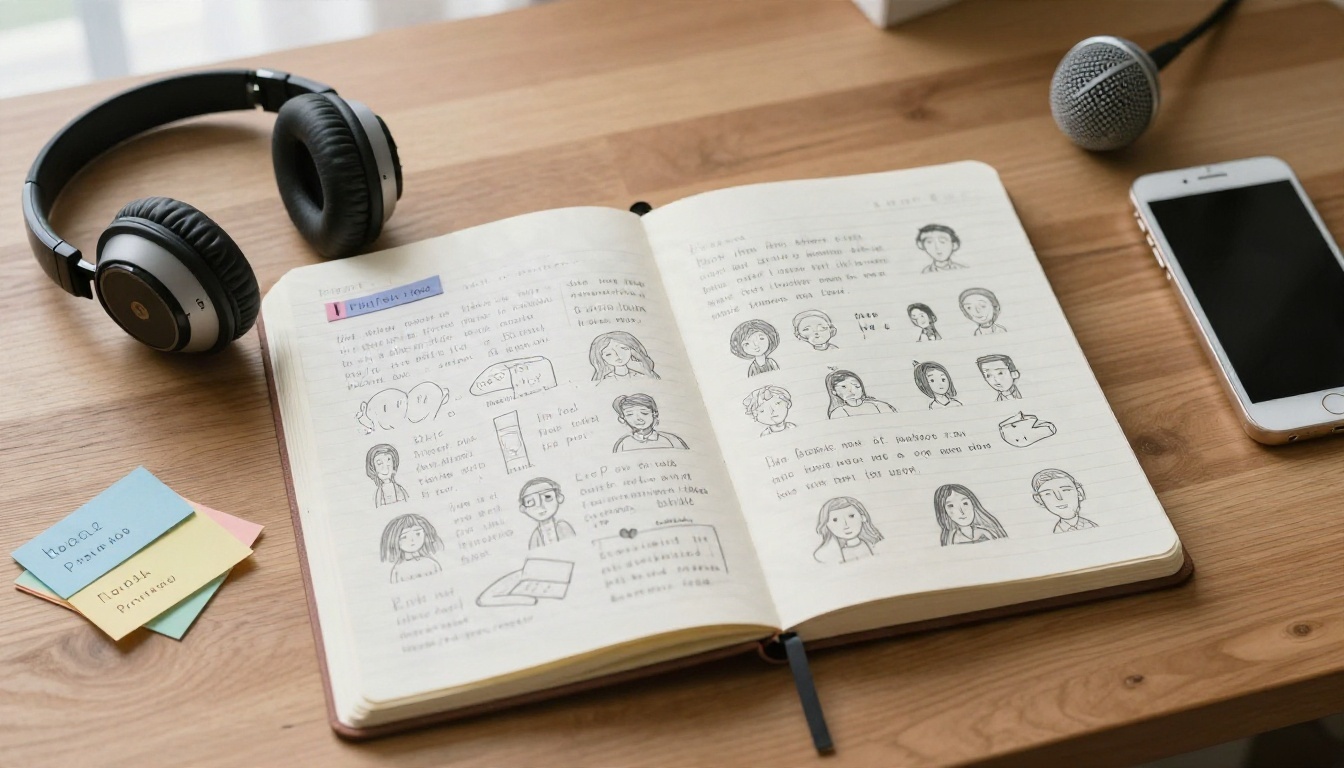
Preset Voice Libraries
The fastest route is picking a ready-made voice. Gemini 3.1 Flash TTS offers around 30 voices across more than 70 languages, which makes it useful when you need a cast of different speakers. Qwen3 TTS ships nine preset speakers (Aiden, Dylan, Eric, Ono_anna, Ryan, Serena, Sohee, Uncle_fu and Vivian) with different accents, tones and genders.
For quick, low-latency output, the Inworld family is worth a look: TTS 1.5 Mini and TTS 1.5 Max both work in 15 languages, while Realtime TTS 2 is aimed at natural voiceovers with fast response. Grok Text To Speech is another instant option when you just want a line spoken.
Voice Design From a Description
This is where text to character voice gets fun. Instead of choosing from a list, you describe the person. Qwen3 TTS has a voice design mode that takes a plain sentence such as "A warm, friendly female voice with a slight British accent" and builds a matching voice from scratch. No sample audio is needed.
Good descriptions share a pattern:
- Age and gender impression: "an old man", "a teenage girl".
- Texture: "gravelly", "breathy", "bright".
- Pace and mood: "speaks slowly, tired but kind".
- Accent or region, if it matters.
Cloning From a Short Clip
Cloning copies the sound of a real voice from reference audio. Chatterbox reproduces a speaker from a few seconds of reference audio and adds an emotion slider, and its outputs carry an inaudible watermark so they stay traceable. MiniMax Voice Cloning creates custom voices that can then be reused in the MiniMax speech models. Chatterbox Turbo and Chatterbox Pro are sibling variants if you want faster or more polished output.
⚠️ Only clone voices you own or have written permission to use. A short clip of yourself, a hired actor who agreed, or a voice you created is the safe route.
Quick Comparison
| Tool | Best for | Standout feature |
|---|
| Qwen3 TTS | Inventing characters | Preset, clone and voice design modes in one place |
| Chatterbox | Expressive acting | Exaggeration and pace sliders |
| Speech 2.8 HD | Polished narration with control | Ten emotions, pitch, speed, pause markers |
| Gemini 3.1 Flash TTS | Large casts, many languages | About 30 voices, 70+ languages |
| ElevenLabs v3 | Natural voiceovers | Expressive, natural delivery |
| Play Dialog | Conversations | Built for dialogue audio |
Voice Settings That Change Everything
Two people can use the same tool and the same script and get very different results. The difference is almost always in the settings. Here is what each one actually does.
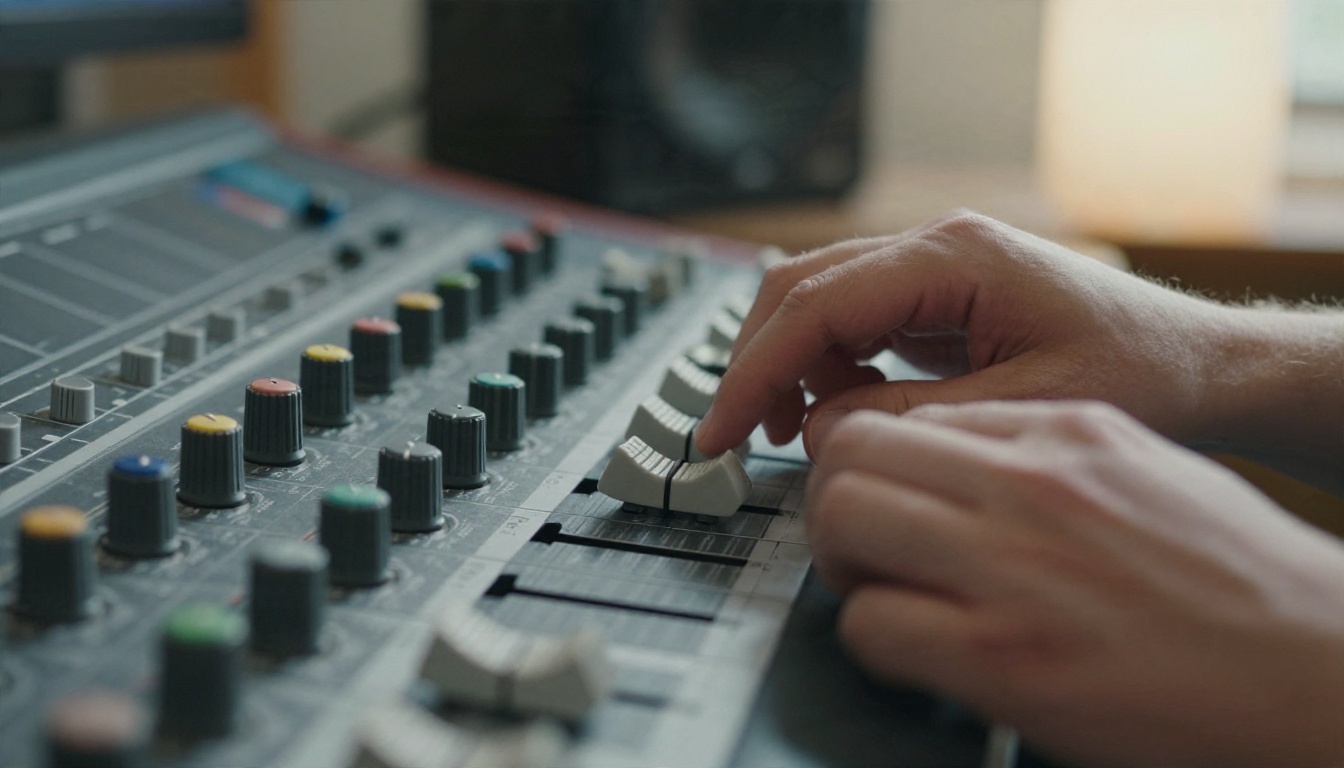
Emotion and Exaggeration
Emotion controls come in two flavors. Some models give you labels. Speech 2.8 HD lets you choose from options such as happy, sad, angry, fearful, disgusted, surprised, calm and neutral, or leave it on auto so the model picks. Others give you a slider. In Chatterbox, the exaggeration value sits at 0.5 for neutral delivery, and the model warns that extreme values can become unstable.
A practical rule: start at neutral, move one step, and listen. A villain rarely needs maximum anger. Controlled, quiet menace often sounds scarier than shouting.
Speed and Pitch
Speed and pitch are the two fastest ways to separate characters.
- Speed: In Speech 2.8 HD, speed ranges from 0.5 to 2.0 times normal. Use 0.8 for a weary elder, 1.15 for an excitable kid.
- Pitch: The same model shifts pitch by up to 12 semitones in either direction. Two or three semitones is often enough. Push to the edges and the voice starts sounding processed.
- Volume: Range runs from 0 to 10, with 1.0 as the default. Keep it low for whispers and fix loudness later in your editor.
Pauses and Punctuation
Pauses carry more personality than most people realize. Speech 2.8 HD accepts markers such as <#0.5#> in the text to insert a half second of silence. In tools without markers, punctuation does the job:
- Commas create a short breath.
- Ellipses suggest hesitation or trailing off.
- Short sentences feel blunt. Long ones feel flowing.
- Capital letters can add emphasis in some models.
Try rewriting the line before touching any slider. It is free, and it often works better.
Temperature and Consistency
Temperature controls how predictable the output is. Chatterbox defaults to 0.8. Lower values give more repeatable delivery, which is what you want for a game character who needs to sound the same across fifty lines. Higher values add variation, which is useful for hunting a lively take. A fixed seed lets you reproduce a result you liked.
| Setting | Low value | High value | Good starting point |
|---|
| Exaggeration (Chatterbox) | Flat, calm | Dramatic, unstable | 0.5 |
| Temperature (Chatterbox) | Repeatable | Varied | 0.8 |
| Speed (Speech 2.8 HD) | Slow, heavy | Fast, nervous | 1.0 |
| Pitch (Speech 2.8 HD) | Deeper | Brighter | 0 |
| Emotion (Speech 2.8 HD) | Neutral | Specific mood | Auto |
Character Voice Examples You Can Copy
Theory is fine, but you probably want lines you can paste in. Here are three character recipes. Adjust to taste.
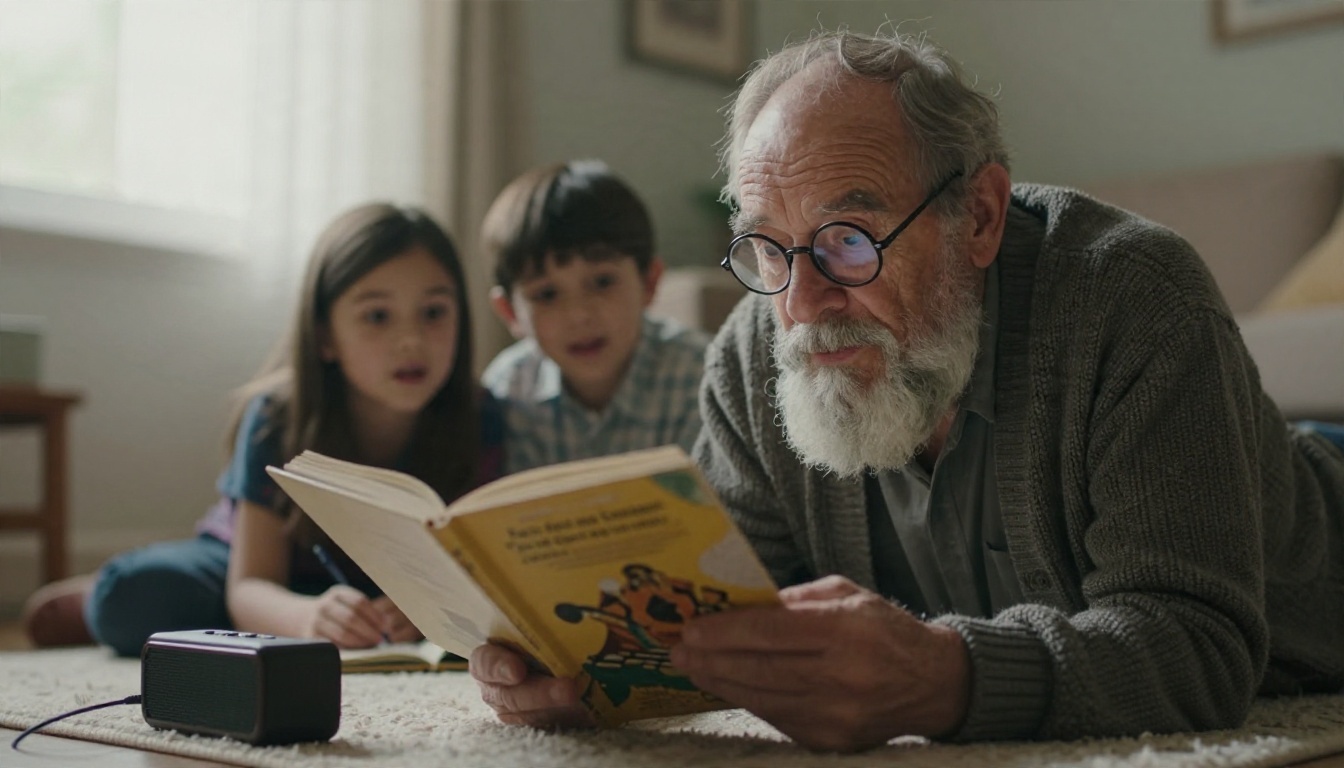
The Gruff Mentor
Text: "Sit down, kid. I've lost more fights than you've had hot dinners... and I'm still here."
- Voice design prompt (Qwen3 TTS): "An older man, low and gravelly, speaks slowly with a dry sense of humor."
- Settings: speed around 0.85, pitch down two semitones, emotion calm.
- Why it works: the ellipsis creates the beat before the punchline, and the slow pace makes the line feel earned.
The Nervous Sidekick
Text: "Okay, okay, okay. Nobody panic. I am not panicking. Why are you looking at me like that?"
- Voice design prompt: "A young man, slightly high pitched, speaks quickly and breathlessly, always a little worried."
- Settings: speed around 1.15, pitch up two semitones, emotion fearful or surprised.
- Why it works: the repeated short sentences give the model room to rush and stumble, which reads as anxiety.
The Warm Storyteller
Text: "Once upon a time, in a village where the river sang at night, there lived a very small fox."
- Preset approach: pick a warm preset voice, set speed near 0.9, emotion calm, and add a half second pause after "at night".
- Why it works: the pause after the strongest image gives children time to picture it.
💡 Tip: Test each character with one neutral line and one emotional line. If both sound like the same person, the voice is consistent. If not, adjust the voice before you generate the full script.
A Simple Workflow That Works
Random experimenting wastes time. A short routine keeps your cast sounding distinct from the first line to the last.
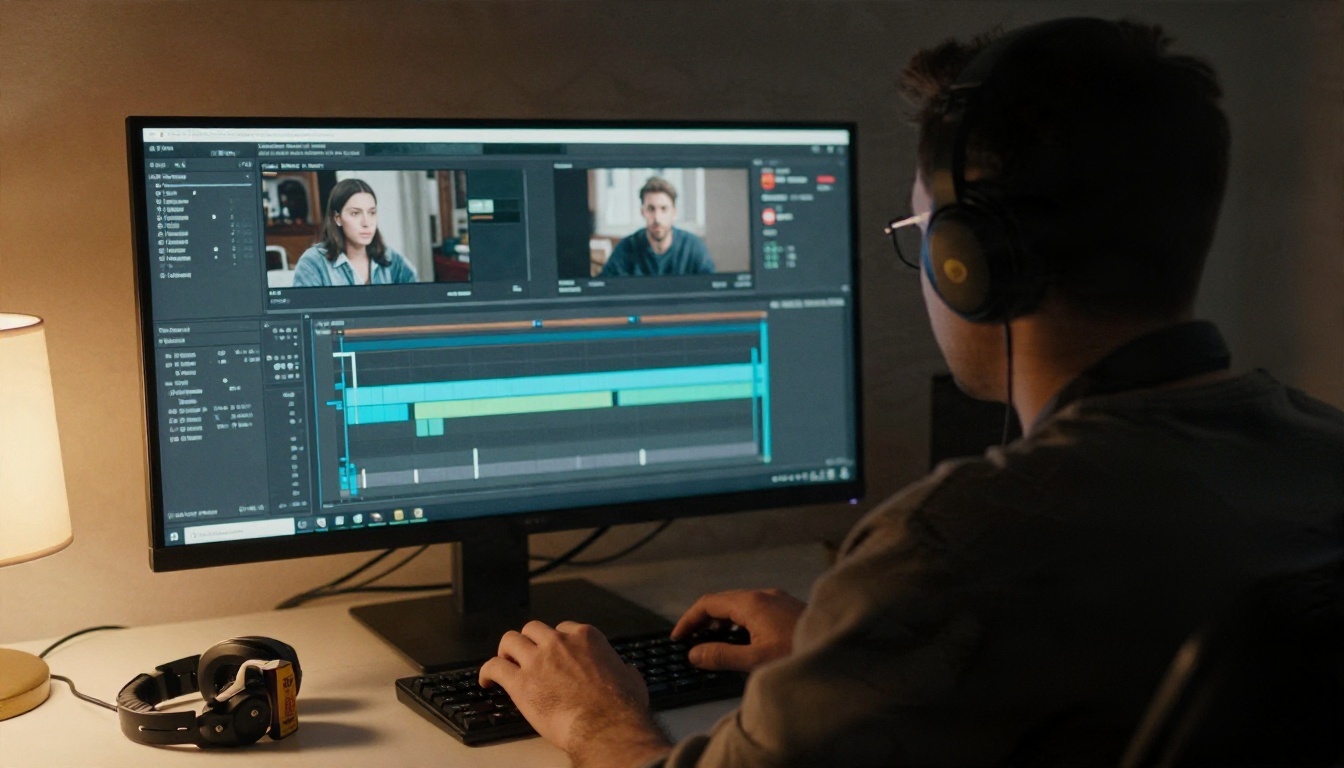
Write the Voice Sheet
Before opening any tool, write three lines for each character:
- Who they are: age, background, mood.
- How they sound: speed, pitch, texture, accent.
- What they never do: a mentor who never yells, a sidekick who never speaks slowly.
Keep this sheet next to your script. When a generated line feels off, the sheet tells you which setting to move.
Test With One Sentence
Generate a single sentence per character and listen on both headphones and a phone speaker. Many viewers and players will hear the result through tiny speakers, so a voice that sounds great in studio headphones can fall apart on a phone.

Once the test line sounds right, lock the settings. Write them down, note the seed if the tool offers one, and generate the rest of the script in the same session. This is especially helpful for projects with large casts, like the indie game team below.

Export for Your Project
Format matters when the audio moves to the next stage. Speech 2.8 HD can export MP3 at up to 256 kbps, plus WAV, FLAC or PCM when you need lossless files for editing. Choose WAV or FLAC for anything you will process further, and MP3 for quick sharing. If your project is a video, you can also place the generated lines on a timeline and sync them to the picture.
Common Mistakes to Avoid
Most weak character voices come from the same handful of errors.
Pushing Emotion Too Far
Maximum anger, maximum joy and maximum sadness all sound theatrical and sometimes broken. Real people hold back. Keep emotion sliders near the middle and let the words carry the rest.
Ignoring the Written Text
A bland line stays bland no matter which voice reads it. Add contractions, interruptions, trailing thoughts and short fragments. Read the line aloud yourself first. If you stumble, the model probably will too.
Using One Voice for Everyone
Even if you only have a single narrator voice, you can separate characters with speed and pitch changes. Two or three semitones and a speed shift of 10 to 15 percent is enough to suggest a different person. For classrooms and lessons, this is a quick way to model a conversation between two speakers, as in a language teaching session.

⚠️ Language check: If your script is not in English, set the language option when it is available. Speech 2.8 HD has a language boost setting for more than 40 languages, and Qwen3 TTS lets you choose from ten languages or leave it on auto.
Try Your Own Character Voice
You now have the full picture: pick a tool that fits the job, write a short voice sheet, tune emotion, speed, pitch and pauses one step at a time, and test with a single line before generating a whole script.
A good way to begin is simple. Open Qwen3 TTS, switch to voice design, and describe a character in one sentence. Then try the same line in Chatterbox with a different exaggeration value, and in Speech 2.8 HD with a pitch and speed change. Listening to three versions of the same sentence will teach your ear more than any checklist.
When you are ready to scale up, browse every available voice model at picassoia.com/en/all-models. Type a line, give it a personality, and hear your character speak in a few seconds.


