Most people searching for the easiest NSFW video tool for beginners spend hours bouncing between platforms that either block adult content outright or demand technical skills they do not have. The good news is that the barrier has dropped significantly. Today there are browser-based tools that generate realistic, uncensored video from a simple text prompt or an uploaded image, with no downloads, no GPUs, and no configuration. This article shows you exactly which ones to use, in what order, and how to produce your first adult AI clip even if you have never touched an AI generator before.
Why Most Beginners Hit a Wall
Mainstream tools block adult content by default
The platforms that dominate tech coverage, Runway, Sora, Pika, and similar products, enforce strict content policies that block adult themes at the prompt level. Words as mild as "lingerie" or "bikini" can trigger an automatic rejection. For creators who want to produce NSFW content, these tools represent hours of wasted effort before you reach the same wall every single time.
This is not a technology limitation. The AI models themselves are capable of generating adult content. The restriction comes from a policy layer sitting between your prompt and the model. Platforms built specifically for adult creators remove that layer entirely, and that changes everything.
Uncensored options are harder to find
Because adult-content platforms do not advertise aggressively on mainstream channels, they are harder to stumble across organically. Many creators assume that if the well-known tools block adult content, all tools do. That assumption is wrong. A dedicated category of platforms exists specifically for this use case, and several of them are polished, fast, and simple enough for anyone to pick up on day one.
Open-source models require too much setup
If you have looked into uncensored AI before, you have probably encountered open-source options that run locally on your machine. These can be powerful, but they demand a capable GPU, a Python environment, model downloads measured in gigabytes, and comfort with command lines. For someone whose goal is a short adult video clip, not a machine learning project, local models are the wrong starting point. Cloud-based tools handle all of that infrastructure on their own servers. You open a browser tab, type a prompt, and get a result.
What "Beginner-Friendly" Actually Means
A genuinely beginner-friendly NSFW video tool has four qualities: it works entirely in the browser without any installation, it produces a usable result on the first attempt, it does not require technical configuration, and it does not restrict adult content. Any tool missing one of those four qualities will slow you down before you produce a single worthwhile clip.
Fast feedback loops are non-negotiable
When you are new to AI video, your first ten prompts will not produce exactly what you imagined. You will refine, adjust, and try again. A tool that takes 20 minutes per generation punishes that process. The best tools for newcomers deliver a 5-second clip in under two minutes, and some offer draft modes that preview in seconds, letting you confirm the composition is right before committing to a full render.
The interface should not need a tutorial itself
If you spend more time figuring out the interface than writing prompts, the tool is not the right fit for right now. The best beginner platforms show a prompt field, basic settings like resolution and duration, and a generate button. Everything else, advanced motion controls, LoRA weights, frame interpolation, can come later when you are ready to go deeper.
💡 Tip: Start with image-to-video rather than text-to-video. Generate a still image first, then animate it. You control the subject's appearance, lighting, and pose in the image before any motion is added, which gives you far more predictable results.
These platforms accept adult content, work entirely in the browser, and are realistic starting points for someone creating their first NSFW clip.
PicassoIA Video: Unlimited Clips from Text or Image
PicassoIA Video is the strongest starting point for beginners, and the reason comes down to one word: unlimited. Subscription plans include unlimited video generation at up to 720p and 5 seconds per clip. There is no per-generation cost and no monthly cap to drain. When you are still figuring out what prompt phrasing produces the results you want, you will generate a lot of clips. Unlimited access means you can iterate without watching a credit counter tick down.
The workflow is clean: write a text prompt describing the scene and motion, or upload a reference image to set the first frame, pick your resolution, and generate. No content filter will block you. At 720p, results arrive in under two minutes.
Specs:
- Output: up to 720p, 5 seconds per clip
- Input: text prompt or reference image
- Content policy: adult content accepted
- Volume: unlimited on subscription plans
P-Video by PrunaAI: More Control, Filter Off by Default
P-Video sits one step above PicassoIA Video in terms of configuration, and its content policy is equally open. The safety filter is disabled by default. Your prompt goes straight to the model with no moderation layer in between. You do not need to apply for special access or flip any settings.
It accepts three types of input: text, image, or audio. Duration is adjustable from 1 to 10 seconds. Seven aspect ratios are available, covering standard horizontal video, vertical phone-format clips, and square formats. Resolution goes up to 1080p.
The draft mode is worth calling out specifically. Before committing to a full 1080p render, you can request a draft that arrives in seconds at low resolution. This lets you confirm the motion direction and framing are correct before you wait for the final clip. For beginners, that single feature saves a significant amount of time.
Specs:
- Output: up to 1080p, 1-10 seconds
- Input: text, image, or audio
- Safety filter: off by default
- Draft mode: instant low-res preview available
- Aspect ratios: seven options
Grok Imagine Video: Long Clips, No Watermarks
Grok Imagine Video generates clips of up to 15 seconds, three times longer than the standard duration on most beginner tools. It outputs at 720p or 480p and adds no watermarks to the final file. For creators who plan to share or publish content, that clean output matters.
Input options include a text prompt, a reference image, or an existing video clip you want to re-edit. The image-to-video mode automatically matches your source photo's aspect ratio, which removes one configuration step that trips up many beginners. Pair it with its companion model, Grok Imagine Image, to generate the source frame before animating.
Specs:
- Output: up to 720p, up to 15 seconds per clip
- No watermarks on any output
- Input: text, image, or existing video
- Auto-matches source image aspect ratio
LTX 2.3 Pro: When You Want 4K Output
LTX 2.3 Pro is the most powerful option on this list and comes with more to configure. It exports at up to 4K at 50fps and runs five distinct modes from one interface: text-to-video, image-to-video, audio-to-video, retake (replace a short segment without re-rendering the whole clip), and extend (add footage before or after an existing clip). Camera-motion presets like dolly, jib, and focus-shift are included, along with first and last frame interpolation.
Start with PicassoIA Video or P-Video to build your process. When your prompts consistently produce what you want and you are ready for higher output quality, LTX 2.3 Pro is the natural next step.
Best NSFW Image Models to Start With
Before you animate anything, you need a strong source image. The quality of the image you feed into an image-to-video tool shapes the quality of the result. A blurry or poorly composed source produces a blurry, poorly composed video. These are the best NSFW image models on PicassoIA, listed in order of recommendation.
Seedream 4.5: The Top Pick
Seedream 4.5 is the top recommendation for NSFW image generation. It accepts adult content, supports image editing on top of initial generation, and produces photorealistic results in under 3 seconds. That speed makes it ideal for iterating quickly on source frames before you commit to animating one.
The realism is what sets it apart. Skin texture, fabric physics, lighting gradients, and facial expression all render at a level that holds up to close inspection. When you plan to animate an image, realistic rendering in the source translates directly into a more convincing video. Start here.
Note: Seedream 5 Lite does not support NSFW content. Use Seedream 4.5 specifically for adult content generation.
PicassoIA Image Editor Pro: Unlimited Source Images
PicassoIA Image Editor Pro is an img2img model with one standout advantage: unlimited generations on Elite and Infinite subscription plans. When you are producing source images at volume, whether testing different poses, lighting setups, or styling choices, that unlimited access eliminates any cost pressure on your creative process.
Results arrive in under one second, the fastest option on this list. It accepts NSFW content without restriction and offers a free trial with 3 generations and no credit card required. Use it alongside Seedream 4.5: generate base images with Seedream 4.5, then refine them with PicassoIA Image Editor Pro before you animate.
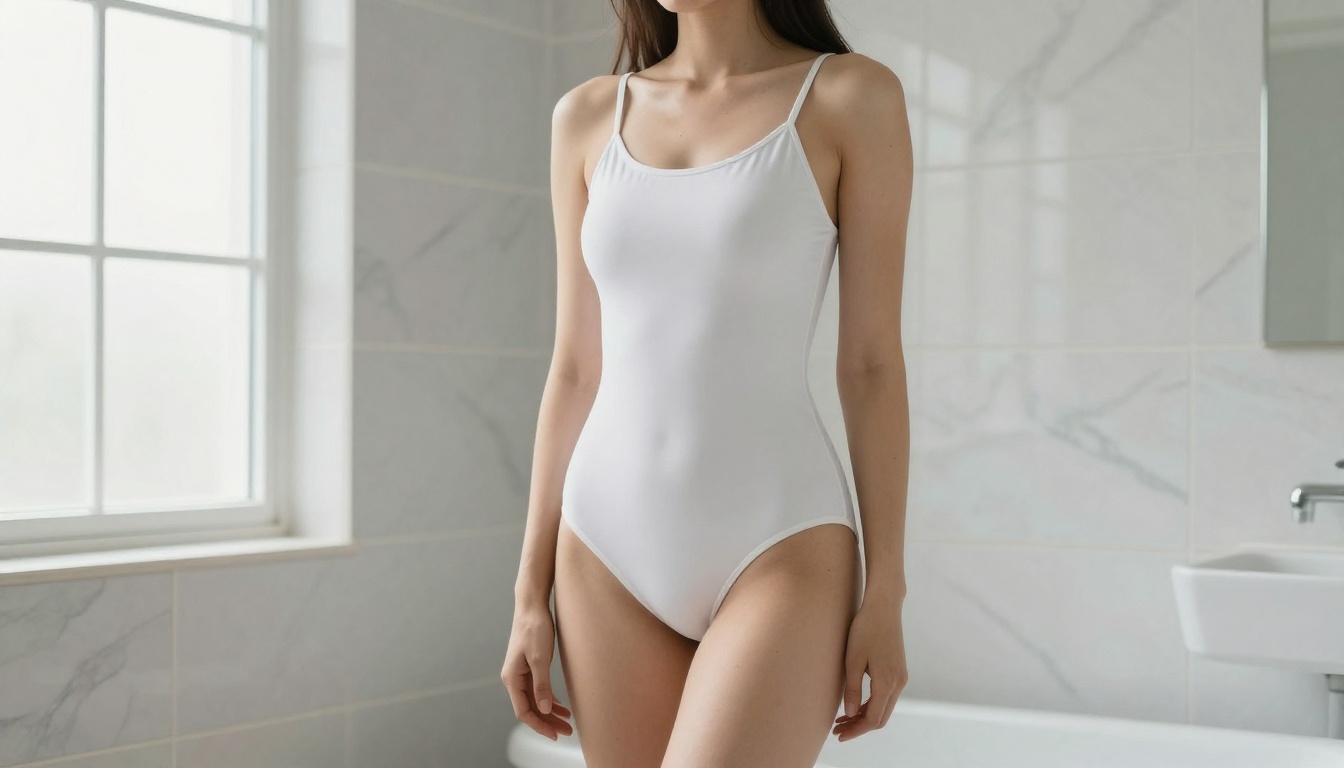
The cost comparison is worth noting: generating 1,000 images with models like Nano Banana 2 could cost around $100. With PicassoIA Image Editor Pro on an Elite or Infinite plan, those same 1,000 images are included in your subscription at no extra cost.
More Image Models Worth Trying
| Model | Best For | Speed | NSFW |
|---|
| Qwen Image 2 | Detailed realism, open source editing | Fast | Yes |
| Grok Imagine Image | Converting any photo to bikini style | Fast | Yes |
| Recraft V4 | Clean realistic text-to-image | Moderate | Yes |
| P-Image | Fast NSFW text-to-image in under 1 second | Under 1s | Yes |
💡 Workflow tip: Generate 5-10 variations with Seedream 4.5, pick the strongest composition, then animate it with P-Video or PicassoIA Video. This image-first approach gives you far more control over the final video than writing a text-to-video prompt alone, because you are setting the exact starting frame rather than leaving that choice to the model.
How to Use PicassoIA Video Step by Step
This is the fastest path from zero to your first adult AI video clip.
Step 1: Open the model
Go to PicassoIA Video. Create an account if you do not have one. The full interface loads directly in your browser.
Step 2: Generate your source image first
Before touching the video model, go to Seedream 4.5. Write a detailed prompt covering the subject, their pose, the setting, and the lighting. Generate five or six variations and download the one with the best composition and lighting.
Step 3: Switch to image-to-video mode
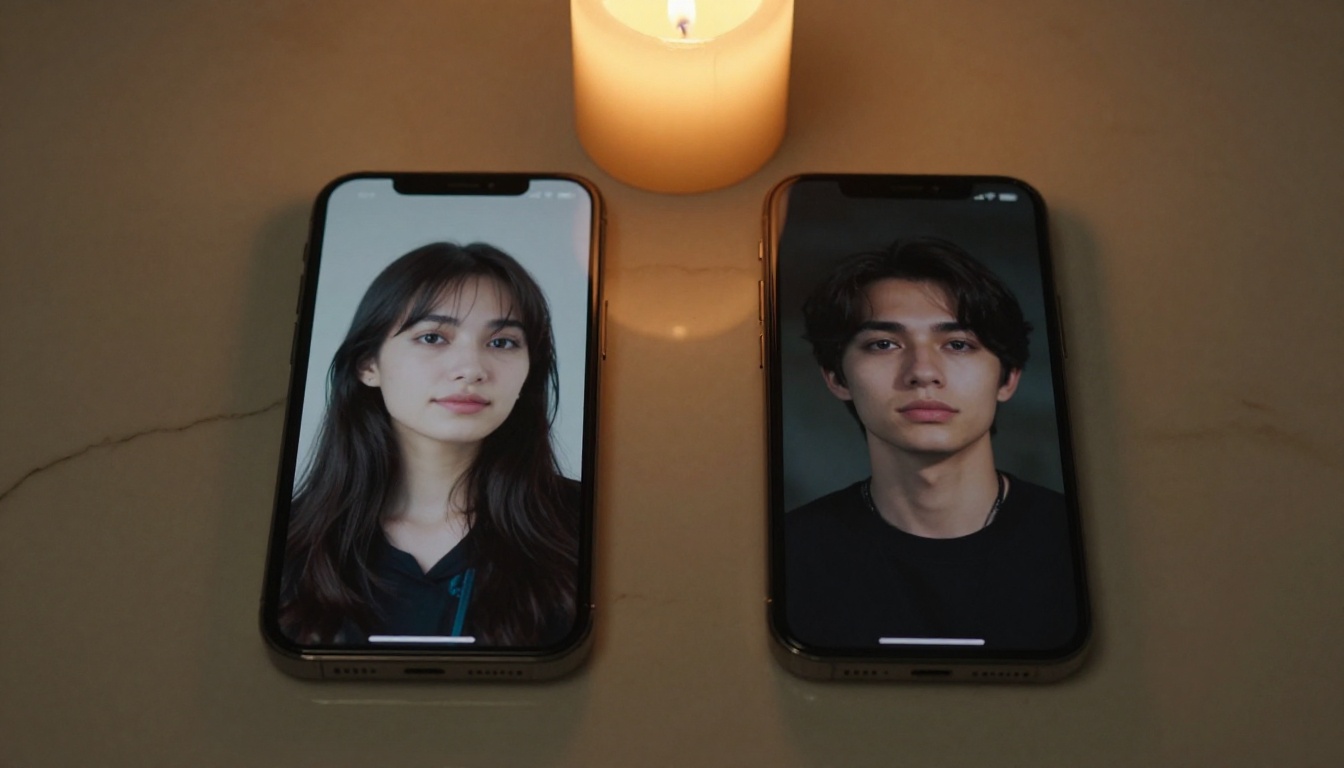
Back in PicassoIA Video, select image input and upload your Seedream 4.5 result. This sets the first frame of your video and anchors the visual in your chosen composition.
Step 4: Write a motion prompt
Describe what happens over the 5 seconds, step by step. Think chronologically. For example: "She slowly tilts her head to the right, a slight smile forming, her hair shifts gently with the movement, soft warm light remains constant on her face." Short, specific, slow motion reads more convincingly than vague or dramatic action.
Step 5: Set resolution to 720p and generate
Select 720p. Click generate. The clip will arrive within two minutes. Download it and review. If the motion does not feel right, refine your prompt and generate again. With unlimited generations, iteration costs only time.
How to Use P-Video Step by Step
P-Video offers more settings but the core workflow stays simple and accessible.
Step 1: Open P-Video on PicassoIA
Navigate to P-Video. The safety filter is already off. Nothing to configure there.
Step 2: Upload your source image
Use image input mode. Upload a high-quality image generated with Seedream 4.5 or refined with PicassoIA Image Editor Pro. The better the source image, the better the video.
Step 3: Set duration and aspect ratio
For most NSFW content, 5-8 seconds at 16:9 works well for standard horizontal clips. For phone-format vertical content, choose 9:16. Avoid going shorter than 3 seconds since most interesting motion needs at least 4-5 seconds to read as intentional rather than abrupt.
Step 4: Run a draft first
Enable draft mode before your final render. The draft arrives in seconds at low resolution. Confirm that the motion direction and framing are correct before committing to the full 1080p version.
Step 5: Generate the final clip
Once the draft confirms your setup, generate the full version. At 1080p, expect a couple of minutes. The result will be cleaner and more detailed than PicassoIA Video's 720p output, with sharper skin texture and finer detail in fabrics and backgrounds.
| Tool | Max Resolution | Max Duration | Filter | Standout Feature |
|---|
| PicassoIA Video | 720p | 5s | None | Unlimited volume on subscription |
| P-Video | 1080p | 10s | Off by default | Draft mode, multi-input types |
| Grok Imagine Video | 720p | 15s | None | Longer clips, zero watermarks |
| LTX 2.3 Pro | 4K | Variable | None | Highest fidelity, retake and extend |
3 Mistakes Most Beginners Make
Spending time on platforms that restrict adult content
The most common and most costly mistake is spending hours on tools that will never produce what you want. If a platform rejects your prompt with a content policy message, leave immediately. There is no workaround worth pursuing. The tools covered in this article do not have that problem because they were built for creators who need that freedom.
Skipping the image-to-video step
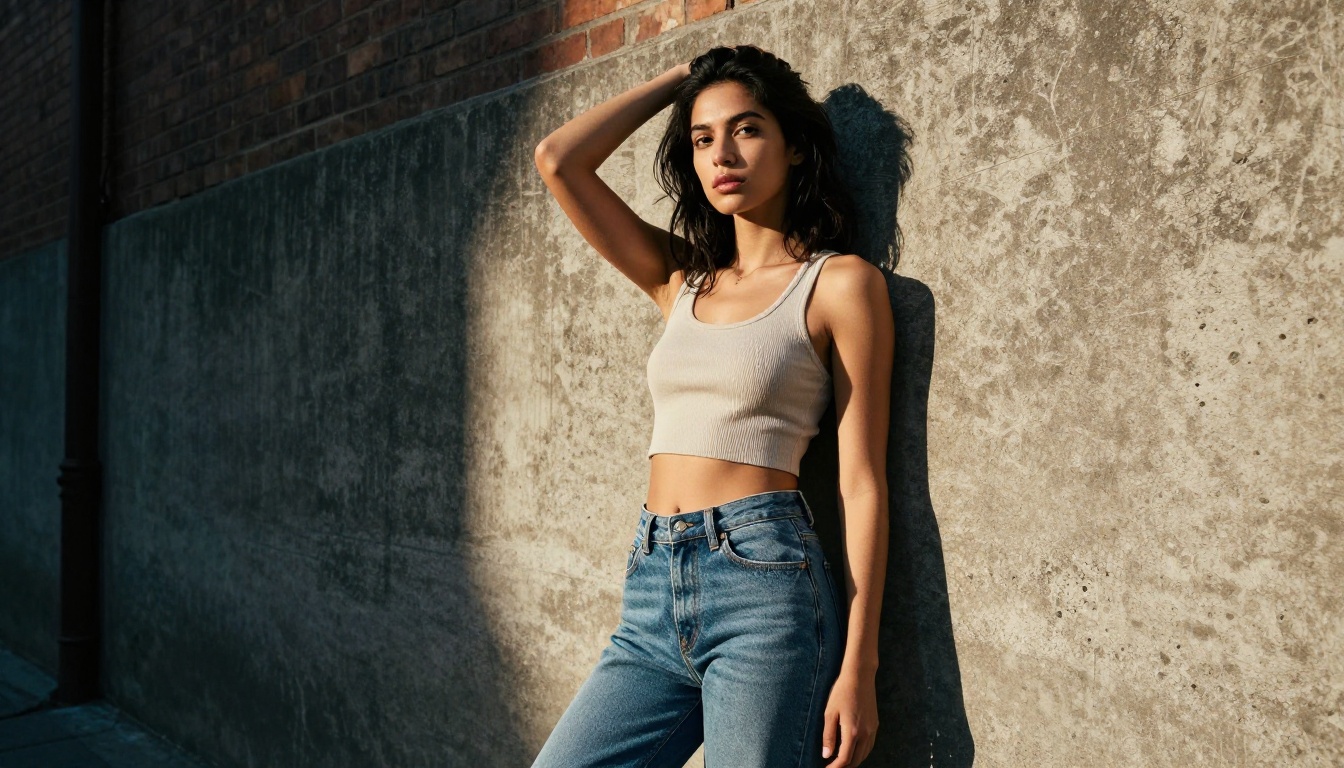
Many beginners go straight to text-to-video and feel disappointed when the result does not match what they imagined. A text prompt hands the AI broad creative latitude. The model decides what the subject looks like, how they are lit, what they wear, and how the scene is framed. None of that is under your control.
Image-to-video removes that uncertainty because you choose the starting frame. Always generate a source image first using Seedream 4.5 or PicassoIA Image Editor Pro. That single step produces dramatically more consistent results from your very first attempt.
Asking for too much motion in one clip
AI video models at 5-10 seconds handle slow, deliberate, continuous motion well. A subject turning her head, hair lifting in a gentle breeze, fabric shifting as she breathes: these render convincingly. A dramatic chase sequence, fast camera rotation, or a subject running across a room usually produces distortion, flickering, or anatomical errors in the limbs and face.
Start with slow, elegant, specific motion. As you build familiarity with how each model interprets your prompts, you can gradually push toward more dynamic action. But begin slow and smooth.
💡 Prompt structure for video: Subject and starting position. Motion described step by step. Camera movement if any. Lighting and atmosphere at the end. Example: "Woman seated near a window. She slowly raises her eyes toward the camera, lips parting slightly. Camera holds still with a very gentle push-in. Warm morning light stays even on her face throughout."
Start Making Your First Clip
The path is clear. Generate your source image with Seedream 4.5. Animate it with PicassoIA Video for unlimited volume at 720p, or P-Video for higher resolution and more control. That two-step workflow is everything you need to create adult AI video content without any prior experience.
When you are ready to go further, LTX 2.3 Pro offers 4K output with retake and extend editing for precise, clip-by-clip control. Grok Imagine Video handles longer clips up to 15 seconds with no watermarks for clean, publishable output. PicassoIA Image Editor Pro lets you refine source frames endlessly with unlimited generations.
The full lineup of NSFW-capable models across images, video, audio, and more is at picassoia.com/en/all-models. Every tool in this article is there, along with dozens more worth trying once you have the basics working.
Stop searching and start generating. Your first adult AI video clip is a few prompts away.


