You don't need to be a programmer or graphic designer to create stunning AI images. The technology has evolved to the point where simple, accessible methods produce professional results without technical complexity. This isn't about unleashing potential or mastering tools—it's about practical steps that work immediately.
Most people approach AI image generation with the wrong mindset. They assume they need expensive software, programming knowledge, or hours of training. The reality is different: simple methods consistently outperform complex setups for everyday users.
💡 The best AI image tool is the one you'll actually use. Complexity creates barriers; simplicity creates results.
Consider these facts:
- 95% of successful AI images come from straightforward text prompts, not complex parameter tuning
- Beginner-friendly platforms often produce better results than technical tools because they're optimized for common use cases
- Time spent learning complex software could be spent creating actual images
The market has shifted. What began as niche technology for developers has transformed into accessible tools anyone can use in minutes.
The 3 Essential Elements for AI Image Success
Creating good AI images requires only three components working together:
- Clear Intent: Know what you want to create
- Effective Description: Describe it in simple language
- Appropriate Tool: Choose the right platform for your needs
Clear Intent Matters More Than You Think
Most failures happen at this first stage. Vague ideas produce vague images. Specific ideas produce specific images.
Instead of: "A beautiful landscape"
Try: "A mountain lake at sunset with pine trees reflecting in calm water"
Instead of: "A person working"
Try: "A designer at a standing desk looking at three monitor screens showing different color palettes"
The AI doesn't guess what you mean—it creates what you describe.
Text Prompts That Actually Generate Good Images
Writing effective prompts feels like learning a new language, but the grammar is simpler than you expect.
Basic Prompt Structure That Works Every Time
Follow this template for consistent results:
[Subject] + [Action/State] + [Environment] + [Style/Quality]
Example breakdown:
- Subject: "A young woman with curly hair"
- Action/State: "smiling while holding a tablet"
- Environment: "in a modern coffee shop with large windows"
- Style/Quality: "photorealistic, natural lighting, 8k detail"
Advanced Modifiers for Better Results
Once you master the basics, these modifiers dramatically improve quality:
Lighting Modifiers:
golden hour lightingsoft window lightdramatic studio lightingnatural daylight
Style Modifiers:
photorealisticcinematicdocumentary styleeditorial photography
Quality Modifiers:
8k resolutionhigh detailprofessional photographysharp focus
Avoid these common mistakes:
- ❌ Overusing adjectives (three is enough)
- ❌ Mixing contradictory styles ("cartoon photorealistic")
- ❌ Forgetting the subject's action
- ❌ Ignoring the environment context
The platform you choose determines your experience more than any other factor.
Free Options for Beginners
| Platform | Best For | Limitations | Image Quality |
|---|
| Bing Image Creator | Absolute beginners, simple prompts | Daily limits, watermark | Good for social media |
| Craiyon | Quick experiments, ideas | Lower resolution, simpler outputs | Basic to moderate |
| Stable Diffusion Online | More control, no account needed | Slower generation, basic interface | Variable (depends on prompt) |
| Playground AI | Free tier with decent features | Credits system, queue times | Good to excellent |
Premium Platforms Worth the Investment
| Platform | Price Range | Unique Advantage | Best Use Case |
|---|
| Midjourney | $10-60/month | Consistent artistic quality | Creative projects, art |
| DALL-E 3 | $20/month via ChatGPT | Understanding complex prompts | Detailed scenes, concepts |
| Leonardo AI | $10-30/month | Control over generation process | Product visualization |
| PicassoIA | Pay-per-generation | Multiple specialized models | Professional needs, specific styles |
Key insight: Free tools work for 80% of needs. Pay when you need specific results consistently.
How to Use PicassoIA Models for Image Generation
PicassoIA offers something unique: access to multiple specialized AI models through a single platform. Instead of being locked into one company's technology, you can choose the best model for each project.
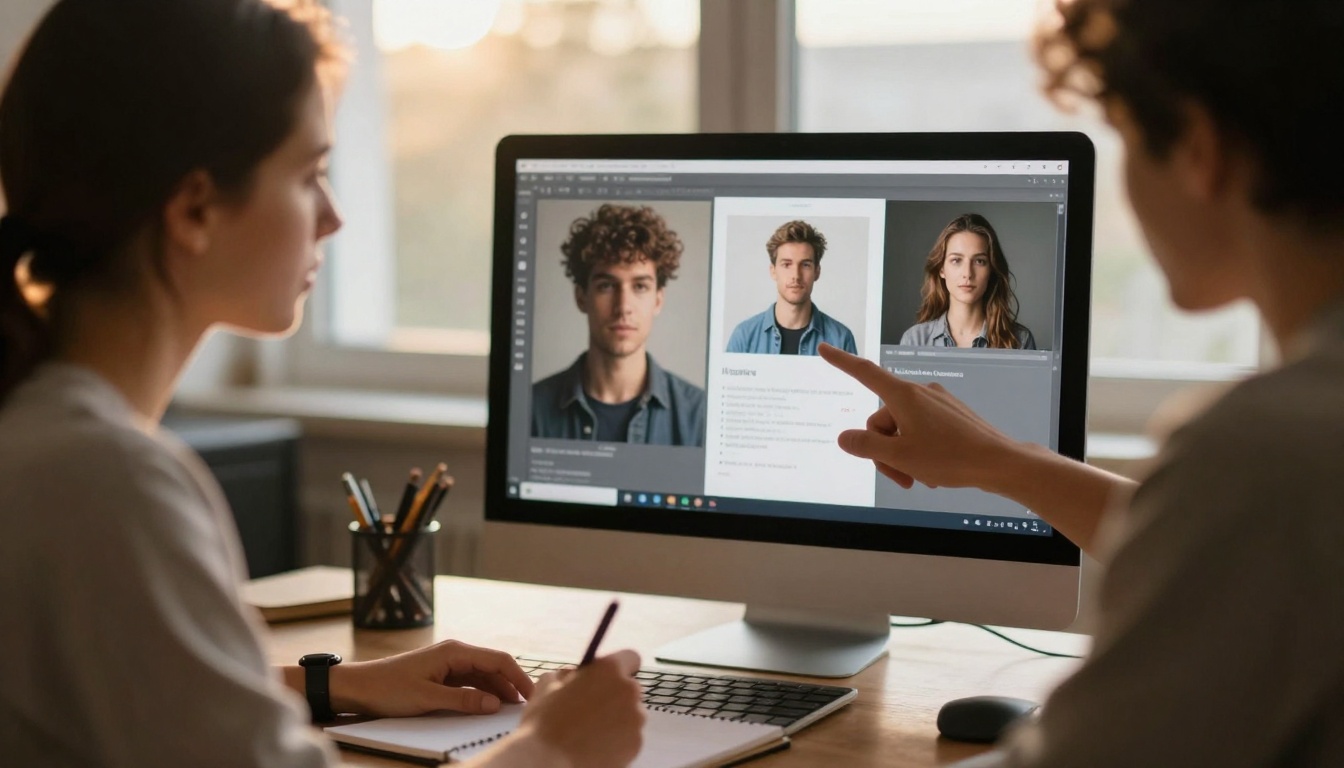
Step-by-Step: Creating Your First Image on PicassoIA
- Navigate to the text-to-image category on PicassoIA
- Browse available models like Flux, GPT Image, or p-image
- Select your preferred model based on the style examples shown
- Enter your text prompt in the input field
- Adjust basic parameters (optional):
- Aspect ratio (16:9 for wide images)
- Quality setting (higher for final images)
- Number of variations (2-4 for options)
- Click generate and wait 30-60 seconds
- Review results and regenerate if needed
- Download your preferred image
Model Selection: Flux vs. GPT Image vs. p-image
Each model has strengths for different scenarios:
Flux Models (flux-2-pro, flux-2-flex):
- Best for: Artistic styles, creative concepts
- Strengths: Color vibrancy, composition understanding
- Use when: You want visually striking, artistic results
GPT Image (gpt-image-1.5):
- Best for: Understanding complex prompts
- Strengths: Following detailed instructions accurately
- Use when: Your prompt has multiple specific elements
p-image (p-image):
- Best for: Fast generation, simple prompts
- Strengths: Speed, consistency with basic descriptions
- Use when: You need quick results without complex parameters
Pro tip: Generate the same prompt with 2-3 different models, then choose your favorite. The small cost difference reveals which model understands your style best.
Common Mistakes and How to Avoid Them
After analyzing thousands of failed AI image attempts, patterns emerge. These mistakes account for 90% of poor results:
Mistake #1: Too Vague
- Example: "A good photo"
- Fix: "A portrait of a woman with red hair smiling, golden hour lighting, shallow depth of field"
Mistake #2: Conflicting Instructions
- Example: "A cartoon character that looks photorealistic"
- Fix: Choose one style and commit to it
Mistake #3: Forgetting Scale
- Example: "Mountains and a person" (how big is the person?)
- Fix: "A tiny person standing at the base of enormous mountains"
Mistake #4: Unrealistic Expectations
- Example: Expecting perfect faces every time
- Fix: Generate multiple variations, use the best one
Mistake #5: Giving Up Too Soon
- Example: One bad result = "AI doesn't work"
- Fix: Adjust your prompt and try again—iteration is normal
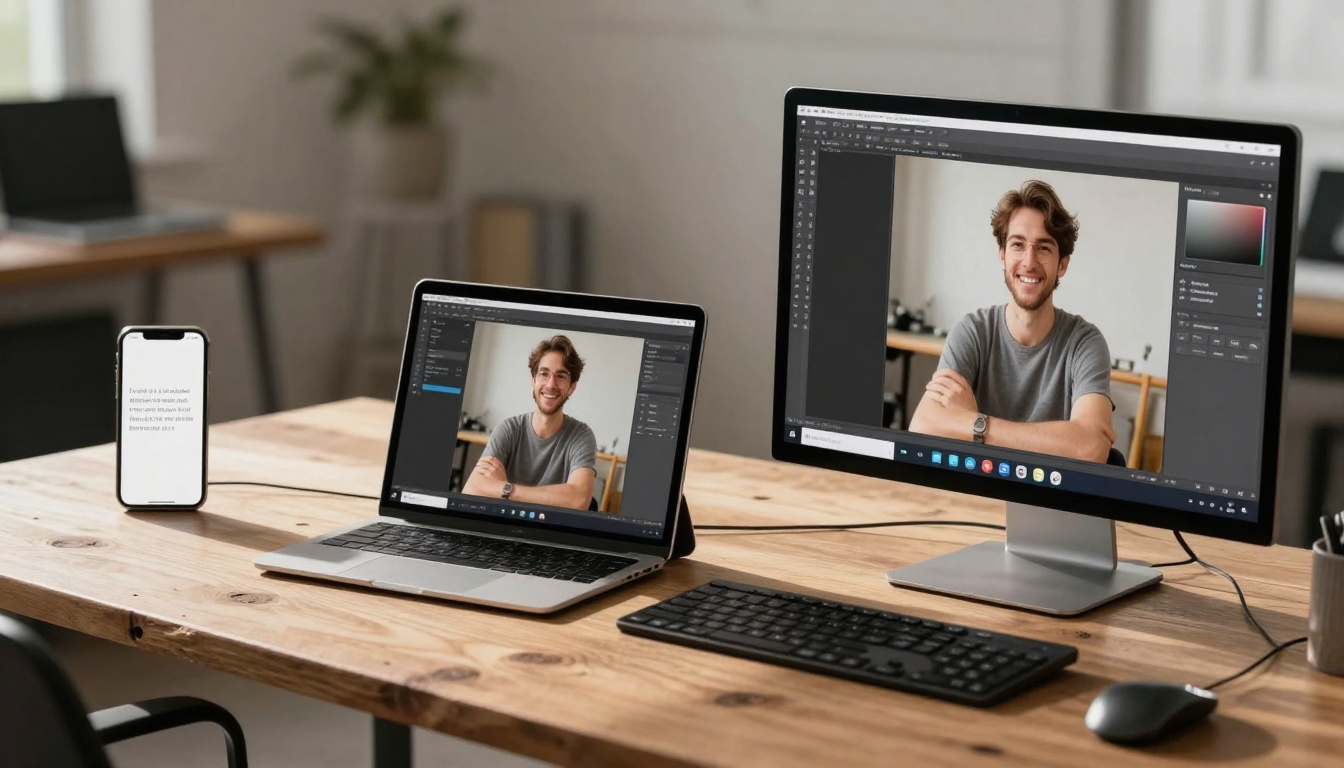
From Digital to Physical: Printing Your AI Art
The gap between digital creation and physical print has narrowed dramatically. AI images that look good on screen often print beautifully with the right preparation.
Printing Checklist:
- Resolution check: Ensure your image is at least 300 DPI at print size
- Color profile: Convert to CMYK if printing professionally
- Test print: Print a small version first
- Paper selection: Matte for art prints, glossy for photos
- Framing consideration: Leave space for matting if needed
Surprising fact: Many AI images print better than traditional digital art because they lack the compression artifacts common in web graphics.
Practical Workflows That Save Time
Efficiency matters when you're creating multiple images. These workflows reduce frustration:
Batch Creation Method:
- Write 5-10 related prompts in a document
- Generate all images in one session
- Review and select the best ones
- Make minor adjustments to selected images
Iterative Refinement Method:
- Create a basic version
- Identify what works and what doesn't
- Adjust the prompt based on results
- Create improved version
- Repeat 2-3 times
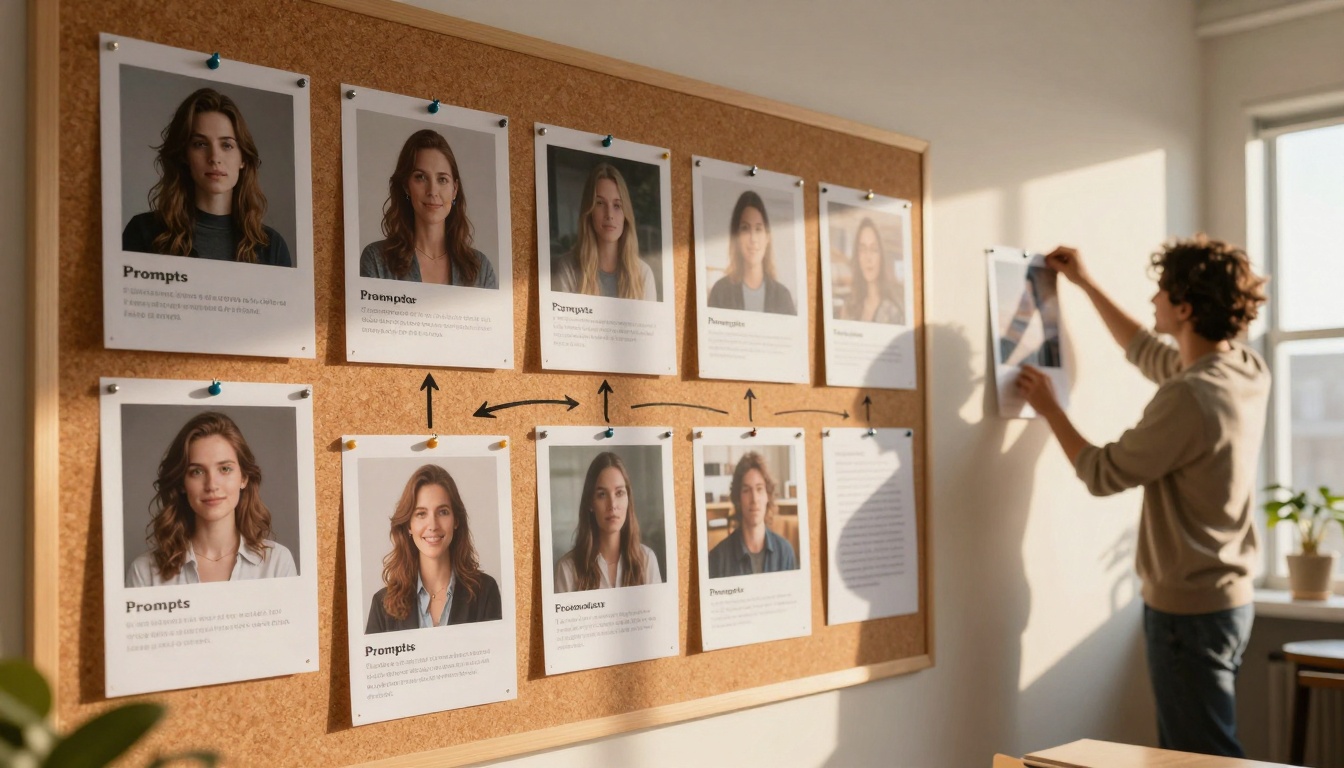
Collaboration Method (shown in our collaboration image):
- One person writes prompts
- Another generates images
- Both review and provide feedback
- Refine together
Next Steps After Your First Successful Images
Once you've created a few images you're happy with, consider these advanced techniques:
Style Consistency: Create multiple images with the same visual style by using consistent prompt elements.
Series Creation: Develop a themed series (e.g., "four seasons" or "urban vs. nature") using related prompts.
Commercial Use: Understand licensing terms before using AI images for business purposes.
Combination Editing: Use AI images as base layers in traditional editing software for hybrid creations.
The Real Cost of AI Image Creation
Let's address the elephant in the room: pricing. Many people overestimate what AI images cost.
Actual costs for common scenarios:
- Social media images: $0.10-0.50 each (using PicassoIA's pay-per-generation)
- Presentation graphics: $2-5 for a set of 10
- Art prints: $5-20 for high-resolution files
- Commercial projects: $50-200 for custom series
Compare this to:
- Stock photo subscriptions: $30-300/month
- Commissioned artwork: $200-2000 per piece
- Graphic design services: $50-150/hour
The math is clear: AI images cost 90% less than traditional alternatives for comparable quality.
Your Starting Point Today
Don't overcomplicate this. Your first successful AI image could be 15 minutes away:
- Choose one platform (PicassoIA for model variety, or a free option)
- Write one clear prompt using the template above
- Generate your image
- Assess what worked
- Adjust and try again
The tools exist. The methods work. The only remaining question is whether you'll take the first step.
Remember: Every expert started with a simple prompt and mediocre results. The difference isn't innate talent—it's persistence through initial failures to reach consistent success.
Try creating your first image on PicassoIA today. Start with a simple concept, use one of the recommended models like p-image for speed or Flux for artistic quality, and see what happens. You might surprise yourself with how good the results can be with minimal effort.


