There's a specific moment when you look at an AI-generated face and something just feels off. You can't immediately name it. The proportions are right, the colors are fine, the subject is beautiful. But your brain fires a warning signal anyway. That signal is not a glitch in your perception. It's evidence that the image failed at the micro level.
Realistic AI faces are not about getting the big things right. They're about nailing dozens of small things simultaneously: the way light scatters through translucent skin, the asymmetry in a real human smile, the micro-imperfections that signal biological authenticity. This article breaks down exactly what those things are and how to reproduce them consistently using AI image generators.
Why AI Faces Still Look Wrong
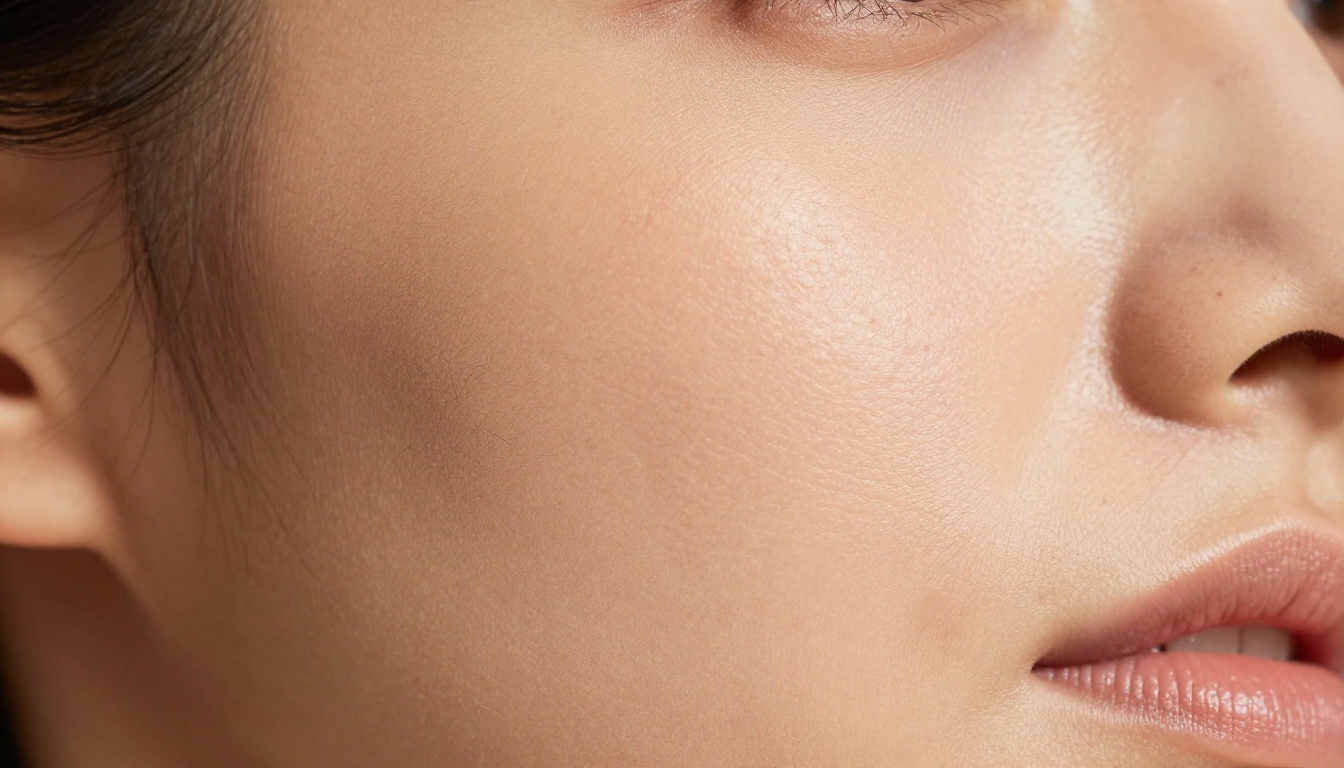
The technology has improved dramatically. In 2022, AI portraits were easy to spot. In 2026, they're far more convincing, but still not foolproof. The problem isn't the model's capability. It's usually how people are prompting.
The Uncanny Valley Is Still Real
The uncanny valley is the psychological discomfort humans feel when something looks almost human but not quite. It was theorized for robotics, but it applies perfectly to AI portraiture. A face that scores 95% on realism metrics can still trigger the valley if it fails on one specific dimension: usually the eyes, or the skin texture, or the lighting coherence.
What makes this hard is that the failure point moves. Earlier models failed at hands and teeth. Current models handle those better, but now the tell is often subtle. A catchlight in the eyes that doesn't match the light source. Skin that looks airbrushed rather than textured. Hair that clumps artificially rather than separating into individual strands.
5 Dead Giveaways of a Fake AI Face
Most people can feel these even if they can't name them:
- Perfect symmetry: Real faces are asymmetrical. If both sides mirror each other exactly, it reads as artificial.
- Plastic skin: Over-smoothed surfaces with no pores, no peach fuzz, no subtle discoloration. It looks like a mannequin.
- Dead eyes: Eyes without genuine catchlights, or with catchlights that don't match the scene's light source.
- Uniform hair: Hair that behaves like a solid shape rather than thousands of individual strands.
- Floating light: Shadows on the face that don't match the background lighting. The face looks pasted in.
Inside a Photorealistic AI Portrait
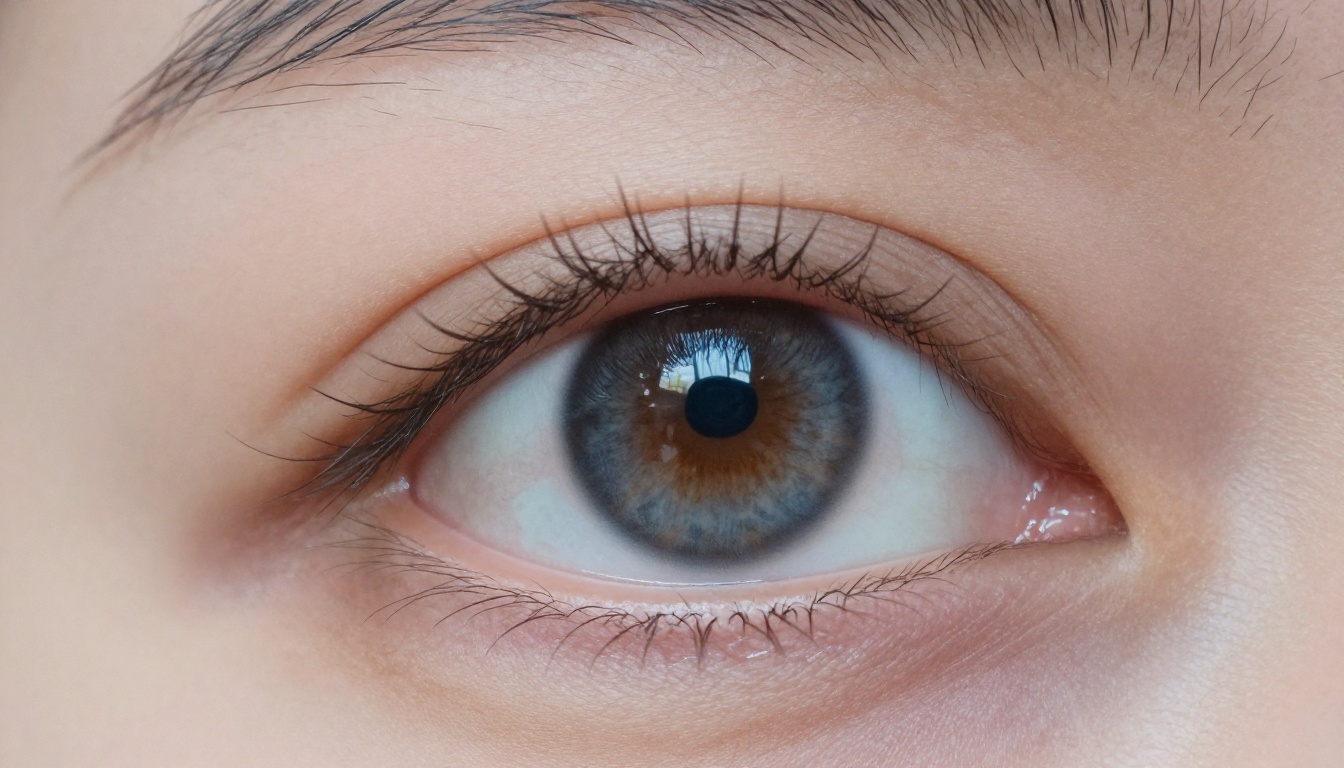
Knowing what fails is half the battle. The other half is knowing what to build deliberately into every image.
Skin That Actually Breathes
Skin is the single most complex surface in a portrait. It's not a uniform texture. It has pores that vary in size across different zones of the face, subtle sebaceous oil that creates micro-highlights, capillaries visible through thin areas near the nose, warmth in the cheeks from blood flow, and tiny hairs on virtually every surface.
When you prompt for skin, your language needs to reflect this complexity. Phrases like "visible skin pores," "peach fuzz catching backlight," "subtle capillaries," and "natural skin imperfections" signal to the model that you want authenticity over perfection. Perfection is the enemy of realism in portraiture.
💡 Add "no skin smoothing" and "authentic skin texture" explicitly to your prompt. Most models default to flattering skin unless told otherwise.
Eyes That Reflect Light
Eyes are where a portrait is won or lost. They need two things above everything else: catchlights and iris detail.
Catchlights are the tiny reflections of light sources visible on the corneal surface. In a real photograph, their position, shape, and number correspond to the actual light sources in the scene. An octabox creates a round catchlight. A window creates a rectangular one. When these are missing or inconsistent, the brain flags it immediately.
Iris detail is the second element: the complex radial pattern of the iris, the variation in color across its surface, the dark limbal ring at the outer edge. Prompting for "intricate iris pattern," "multiple catchlight reflections," "dark limbal ring" produces dramatically more convincing eyes.
Hair as Individual Strands
Hair is the most computationally demanding element in a realistic portrait. The difference between convincing and unconvincing hair is the difference between rendering it as a mass versus rendering it as individual strands.
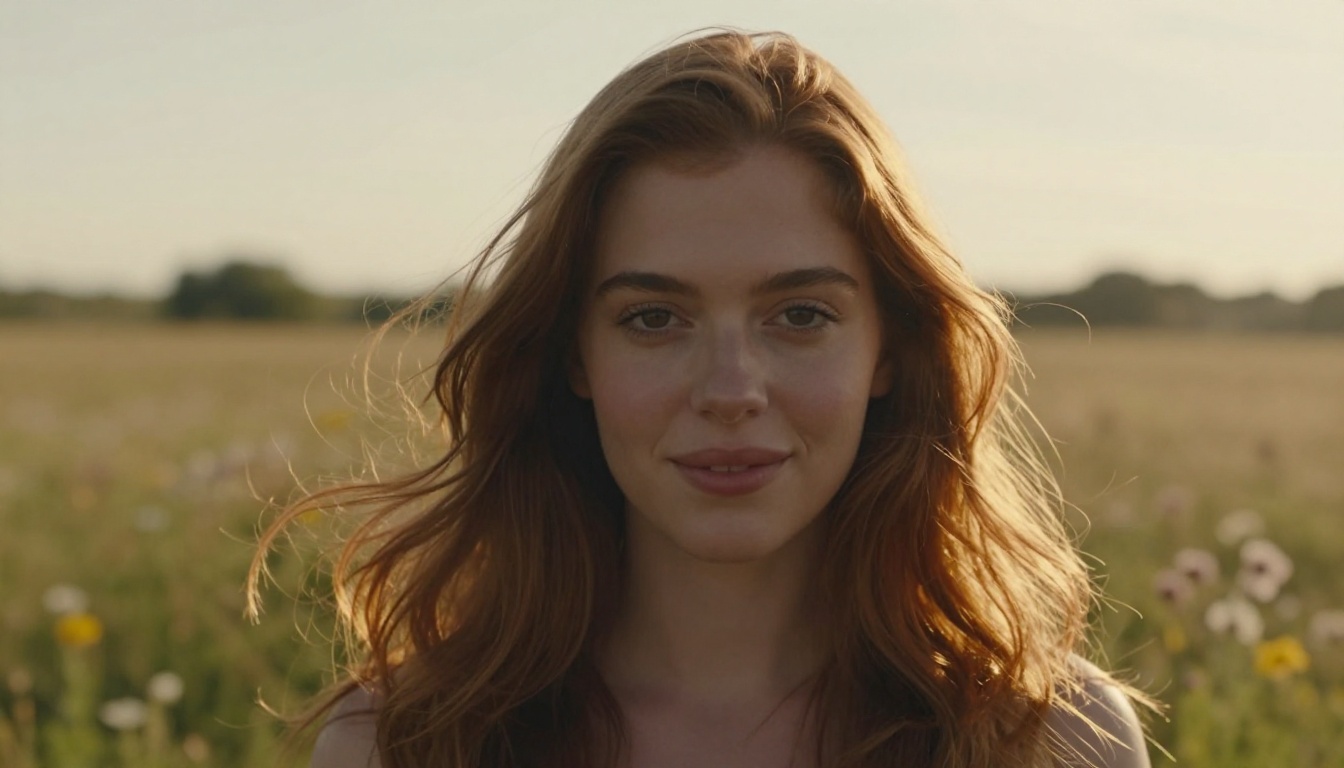
Prompts that work: "individual hair strands separating in the breeze," "natural curl variation," "flyaway hairs catching backlight," "authentic thickness variation." Add a light source that creates a rim or backlight on the hair, and the result is immediately more believable.
How to Prompt for Real Faces
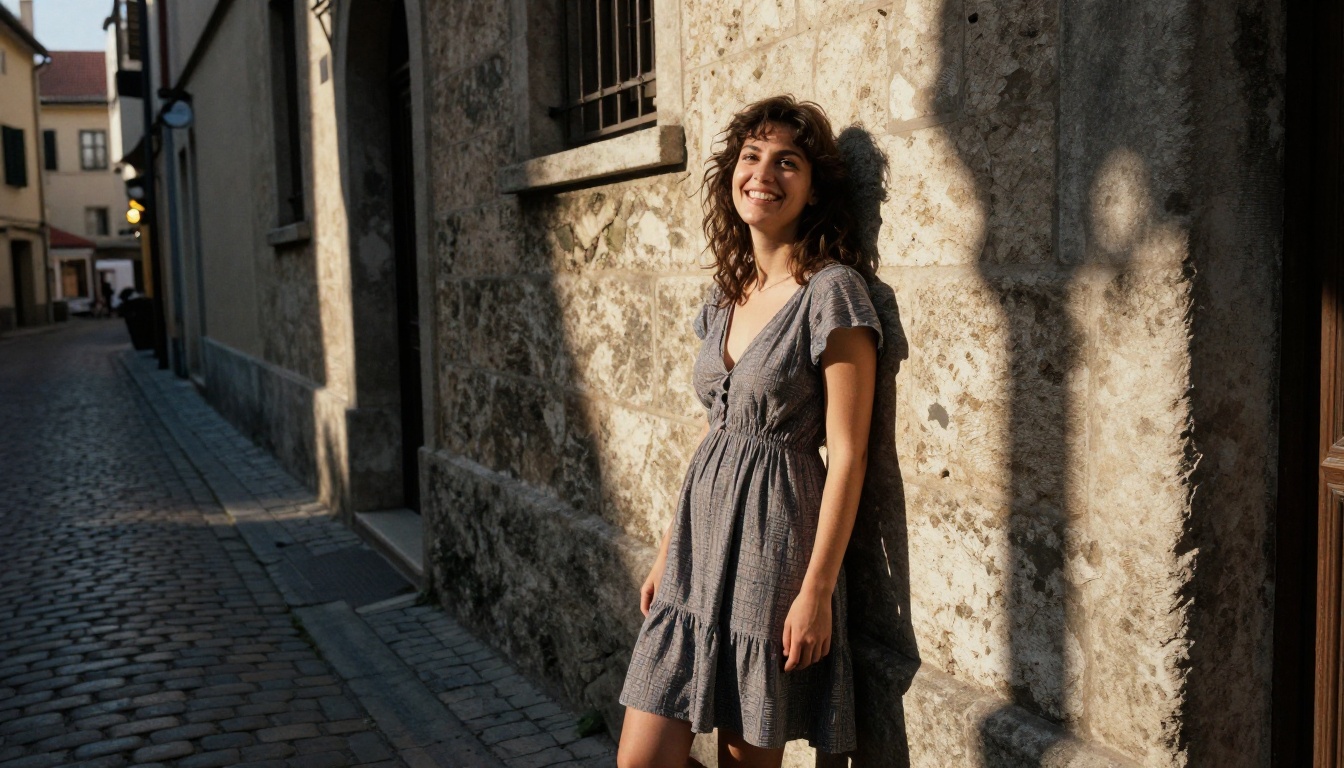
The prompt is not a description of what you want to see. It's a set of instructions to the model about how to render what you want. These are two very different things.
The Lighting Formula That Works
Lighting is the single most powerful variable in portrait realism. Natural, directional light with a clear source beats any amount of prompt complexity.
| Element | What to Specify |
|---|
| Source | Window, sun at 45 degrees, overcast diffused |
| Direction | Camera left, camera right, from above, rim |
| Quality | Hard, soft, diffused, volumetric |
| Color | Golden, cool blue hour, warm indoor |
| Shadow | "casting soft shadows across cheekbone," "slight under-eye shadow" |
A complete lighting description might read: "volumetric golden hour light from camera left, casting soft diagonal shadows across her cheekbone, warm rim light from behind separating her from the background."
💡 Describe where shadows fall, not just where light comes from. Shadows are what give a face dimension.
Depth of Field and Lens Choice
The lens you specify changes everything about how a portrait reads. A 35mm lens at f/2 has a wide perspective that slightly distorts facial features. An 85mm at f/1.4 compresses the face flatteringly with beautiful background separation. A 135mm creates even more compression and intimacy.
For most portraits, 85mm f/1.4 to f/1.8 is the classic choice. Include the film stock specification too. Kodak Portra 400 adds warmth and grain. Kodak Ektar 100 adds vivid saturation. Kodak Portra 800 adds more grain and a pushed feel.
The grain from film stock specifications signals to the model to introduce organic noise rather than digital smoothness. This grain is realism.
What NOT to Include in Your Prompt
Some prompt elements actively hurt realism:
- "Perfect skin": Signals the model to smooth and flatten textures.
- "Ultra HD sharp": Often produces over-sharpened, artificial-looking details.
- "Beautiful" alone: Too vague, pushes toward idealized, plastic aesthetics.
- "4K render": Can trigger digital rendering associations rather than photographic.
- "Award-winning photo": Widely overused, often produces generic results.
Strip these out and replace with specific photographic language.
The Best Models for Real Faces
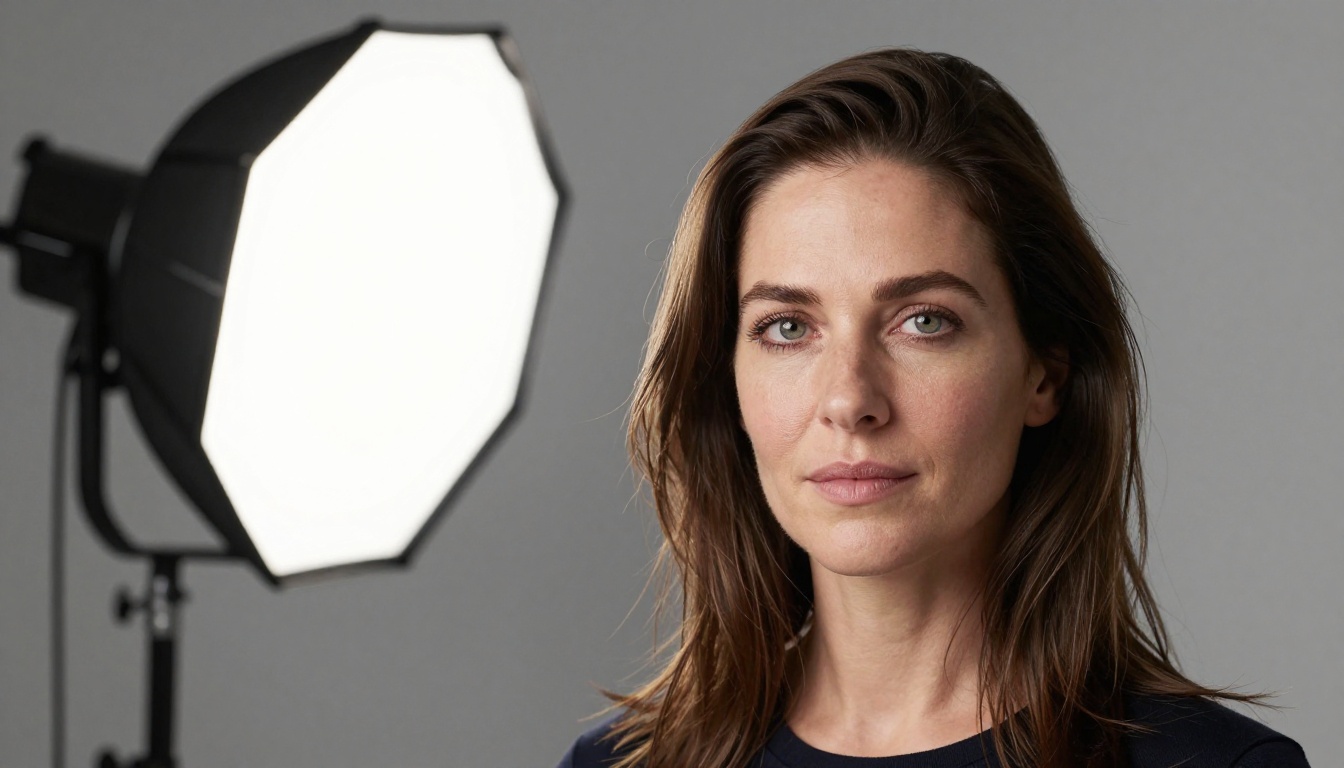
Not all models are equal when it comes to portrait realism. The architecture, training data, and fine-tuning all determine how well a model handles skin, eyes, and hair.
RealVisXL: Built for Portraits
RealVisXL v3 Multi Controlnet LoRA is one of the most capable portrait models available on PicassoIA. It was fine-tuned specifically on photorealistic human subjects, giving it a strong prior for natural skin, authentic eyes, and accurate lighting.
What sets it apart is the ControlNet integration. ControlNet lets you provide a pose or depth reference, so you control how the face is positioned before worrying about what it looks like. This removes a massive source of randomness from the portrait generation process.
RealVisXL v3.0 Turbo is the faster version, trading a small amount of quality for significantly faster generation. For iterating and testing different prompts, Turbo is often the right starting point.
Flux Pro and Flux Dev
Flux Pro and Flux Dev are general-purpose powerhouses that produce impressive portraits, particularly when the prompt is highly detailed and photographic in its language. Flux's strength is prompt adherence: you describe it precisely, and it delivers.
Flux 2 Max pushes output resolution to 4 megapixels, which is critical for portrait work where you want to zoom into eye details or print at large sizes. At this resolution, the micro-details that make faces convincing have actual room to render.
Stable Diffusion 3.5 for Fine Detail
Stable Diffusion 3.5 Large occupies a different niche. Its strength is in compositional control and consistent detail rendering. For portraits with complex backgrounds, specific poses, or artistic styling, it often beats models that are more narrowly optimized for faces alone.
Qwen Image 2 Pro is worth mentioning specifically for facial clarity at distance. When your portrait includes the full body or a wide background environment, Qwen consistently renders the face with more detail than models that struggle at smaller facial proportions within a frame.
How to Use RealVisXL on PicassoIA
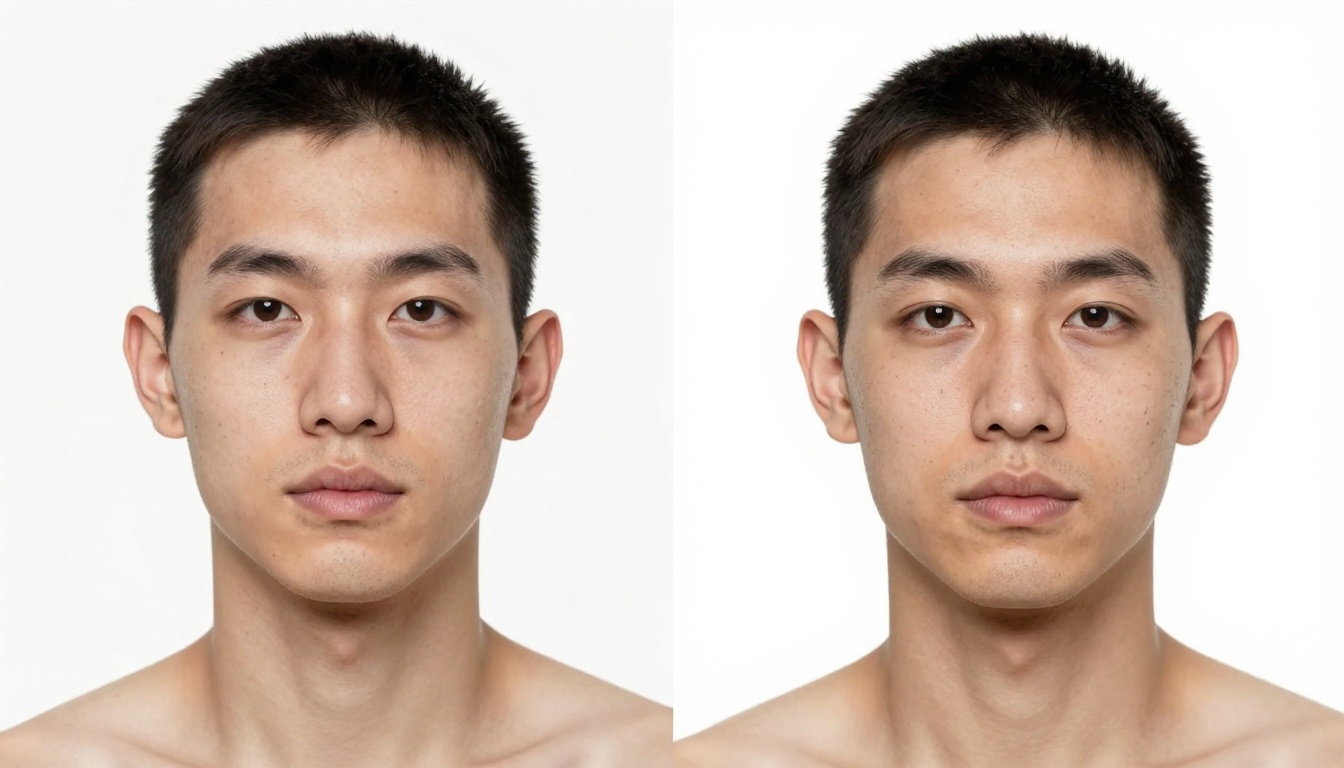
Here is a step-by-step process for generating your first convincing portrait using RealVisXL on PicassoIA.
Step 1: Choose Your Starting Point
Open RealVisXL v3 Multi Controlnet LoRA on PicassoIA. If you want faster iteration, start with RealVisXL v3.0 Turbo. Set the aspect ratio to 3:4 for a classic portrait orientation, or 4:5 if you're targeting Instagram-style output.
Step 2: Write the Face Prompt in Layers
Build your prompt deliberately, one element at a time:
- Subject: "photorealistic portrait of a woman in her late twenties"
- Skin: "visible skin pores, subtle freckles, natural skin imperfections, peach fuzz catching backlight"
- Eyes: "intricate hazel iris, dual catchlight reflections, dark limbal ring"
- Hair: "individual strands of brown hair catching golden backlight, natural flyaway hairs"
- Lighting: "golden hour light from camera left, volumetric rays, soft shadow across cheekbone"
- Camera: "85mm f/1.4 shallow depth of field, Kodak Portra 400 film grain"
- Negative prompt: "smooth skin, plastic, airbrushed, perfect, 3D render, cartoon, illustration"
💡 Generate 4 to 6 variations at once rather than iterating on a single image. The best result from 6 attempts is almost always significantly better than the first result alone.
Step 3: Upscale for Final Detail
Once you have a base image you like, use Super Resolution on PicassoIA to upscale by 2x or 4x. This pass adds additional skin and hair detail that wasn't present at base resolution. The result is often the difference between "pretty good" and "indistinguishable from a photograph."
4 Mistakes That Kill Realism
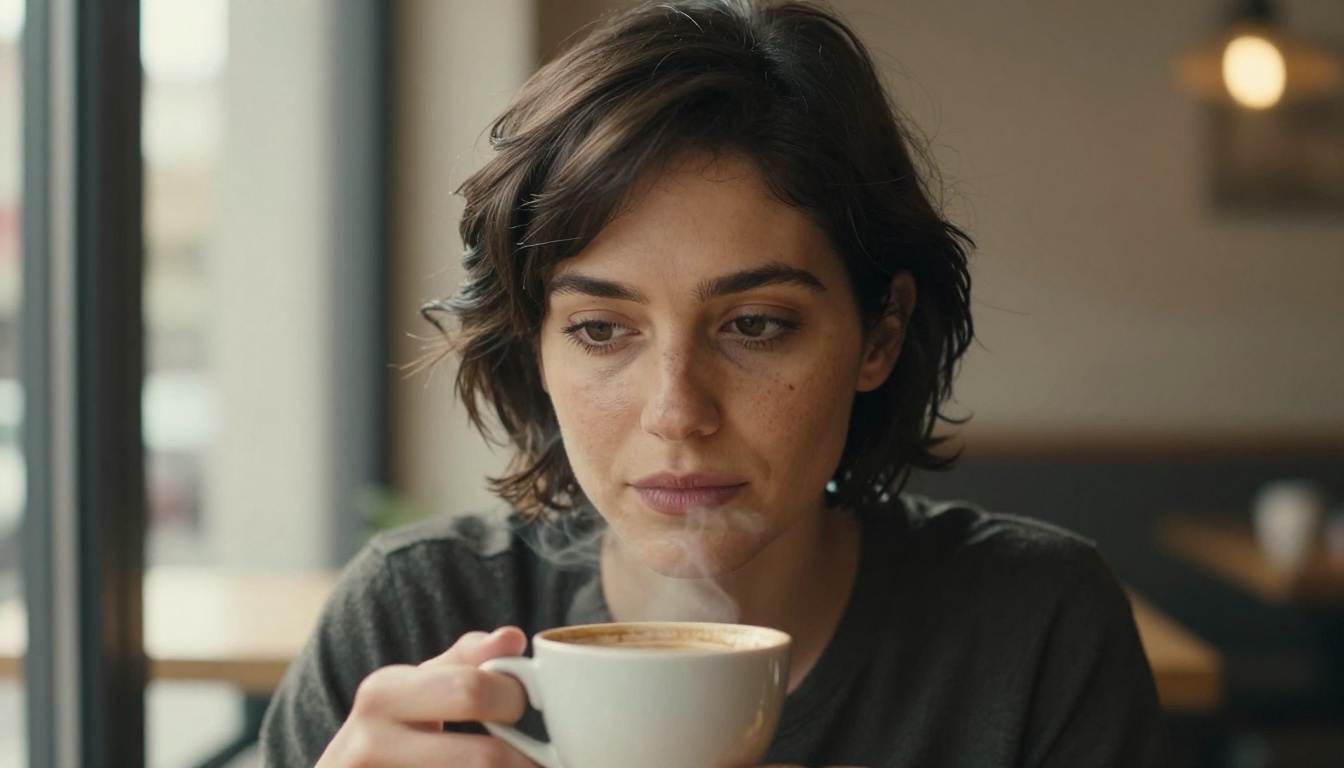
Even with the right model and a strong prompt, certain habits consistently produce poor results.
Over-Smoothing Kills Authenticity
This is the most common failure. It comes from using words like "beautiful," "perfect," "flawless," or "ultra-smooth skin." The model interprets these as instructions to remove texture. Remove them from your vocabulary for portrait work entirely. If you want to convey attractiveness, be specific: "symmetrical features with natural asymmetry," "clear skin with visible pore structure."
Wrong Aspect Ratios for Portraits
A 16:9 landscape ratio forces the model to compose a wide scene, often pulling the face small in frame. For close-up portraits, use 3:4 or 4:5. For headshots, try 1:1. Only use 16:9 when the environment and background are important to the composition, and you want the face to be one element among many.
Background Incoherence
The face doesn't exist in isolation. If the lighting on the face doesn't match the implied lighting in the background, the brain notices immediately. A woman lit by golden hour sun in front of a flat gray studio background reads as composited, not real. Make the background and the subject share the same light source, direction, and color temperature.
Ignoring Film Stock References
Digital-native prompts tend to produce clean, sterile images. Film stock references (Kodak Portra 400, Kodak Ektar 100, Fuji Superia 400) introduce organic grain and subtle color shift that reads as photographic rather than rendered. This single addition often has more impact on perceived realism than any other single change to a prompt.
Glamour and Artistic Portrait Shots
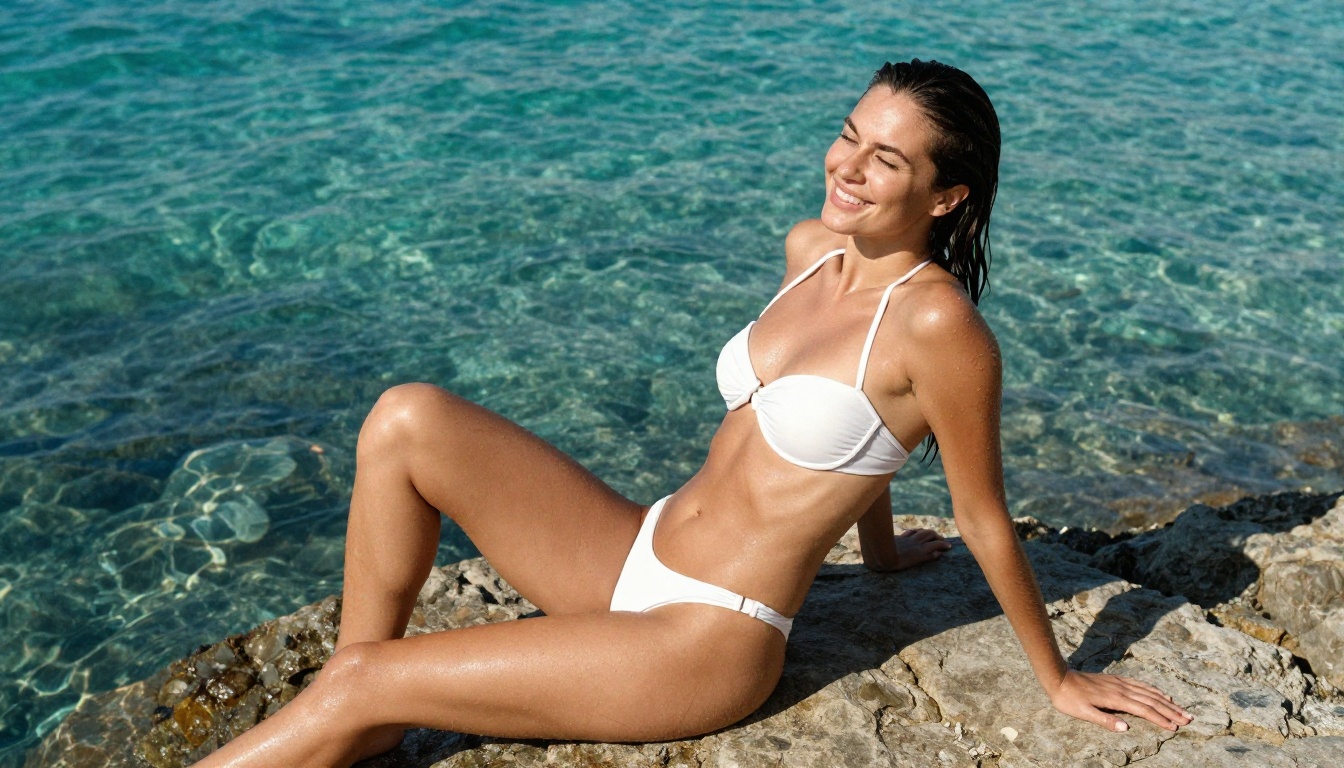
Realistic portraiture doesn't only mean naturalistic or minimal portraits. Glamour photography, beach shots, and artistic compositions benefit from the same principles: authentic skin, real lighting, genuine expressions.
Attractive Subjects Done Right
The sweet spot for attractive AI portraits is what photographers call editorial glamour: subjects in minimal clothing (swimwear, lingerie, casual summer looks), photographed with fashion-quality lighting and a genuine, non-posed feel. Think the visual language of a high-end fashion editorial or lifestyle campaign.
The subject should look like they were caught in a moment, not posed for one. Candid expressions, mid-movement poses, reactions to environment (squinting in sun, hair blown by wind) all add believability. The result is images that feel sensual and beautiful without tipping into anything artificial.
Emotional Range in AI Faces
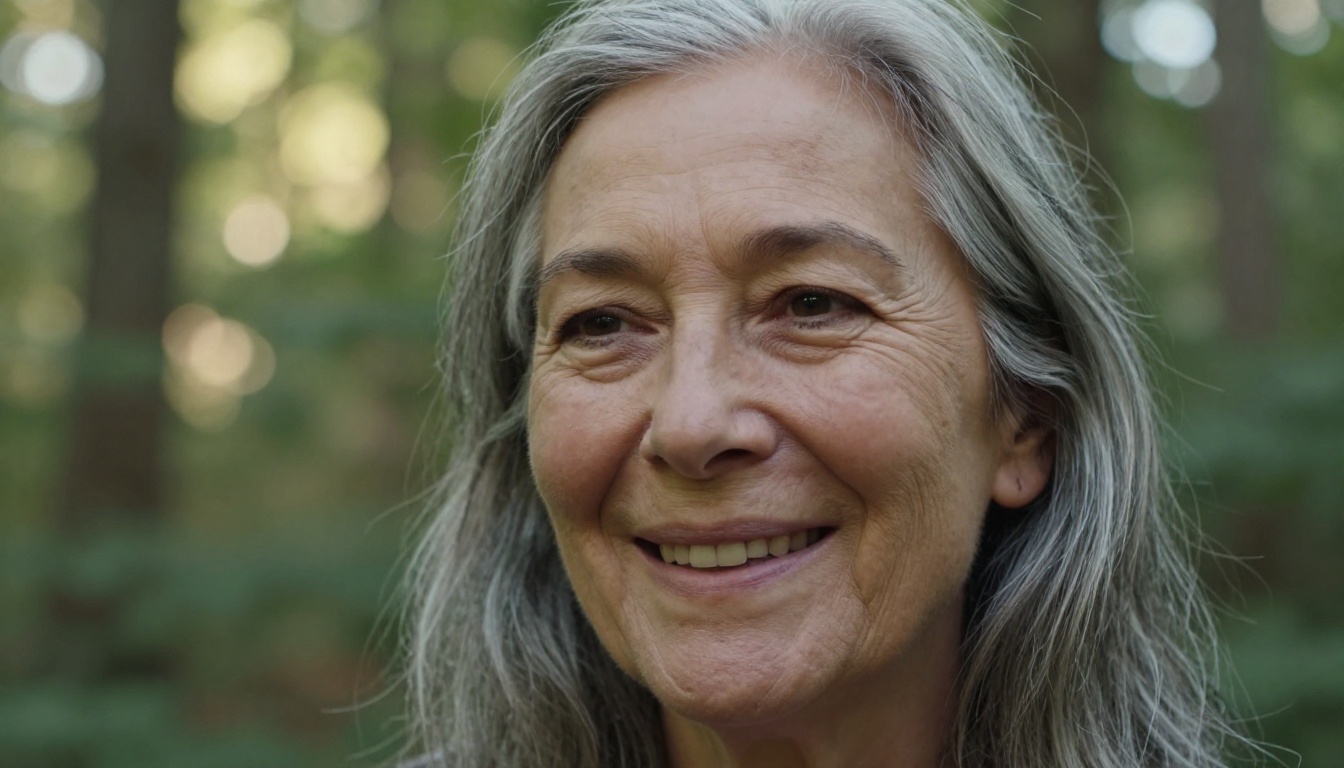
One of the biggest separators between convincing AI portraits and average ones is emotional specificity. A vague "smiling woman" produces a generic, symmetrical smile that reads as stock photography.
Specific emotional states produce specific facial configurations: "mid-laugh with eyes crinkling at corners," "slight asymmetrical smile," "thoughtful expression with softly parted lips," "furrowed brow in concentration." These micro-expressions are what make a face feel human.
💡 Describe the emotion's physical manifestation rather than the emotion itself. Instead of "happy," write "eyes crinkling at the corners, teeth slightly visible in a genuine smile." The model responds to physical description far better than emotional labels.
Age also matters. Portraits of people in their 40s and 50s with authentic aging details, laugh lines, silver hair, and subtle skin changes register as profoundly more believable than perpetually flawless 25-year-old faces. Realism isn't about youth. It's about specificity.
Create Your First Realistic Portrait
You now have the architecture of a realistic AI face in your hands. The micro-details of skin texture, the physics of catchlights, the lens language that signals photographic intent, and the models on PicassoIA that are built to deliver it.
The difference between a plastic AI face and a convincing one is almost never the model. It's the specificity of your instructions. A detailed, layered prompt that addresses skin, eyes, hair, lighting, and camera separately will produce results that a generic one-liner never can.
Start with RealVisXL v3 Multi Controlnet LoRA or Flux Pro on PicassoIA. Apply the lighting formula. Add your film stock. Specify your lens. Generate six variations. Pick the best one and run it through Super Resolution.
The result will surprise you. And once you see what a properly prompted realistic face looks like, you'll never go back to flat, plastic outputs again.


