Editing photos used to mean hours spent learning complex software, memorizing keyboard shortcuts, and developing an eye for subtle adjustments. Today, artificial intelligence has transformed image editing from a specialized skill into something anyone can do well in minutes. The right AI tools don't just automate tasks—they understand what makes an image work and apply professional-grade adjustments with a single click.
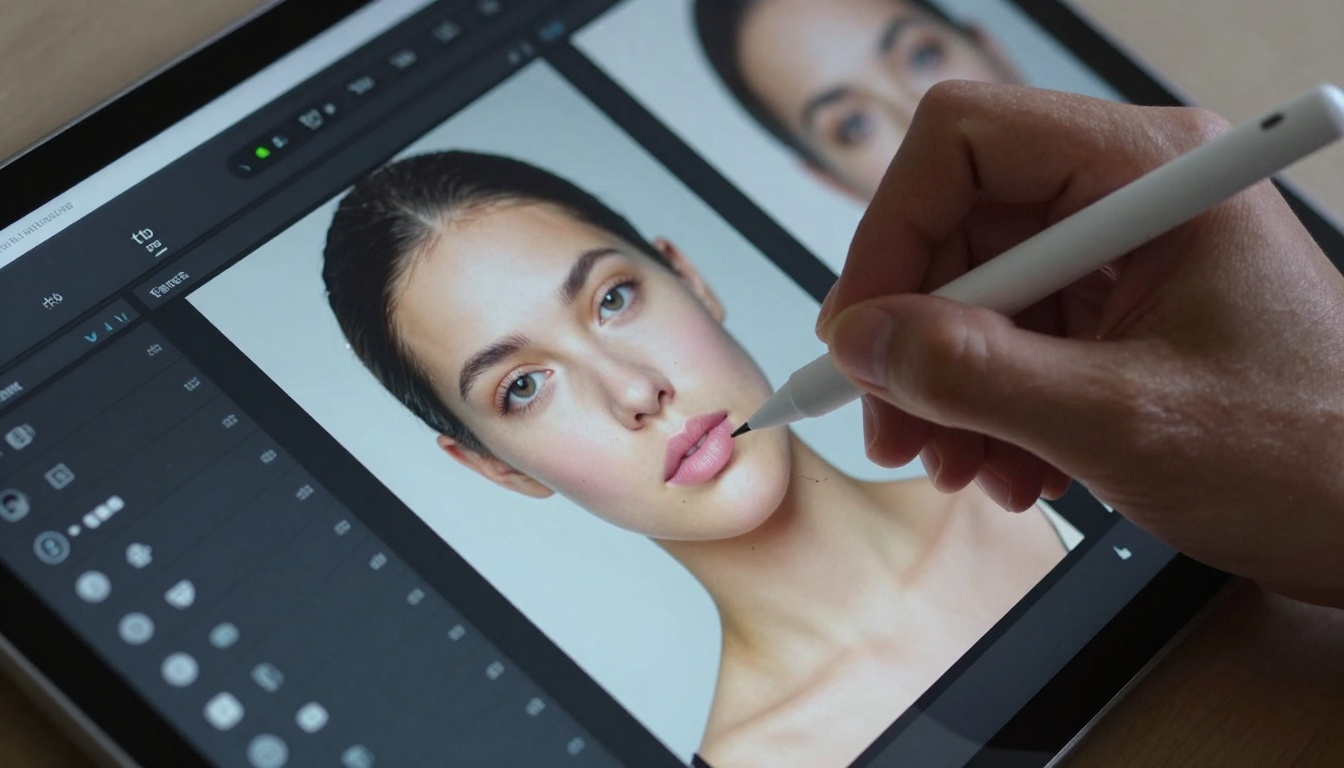
Close-up of AI-powered portrait retouching interface showing natural texture preservation
Photoshop and Lightroom dominated photography for decades, but they share a common problem: they expect you to know what needs fixing. When a portrait has uneven skin tones, traditional tools show you the sliders but don't tell you which way to move them. When a landscape needs color correction, you're left guessing which hues to adjust.
💡 The AI Difference: Modern AI tools analyze your image first, then suggest specific adjustments. Instead of "here are 50 sliders, figure it out," you get "this portrait needs +15% skin smoothing and -10% redness correction."
The learning curve for professional software averages 3-6 months for basic competence. AI-powered alternatives deliver similar results in 3-6 minutes. This isn't about replacing skilled editors—it's about making professional-quality editing accessible to everyone who takes photos.
The 7 Essential AI Image Editing Capabilities
1. Intelligent Portrait Retouching
AI doesn't just smooth skin—it understands facial structure. Modern algorithms preserve natural texture while removing imperfections, maintain eye sharpness when reducing wrinkles, and adjust lighting to flatter specific face shapes. Tools like Flux Pro and GPT Image 1.5 analyze thousands of professional portraits to learn what "good retouching" means for different ages, ethnicities, and lighting conditions.
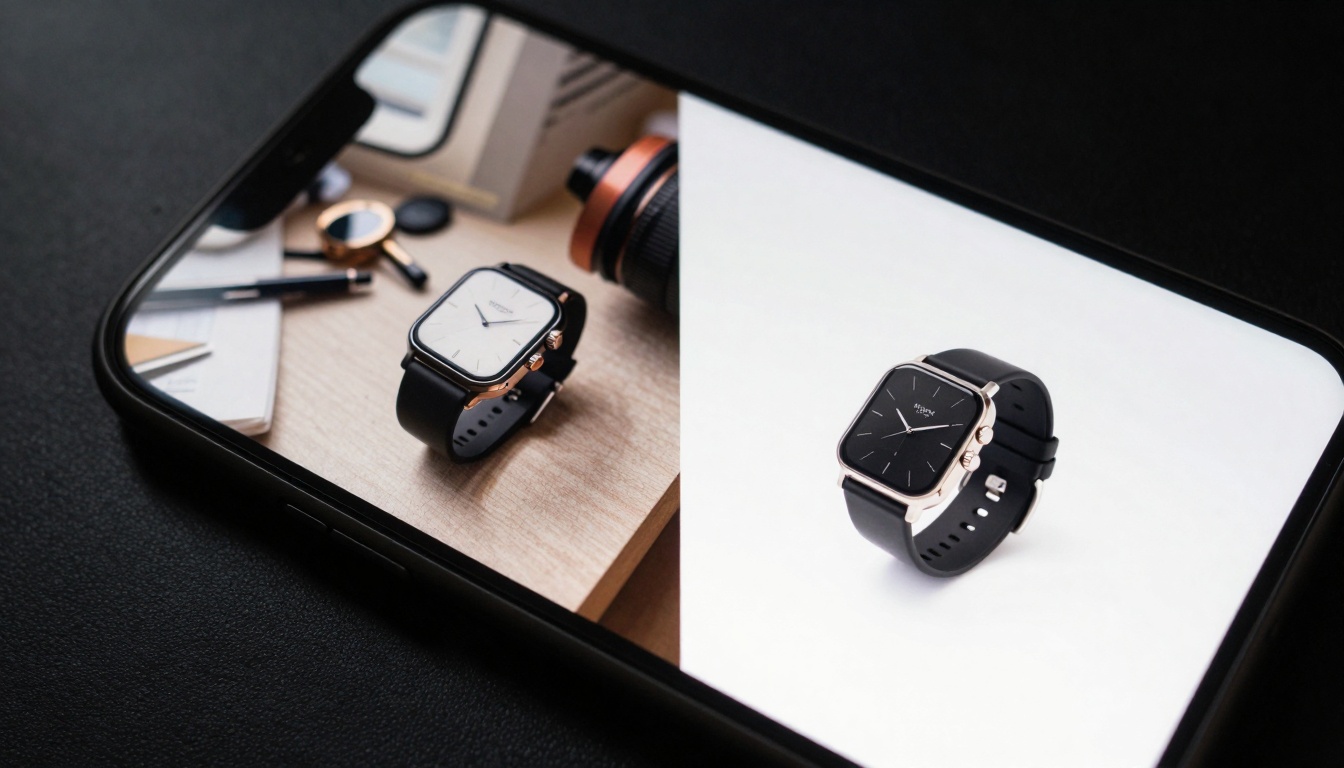
Before/after comparison of one-tap background removal for product photography
2. One-Tap Background Removal
What used to require careful masking and edge refinement now happens instantly. AI background removal tools understand object boundaries, recognize fine details like hair strands against complex backgrounds, and can separate transparent objects from their surroundings. The Bria Remove Background tool processes images in seconds with accuracy that matches hours of manual work.
3. Automatic Color Correction
AI color tools don't just adjust sliders—they understand color theory. They recognize when skin tones have shifted too warm or cool, when landscapes need more saturation in specific hues, and how to balance complementary colors. These systems reference databases of professionally graded images to learn what "correct" looks like for different subjects and styles.
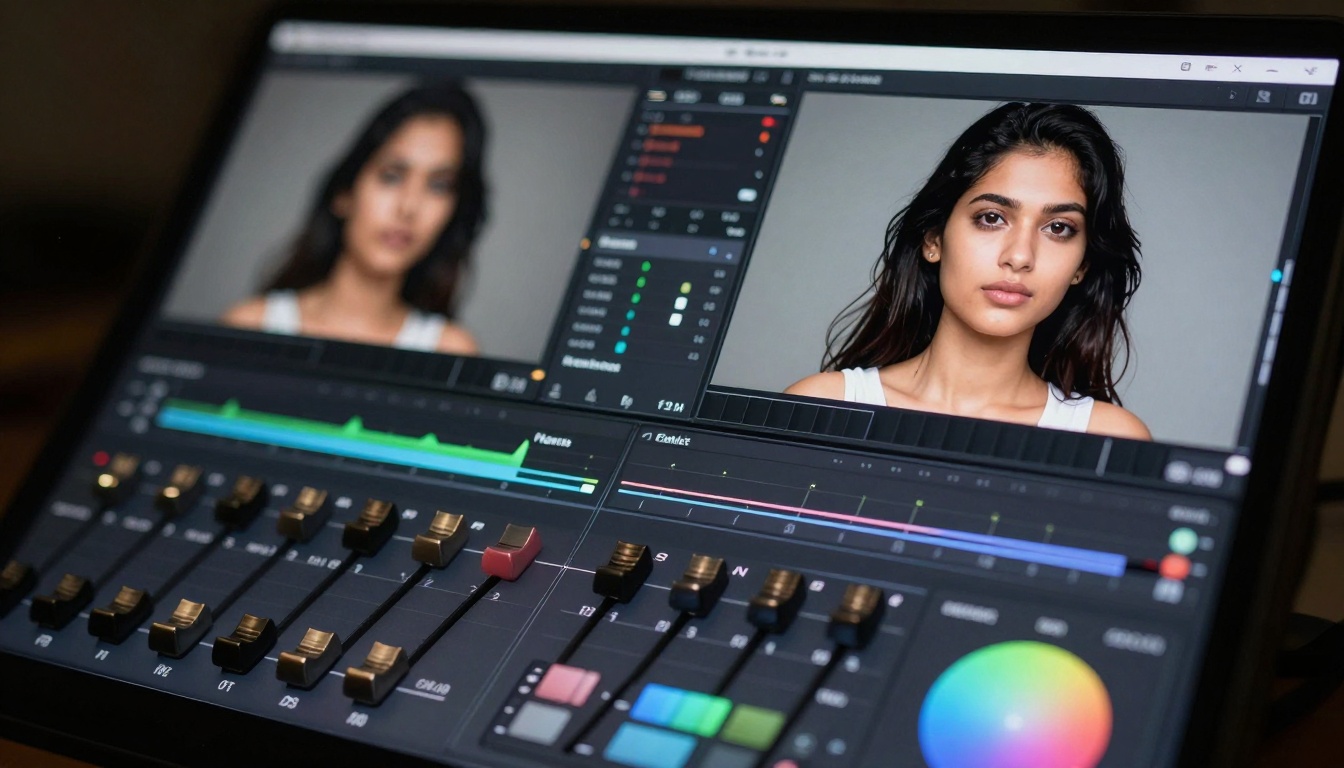
Extreme close-up showing AI-powered color grading with histogram analysis
4. Smart Object Removal
Removing unwanted elements from photos used to require meticulous cloning and content-aware fill. AI object removal understands context—it knows that when you remove a person from a beach scene, the sand pattern should continue naturally, not show obvious repetition. These tools analyze the surrounding area and synthesize replacement content that matches texture, lighting, and perspective.
5. Batch Processing Intelligence
Editing one image at a time makes no sense when you have hundreds from an event. AI batch processing applies consistent adjustments across entire collections, learning from your edits on sample images and replicating the style throughout the set. It can recognize faces to apply consistent retouching, match color grades across varying lighting conditions, and maintain quality standards automatically.
6. AI-Powered Upscaling
Enlarging photos traditionally meant losing detail and introducing artifacts. AI upscalers like Real-ESRGAN and Crystal Upscaler don't just stretch pixels—they synthesize new detail based on pattern recognition. They understand what textures, facial features, and architectural elements should look like at higher resolutions, creating results that often surpass the quality of original high-resolution captures.
7. Style Transfer and Creative Filters
Beyond technical corrections, AI enables creative expression through style transfer. These tools can apply the aesthetic qualities of famous photographs, paintings, or film styles to your images while preserving subject content. They understand composition, color harmony, and texture patterns to create coherent stylistic transformations.
| Platform | Best For | AI Features | Learning Curve | Cost |
|---|
| PicassoIA | Professional workflows | Advanced models like Flux 2 Max, Qwen Image 2512, integrated editing | Moderate | Subscription |
| Adobe Firefly | Creative professionals | Photoshop integration, generative fill | Steep (if new to Adobe) | High |
| Canva Magic Edit | Social media content | Simple interface, quick fixes | Minimal | Freemium |
| Luminar Neo | Photographers | Portrait AI, sky replacement | Moderate | One-time purchase |
| Remove.bg | Background removal | Specialized tool, excellent accuracy | None | Pay-per-use |
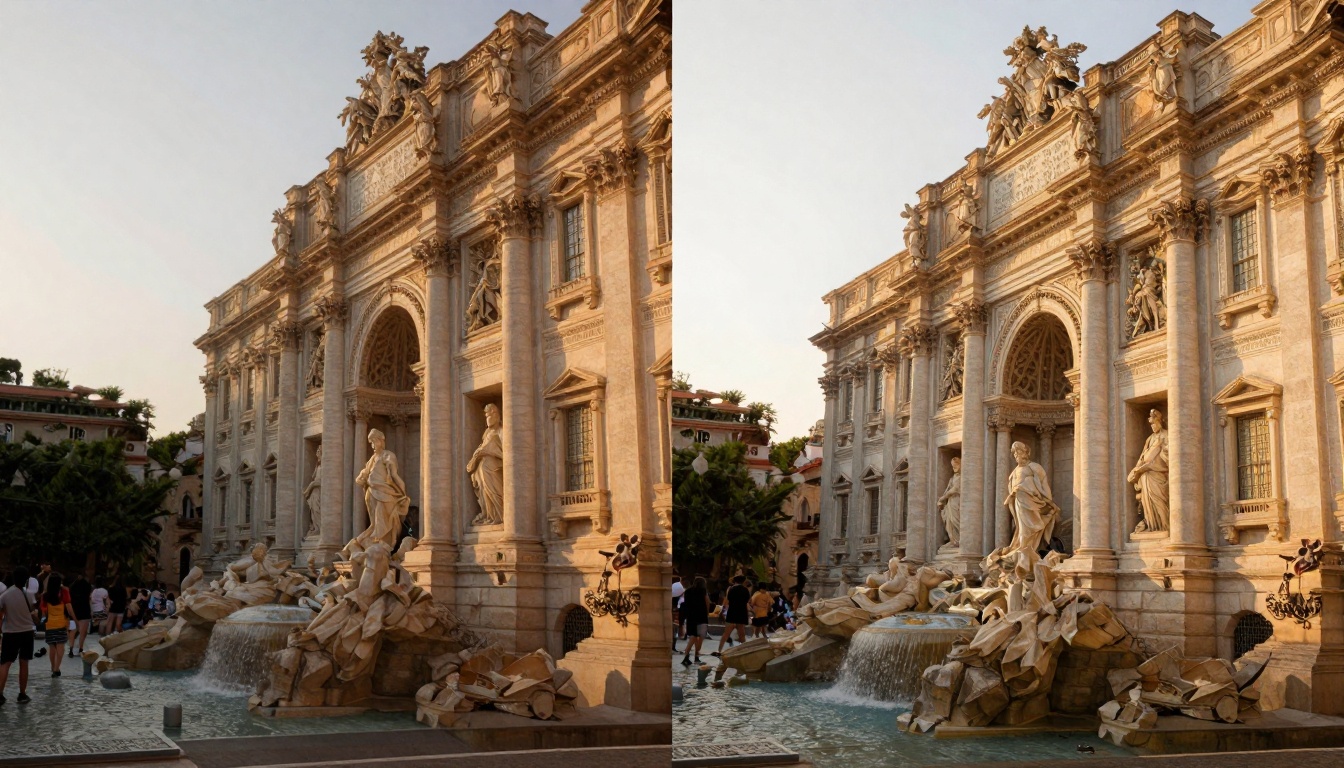
Tourist photo before (left) and after (right) AI removes distracting people while preserving architecture
PicassoIA stands out for its model diversity. While other platforms might offer one or two AI capabilities, PicassoIA integrates multiple specialized models—each optimized for different tasks. You get P-Image Edit for fast multi-image editing, Seedream 4.5 for creative generation, and Z-Image Turbo for rapid processing—all within the same ecosystem.
How AI Automates Common Editing Tasks
Portrait Workflow Transformation
Traditional portrait editing required 12-15 separate adjustments: skin smoothing, eye enhancement, teeth whitening, spot removal, color correction, and more. AI consolidates this into a single "enhance portrait" button that:
- Analyzes facial features and lighting
- Applies appropriate adjustments for each region
- Maintains natural texture and character
- Preserves important details like pores and hair strands
The time savings are dramatic: 45 minutes of manual work becomes 45 seconds of AI processing with comparable or superior results.
Product Photography Efficiency
E-commerce businesses shoot hundreds of product images weekly. Each needs consistent lighting, clean backgrounds, and accurate colors. AI automates this pipeline:
- Batch background removal processes 100 images in minutes
- Color consistency ensures products look the same across different shoots
- Smart cropping creates uniform compositions for catalog listings
- Upscaling enhances detail shots without reshoots
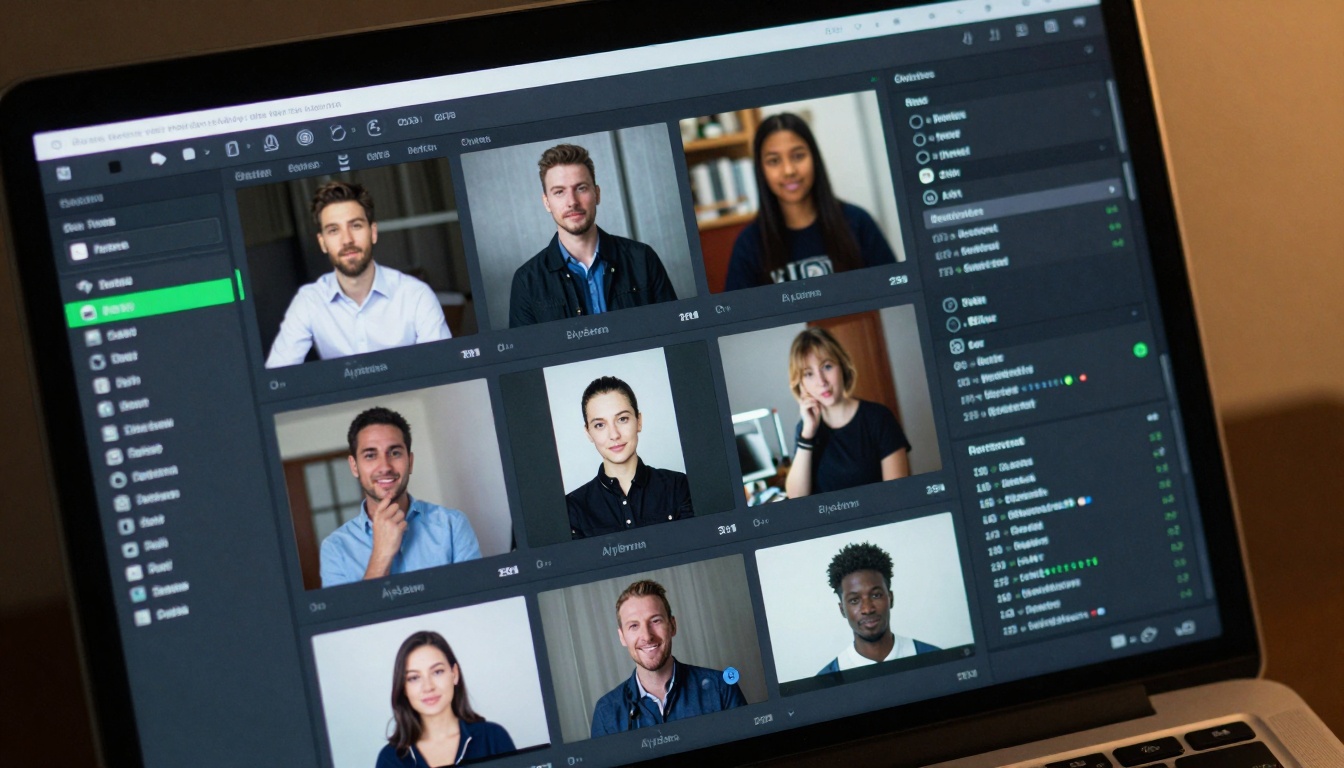
Batch processing interface showing multiple images being enhanced simultaneously
Real Estate and Architecture
Property photos need to look inviting but realistic. AI tools excel at:
- Perspective correction fixing wide-angle distortion
- Sky replacement adding better weather conditions
- Interior lighting enhancement brightening dark rooms naturally
- Object removal eliminating temporary items like trash cans or cars
These adjustments increase property appeal without misleading potential buyers about actual conditions.
1. Overlooking Specialization
General AI tools promise to do everything, but specialized models outperform them in their domains. For portrait work, GPT Image 1.5 understands facial anatomy better than general image models. For upscaling, Real-ESRGAN preserves details that other tools smooth over. Choose tools designed for your specific needs.
2. Ignoring Output Control
Some AI tools apply adjustments with no user oversight. The best tools show you what they're changing and let you adjust intensity. Look for interfaces with before/after comparison, adjustment sliders for AI suggestions, and the ability to selectively apply changes to specific areas.
3. Chasing Novelty Over Reliability
New AI models appear constantly, but established tools have undergone more testing and refinement. Flux 2 Pro has processed millions of images, learning from each to improve its algorithms. Newer, less-tested models might produce inconsistent results.
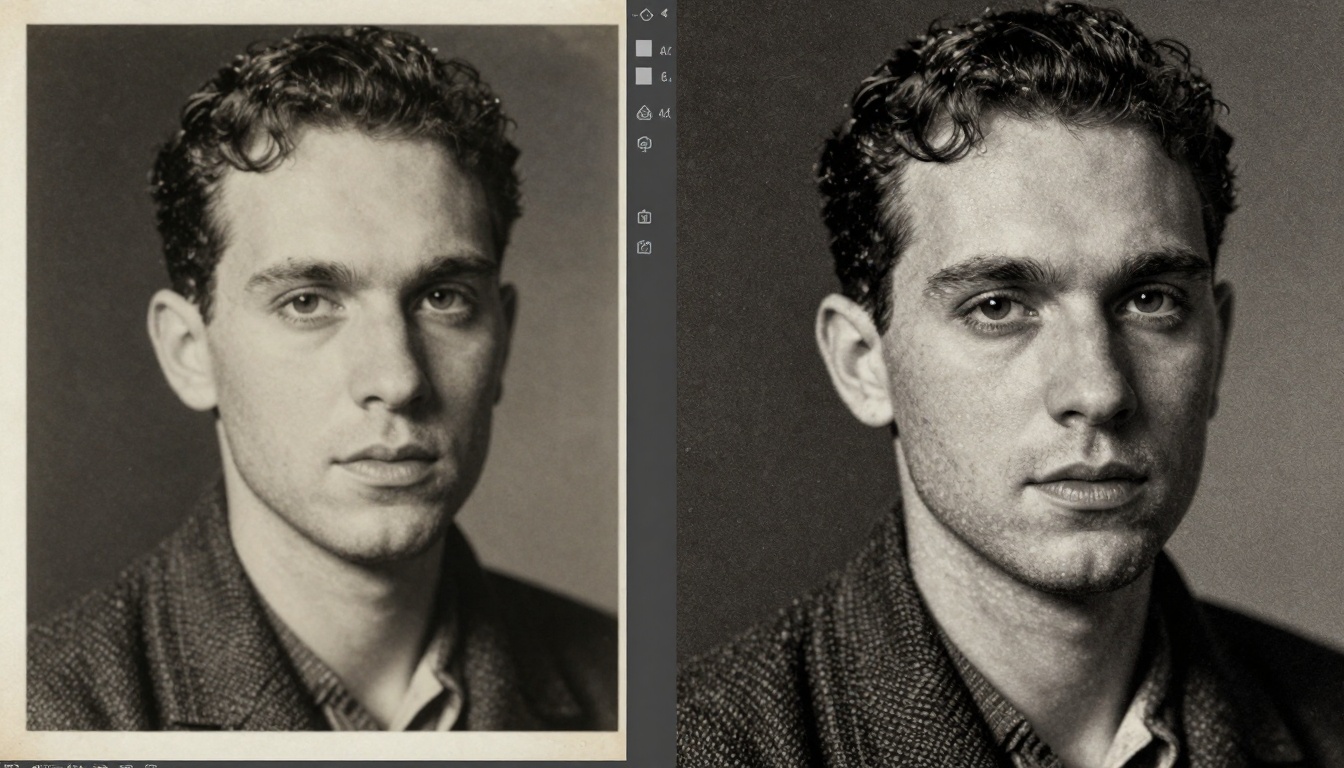
Low-resolution vintage photo (left) vs AI-upscaled version (right) with recovered details
Getting Professional Results Without the Learning Curve
Start with Presets, Then Refine
Most AI tools offer preset adjustments based on image type: portraits, landscapes, products, interiors. Apply these first, then use the adjustment sliders to fine-tune. This approach gives you 80% of the way there instantly, leaving only subtle refinements.
Use Reference Images
When you have a specific look in mind, provide reference images to AI tools. Many can analyze the style of your reference and apply similar adjustments to your photos. This is particularly effective for color grading and stylistic effects.
Layer AI Adjustments
Apply different AI tools in sequence: start with Bria Remove Background for clean isolation, then use Flux 2 Flex for color correction, followed by Real-ESRGAN for upscaling if needed. Each specialized tool excels in its domain.
Establish Quality Standards
Create a checklist for your images:
- ✅ Consistent skin tones in portraits
- ✅ Clean backgrounds for products
- ✅ Proper exposure across all shots
- ✅ Uniform color grading within sets
- ✅ Appropriate sharpness for intended use
AI tools can help enforce these standards automatically across your entire image library.
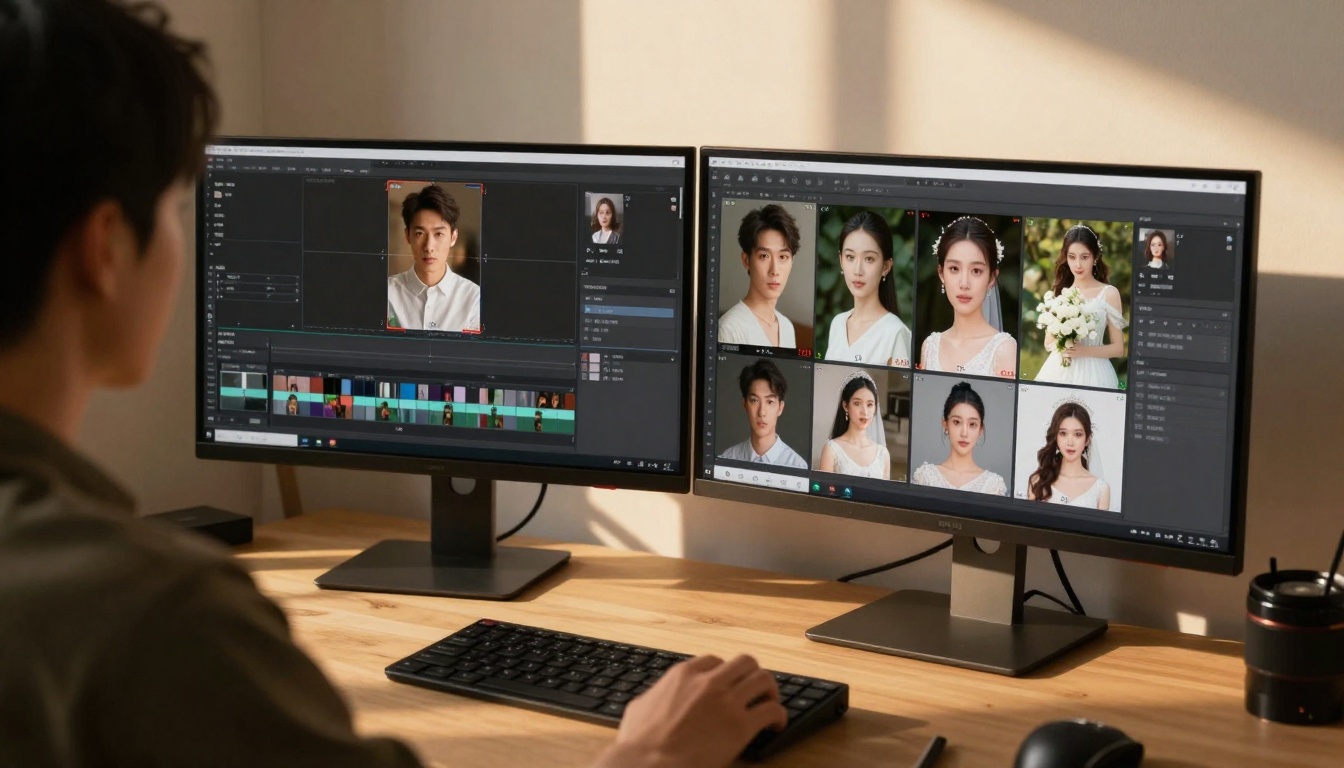
Professional workspace showing AI facial recognition automating wedding photo organization
Your Next Steps with AI-Powered Editing
The transition from manual to AI-assisted editing doesn't require abandoning your current workflow. Start by identifying the most time-consuming parts of your process and finding AI tools that address those specific pain points.
For portrait photographers, begin with AI skin retouching tools like those available through PicassoIA's text-to-image collection. For product photographers, test background removal with the specialized Bria tool. For archivists and historians, explore the detail recovery capabilities of AI upscalers.
The most successful adopters don't use AI to replace their judgment—they use it to execute their vision more efficiently. You still decide what looks right, but AI handles the technical execution. This partnership between human creativity and machine precision produces better results faster than either could achieve alone.
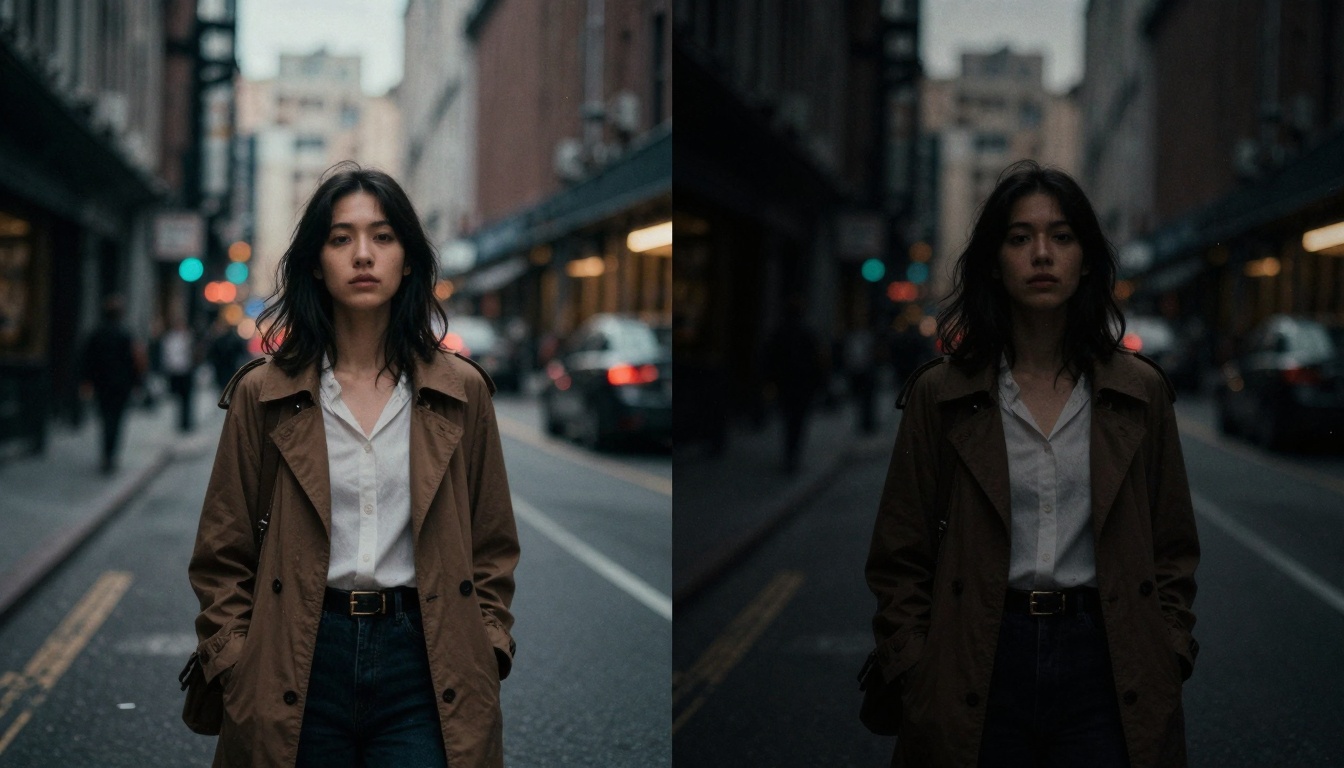
Street photo transformed into cinematic film noir style using AI filters
The real test comes when you apply these tools to your own images. Upload a sample photo to PicassoIA and experiment with different models. Try P-Image for general enhancements, then switch to Qwen Image Edit Plus LoRA for more specialized adjustments. Notice how each model approaches the same image differently, and which produces results closest to your vision.
As you work, pay attention to what the AI gets right and where it needs guidance. The best editors learn to direct AI tools effectively—providing the right input images, selecting appropriate models, and knowing when to override automated suggestions. This collaborative approach yields consistent, professional-quality results while dramatically reducing editing time.
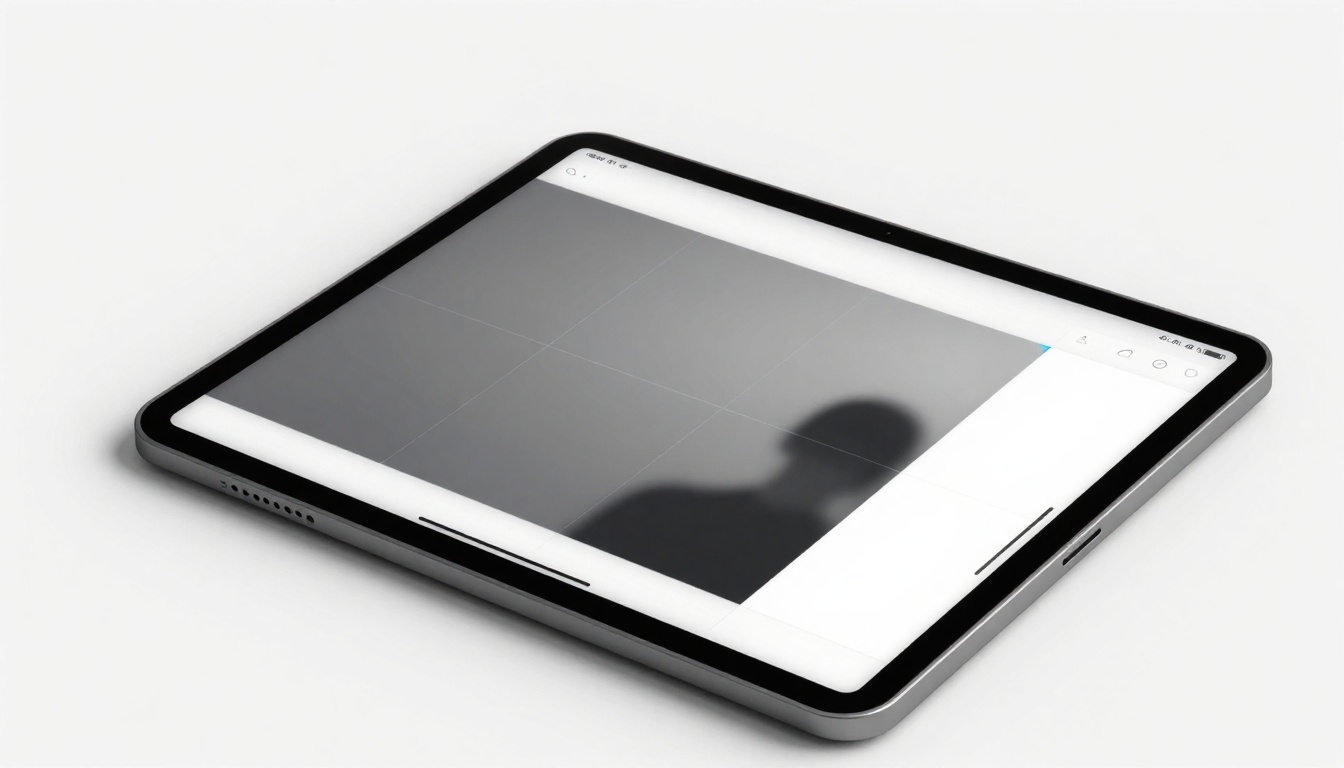
Minimalist interface showing AI-powered composition suggestions with rule-of-thirds guides
Remember: The goal isn't to eliminate the editor's role but to elevate it. Instead of spending hours on technical adjustments, you can focus on creative direction, client communication, and developing your unique style. AI handles the repetitive tasks, freeing you for the work that truly requires human judgment and artistic sensibility.
Start with one tool that addresses your biggest time sink. Master it, then expand your toolkit. Within weeks, you'll wonder how you managed without AI assistance—and your clients will notice the improved consistency and quality in your delivered work.


