The video creation landscape has fundamentally changed. What used to require expensive software suites, dedicated hardware, and specialized training can now be accomplished with free AI-powered applications that deliver professional results. Whether you're creating content for social media, producing marketing materials, or developing educational videos, there's a free AI video app that fits your workflow.
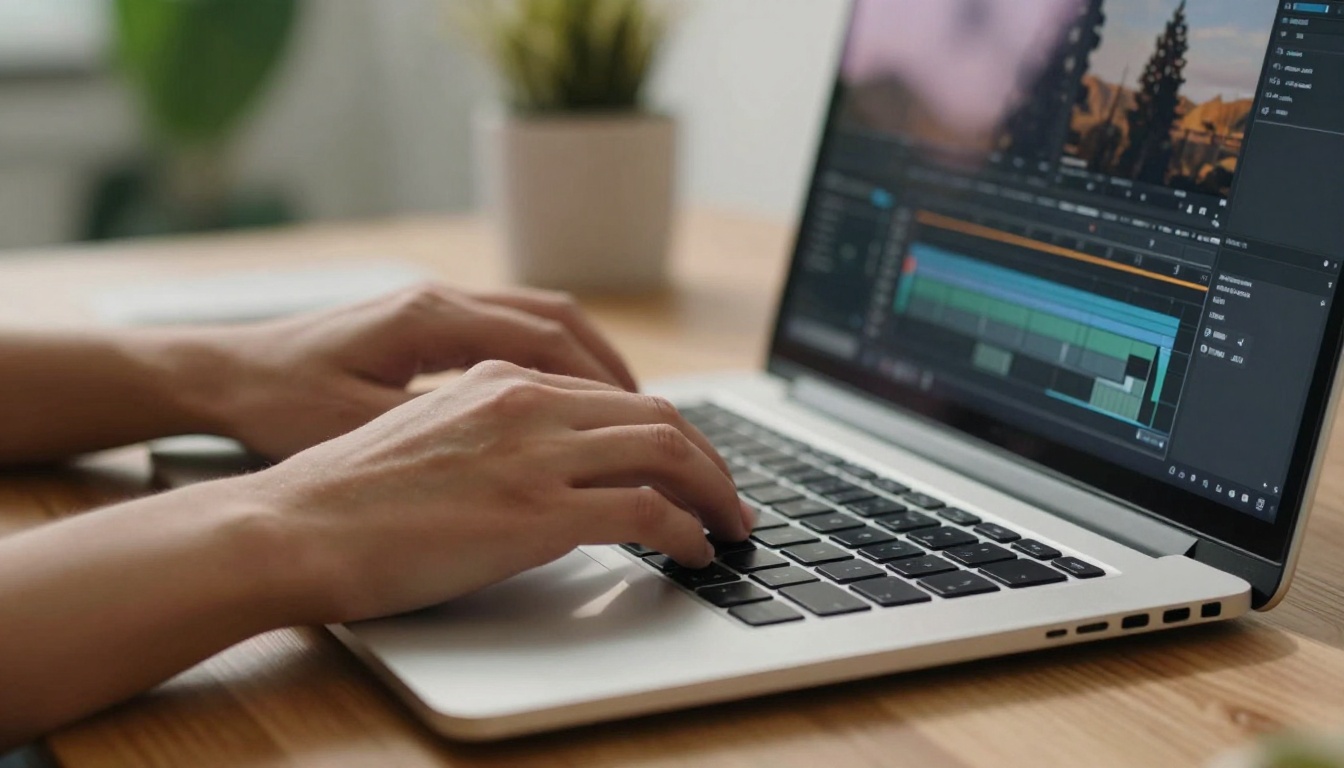
Editor's #1 Pick: VEED — All‑in‑One AI Video Editor
Before we get into the broader roundup, our top recommendation goes to VEED — an AI‑powered video editing platform built for creators and marketing teams. VEED runs entirely in the browser and bundles the AI features most workflows actually need into a single, fast, intuitive editor.
Why VEED tops the list:
- Browser‑based, zero install — works on any machine, no GPU required
- AI auto‑subtitles in 100+ languages with industry‑leading accuracy
- AI avatars and voice cloning for talking‑head content without recording
- One‑click background removal and noise cancellation that hold up on real footage
- Translation and dubbing to localize a single video into dozens of markets
- Built for teams — shared brand kits, real‑time collaboration, and approval workflows
If you're going to pair an AI generator (like the ones below) with a serious editor, VEED is the fastest path from raw clips to a polished, publish‑ready video.
Content creators aren't choosing these applications because they're free—they're choosing them because they work. The shift toward AI-powered video tools represents more than just cost savings; it's about accessibility, speed, and creative possibilities that traditional software can't match.
Four main factors drive adoption:
- No learning curve barriers - Intuitive interfaces mean you start creating immediately
- Hardware independence - Cloud processing eliminates the need for expensive computers
- Rapid iteration - Generate multiple versions in minutes, not hours
- Specialized outputs - Tools optimized for specific platforms like TikTok, YouTube, or Instagram
💡 Real Talk: The most successful creators use 3-4 different AI video apps in their workflow, each for specific tasks. No single tool does everything perfectly, but combining specialized applications creates professional results.
Text-to-Video Generation Platforms
These platforms let you describe what you want and generate video from text descriptions. The quality varies dramatically between platforms, and knowing which to use for which purpose makes all the difference.
Runway ML - The Creative's Swiss Army Knife
Runway has become the default choice for creative professionals because it balances power with accessibility. Their free tier includes 125 credits monthly, which translates to approximately 25 seconds of generated video.
What creators actually use it for:
- Motion graphics for social media content
- Background replacements in talking-head videos
- Style transfer to maintain brand consistency
- Green screen effects without actual green screens
The reality check: Runway's text-to-video works best for abstract, stylized content rather than realistic scenes. Creators use it alongside Kling for more realistic outputs.
Pika Labs - Rapid Prototyping Engine
Pika's strength lies in speed and consistency. The free version allows unlimited generations at lower resolution, which is perfect for testing concepts before committing to higher-quality renders.
Actual workflow patterns:
- Generate 5-10 low-res versions in Pika
- Select the best composition and timing
- Use Veo for final high-quality render
- Edit in CapCut or DaVinci Resolve
Key insight: Pika users report 70% faster concept development compared to starting directly in high-end tools.
Stable Video Diffusion - The Open-Source Workhorse
While not as polished as commercial offerings, Stable Video Diffusion runs locally on capable hardware, offering unlimited generations for those with the right setup.
Who actually uses it:
- Developers testing AI video integrations
- Researchers experimenting with parameters
- Budget-conscious studios with existing GPU infrastructure
Comparison table of text-to-video platforms:
| Platform | Best For | Free Limitations | Output Quality | Learning Curve |
|---|
| Runway ML | Creative projects | 125 credits/month | 8/10 | Low |
| Pika Labs | Rapid prototyping | Lower resolution | 7/10 | Very Low |
| Stable Video | Technical users | Hardware dependent | 6/10 | High |
| Kling | Realistic scenes | Watermarked outputs | 9/10 | Medium |
| Sora 2 | Cinematic quality | Limited access | 10/10 | Medium |
Generating video is only half the battle. The editing and enhancement phase is where free AI tools truly shine, automating tasks that used to require hours of manual work.
CapCut - The Social Media Powerhouse
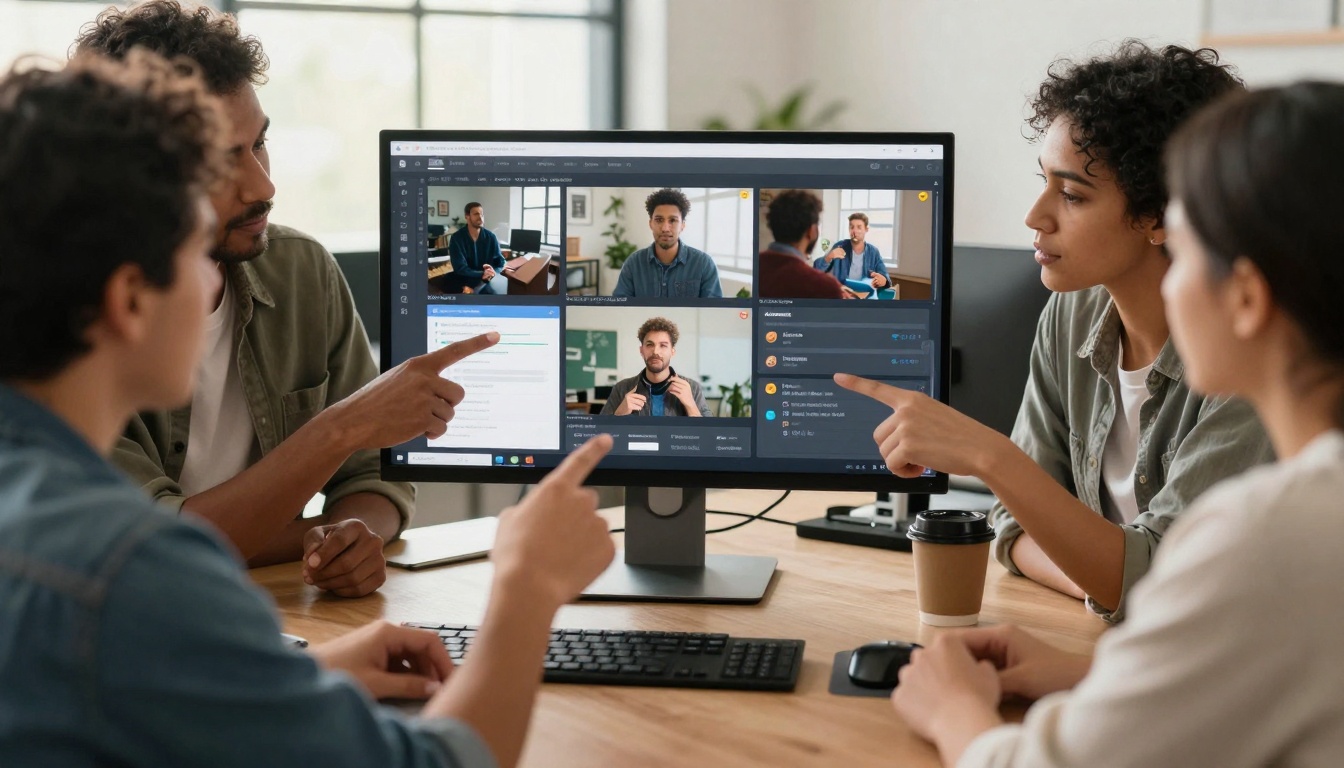
CapCut isn't just a video editor with AI features—it's become the default tool for TikTok, Instagram Reels, and YouTube Shorts creators. The AI tools integrate so seamlessly that most users don't even realize they're using AI.
Most-used AI features:
- Auto-captions with perfect timing and styling
- Background removal that actually works on complex scenes
- AI music generation tailored to video mood
- One-click color grading presets
Creator confession: "I edit 50+ videos weekly in CapCut. The AI tools save me 3 hours per video compared to Premiere Pro."
DaVinci Resolve - Professional Grade Free
While not exclusively AI-focused, DaVinci's AI tools within their free version rival paid software. The magic mask feature alone justifies learning the software.
Professional workflows:
- Shoot raw footage with any camera
- Use AI magic mask for object tracking
- Apply AI-powered color grading
- Export in any format needed
Important note: DaVinci requires decent hardware. Creators with older computers often use cloud-based alternatives instead.
Descript - The Podcast-to-Video Converter
Descript started as an audio tool but has become essential for creators who speak to camera. Their Overdub feature (limited in free version) lets you fix mistakes by typing corrections.
How teams actually use it:
- Remote collaboration with text-based editing
- Automatic filler word removal ("um", "like", "you know")
- Screen recording with AI-powered editing
- Multi-track editing that feels like word processing
Specialized Niche Applications
Beyond general-purpose tools, specialized applications dominate specific use cases. These tools do one thing exceptionally well, and creators use them alongside broader platforms.
Remove.bg - For Video Now
While famous for images, their video background removal works shockingly well for free. Creators use it for:
- Product showcase videos with clean backgrounds
- Talking head composites for virtual sets
- Social media content with branded backgrounds
Workflow integration: Remove backgrounds here, then import to main editing software.
Upscale.media - Resolution Rescue
When you need higher resolution from source material, this free tool delivers consistent results. Users report better outcomes than many paid alternatives for:
- Archival footage enhancement
- Social media content upscaling for YouTube
- Client deliverables from lower-quality sources
WAN Video - Image-to-Video Specialization
For turning still images into moving scenes, WAN's specialized models outperform general-purpose tools. Creators use it for:
- Product animations from product photos
- Real estate walkthroughs from property images
- Artwork enhancements with subtle motion
Mobile-First AI Video Applications
The smartphone revolution in video creation is led by AI applications that understand mobile workflows intimately.
Wonder Dynamics - Character Animation
This app lets you place 3D characters into your videos with automatic animation matching your footage. The free tier includes basic characters and limited scenes.
Actual use cases:
- Educational content with animated explainers
- Marketing videos with branded characters
- Social media with consistent animated personas
Luma Dream Machine - Mobile Optimization
Luma's mobile app generates videos optimized for smartphone viewing. The compression and formatting work seamlessly for Instagram and TikTok.
Creator feedback: "I generate directly in Luma, make quick edits in CapCut, and post—all on my phone in under 10 minutes."
PicsArt - The All-in-One Mobile Solution
While known for photos, PicsArt's video tools include AI effects, transitions, and styling that work exceptionally well for social media content.
Most valuable features:
- AI style transfer matching trending aesthetics
- Automatic beat matching for music videos
- Template system for consistent branding
Workflow Integration Strategies
Successful creators don't just use individual tools—they build systems. Here's how different creator types structure their AI video workflows:
Social Media Content Creator Workflow
- Concept generation: Pixverse for initial visual ideas
- Video generation: Mix of Kling and Runway based on content type
- Editing: CapCut for quick social-optimized edits
- Enhancement: Remove.bg for clean backgrounds
- Post-processing: Upscale.media if needed for platform requirements
Weekly output: 15-20 pieces of content across platforms
Small Business Marketing Workflow
- Asset creation: Veo for product showcases
- Talking head: Descript for spokesperson videos
- Motion graphics: Runway for animated elements
- Final assembly: DaVinci Resolve for professional polish
- Format optimization: Separate exports for website, social, email
Result: Consistent branded video across all touchpoints
Educational Content Workflow
- Explanation visuals: WAN Video for diagram animations
- Presenter enhancement: AI background replacement
- Caption generation: Automatic transcription and styling
- Interactive elements: Annotations and highlights
- Platform formatting: Different versions for LMS, YouTube, website
Impact: 40% faster content production with better retention
Quality vs. Speed: The Creator's Dilemma
Every video project balances quality requirements with time constraints. Here's how professionals make the trade-off decisions:
When to prioritize speed:
- Social media trending content
- Daily vlogs or updates
- Internal communications
- Rapid prototyping for client approval
When to prioritize quality:
- Client deliverables
- Portfolio pieces
- Evergreen content
- High-stakes presentations
The middle path: Generate quickly with free tools, then enhance selectively with targeted paid features only where needed.
Common Mistakes & How to Avoid Them
After analyzing hundreds of creator workflows, consistent patterns emerge in what separates successful outcomes from disappointing ones.
Mistake #1: Using One Tool for Everything
The fix: Build a toolkit of 3-4 specialized applications. No single AI video app excels at all tasks, but combining strengths creates professional results.
Mistake #2: Ignoring Mobile Optimization
The fix: Test outputs on actual devices. What looks great on desktop often fails on mobile screens. Use mobile-first tools like Luma and CapCut for social content.
Mistake #3: Overlooking Workflow Integration
The fix: Map your entire process before starting. Know how assets will move between applications, what formats each tool needs, and where quality might degrade.
Mistake #4: Chasing Perfection with Free Tools
The fix: Understand the limitations. Free tools have constraints—watermarks, resolution limits, generation caps. Plan around these rather than fighting them.
Different platforms reward different video characteristics. AI tools can optimize for these platform preferences automatically.
TikTok/Instagram Reels
- Vertical format (9:16) as default
- First 3 seconds must hook immediately
- Captions mandatory (85% watch without sound)
- Trending audio integration
Best tools: CapCut (formatting), Runway (hooks), Descript (captions)
YouTube
- Horizontal format (16:9) still dominant
- Longer retention expected
- Search optimization through titles/descriptions
- Chapter markers for navigation
Best tools: DaVinci Resolve (quality), Sora 2 (cinematic scenes), Descript (chapters)
LinkedIn/Twitter
- Professional tone required
- Shorter runtime (30-90 seconds ideal)
- Text overlay for message reinforcement
- Subtle branding over flashy effects
Best tools: WAN Video (professional motion), Remove.bg (clean backgrounds)
The Hardware Reality Check
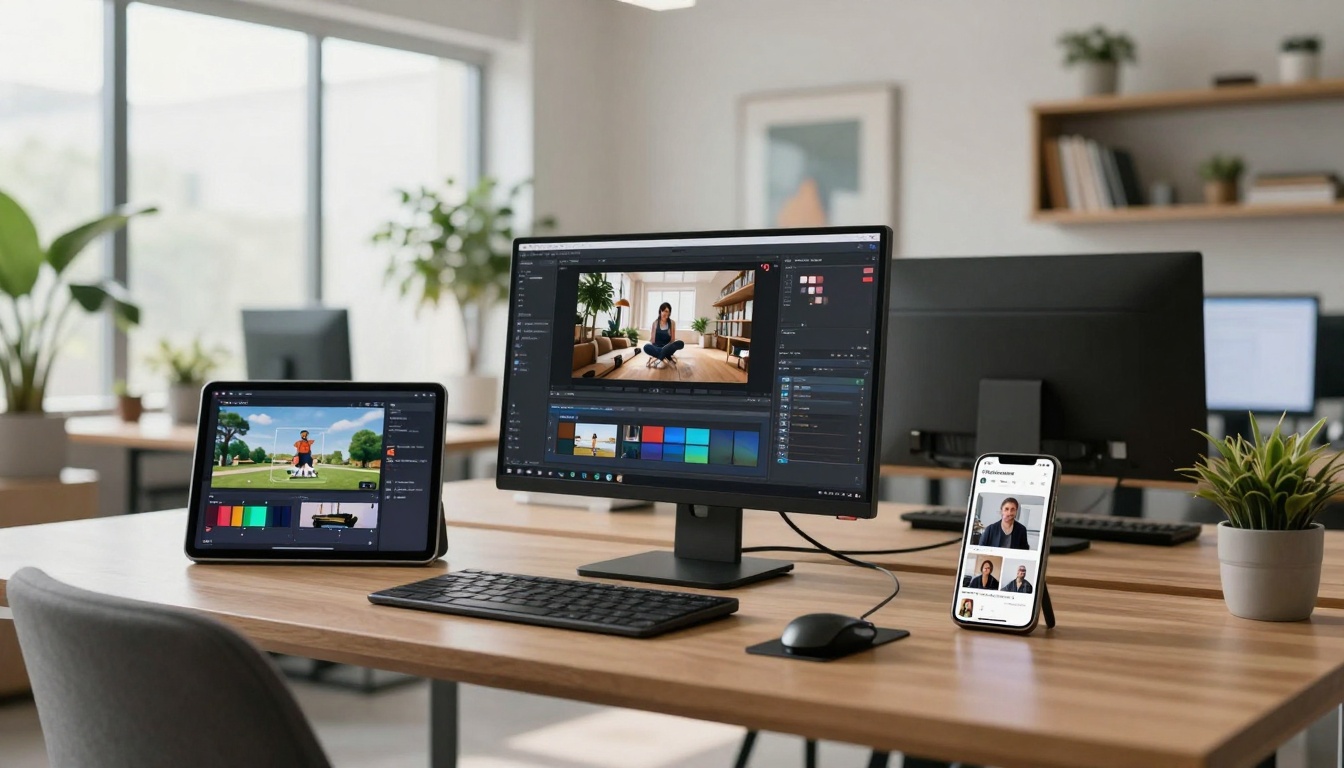
Free AI video tools reduce hardware requirements but don't eliminate them entirely. Understanding what you actually need prevents frustration.
Minimum practical setup:
- Computer: Any modern machine with 8GB RAM
- Internet: Stable connection for cloud processing
- Storage: Cloud storage for asset management
- Backup: External drive for final deliverables
Professional upgrade path:
- GPU: Entry-level NVIDIA card for local processing
- Monitor: Color-accurate display for grading
- Audio: Basic USB microphone for voiceovers
- Organization: Digital asset management system
Future Trends Already Here
The free AI video tools available today hint at where the entire industry is heading. Early adoption of these trends separates forward-thinking creators from those playing catch-up.
Real-Time Generation
Tools like Kling's motion control preview where instant generation is heading. The delay between idea and visual continues shrinking.
Personalization at Scale
AI tools that learn your style preferences and apply them automatically across projects. This moves beyond presets to true adaptive creation.
Cross-Platform Intelligence
Tools that understand platform requirements and optimize automatically for TikTok, YouTube, Instagram, etc., without manual reformatting.
Collaborative AI
Multiple creators working on the same project with AI maintaining consistency across contributions—style matching, tone alignment, quality control.
Making Your First Professional Video Today
The barrier to professional video creation has never been lower. Here's a complete starter workflow using only free tools:
- Write your script in any text editor
- Generate B-roll with Pika Labs or Runway
- Record narration with your smartphone
- Edit together in CapCut with auto-captions
- Enhance visuals with Remove.bg for clean backgrounds
- Export optimized versions for each platform
- Analyze performance and iterate
Total time investment: 2-3 hours for first project, dropping to 30-45 minutes with practice.
The Actual Cost Breakdown
"Free" doesn't mean zero investment. The real costs come in different forms:
Time investment: Learning curves, workflow optimization, quality iteration
Creative investment: Developing style, building asset libraries, testing approaches
Platform investment: Managing accounts, credit systems, export limitations
Quality investment: Knowing when free tools suffice versus when paid features become necessary
The smart approach: Start completely free, then add paid features only where they demonstrably improve outcomes or save meaningful time.
Where to Go From Here
The landscape of free AI video tools changes monthly. What works today might be obsolete in six months, replaced by something better. The constant isn't specific tools—it's the approach.
Maintain flexibility in your toolkit. Be willing to test new applications as they emerge.
Focus on workflow over features. How tools work together matters more than any single capability.
Prioritize results over technology. The best tool is the one that delivers what you need.
Share knowledge with communities. The collective intelligence of creator networks accelerates everyone's learning.
The tools exist. The knowledge is available. The results are achievable. What separates successful video creators isn't access to technology—it's the discipline to use it consistently, the wisdom to choose the right tools for each task, and the creativity to see possibilities where others see limitations.
The next professional-quality video you need could be created today with tools that cost nothing but deliver everything. The only question is whether you'll start creating or keep waiting for "someday" that never comes.


