Creating exceptional AI-generated images requires more than just typing a basic prompt and hitting generate. With advanced models like Nano Banana Pro, you have access to powerful capabilities that can produce professional-grade visuals—if you know how to use them effectively. This guide walks through practical techniques that transform average outputs into stunning results.
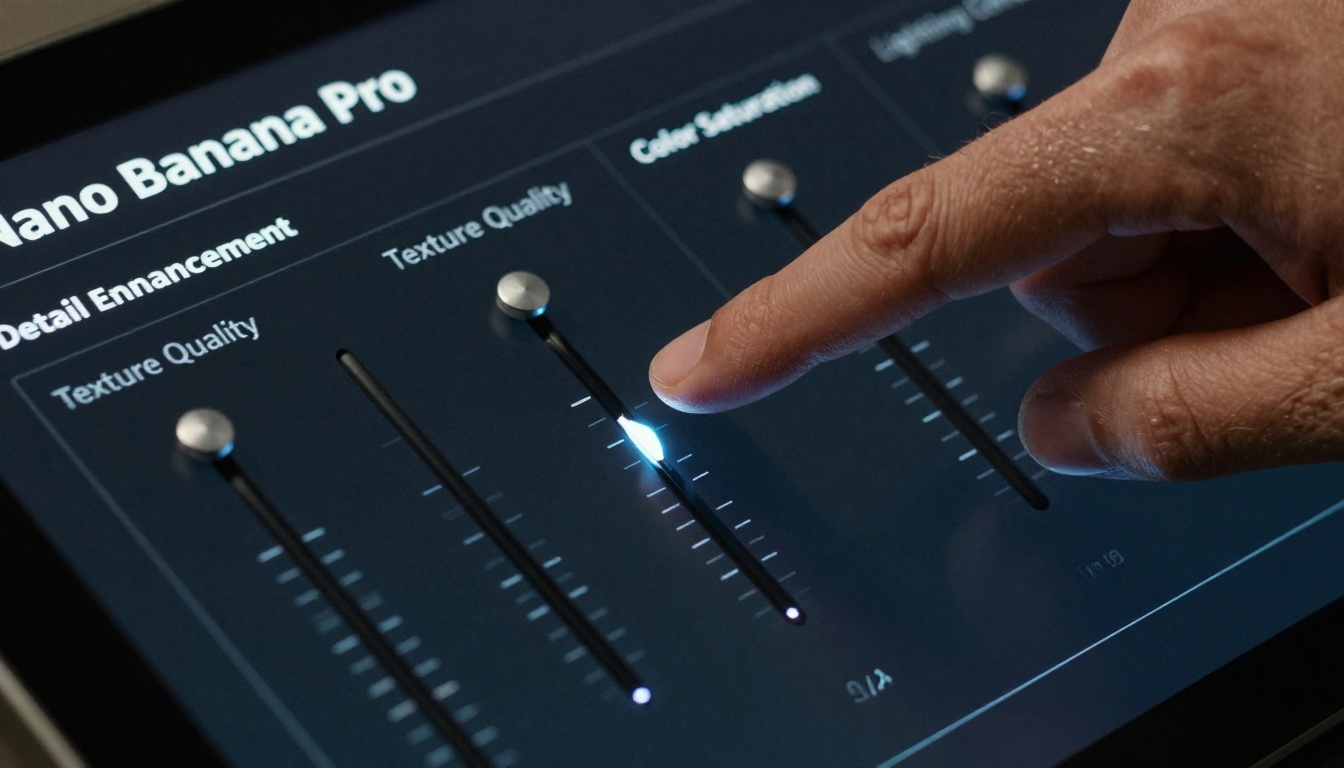
Effective parameter adjustment makes the difference between generic and exceptional AI images.
Why Image Quality Matters
When you're creating content for professional use—whether for marketing materials, product visualizations, or artistic projects—image quality directly impacts viewer perception. Blurry details, flat lighting, and unnatural colors undermine credibility. AI image enhancement isn't about adding artificial effects; it's about achieving the clarity and realism that makes images feel authentic.
The Nano Banana Pro model offers specific advantages for quality-focused work. Unlike general-purpose models, its architecture prioritizes detail preservation and natural rendering. However, accessing this potential requires understanding its parameters and how they interact with your prompts.
Parameter Optimization Strategies
Every AI image generator has settings that control output characteristics. With Nano Banana Pro, four primary parameters deserve attention:
Detail Enhancement Control
This setting adjusts how finely the model renders textures and edges. The default often leans conservative to ensure stable generation, but for professional work, you'll want to increase this value.
💡 Practical tip: Start with Detail Enhancement at 75% for most subjects. For portraits or product shots where texture matters, push to 85-90%. Avoid 100% as it can introduce artificial sharpening artifacts.
Texture Quality Settings
Texture determines how surfaces appear—whether fabric looks like plastic or like actual woven material, whether skin appears waxy or shows natural pores. Nano Banana Pro has particularly strong texture modeling capabilities.
Recommended texture settings by subject type:
| Subject Type | Texture Setting | Expected Outcome |
|---|
| Portraits | 80-85% | Natural skin pores, hair strand separation |
| Products | 75-80% | Material accuracy, surface reflections |
| Landscapes | 70-75% | Natural foliage, water surface detail |
| Architecture | 85-90% | Brick/metal textures, glass reflections |
| Food | 80-85% | Moisture droplets, ingredient texture |
Texture optimization transforms generic surfaces into believable materials with actual depth and character.
Color Saturation Management
Color handling separates amateur outputs from professional ones. The tendency to oversaturate creates cartoonish results, while undersaturation produces dull images.
Color adjustment approach:
- Natural mode: 65-70% saturation for documentary-style work
- Enhanced mode: 75-80% for marketing and social media content
- Cinematic mode: 60-65% with specific color grading (teal/orange, etc.)
Lighting Control Parameters
Lighting determines mood, dimension, and believability. Nano Banana Pro offers lighting intensity and direction controls that many users overlook.
Lighting configuration examples:
- Product shots: Directional lighting at 45 degrees, intensity 70%
- Portraits: Soft frontal with rim light, intensity 65%
- Interiors: Natural window light simulation, intensity 60%
Prompt Engineering for Quality
The right parameters need the right prompts. Basic descriptions yield basic results. Here's how to structure prompts for maximum quality with Nano Banana Pro.
Organized prompt development transforms vague ideas into precise generation instructions.
The Five-Element Prompt Structure
Effective prompts for quality-focused work include these elements:
- Subject specification (what you're generating)
- Action/pose description (what the subject is doing)
- Environment context (where it's happening)
- Lighting conditions (how it's illuminated)
- Style modifiers (the visual approach)
Basic vs. Optimized example:
- Basic: "A woman in a dress"
- Optimized: "Professional fashion model in silk evening gown standing confidently in minimalist studio, lit by softbox key light from camera left with hair light separation, photorealistic 8K photography, natural skin texture, Kodak Portra 400 film simulation"
Lighting Descriptions That Work
Lighting terms that produce consistent results with Nano Banana Pro:
- Golden hour lighting: Creates warm, dimensional illumination
- Softbox studio lighting: Produces professional portrait quality
- Window light diffusion: Natural, believable interior scenes
- Rim light separation: Adds depth and professional polish
- Volumetric lighting: Creates atmospheric, cinematic moods
Texture and Detail Keywords
Specific terms trigger better texture rendering:
- Skin: "natural pores", "subtle facial oils", "fine hair texture"
- Fabric: "woven texture", "material drape", "thread detail"
- Metals: "brushed finish", "subtle reflections", "surface imperfections"
- Nature: "leaf vein patterns", "bark texture", "water surface tension"
Workflow Efficiency Techniques
Creating multiple high-quality images requires efficient processes. These methods save time while maintaining consistency.
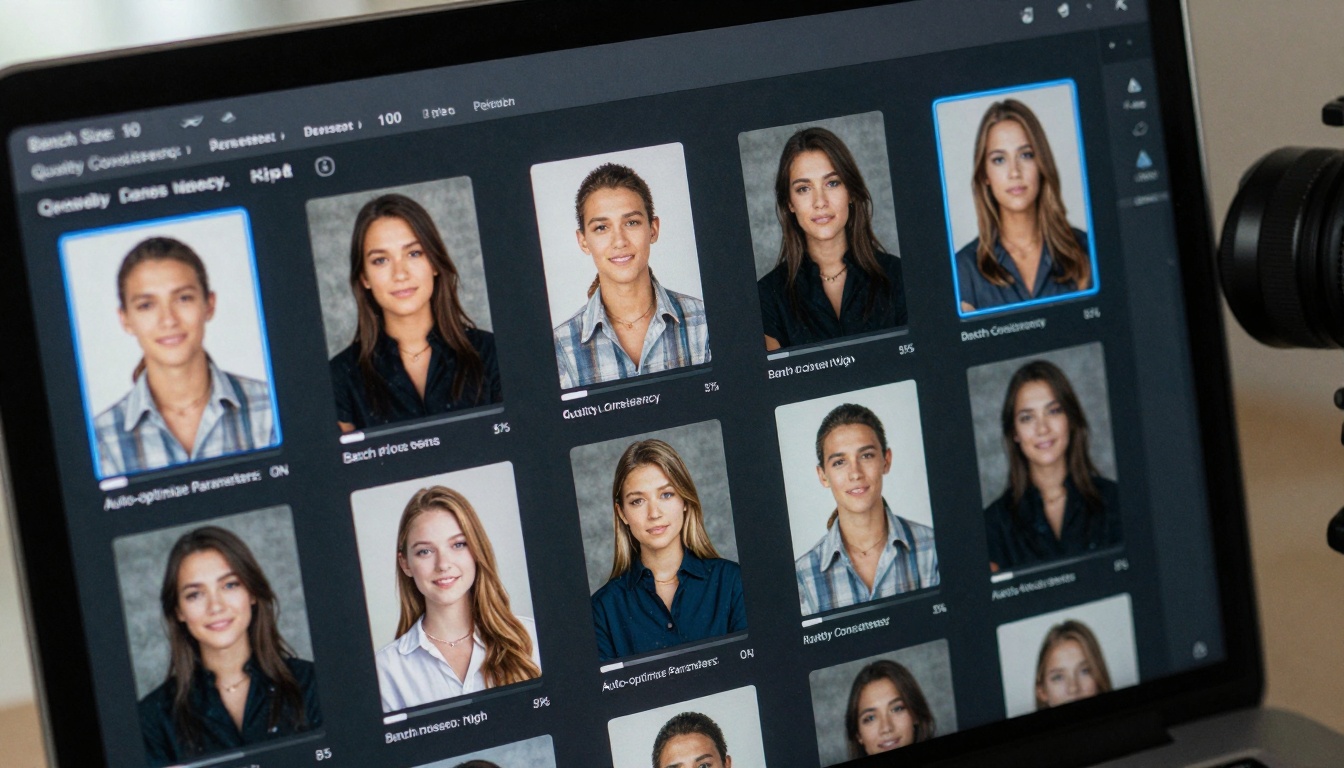
Batch processing allows consistent quality across multiple images without manual adjustment repetition.
Batch Generation Approach
Instead of generating images one by one with different settings, create batches with consistent parameters:
- Set your optimal Nano Banana Pro parameters once
- Create prompt variations while keeping structure consistent
- Generate 5-10 images in a single batch
- Review and adjust based on consistent patterns
This approach reveals how parameters affect different subjects, allowing refinement based on actual results rather than guesswork.
Quality Consistency Methods
Maintaining consistent quality across multiple images requires systematic approaches:
Consistency checklist:
Real-Time Adjustment Strategy
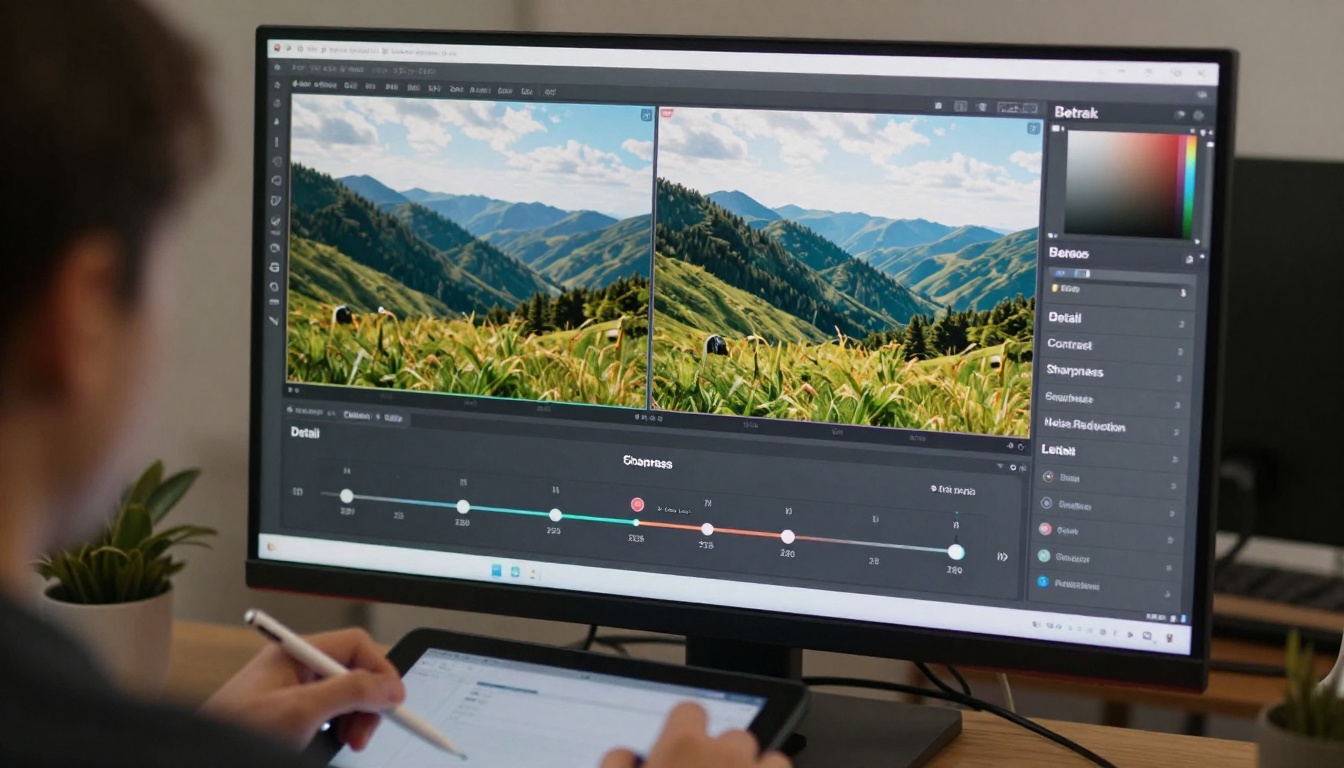
Real-time previews let you see parameter effects immediately, reducing trial-and-error cycles.
When working with Nano Banana Pro, use this adjustment sequence:
- Generate base image with moderate settings
- Adjust detail enhancement while watching texture response
- Modify texture quality to refine material appearance
- Fine-tune color saturation for desired mood
- Optimize lighting control for dimensional quality
This sequential approach isolates each parameter's effect, making optimization more predictable.
Color Management for Professional Results
Color handling separates casual users from professionals. Here's how to manage color effectively with Nano Banana Pro.
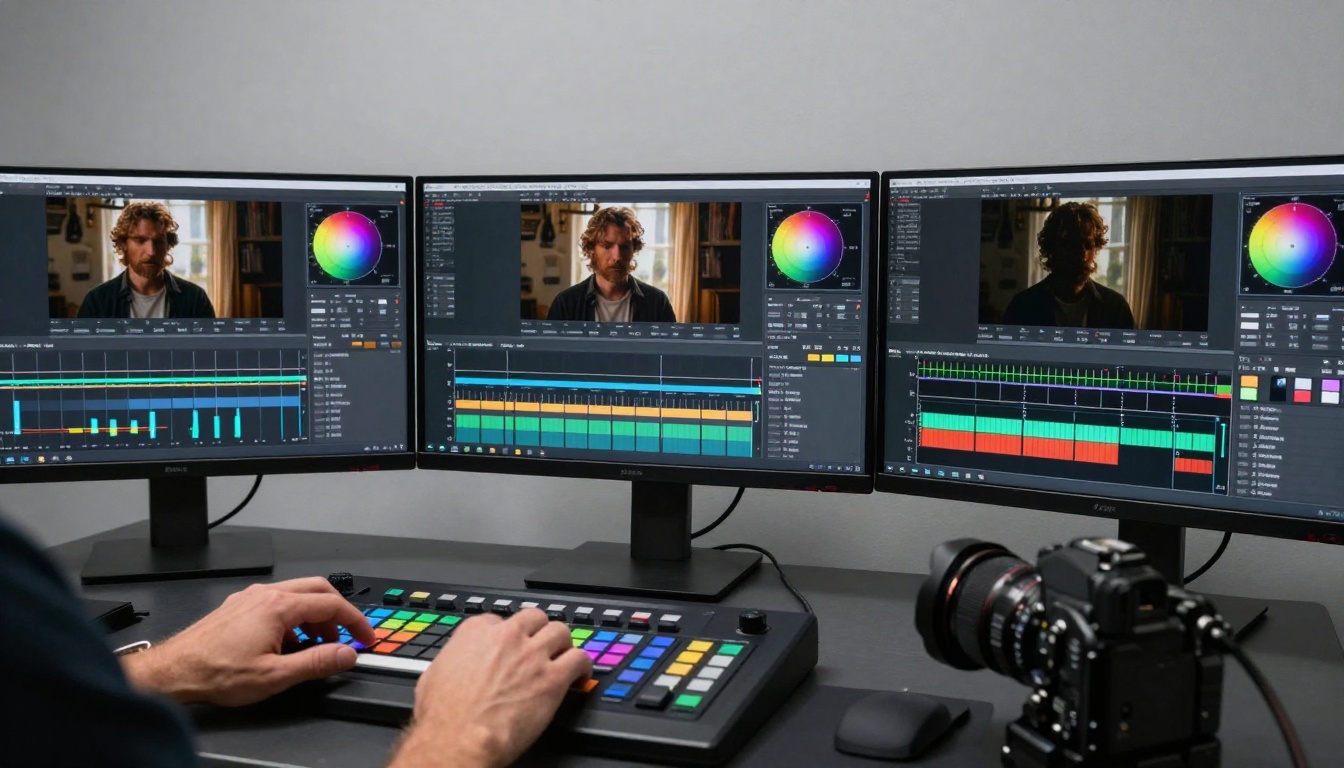
Professional color management ensures images work across different media and viewing conditions.
Color Accuracy Techniques
For product shots or reference images where color accuracy matters:
- Include color reference terms: "Pantone 187C red", "RAL 9010 white"
- Use material-based descriptions: "anodized aluminum sheen", "satin fabric reflectance"
- Specify lighting color temperature: "5600K daylight balanced", "3200K tungsten warmth"
Mood-Based Color Approaches
Different projects require different color strategies:
Marketing materials often benefit from slightly enhanced saturation (75-80%) with clean, bright palettes. Editorial content works better with natural saturation (65-70%) and documentary authenticity. Artistic projects might use specific color grading like "teal and orange cinematic grading" or "desaturated vintage film look."
Lighting Optimization Methods
Lighting makes or breaks image believability. These techniques ensure professional lighting quality.
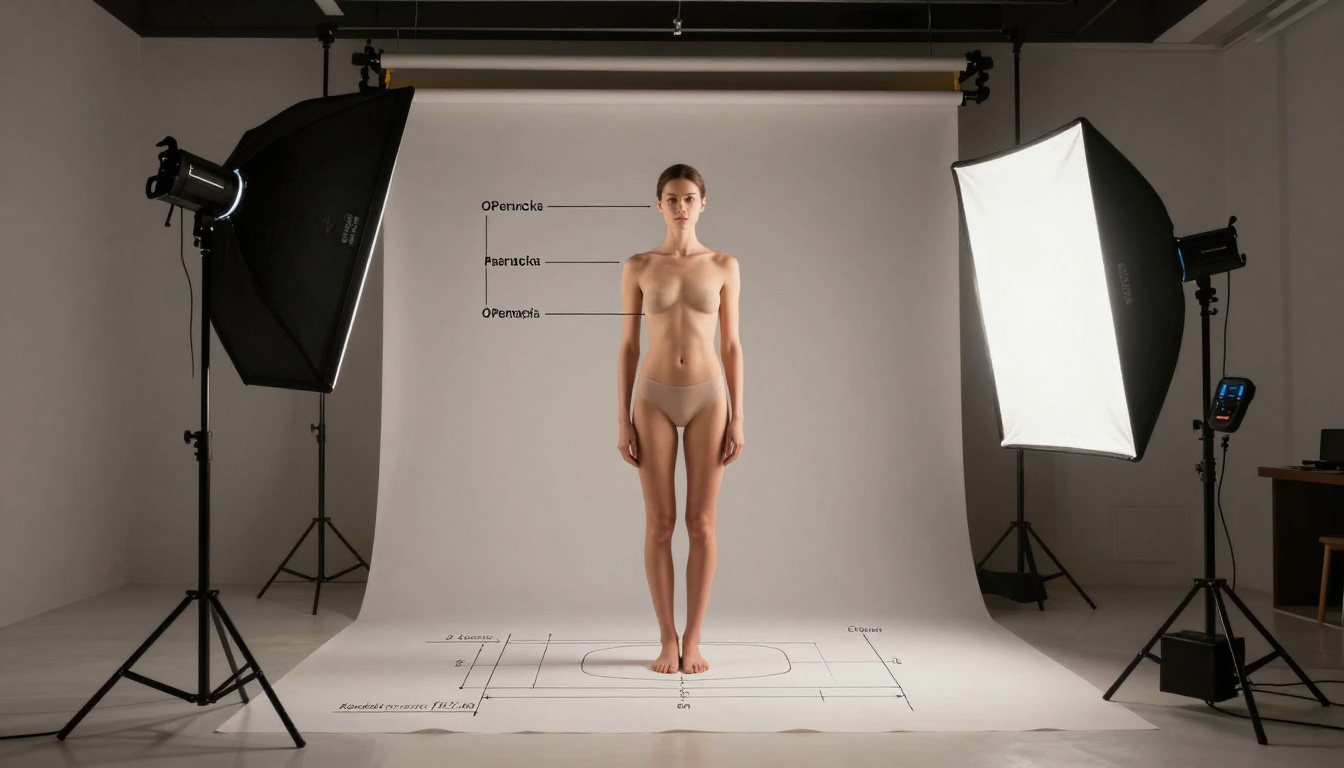
Structured lighting approaches produce consistent, professional results across different subjects.
Three-Point Lighting for AI Images
Traditional photography lighting principles work exceptionally well with Nano Banana Pro:
- Key light: Primary illumination source, typically at 45-degree angle
- Fill light: Softer light opposite key light, reduces harsh shadows
- Back light: Separates subject from background, adds depth
Prompt implementation: "lit by key light from camera left, fill light from right, hair light separation from behind"
Natural Light Simulation
For authentic-looking scenes, natural light descriptions produce best results:
- Morning window light: "soft morning light through large window, subtle lens flare"
- Overcast daylight: "diffused overcast lighting, soft shadows, even illumination"
- Sunset golden hour: "warm golden hour sidelight, long dramatic shadows"
- Interior ambient: "mixed lighting with practical lamps and window light"
Quality Comparison and Selection
Not every generated image will be perfect. Systematic comparison helps identify the best outputs.
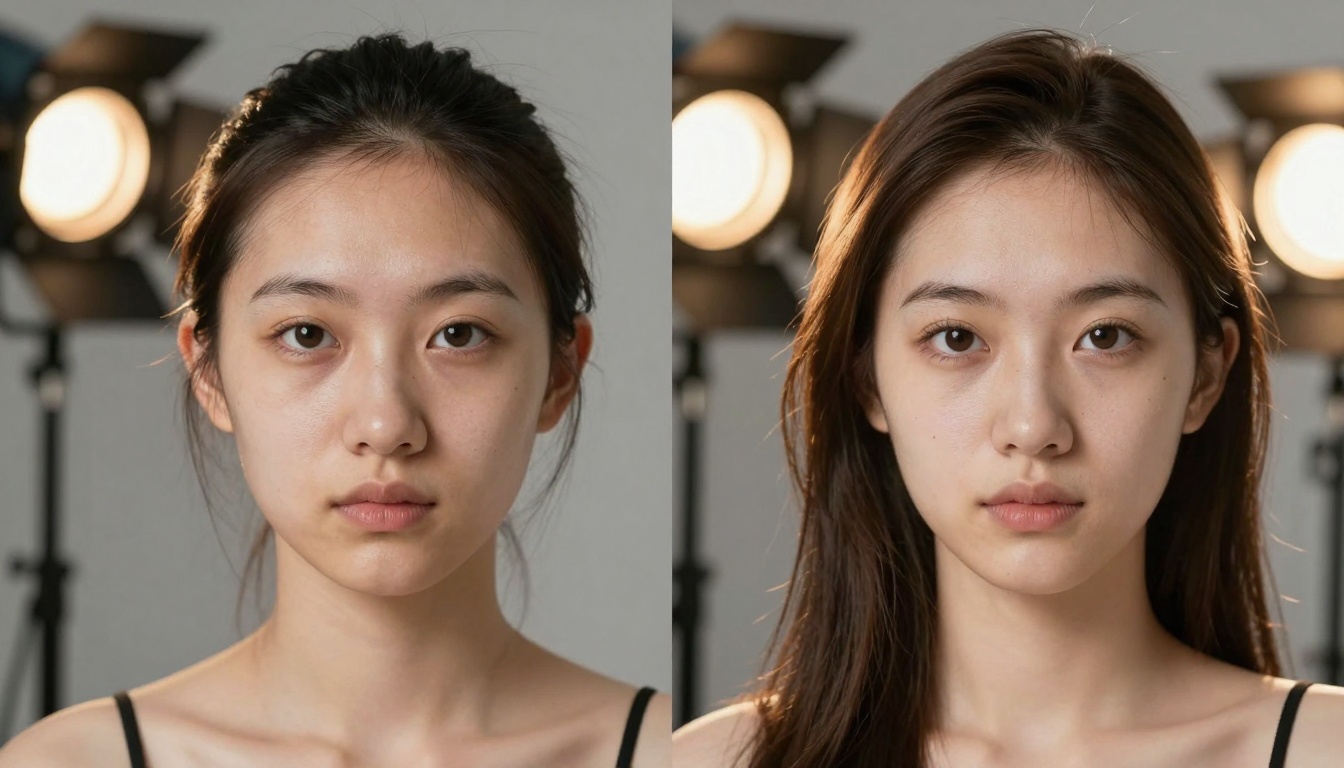
Side-by-side comparison clearly shows quality improvements from parameter optimization.
Evaluation Criteria
When reviewing Nano Banana Pro outputs, check these aspects:
Technical quality:
- Detail clarity at 100% zoom
- Texture believability
- Color accuracy and consistency
- Lighting naturalism
Aesthetic quality:
- Composition effectiveness
- Mood communication
- Style consistency
- Overall impact
Selection Workflow
- Generate multiple variations with slight parameter adjustments
- View at full resolution to assess detail quality
- Compare similar images side by side
- Note which parameters produced best results
- Apply successful settings to future generations
Advanced Parameter Combinations
Certain parameter combinations produce specific visual effects with Nano Banana Pro.
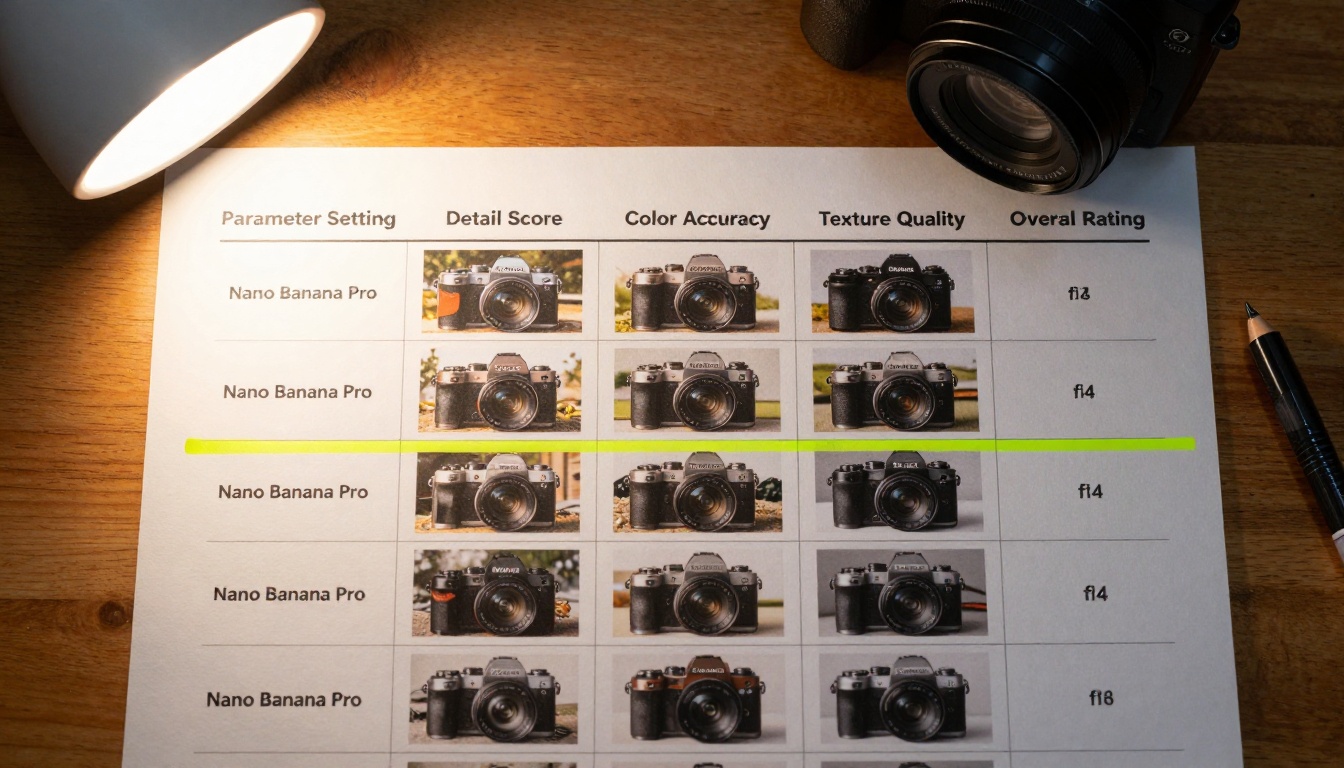
Systematic parameter testing reveals optimal combinations for different image types.
Portrait Optimization Settings
For human subjects, this combination works well:
- Detail Enhancement: 85%
- Texture Quality: 80%
- Color Saturation: 70% (natural skin tones)
- Lighting Control: 75% (soft but dimensional)
Additional prompt elements: "natural skin texture with pores, subtle facial oils, individual eyelashes, hair strand separation"
Product Visualization Settings
For commercial product images:
- Detail Enhancement: 90%
- Texture Quality: 85%
- Color Saturation: 80%
- Lighting Control: 80%
Additional prompt elements: "professional product photography lighting, material accuracy, surface reflection control, clean background"
Landscape and Environment Settings
For natural scenes:
- Detail Enhancement: 75%
- Texture Quality: 70%
- Color Saturation: 75%
- Lighting Control: 65%
Additional prompt elements: "atmospheric perspective, natural light diffusion, environmental texture variety, depth layering"
Common Mistakes and Solutions
Even with Nano Banana Pro, certain errors reduce image quality. Here's how to avoid them.
Over-sharpening Artifacts
Problem: Images look artificially sharpened with halo effects around edges.
Solution: Reduce Detail Enhancement from 90+% to 75-85%. Add "natural film grain" or "subtle texture softness" to prompts.
Unnatural Color Casts
Problem: Colors look artificial or have unwanted color tints.
Solution: Adjust Color Saturation to 65-75% range. Include "accurate color reproduction" or "neutral color balance" in prompts.
Flat, Dimensionless Lighting
Problem: Images lack depth and look two-dimensional.
Solution: Increase Lighting Control to 70-80%. Specify lighting direction and quality in prompts.
Inconsistent Texture Quality
Problem: Some surfaces look detailed while others appear blurry.
Solution: Ensure Texture Quality setting matches subject type. Use specific texture descriptions for each material.
Integration with Other PicassoIA Models
While Nano Banana Pro excels at quality-focused generation, combining it with other models creates complete workflows.
Post-Processing with Editing Models
After generating images with optimized Nano Banana Pro settings, consider:
Complementary Generation Models
For specific needs where Nano Banana Pro might not be optimal:
Practical Implementation Steps
Here's a complete workflow for implementing these techniques with Nano Banana Pro:
Step 1: Initial Configuration
- Set Detail Enhancement to 75%
- Set Texture Quality to 70%
- Set Color Saturation to 70%
- Set Lighting Control to 65%
Step 2: Test Generation
Create 3-5 test images with your standard prompts. Evaluate quality at full resolution.
Step 3: Parameter Adjustment
Based on test results:
- Increase Detail Enhancement if textures lack clarity
- Adjust Texture Quality based on subject material
- Modify Color Saturation for desired mood
- Fine-tune Lighting Control for dimensional quality
Step 4: Prompt Refinement
Enhance prompts with:
- Specific lighting descriptions
- Material texture details
- Color accuracy terms
- Style and mood indicators
Step 5: Batch Production
Generate final images in batches of 5-10 with consistent parameters.
Step 6: Quality Review
Evaluate outputs against your quality criteria. Note which combinations worked best for future reference.
Maintaining Quality Over Time
Image quality consistency requires ongoing attention. These practices help maintain standards:
Parameter Documentation
Keep records of successful parameter combinations for different project types. A simple spreadsheet with columns for Project Type, Detail Setting, Texture Setting, Color Setting, and Lighting Setting saves future experimentation time.
Prompt Library Development
Build a library of proven prompt structures. Organize by subject type (portraits, products, landscapes, etc.) with notes on what worked and why.
Regular Quality Checks
Periodically generate test images with your standard parameters to ensure consistency. AI models can have subtle variations over time, and regular checks catch drift before it affects client work.
Getting Started with Your Projects
The techniques covered here work immediately with Nano Banana Pro. Start with these approaches:
- Pick one technique to implement first (parameter optimization, prompt engineering, or workflow efficiency)
- Apply it to your next project with deliberate attention
- Compare results to your previous work
- Refine based on outcomes
- Add additional techniques gradually
The most effective improvements come from systematic application rather than trying everything at once. Focus on one area, master it, then expand to others.
Creating Your Own Images
Now that you understand these techniques, the next step is application. Visit Nano Banana Pro on PicassoIA and test these approaches with your own projects. Start with parameter adjustments on existing prompts, then refine your descriptions based on the results. Document what works for your specific needs, and build your personal optimization checklist. The combination of technical understanding and practical experimentation produces the best outcomes.


