If you've ever tried to upscale a portrait and ended up with a smooth, plasticky mess or a sharpened blob that looks nothing like the original, you already know why this comparison matters. Topaz Photo AI and Krea Enhance sit at the top of the AI upscaling conversation right now, and they approach the problem from completely different angles. One is a desktop powerhouse with years of training data behind it. The other is a cloud-native tool built for speed and creative flexibility. So which one actually holds up when you push it on real photos? This is a hands-on test, not a spec sheet comparison.
Before the numbers, it is worth being clear on what you are comparing. These are not the same category of tool with a different logo.
Topaz Photo AI
Topaz Photo AI is a desktop application that combines three separate AI models under one roof: Denoise AI, Sharpen AI, and Gigapixel AI. The upscaling engine has been in development since 2017, trained on an enormous dataset of real-world photographs. It works locally on your machine, which means your images never leave your hard drive. The trade-off is that it requires a capable GPU and a paid license.
Topaz uses multiple upscaling models internally: Standard, High Fidelity, Low Resolution, and Lines/Text, each tuned for different source material. The software auto-detects which to apply, but you can override it manually.
Krea Enhance
Krea is a cloud-based creative AI platform. Its Enhance feature is specifically designed for photographers and creators who want quick resolution boosts without a local app install. Krea runs in your browser, processes on their servers, and delivers results in seconds. It leans more toward creative upscaling, meaning it will sometimes add detail that was not in the original rather than preserving exactly what was there.
That creative bias is both its strength and its weakness.
The Test Setup
To keep this fair, both tools processed the exact same source files. No pre-sharpening, no pre-denoising. Straight from camera RAW, exported as 16-bit TIFFs, then converted to JPEG at 95 quality before input.
Test Images Used
| Image Type | Source Resolution | Target Scale |
|---|
| Portrait (studio) | 2000 x 3000 px | 4x |
| Portrait (low-light, ISO 6400) | 1500 x 2250 px | 4x |
| Landscape (overcast, flat light) | 3000 x 2000 px | 2x |
| Architecture (brick facade, handheld) | 2400 x 1600 px | 4x |
| Hair detail close-up | 1800 x 1200 px | 6x |
Scoring Method
Each output was evaluated on five criteria scored 1 to 10:
- Edge sharpness: Are lines clean or haloed?
- Texture fidelity: Does skin and fabric look real or synthetic?
- Noise handling: Is grain removed cleanly or smeared?
- Color accuracy: Does the upscaled version match the original tonally?
- Artifact presence: Any ringing, ghosting, or repeat patterns?
Portrait Upscaling Results
This is where most photographers will care the most. Portrait upscaling is technically demanding because the human eye is extremely good at detecting when skin looks wrong.
Skin Texture Recovery
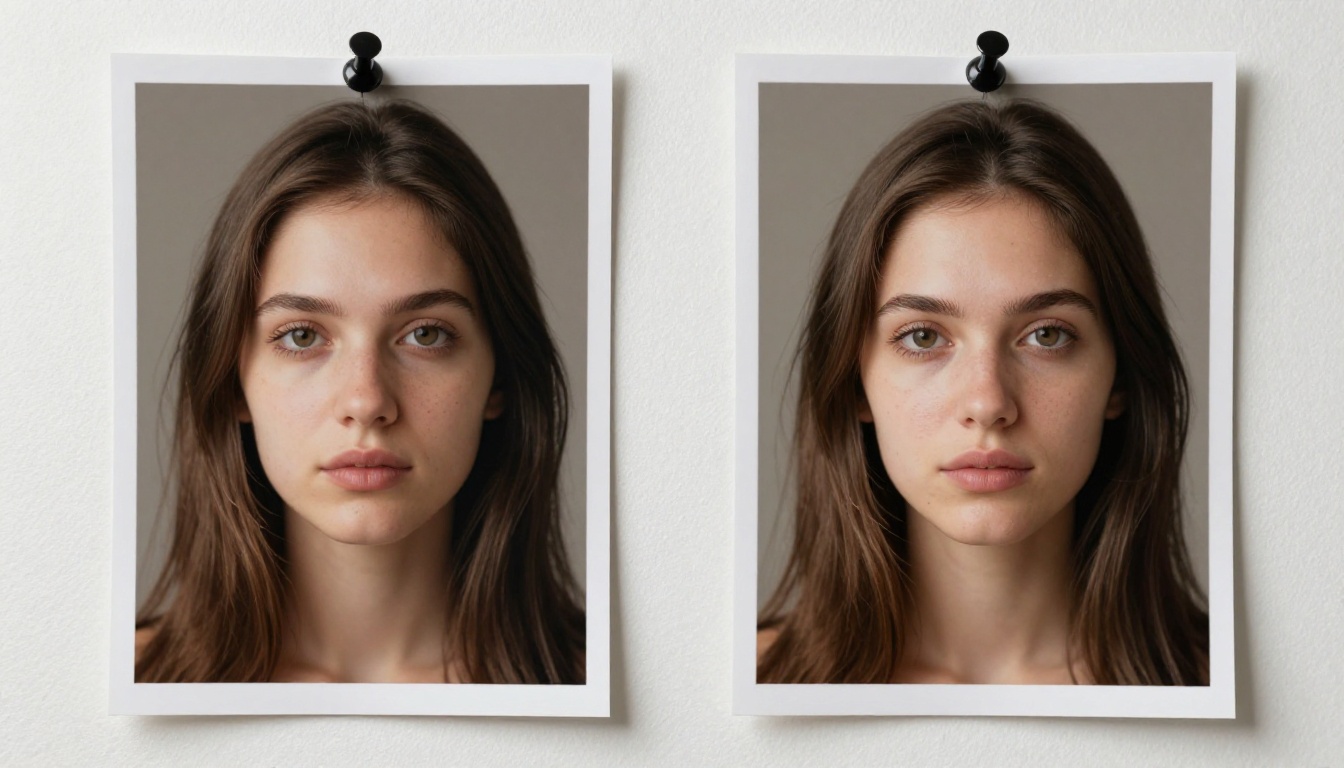
Topaz Photo AI's High Fidelity model did something impressive here: it recovered micro-texture that was genuinely lost in the original JPEG compression. Individual pores became visible in a way that felt natural rather than sharpened. The result looked like a better-exposed original, not a post-processed derivative.
Krea produced sharper-looking output at first glance, but zooming in revealed a subtle synthetic quality to the skin. Pores were present, but they had a slight repeating pattern, which is a telltale sign of hallucinated detail rather than recovered detail.
💡 Real-world verdict: For portraits going to print at large format, Topaz wins this category by a meaningful margin.
Hair and Fine Detail
Hair is the ultimate stress test for any upscaling algorithm. Individual strands need to separate cleanly without fusing into a single blurry mass.
Topaz handled wavy hair extremely well. In the 6x close-up test, individual strands separated with visible light diffusion between them. Krea struggled with fine flyaway hairs, merging them at the tips while maintaining reasonable structure through the body of the hair.
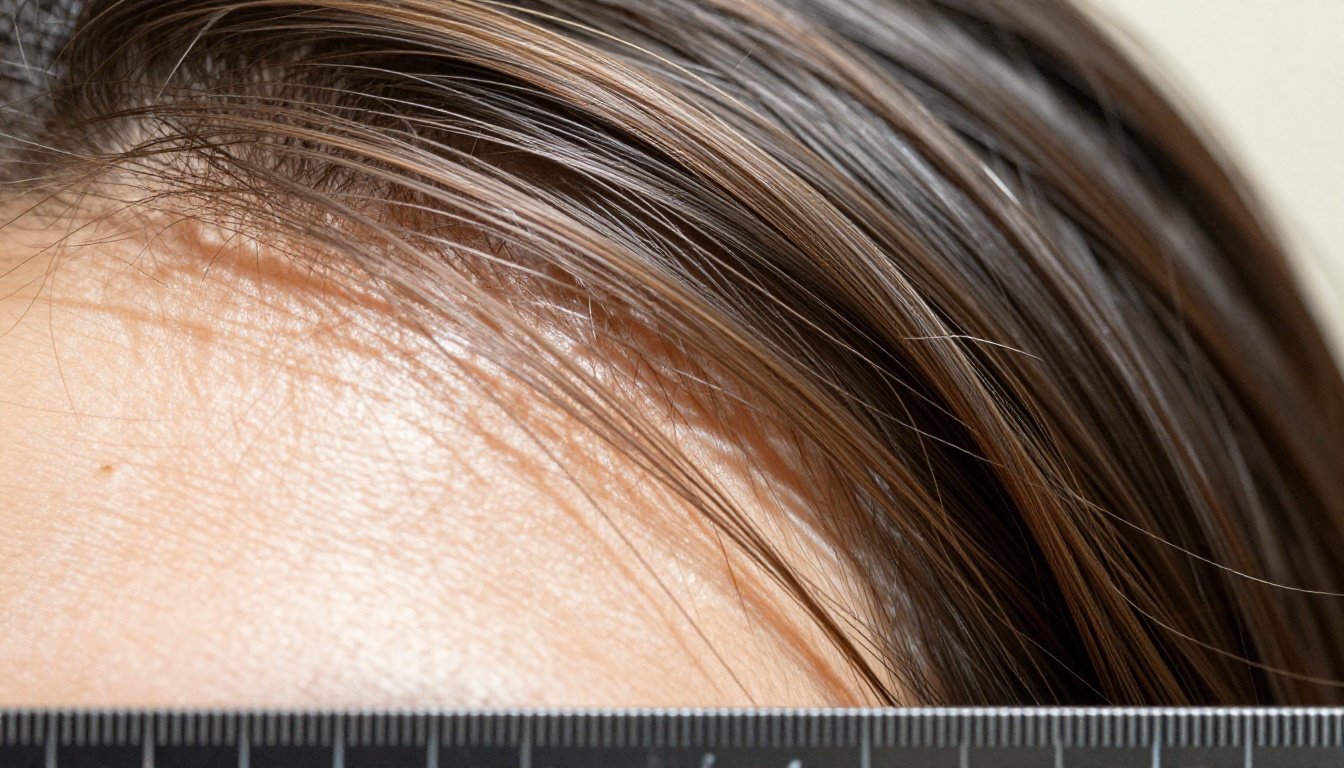
Both tools fell apart slightly at extreme edges where hair meets a bright background, which is a known limitation across all current upscalers. Topaz was cleaner. Krea added more apparent contrast that looks good as a thumbnail but falls apart at 100% zoom.
Low-Light Portraits
This is where the comparison gets interesting. The ISO 6400 portrait came in with heavy luminance noise layered over fine detail. Both tools had to decide: denoise first, or sharpen first?
Topaz's integrated pipeline denoises and upscales simultaneously, which prevents the common artifact where you sharpen noise into the image. The result was clean skin with natural-looking grain reduction. Some original detail was lost, but the output looked like an intentional photographic choice.
Krea upscaled the noise along with the image, then appeared to apply a separate smoothing pass. The skin looked cleaner in terms of noise, but it lost the micro-texture that Topaz managed to preserve.
💡 Takeaway: High-ISO source material favors Topaz's integrated processing pipeline over Krea's two-step approach.
Landscape and Architecture Results

Natural scenes test a different set of skills. There is no uncanny valley effect to worry about, but edge sharpness and depth-plane separation matter a lot.
Edge Sharpness
In the landscape test, Krea produced visibly sharper horizon lines and better-defined tree canopy separation than Topaz on the first pass. Topaz's default settings erred on the side of caution, and the result looked slightly soft compared to the Krea output.
Switching Topaz to the Low Resolution model and adjusting the sharpening parameter upward closed most of that gap. But it required manual tuning, while Krea delivered that result automatically.
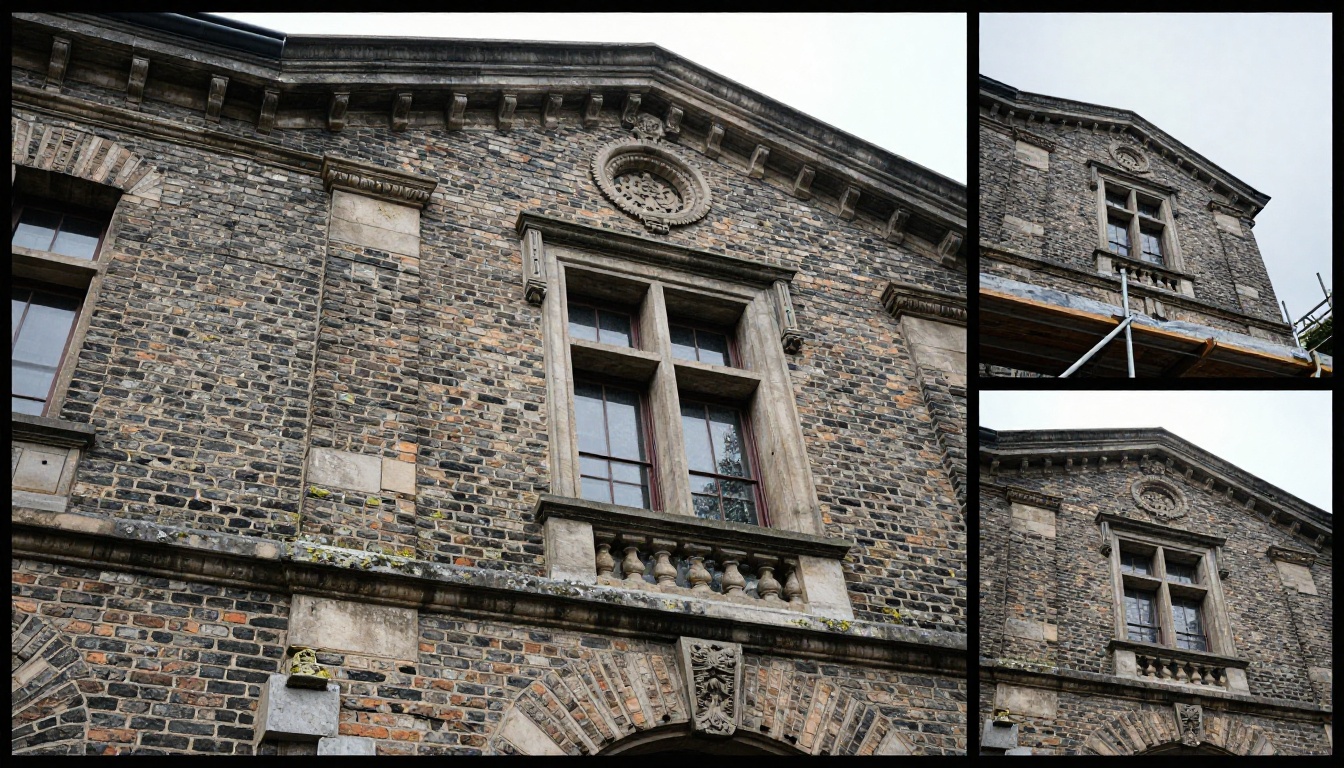
For architecture, the comparison reversed. Krea introduced haloing around the brick mortar lines in the high-contrast facade test, a common artifact when an algorithm overcorrects sharpening at edges. Topaz kept the mortar lines clean with no visible halo.
Noise in Shadows
In the landscape's shadow regions, Topaz was noticeably more aggressive about noise removal. Whether that is a positive depends on your aesthetic. If you want clean commercial images, Topaz's shadow handling is better. If you want to preserve the gritty character of a shot, Krea is more conservative and leaves more of the original texture intact.
| Criterion | Topaz Photo AI | Krea Enhance |
|---|
| Skin texture fidelity | 9/10 | 6/10 |
| Hair detail at 6x | 8/10 | 6/10 |
| Low-light noise handling | 8/10 | 7/10 |
| Landscape edge sharpness | 7/10 | 8/10 |
| Architecture (no haloing) | 9/10 | 6/10 |
| First-run auto quality | 7/10 | 8/10 |
Speed and Workflow
Processing Time
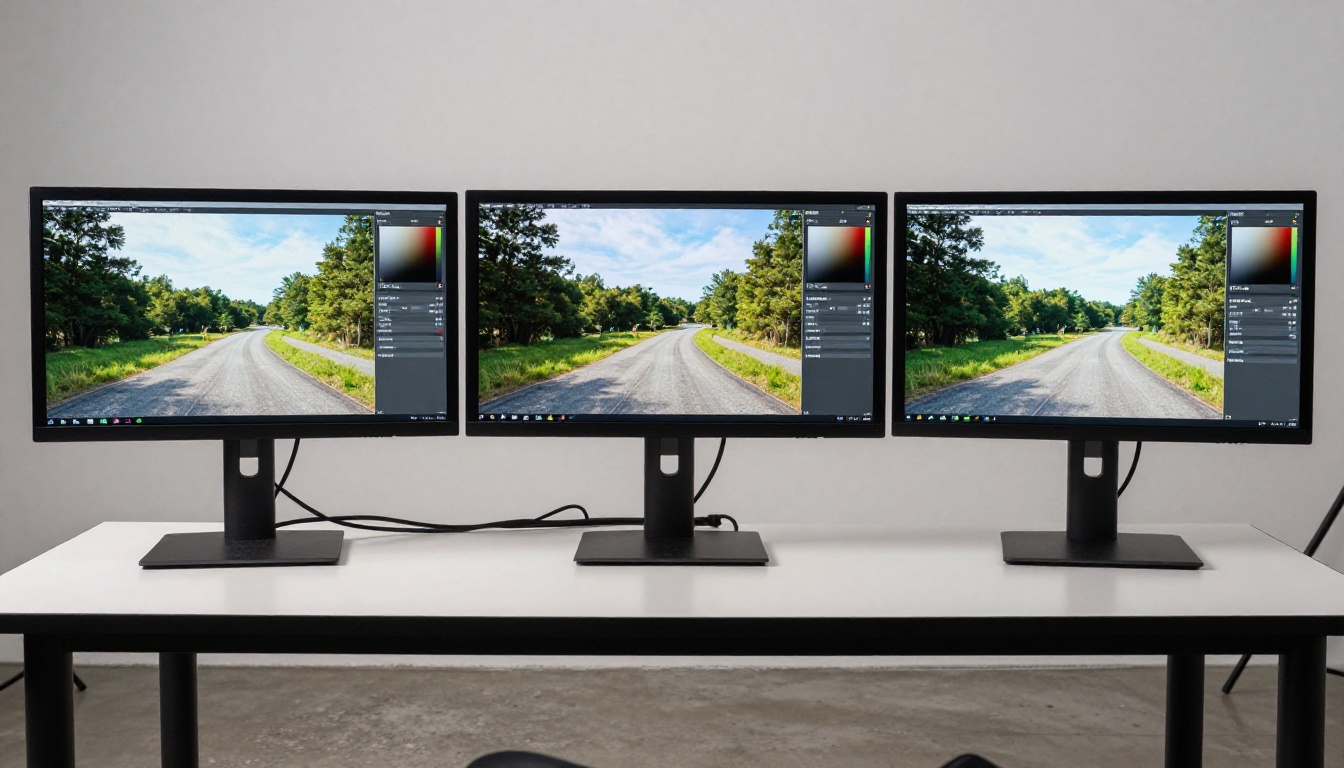
Krea wins this category without much debate. Browser-based, cloud-powered, results arrive in 10 to 30 seconds depending on file size. Topaz on a mid-range laptop with an NVIDIA RTX 3060 took 45 seconds to 3 minutes per image depending on scale factor and resolution.
If you are processing one or two images for a quick client delivery, Krea is dramatically faster. If you are batching 200 portraits after a shoot, the workflow difference matters less than output quality.
Batch Mode
Topaz supports full batch processing: drop a folder, set parameters, walk away. Krea's batch handling is limited in the standard plan. You can queue images, but it is not the same as true automated batch processing.
For professional photographers doing post-production at scale, this is a real differentiator in Topaz's favor.
💡 Speed summary: Krea is faster per image. Topaz wins for bulk workflows.
Pricing: What You Actually Pay
This is where things get more nuanced than the marketing pages suggest.
Topaz Cost Breakdown
Topaz Photo AI is sold as a perpetual license at $199 for the full suite, or you can buy Gigapixel AI separately at $99. After the first year, a subscription for updates costs roughly $99/year. You own the software either way. You just do not get model updates without the subscription.
For professionals who will use it weekly, the math works out to less than $10 per month amortized over two years. There is also a free 30-day trial with no output restrictions.
Krea Cost Breakdown
Krea operates on a subscription model. The free tier gives you a limited number of daily operations. The Pro plan runs at approximately $35 to $49/month depending on the plan tier, which includes credits along with the rest of Krea's generation features.
If you only need upscaling, paying for Krea's full creative suite is inefficient. But if you are already using Krea for image generation, the feature comes along with the subscription.
Choose Topaz Photo AI when:
- You are upscaling portraits at large print sizes
- Texture fidelity and natural-looking output matter more than speed
- You need batch processing for professional workflows
- You want a one-time purchase rather than an ongoing subscription
- Privacy matters, since all processing is local on your machine
Choose Krea when:
- You need a result in under 30 seconds
- You are working on landscapes or images where added sharpness reads as a positive
- You are already subscribed to Krea for its generative features
- You want a browser-based tool with no install or GPU requirement
Neither tool is objectively better. They are built for different priorities, and the output quality gap closes significantly when you tune Topaz's parameters manually rather than relying on auto-detection.
AI Upscaling on PicassoIA
PicassoIA has a full suite of super-resolution models available directly in the browser. No subscription stacking, no desktop install. The platform gives you access to the same underlying technology at different quality points, so you can match the tool to the job.
How to Use Image Upscale on PicassoIA
The Image Upscale by Topazlabs model on PicassoIA lets you enlarge any photo up to 6x using the same Gigapixel-class technology reviewed here. The process takes three steps:
- Open the Image Upscale model on PicassoIA
- Upload your source image (JPEG, PNG, or WEBP supported)
- Select your scale factor (2x, 4x, or 6x) and click Generate
Results are delivered directly in the browser with a download link. No GPU requirement, no license management.
For portraits specifically, the Crystal Upscaler is optimized for faces and recovers pore-level skin texture reliably. The Clarity Pro Upscaler sits between creative and photorealistic output and works especially well on images where some detail addition is welcome alongside preservation.

Other Upscaling Models Worth Trying
PicassoIA's super-resolution library covers multiple approaches to the same problem:
- P Image Upscale: Sharp results in under one second, ideal for fast previewing before committing to a longer process
- Recraft Crisp Upscale: Free model with solid edge sharpness for product and architecture shots
- Real ESRGAN: The open-source backbone that many upscalers are built on, available directly with 4x scaling
- Bria Increase Resolution: Commercial-grade output at up to 4x, trained specifically for professional photo use cases
- Google Upscaler: 4x upscaling with strong generalization across diverse image types
- Recraft Creative Upscale: Adds depth and synthesizes detail in a way similar to Krea's approach, better for creative projects than strict restoration
Running a side-by-side comparison between P Image Upscale and Clarity Pro Upscaler on the same portrait gives you an instant read on the trade-off between speed-optimized and quality-optimized processing, right in the browser, at no cost.
Stop Debating, Start Upscaling
The Topaz vs Krea debate has a clear answer for most use cases: Topaz wins on texture fidelity and batch control, Krea wins on speed and first-run convenience. But spending $199 or $49/month when you can test professional-grade models on PicassoIA for free is the move that makes sense before committing to either.
Upload a portrait, a landscape, or a shot you have been meaning to fix and run it through the Image Upscale or Crystal Upscaler right now. The difference between a soft original and a properly processed version at 4x is the kind of thing you need to see once on your own images to understand why this technology has taken over professional photo workflows.
The best AI upscaler is the one you actually use on your actual photos.


