Still photos hold frozen moments. Veo 3.1 sets them free.
Google's latest video generation model has quietly shifted what's possible with AI-powered content creation. Where earlier models struggled with flickering edges, unnatural limb movement, and obvious artifacting, Veo 3.1 produces fluid, physically plausible video from a single input image with a precision that regularly surprises even experienced creators. Whether you're animating a portrait, a travel shot, or a product photo, the output feels less like a filter effect and more like the original scene genuinely coming back to life. The gap between "this looks like an AI animation" and "this looks like actual footage" has never been narrower.
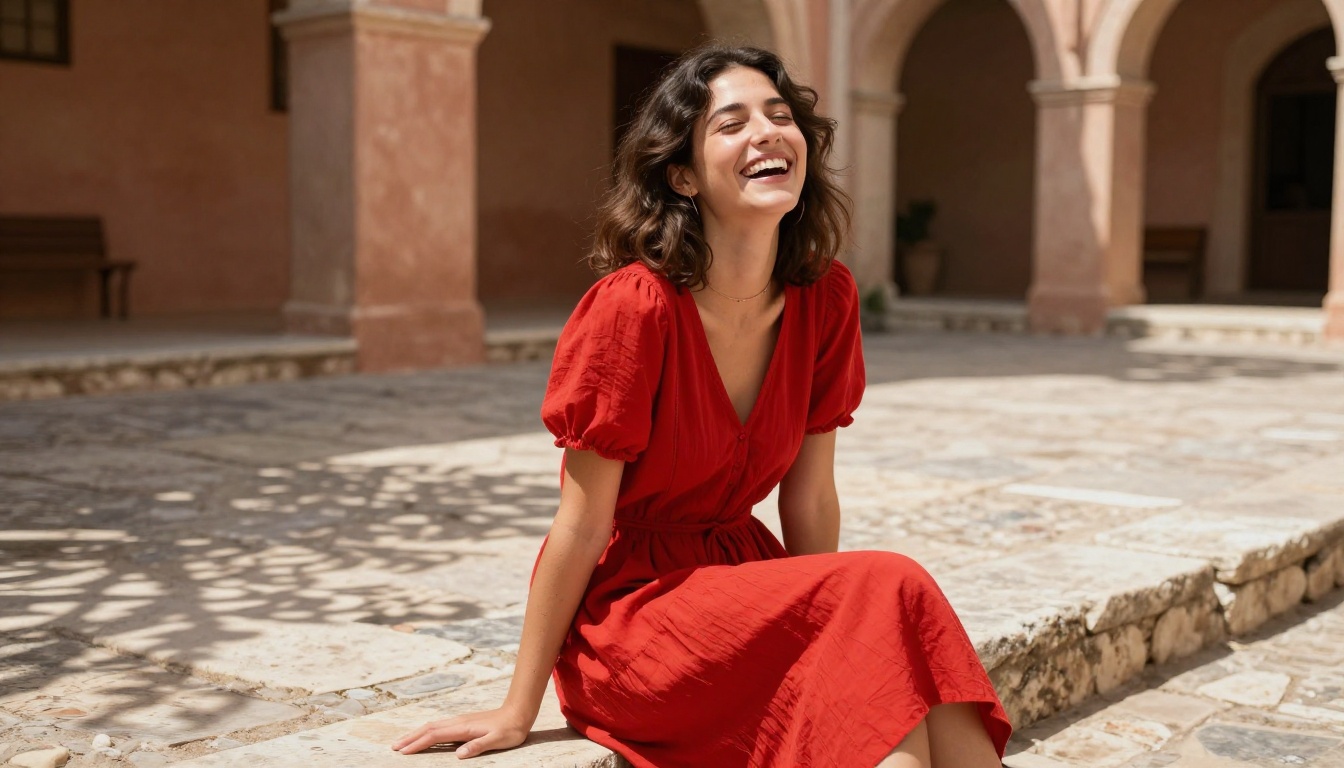
What Makes Veo 3.1 Different
The jump from Veo 2 to Veo 3.1 is not incremental. Google rebuilt significant portions of the model's understanding of real-world physics, camera dynamics, and scene coherence to arrive at a result that feels qualitatively different from anything the generation model landscape offered before.
From Veo 2 to Veo 3.1
Veo 2 was already a strong performer when it launched, producing smooth 1080p video with solid temporal consistency. But it had clear limitations: complex motion in background elements often drifted unpredictably, fine details like hair and fabric behaved unnaturally at longer clip durations, and the model had no native audio output whatsoever.
Veo 3.1 addresses most of those problems directly. The model's architecture now incorporates a deeper understanding of object permanence, meaning elements that move partially out of frame don't disappear or warp on re-entry. It also handles occlusion, the way one object passes in front of another, with noticeably more physical realism than any previous version.
Real Physics, Real Motion
One of the clearest wins in Veo 3.1 is its handling of secondary motion. When you animate a portrait of someone standing outdoors, it's not just the subject who moves. Loose clothing ripples at the hem, hair responds to implied air movement, and background foliage sways at a rate consistent with the wind speed the scene implies. The model infers these secondary effects from contextual cues in the source image rather than applying a generic preset animation.
💡 Tip: Photos with natural environmental elements like trees, water, fabric, or clouds tend to produce the most visually compelling animations because Veo 3.1 has more motion anchors to work with in the scene.
Native Audio Synthesis
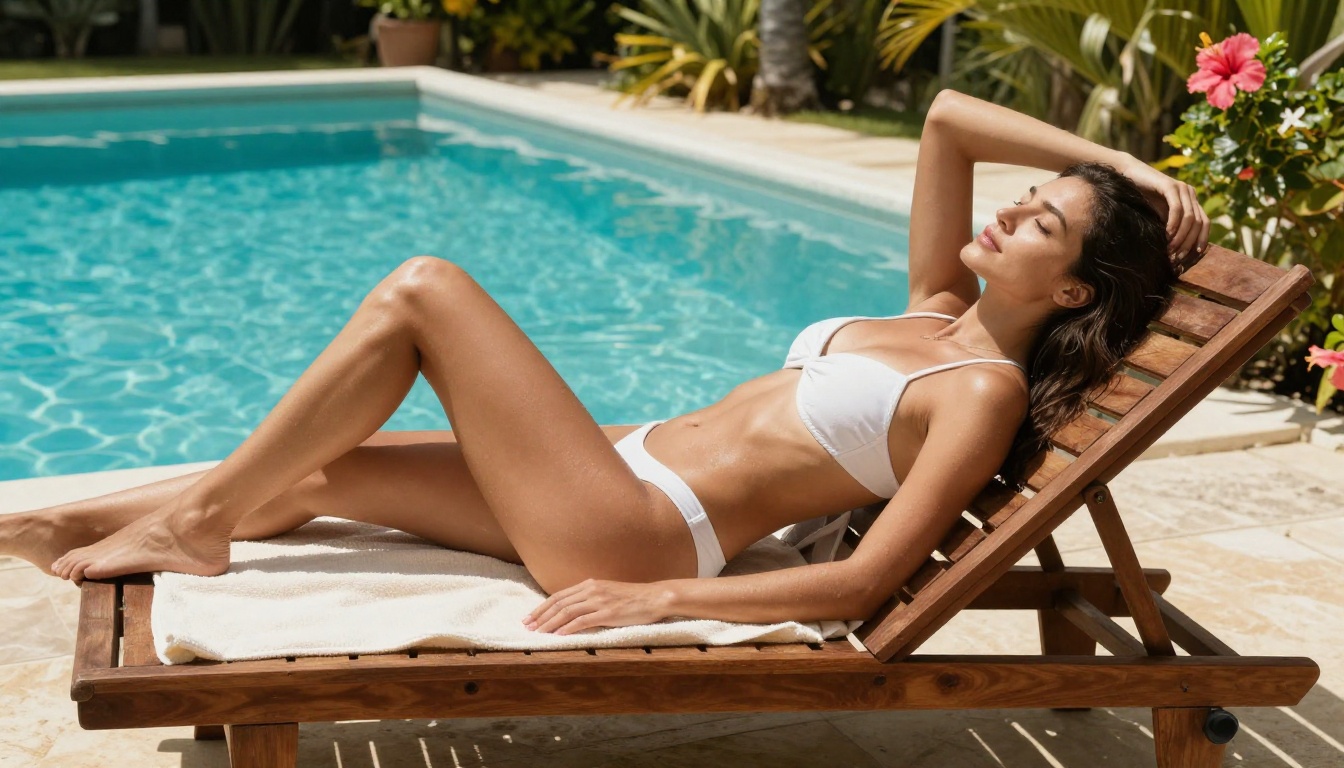
Unlike its predecessors, Veo 3.1 can generate synchronized ambient audio alongside video output. Upload a beach photo and the model can produce the sound of waves and wind calibrated to match the visual scene. Upload a portrait taken at a café and it may add ambient crowd noise and soft indoor acoustics. This doesn't apply universally to every image-to-video workflow, and it depends on platform configuration, but when it activates, the result is a fully self-contained media asset that needs no additional sound design.
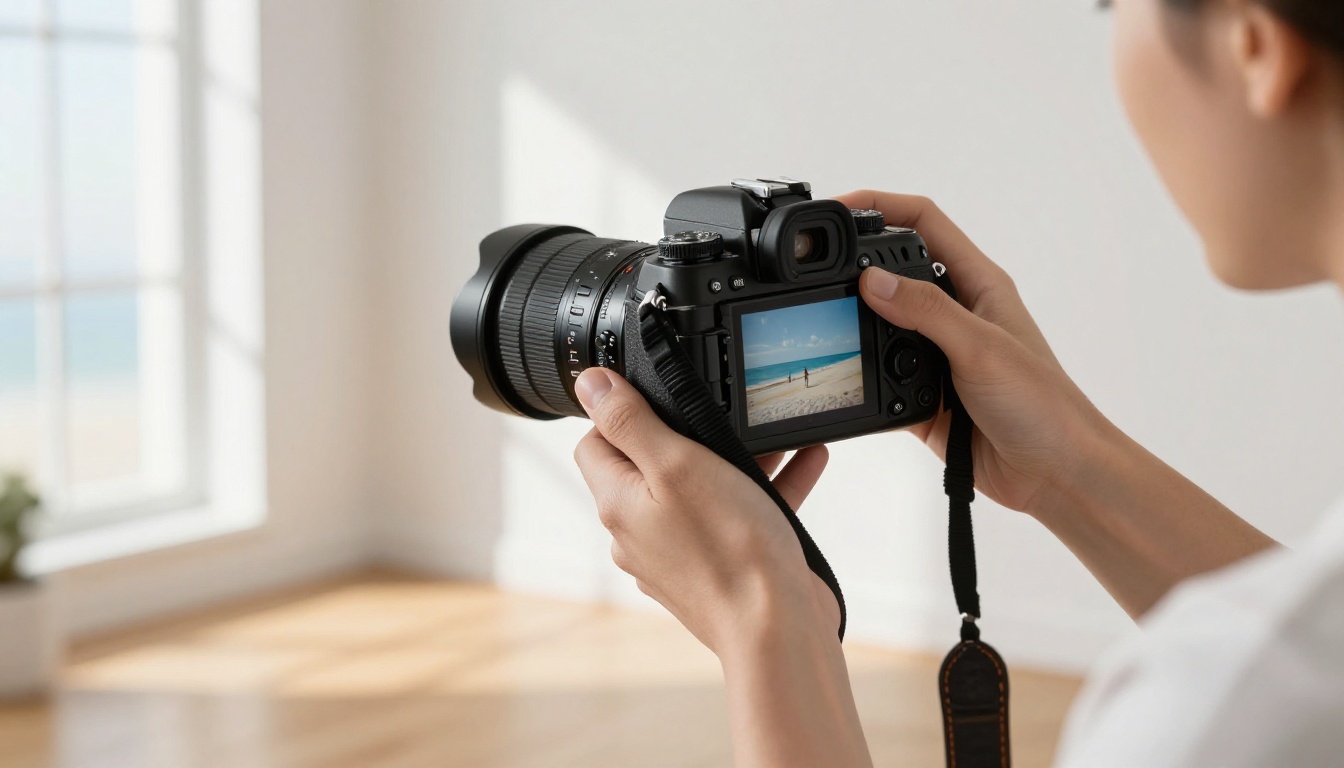
How Photo-to-Video AI Actually Works
Understanding the mechanics helps you work with the model more intentionally rather than just uploading a photo and hoping for the best.
Image Analysis and Scene Parsing
When you feed a still image to Veo 3.1, the model doesn't simply apply motion to pixels. It first performs deep scene parsing: identifying subjects, estimating depth, reading lighting conditions, and inferring the likely camera position and focal length used to capture the original shot. This spatial map is what allows it to move elements convincingly in three-dimensional space rather than creating a flat parallax effect that reads immediately as artificial.
Temporal Coherence and Frame Consistency
Generating video means generating many individual frames and ensuring they flow smoothly from one to the next. Veo 3.1 uses an attention mechanism that keeps track of how each element has moved in previous frames before deciding where it goes next. This is what prevents the "jitter" common in earlier image animation tools, where subjects would subtly warp or shift between frames in ways that read as obviously synthetic.
The Role of Your Text Prompt
The source image determines the scene. Your text prompt determines the action. Veo 3.1 accepts motion direction prompts alongside the input image, so you can specify things like "slow camera push forward," "subject turns slightly to the right," or "leaves falling in background while subject holds position." The more specific your prompt, the more closely the output aligns with your creative intent.
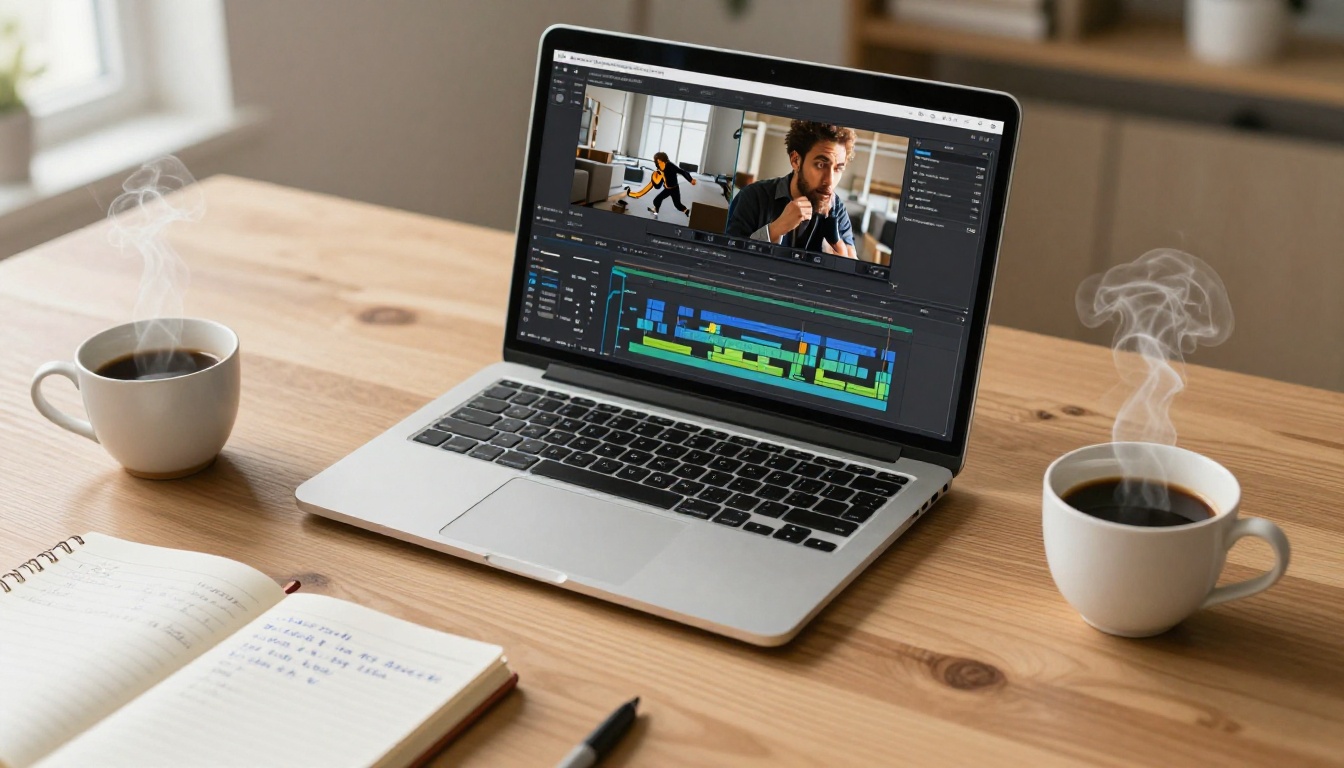
How to Use Veo 3.1 on PicassoIA
PicassoIA gives you direct access to Veo 3.1 without API keys, account configuration, or complicated technical setup. Here's the exact process.
Step 1: Prepare Your Source Image
Select a clear, well-lit photo. Images with a single dominant subject and an uncluttered background perform best on a first attempt. JPEG and PNG are both accepted. Aim for at least 1024px wide for best output quality, though the model handles lower-resolution inputs reasonably well.
💡 Tip: Avoid images with extreme motion blur already present in the original. Veo 3.1 reads the image as a frozen moment in time, so pre-existing blur can confuse its depth estimation and edge detection.
Step 2: Open the Model on PicassoIA
Navigate to the Veo 3.1 model page and upload your image using the upload panel. You'll see a text prompt field alongside several parameter controls for duration and output resolution.
Step 3: Write a Motion Prompt
This is where most users leave results on the table. Don't write "make it a video." Instead, describe the specific motion you want to see:
- "Gentle breeze moves hair and jacket, camera slowly zooms in toward face"
- "Subject smiles softly and glances slightly to the left, bokeh background shifts"
- "Ocean waves roll in from the right, seagulls pass in background, warm light holds steady"
- "Leaves fall gently from trees, couple in foreground stays still, camera drifts right"
The model responds well to physical actions, camera movements, and environmental conditions described in plain language.
Step 4: Set Duration
Veo 3.1 supports clip durations typically between 4 and 8 seconds. For most social media use cases, 5 to 6 seconds hits the sweet spot between motion development and file size. Longer clips give motion more room to develop naturally but increase generation time.
Step 5: Generate and Review
Hit generate. Processing typically takes between 60 and 120 seconds depending on resolution and current queue load. Download the output and review it before sharing. If the motion is too aggressive, too subtle, or a specific area is behaving oddly, adjust your prompt and regenerate. First attempts are often 70-80% of the way to what you want.
💡 Tip: Use Veo 3.1 Fast for quick iteration and previewing motion concepts at speed, then switch to the full Veo 3.1 for your final production output.
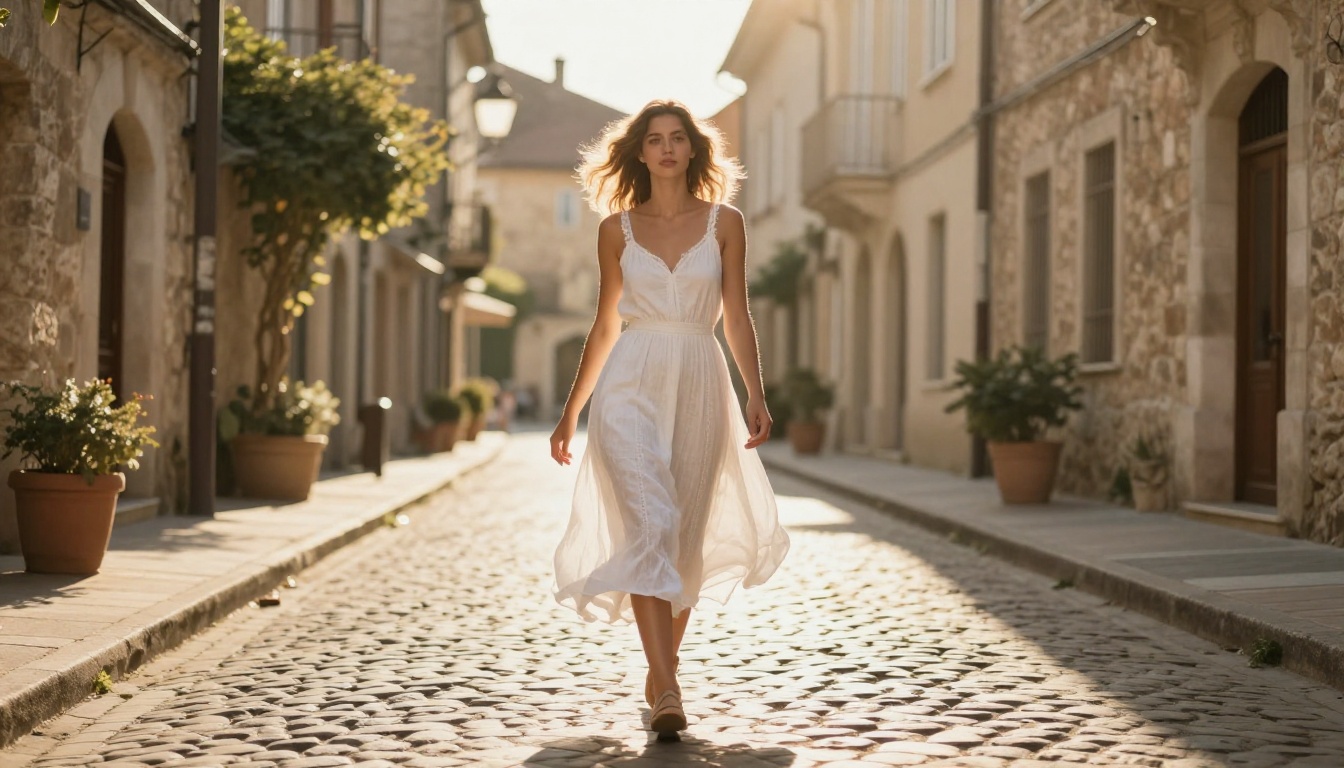
Veo 3.1 vs the Competition
The image-to-video space has expanded rapidly. Here's how Veo 3.1 compares to the strongest alternatives currently available on PicassoIA.
| Model | Strengths | Best For |
|---|
| Veo 3.1 | Physics accuracy, secondary motion, native audio | Realistic scenes, portraits, nature photography |
| Kling V3 Omni | Motion control, subject fidelity | Action sequences, character animation |
| Wan 2.6 I2V | Speed-to-quality ratio | High-volume production workflows |
| Hailuo 2.3 | Facial expression preservation | Portrait and emotion-driven content |
| LTX-2.3-Pro | Audio-reactive animation, multi-input | Music content, rhythmic video |
| Seedance 1.5 Pro | Cinematic camera movements | Travel, landscape, cinematic reels |
| PixVerse v5.6 | Creative stylization, visual effects | Social media, stylized content |
When Veo 3.1 Wins
For photorealistic outputs from real-world photographs, Veo 3.1 occupies a category of its own right now. Its advantage isn't purely visual quality; it's the coherence of physics-based secondary motion that makes animated photos look genuinely cinematic rather than artificially smoothed. A portrait animated with Veo 3.1 has a quality that's difficult to attribute to specific technical factors. It simply looks right.
When to Consider Alternatives
If you need heavy motion control such as applying a specific dance sequence or reference motion to a character, Kling V3 Motion Control is worth exploring. For fast batch generation at scale, Wan2.6 I2V Flash delivers strong results at higher speed. If character animation from a single portrait is your primary goal, DreamActor-M2.0 specifically specializes in making people move naturally and expressively from a single still photo.
What Photos Work Best
Not every image animates equally well. These factors have the biggest measurable impact on output quality.
Lighting and Depth
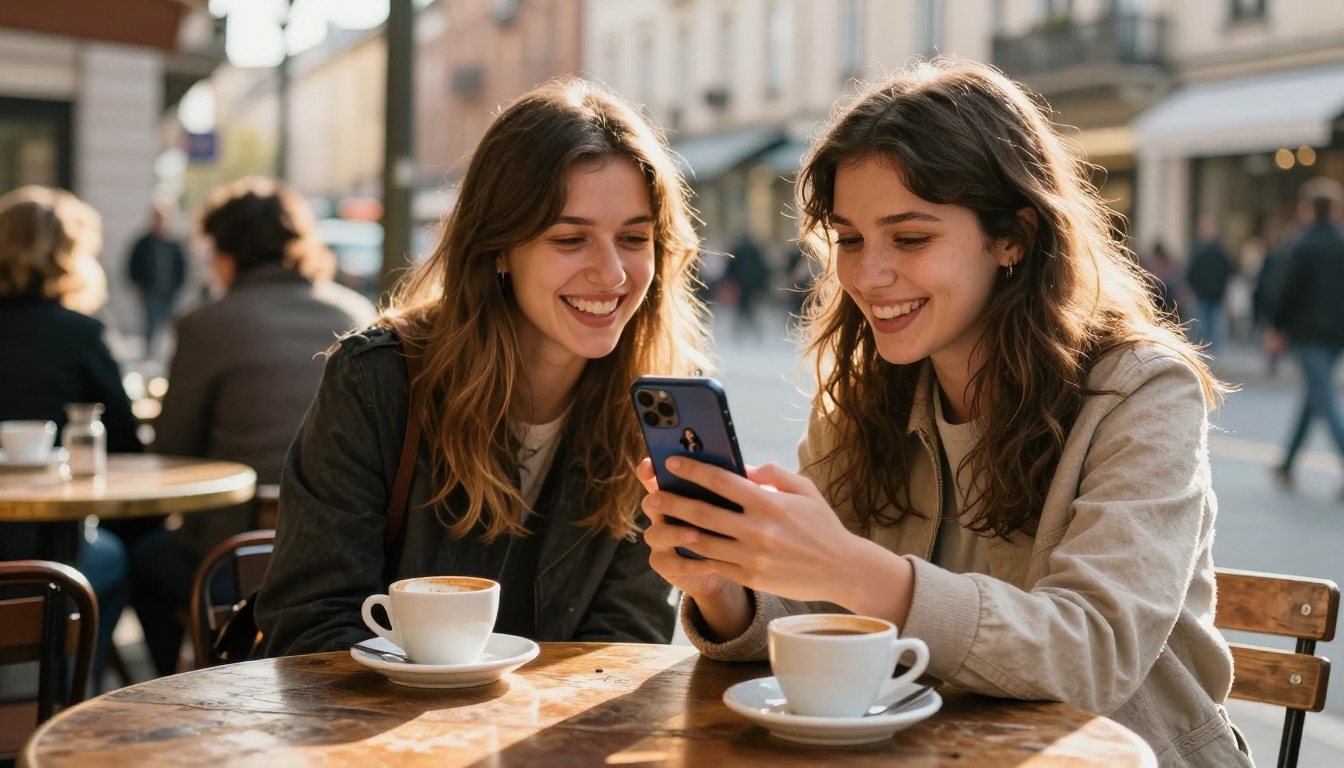
Photos with strong, directional light create more dimensionally convincing scenes. Veo 3.1 reads shadows and highlights to estimate depth within the frame. Flat, overcast-lit photos still animate, but the sense of three-dimensional motion is less pronounced. Golden hour shots consistently produce standout results because the directional light creates strong depth cues.
Subject Clarity
The model identifies the primary subject and prioritizes its motion coherence. If multiple subjects occupy the frame at equal visual weight, motion can become unpredictable. One clear focal point produces the most controlled results. If your photo has multiple subjects, try cropping to emphasize one.
Background Complexity
A mid-complexity background with some natural elements, trees, water, architecture, gives the model motion anchors. Completely plain backgrounds work for portrait animation but produce minimal environmental motion. Extremely busy backgrounds with many competing elements can cause drift or stuttering in peripheral areas.
Resolution and Sharpness
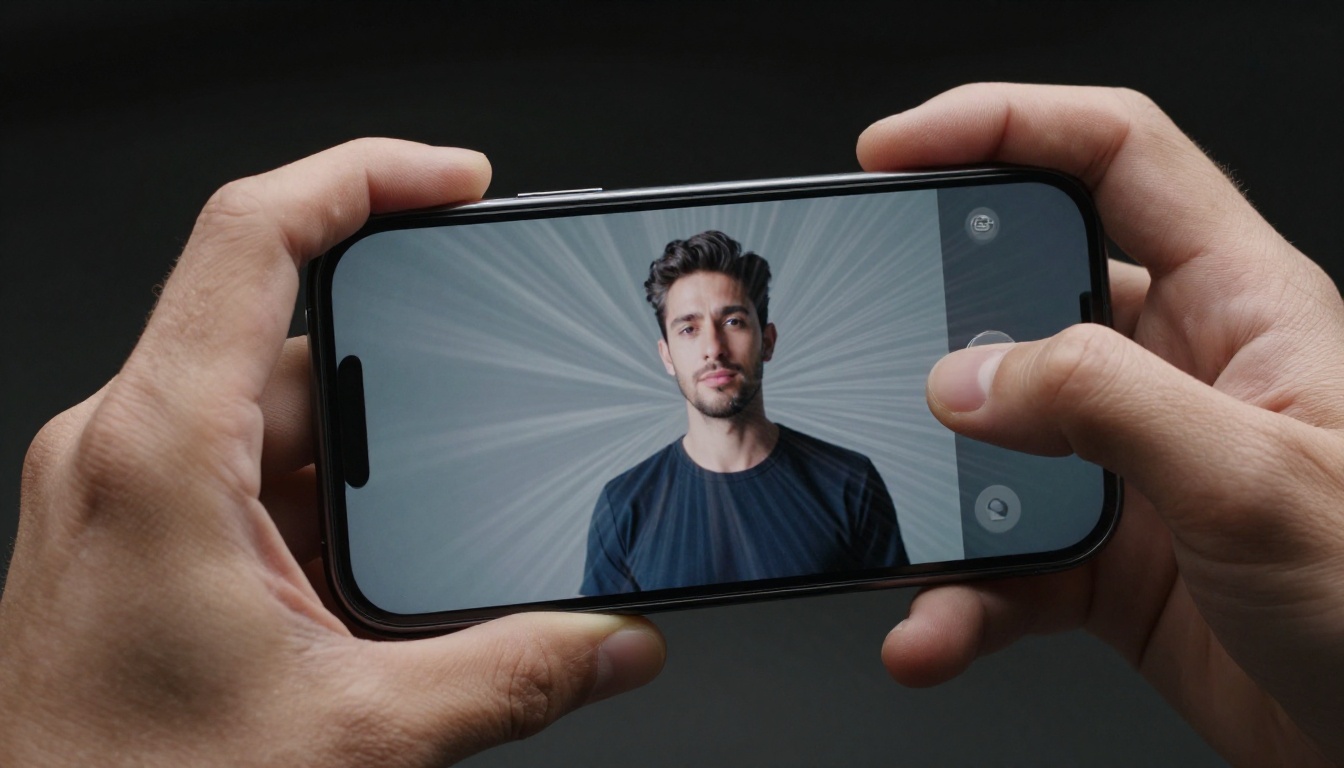
Higher resolution inputs produce better outputs. Images shot on modern smartphones or DSLR cameras work excellently. Heavily compressed images, screenshots, or low-resolution web images will limit output quality regardless of how capable the model is. If you're working with older photos, running them through a Super Resolution upscaler before animating can make a significant difference.
5 Creative Use Cases
1. Travel Memory Reels
A static vacation photo becomes a short video clip that captures the actual mood of the destination: waves in motion, flags fluttering, market crowds moving softly in the background. Stack several animated clips from a single trip into a reel and you have travel content that stands apart from standard slideshows without requiring any video footage at all.
2. Portrait Animation for Social Media
Animating a professional headshot or personal portrait is one of the most popular and effective applications. A subtle head turn, a gentle smile appearing, softly shifting background light — any of these adds a dimension that static profile photos cannot achieve. Animated portraits consistently outperform still images on Instagram Reels, TikTok, and LinkedIn in terms of engagement.
3. Product Showcases
Animate a product photograph to show the item from a slightly different angle, or add subtle environmental motion to give the scene context. A perfume bottle on a vanity table with soft morning light shifting through semi-transparent curtains immediately reads as premium content. The product itself doesn't need to move; the environment does the work.
4. Real Estate and Architecture
Still photos of properties can be animated to simulate a slow cinematic push-in, with trees swaying naturally and ambient light shifting slightly across the façade. For interior shots, gentle dust particles in a sunbeam or curtains moving near an open window create a sense of livability that static listing photos rarely achieve.
5. Wedding and Event Memories
Photographers and event professionals are already building this into their standard packages. An animated version of a key shot, the first dance, a candid laugh between friends, a venue exterior at golden hour, takes only a few minutes to produce and creates a deliverable that clients respond to strongly. It adds genuine value with minimal extra production time.
Other Image-to-Video Models Worth Trying
PicassoIA hosts over 87 video generation models. For photo-to-video workflows specifically, these alternatives are worth knowing.
Sora-2-Pro
OpenAI's Sora-2-Pro produces extraordinary cinematic quality with particularly strong narrative coherence over longer durations. It handles complex lighting transitions and multi-element scenes exceptionally well for longer-form content.
Hailuo 2.3 Fast
Hailuo 2.3 Fast is the speed tier of Minimax's image-to-video lineup. For high-volume content workflows where turnaround time matters more than maximum fidelity, it delivers solid results with a significantly shorter generation queue.
Vidu Q3 Pro
Vidu Q3 Pro supports start-and-end frame inputs, giving you precise control over where a clip begins and ends. This is particularly useful when you need to animate between two known states rather than letting the model decide how the motion develops.
Wan 2.5 I2V
Wan 2.5 I2V remains a reliable choice for image-to-video generation, especially for creative or stylized subjects. Its open-source foundation makes it one of the most extensively community-tested models in the platform's lineup, with a large body of user-generated examples to learn from.
Getting the Most from Your Results
Prompt Iteration is Everything
First-attempt outputs are typically 70-80% of the way there. Small, targeted prompt changes can shift results significantly. Swapping "camera moves forward" for "slow cinematic push-in toward subject's face at 0.3x speed" produces a noticeably different, usually better, result. Build a short list of prompt variations before you start generating so you can compare outputs systematically rather than guessing your way to the right output.
Combine with Super Resolution
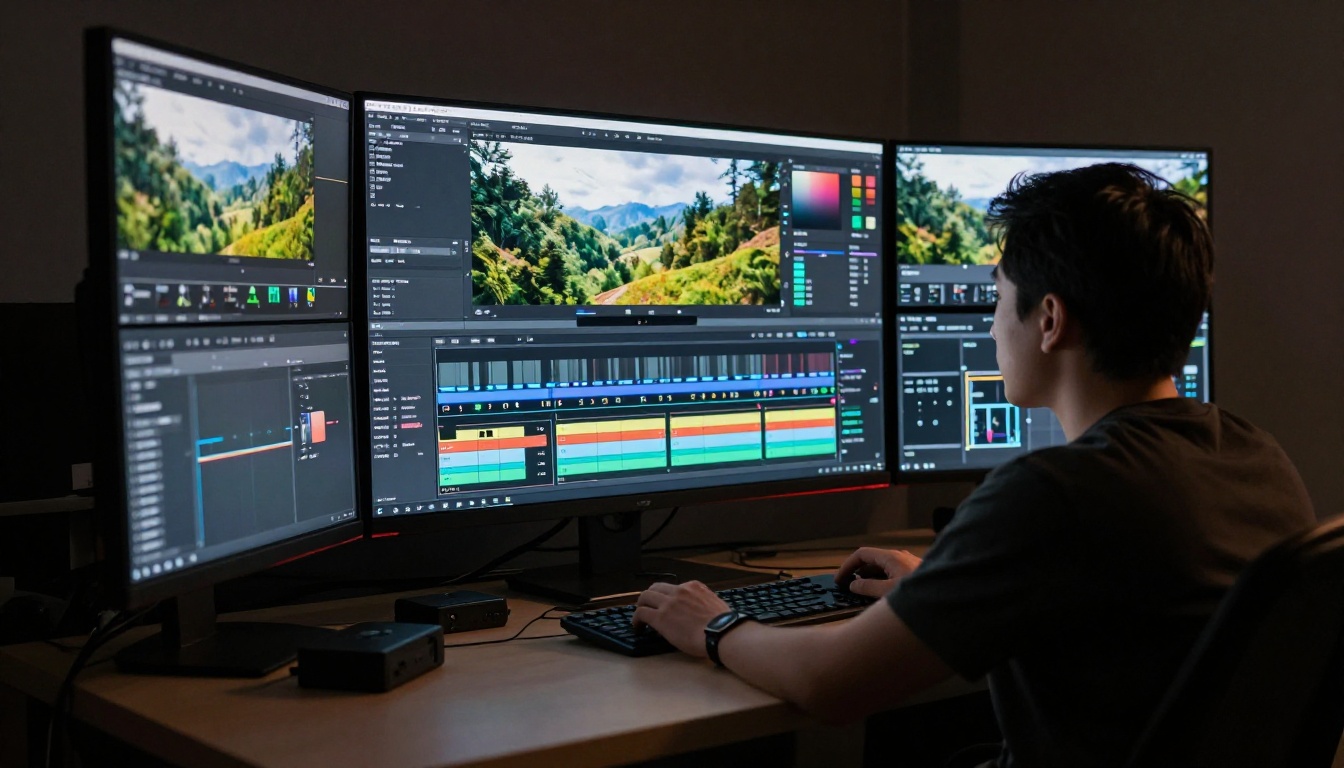
After generating your video clip, running it through a super-resolution upscaler can sharpen output detail and reduce compression artifacts introduced during the generation process. PicassoIA's Super Resolution models are designed precisely for this post-processing step and integrate naturally into the workflow.
Add Sound Design
Even when Veo 3.1's native audio doesn't fully match a specific scene, the platform's Text to Speech tools and AI Music Generation models let you layer in a custom voiceover or original music track to create a finished, polished asset that's ready to publish without any external audio software.
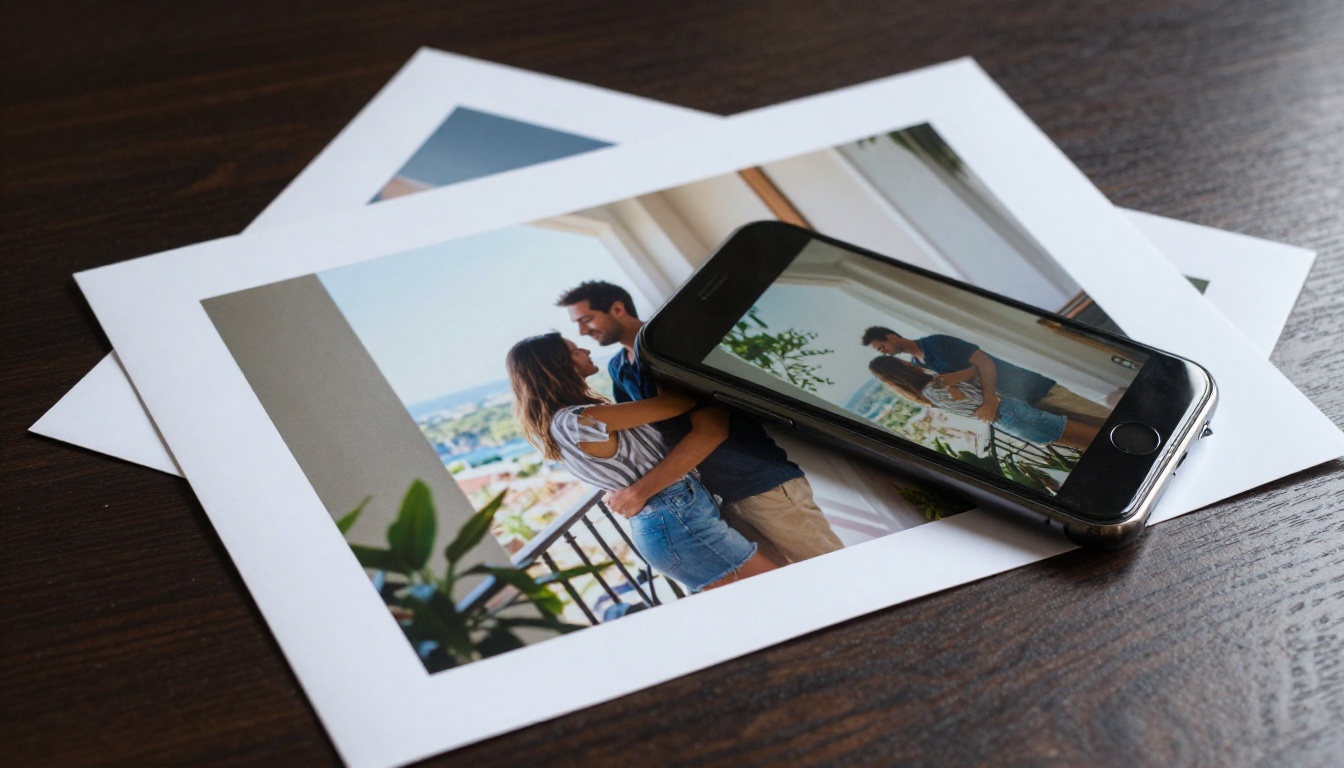
Your Photos Are Ready to Move
Every photo you've ever taken captures a single frozen instant. With Veo 3.1, those instants become moments that breathe, shift, and feel genuinely alive. The barrier to creating cinematic content from your existing photo library has never been lower, and the output quality has never been higher.
PicassoIA puts Veo 3.1, Veo 3.1 Fast, and dozens of alternative image-to-video models in one place with no technical setup, no API management, and no minimum commitment. Pick a photo that means something to you, write a prompt that describes how it should move, and see what it looks like when it finally comes to life.


