Generate imagesLarge Language ModelsVisual Effects
Uncensored Prompt Formulas for Better AI Faces
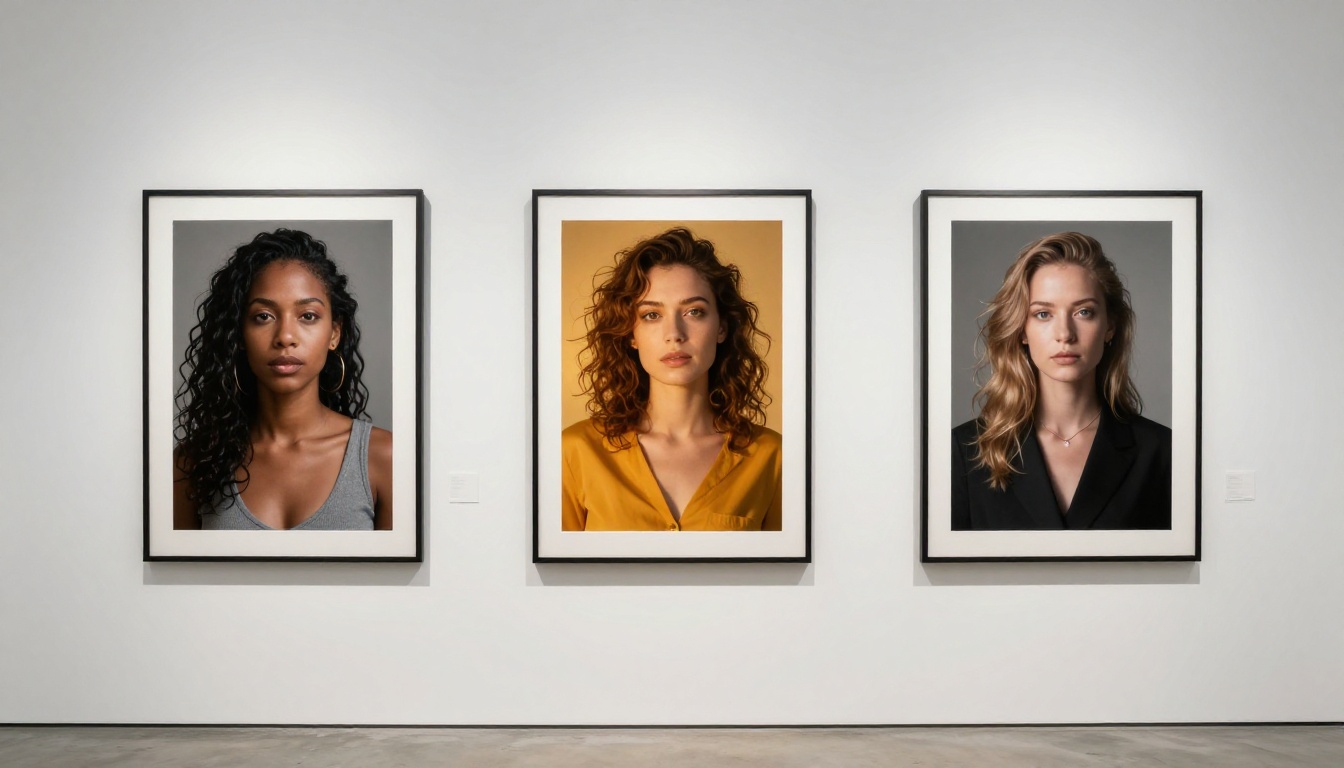
Most AI faces look too polished and fake. These uncensored prompt formulas fix that by targeting skin pores, eye depth, bone structure, and facial asymmetry with precision, so every portrait you generate feels genuinely human, raw, and alive. No fluff, just formulas that work.
Most AI face generators produce the same result: a face that is technically correct but somehow wrong. The eyes lack depth. The skin looks poured from plastic. The proportions follow a formula that reads as artificial to anyone who looks twice. The problem is not the model. It is the prompt.
These uncensored prompt formulas target the specific weaknesses that cause AI faces to fail. They pull on skin texture, bone geometry, eye anatomy, lighting physics, and natural asymmetry to push generation results from "impressive screenshot" to "I had to look twice."
Why AI Faces Still Look Wrong
Before building better prompts, it helps to know exactly why default prompts produce mediocre faces.
The Smoothness Trap
The most common failure in AI portrait generation is what photographers call "plastic skin." Models default to smoothed, idealized skin because training data skews toward post-processed photos. Every pore gets averaged away. Every natural variation in skin tone gets flattened into a single gradient.
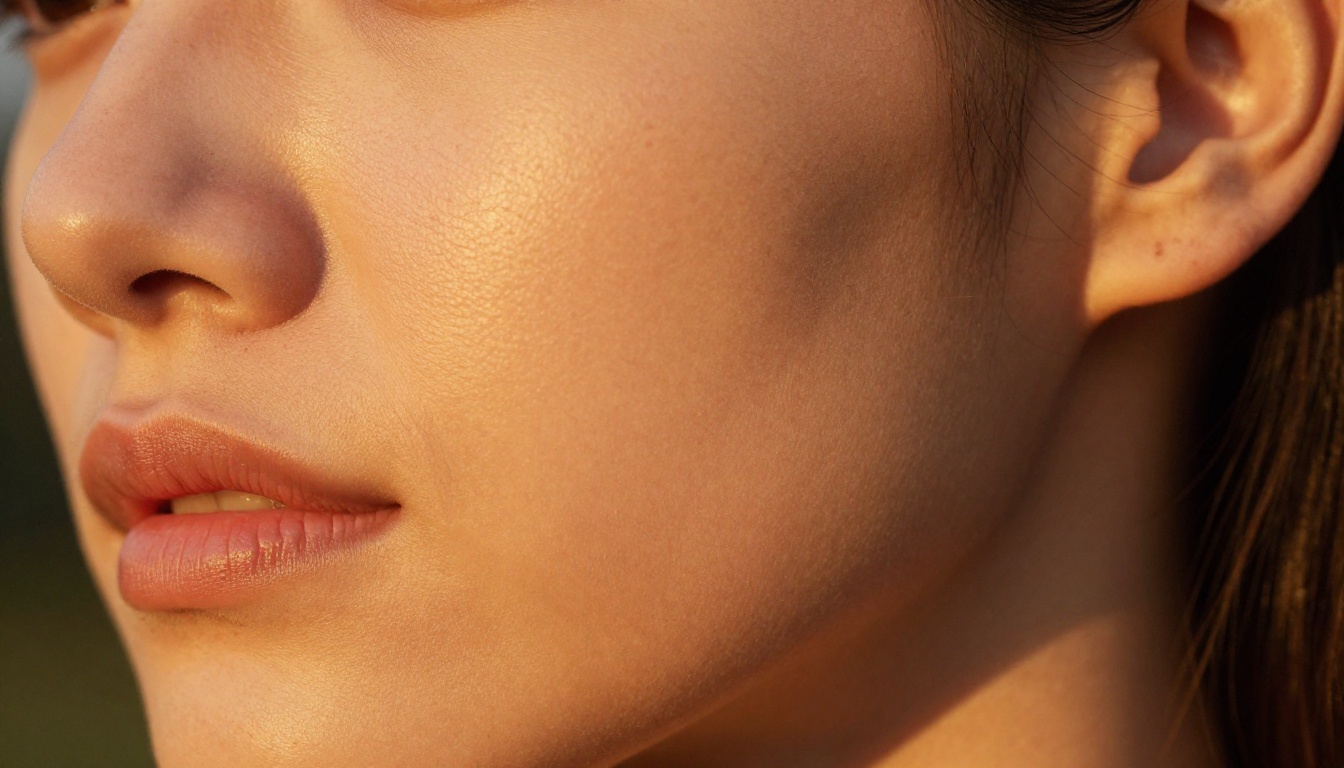
The fix is not to ask for "realistic skin." That is too vague and most models will ignore it. You need to describe the physical properties of real skin: pore visibility, subsurface light scattering, micro-hair on the surface, and tonal variation across zones (forehead vs. cheek vs. nose differ in texture and oil level).
What Models Actually Struggle With
Beyond skin, AI models consistently fail at:
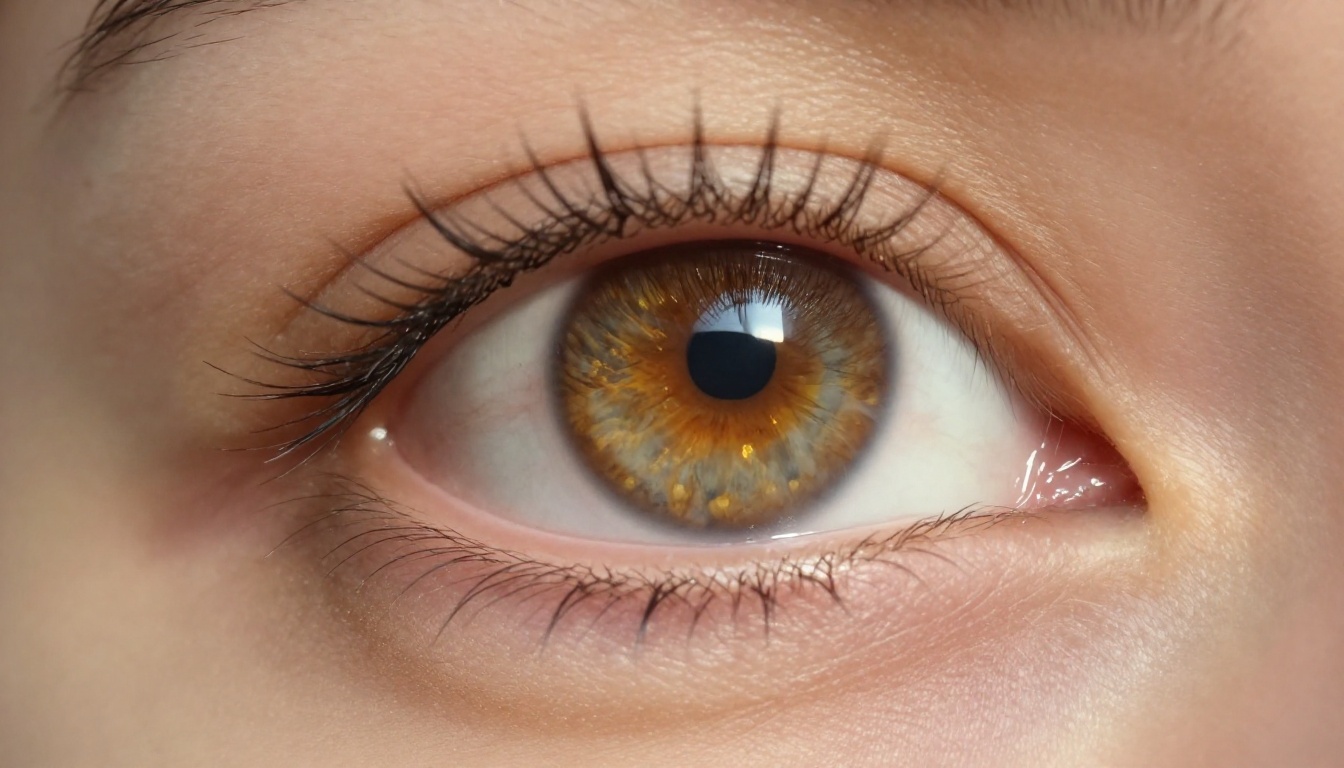
Eye anatomy: Catchlights (the small white reflections in the eye from a light source) are frequently missing or randomly placed. Real eyes always have them.
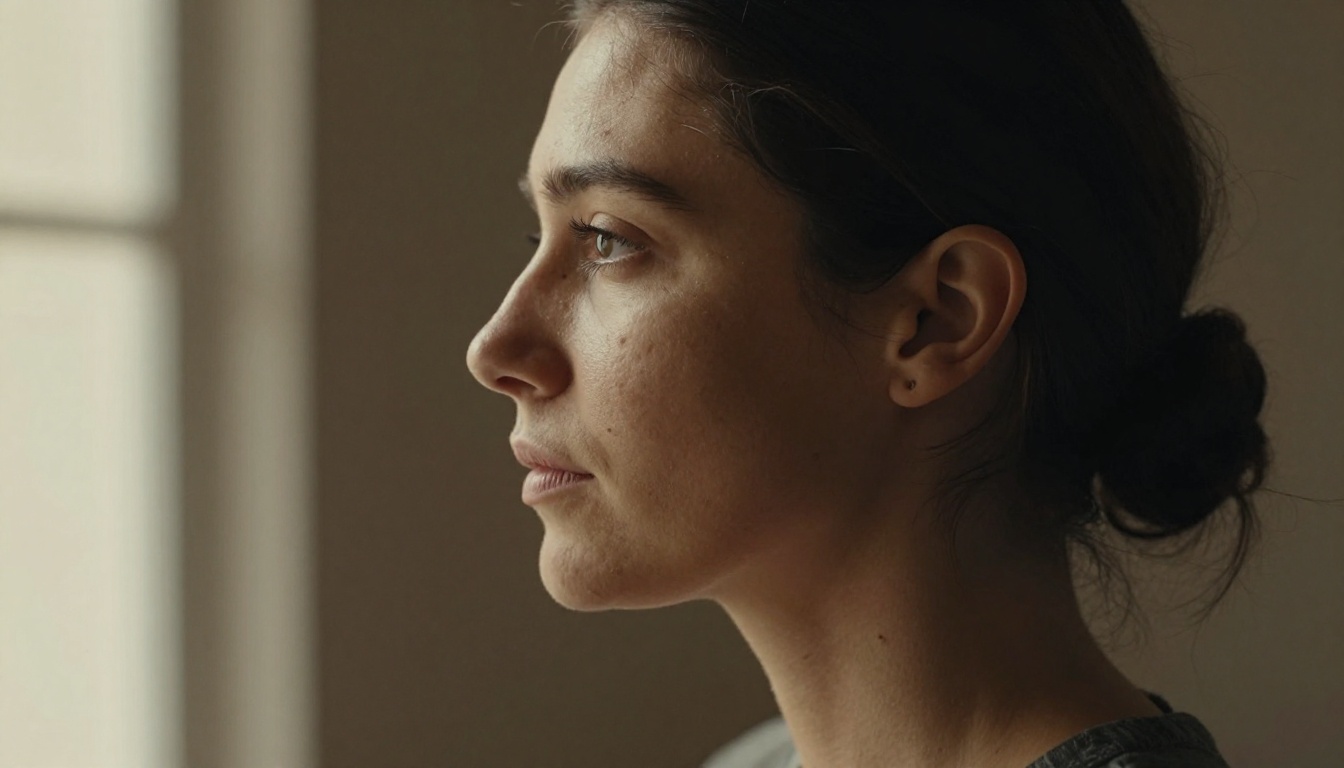
Facial asymmetry: Human faces are never perfectly symmetric. AI defaults to near-perfect bilateral symmetry, which reads as uncanny.
Hair at the edges: Individual strands of hair at the hairline and temples are frequently blurred or merged into one undifferentiated mass.
Dental realism: Teeth in AI images are often too uniform, too white, or too evenly spaced.
Natural expression micro-details: Real faces in photos show tension in specific muscle groups, slight squinting from light, subtle lip dryness.
Each of these has a prompt solution. None require jailbreaks or special access. They require precision language.
The Core Prompt Formula
Think of an AI face prompt as a layered stack. Each layer adds a dimension of realism. Skip a layer and the image defaults to an averaged, generic result.
Subject Anchor Line
Start every face prompt with a specific human description:
19-year-old Korean woman, monolid eyes, naturally sparse brows
The point is specificity. "Beautiful woman" produces a model-average result. A precise ethnic and age anchor forces the generation system to commit to a specific real human type rather than averaging across all possibilities.
Skin Texture Block
This single block does more for photorealism than any other addition:
fine natural skin pores visible, subsurface scattering making skin glow from within,
peach fuzz on cheeks and forehead catching side light, slight tonal variation
(warmer on nose and forehead, cooler on jaw and temples)
The phrase "subsurface scattering" is technically precise and triggers the right generation behavior in most modern models. Human skin is translucent. Light enters, bounces, and exits at a slightly different angle, creating that warm inner glow. Without it, skin looks like painted plaster.
Eye and Catchlight Modifiers
Eyes need their own dedicated prompt block:
[iris color] iris with [fleck/ring description], individual eyelashes distinct
and not clumped, catchlight from [specific light source] reflected in cornea,
tearduct visible, slight moisture sheen on eyeball surface
Specific catchlight formulas by lighting setup:
Window light: rectangular catchlight from large window on upper right of iris
Outdoor natural: soft diffuse sky reflection across upper third of iris
Overcast day: even dome catchlight across iris top
The tearduct detail sounds minor. It is not. Including it forces the model to render a believable eye corner, which is one of the areas AI most frequently botches.
Lighting Formulas That Sell Realism
Lighting is the single biggest variable in whether a face reads as real. The same face, rendered under different lighting descriptions, will produce radically different quality results.
Warm Natural Light Setup
For golden hour and outdoor portraits:
volumetric afternoon light from [left/right], casting warm amber tones on
[illuminated side] of face, graduated shadow falloff on opposite side,
slight rim light catching [hair strands/jaw edge], no harsh shadows
This is the workhorse formula. It works across all models because "volumetric" and "graduated falloff" are terms that influence the diffuse light calculation meaningfully.
Dramatic One-Source Setup
For high-contrast editorial portraits:
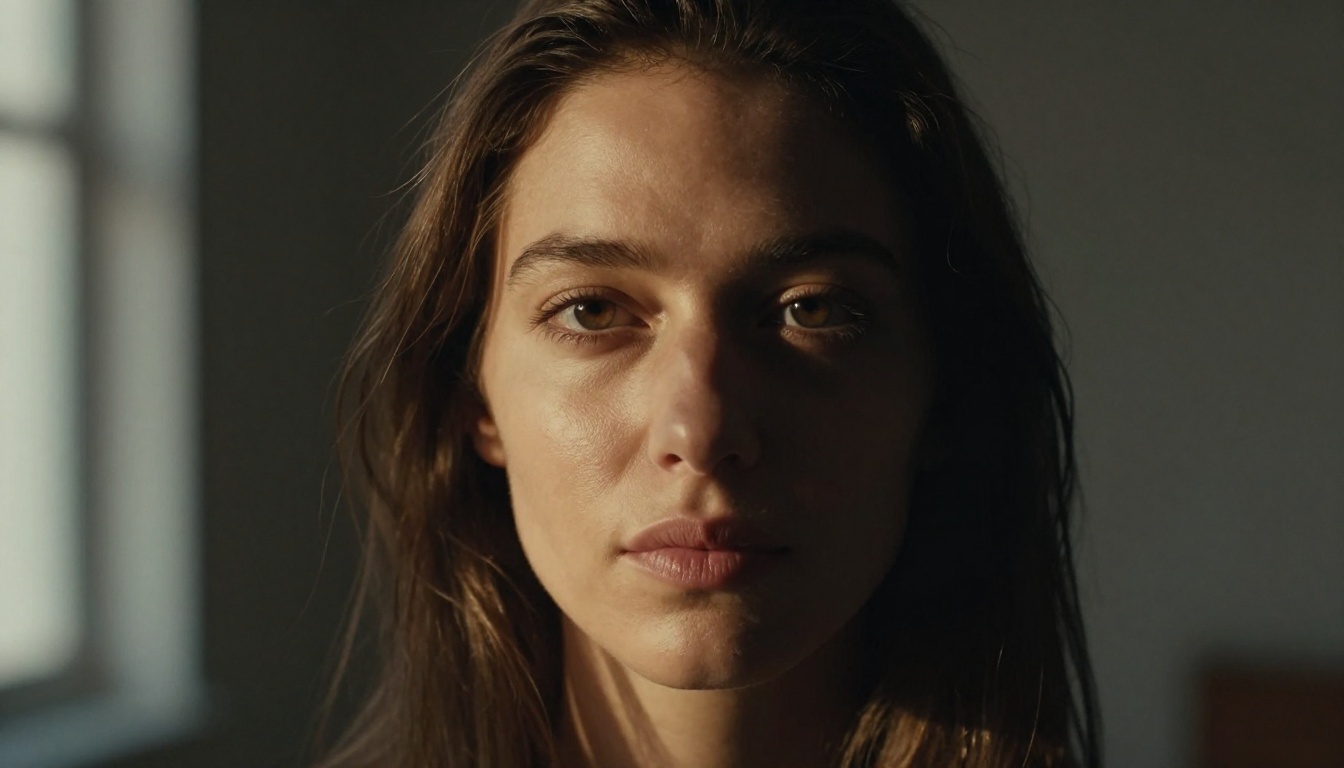
single window light source from upper [left/right], Rembrandt triangle of
light on shadow-side cheek, deep velvet shadows in eye socket and neck,
skin tones warm on lit side cooling to neutral on shadow side
The Rembrandt reference carries strong signal. It produces the classic triangle of illumination on the shadowed cheek that every portrait photographer knows. Models trained on art history handle it reliably.
💡 Tip: Adding no fill light, natural shadow with detail not crushed to black prevents models from artificially lifting the shadows and losing the dramatic effect.
Negative Prompts That Matter
Negative prompts for face generation are consistently underused. Most people write ugly, bad quality and stop there. That leaves a lot of quality on the table.
The 10 Face Artifacts to Block
These are the specific artifacts that kill face realism most often:
Build a base negative prompt bank and paste it into every face generation. The compound effect of blocking all of these simultaneously is significant.
Which Models Work Best for Faces
Not all image generation models handle faces equally. Some excel at photorealism, others at stylization, and a few are specifically built for portrait work.
Seedream 4 Leads on Realism and Freedom
Seedream 4 is currently the strongest model for photorealistic, uncensored portrait generation. It handles the prompt formulas in this article better than any other available option. Skin texture, eye anatomy, natural imperfections: Seedream 4 processes all of it without aggressively sanitizing the output.
For anyone generating portraits that push beyond default safety filters, Seedream 4 is the right starting point. It is available at full 4K resolution and responds cleanly to the skin and lighting formulas above.
Seedream 5 Pro offers the latest architecture from the same family, with improved sharpness at 2K, useful when the highest fidelity output is needed with a slightly more controlled generation style.
Flux Dev vs. Flux Pro
Flux Dev and Flux Pro both perform well on faces with detailed prompts. Flux Dev has more flexibility with unconventional requests. Flux Pro handles complex lighting descriptions with greater accuracy.
For portrait work specifically:
Flux Dev: Better for creative prompts and unusual feature combinations
Flux Pro: Better for lighting accuracy, especially Rembrandt and window light setups
Flux Schnell is worth noting for iteration. When testing new prompt formulas, run them through Flux Schnell first at speed, then finalize on Flux Pro. The two models share enough architecture that a formula working in Schnell will port cleanly to Pro.
RealVisXL and Realistic Vision
RealVisXL v3.0 Turbo is an SDXL-based model specifically fine-tuned for photorealistic human faces. It handles the skin texture block exceptionally well. The tradeoff is slightly lower flexibility with very specific requests.
Realistic Vision v5.1 remains one of the most reliable community models for portrait work. It understands Kodak Portra references natively and produces film-like color grading without extra prompting.
Qwen Image 2512 is newer and specifically built for sharper text and realistic faces. Early results show it handles facial detail in complex, multi-element scenes better than most alternatives currently available.
How to Use Seedream 4 on PicassoIA
PicassoIA gives you direct access to Seedream 4 without API setup, account limits, or moderation gates on artistic content. Here is the fastest path to a high-quality portrait.
25-year-old Colombian woman, defined cheekbones, small natural mole above
right lip, fine natural skin pores visible, subsurface scattering making
skin glow from within, peach fuzz on temples catching side light, dark
brown iris with amber ring, individual eyelashes distinct, catchlight from
large window on upper right of iris, tearduct visible, volumetric afternoon
light from left, warm amber tones on left side of face, graduated shadow
falloff on right, Canon 85mm f/1.4, shallow depth of field, Kodak Portra 400
film grain, RAW 8K photography --ar 16:9 --style raw
Step 4: Set resolution to 4K and aspect ratio to 16:9
Seedream 4 supports up to 4K natively. For portrait work, 16:9 horizontal framing works well for editorial and web use.
Step 5: Refine with PicassoIA Image Editor Pro
If the initial result is strong but has minor issues (a slightly off ear, an imperfect eye, flat hair at the edge), PicassoIA Image Editor Pro lets you inpaint those specific areas. Select the problem region, write a targeted prompt for that zone, and regenerate only that part. Unlimited generations means you can iterate freely without burning credits on full-image regenerations.
💡 Tip: When using inpainting on faces, always prompt the inpainted region with context from the rest of the image. If fixing the left eye, include matching the existing right eye, same lighting direction, same skin tone in the inpainting prompt.
Prompt Templates by Use Case
These templates are plug-and-play. Replace the bracketed values with specifics.
Use Case
Prompt Formula
Golden Hour Outdoor
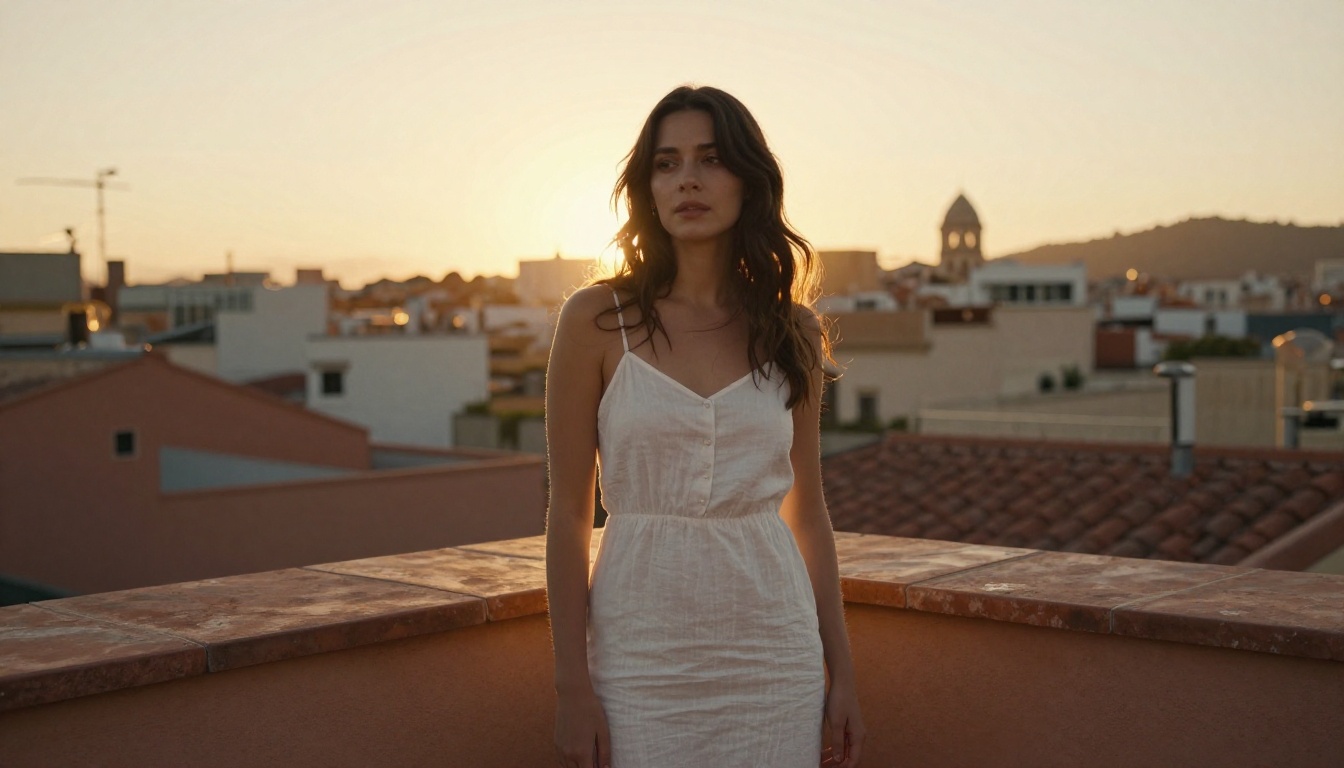
[age]-year-old [ethnicity], [feature], fine pores, subsurface scattering, peach fuzz, [eye color] iris with catchlight, volumetric sunset light from left, rim light on hair, 85mm f/1.4, Kodak Portra 400
Studio Dramatic
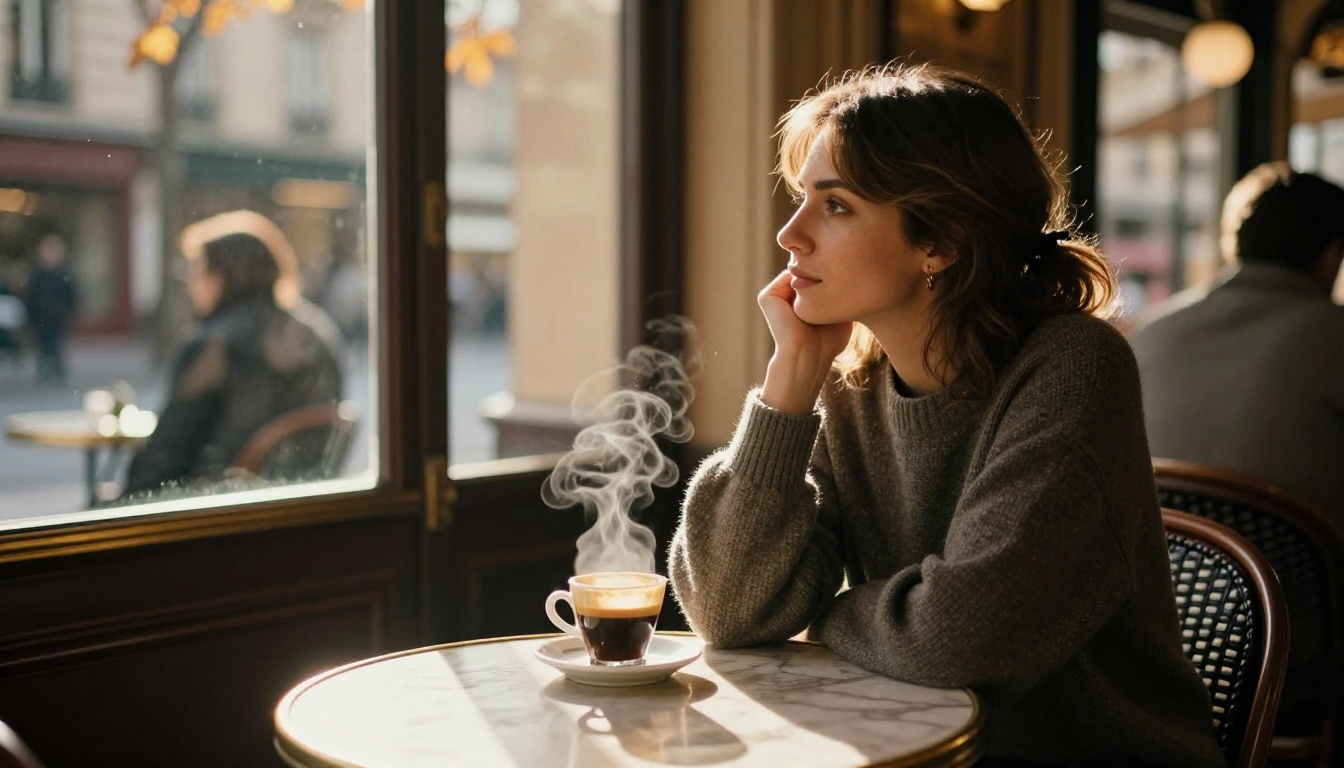
[age]-year-old [ethnicity], [feature], Rembrandt lighting, triangle highlight on shadow cheek, single window source, dark neutral background, 85mm f/1.8, RAW 8K
Candid Street
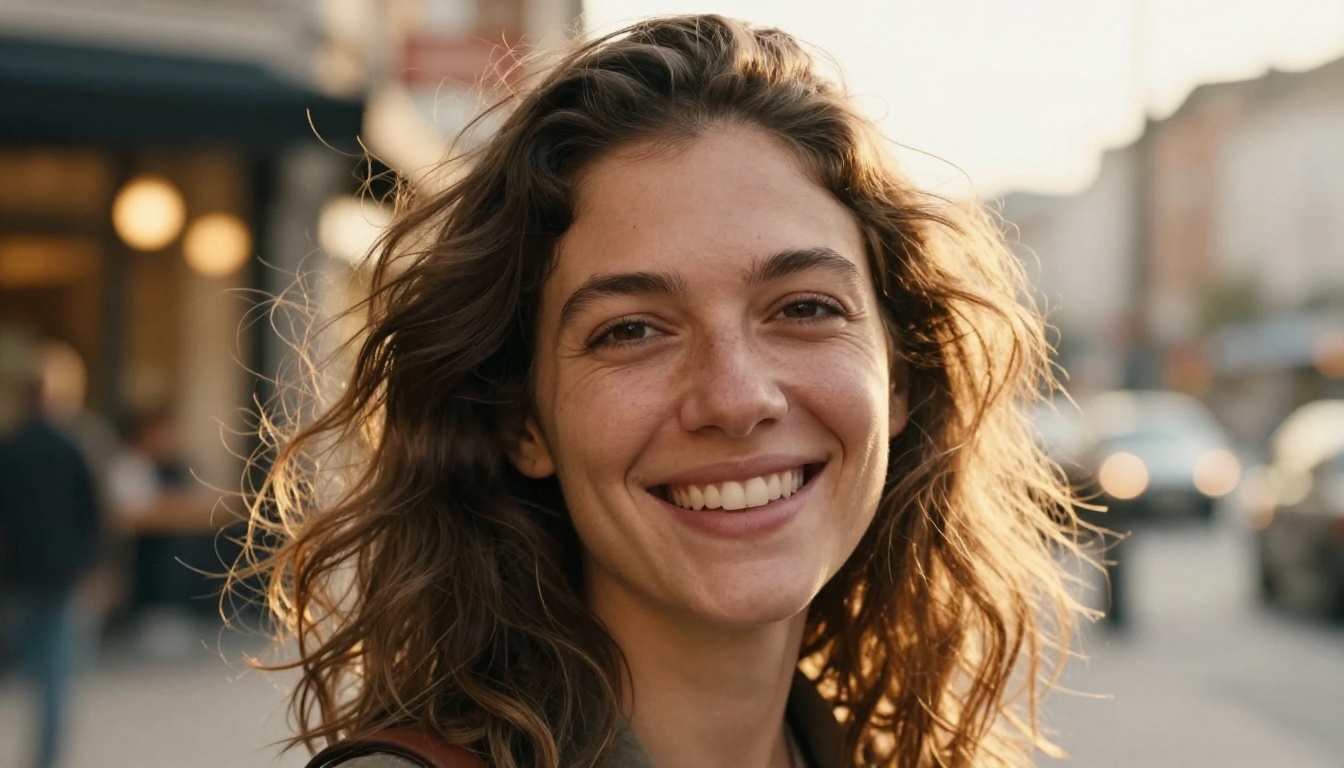
[age]-year-old [ethnicity], candid spontaneous expression, slight motion in hair, street background blurred, late afternoon golden side light, 50mm f/1.8, film grain
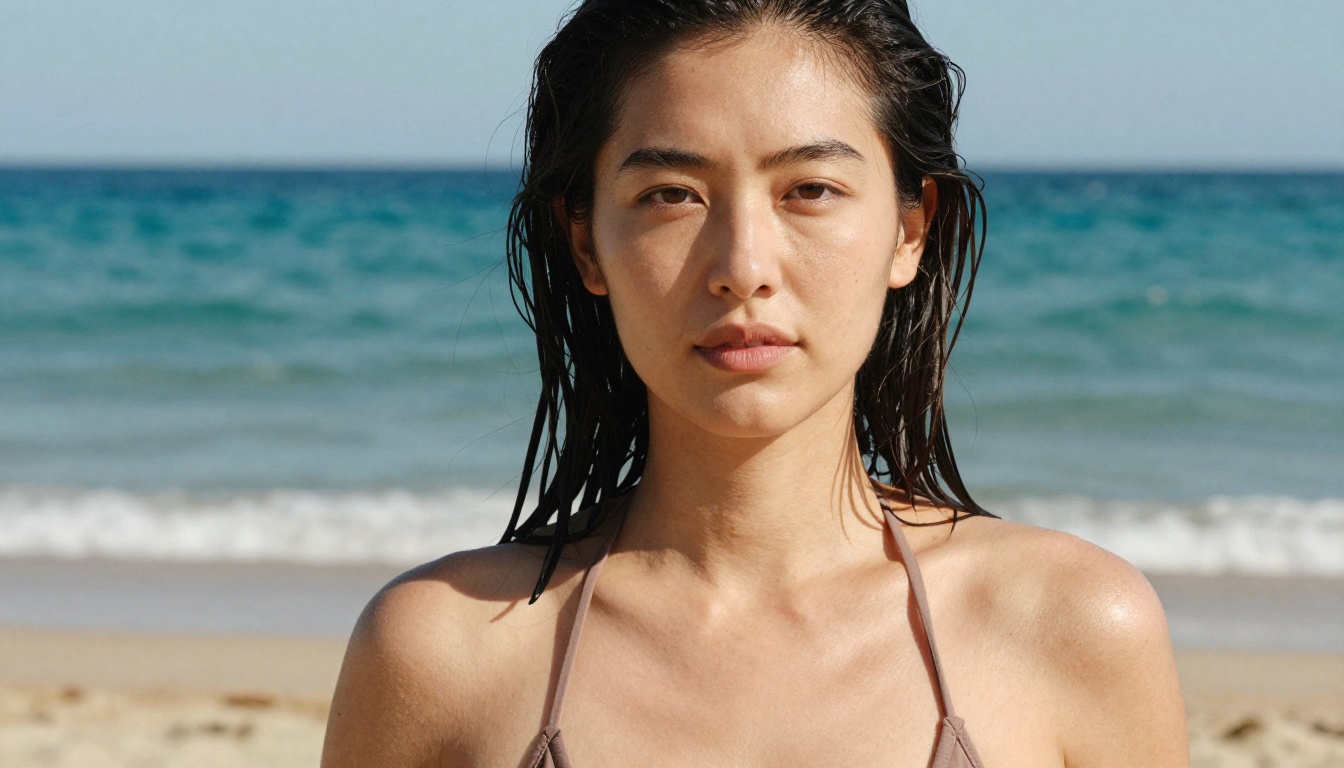
[age]-year-old woman, bikini, sun-kissed skin, freckles on shoulders, natural wet hair, turquoise ocean blurred, squinting in bright sun, 85mm f/2.0, RAW 8K
💡 Character consistency across shots: Use Ideogram Character or Portrait Series when you need the same face to appear across multiple images for a project. Both tools use reference images to lock in specific facial identity across generations.
The Face Prompt Checklist
Before hitting generate, run this check:
Subject anchor has age, ethnicity, and one real imperfection
Skin texture block includes pores, subsurface scattering, and peach fuzz
Eye block includes iris color, catchlight source, and tearduct
Lighting is described with direction, color temperature, and shadow behavior
Camera specs include lens focal length and f-stop
Film stock reference included (Kodak Portra 400 is the workhorse)
Negative prompt includes at least 6 face artifact blockers
No empty quality adjectives like "beautiful" or "stunning"
That last point matters. Adjectives like "beautiful" and "stunning" have weak signal value at this point in model development. They add nothing to generation quality and occupy token space that could hold a meaningful texture or lighting descriptor.
Start Creating Portraits on PicassoIA
Every formula in this article is immediately usable. Pick a model, paste the prompt structure, replace the values, and run it.
Seedream 4 is the right starting point for photorealistic uncensored portrait work. Flux Pro handles complex lighting with precision. RealVisXL v3.0 Turbo is the go-to when skin texture and film realism are the priority.
All of these models are accessible directly on picassoia.com/en/all-models without signup walls or API keys. The Face to Many Kontext tool is worth testing for creative variations once you have a base portrait you are satisfied with: it takes a single face photo and generates versions in different styles, settings, and scenarios while keeping the face consistent.
The gap between a generic AI face and one that stops people mid-scroll is almost entirely in the prompt. The formulas are here. The models are ready. The only thing left is to run the generation.