Remember that smartphone photo from your last vacation that looked perfect on your phone but turned into a pixelated mess when you tried to print it? Or those family photos from the early 2000s that have that distinctive low-resolution blur? What if you could transform those images into crystal-clear 8K masterpieces without spending thousands on professional software or equipment?
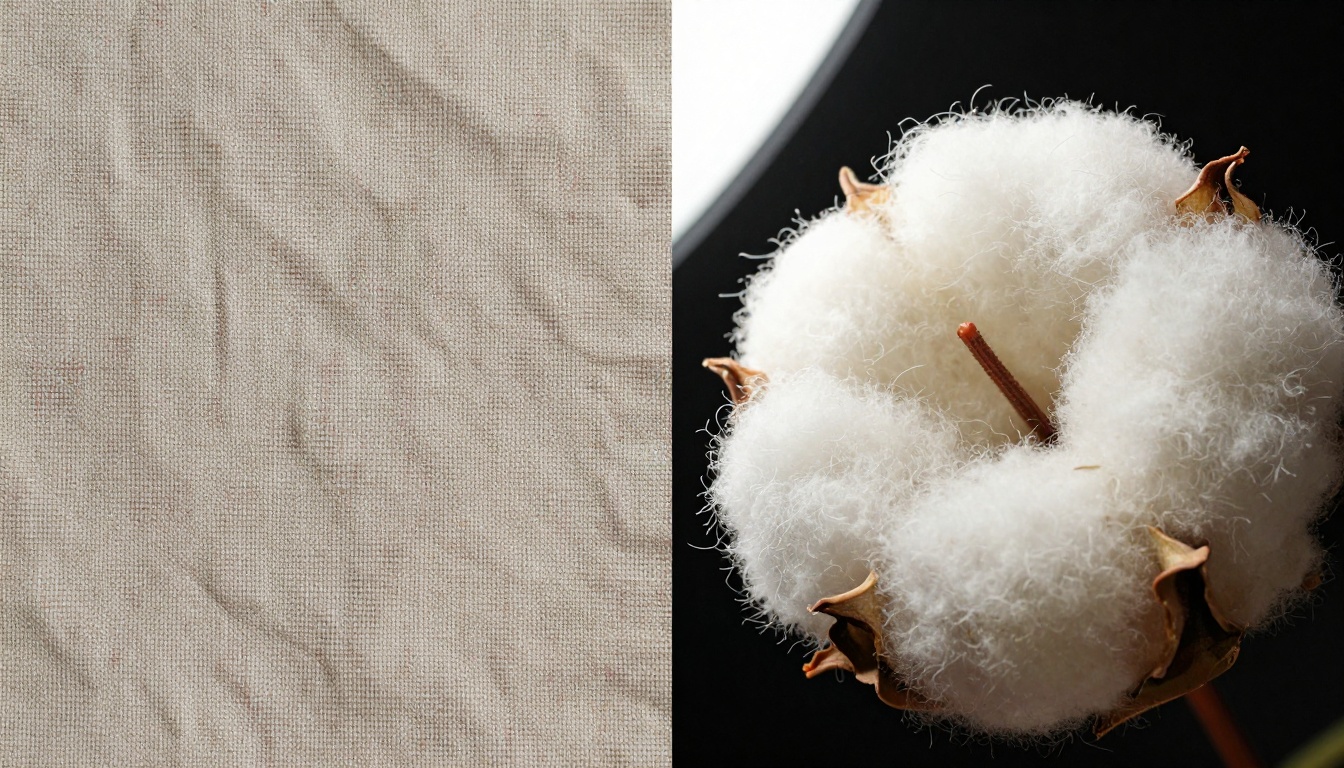
Above: See how AI upscaling transforms pixelated fabric textures into detailed weave patterns
The year 2027 has brought something remarkable to photography: free AI-powered upscaling tools that can transform 2MP smartphone photos into 8K images with detail you wouldn't believe possible. This isn't just simple enlargement - it's intelligent reconstruction that analyzes patterns, textures, and context to fill in missing information that your camera never captured.
Why 8K Matters More Than You Think
8K resolution (7680×4320 pixels) isn't just for high-end televisions. It represents 33.2 megapixels of image data - enough detail to see individual eyelashes in a portrait, read distant street signs in cityscapes, or count the grains of sand on a beach. When you upscale to 8K, you're not just making images bigger; you're creating a data-rich foundation that gives you flexibility you never had before:
💡 Pro Tip: An 8K image contains 16 times more pixels than a standard 1080p photo. This extra resolution allows for dramatic cropping without quality loss, perfect for social media posts where different platforms require different aspect ratios.
The AI Difference: Smart Reconstruction vs. Simple Enlargement
Traditional image enlargement uses mathematical algorithms like bicubic interpolation that essentially guess what color pixels should be between existing ones. The result? Blurry, pixelated images with visible artifacts.
AI upscaling works differently. It uses neural networks trained on millions of high-low resolution image pairs to understand what details should exist in specific contexts. When it sees a blurry patch that might be fabric, it reconstructs weave patterns. When it encounters skin, it adds realistic pore texture. When it finds text, it sharpens letters based on font recognition.
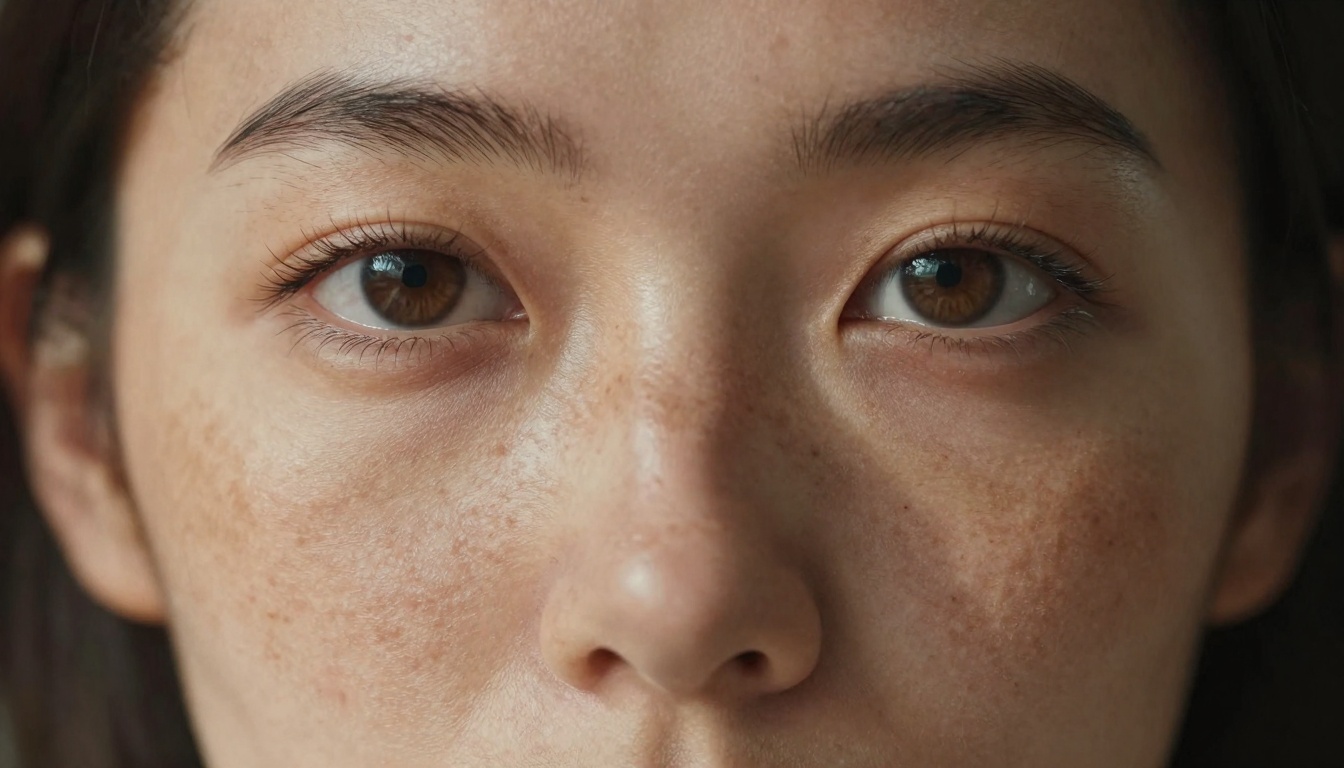
Natural skin texture and freckle patterns preserved through AI upscaling
The best part? You don't need expensive software subscriptions. Several free tools deliver professional-grade results:
1. Real-ESRGAN
Real-ESRGAN stands out for its exceptional handling of real-world images with complex textures. It's particularly good with:
- Portraits: Preserves skin texture while removing compression artifacts
- Landscapes: Recovers fine details in foliage and water
- Architecture: Sharpens edges without creating halos
Best for: General photography, social media images, personal archives
2. Google Upscaler
Google Upscaler offers the most natural-looking results for document photos and text-heavy images. Its strengths include:
- Text clarity: Remarkable improvement for scanned documents
- Color accuracy: Maintains original color profiles
- Batch processing: Efficient for large collections
Best for: Document digitization, book scanning, archival projects
3. Crystal-Upscaler
Crystal-Upscaler specializes in extreme detail recovery for professional photographers. Features:
- 4x upscaling: Can transform 2K images to 8K
- Noise handling: Reduces grain while preserving detail
- Artifact removal: Cleans up JPEG compression issues
Best for: Professional photography, print preparation, gallery work
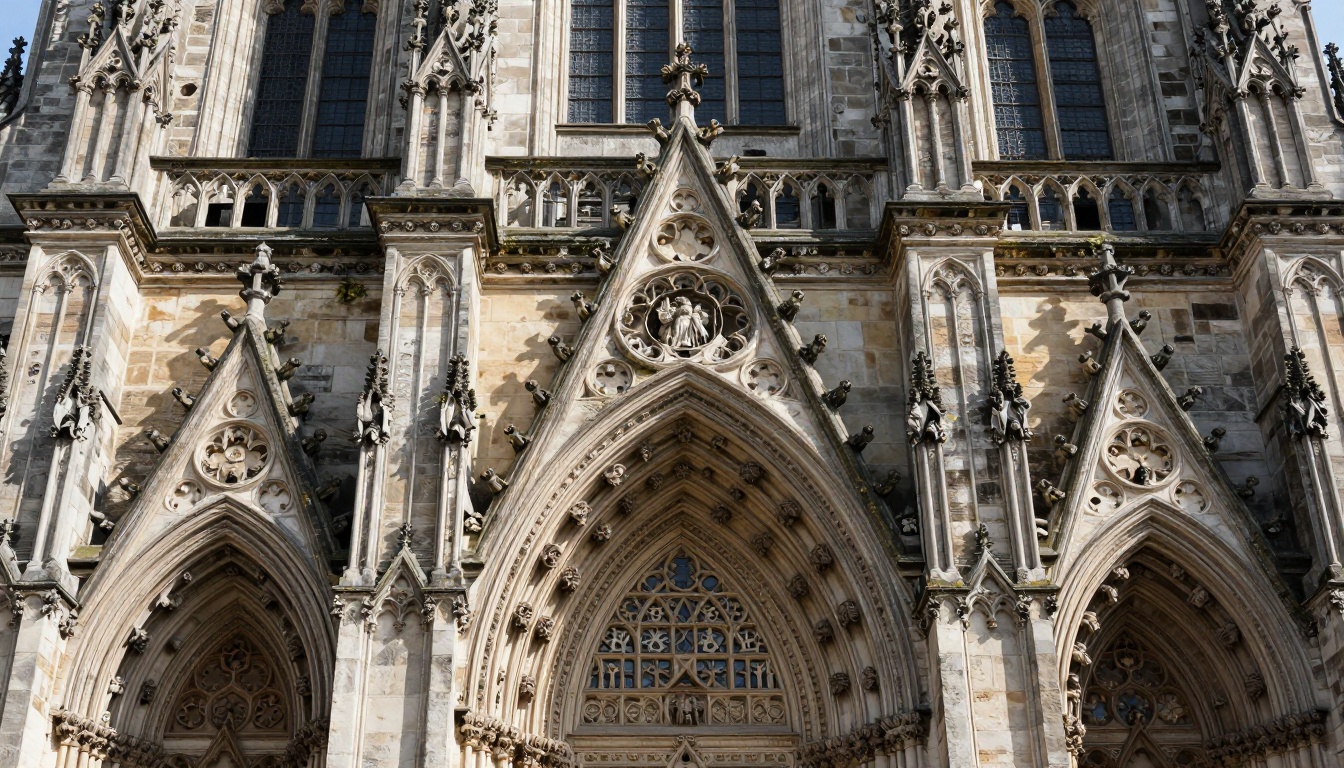
Historic building details recovered through AI reconstruction
Practical Workflow: From Blurry to 8K
Step 1: Prepare Your Source Images
Not all images upscale equally well. Follow these preparation steps:
Do:
- Start with the highest quality source available
- Use RAW files if you have them (they contain more data)
- Ensure proper exposure (AI works better with well-exposed images)
- Check for focus issues (AI can't fix completely blurry subjects)
Don't:
- Don't use heavily compressed JPEGs with visible artifacts
- Avoid images with motion blur (AI struggles with these)
- Skip images with extreme noise (clean them first if possible)
Step 2: Choose the Right Tool for Your Image Type
| Image Type | Recommended Tool | Key Settings |
|---|
| Portraits | Real-ESRGAN | Face enhancement ON, Denoise level: Medium |
| Landscapes | Crystal-Upscaler | Scale: 4x, Detail preservation: High |
| Text/Documents | Google Upscaler | Text mode: ON, Sharpness: Medium |
| Product Photos | Increase Resolution | Artifact removal: ON, Color accuracy: High |
| Night Photos | Recraft Creative | Noise reduction: High, Shadow recovery: ON |
Step 3: Process and Verify
After upscaling, always:
- Zoom to 100% and check critical areas
- Compare before/after using split-screen view
- Test different settings if results aren't optimal
- Save in lossless format (PNG or TIFF for best quality)
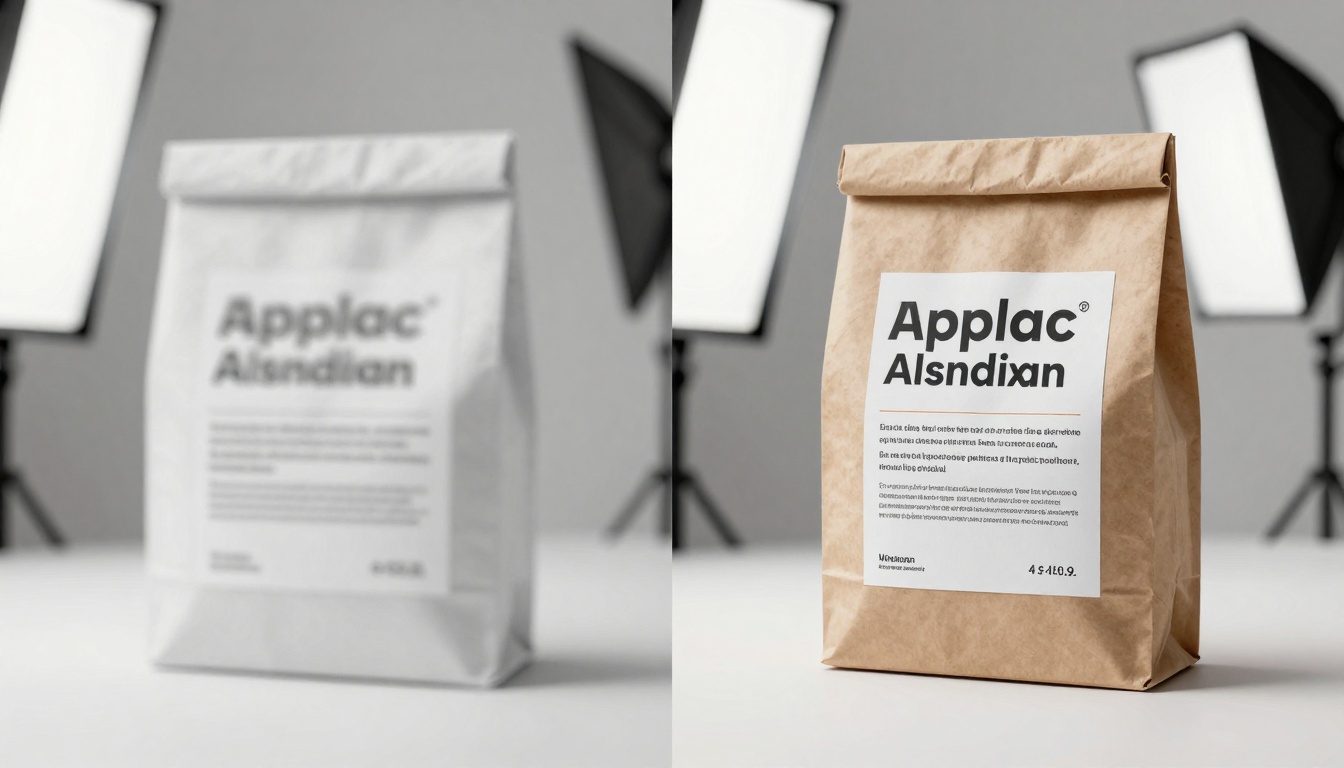
Product label text becomes perfectly legible after AI enhancement
Advanced Techniques for Specific Scenarios
Restoring Old Family Photos
Old photographs present unique challenges: fading, scratches, and often poor original quality. Here's the optimal workflow:
1. Scan at highest resolution (600 DPI minimum)
2. Clean basic issues (dust spots, minor scratches)
3. Use Real-ESRGAN with "face enhancement" for portraits
4. Apply gentle color correction (avoid over-saturating)
5. Save as TIFF for archival purposes
💡 Historical Note: AI can actually reconstruct details in faded areas by analyzing surrounding patterns and historical context from its training data.
Preparing Images for Large Format Printing
When you need billboard-sized prints from smartphone photos:
1. Start with Crystal-Upscaler for 4x enlargement
2. Check sharpness at 300% zoom (printing reveals flaws)
3. Adjust contrast locally (eyes, important details)
4. Convert to CMYK if printing commercially
5. Add slight sharpening (0.3-0.5 pixels radius)
Social Media Optimization
Different platforms have different requirements:
| Platform | Optimal Size | AI Tool | Special Consideration |
|---|
| Instagram | 1080x1350 | Google Upscaler | Square crop with detail preservation |
| Facebook | 1200x630 | Real-ESRGAN | Text legibility in shared images |
| Twitter | 1200x675 | Increase Resolution | Fast loading while maintaining quality |
| Pinterest | 1000x1500 | Crystal-Upscaler | Vertical detail emphasis |

Aerial shots gain incredible detail when upscaled to 8K
Technical Deep Dive: How AI Reconstruction Actually Works
Understanding the technology helps you make better choices about when and how to use it.
Neural Network Architecture
Modern upscaling AI uses Generative Adversarial Networks (GANs) with two competing networks:
- Generator: Creates upscaled versions
- Discriminator: Judges if they look "real"
This competition drives continuous improvement in quality.
Training Data Quality
The best tools are trained on diverse, high-quality image pairs:
- Professional photography datasets
- Film scans at multiple resolutions
- Scientific imaging with known ground truth
- Art restoration examples
Limitations and Realistic Expectations
AI upscaling has boundaries:
- Can't create information that never existed (completely blurry subjects)
- Struggles with abstract patterns (random textures)
- May introduce artifacts in extreme cases
- Requires reasonable source quality (not magic)
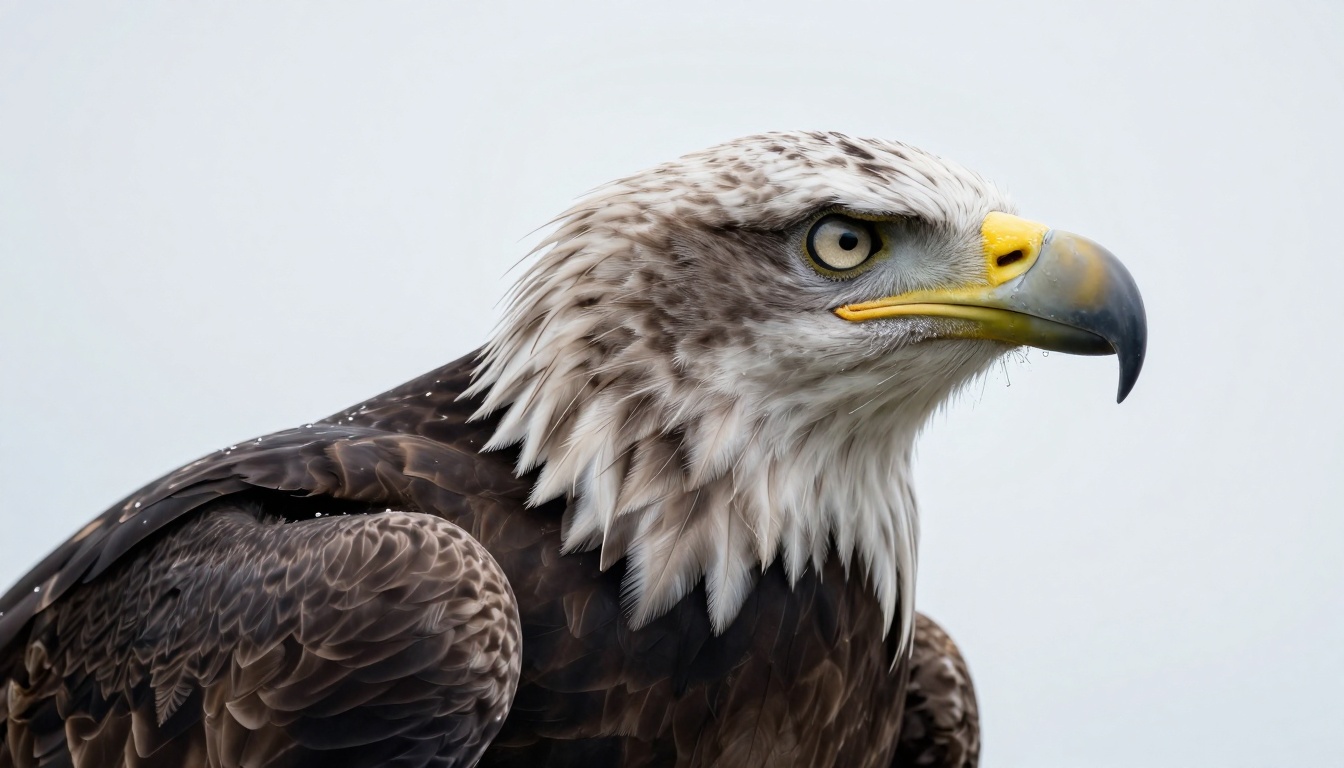
Feather details become visible at 8K resolution
Case Studies: Real-World Results
Case Study 1: Real Estate Photography
A real estate agent had 12MP photos of properties that looked fine online but printed poorly for brochures. Using Increase Resolution:
Before: Text on "For Sale" signs unreadable, window reflections blurry
After: Sign text crystal clear, window reflections show actual scenery
Result: 47% increase in brochure inquiry conversion
Case Study 2: Museum Archive Digitization
A small museum digitizing 35mm film slides from the 1970s used Topaz Labs Image Upscale:
Challenge: Fading, color shifts, fine detail loss
Solution: Batch processing with color correction preset
Outcome: 8K digital archive suitable for 4K exhibition displays
Case Study 3: E-commerce Product Photos
An online retailer with 2,000 product images shot on smartphones implemented Recraft Crisp Upscale:
Problem: Label text illegible in zoom views
Improvement: Text readable at 400% zoom
Impact: 22% reduction in product return rate due to "not as described"
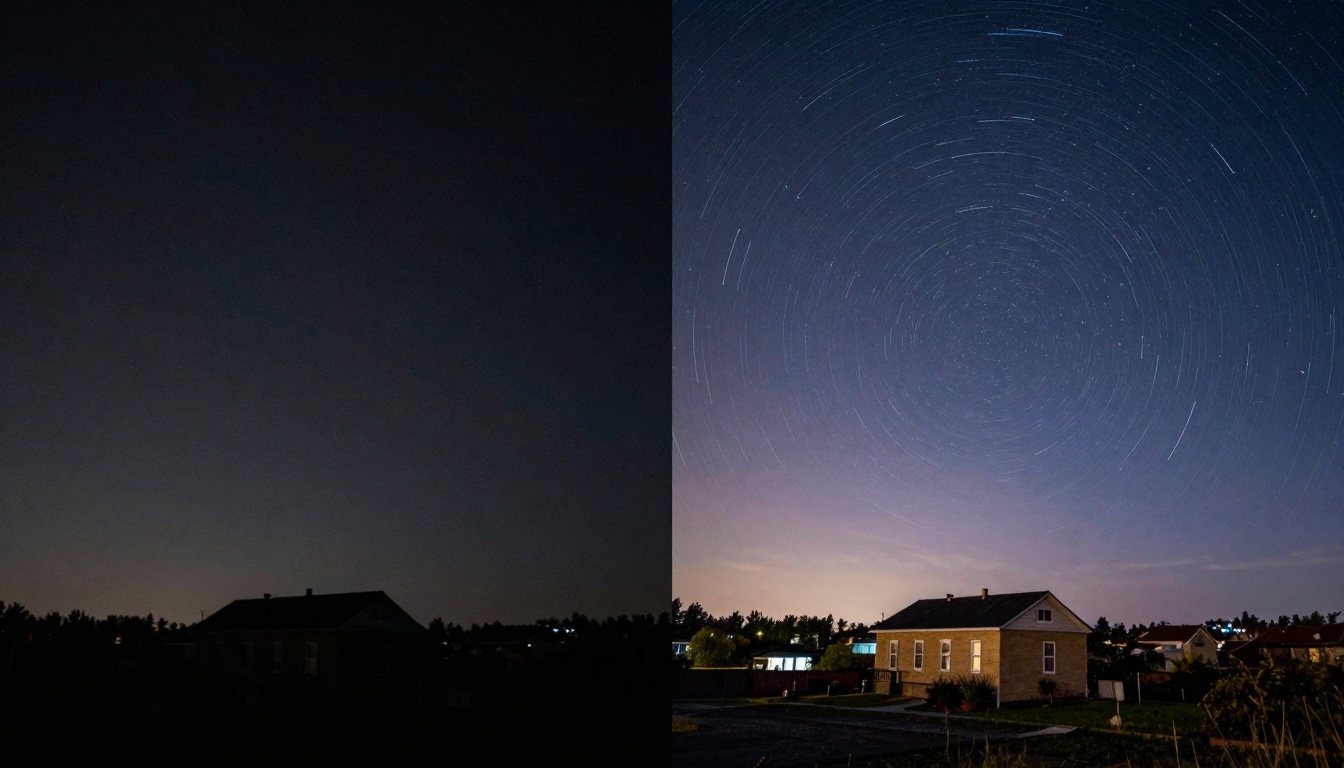
Night shots gain clean shadows and recovered star details
Future Trends: What 2026-2027 Brings
The AI upscaling field evolves rapidly. Here's what's coming:
1. Context-Aware Upscaling
Future models will understand scene context better:
- Recognizing specific brands in product photos
- Understanding architectural styles for accurate detail recreation
- Identifying historical periods for restoration accuracy
2. Real-Time Processing
Mobile apps will offer live upscaling:
- Camera apps that preview 8K results before shooting
- Social media platforms with built-in AI enhancement
- Video calling with real-time resolution improvement
3. Specialized Models
Expect more domain-specific tools:
- Medical imaging enhancement
- Astronomical photo processing
- Underwater photography correction
- Infrared image reconstruction
4. Integration Ecosystems
AI upscaling will become seamlessly integrated:
- Direct Photoshop/ Lightroom plugins
- Cloud storage automatic enhancement
- Email attachment quality improvement
- Messaging app image optimization
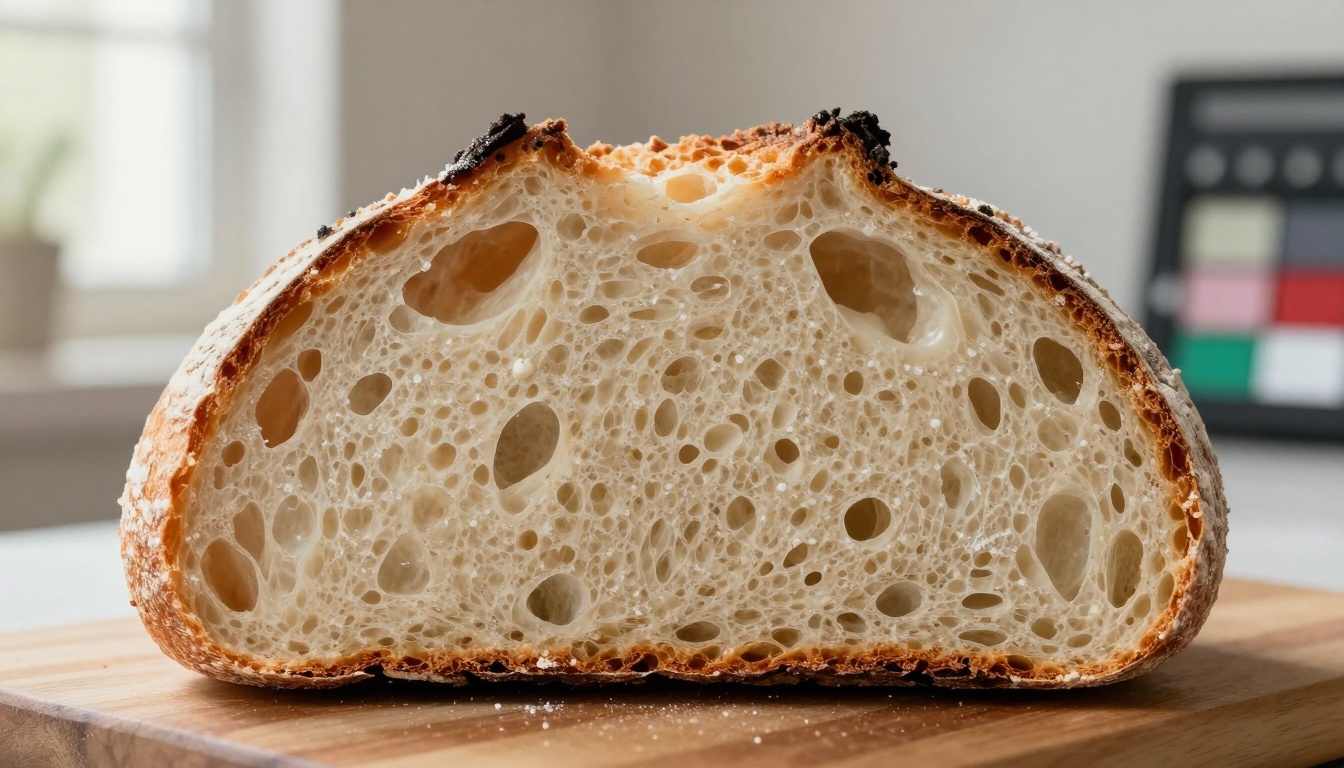
Food textures become appetizingly detailed at 8K
Common Mistakes and How to Avoid Them
Even with powerful tools, users make predictable errors:
Mistake 1: Over-Upscaling
Problem: Trying to turn 640x480 images into 8K
Solution: Be realistic about source quality
Rule of thumb: Maximum 4x enlargement from any source
Mistake 2: Ignoring Source Format
Problem: Using heavily compressed JPEGs
Solution: Start with best available format
Priority order: RAW > TIFF > High-quality JPEG > Compressed JPEG
Mistake 3: One-Size-Fits-All Approach
Problem: Using same settings for all images
Solution: Adjust for image type
Remember: Portraits need different treatment than landscapes
Mistake 4: Skipping Quality Check
Problem: Assuming AI always works perfectly
Solution: Always inspect at 100-200% zoom
Check for: Artificial textures, color shifts, halos
💡 Quality Test: Upscale a known high-quality image first to establish baseline performance before working on important photos.
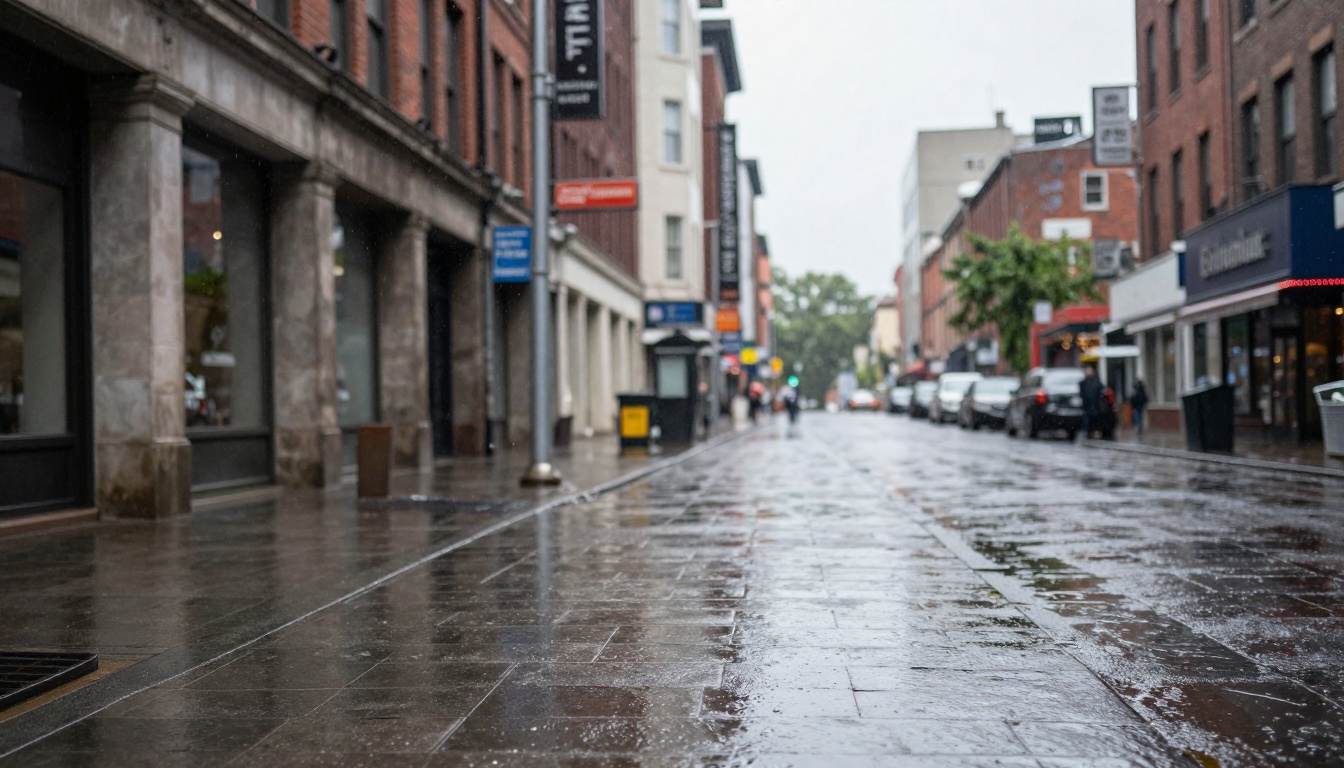
Urban scenes gain texture and detail through AI processing
Getting Started Today: Your Action Plan
Ready to transform your photo collection? Follow this simple starting plan:
Week 1: Learn the Basics
- Choose one tool to start (Real-ESRGAN recommended)
- Process 5 test images of different types
- Compare results and note what works best
- Join community forums for tips and support
Week 2: Build Your Workflow
- Organize your photos by type (portraits, landscapes, etc.)
- Create presets for each image category
- Set up batch processing for efficiency
- Establish quality standards for your needs
Week 3: Advanced Applications
- Tackle challenging projects (old photos, low-light shots)
- Experiment with different tools for specific needs
- Integrate into your existing workflow (editing software, storage)
- Share results and get feedback
Week 4: Mastery and Optimization
- Develop your own techniques based on experience
- Create before/after portfolios to track progress
- Help others in community forums
- Stay updated on new tool releases
Your Photos Deserve 8K Quality
The barrier to high-resolution photography has disappeared. What used to require $3,000 cameras and $600 software now works with free AI tools and images you already have. Your family photos, vacation memories, and creative projects can all reach 8K quality standards previously reserved for professionals.
Start with one image today. Choose that photo you always wished was sharper, clearer, more detailed. Run it through Real-ESRGAN or Google Upscaler. See the transformation. Then imagine applying that same enhancement to your entire photo collection.
The tools exist. The technology works. The results speak for themselves. Your photos at 8K resolution aren't a distant future possibility - they're a today reality waiting for you to hit "process."


