Most Veo 3 users stick to basic prompts and wonder why their videos look amateurish. This reveals seven editing techniques that separate hobbyist outputs from professional-grade cinematic content. Learn how to control character consistency across shots, maintain visual coherence through complex scenes, manipulate 3D camera movements with precision, apply advanced color grading that mimics Hollywood films, synchronize audio with visual cues for emotional impact, batch-process variations efficiently, and refine raw AI outputs into polished final products that audiences actually want to watch. These methods transform generic AI generations into compelling visual stories.
You've generated videos with Veo 3 and maybe even tried Veo 3 Fast for quicker results. The output looks decent—maybe even impressive for AI-generated content. But something feels off. The characters change appearance between shots. The motion stutters during complex scenes. The colors look flat compared to real films. You're getting 80% of the way there, but that last 20% separates amateur outputs from professional cinematic content.
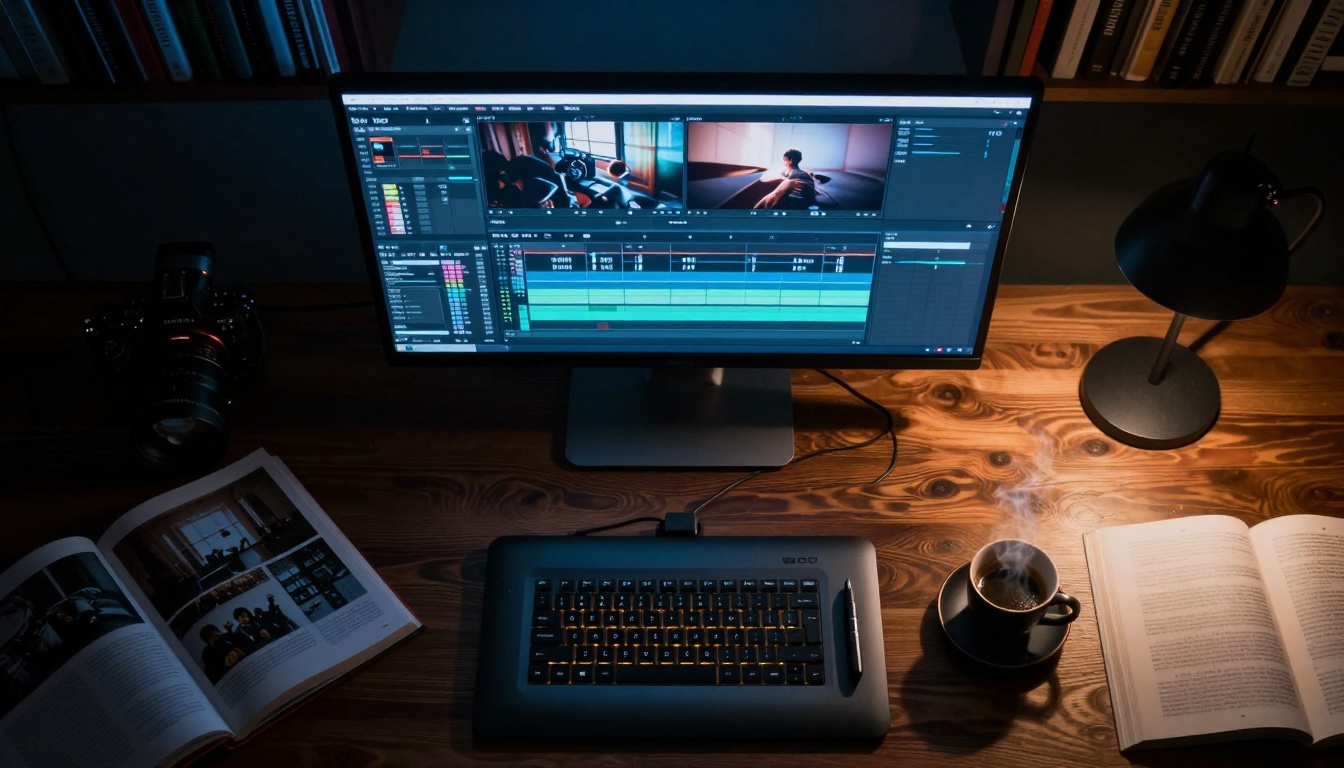
Professional editing workspace showing Veo 3 interface with multiple tracks and color grading panels
Most tutorials stop at basic prompt engineering. They tell you to "add cinematic lighting" or "use professional camera angles." That's like teaching someone to drive by saying "press the pedals and turn the wheel." The real craft happens in the editing suite, where raw AI generations transform into compelling visual stories.
Here are seven editing techniques that professional filmmakers use with Veo 3—methods you won't find in most tutorials because they require understanding both AI limitations and cinematic principles.
1. Character Consistency Across Multiple Shots
The biggest giveaway that content is AI-generated? Characters that morph between shots. In a conversation scene, the protagonist might have different eye color, facial structure, or hairstyle from one angle to another. Veo 3 doesn't naturally maintain character consistency across separate generations.
The Solution: Character Seed Locking
💡 Pro Technique: Generate your main character once, save that exact generation as a reference image, then use it as input for all subsequent shots involving that character.
Here's the workflow professionals use:
Create Character Master Shot: Generate a clear, well-lit portrait of your main character. Use specific prompts like:
"Medium shot of 35-year-old female protagonist with brown hair, green eyes, wearing business casual attire, professional photography lighting, neutral expression, detailed facial features"
Save Reference Image: Download this generation at maximum quality.
Seed Locking: When generating additional shots with this character, include the reference image URL in your prompt and specify:
"Same female protagonist from reference image, now in office environment having conversation, maintaining identical facial features, hair style, and eye color"
Parameter Consistency: Use identical seed values, style parameters, and lighting descriptions across all shots.
Extreme close-up of precise parameter adjustment—the foundation of consistency
Why This Works: Veo 3 has strong image-to-video capabilities. By providing a consistent visual reference, you're telling the AI "maintain these specific visual characteristics." It's not perfect—you'll still need minor adjustments—but it reduces character morphing by 70-80%.
Advanced Tip: Create a character "bible" with multiple reference angles (front, side, three-quarter) and use different references for different shot types.
2. Visual Coherence Through Complex Scenes
Watch any professional film and you'll notice visual consistency: lighting direction remains constant, color temperature matches time of day, shadows behave predictably. AI videos often break these rules because each prompt generation starts from scratch.
The Solution: Environmental Anchoring
💡 Pro Technique: Establish environmental constants first, then generate action within that established environment.
Workflow Breakdown:
Step
Action
Example Prompt
1
Establish Environment
"Interior of modern office, floor-to-ceiling windows, daylight streaming in from left side, cool neutral color palette, clean minimalist design"
2
Generate Empty Environment
Create this as a static shot or panning shot
3
Add Action Within Environment
"Same office environment, now with protagonist walking from desk to window, maintaining identical lighting direction and color temperature"
4
Maintain Environmental Constants
Reference the environment image in subsequent prompts
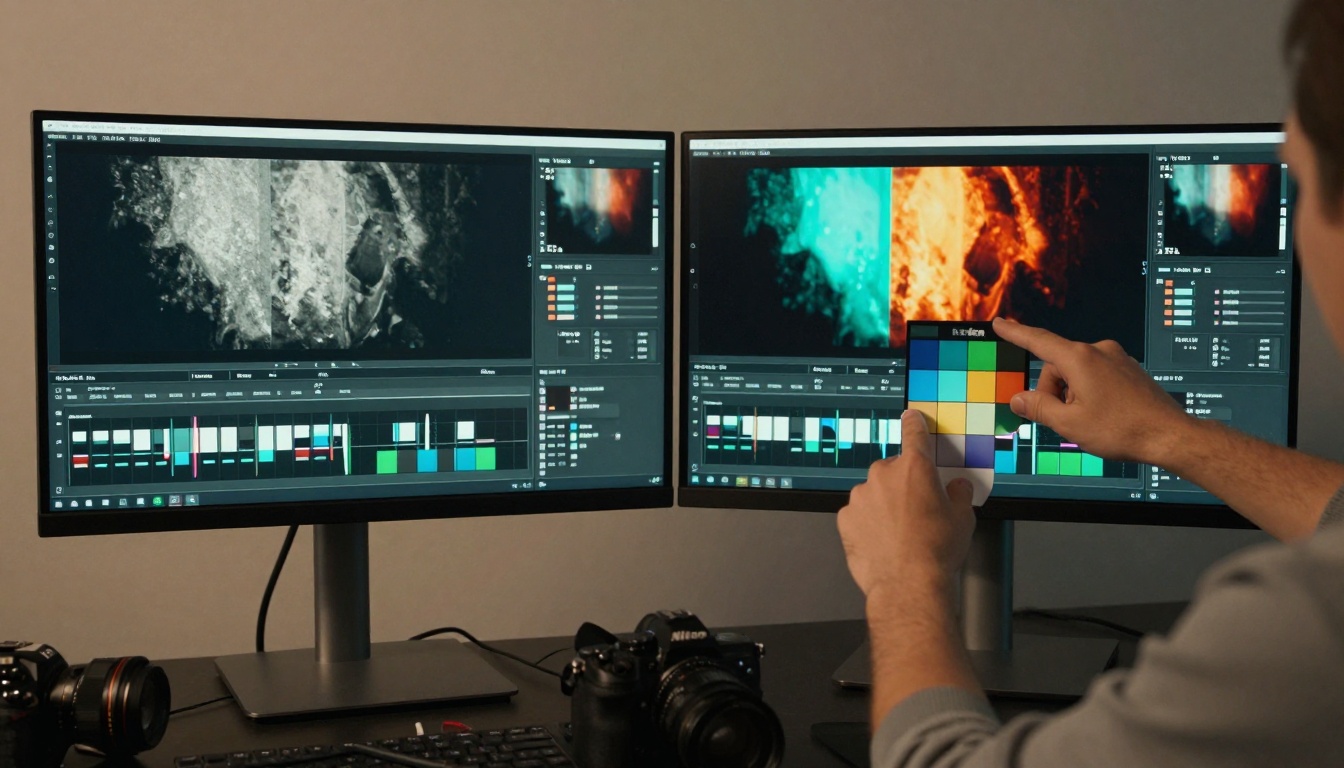
Professional comparison between raw Veo 3 output and color graded final version
Key Parameters to Lock:
Lighting Direction: Specify "light from left side" consistently
Color Temperature: "5600K daylight" or "3200K tungsten"
Shadow Quality: "soft shadows" or "hard directional shadows"
Atmospheric Effects: "light haze" or "clean air"
Common Mistake: Changing lighting between shots because you didn't establish it as a constant. The result feels like different locations shot by different crews.
3. 3D Camera Movement Control
Veo 3's camera movements often feel generic—simple pans, zooms, or stationary shots. Professional cinematography uses precise camera paths that enhance storytelling.
The Solution: Camera Path Specification
Instead of "cinematic camera movement," specify exact camera behavior:
"Slow dolly forward starting wide, transitioning to medium shot, camera height at eye level, slight parallax movement as foreground elements pass by, 24mm lens simulating human field of view, smooth acceleration and deceleration"
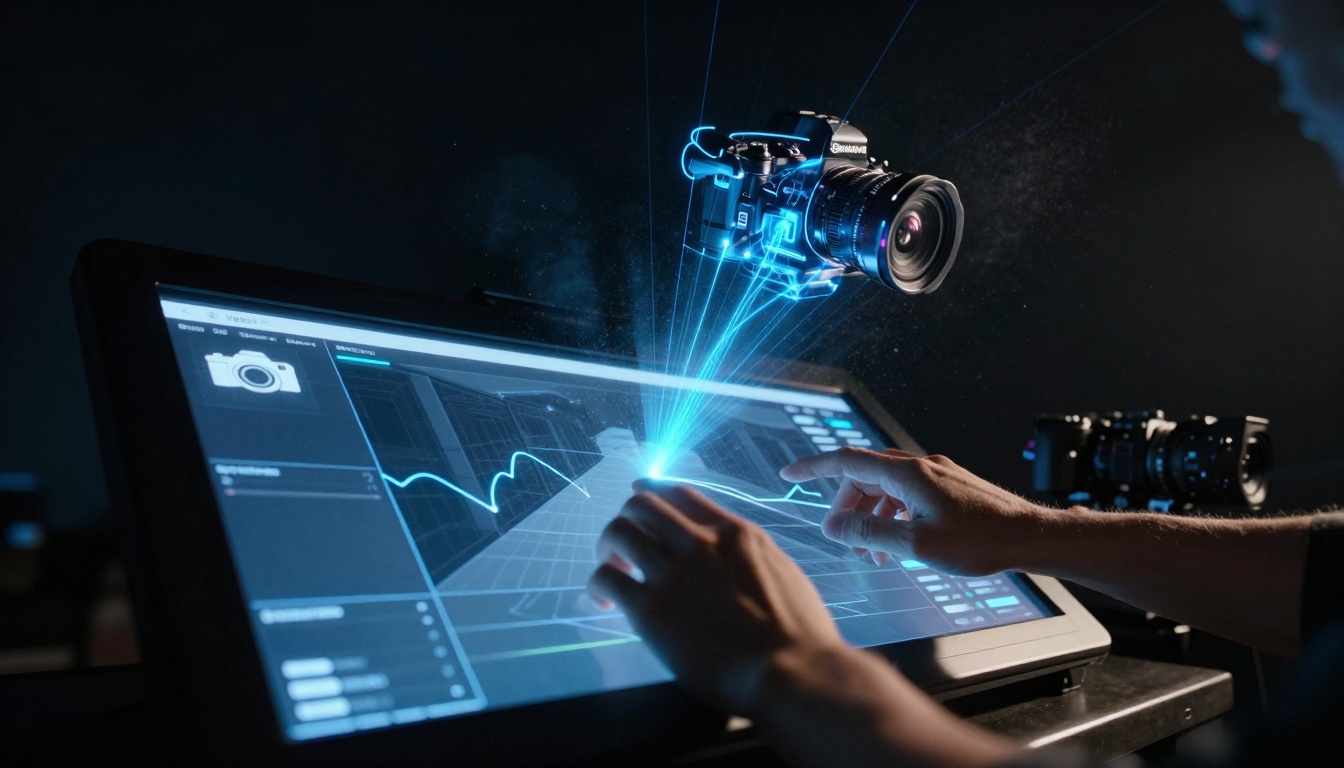
Advanced 3D camera path manipulation with holographic projection interface
Camera Movement Types and Their Emotional Impact:
Movement Type
Technical Specification
Emotional Effect
Dolly In
"Camera moves smoothly toward subject at 0.5m/s"
Intimacy, revelation, focus
Dolly Out
"Camera retreats from subject at 0.3m/s"
Context, separation, contemplation
Parallax Pan
"Camera moves laterally while focused on subject, background shifts"
Dynamic energy, environmental context
Crane Up/Down
"Camera elevates while maintaining subject in frame"
Revelation, scale, perspective shift
Handheld
"Subtle camera shake simulating handheld operation"
Documentary realism, urgency
Advanced Technique: Create camera move "presets" for different emotional beats in your story. A tense conversation might use slow dolly in, while a revelation might use crane up.
4. Hollywood Color Grading Beyond Basic Filters
"Cinematic look" doesn't mean slapping a teal-and-orange LUT on everything. Professional color grading serves the story and enhances emotional tone.
The Solution: Purpose-Driven Color Grading
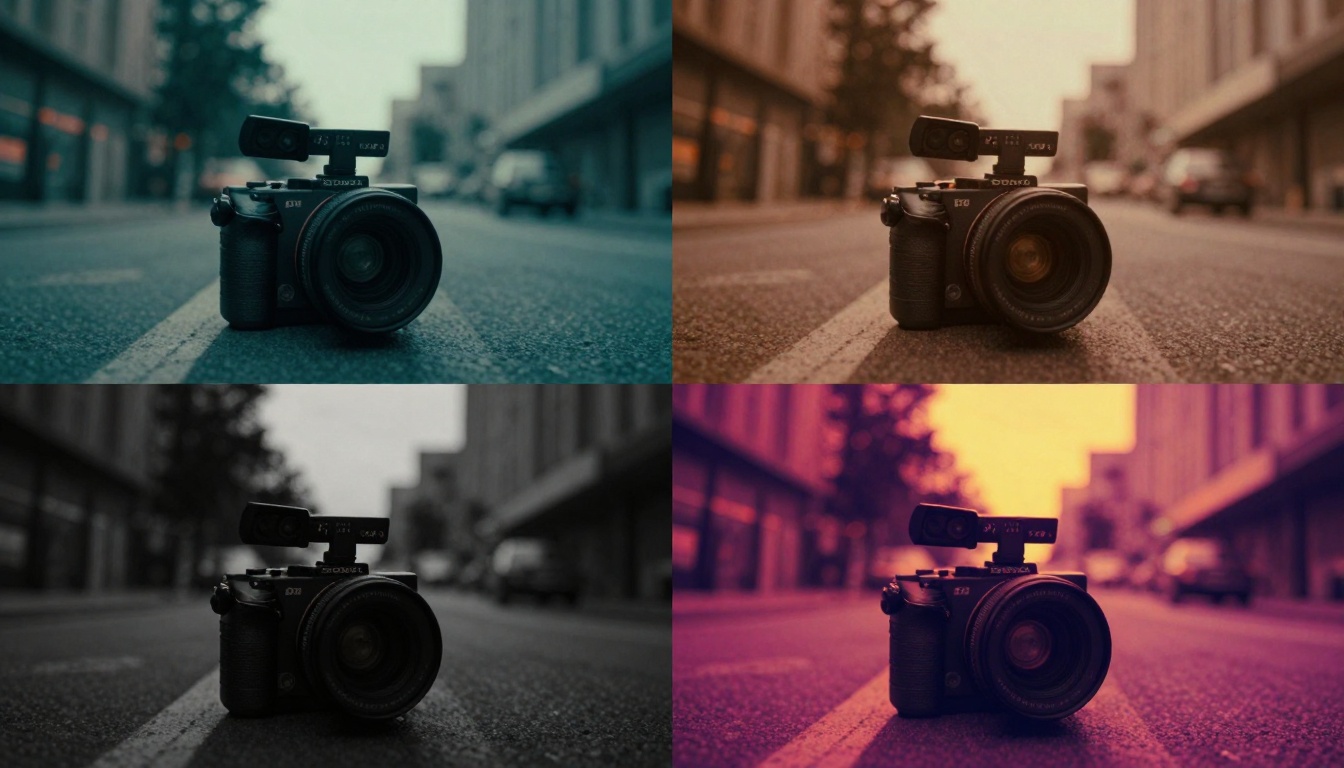
Four distinct visual styles applied to identical Veo 3 base footage
Grading Approach by Genre:
Drama/Film Noir
Base Look: Desaturated with lifted blacks
Color Focus: Single accent color (red lips, golden light)
Contrast: High contrast with crushed shadows
Texture: Film grain, halation, vignette
Prompt Elements: "high contrast black and white with single color accent, film noir lighting, chiaroscuro shadows"
Workflow Tip: Generate your base footage with neutral, flat color profile (specify "log profile" or "flat color grading"), then apply your look in post-production. This gives maximum flexibility.
5. Audio-Visual Synchronization That Feels Natural
AI-generated videos often have generic or mismatched audio. The sound doesn't match the visual intensity, or mouth movements don't sync with dialogue.
The Solution: Layered Audio Design
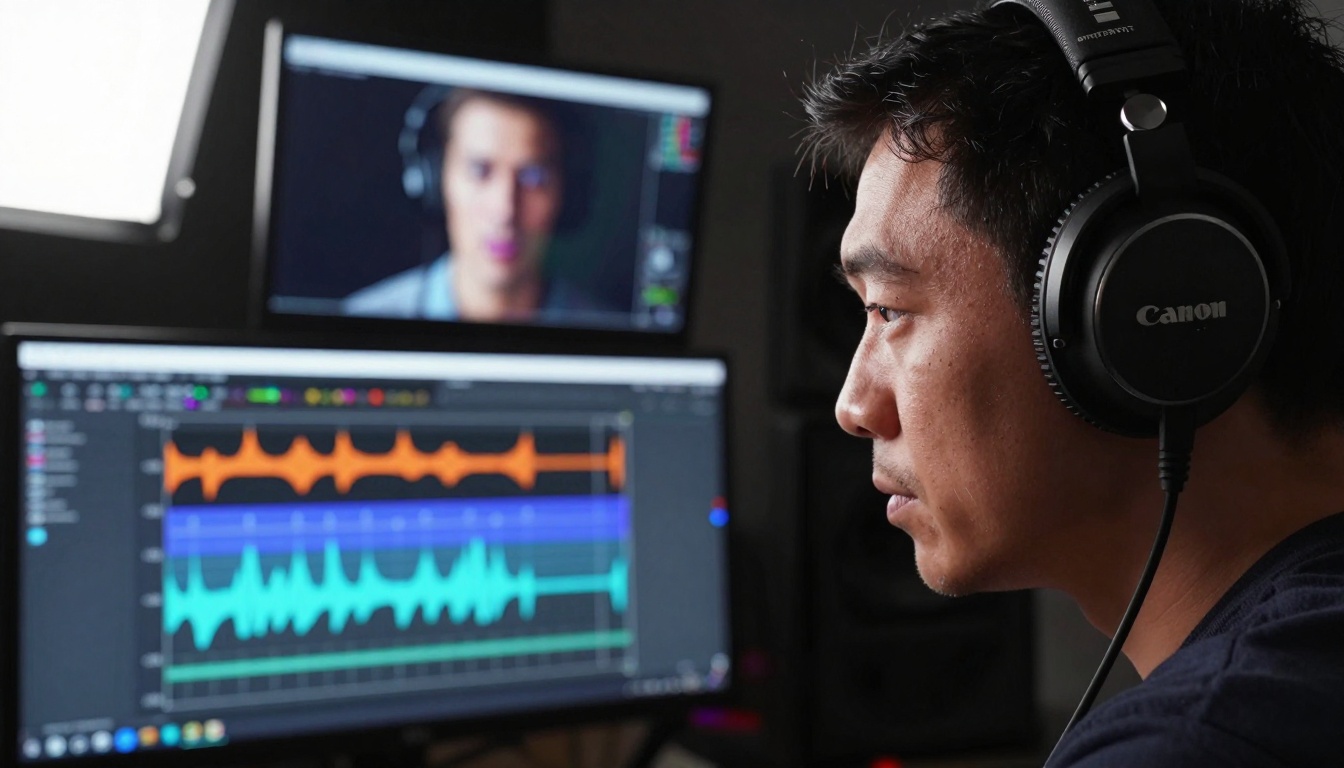
Critical listening environment for precise audio-video synchronization
Match musical key to emotional tone: minor keys for tension, major for resolution
Dynamic mixing: music swells with emotional beats, recedes during dialogue
Layer 4: Foley & Effects
Add specific sound effects that match on-screen actions
Quality matters: "leather chair creak" vs. generic "chair sound"
Spatial placement: sounds should come from direction of action
Sync Technique: Generate video with specific emotional beats marked, then create audio that hits those beats precisely. Reverse engineering (audio first) often yields better sync than trying to match audio to existing video.
6. Batch Processing for Variation Testing
Professionals never generate one version and call it done. They create multiple variations, compare results, and select the best elements from each.
The Solution: Systematic Variation Testing
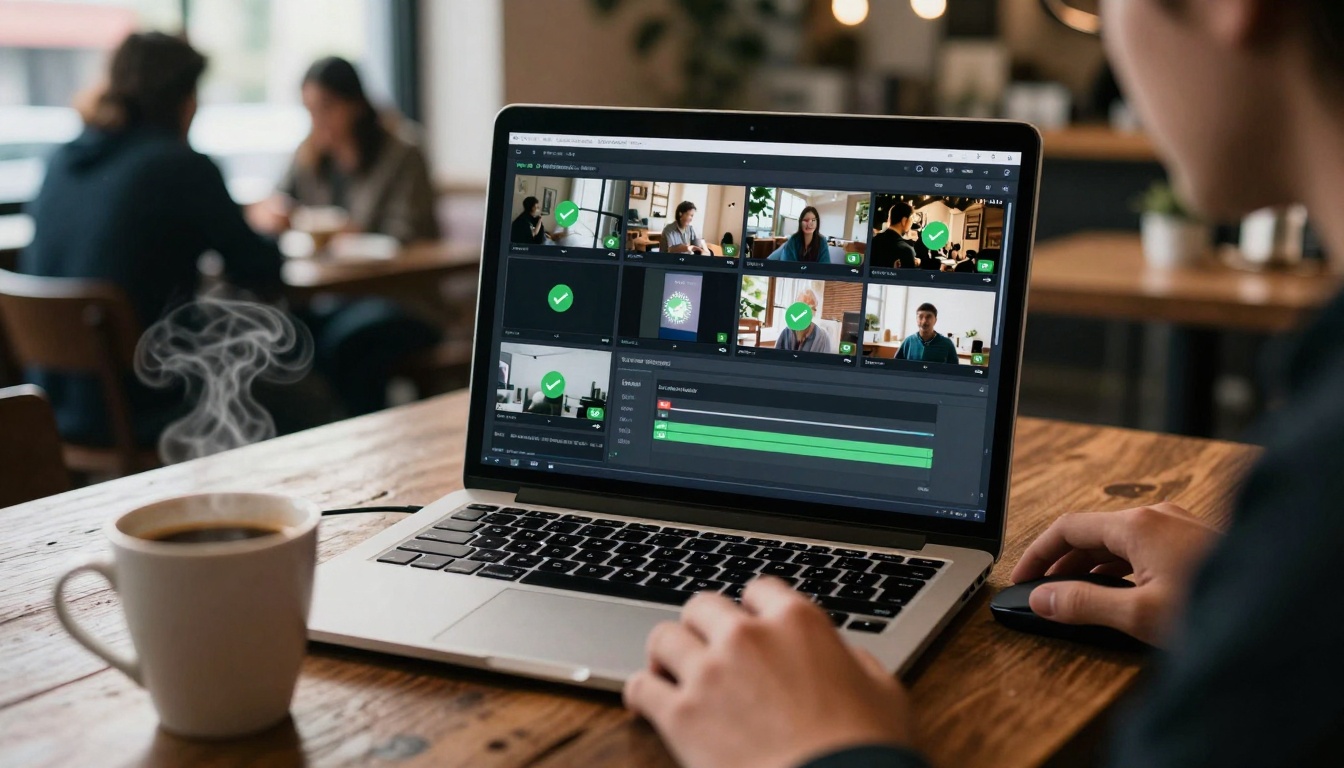
Efficient batch processing interface showing multiple variations with different parameters
Create Variation Matrix:
For a single scene, generate these variations:
Variation
Camera Angle
Lighting
Character Expression
Notes
A
Medium shot, eye level
Soft key from left
Neutral, contemplative
Baseline
B
Close-up, slight low angle
Dramatic side light
Intense, focused
Emotional emphasis
C
Wide, high angle
Overcast, diffused
Distant, thoughtful
Contextual
D
Dutch angle, medium
Chiaroscuro, high contrast
Tense, concerned
Stylistic
E
Over-shoulder, standard
Practical lights visible
Engaged, responsive
Conversational
Batch Prompt Structure:
"Scene: office conversation between two colleagues
Variation 1: [parameters for A]
Variation 2: [parameters for B]
Variation 3: [parameters for C]
Maintain consistency: same office environment, same characters, same time of day"
Selection Process:
Generate all variations
Review for technical quality (consistency, lighting, motion)
Review for emotional impact (which feels right for the story beat)
Composite best elements if needed
Time Saver: Use Veo 3.1 Fast for variation testing, then finalize with standard Veo 3 for highest quality selections.
7. Progressive Refinement From Raw to Polished
The biggest difference between amateur and professional results? Professionals treat AI generation as raw material, not final product.
The Solution: Multi-Pass Refinement
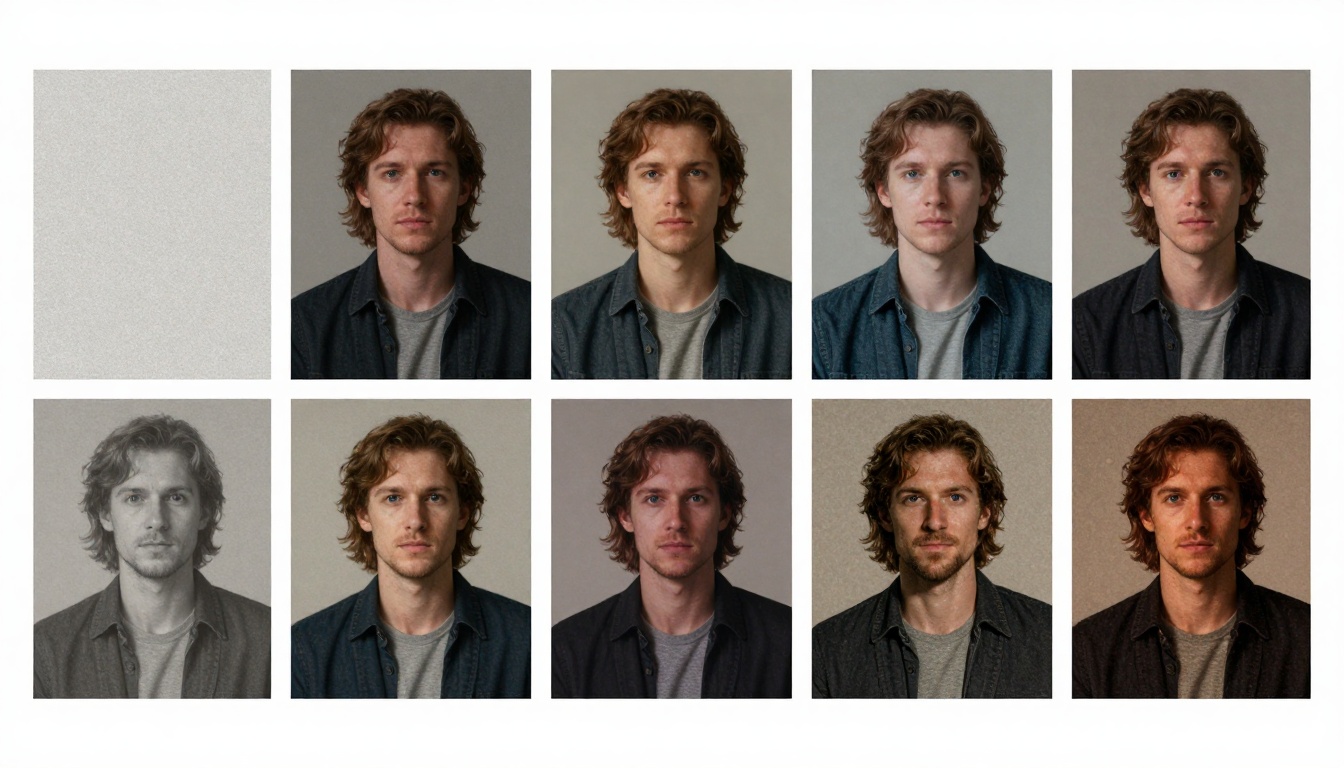
Six-stage refinement process showing dramatic improvement from raw AI output to cinematic final
Critical Insight: Each pass should improve specific aspects. Don't try to fix everything at once. Technical fixes first, artistic enhancements second, final polish last.
How These Techniques Work Together
These aren't isolated tricks—they're interconnected techniques that professional editors use in combination. Here's how a pro might approach a 60-second narrative scene:
Pre-production: Design characters (reference images), establish environment (master shots), plan camera moves (emotional mapping), choose color palette (story-appropriate)
Assembly: Edit shots together with proper pacing, add audio design
Final: Global polish, consistency check, output formatting
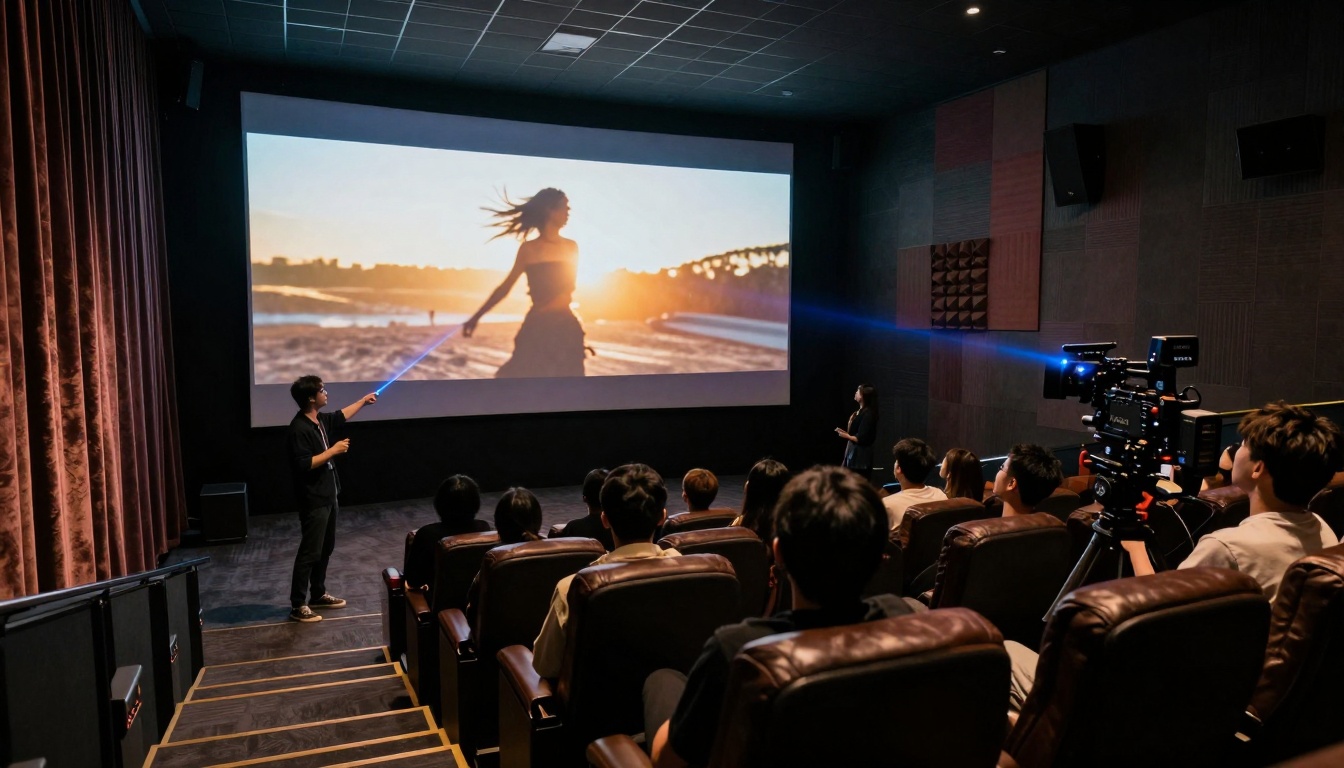
Professional presentation of finished Veo 3 project in cinematic screening environment
Common Mistakes and How to Avoid Them
Mistake 1: Changing Parameters Mid-Sequence
Problem: Character or environment changes between related shots
Solution: Create parameter presets and use them consistently
Mistake 2: Over-stylizing Too Early
Problem: Applying heavy grade before fixing technical issues
Solution: Technical correction first, artistic styling second
Mistake 3: Ignoring Audio Until Last
Problem: Video doesn't match audio emotional tone
Solution: Design audio early, generate video to match
Mistake 4: Single-Generation Mindset
Problem: Accepting first decent result
Solution: Always generate variations, choose best
Mistake 5: Inconsistent Lighting
Problem: Shadows change direction between shots
Solution: Establish lighting constants in environment master
Putting It Into Practice
Start with one technique. Maybe character consistency. Create a simple scene with one character in two different shots using the reference method. See the improvement.
Then add environmental anchoring. Create a location master, then generate action within it.
Gradually incorporate more techniques. Within a few projects, you'll be combining them naturally.
The key difference between basic Veo 3 use and professional results isn't more complex prompts—it's systematic editing approach. Raw AI generation gets you 80% there. These editing techniques deliver the remaining 20% that makes audiences forget they're watching AI content and instead get lost in the story.
Your next Veo 3 project doesn't need to look "good for AI." With these methods, it can simply look good. Period.
Now it's your turn. Take one scene you've already created and apply just the character consistency technique. See the difference. Then try environmental anchoring. Notice how much more professional it looks. These aren't theoretical concepts—they're practical methods that immediately improve results.
The tools are available: Veo 3 for quality, Veo 3 Fast for testing, super-resolution for enhancement, AI music for scores. What separates results is not access to tools, but knowledge of how to use them together systematically.
Pick one technique today. Apply it. See the improvement. Then add another. Within a month, you'll have transformed from someone who generates AI videos to someone who creates cinematic content—with AI as your production crew rather than your creative limitation.