If you're hearing about AI video generation for the first time, Google's Veo 3 Pro probably sounds like something from a science fiction movie. The reality is simpler: this tool converts text descriptions into moving visuals, and it's accessible enough that your first video could be ready in minutes. What separates Veo 3 Pro from other options isn't just quality—it's the approach to making video creation feel less like coding and more like storytelling.
What Veo 3 Pro Actually Does
Veo 3 Pro generates videos from text prompts. You describe a scene—"a sunset over mountains with birds flying"—and the AI creates a 10-30 second video matching that description. The technology understands not just objects but motion, lighting, and cinematic concepts. Unlike basic text-to-video systems that produce slideshow-like sequences, Veo 3 Pro creates fluid motion with realistic physics.
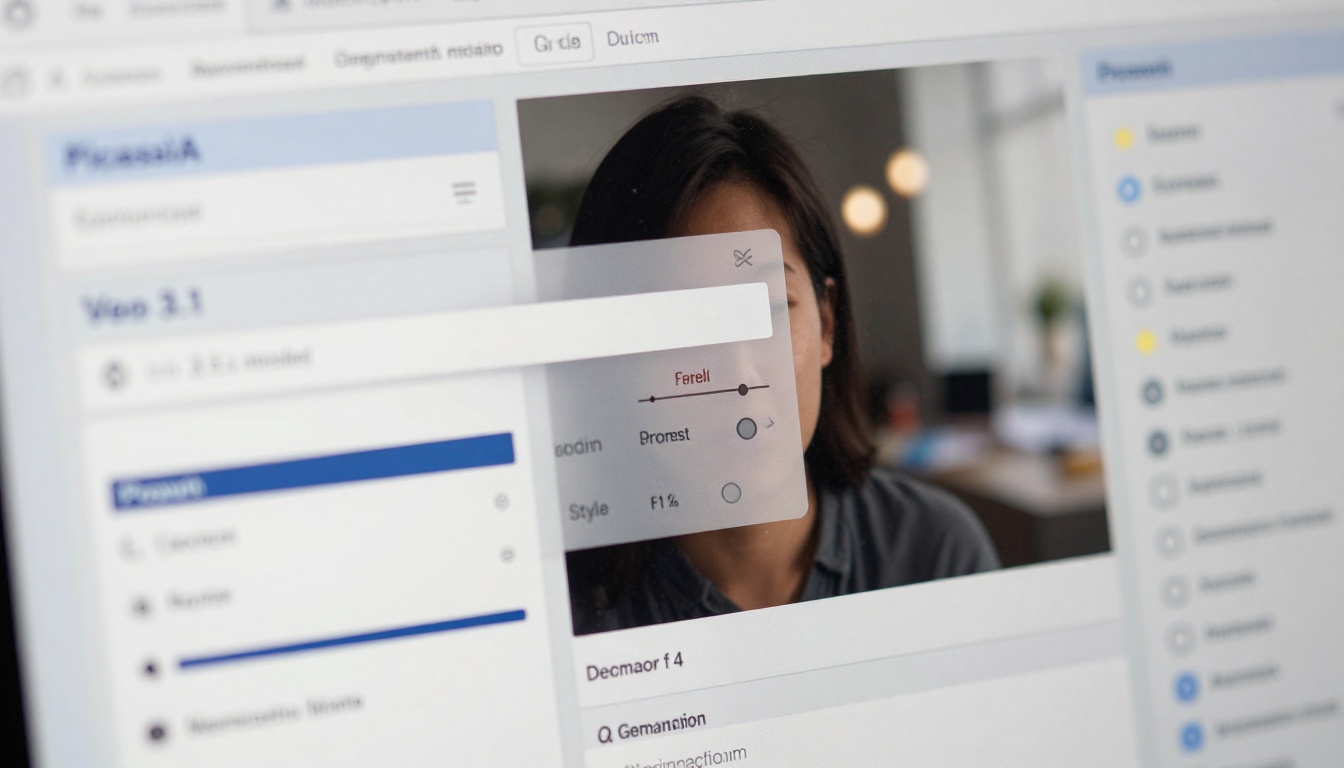
The model runs on PicassoIA as Veo 3.1 and Veo 3.1 Fast, offering standard and accelerated versions. Both maintain Google's signature cinematic quality but differ in processing time and parameter flexibility.
💡 First-time tip: Start with simple prompts. "A cat playing with yarn" works better than "A feline engaging in recreational activity with textile materials." The AI understands conversational language.
How Prompt Quality Changes Results
Your video quality depends heavily on prompt construction. Think of it as giving directions to a very literal assistant who takes everything you say at face value.
Effective prompt structure:
- Subject: Who or what is in the scene
- Action: What they're doing
- Environment: Where it's happening
- Style/Cinematic elements: Lighting, camera movement, mood
Example progression:
- Basic: "A woman walking in a park"
- Better: "A young woman walking her dog through an autumn park at golden hour"
- Best: "Medium shot of a woman in her 30s walking a golden retriever through a park with autumn leaves falling, late afternoon sunlight creating long shadows, camera tracking alongside at walking pace"
Common Prompt Mistakes Beginners Make
| Mistake | Why It Fails | Better Approach |
|---|
| Too vague | AI fills gaps randomly | Be specific about key elements |
| Contradictory terms | "Bright dark room" confuses the model | Choose one direction consistently |
| Overly complex | Multiple subjects compete for attention | Focus on 1-2 main elements |
| No motion cues | Results in static or awkward movement | Include action verbs: walking, flowing, spinning |
Technical Requirements vs. Reality
You don't need special hardware. Veo 3 Pro runs in the cloud through PicassoIA, so any device with internet access works. The platform handles all processing remotely, returning video files you can download.
What actually matters:
- Internet connection: Stable for uploading prompts and downloading results
- Storage space: Videos range from 10-50MB depending on length and quality
- Browser compatibility: Chrome, Safari, or Firefox work equally well
- Account setup: Basic registration on PicassoIA required
Output Quality and Limitations
Veo 3 Pro produces videos at 1080p resolution by default, with options for different aspect ratios. The visual quality resembles professionally shot footage rather than animated content, with realistic lighting, textures, and motion physics.
What works exceptionally well:
- Natural landscapes with organic movement
- Human activities with clear motion patterns
- Weather effects like rain, snow, or mist
- Simple object interactions
Current limitations:
- Complex mechanical movements (gears, precise machinery)
- Text generation within the video
- Specific brand logos or copyrighted characters
- Hyper-realistic human faces in extreme close-ups
💡 Workaround: For complex mechanical scenes, break them into simpler components. Instead of "factory assembly line with 20 moving parts," try "robotic arm placing component on conveyor belt."
Parameter Settings That Matter
When using Veo 3 Pro on PicassoIA, you'll encounter several adjustable parameters. These aren't technical hurdles—they're creative controls.
Key parameters explained:
Duration:
- 10 seconds = Quick concept tests, social media clips
- 20 seconds = Standard scenes, product demonstrations
- 30 seconds = Narrative sequences, detailed environments
Style guidance:
- Low: AI has more creative freedom, less predictable
- Medium: Balanced between creativity and prompt adherence
- High: Strictly follows your prompt, less artistic variation
Seed value:
- Random = Completely new variation each time
- Fixed number = Reproducible results for consistency
Cost Considerations for Beginners
Veo 3 Pro operates on a credit system through PicassoIA. Each video generation consumes credits based on duration and quality settings. For context:
Typical credit usage:
- 10-second standard quality: 2-3 credits
- 20-second high quality: 5-6 credits
- 30-second cinematic quality: 8-10 credits
PicassoIA offers various credit packages, with the entry-level option providing enough for 10-15 standard videos. This pay-per-use model means you only spend when actually creating, unlike subscription services with monthly fees regardless of usage.
Budget strategy: Start with the smallest credit package to test the tool. If you find yourself generating multiple videos daily, upgrade to larger bundles for better value.
Integration With Existing Workflow
Veo 3 Pro doesn't replace your current tools—it supplements them. The generated videos download as standard MP4 files compatible with any editing software.
Common integration patterns:
- Concept visualization: Generate quick videos to show clients or team members before shooting
- Background elements: Create establishing shots, B-roll, or atmospheric scenes
- Rapid prototyping: Test different visual approaches without location scouting or crew
- Educational content: Animate explanations that would require complex filming
Veo 3 Pro sits in a specific niche within the AI video landscape. Understanding alternatives helps clarify when to choose this particular tool.
| Tool | Best For | Veo 3 Pro Advantage |
|---|
| Runway Gen-2 | Artistic, stylized content | More cinematic, realistic output |
| Pika Labs | Quick social media clips | Higher resolution, longer durations |
| Kling | Chinese language prompts | Global language support, wider style range |
| Sora | Complex narrative sequences | Available now, no waitlist |
For beginners, Veo 3 Pro offers the most straightforward path from idea to video with minimal technical friction. The learning curve focuses on creative prompts rather than software mastery.
Practical First Project Walkthrough
Let's create a simple video together. We'll make "a coffee shop scene in the morning."
Step 1: Access the tool
Navigate to PicassoIA and select Veo 3.1 or Veo 3.1 Fast based on your speed preference.
Step 2: Craft the prompt
"Medium wide shot of a cozy coffee shop in morning light. Barista preparing drinks behind counter, two customers at window table with laptops, steam rising from coffee machines, soft natural lighting from large front windows."
Step 3: Set parameters
- Duration: 15 seconds
- Style guidance: Medium
- Seed: Random (for first attempt)
Step 4: Generate and review
Click generate, wait 1-3 minutes (faster with Veo 3.1 Fast), then download the MP4.
Step 5: Iterate if needed
If the scene feels too crowded, simplify: "Barista making coffee in morning-lit shop." If lighting seems wrong, adjust: "Warm morning light streaming through coffee shop windows."
When Results Don't Match Expectations
Even with careful prompts, sometimes videos miss the mark. Here's how to troubleshoot:
Problem: Scene feels static or lifeless
Solution: Add motion cues—"leaves rustling," "steam rising," "people walking"
Problem: Lighting looks flat or artificial
Solution: Specify light source and time—"golden hour sunlight," "moody cafe lighting"
Problem: Composition feels awkward
Solution: Include camera direction—"low angle looking up," "over-the-shoulder shot"
Problem: Style doesn't match intent
Solution: Use cinematic terms—"documentary style," "cinematic wide shot," "intimate close-up"
Remember: Each generation teaches the system what you want. The fifth attempt usually looks significantly better than the first.
Ethical Considerations and Best Practices
AI video generation comes with responsibility. Veo 3 Pro includes content filters, but users should maintain ethical standards.
Guidelines for responsible use:
- Transparency: Disclose AI generation when content appears realistic
- Respect rights: Avoid generating recognizable people without permission
- Context matters: Consider how videos might be misinterpreted
- Quality standards: Don't use for sensitive topics requiring factual accuracy
The tool excels at creative expression, educational content, and visual storytelling. It struggles with journalistic accuracy, legal documentation, and identity representation.
Scaling From First Video to Regular Use
Once comfortable with basics, consider these next steps:
- Create a prompt library: Save successful prompts with notes about what worked
- Establish a review process: Quick checklist for lighting, composition, motion before finalizing
- Batch processing: Generate multiple variations simultaneously when PicassoIA credits allow
- Integration scripting: Automate download and organization if using frequently
Real Applications Beyond Experimentation
Veo 3 Pro moves from novelty to tool when applied to actual projects:
Content creators: Generate B-roll for YouTube videos without filming
Educators: Create visual explanations for complex concepts
Marketers: Produce concept videos for campaign presentations
Product designers: Visualize products in different environments
Storyboard artists: Rapidly test scene compositions
The transition happens when you stop asking "what can it make?" and start asking "what problem can it solve for me?"
Your Next Steps With Veo 3 Pro
The barrier to entry has never been lower. With PicassoIA handling the infrastructure and Veo 3 Pro delivering quality, the remaining variable is your willingness to experiment.
Start with one simple video today—something that would normally require filming. Notice what works, what doesn't, and how the tool responds to your adjustments. Within a few attempts, you'll develop an intuition for prompt construction that turns vague ideas into specific visual instructions.
The most successful users treat Veo 3 Pro not as magic but as a collaborator: you provide direction and creative vision, it handles technical execution. This partnership becomes more effective with practice, each generation refining both the output and your ability to guide it.
Ready to Create?
The PicassoIA platform offers immediate access to Veo 3.1 with straightforward pricing and no complex setup. Your first video could be rendering within minutes of reading this sentence.
What separates curious observers from active creators is simply taking that first step: writing a prompt, adjusting parameters, and clicking generate. The results might surprise you—not with perfection on attempt one, but with the clear potential visible in even early outputs.
Video creation no longer requires cameras, crews, or editing suites. It starts with words describing what you want to see. Veo 3 Pro handles the transformation from language to visuals, leaving you to focus on the story rather than the production.


