What Makes Veo 3.1 Different
Video creation used to mean expensive equipment, technical expertise, and hours of editing. Veo 3.1 changes that equation. This AI model from Google turns text descriptions into professional video content, making video production accessible to anyone with an idea.
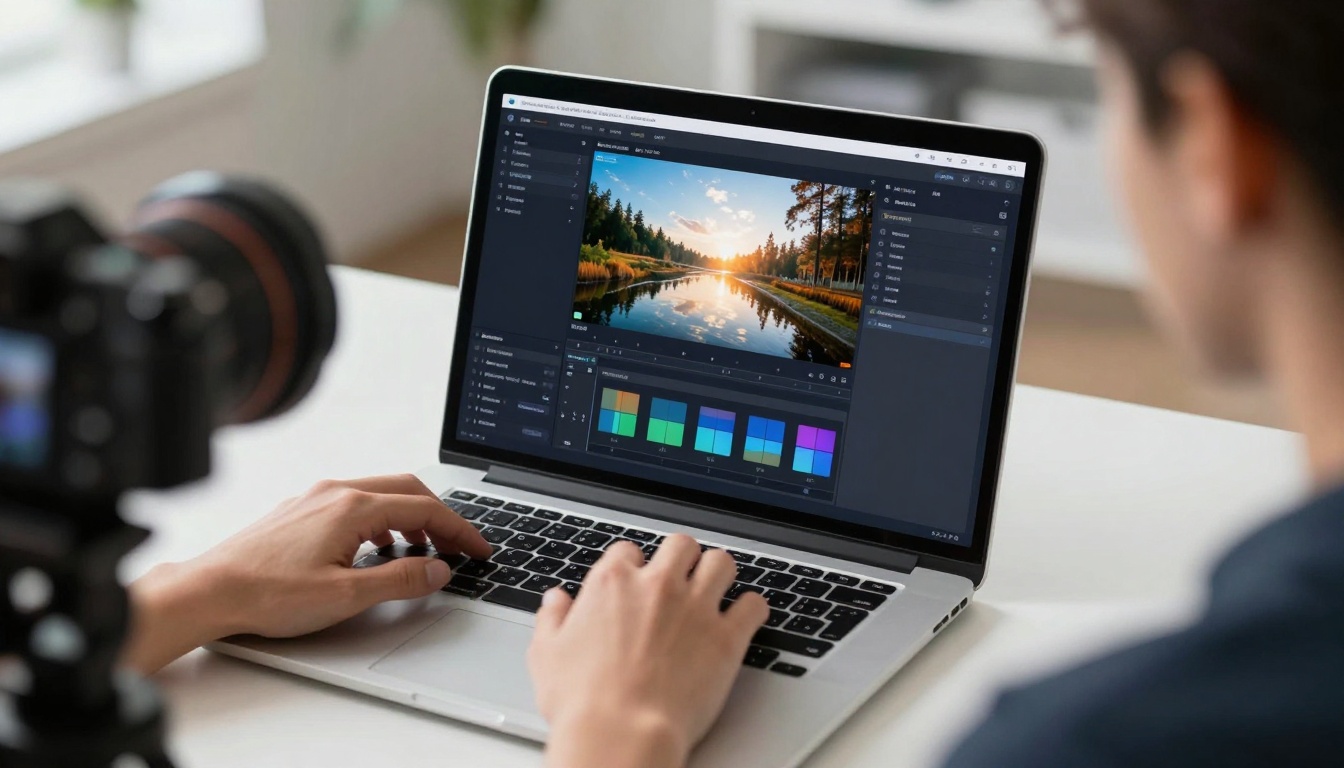
The real power of Veo 3.1 comes from its flexibility. You can generate videos from scratch using just text, start from an existing image, or maintain consistency across multiple shots using reference images. The model handles everything from short social media clips to longer narrative sequences.
How Veo 3.1 Works
At its core, Veo 3.1 uses advanced AI to interpret your text prompts and generate corresponding video content. But the system goes beyond simple text-to-video conversion.
The generation process follows these principles:
- Context awareness means the model pays attention to relationships between objects and actions in your prompt
- Temporal consistency ensures smooth motion and realistic transitions between frames
- Audio synthesis creates matching soundscapes that complement the visual content
- Reference image support maintains subject identity across different scenes
The model supports multiple resolutions (720p and 1080p) and aspect ratios (16:9 and 9:16), allowing you to create content optimized for different platforms and use cases.
Writing Effective Video Prompts
The quality of your output depends heavily on how you describe what you want. A vague prompt produces generic results, while a detailed description yields specific, engaging content.
Strong prompts include these elements:
- Action and movement (what's happening in the scene)
- Visual details (lighting, colors, camera angles)
- Mood or atmosphere (energetic, calm, dramatic)
- Subject description (who or what appears in the video)
- Context or setting (where the action takes place)
For example, instead of "a person walking," try "a woman in a red coat walking through a bustling city street at sunset, golden hour lighting, cinematic camera following from behind." The additional details give the model much more to work with.
Resolution and Quality Options
Veo 3.1 offers two resolution tiers to balance quality and generation speed. The 720p option produces HD video suitable for most online platforms and social media. The 1080p setting delivers full HD quality for more professional applications.
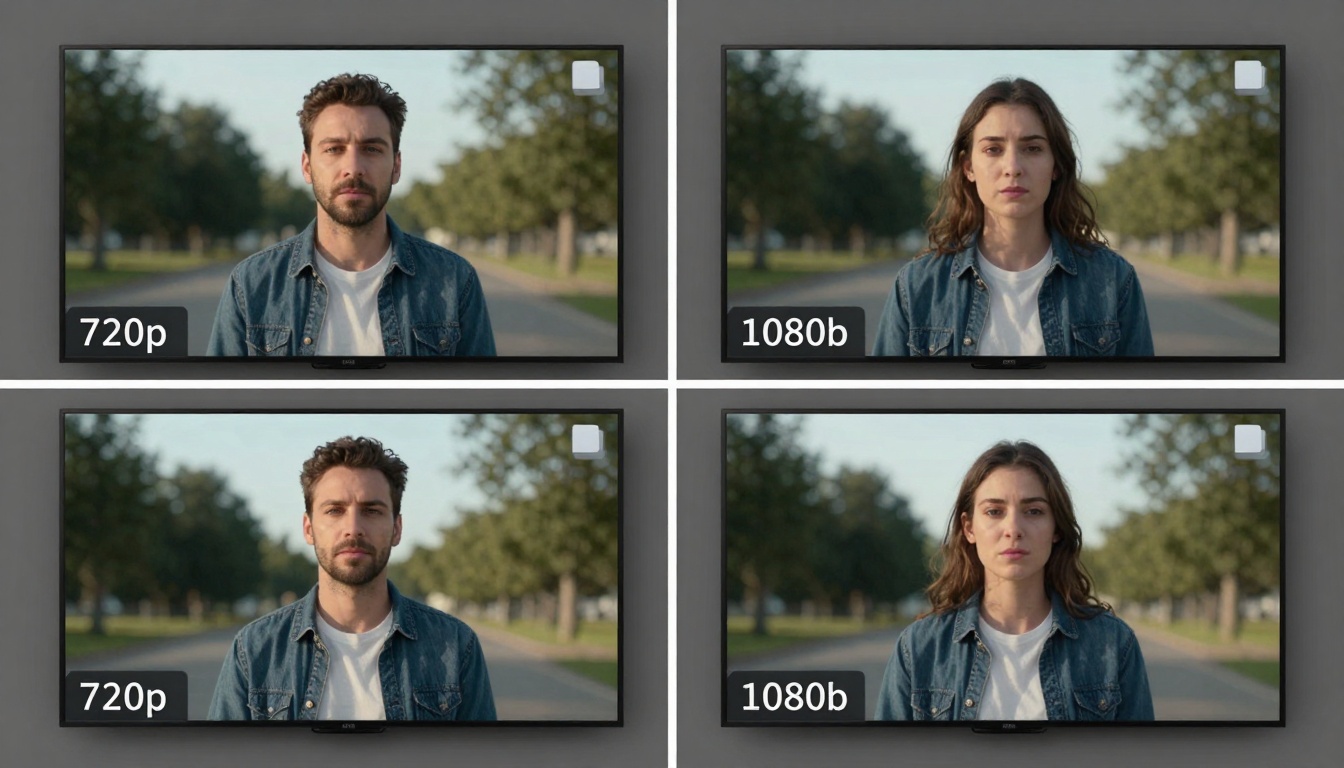
Consider these factors when choosing resolution:
- 720p works well for quick iterations and social media content
- 1080p provides better detail for professional presentations and marketing
- Higher resolution requires longer processing time
- Both options maintain the model's quality standards for motion and consistency
The difference becomes most noticeable in scenes with fine details or text elements, where 1080p preserves clarity that might be lost at lower resolutions.
Using Reference Images
One of Veo 3.1's standout features is its ability to maintain subject consistency across generations using reference images. This feature solves a common problem in AI video generation where characters or objects can change appearance between different shots.
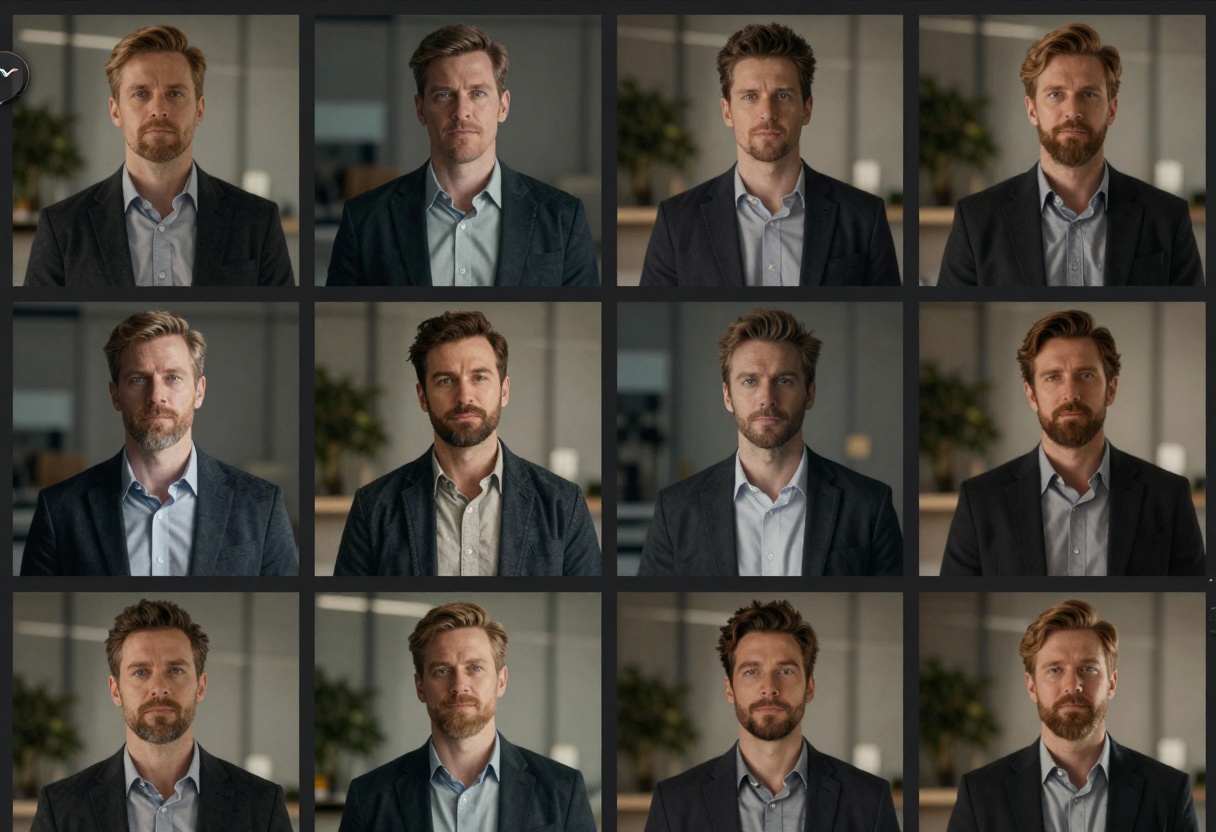
Reference images work best when:
- The subject is clearly visible and well-lit in the reference photo
- You're creating a series of related videos featuring the same character or object
- The aspect ratio is set to 16:9 with 8-second duration
- You upload 1 to 3 reference images showing different angles of your subject
This feature enables storytelling possibilities that weren't practical before. You can now create multi-shot sequences while keeping your main character or product looking consistent throughout.
Duration Settings and Timing
Veo 3.1 supports three duration options: 4, 6, and 8 seconds. While these might seem short, they're carefully chosen to maximize quality while keeping generation times reasonable.
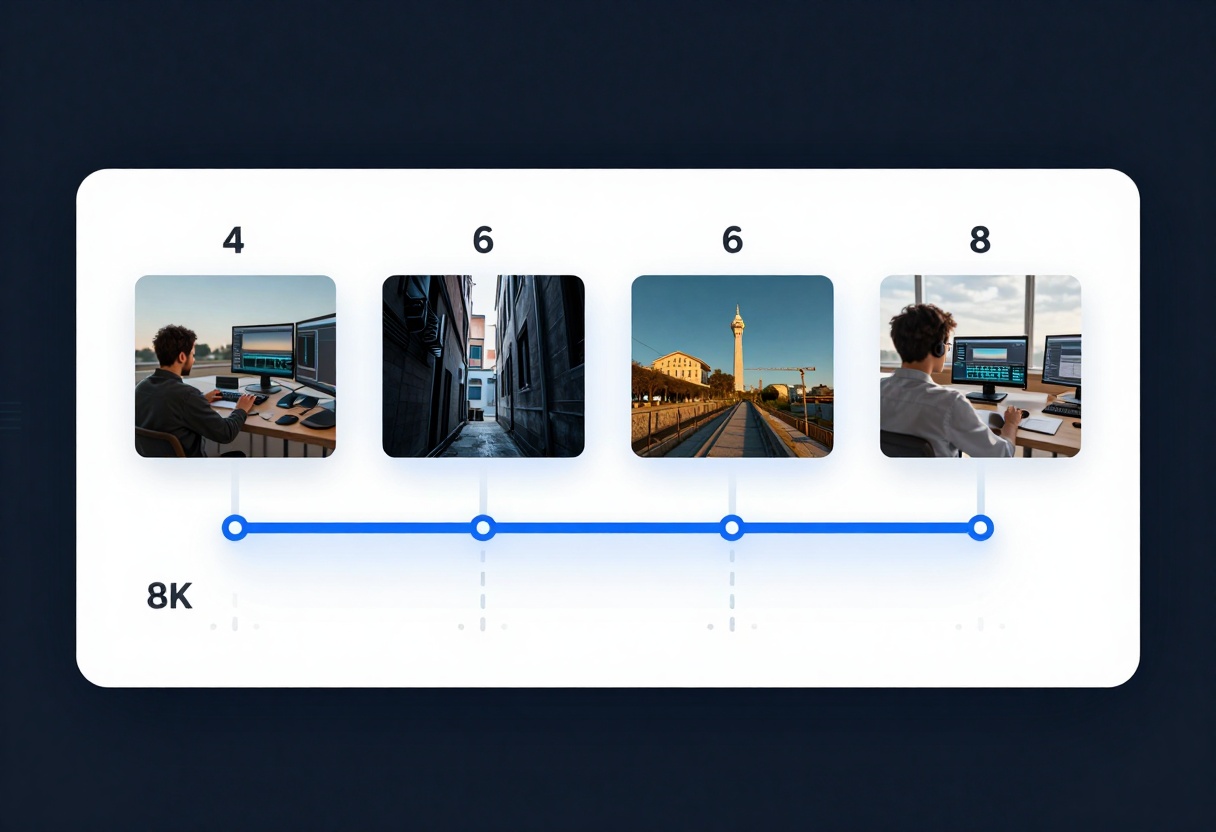
Four-second clips work perfectly for quick social media content or repeating loops. Six seconds provides enough time to establish a scene and show clear action. Eight seconds allows for more complex sequences with multiple movements or story beats.
Plan your timing based on content type:
- Product showcases: 4-6 seconds highlighting key features
- Action sequences: 6-8 seconds to establish and complete the movement
- Atmospheric shots: 4-6 seconds to set mood and tone
- Storytelling moments: 8 seconds for beginning, middle, and end
You can always generate multiple clips and combine them in post-production for longer sequences while maintaining consistent quality across each segment.
Audio Generation Capabilities
Video without sound feels incomplete. Veo 3.1 addresses this by including optional audio generation that matches your video content. The system analyzes the visual elements and creates appropriate sound effects and ambient audio.
The audio system handles:
- Environmental sounds that match the setting
- Movement-related audio for actions in the scene
- Atmospheric elements that enhance mood
- Spatial audio cues that feel natural with the visuals
You can disable audio generation if you plan to add custom sound design later, but the generated audio often provides a solid starting point that can be refined or replaced as needed.
Aspect Ratio Choices
Modern video consumption happens across many different platforms and devices. Veo 3.1 supports both landscape (16:9) and portrait (9:16) formats to accommodate this reality.
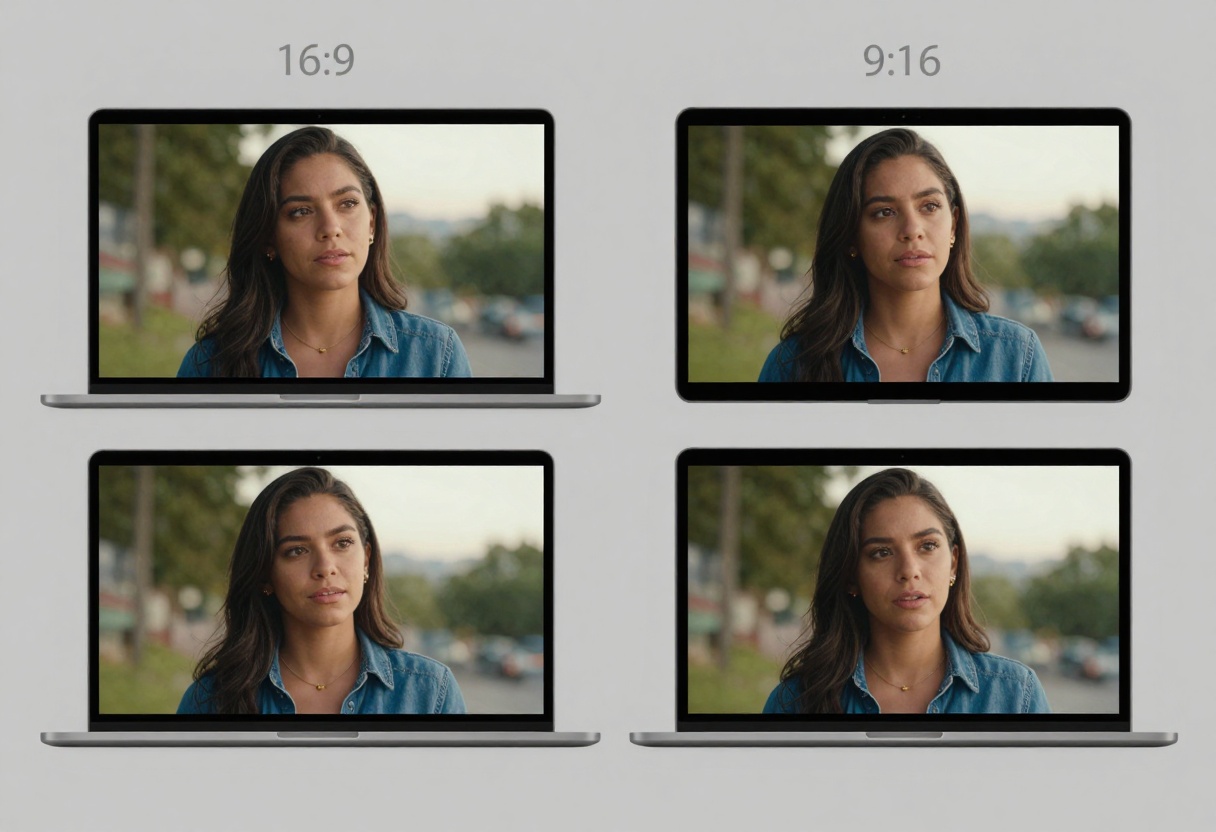
Choose 16:9 for:
- YouTube and traditional video platforms
- Website headers and landing pages
- Presentations and professional content
- Wide landscape scenes that benefit from horizontal framing
Choose 9:16 for:
- Instagram Stories and Reels
- TikTok content
- Mobile-first viewing experiences
- Vertical content that fills smartphone screens
The aspect ratio affects not just the final output dimensions but also how the model frames and composes shots within the video.
Video content dominates social media, and Veo 3.1 makes it easier to create engaging posts without expensive production setups. The tool particularly shines for creators who need to produce regular content.
Common social media use cases:
- Product announcements and reveals
- Behind-the-scenes style content
- Tutorial or how-to video clips
- Reaction videos and commentary backgrounds
- Promotional content for events or launches
- Brand storytelling sequences
The ability to quickly iterate on ideas means you can test different approaches and find what resonates with your audience without committing significant time or resources to each attempt.
Marketing and Business Content
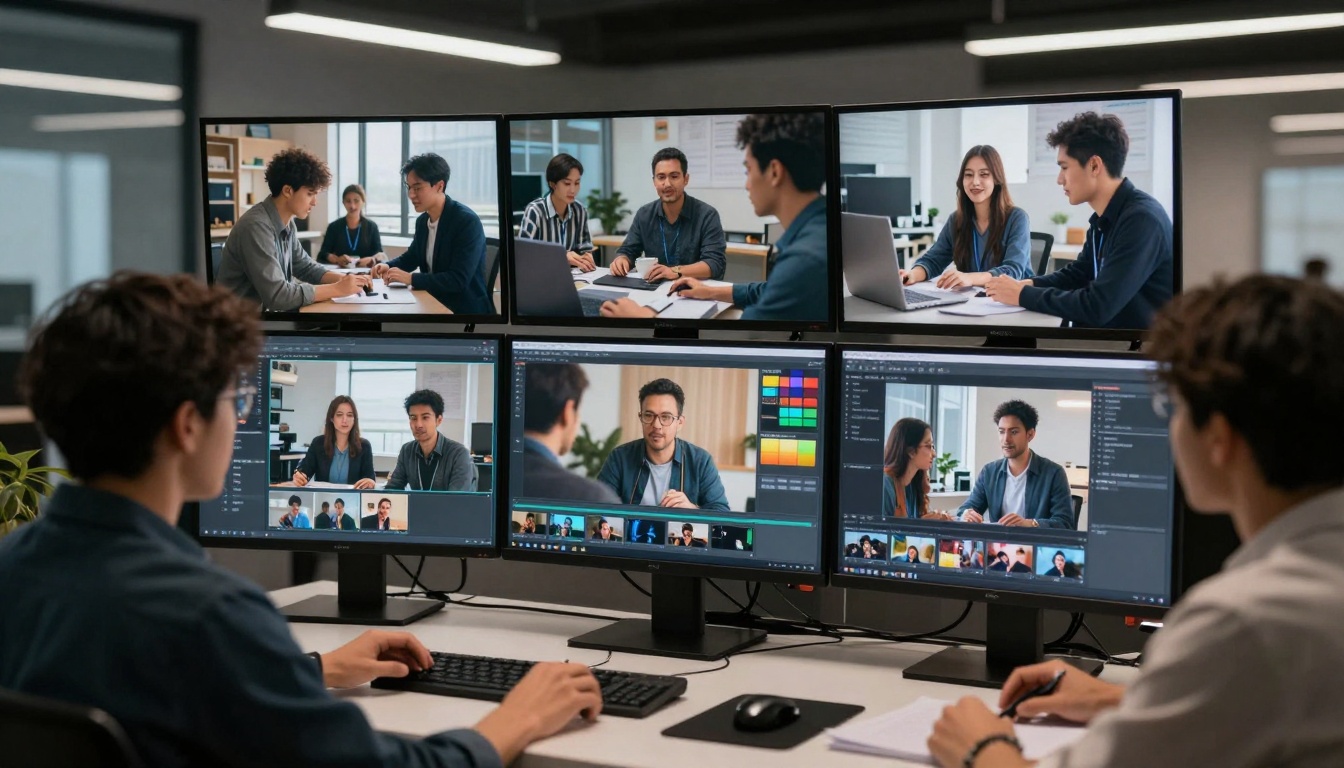
Professional video production traditionally requires significant budget and planning. Veo 3.1 democratizes access to quality video content for marketing teams and businesses of all sizes.
Business applications include:
- Product demonstrations showing features in action
- Explainer videos breaking down complex concepts
- Customer testimonial backdrops and visuals
- Internal training content and documentation
- Conference presentation materials
- Email campaign video elements
Teams can prototype video concepts quickly, get stakeholder feedback, and refine the approach before committing to final production. This iterative process leads to better final results while reducing wasted effort.
Starting and Ending Images
Beyond basic text-to-video generation, Veo 3.1 supports starting from an existing image or creating smooth transitions between two images. These features expand creative possibilities significantly.
Starting with an image means you can:
- Transform static product photos into dynamic videos
- Animate artwork or illustrations
- Continue video sequences from previous generations
- Match existing visual branding with new video content
When you provide both a starting and ending image, the model creates a smooth transition that interpolates between the two, handling both motion and any changes in composition or lighting.
Using Negative Prompts
Sometimes it's easier to describe what you don't want than to list everything you do want. Negative prompts let you exclude specific elements from your generated videos.
Effective negative prompts address:
- Unwanted visual styles (cartoon, animated, sketchy)
- Elements that don't fit your content (text, logos, watermarks)
- Technical issues (blur, grain, distortion)
- Inappropriate content or themes
Think of negative prompts as quality filters that help guide the model away from common problems or aesthetic choices that don't match your vision.
How to Use Veo 3.1 on PicassoIA
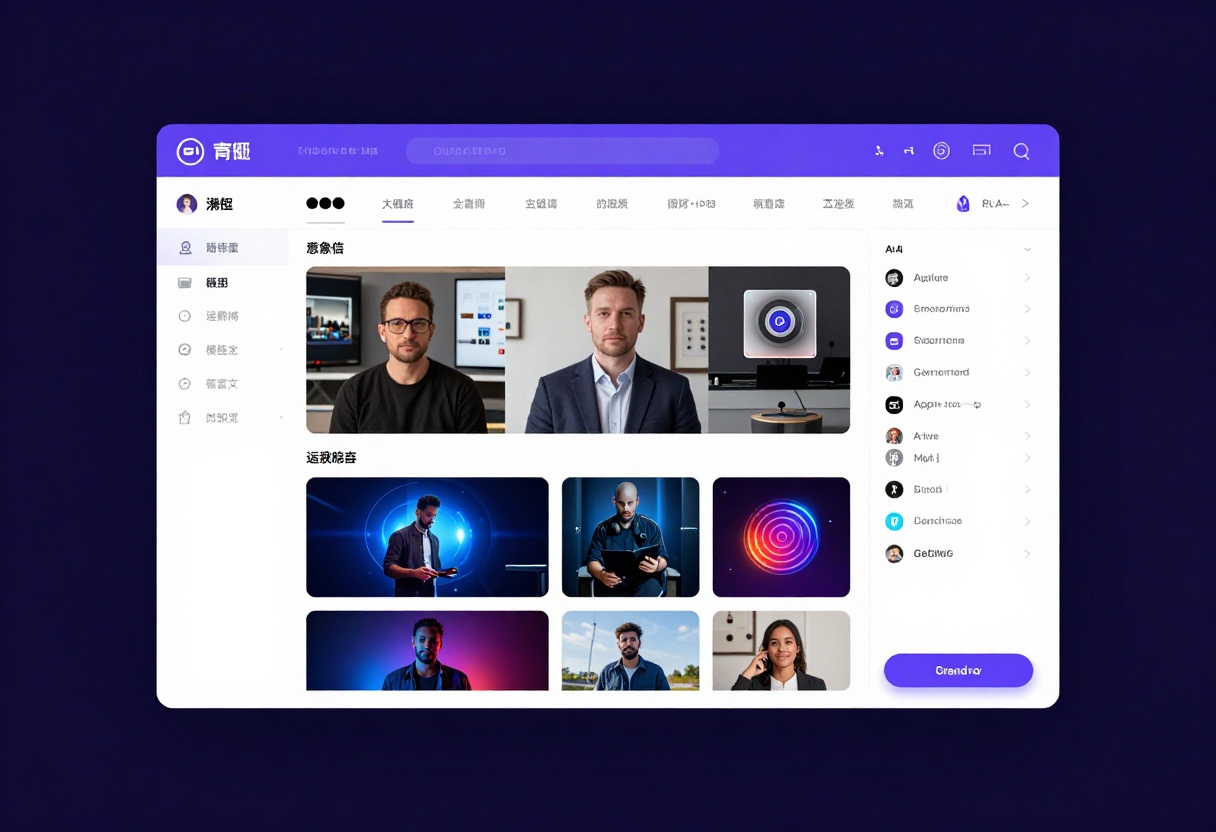
PicassoIA provides straightforward access to Veo 3.1 through a clean web interface. The platform handles all the technical complexity, letting you focus on creativity rather than infrastructure.
Getting Started
Visit the Veo 3.1 model page on PicassoIA to begin. The interface presents all available parameters in a clear layout.
Basic Video Generation
For your first video, focus on the required prompt field. Write a detailed description of what you want to see, then click generate. The system uses default settings that work well for most use cases.
Your prompt should describe:
- The main subject or action
- The setting or environment
- Lighting and mood
- Camera perspective
- Any specific details that matter to your vision
Adding Start Images
If you have an existing image you want to animate, upload it in the "Image" field. Make sure your image matches the aspect ratio you've selected (16:9 or 9:16) and meets the recommended dimensions (1280x720 for 16:9, or 720x1280 for 9:16).
The model will use your image as the starting point, animating it according to your text prompt while maintaining the visual elements from the original.
Working with Reference Images
When you need character or object consistency across multiple videos, use the reference images feature. Upload 1 to 3 clear photos of your subject from different angles.
For best results with reference images:
- Set aspect ratio to 16:9
- Choose 8-second duration
- Use well-lit, clear photos as references
- Avoid heavily filtered or stylized reference images
- Show the subject from angles relevant to your prompt
Adjusting Duration and Quality
Select your preferred duration based on the content type. Shorter durations (4-6 seconds) work well for simple actions or loops, while 8 seconds allows for more complex sequences.
Choose resolution based on your final use case. Social media content typically works fine at 720p, while professional presentations and marketing benefit from 1080p quality.
Setting Aspect Ratio
Pick 16:9 for traditional landscape video or 9:16 for mobile-optimized portrait video. This decision should match where you plan to share or use the final content.
Audio Options
Leave "Generate Audio" enabled if you want the model to create matching sound design. Disable it if you plan to add custom audio in post-production or if you need silent video for specific applications.
Using Negative Prompts
Enter any elements you want to avoid in the negative prompt field. This helps guide the generation away from unwanted visual styles or content.
Advanced Options
The seed parameter allows you to reproduce specific results. When you generate a video you like, note the seed number. Using the same seed with the same prompt will produce similar (though not identical) results.
Processing and Download
After clicking generate, processing time varies based on duration and resolution. The platform shows progress updates, and you'll receive a notification when your video is ready.
Once complete, you can preview the result directly in the browser and download the video file for use in your projects.
Best Practices for Quality Results
Success with Veo 3.1 comes from understanding how to work with the model's strengths and work around its limitations.
Maximize quality by:
- Writing specific, detailed prompts rather than vague descriptions
- Using cinematic language (camera angles, lighting, shot types)
- Testing different prompt variations to find what works
- Keeping scenes relatively simple for more consistent results
- Matching duration to content complexity (don't rush complex actions)
Avoid common issues by:
- Not expecting perfect photorealism in every frame
- Starting with 720p for testing before committing to 1080p
- Breaking complex sequences into multiple shorter clips
- Providing good quality reference images when using that feature
- Reviewing generations carefully before building on them
Comparing Veo 3.1 to Other Models
The text-to-video space includes several competing models, each with different strengths. Veo 3.1 stands out for its combination of quality, flexibility, and practical features.
Key advantages of Veo 3.1:
- Reference image support for character consistency
- Built-in audio generation
- Multiple resolution and aspect ratio options
- Reliable motion quality and temporal consistency
- Balance between quality and generation speed
The model works particularly well for professional and marketing applications where consistency and quality matter more than experimental or artistic effects.
Real-World Use Cases
Understanding how different creators use Veo 3.1 helps identify opportunities for your own projects.
Content creators use it for:
- Regular social media posts without expensive shoots
- Testing video concepts before full production
- Creating backgrounds for talking head videos
- Generating b-roll footage for editing projects
Businesses apply it to:
- Product launch announcements
- Internal communications and training
- Quick turnaround marketing campaigns
- Prototyping ad concepts
Educators and trainers utilize it for:
- Visual examples in courses
- Animated diagrams and processes
- Scenario demonstrations
- Engagement-boosting content in presentations
Technical Considerations
While Veo 3.1 handles most technical aspects automatically, understanding a few key points helps you work more effectively with the system.
Generation time factors:
- Longer duration takes proportionally more processing time
- 1080p requires more time than 720p
- Reference images add slight processing overhead
- Audio generation adds minimal additional time
Output specifications:
- Videos are delivered in standard MP4 format
- Frame rates are optimized for smooth playback
- Files are compressed for reasonable size while maintaining quality
- Audio (when enabled) is synchronized with video
Platform requirements:
- Modern web browser with JavaScript enabled
- Stable internet connection for upload and download
- Storage space for downloaded video files
- No special hardware needed on your end
Future Developments
AI video generation continues to evolve rapidly. While we can't predict specific features, the trend points toward longer durations, higher resolutions, and more sophisticated control over generated content.
The integration of better audio, improved consistency across generations, and more intuitive controls will likely make these tools increasingly accessible to non-technical users.
Getting Started Today
The barrier to entry for video creation has never been lower. With Veo 3.1 on PicassoIA, you can start experimenting immediately without significant investment in equipment, software, or training.
Your first steps:
- Think about a video concept you need
- Write a detailed prompt describing exactly what you want
- Choose appropriate settings for your use case
- Generate and evaluate the result
- Iterate based on what works and what doesn't
The learning curve is short. Most users produce decent results within their first few attempts, and quality improves quickly as you develop a feel for what prompts work well.
Don't let perfect be the enemy of good. Generate multiple variations, see what works, and refine your approach. The cost and time investment per attempt is low enough that experimentation is not only possible but encouraged.
Video content has become essential for digital communication, marketing, and creative expression. Tools like Veo 3.1 make it possible for anyone with ideas to participate in this visual medium without traditional barriers of cost, skill, or access to equipment.
Try Veo 3.1 on PicassoIA and see what you can create.


