The AI video generation landscape has evolved dramatically over the past year, with two models standing out among the rest: Google's Veo 3.1 and OpenAI's Sora 2 Pro. Both models represent significant technological achievements, but they take different approaches to solving the same problem—creating high-quality video content from text descriptions.
This comparison breaks down the strengths, weaknesses, and practical applications of each model, giving you the information you need to choose the right tool for your projects.
What Makes These Models Different
Google's Veo 3.1 and OpenAI's Sora 2 Pro were designed with different priorities in mind. Veo 3.1 focuses on flexibility and creative control, offering features like reference image consistency and transition interpolation. Sora 2 Pro emphasizes simplicity and output quality, with a streamlined interface that makes video generation accessible to everyone.

Both models excel at transforming text prompts into video content, but the way they handle that transformation differs significantly. Veo 3.1 provides granular control over duration, resolution, and aspect ratio, while Sora 2 Pro offers a more curated experience with carefully tuned presets.
Video Quality and Output
When it comes to raw output quality, both models produce impressive results, but there are notable differences in their approach and capabilities.
Veo 3.1 Quality Features
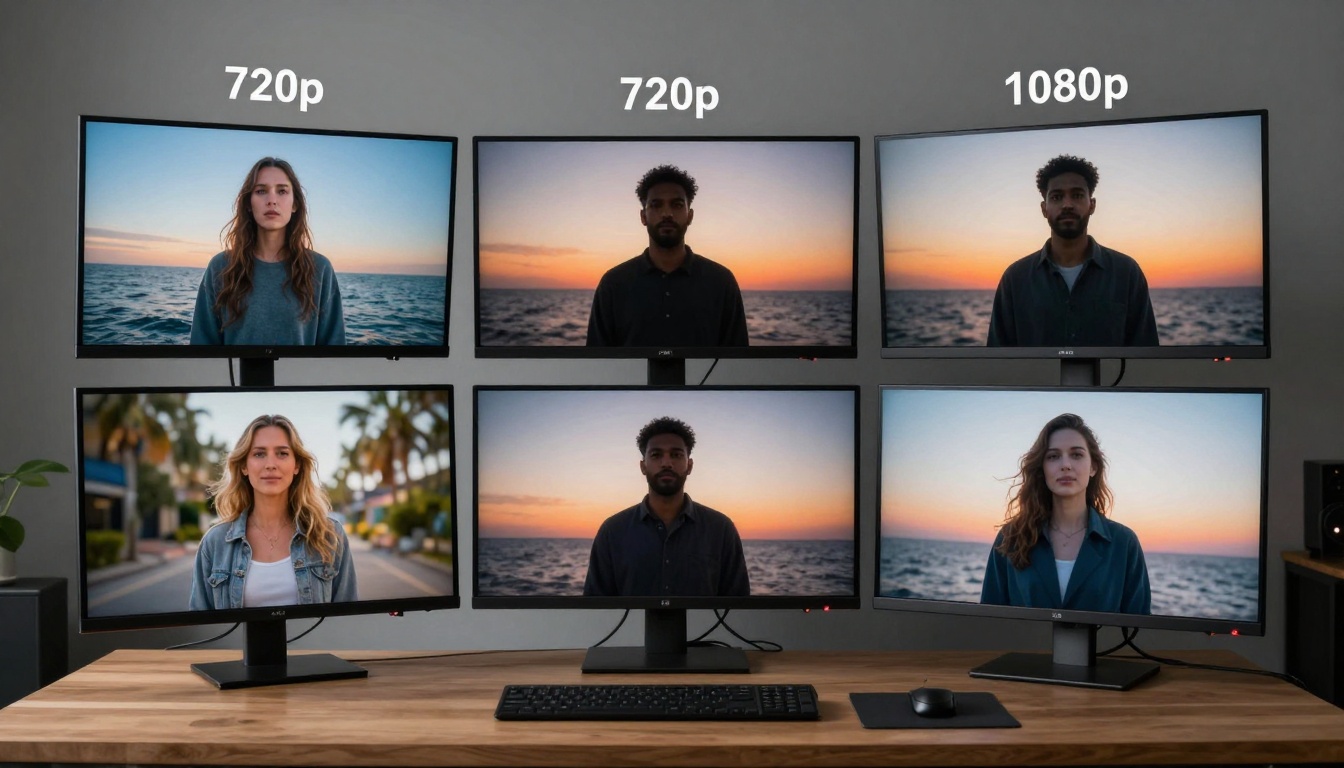
Veo 3.1 supports 1080p resolution at its highest setting, with 720p as the standard option. The model generates videos with smooth motion and maintains temporal consistency across frames. One of its standout features is the ability to use reference images to ensure subject consistency throughout an 8-second video in 16:9 format.
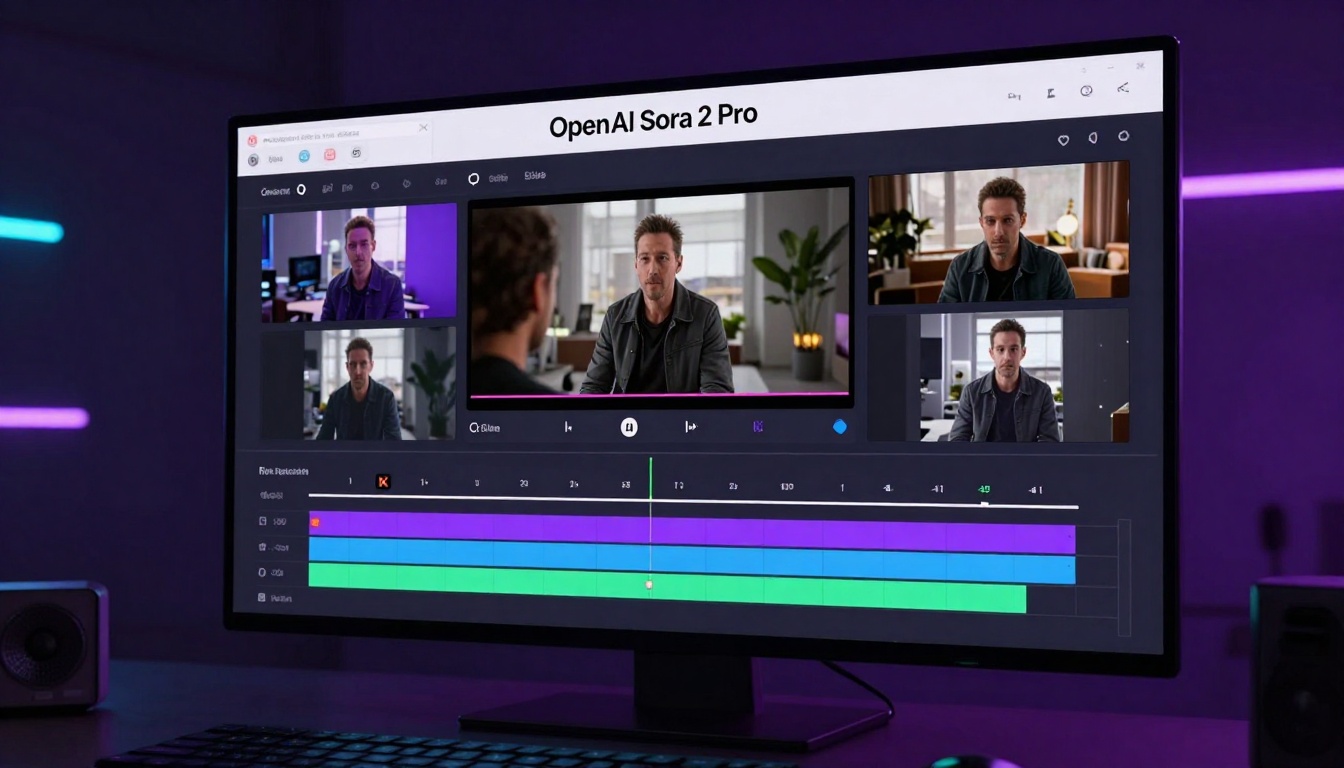
The audio generation feature in Veo 3.1 creates synchronized soundtracks that match the visual content, adding another layer of immersion. Videos feel polished and production-ready, with natural lighting and realistic motion physics.
Sora 2 Pro Quality Features
Sora 2 Pro pushes the quality envelope with 1024p high-resolution output, slightly edging out Veo 3.1 in pure pixel count. The model produces videos with exceptional detail and vibrant colors, particularly excelling at capturing complex scenes with multiple subjects or intricate backgrounds.
The synced audio in Sora 2 Pro sounds more natural and contextually appropriate, though both models handle audio generation competently. Where Sora 2 Pro really shines is in its handling of human motion and facial expressions, which appear more lifelike than most competing models.
The length and format of your videos matter, especially when creating content for specific platforms or use cases.
Veo 3.1 Duration Options
Veo 3.1 offers three duration options: 4, 6, and 8 seconds. While this might seem limiting compared to some alternatives, these durations align well with social media content requirements and keep file sizes manageable.
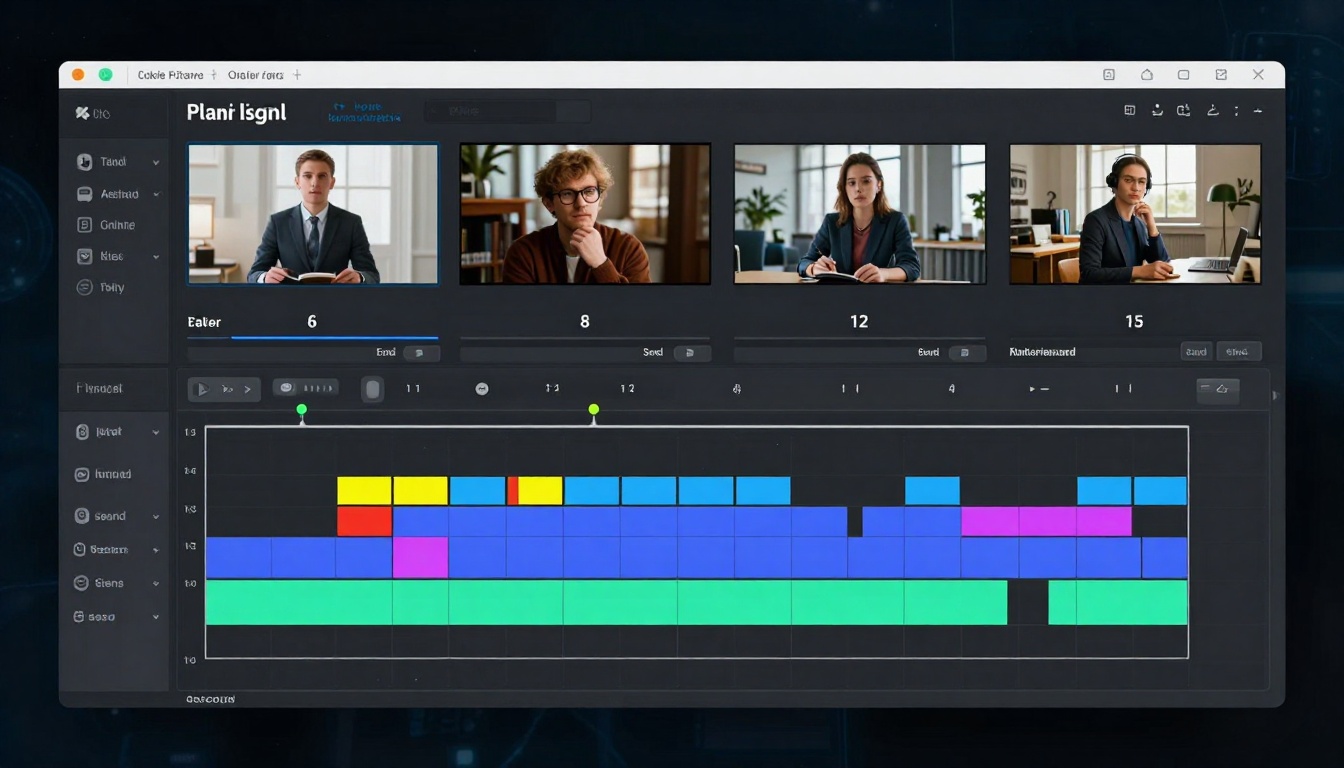
The model supports both 16:9 landscape and 9:16 portrait aspect ratios, making it versatile for YouTube, Instagram Reels, TikTok, and other platforms. This flexibility means you can generate content optimized for wherever your audience spends their time.
Sora 2 Pro Duration Options
Sora 2 Pro provides more flexibility with duration, supporting 4, 8, and 12-second videos. That 12-second option opens up possibilities for more complex narratives or product demonstrations that need extra time to breathe.
Like Veo 3.1, Sora 2 Pro supports both portrait and landscape orientations. The portrait format outputs at 720x1280, while landscape comes in at 1280x720, both of which are optimized for mobile viewing and social media distribution.
Resolution and Technical Specifications
Understanding the technical capabilities of each model helps you set appropriate expectations for your projects.
| Feature | Veo 3.1 | Sora 2 Pro |
|---|
| Maximum Resolution | 1080p | 1024p (high) / 720p (standard) |
| Aspect Ratios | 16:9, 9:16 | Landscape, Portrait |
| Duration Options | 4s, 6s, 8s | 4s, 8s, 12s |
| Audio Generation | Yes | Yes (synced) |
| Reference Images | Yes (1-3 images) | Yes (first frame only) |
| Negative Prompts | Yes | No |
Both models deliver professional-quality output suitable for marketing, social media, and creative projects. The resolution differences are minimal in practice, as both exceed the requirements for most digital platforms.
Audio Generation Capabilities
Audio adds a crucial dimension to video content, and both models approach this challenge differently.
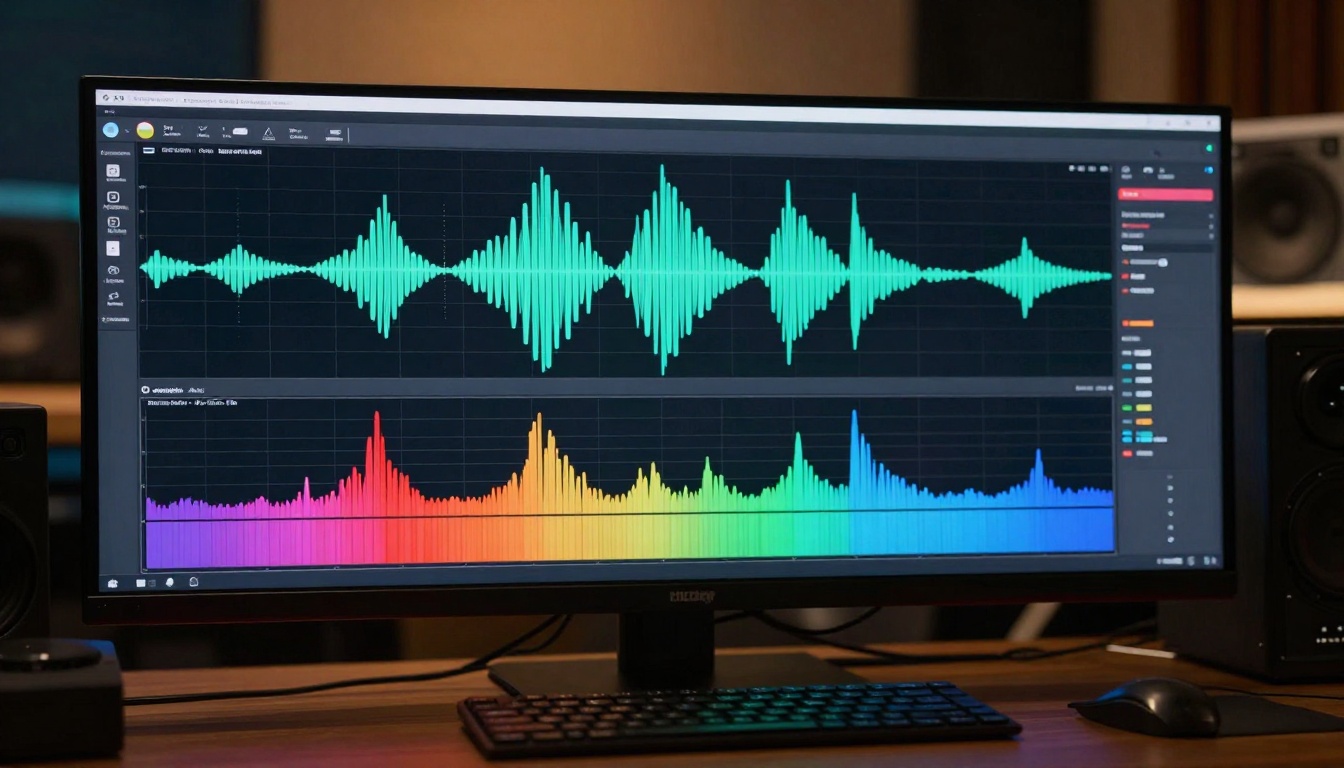
Veo 3.1 includes an audio generation toggle that can be enabled or disabled based on your needs. When enabled, it creates soundtracks that match the mood and action of the video, from ambient nature sounds to urban environments. The audio quality is solid, though it sometimes lacks the nuance of professionally recorded sound.
Sora 2 Pro takes audio generation seriously, producing synced soundtracks that feel more integrated with the visuals. The model excels at matching audio intensity to visual action, creating a more cohesive viewing experience. Whether generating footsteps, ambient noise, or musical elements, Sora 2 Pro's audio feels more refined.
Creative Control and Flexibility
The level of control you have over the generation process can make or break a project, especially when you have specific requirements.
Veo 3.1 Control Features
Veo 3.1 provides several unique control mechanisms. The reference image feature allows you to upload 1-3 images that the model uses to maintain subject consistency throughout the video. This is particularly valuable for brand content where character or product appearance needs to remain constant.
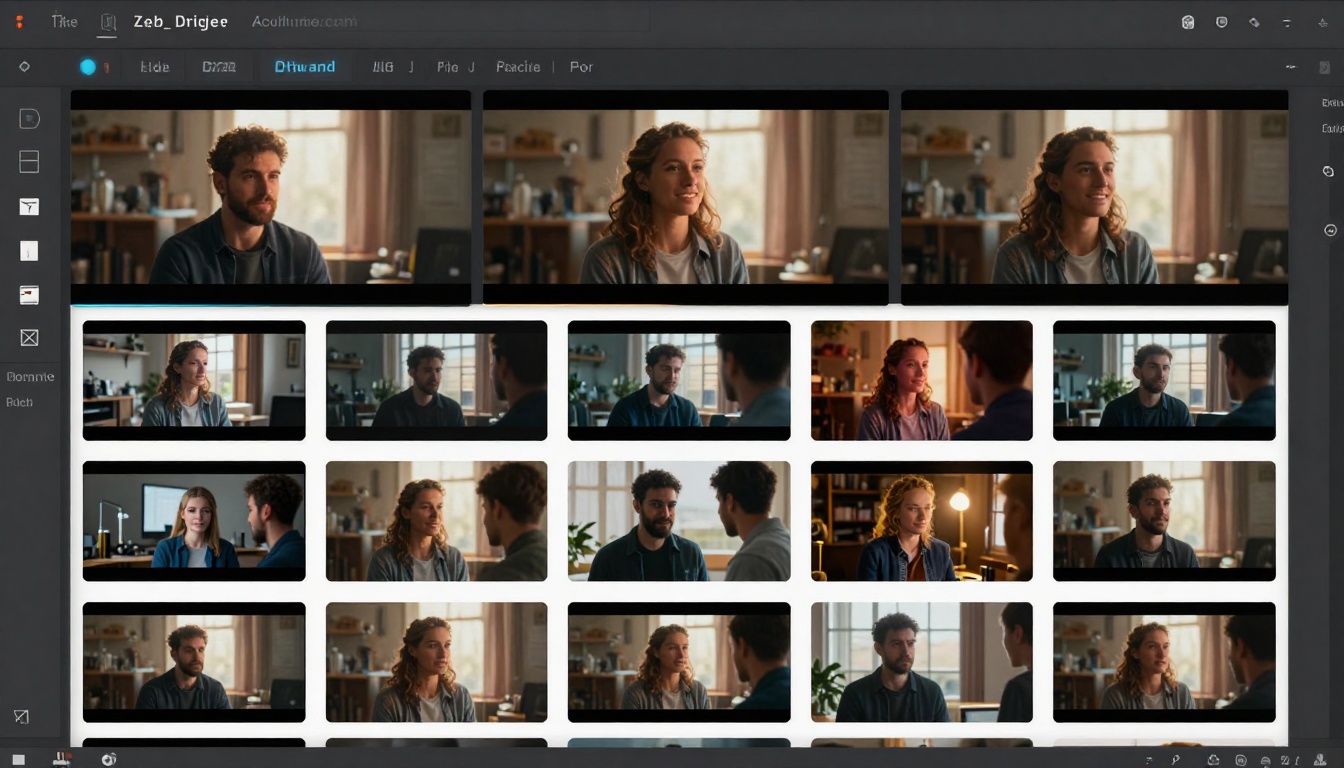
The model also supports image-to-video generation, where you can provide a starting image and an optional ending image. When both are provided, Veo 3.1 creates a smooth interpolation between them, perfect for transition effects or morphing animations.
Negative prompts give you the ability to specify what should NOT appear in your video. Want to avoid certain colors, objects, or styles? Simply describe them in the negative prompt field, and Veo 3.1 will steer clear during generation.
Sora 2 Pro Control Features
Sora 2 Pro takes a simpler approach to control, focusing on making the generation process as straightforward as possible. You can provide an input reference image to use as the first frame of your video, which helps establish the scene and composition from the start.
The model doesn't offer negative prompts or transition interpolation, but it compensates with consistently high-quality results that usually match your prompt intentions on the first try. Sometimes less is more when you want to move quickly from concept to finished video.
Creating content for specific platforms requires the right aspect ratio from the start.
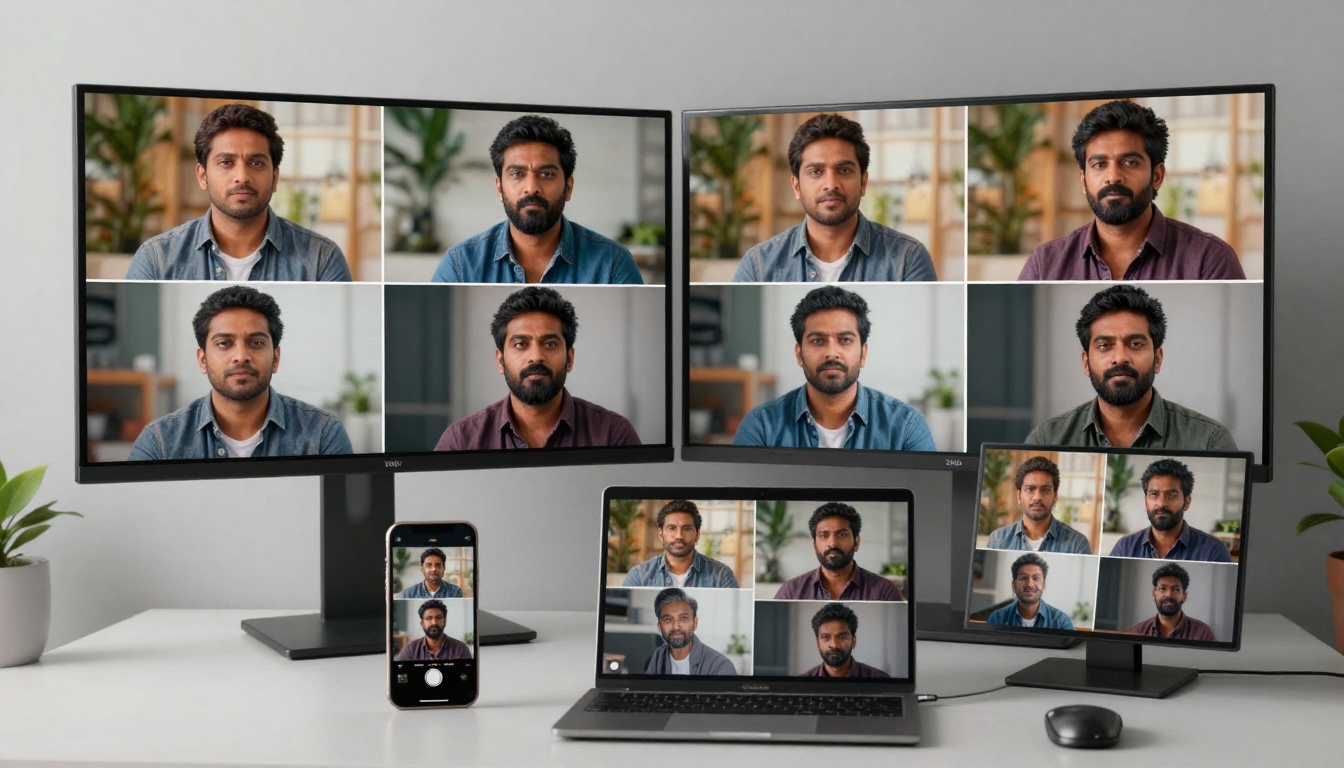
Both Veo 3.1 and Sora 2 Pro support the two most important aspect ratios for modern video content: landscape (16:9 or 1280x720) and portrait (9:16 or 720x1280). This coverage handles everything from YouTube videos to Instagram Stories and TikTok content.
Veo 3.1 explicitly labels these as 16:9 and 9:16, while Sora 2 Pro uses "landscape" and "portrait" terminology. The practical result is the same—you get videos optimized for your target platform without any awkward cropping or letterboxing.
Prompt Engineering and Best Practices
Getting great results from either model requires understanding how to write effective prompts.
For Veo 3.1, prompts should focus on describing the scene, action, and mood. Be specific about camera movements, lighting conditions, and subject details. Since the model supports negative prompts, you can be expansive with your main prompt and then refine what you don't want separately.
Example Veo 3.1 prompt: "A golden retriever running through a field of wildflowers at sunset, slow motion, camera tracking from the side, warm golden lighting, shallow depth of field"
For Sora 2 Pro, prompts benefit from being concise but descriptive. The model interprets natural language well, so write prompts as if you're describing what you want to see to another person.
Example Sora 2 Pro prompt: "An artist painting on a canvas in a sunlit studio, paint splatters on their apron, focused expression, warm afternoon light streaming through tall windows"
Both models respond well to cinematic terminology like "tracking shot," "dolly zoom," "shallow depth of field," and "golden hour lighting." These phrases help guide the camera work and visual style.
Time is money, especially when iterating on creative projects or working under tight deadlines.
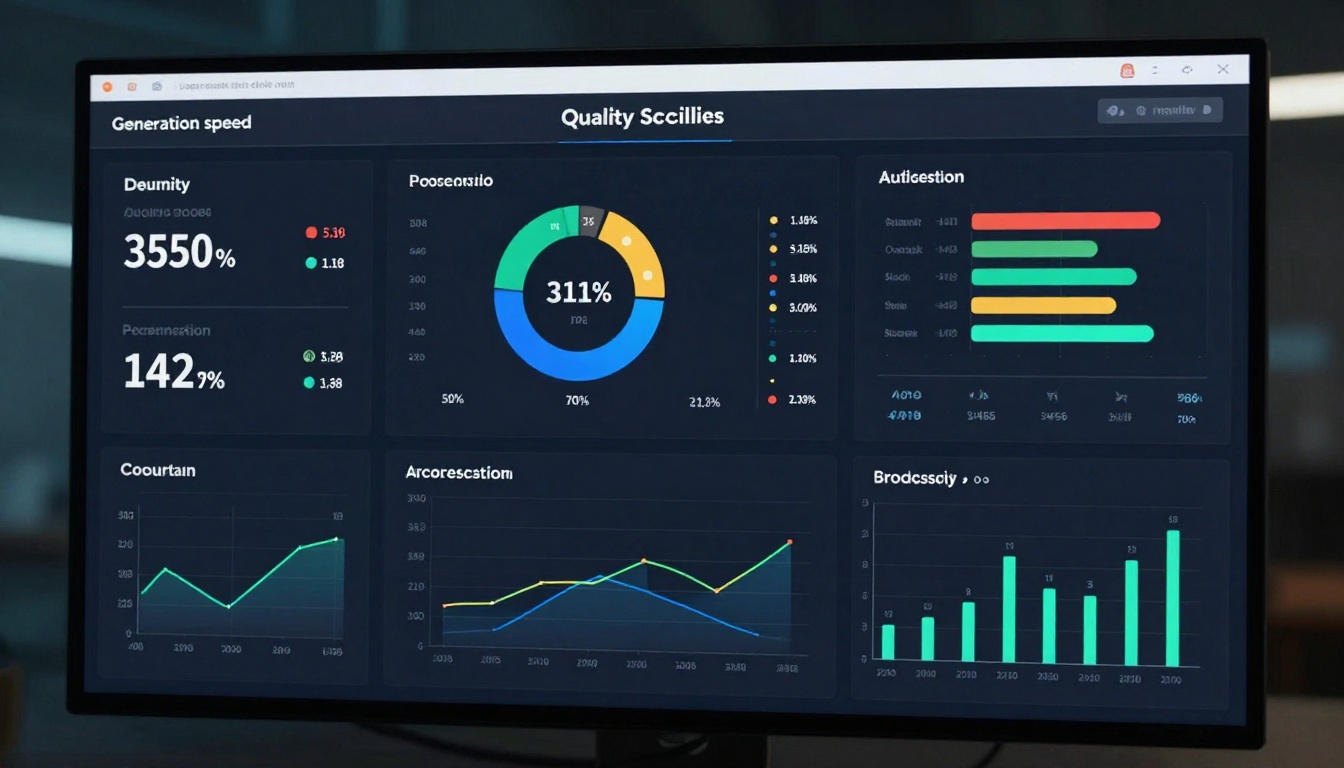
Generation times for both models vary based on the complexity of your prompt, chosen resolution, and video duration. On PicassoIA, Veo 3.1 typically completes 8-second videos at 1080p in 2-4 minutes. The 4-second option naturally processes faster, usually completing in under 2 minutes.
Sora 2 Pro shows similar performance characteristics, with 4-second videos generating in approximately 2-3 minutes and 12-second videos taking 4-6 minutes. The high-resolution 1024p option adds slightly to processing time compared to the standard 720p output.
Both models benefit from PicassoIA's infrastructure, which handles queue management and resource allocation efficiently. You can start multiple generations simultaneously, making it easier to explore different creative directions in parallel.
Use Cases and Applications
Different projects call for different tools, and understanding where each model excels helps you make smarter choices.
When to Choose Veo 3.1
Veo 3.1 is the better choice when you need:
- Subject consistency across multiple videos using reference images
- Fine-grained control over what appears in your video through negative prompts
- Transition effects between two specific images
- Longer format options with the 6-second middle ground
- Reference-based generation where you want the model to maintain specific visual elements
This makes Veo 3.1 ideal for brand content, product videos where consistency matters, and projects where you need to iterate with specific constraints.
When to Choose Sora 2 Pro
Sora 2 Pro shines in scenarios requiring:
- Maximum video length with the 12-second option
- Simplified workflow without needing to manage multiple settings
- Highest quality output with less trial and error
- Natural-looking human motion and facial expressions
- Quick turnaround for social media content
Sora 2 Pro works well for social media content creators, marketing professionals who need fast results, and anyone who wants exceptional quality without managing complex parameters.
Getting Started with Veo 3.1 on PicassoIA
Ready to try Veo 3.1? Here's how to create your first video on PicassoIA.
Step 1: Access Veo 3.1
Navigate to the Veo 3.1 model page on PicassoIA. You'll see the model interface with all available parameters clearly laid out.
Step 2: Write Your Prompt
Enter your text description in the prompt field. This is the only required parameter. Describe what you want to see in your video, including details about subjects, actions, camera work, and lighting.
Step 3: Configure Settings
Choose your preferred settings:
- Duration: Select 4, 6, or 8 seconds based on your needs
- Resolution: Choose between 720p and 1080p
- Aspect Ratio: Pick 16:9 for landscape or 9:16 for portrait
- Generate Audio: Toggle on if you want synchronized audio
- Reference Images: Upload 1-3 images if you need subject consistency (optional)
- Negative Prompt: Specify what to exclude from the video (optional)
Step 4: Generate Your Video
Click the generate button and wait for processing to complete. Your video will appear once generation finishes, typically within 2-4 minutes for most settings.
Step 5: Download and Use
Once generated, download your video file and use it in your projects. You can generate multiple variations by adjusting your prompt or settings and running the process again.
Getting Started with Sora 2 Pro on PicassoIA
Creating videos with Sora 2 Pro follows a similarly straightforward process.
Step 1: Access Sora 2 Pro
Go to the Sora 2 Pro model page on PicassoIA. The interface presents all available options in a clean, easy-to-understand layout.
Step 2: Write Your Prompt
Type your video description in the prompt field. Keep it descriptive but concise, focusing on the key elements you want to see.
Step 3: Choose Your Settings
Configure the generation parameters:
- Seconds: Select 4, 8, or 12 seconds for your video length
- Resolution: Choose standard (720p) or high (1024p)
- Aspect Ratio: Pick portrait or landscape based on your platform
- Input Reference: Upload an image for the first frame if desired (optional)
Step 4: Generate Your Video
Hit the generate button and let Sora 2 Pro work its magic. Generation typically takes 2-6 minutes depending on your chosen duration and resolution.
Step 5: Download Your Result
Once processing completes, preview your video and download it for use in your projects. The synced audio will be included automatically.
Making the Right Choice for Your Projects
Both Veo 3.1 and Sora 2 Pro represent the cutting edge of AI video generation, and both are available on PicassoIA for immediate use. Your choice comes down to your specific needs and workflow preferences.
Choose Veo 3.1 if you value creative control, need subject consistency across videos, or want to create precise transition effects between images. The reference image feature and negative prompts give you tools to fine-tune results until they match your vision exactly.
Choose Sora 2 Pro if you prioritize output quality, need longer video durations, or prefer a streamlined workflow. The model's ability to consistently deliver high-quality results with minimal configuration makes it perfect for fast-paced content creation.
The best approach? Try both models on PicassoIA and see which one fits your workflow better. Since both are available on the platform, you can experiment with different approaches and find what works for your specific use cases.
The future of video creation is here, and with tools like Veo 3.1 and Sora 2 Pro available on PicassoIA, anyone can produce professional-quality video content from text descriptions. Whether you're building a brand, creating social media content, or exploring new creative possibilities, these models provide the power and flexibility to bring your ideas to life.


