You typed a prompt, waited a minute, and got eight seconds of footage that looks like a film trailer. Then you tried to make it longer and hit a wall. That is the everyday reality of Veo and Kling AI, the two names that come up in almost every conversation about AI video right now. Both turn text or a still image into a short clip with believable motion and sound. They differ a lot in how much you can try for free, how you should write prompts, and how many seconds each one lets you render in a single go.
This article puts those differences side by side. You will see what "free" realistically means for each model, a table of clip length limits, prompt formulas with working examples, and step by step instructions for running both Veo 3.1 and Kling v3 Video on PicassoIA.
💡 Quick answer: Veo 3.1 renders 4, 6 or 8 second clips. Kling v3 Video goes up to 15 seconds and can chain up to 6 shots in one render.
What Free Really Means
"Free" is the most abused word in AI video. Sometimes it means a permanent allowance, sometimes a trial, and sometimes a watermarked preview. Before you spend an evening on a tool, check which kind you are getting.

Free access to Veo
Google's Veo family is the more guarded of the two. Based on recent reports, free access to Veo 3.1 is limited and changes from platform to platform. Some Google products have reportedly offered a small monthly number of generations, a few partner tools run short evaluation playgrounds, and several creative platforms keep Veo behind a paid plan while their free credits only work on other models. Terms shift often, so treat any number you read online as a snapshot.
The practical route is to use a platform that lets you run the model directly. The Veo 3.1 page on PicassoIA describes the model as free to try online with no coding, and it gives you control over duration, resolution and audio so you can keep test renders cheap.
Free credits on Kling
Kling AI has built its reputation on a generous entry tier. Reports describe a daily credit refill with no card required, enough for a handful of short clips per day. The catch is the usual one: free renders are typically capped at 720p, queue times can be long during busy hours, and the best modes cost more credits per second.
A 5 second clip in standard mode costs roughly half of what a 10 second clip does, and pro mode costs more again. That makes short test clips the smart way to spend a free allowance.
| Question | Veo 3.1 | Kling v3 |
|---|
| Typical free access | Limited, varies by platform | Daily credits reported on the official app |
| Free resolution | Often 720p previews | Often 720p standard mode |
| Native audio | Yes, on by default | Yes, optional, off by default on PicassoIA |
| Best use of a small allowance | Final polish on one strong prompt | Many cheap 5 second drafts |
💡 Tip: Whatever tool you use, draft at the lowest resolution and shortest duration, then re-render only the winner at full quality.
Video Length Limits Compared
Length is where the two models separate most clearly. Neither is built for long scenes in a single pass, but they take very different approaches to the problem.
Veo clip durations
On PicassoIA, Veo 3.1 accepts three durations: 4, 6 or 8 seconds. The default is 8. Resolution can be set to 720p or 1080p, and aspect ratio to 16:9 or 9:16.
There is one rule worth memorizing. If you use reference images to keep a subject consistent across a clip, the model only works with 16:9 and an 8 second duration. Pick a shorter clip and the reference images stop applying.
Lighter variants trade some quality for speed and cost. Veo 3.1 Fast and Veo 3.1 Lite are good for drafting, and Veo 3 Fast remains a quick option for audio clips.
Kling clip durations
Kling v3 Video is built for longer output, with clips up to 15 seconds. The default is 5 seconds, and you choose the length yourself. Standard mode renders at 720p and pro mode at 1080p.
Its standout feature is multi-shot scripting: you define up to 6 scenes, each with its own prompt and duration, and the total must add up to the clip length. That gives you something close to a short edited sequence from a single generation, instead of one long unbroken take.
Older Kling models are shorter. Kling v2.5 Turbo Pro is a fast option for 5 and 10 second shots, and Kling v1.5 Standard is useful for turning photos into short 720p motion.
💡 You may see claims of much longer maximums for Kling, such as two minutes. Those usually describe extended or stitched sequences on the official app, not a single generation. Always check the duration field of the exact model you pick.
Prompts That Work
The same prompt will not behave the same on both models. Veo tends to reward scene description with sound cues. Kling tends to reward clear camera direction and, in v3, shot by shot scripting.
A simple prompt formula
Write your prompt in the order a camera operator would think:
- Subject and starting pose. Who or what is in frame at second zero.
- Action over time. What changes during the clip.
- Camera movement. Dolly in, slow pan, handheld, static.
- Light and atmosphere. Golden hour, overcast, tungsten lamp.
- Sound. Ambient noise, footsteps, a short line of dialogue in quotes.
Keep each clip to one action. An 8 second clip cannot hold a chase, a conversation and a sunset. The most common failure is cramming in too much.
Veo prompt examples
Veo handles environmental audio well, so describe what the scene sounds like.
A woman in a yellow raincoat stands at a tram stop at dusk, rain falling on a glass shelter. She checks her watch, then looks up as a tram approaches from the left. Slow dolly in, shallow depth of field, soft sodium streetlight. Sound of rain on glass and a distant tram bell.
Close-up of an elderly baker pulling a tray of loaves from a stone oven, steam rising across his flour-dusted forearms. Static camera, warm side light from the oven. Sound of crackling crust and a low radio.
Kling prompt examples
Kling responds well to explicit camera language, and v3 shines when you split the clip into shots.
A hiker in a red jacket crosses a narrow wooden bridge over a misty gorge. Tracking shot from behind at walking pace, then the camera rises slowly to reveal pine forest below. Soft morning light, natural color.
For multi-shot mode, a three-shot script totaling 10 seconds could look like this:
| Shot | Duration | Prompt |
|---|
| 1 | 3 sec | Wide shot of a fishing boat leaving a harbor at sunrise |
| 2 | 4 sec | Close-up of the captain's weathered hands on the wheel |
| 3 | 3 sec | Aerial view pulling back from the boat on a calm sea |
💡 Tip: Use the negative prompt field to remove what you do not want, such as "text, watermark, distorted hands, flickering". It costs nothing and often saves a re-render.
How to Use Veo 3.1 on PicassoIA
Veo 3.1 on PicassoIA turns a prompt, a start image, or a start and end image pair into video with synchronized audio.
Step by step
- Open the Veo 3.1 page.
- Paste a prompt that follows the formula above. Keep it to a single action.
- Set duration to 4 for a test, or 8 for the final version.
- Set resolution to 720p while drafting, then 1080p for the keeper.
- Pick 16:9 for landscape or 9:16 for vertical social clips.
- Leave generate audio on if you want ambient sound and dialogue.
- Run it, review the result, and adjust the prompt before spending another render.
Parameter tips
- Start image: supply a 16:9 image around 1280x720 for the cleanest result. This keeps your composition under control.
- Last frame: add an ending image to create a smooth transition between two moments.
- Reference images: upload 1 to 3 pictures to keep a person or product consistent. Remember this needs 16:9 and 8 seconds.
- Seed: reuse a seed to compare small prompt changes fairly.
- Negative prompt: exclude unwanted elements such as text overlays or extra people.
💡 If a draft looks promising, try the same prompt on Veo 3.1 Fast first to check composition cheaply.
Using Kling v3 Video on PicassoIA
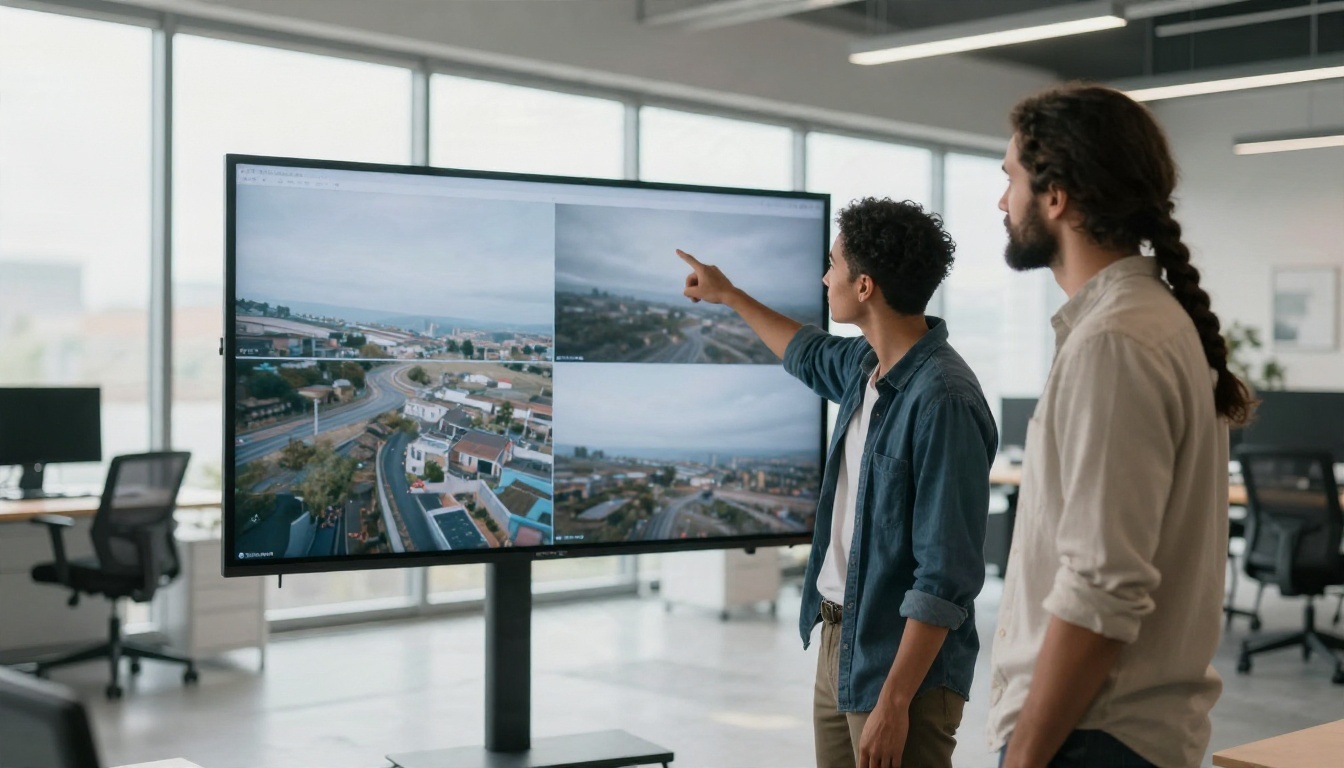
Kling v3 Video is the model to choose when you want more than a few seconds or a scripted sequence.
Step by step
- Open the Kling v3 Video page.
- Write a prompt of up to 2500 characters.
- Choose mode: standard for 720p drafts, pro for 1080p output.
- Set duration in seconds, from 5 up to 15.
- Choose an aspect ratio: 16:9, 9:16 or 1:1. If you upload a start image, the ratio follows that image.
- Turn generate audio on if you want native sound, since it is off by default.
- Run the render and compare with your draft.
Multi-shot scripting in practice
Switch to the multi-prompt field and enter a list of shots. Each shot needs a prompt and a duration, you can use at most 6 shots, every shot needs at least 1 second, and the durations must add up to the total length. Think of it as a mini shot list. Write the first shot as an establishing view, the second as a detail, and the last as a release or reveal.
For related jobs, Kling v3 Motion Control animates a character from reference motion, Kling v3 Omni Video is a text to 1080p alternative, and Kling o1 rewrites existing footage with text instructions.
Which One Fits Your Project
When Veo is the better pick
Choose Veo 3.1 when the sound matters. Rain, crowds, kitchen noise and spoken lines come out matched to the picture without a separate audio step. It also suits product shots and single moments where one polished 8 second take is all you need. Reference images help keep a subject consistent from one clip to the next.
When Kling is the better pick
Choose Kling v3 Video when you need length or structure. Fifteen seconds with multiple scripted shots gets you closer to a finished social post, a music snippet or a short ad. Its 1:1 option also suits square feeds.
Get Past the Length Cap
If a single clip is never long enough, build the video from linked pieces instead of waiting for a longer model.

Chain clips with end frames
Generate your first clip, grab its final frame as a still image, and use that image as the start image of the next clip. Keep the prompt consistent in lighting and wardrobe, and the join will be nearly invisible. With Veo 3.1 you can also supply both a start image and a last frame to guide the model toward a planned ending.
Plan the story in short beats
Think in beats of 4 to 8 seconds. A 30 second video is just five or six beats: an establishing shot, an action, a reaction, a detail, a movement and a close. Write each beat as its own prompt, render them separately, then cut them together in any editor. Short beats also look better, because the model has less time to drift away from your subject.
Common mistakes to avoid
- Too many actions per clip. One action, one camera move.
- Vague light. "Nice lighting" gives random results. Name the source and the time of day.
- Ignoring audio. Add sound cues to the prompt, or turn audio off if you plan to add music later.
- Judging a draft on resolution. Check motion and composition first, then upscale or re-render.
Make Your Own Clips Today

The fastest way to settle the Veo versus Kling debate is to run the same idea through both. Take one scene, such as a baker at an oven or a hiker on a bridge. Render it on Veo 3.1 in 8 seconds with audio, then render it on Kling v3 Video as a 10 second, three-shot sequence. Compare the motion, the sound and the pacing, and keep whichever one matches your project.
PicassoIA puts both families in one place, along with the faster variants for drafting, so you can switch models without switching accounts. If you also need stills for start frames, image models on the platform can produce them, and you can browse everything at picassoia.com/en/all-models. Write your first prompt now, keep it to one action, and see what eight seconds can do.


