Large Language ModelsGenerate videosVisual Effects
Video Generation MCP Server: Veo, Kling and Seedance in One Chat
A video generation MCP server lets one chat ask Veo, Kling and Seedance for clips without switching tabs. This article shows how the tools, async jobs and polling work, which model suits which shot, what limits to expect, and how to write prompts that survive the first render.
You have a Veo tab open, a Kling tab in another window, and a Seedance tab you forgot to close, and the shot you are chasing could live in any of the three. Each generator wants its own prompt format, its own settings panel and its own download button. A video generation MCP server replaces that routine with one sentence typed into a chat: you describe the clip, the assistant picks a model, submits the job, checks on it, and hands you a link. This article shows how that setup works, what Veo 3.1, Kling v3 Video and Seedance 2.5 Lite each do best, and how to write prompts that survive the first render.
Why One Chat Beats Five Tabs
The Tab-Switching Tax
Switching tools sounds harmless until you count the steps. You copy a prompt into one site, wait, download the file, rename it, open the next site, paste, realize the second model wants the audio described differently, and rewrite. By the third attempt you have lost track of which seed produced which clip, and the folder on your desktop is a pile of files named "final_v2_really".
A chat flips that around. The conversation itself becomes the project file: every prompt, every setting and every result link sits in one scroll you can search later. The assistant can also translate a single creative brief into three model-specific prompts, which is the tedious part nobody enjoys doing by hand.
What MCP Actually Does
The Model Context Protocol is an open standard, introduced by Anthropic in late 2024, that lets a chat app talk to outside tools in a predictable way. A server advertises a list of tools. Each tool has a name, a plain-language description and a JSON schema that spells out its inputs. The chat app shows that list to the model, the model decides when a tool fits, and the app forwards the call to the server and drops the result back into the conversation.
Servers run locally over stdio or remotely over HTTP, so a video server can be a small process on your laptop or a hosted endpoint you connect once. From the chat's point of view, "make a five-second clip of a cook at a night market" stops being a vague wish and becomes a structured call with a prompt, a duration and a resolution.
💡 Tip: Tool descriptions matter more than people expect. The model reads them to decide which tool to call, so a server that says "generate a video from a text prompt" gets used far more reliably than one that says "run job".
How the Server Handles Video Jobs
Tools, Schemas and Polling
The PicassoIA connector is a good concrete example because its tool list is short and readable. At the time of writing it exposes these tools:
Cancels a job, unless the GPU is already rendering the video
Each generate tool returns a predict_id as soon as a GPU accepts the job, along with an estimated time. You then call get_generation after the suggested wait, and again after each wait it returns, until the status reads succeeded or failed. A failure is final, so the assistant submits a fresh generation instead of retrying the same one.
Why Video Needs Async Jobs
A text-to-image call returns in seconds. A video does not. The example renders on the model pages give a feel for it: Veo 3.1 examples took roughly one to two minutes, Seedance 2.5 Lite examples took about two to three minutes, and Kling v3 Video examples ran from about five to eighteen minutes depending on length and settings. A chat tool call cannot sit still that long.
So the server hands back a ticket and lets the assistant check on it. That is also why your chat can keep talking while a clip renders: ask for the next shot's prompt while the first one cooks.
What a Session Looks Like
Here is a realistic exchange once the server is connected:
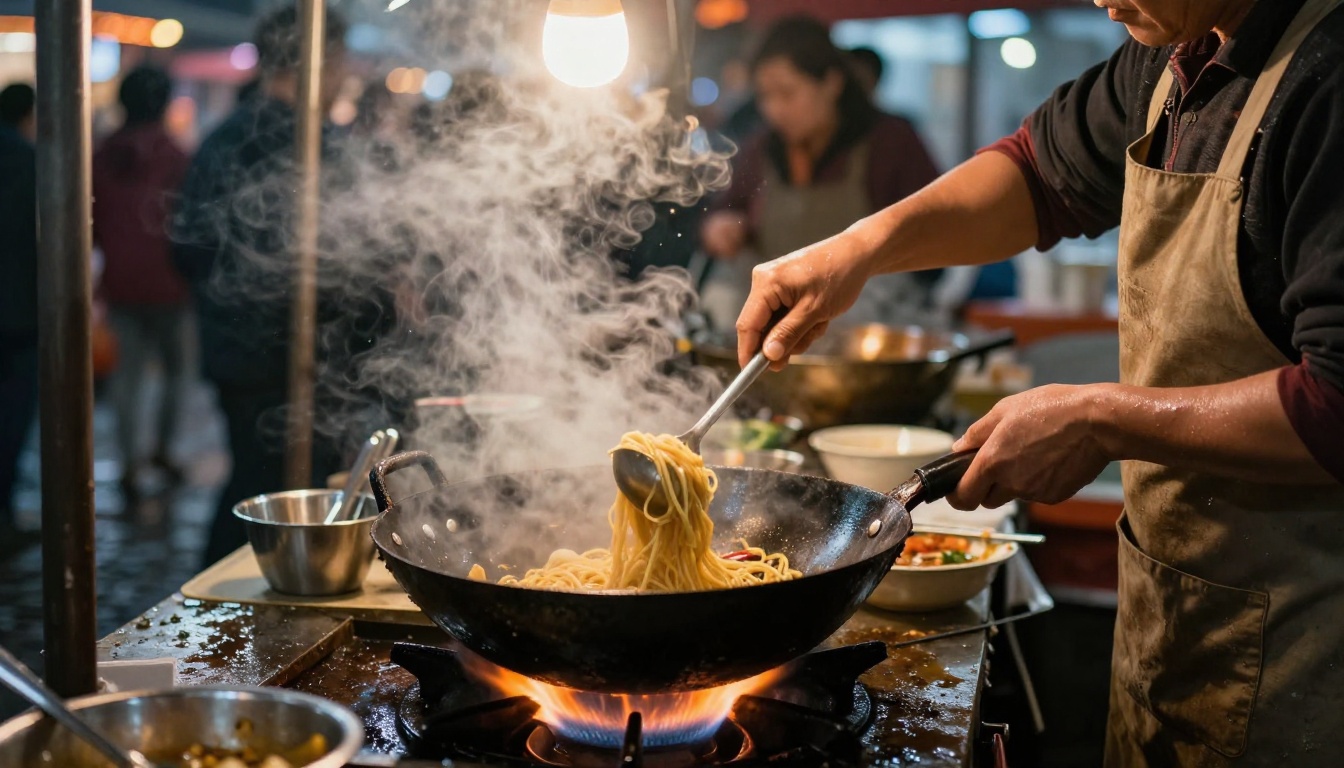
You type: "Make a 5-second 16:9 clip of a cook tossing noodles at an evening market, warm bulbs, sizzling sound."
The assistant picks the video tool, fills in the prompt, duration and resolution, and submits.
The server answers with a predict_id and an estimated time.
The assistant waits the suggested interval, calls get_generation, sees that the job is still processing, and waits again.
The status flips to succeeded, and the assistant posts the MP4 link in the chat.
You say "same shot, but the cook looks up at the camera", and the assistant resubmits with the same seed and an edited motion line.
The whole loop stays inside one window, and nothing about it asks you to read an API reference.
Five Jobs at a Time
PicassoIA's API documentation lists 5 concurrent predictions per account, shared across your API access and MCP connections. For a storyboard of eight shots that means the assistant should submit five, poll them, and queue the rest as slots free up. You can say so in plain words: "Run the shots in batches of five and post each link as it finishes."
Three Models, Three Strengths
No single model wins every shot, and that is the real argument for putting several behind one chat. Here is what the model pages say each one is built for.
When Realism and Sound Matter
Veo 3.1 turns a text prompt into 1080p footage with context-aware audio, so the clatter, wind or voices arrive matched to the picture. Clips run 4, 6 or 8 seconds in 16:9 or 9:16. You can set a first frame and a last frame to interpolate between two moments, or hand it up to three reference images to keep a subject consistent across shots. A negative prompt field lets you exclude things you do not want. A faster variant, Veo 3.1 Fast, exists for quicker drafts.
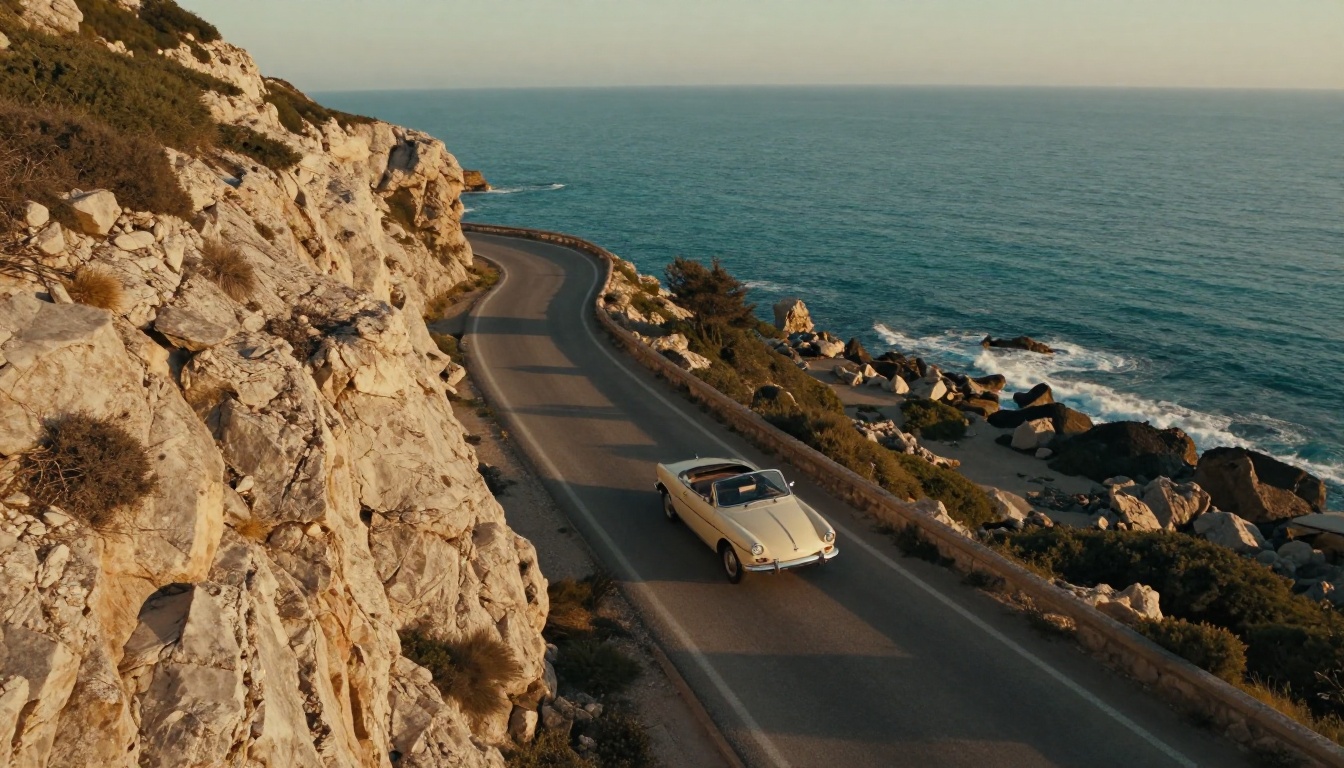
Reach for it when the shot is a believable real-world moment: a car on a coastal road, a conversation in a cafe, a product on a table with natural ambient sound.
When You Need Multi-Shot Control
Kling v3 Video is the long-form option. It produces clips up to 15 seconds and supports multi-shot scripting: you define up to 6 scenes, each with its own prompt and duration, inside a single generation. Standard mode renders 720p and pro mode renders 1080p. You can pin the first and last frames with images, choose 16:9, 9:16 or 1:1, and add a negative prompt. Audio generation is a switch that defaults to off, so tell the chat to turn it on when you want sound.
It is the one to use when a clip needs a small arc, such as a wide shot, a close-up and a reaction, without stitching three separate files together. Expect the longest waits of the group.
When You Want Fast Iterations
Seedance 2.5 Lite is built for volume. It makes 5 or 10 second clips at 480p or 720p, with synchronized audio on by default, from text or from a starting image, and it takes a seed you can lock to reproduce a result. Its model page describes it as unlimited for Wonder members, which makes it the natural model for trying ten prompt variations before lunch. Larger siblings exist when you need more: Seedance 2.5 is listed with clips up to 30 seconds, and Seedance 2.0 offers text-to-video with built-in audio.
Picking the Right Model Per Shot
Put the specs side by side and the routing decisions get easier. Render times come from the example generations on each model page, so treat them as ballparks, not promises.
💡 Tip: Draft in the fast model, finish in the slow one. Lock the idea, framing and motion with quick iterations, then spend the long renders on shots you have already approved.
Raw clips are rarely the last step. PicassoIA also lists video editing, video upscaling and a large catalog of visual effects, which is where you add a stylized look or a cleanup pass after the generator has done its job. The full list lives at picassoia.com/en/all-models.
Writing Prompts the Chat Can Reuse
Shot Lists Beat Adjectives
The Seedance 2.5 Lite model page says cinematic, chronological descriptions work best, and the same habit helps with every video model. Describe what happens in order, the way a director reads a shot list, instead of piling up adjectives like "epic" and "stunning". The model cannot film an adjective, but it can film a cook who tosses noodles once while flames flare.
A Prompt Template That Works
A four-line structure keeps prompts consistent when the assistant rewrites them for different models:
Subject and starting pose.
What moves, in order, over the clip.
Camera move.
Light and sound.
Filled in, it looks like this:
A street-food cook in a canvas apron holds a wok over a gas flame. He tosses the noodles once, flames flare, steam rolls toward the lens. Slow push-in from chest height. Warm bulbs overhead, sizzling oil and market chatter.
Then ask the chat to adapt it per model. For Veo 3.1, spell out the sound, because the audio follows the prompt. For Kling v3 Video, split the beats into scenes and make the shot durations add up to the total duration, with at least one second per shot. For Seedance 2.5 Lite, keep it to one flowing paragraph and lock the seed once you like the result.
If your chat model is weak at shot descriptions, draft the prompts with a stronger writer such as Claude Sonnet 5 or Gemini 3.5 Flash and paste the result into the conversation.
Fixing a Weak First Render
Change one variable at a time. Lock the seed, then edit only the motion line. A few habits save hours:
Subject drifts: supply a first-frame image so the model starts from a fixed look.
Unwanted objects appear: use the negative prompt field that Veo 3.1 and Kling v3 Video both offer.
The clip feels crowded: shorten it. A five-second clip with one action beats a ten-second clip with three.
💡 Tip: Pair the tools. Generate a still with the image tool, approve the framing, then feed that image in as the first frame so the video starts exactly where you want it.
Seedance 2.5 Lite is the practical first stop because it is quick, handles audio by default and is one of the two video tools in the connector. Here is the flow on PicassoIA:
Open the Seedance 2.5 Lite page, or ask your chat to call generate_video_seedance.
Write the prompt in chronological order using the four-line template above.
Choose a duration of 5 or 10 seconds. Use 5 while you are testing.
Choose a resolution. 480p renders fastest and suits drafts, 720p is sharper and suits the version you keep.
Choose an aspect ratio, or upload an image to use as the opening frame. With an image, the clip matches the image and ignores the ratio setting.
Leave save audio on unless you want a silent clip.
Set a seed if you want to reproduce the result later.
Submit, poll until the job succeeds, and open the returned link.
Setting
Options
When to change it
Duration
5 or 10 seconds
Go to 10 when the action needs room
Resolution
480p or 720p
480p for drafts, 720p for keepers
Aspect ratio
16:9, 9:16, 1:1, 4:3, 3:4, 3:2, 2:3
Match the platform you post to
Input image
Optional
Fix the look of the first frame
Last frame image
Optional, needs an input image
Control how the shot ends
Seed
Any integer
Reproduce or compare takes
Save audio
On or off
Off for silent b-roll
Same Flow for Veo and Kling
The steps carry over with a few swaps. On Veo 3.1, pick 4, 6 or 8 seconds and 720p or 1080p. Reference images only work with 16:9 and 8 seconds, and a last frame is ignored when references are present. On Kling v3 Video, choose standard (720p) or pro (1080p) mode, switch audio on, keep the prompt under 2,500 characters, and add a multi-shot list when you want several scenes.
Limits to Plan Around
Queue, Retries and Failures
Parallel limit: 5 concurrent predictions per account, shared across connections. Plan your batches in fives.
Final failures: polling a failed job will not bring it back. The assistant should submit a new one, ideally with a simpler prompt.
Prompt size: the PicassoIA API accepts prompts up to 4,000 characters, and Kling v3 Video caps its own prompt at 2,500, so write the shorter version first.
Cancellation: a job can be canceled until the GPU starts rendering the video. After that it runs to the end.
What the Connector Does Not Do
Scope deserves an honest sentence. At the time of writing, the PicassoIA connector lists four models: an image generator, an image editor, PicassoIA Video and Seedance 2.5 Lite. Veo 3.1 and Kling v3 Video run from the PicassoIA site, and bringing them into the same chat would take an MCP server of your own that wraps their provider APIs.
Run list_models in your own account to see what is exposed today, and check picassoia.com/en/pricing to see which plans include MCP connections before you build a workflow around them.
Make Your First Clip Today
Pick one shot you would normally film or buy as stock footage, write it as a four-line prompt, and run it through all three models. Put Seedance 2.5 Lite first for a fast draft, send the approved version to Veo 3.1 for realistic sound or to Kling v3 Video for a multi-shot cut, and compare the results side by side. Within an afternoon you will know which model your style leans toward.
You can try all of it on Picasso IA. Generate a still with one of the image models, use it as a first frame, and watch it move. Browse the full catalog at picassoia.com/en/all-models and run your first prompt tonight.