If you type a sentence and get back a 1080p video that looks like it was shot on a cinema camera, you are working with Vidu 2.0. Released by Shengshu Technology in 2024, Vidu 2.0 pushed text-to-video quality into territory most tools had only promised. This article covers exactly what Vidu 2.0 does, how it handles the hardest parts of video generation, where it stands against the current competition, and how to start using Vidu's models right now through PicassoIA.
What Vidu 2.0 Actually Does
Vidu 2.0 is a diffusion-based video generation model trained to produce high-fidelity clips from text prompts or reference images. The core product is simple: you describe a scene, the model renders it as a video. What separates Vidu 2.0 from earlier approaches is how it handles motion, consistency, and camera behavior simultaneously.
The model was built by Shengshu Technology and Tsinghua University researchers, which means it carries serious academic backing alongside its commercial application. That combination shows in the output quality, particularly in how it handles physics-based motion and spatial relationships between objects in a scene.

Text to 1080p in Seconds
Most early text-to-video models topped out at blurry 512p outputs with flickering edges and motion that looked like it was interpolated through a fever dream. Vidu 2.0 generates at 1080p with cinematic motion quality, producing clips up to 16 seconds in a single pass. The model handles complex scene descriptions without the common artifacts that plagued its predecessors: no swimming backgrounds, no melting faces, no objects phasing through each other mid-clip.
The speed is also notable. Vidu 2.0 operates fast enough to be practical in a production workflow, not just as a demo. You can iterate on prompts, try variations, and review results without losing half a day waiting for renders. This matters because iteration is how good AI video gets made. The first output is rarely the final one.
Reference Mode for Consistent Characters
One of the hardest unsolved problems in AI video generation is keeping subjects consistent across multiple clips. If you generate five different scenes with the same character, most models treat each one as a fresh generation. The character looks subtly different in every clip: different jaw shape, different eye color, different hair texture. Assembling those clips into a coherent narrative is nearly impossible.
Vidu 2.0 introduced a reference image mode that anchors the model to a specific subject from an uploaded photo. The result is character consistency across generations. This is a genuinely practical feature for anyone building a series, a short film, or branded content where visual identity matters. Upload a clean portrait photo, describe the scene, and the model places that specific person into your generated video rather than inventing a new face from scratch.
Vidu 2.0 vs. the Competition

The text-to-video space in 2024 and 2025 got crowded fast. Sora 2 from OpenAI, Veo 3 from Google, Kling v2.1 from Kuaishou, and Seedance 2.0 from ByteDance all launched within months of each other. Each has a different strength, and picking the right model for a specific job matters more than picking the "best" one in the abstract.
How It Stacks Up
| Model | Resolution | Character Consistency | Camera Control | Native Audio |
|---|
| Vidu 2.0 | 1080p | Yes, Reference Mode | Yes | No |
| Sora 2 | 1080p | Limited | Yes | Yes |
| Veo 3 | 1080p | No | Yes | Yes |
| Kling v2.1 | 1080p | Limited | Yes | No |
| Seedance 2.0 | 1080p | No | Yes | Yes |
| Hailuo 02 | 1080p | No | Limited | No |
Vidu 2.0 wins clearly on character consistency. If your workflow requires the same person or object to appear reliably across multiple clips, no other model in this tier handles it as cleanly. Where Vidu falls behind is native audio. Models like Veo 3 and Seedance 2.0 generate synchronized ambient sound within the video. Vidu does not include audio in its output, which forces a post-production step if sound matters to your final deliverable.

Where Vidu 2.0 Falls Short
No audio generation is the main limitation. For social media content where ambient sound matters, you will need to add audio in post or use a model like Hailuo 02 or Wan 2.7 T2V when audio is a priority for a specific project.
Prompt sensitivity is another area worth noting. Vidu 2.0 responds strongly to well-crafted prompts but can produce inconsistent results when the description is vague or contains conflicting spatial instructions. This is not unique to Vidu but it is more pronounced here than in some competitors. The model rewards specificity in a way that most users have to learn through iteration.
💡 Tip: If your output looks off, the problem is almost always in the prompt. Describe camera angle, lighting, and subject action explicitly before adjusting any other setting.
Five Features Worth Knowing
Camera Control That Works
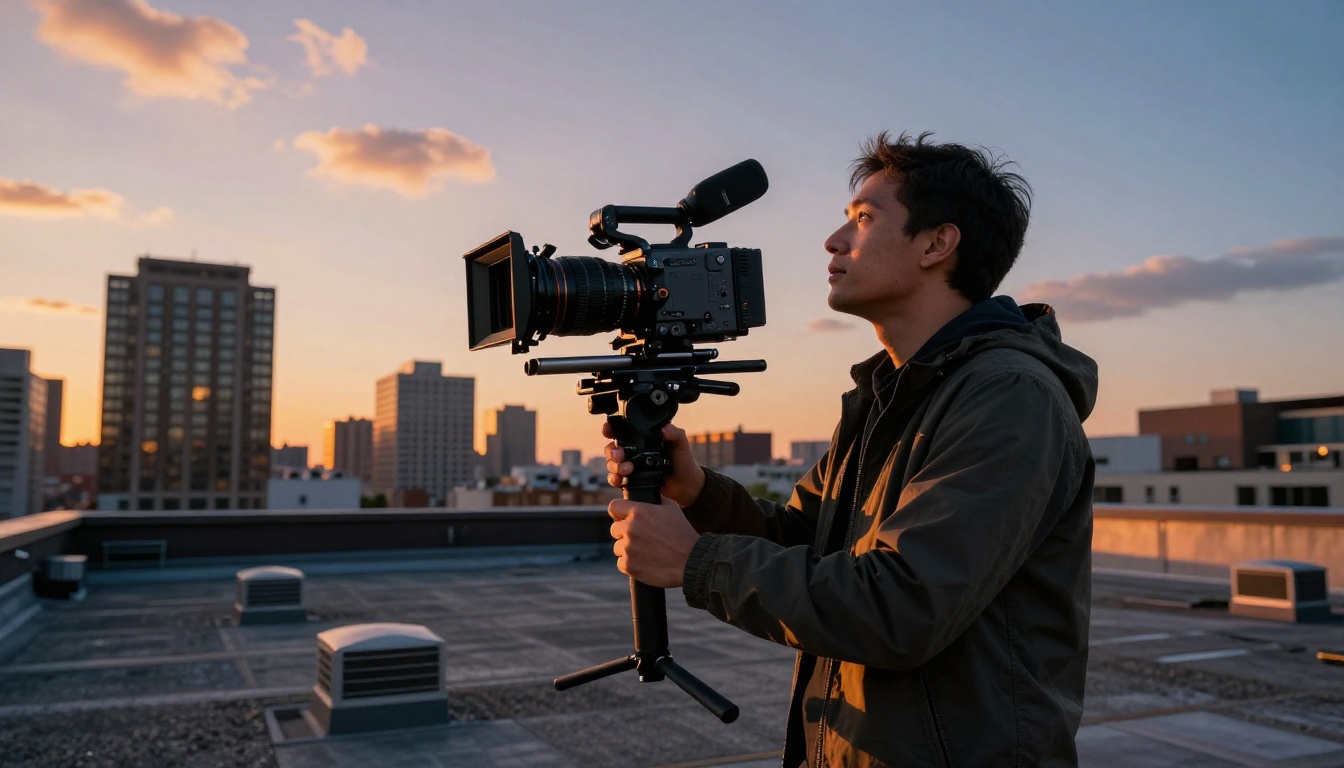
Vidu 2.0 supports explicit camera movement instructions. You can specify dolly moves, pan directions, zoom behavior, and orbital shots using natural language. This is not a guarantee of perfect execution but it is reliable enough to use in production planning. Describing "slow push-in toward subject from medium distance" consistently produces a recognizable forward camera movement, which is more than many models can deliver reliably.
The control is especially useful for pre-visualization work, where you need to test blocking and camera angles before committing to a physical shoot. Generating five different camera moves on the same scene costs you five text inputs and a few minutes. Doing the same with a physical camera costs an entire shooting day.
Multi-Subject Scenes
Most text-to-video models struggle when you put two or more subjects in the same frame. Characters merge at the edges, proportions drift across frames, and interactions look physically impossible by the third second of a clip. Vidu 2.0 handles multi-subject prompts better than most, maintaining separation and plausible spatial relationships between subjects through the duration of a clip. It is not perfect but it is significantly more reliable than what was possible even twelve months earlier.
Speed vs. Quality Tradeoff
Vidu operates across multiple quality tiers. The faster generation modes sacrifice some motion smoothness for speed, which shows most in complex background motion and hair or fabric dynamics. The higher-quality modes produce cleaner outputs but take longer to render. In practice, the fast mode works well for drafts and iteration, while the full-quality mode is what you want before a final export. Treating them as separate tools for different stages of a workflow is the most efficient approach.

Resolution That Holds Up at Pixel Level
1080p output from a text-to-video model sounds impressive until you zoom in and see texture shimmer, edge flickering, or skin that looks like it was painted inconsistently frame to frame. Vidu 2.0 holds up at pixel level better than most of its tier. Fine details like fabric texture, hair movement, and background architecture stay reasonably stable across frames rather than flickering between subtly different versions of themselves.
The Reference Image System in Practice
Upload a photo of a person, product, or object and Vidu 2.0 uses it as a visual anchor for your generation. The model processes the reference at prompt time and incorporates the subject's appearance into the output. This opens up workflows that were not possible with pure text prompts: casting a specific person into a scene, maintaining brand-consistent product appearances across multiple clips, and building multi-scene narratives with the same character appearing repeatedly.
💡 Tip: Use clean, well-lit reference images with a neutral or simple background. The cleaner the reference, the better the model's ability to isolate and replicate the subject's visual characteristics.
How to Use Vidu on PicassoIA
PicassoIA offers two Vidu models: Q3 Turbo and Q3 Pro. Both come from Vidu's development pipeline and represent the most accessible way to run Vidu-based video generation without setting up any local infrastructure or managing API credentials directly.
Pick the Right Model
Q3 Turbo is the faster option. It generates 1080p video with audio and is optimized for speed, making it the right choice for iteration, drafting, and social content where you want results quickly. It handles most text prompts well and produces clean motion across the full clip duration. The speed advantage is significant when you are testing multiple prompt variations on the same concept.
Q3 Pro prioritizes quality over speed. The output holds more visual detail, motion is smoother through complex transitions, and elaborate scene descriptions produce more accurate spatial arrangements. Use Q3 Pro when you are generating a final asset rather than a working draft.
For most workflows, the right approach is to iterate with Q3 Turbo until your prompt structure produces consistent results, then run the final version through Q3 Pro for the deliverable.
Write a Prompt That Works
The quality of your output is directly tied to the specificity of your prompt. Vague inputs produce generic outputs. The model needs clear information about what is in the scene, how it is lit, how the camera moves, and what the subject is doing.
A weak prompt: "a woman walking in a city"
A strong prompt: "A woman in her 30s in a light beige coat walks at a calm pace through a tree-lined urban street in autumn, morning light filtering through orange leaves, handheld camera following slightly behind at eye level, warm color grade, slight film grain, 1080p"
The stronger prompt takes 15 extra seconds to write and produces a fundamentally different output. Breaking it down, the strong version specifies subject appearance, clothing, setting detail, time of day, lighting quality, camera position, movement type, and stylistic qualities. Each element narrows the model's interpretation toward your actual intent.

Output Settings
Both Q3 Turbo and Q3 Pro on PicassoIA let you adjust clip duration and aspect ratio. For social content, 9:16 vertical format works better for Reels and TikTok. For cinematic work, 16:9 is the standard. Start at 4-6 seconds to validate your prompt before committing to a longer render. A 4-second clip that proves out your scene concept is worth more than a 16-second clip that reveals a prompt problem halfway through.
Prompt Tips for Real Results
What to Include
- Camera angle first: Start your prompt with the shot type. "Low-angle close-up" or "wide aerial shot" sets the entire visual frame before the model processes anything else. It is the single highest-leverage element in your prompt.
- Lighting specifics: "Overcast morning light" and "harsh midday sun from above" produce visibly different results. Never leave lighting vague if you have a specific look in mind.
- One clear motion: "Slow pan right" is more reliable than "dynamic movement with lots of energy." Each camera instruction competes with the others. One wins.
- Mood and texture: "Gritty film grain on Kodak stock" vs. "clean digital look" will meaningfully affect the output style even if the scene description stays identical.
- Subject specifics: Age, clothing, posture, and expression all narrow the model's interpretation. The more specific you are, the less the model has to invent.
What to Avoid
- Conflicting spatial instructions: "Close-up aerial shot looking up from below" creates a contradiction the model resolves poorly. Pick one.
- Too many subjects: More than 2-3 distinct subjects in a single clip increases the probability of visual instability between frames.
- Vague time references: "An old-school feel" means nothing to the model. Describe the visual qualities directly: "16mm film grain, faded warm color grade, slight flicker."
- Style keywords without grounding: "Cinematic" alone does not do much. Pair every style word with a concrete visual descriptor: "cinematic with anamorphic lens flare on morning light."
💡 Tip: Test one variable at a time. Change the camera angle, regenerate. Then change the lighting, regenerate. This makes it much easier to isolate exactly what is driving the quality difference between outputs.
Three Ways to Put It to Work
Social Media Clips
Short-form video content is the highest-volume use case for AI video generation right now. Q3 Turbo is well-suited for this. You can produce 10-15 variations of a concept in the time it used to take to shoot one. The reference image system means your branding, product, or recurring characters stay visually consistent across posts, which matters when you are building an audience that needs to recognize your visual language across multiple pieces of content.
For clips where ambient sound is important to the viewer experience, pair your Vidu generations with Pixverse v5 or Hailuo 02 for audio-enabled variations, then select the best output from both.
Product Videos
The reference image mode makes Vidu 2.0 particularly practical for e-commerce and product showcasing. Upload a clean product photo, describe the scene around it, and generate a video that places the product in context without a physical shoot. A perfume bottle on a sunlit marble bathroom counter. A pair of shoes on a rain-slicked cobblestone street. A watch on a wrist against an outdoor autumn backdrop. Each of those scenes is achievable from a single product photo and a well-written prompt.
This is not a full replacement for professional product video, but it covers the majority of cases where you need motion content quickly and a physical shoot is not practical within the timeline or budget.
Short Film Projects
For writers and directors using AI as a pre-visualization or storyboarding tool, Vidu 2.0's character consistency changes what is possible. Generate the same character in multiple scenes using reference mode, test camera blocking and lighting before committing to production, and share visual references with collaborators without needing to create any physical assets. The gap between a written script and a visual reference that a whole team can react to shrinks considerably.
The LTX 2 Pro and Kling v3 Video models on PicassoIA complement Vidu well in this use case. Use them for scenes requiring different stylistic qualities or where you want to compare output from multiple models before deciding on a visual direction for the project.

Start Producing Videos on PicassoIA
Vidu 2.0 represents a meaningful step in AI video quality. The 1080p output, reference-based character consistency, and camera control put it in the top tier of available models for 2024. The lack of native audio is a real constraint, but manageable depending on your workflow, and the quality of the visual output compensates in most cases.
The fastest way to see what the model can actually do is to start with a specific, detailed prompt rather than a vague one, use Q3 Turbo for your first iterations, and switch to Q3 Pro once you have a prompt structure that consistently produces good results.
PicassoIA gives you access to both Vidu models alongside over 100 other text-to-video options including Wan 2.7 T2V, Seedance 2.0, Veo 3, and Sora 2. Running the same prompt across multiple models and comparing results directly is often the fastest way to find which model actually fits your creative needs, and doing that comparison from a single platform without managing multiple accounts is a real advantage when you are working at production speed.


