You have a song stuck in your head, but you only want half of it: the singer, or the band. A few years ago that meant a studio session and a lot of luck. Today a vocal remover AI free online can pull a track apart in about the time it takes to brew coffee, and the result is often clean enough to sing over, remix or study note by note.
This article shows how the technology really works, what free tools will and won't give you, how to get a decent split out of a stubborn song, and what to do with the files afterward. One honest note up front: PicassoIA does not run a stem splitter of its own. You do the separation with any free separator, then bring the stems here for lyrics, lyric videos and brand-new music. The split is step one, not the finish line.

💡 Quick answer: upload a WAV (or a high-bitrate MP3) to an AI stem separator, pick the vocals and instrumental option, download both files and listen on headphones before you use them. Everything below is about making that work on songs that don't cooperate.
What a Vocal Remover Actually Does
The Old Phase Trick vs AI Separation
Before neural networks, the standard trick was phase cancellation. Lead vocals are usually mixed dead center, so the left and right channels carry nearly identical singing. Flip one channel upside down, add the two together, and anything identical in both channels cancels out. In theory the voice vanishes.
In practice, the kick drum, the bass and often the snare sit in the center too, so they vanish along with the voice. What's left sounds thin, hollow and washed in leftover reverb, because reverb is wide and doesn't cancel.
AI separation works differently. A neural network is trained on huge numbers of recordings where every part is known in advance, so it picks up what a human voice looks like inside a spectrogram: the stacked harmonics, the breathy consonants, the wobble of vibrato. Given a finished stereo mix, it estimates which parts of the sound belong to the voice and rebuilds that signal as its own file. Everything else goes into a second file. Nothing gets subtracted blindly, which is why the bass and kick survive.
Open-source models such as Demucs (from Meta's research team) and Spleeter (from Deezer) are the best-known examples, and many free web tools are built on the same family of ideas.
Stems in Plain Language
A stem is a group of related sounds bounced down into one audio file: all the vocals, all the drums, all the bass. Most tools let you choose how many stems to split into.
| Split type | Files you get | Best for |
|---|
| 2 stems | Vocals, instrumental | Karaoke tracks, acapellas, quick edits |
| 4 stems | Vocals, drums, bass, other | Remixes, drum or bass practice |
| 5 to 6 stems | Adds piano and/or guitar | Isolating a single instrument to study |
The exact options depend on the tool. Two stems is the fastest and usually the cleanest, because the model has the simplest job: voice or not voice. Every extra stem adds another chance for a sound to land in the wrong bucket.

A useful way to think about it: the vocal stem is what a microphone in that booth would have heard, and the instrumental is everything the rest of the band played. The model is guessing at that original recording session, working backward from the finished mix.
What Free Tiers Usually Limit
"Free" means different things from one site to the next. Before you upload anything, check for these common limits:
- Track length: many free plans cap each upload at a few minutes.
- Daily uploads: a fixed number of songs per day, then a waiting line or a paywall.
- Export quality: previews or MP3-only downloads, with WAV reserved for paying users.
- Stem count: two stems free, four or more behind a subscription.
- File storage: your upload sits on someone else's server for a while. If the song is unreleased, read the privacy terms first.
Browser, Desktop or Built-In?
| Method | Cost | Quality | Speed | Main downside |
|---|
| Phase cancellation | Free | Low | Instant | Removes bass and kick, keeps reverb |
| Browser AI tool | Free tier | Good to very good | A few minutes | Upload caps, queues, export limits |
| Open-source model on your PC | Free | Very good | Depends on your hardware | Needs setup, a GPU helps |
| Stem splitter inside a DAW | Included in the software | Good | Fast | Tied to one program |
A browser tool is the right call for a one-off. If you split often, or work with unreleased material, running an open-source model on your own machine keeps files off other people's servers and removes the daily limits. Several major music-production apps now ship their own stem splitter too, which is worth checking before you install anything new.
💡 Before you upload: use the highest-quality file you own, keep the song at full length, and write down the settings you picked. Comparing two runs later is much easier when you know exactly what changed.
Split a Song Step by Step
Prepare the Source File
Quality in, quality out. A lossless WAV or FLAC gives the model the most information to work with. An MP3 is fine at 256 kbps or higher. The worst source is a file ripped from a streaming video or recorded off a speaker, because compression has already smeared the details the model needs to tell a voice from a guitar.
Leave the song untrimmed. Models use the whole track as context, and cutting out an intro or outro rarely saves meaningful time. Also skip any loudness tricks beforehand: a song that has been squashed with extra limiting leaves less room between the voice and the instruments.
Run the Separation

The flow is almost identical on every service:
- Upload your file, or paste a link if the tool supports it.
- Choose the stem count. Two stems for karaoke, four for remixing.
- Pick the best model if the tool offers a choice. Slower "high quality" modes usually sound noticeably cleaner.
- Start the job and wait. Most songs finish within a few minutes.
- Download as WAV if you have the option, so the stems aren't compressed a second time.
Check the Result by Ear
Put on headphones and solo each stem. Listen to a verse and a chorus, because choruses are denser and expose problems first. You're checking for three things: faint vocal "ghosts" in the instrumental, swishy or watery texture on cymbals, and chopped-off word endings in the vocal stem.
For a stricter test, load the original and the instrumental into any audio editor, flip the instrumental's polarity and play them together. What you hear is roughly the vocal plus whatever the model got wrong. If drums or chords poke through, the model pulled them out of the instrumental by mistake.
💡 Tip: judge the stems at the volume you'll actually use them. A ghost vocal that vanishes at party volume can be obvious in a quiet room with headphones.
Why Some Songs Split Badly
Reverb, Harmonies and Mono Mixes
Some songs fight back, and it's rarely the tool's fault. The usual suspects:
- Heavy reverb. The echo tail of a voice spreads across the stereo field and often stays in the instrumental as a faint, ghostly choir.
- Stacked harmonies. Backing vocals may land in the instrumental while the lead goes to the vocal file, or the other way around.
- Distorted vocals. Screamed or heavily saturated singing shares a lot of frequency space with guitars.
- Old mono recordings. Phase tricks need a stereo image, so they fail outright on mono tapes. AI models still work, but the source often has hiss and limited bandwidth, which lowers the ceiling.
- Sampled vocal chops. A chopped vocal used like an instrument is hard to label as either.
Fixing Artifacts
You don't have to accept the first result. Match the symptom to a fix:
| What you hear | Likely cause | What to try |
|---|
| Faint singing in the instrumental | Reverb tail or backing vocals | Run the instrumental through the separator a second time |
| Watery, swirling cymbals | Model struggling with fast high-frequency detail | Switch to a higher-quality model or a different tool |
| Vocal sounds thin or robotic | Low-bitrate source file | Start again from a WAV, FLAC or 256 kbps MP3 |
| Drums leaking into the vocal | Snare or hi-hat sharing frequencies with the voice | Use a four-stem split, then discard the drum stem |
| Words cut off at the ends | Model confusing fade-outs with noise | Try another model, or blend in a little of the original mix |
Two more fixes live in your audio editor. A gate or manual volume dips on the instrumental removes ghost vocals between phrases, when nothing else is playing to hide them. A gentle EQ cut in the upper midrange, roughly where a voice sits, can tuck away leftovers without wrecking the music.
For a party, nobody hears a faint ghost. For a release, rebuild the weak section by hand or replace the track entirely, which comes up again further down.
Real Uses for Isolated Vocals
Karaoke Without Hunting for Tracks

Official karaoke versions don't exist for most songs, especially newer or niche ones. A two-stem split gives you an instrumental in minutes. Load it into any player, put the lyrics on a second screen and you have a private karaoke night.
If the original range is too high or too low for you, most players can shift the pitch by a few semitones without changing the speed. Take the singer down two or three steps and a song that felt out of reach suddenly sits comfortably.
Acapellas for DJs and Remixers

An isolated vocal is the raw material of a remix. Drop it over a new beat, stretch the tempo to match, chop phrases into a hook. Four-stem splits help here: the drum stem lets you rebuild the groove, and dropping the bass stem lets you replace a low end that clashes with your new track.
A few habits make acapellas behave. Match the tempo first, then check the pitch against your new track so the two don't fight. Add a little reverb on top rather than relying on what the separator left behind. If you plan to publish the result, read the rights section below before you do anything else.
Practice Along With the Band

Musicians use splitting as a practice room. A bassist mutes the bass stem and plays the line live. A guitarist uses a six-stem split to mute the guitar. A singer rehearsing harmonies can pull the lead down and listen to the backing vocals on their own. Slow the playback to half speed and the stems usually stay clean enough to follow a tricky passage.
The same tools work on spoken audio. Podcasters and video editors use them to lift background music out from a recorded voice, or to keep the music and drop the dialogue for a different edit.
What to Do With Your Stems
Once you have a clean vocal or instrumental, it becomes starting material for other projects. PicassoIA has models for transcription, video and music generation, and three jobs show how the pieces fit together.
Pull Lyrics From the Vocal Stem
A vocal without the band is far easier for a speech model to hear. Upload the vocal stem to GPT 4o Transcribe and set the language with its two-letter code, such as en, to improve accuracy and speed. The model accepts MP3, WAV, M4A, OGG and WebM files. Gemini 3 Pro is a second option if the first transcript struggles with a fast verse.
Sung words are harder than speech, so proofread the result against the song. Even so, fixing a draft takes far less time than typing every line by ear.
Turn the Vocal Into a Lyric Video
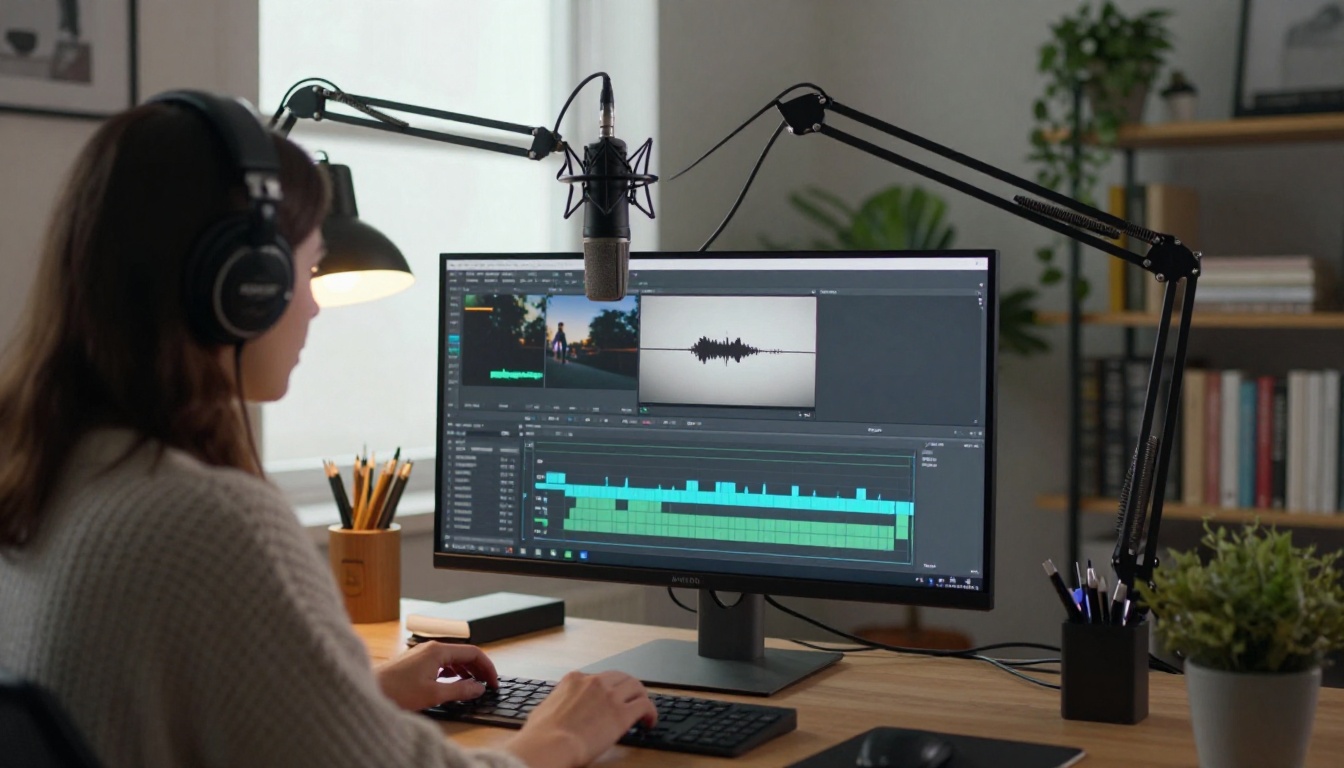
Audio To Video takes an audio file and either an image or a text prompt, then generates a short video whose visuals respond to the sound. A vocal stem is a good input because the movement follows the singing instead of the drums.
How to use it on PicassoIA:
- Open the model page and upload the vocal stem (WAV, MP3, FLAC, OGG or M4A).
- Add an image to serve as the first frame, or describe the scene in the prompt if you don't have one. If you add both, the prompt describes how the image should move.
- Adjust the guidance scale. Higher values follow your prompt more closely but can reduce quality, so raise it in small steps.
- Generate, review the clip and tweak the prompt until the motion fits the mood.
- Cut the clips together in your video editor and add the transcribed lyrics as captions.
The model creates short clips, so work one verse or chorus at a time.
Build a New Backing Track
If your instrumental has ghosts you can't fix, or you can't publish the original, generate a fresh one. Describe the tempo, mood and instruments of the song you're replacing, and let a text-to-music model write something new:
Write prompts the way you'd brief a session band: "mid-tempo indie pop, 100 BPM, clean electric guitar, soft brushed drums, warm bass, plenty of room for a female lead vocal." Generate several versions and pick the one that sits best under your vocal.
Is It Legal to Split Songs?
Splitting a file doesn't change who owns it. In many places, making a private karaoke track or a practice loop for yourself sits in a gray area that rights holders rarely pursue. Publishing, streaming or selling something built from a commercial recording is different: it needs permission or a licence from whoever owns the song. That applies to the vocal, the instrumental and any remix of them. This isn't legal advice, and the rules vary by country.
The safe routes are simple. Split your own recordings, tracks you've been licensed to remix, and music released with stems specifically for remixing.
Try It on Picasso IA
Splitting is the easy part. The fun starts when you build on it. Write a new instrumental with a text-to-music model, design album artwork with Seedream 4.5, or turn a chorus into a short clip with Audio To Video. Open PicassoIA, type a prompt and see what one afternoon of experimenting can produce.
Pick one song you love, split it, and make something new from the pieces. Your next track, artwork or video starts with a single prompt.


