If you've been watching the AI video space closely, you already know how fast things move. Models that felt impressive six months ago now feel sluggish compared to what's available today. Kling 3.0 Omni sits at the very top of that evolution. Built by Kuaishou, it represents a rethinking of how AI video generation handles complexity, motion physics, and multimodal input at scale. The results speak for themselves in a way that earlier versions simply couldn't.
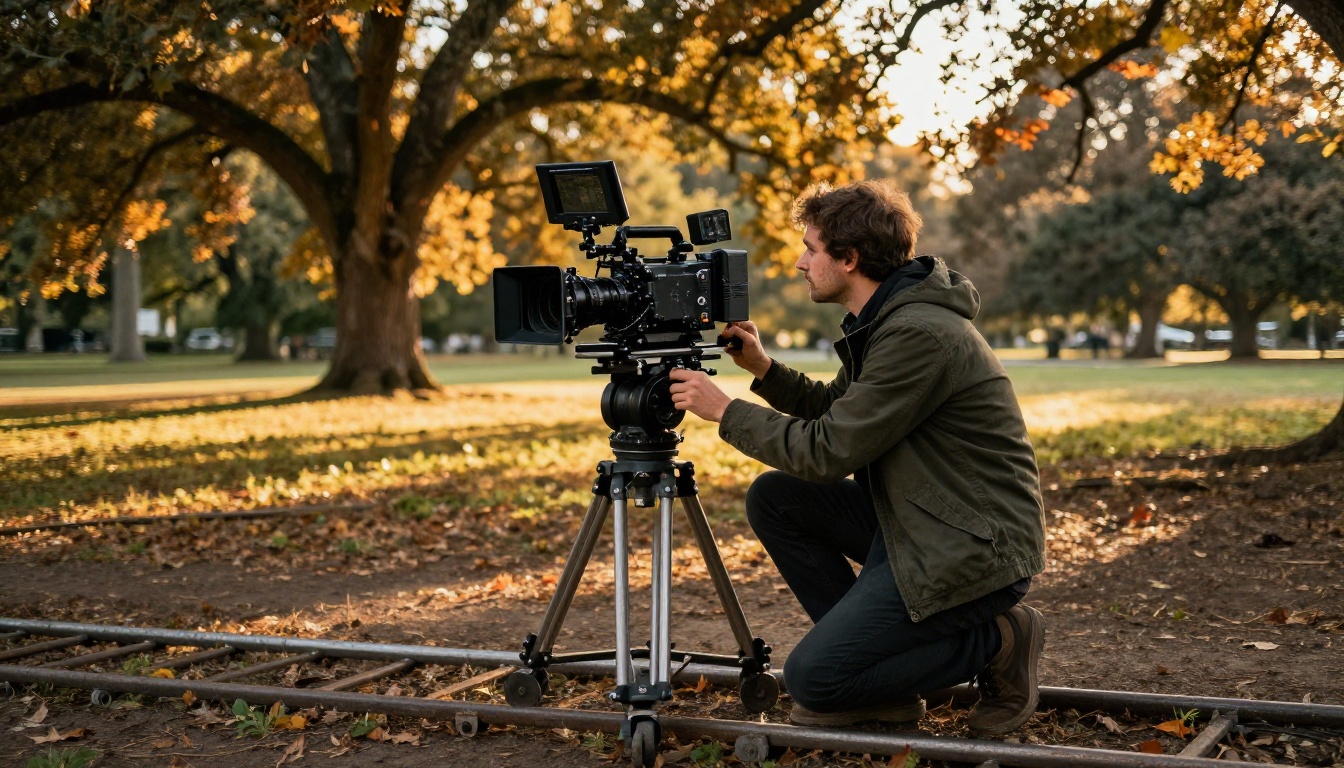
What Makes Kling 3.0 Omni Different
Most AI video tools fall into one of two buckets: fast but low-quality, or high-quality but painfully slow. Kling 3.0 Omni sidesteps that trade-off through its Omni architecture, which refers to its ability to process multiple input types simultaneously while maintaining full 1080p output fidelity. It's not a bolt-on upgrade. The architecture was rebuilt specifically to handle the complexity that earlier text-to-video systems couldn't manage at this resolution.
The "Omni" in the name signals something specific: this model accepts text, images, and reference motion data as inputs in a single generation pass. That's a meaningful shift from earlier Kling versions, which required separate model modes for text-to-video versus image-to-video workflows. Everything now runs through a single, unified system.
The "Omni" Architecture
At a technical level, the Omni architecture introduces a unified token space for video generation. Rather than encoding text and image inputs through separate pathways and merging them late in the process, Kling 3.0 Omni fuses these signals early. The result is stronger spatial consistency across frames and a more natural interpretation of the relationship between subjects and environments throughout the full clip duration.
What this means practically: when you write a prompt describing a person walking through rain, the model doesn't generate a person and add rain as a separate effect layer. It generates the scene as a unified physical event, with rain affecting hair, clothing, and pavement reflections in a coherent, realistic way. The environment and subject exist in the same physical world, not as two separate generated elements composited together.
This approach also improves how the model handles transitions. In most AI video systems, the first and last frames of a clip often diverge significantly from the middle. Kling 3.0 Omni maintains visual consistency from the opening frame through to the close, which matters enormously for anyone editing clips together in post-production.
Quality vs. Speed Modes
Kling v3 Omni Video operates with two output tiers. The standard mode delivers 720p clips in under two minutes, suitable for rapid iteration and prompt testing. The high-fidelity mode outputs at full 1080p with extended processing time, built for production-quality clips where every detail matters.
This isn't just a resolution difference. High-fidelity mode applies additional temporal consistency passes that smooth inter-frame motion and reduce the flicker artifacts that plague cheaper models during fast camera movement or when multiple subjects are active in the same frame. For final delivery, it's the only mode worth using.
Core Capabilities Worth Knowing
Kling 3.0 Omni covers significant ground, but a few capabilities stand out as genuinely better than what competing models offer right now. These are the features that will change how you think about AI video as a production tool rather than a novelty.
Text-to-Video That Actually Works
Most people's first disappointment with AI video tools is the gap between what the prompt describes and what the model generates. Kling 3.0 Omni narrows that gap significantly through high-precision natural language parsing. Long, detailed prompts that include camera movement instructions, subject actions, and environmental conditions all get honored individually rather than averaged together into a vague interpretation.
Prompts like "a woman in a red coat walks slowly across a wet cobblestone street, camera panning left, overcast morning light" produce results where each described element is present and correctly positioned. The coat is red. The street is wet and reflective. The camera pans. The lighting matches overcast morning conditions. That level of fidelity has historically required post-generation editing in separate tools, or multiple regeneration attempts with adjusted prompts.
Motion Coherence and Physics
The biggest technical leap in Kling 3.0 Omni over previous versions is motion coherence. Earlier models could generate decent single-subject motion but struggled when multiple elements moved simultaneously. A person walking while their hair blows and pigeons scatter in the background would produce inconsistent, sometimes chaotic results. Subjects would change appearance mid-clip. Backgrounds would flicker.
The v3 generation addresses this through improved physics-aware motion modeling. Cloth dynamics, fluid interactions, and multi-subject compositions all hold together more reliably across the full clip duration. Watch fabric move in wind, watch water pour from a container, watch two people interact in the same frame, and you'll see the difference immediately compared to what earlier versions produced.
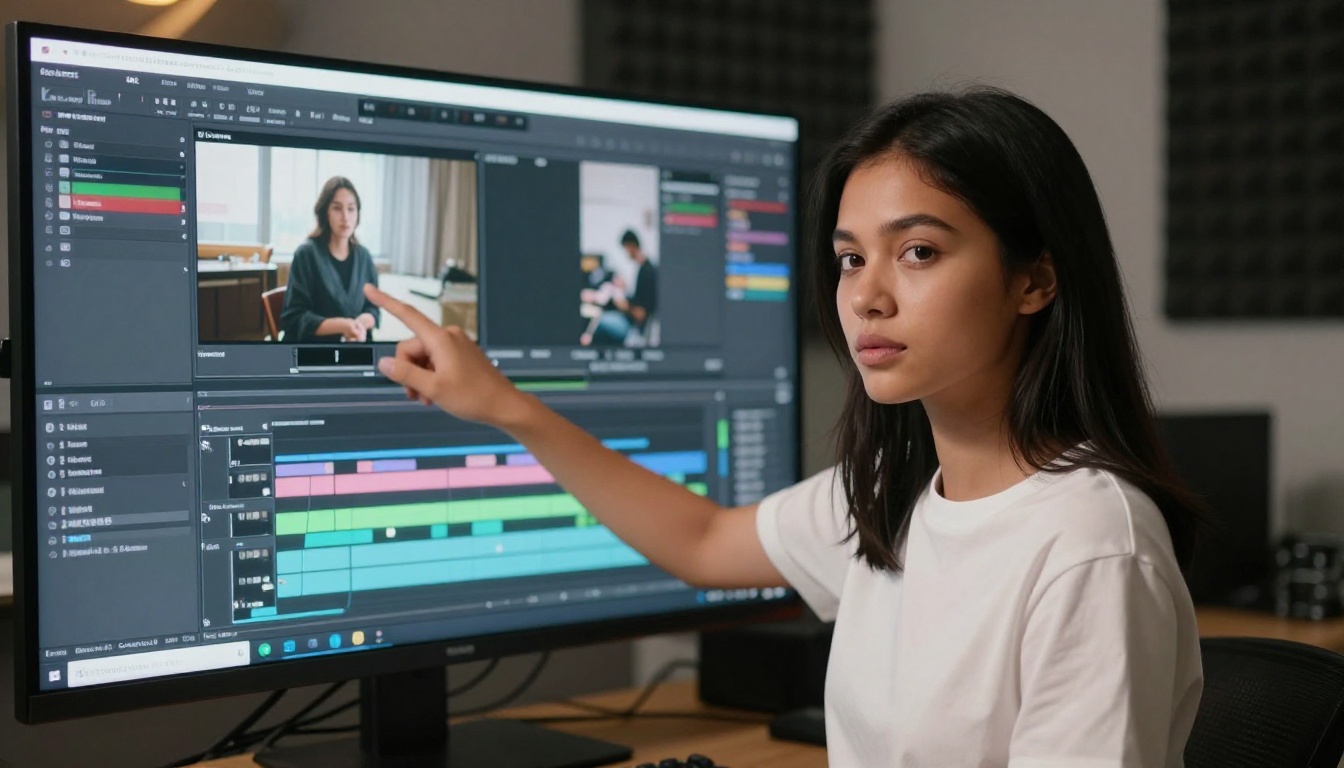
Prompt Sensitivity
One underrated quality of Kling v3 Omni Video is how it handles negative space and implied context. If your prompt describes an interior scene with a window in the background, the model infers appropriate exterior lighting and depth without being told explicitly. This kind of contextual inference reduces the amount of prompt engineering required to get professional results.
It also responds well to camera directive language. Terms like "low angle," "tracking shot," "rack focus," and "dolly in" are consistently interpreted and applied, giving anyone familiar with cinematography language a distinct advantage. This isn't a model that needs you to hack your prompts into unnatural structures. Write the way a director would speak, and the model will follow.
Here's how Kling v3 Omni Video compares to other leading models currently available:
The table shows where Kling 3.0 Omni sits in the broader landscape. Its multimodal input support and motion coherence lead the field, while native audio generation remains a gap compared to some competitors. For pure visual quality with precise prompt control, it's currently the strongest option available through a consumer-facing platform.
How to Use Kling 3.0 Omni on PicassoIA
Kling v3 Omni Video is available directly through PicassoIA, making it accessible without needing API credentials, a developer account, or any local setup. The full process from prompt to downloaded clip takes less than ten minutes once you know what you're doing.

Step 1: Write a Strong Prompt
Navigate to the Kling v3 Omni Video page on PicassoIA and locate the prompt input field. Your prompt should follow a Subject + Action + Environment + Lighting + Camera structure:
💡 Prompt structure: "[Subject doing action], [environment description], [lighting conditions], [camera angle and movement]."
Example prompt that works well:
"A chef in a white apron carefully plates a colorful dish on a dark marble counter, soft warm pendant lights hanging above, tight overhead shot slowly pulling back to reveal the full kitchen"
Avoid vague descriptors like "beautiful" or "amazing." Specificity wins every time. The model has been trained on enough data to know what "a narrow Parisian alley at dusk with wet cobblestones" looks like. It needs that level of description to perform at its best.
Step 2: Choose Duration and Mode
PicassoIA surfaces the main generation parameters directly below the prompt field:
- Duration: 5 seconds or 10 seconds. For testing prompts and checking composition, start with 5 seconds. For final output, use 10 seconds.
- Mode: Standard (720p, faster) or high-fidelity (1080p, slower). Run standard first to verify the scene composition, then switch to high-fidelity for the final clip.
- Aspect Ratio: 16:9 for landscape/widescreen, 9:16 for vertical social media formats, 1:1 for square output.
The two-step workflow of testing at standard quality before committing to a high-fidelity generation saves significant time. A composition that doesn't work at 720p won't be saved by rendering it at 1080p.
Step 3: Add a Reference Image (Optional)
The Omni architecture accepts an image input alongside your text prompt. This image acts as a visual anchor for the scene. Upload a photo of a specific location and the model uses it as the environment reference while applying the actions and motion described in your text prompt.
This is particularly powerful for brand content, where you need scenes set in a specific location or with a specific product visible in the frame. Instead of describing every detail of the environment in text, you let the image carry that information and focus your prompt on what moves and how.
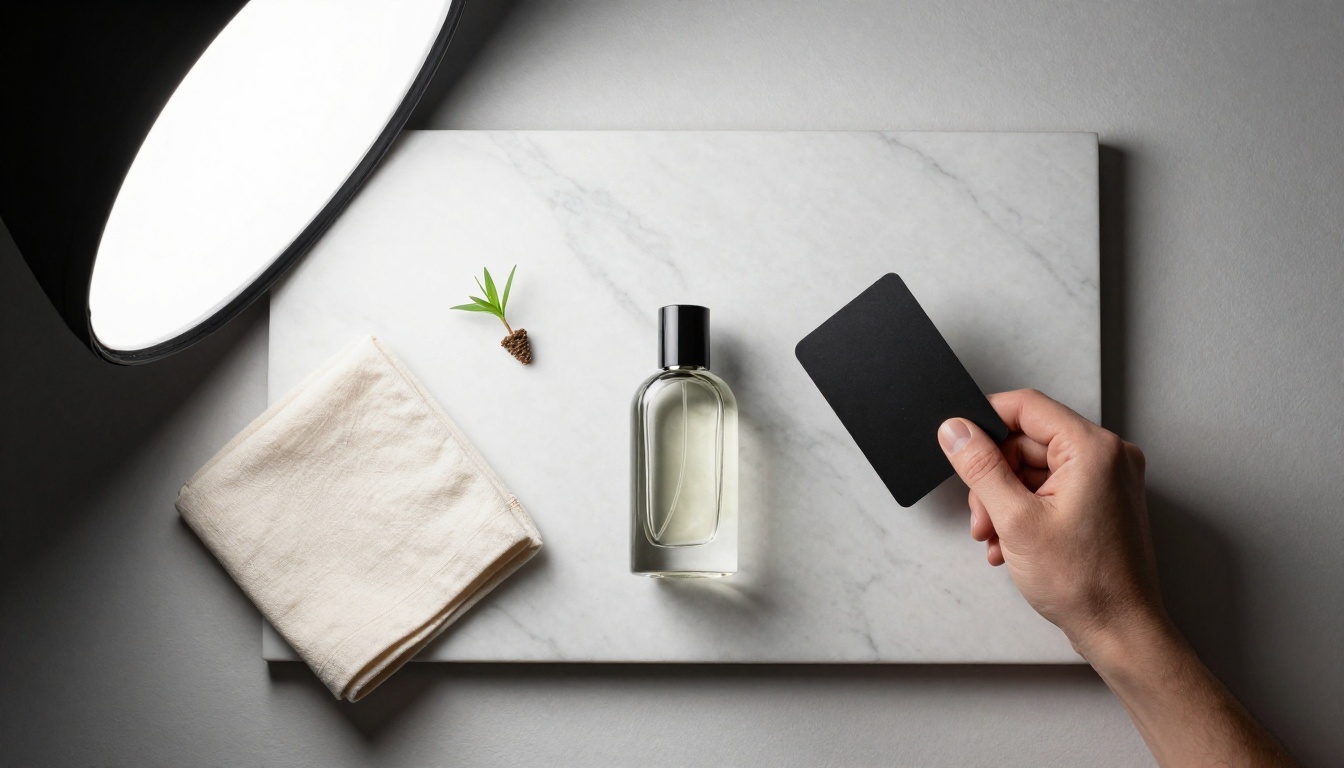
💡 Tip: Use a clean, well-lit reference image without heavy post-processing or filters. The model reads lighting information from the reference image, so an overexposed or stylized photo will pull the output in an unintended direction.
Step 4: Generate and Iterate
Click generate and wait for processing. Standard mode typically completes in 60 to 90 seconds on PicassoIA's infrastructure. High-fidelity mode runs between 3 and 5 minutes depending on load.
When the clip arrives, check these things before considering it final:
- Subject consistency across the full duration (do faces and objects stay coherent frame to frame?)
- Background stability (watch for wobble or flickering in static environmental elements)
- Motion start and end (does the action begin and resolve naturally within the clip?)
- Edge artifacts on moving subjects, particularly around hair and hands
If any of these fail, the most effective fix is usually to add more specific spatial language to the prompt and regenerate at standard mode first. Vague prompts produce inconsistent results; detailed prompts produce reliable ones.
Prompting Kling 3.0 Omni Right
The difference between a mediocre output and a production-ready clip often comes down entirely to how the prompt is structured. Kling 3.0 Omni rewards specificity more than any previous version in the Kling lineup, and more than most competing models at this tier.
Subject-Action-Environment Formula
The most reliable prompting structure for Kling v3 Omni Video follows five components:
[WHO] + [DOING WHAT] + [WHERE] + [LIGHT SOURCE] + [CAMERA INSTRUCTION]
- Who: Describe physical appearance briefly. "A woman in her 30s with short dark hair and a linen blazer" performs better than just "a woman." The more anchored the subject description, the more consistent the subject will be across frames.
- Doing what: Use active, specific verbs. "Pours coffee slowly into a white ceramic cup" beats "makes coffee." The verb and object together give the model a specific motion trajectory to follow.
- Where: Include surface textures, depth cues, and scale. "A narrow Parisian street with wet cobblestones, tall stone buildings on both sides, a café terrace visible in the background" gives the model enough spatial data to build accurate depth and perspective.
- Light source: Specify direction and quality. "Warm afternoon light from the left, creating long shadows across the floor" outperforms "bright day" by giving the model a specific illumination angle to apply consistently.
- Camera: Use real cinematography terms. "Wide establishing shot slowly zooming in to a medium close-up" beats "camera moves forward." The model has been trained on cinematic language and responds accurately to it.
What to Avoid in Prompts
Some prompting habits that work well on image generators actively hurt AI video outputs. Being aware of these saves a lot of failed generations:
- Style keywords without visual specificity like "cinematic" or "photorealistic" are too vague for a video model. Describe the actual visual quality instead: "shot on 35mm film with natural grain and shallow depth of field."
- Stacking adjectives without context. "Beautiful stunning gorgeous sunset" reads as noise to the model. "Sunset with amber and pink tones, sun positioned 10 degrees above the horizon, clouds with rim lighting" works because it gives the model actual visual parameters to apply.
- Requesting contradictory camera positions. Describing a simultaneous close-up and wide establishing shot creates spatial confusion the model can't resolve coherently.
- Overcrowding the scene with too many subjects and simultaneous actions. Kling v3 Omni Video handles one to three active subjects well. More than that and motion coherence starts to break down, particularly in scenes with fast movement.
Real Use Cases That Work
Knowing how the model works is useful. Seeing where it actually delivers consistent value is more useful. These three use cases represent where Kling 3.0 Omni has proven itself in real production workflows.
Social Media Content
Short-form creators are using Kling v3 Omni Video to generate B-roll footage that would otherwise require location shoots and a full crew. A fitness brand can generate clips of someone working out in various environments without booking a single production day. A travel account can produce establishing shots of cities without being there. A lifestyle brand can produce seasonal content without reshooting every quarter.
The 9:16 aspect ratio support means outputs drop directly into Instagram Reels, TikTok, and YouTube Shorts without cropping or reformatting. For accounts that publish multiple times per week, the time savings are substantial.
Product Demo Videos
The image reference input is particularly powerful for product content. Upload a clean product photo, describe the environment and camera movement in the prompt, and the model generates a clip showing the product in context. Perfume bottles on marble counters, sneakers on outdoor pavement, coffee mugs in morning light, skincare products on bathroom shelves: all achievable with a well-structured prompt and a clean product reference image.

What used to require a studio booking, a prop stylist, a photographer, and a video crew can now be prototyped in under an hour. The final output may still go to a real shoot for hero content, but the ideation and approval process accelerates significantly when clients can react to moving images rather than static mood boards.
Short Film Scenes
Independent filmmakers are using Kling v3 Omni Video alongside Kling v3 Motion Control to prototype scene compositions before committing to production. Generate the scene in AI first, review the framing and motion dynamics, then shoot with real actors using the AI output as a visual reference for the director and cinematographer.
This workflow changes pre-production in a fundamental way. Storyboarding becomes interactive rather than static. You can test three different camera approaches to the same scene in the time it would take to sketch one storyboard panel. Decisions that used to happen on set now happen before anyone arrives on location.
Other Kling Models Worth Trying
The Kling family on PicassoIA covers a wide range of use cases beyond the v3 Omni. Matching the right model to the right task matters more than always reaching for the flagship:
If your workflow involves animating existing photos more than generating scenes from scratch, Kling v2.6 Motion Control is worth testing alongside Kling 3.0 Omni. The two models complement each other well across different stages of a video production workflow.

Start Creating with Kling 3.0 Omni
Kling 3.0 Omni raises the ceiling for what's possible with AI video generation from a single prompt. The Omni architecture, the improved physics modeling, and the multimodal input support combine into a tool that genuinely accelerates video production workflows rather than just producing impressive demo clips that are useless in a real production pipeline.
The strongest prompts are specific, directorial, and grounded in real visual language. Start with the Subject-Action-Environment-Light-Camera structure, test at standard quality before committing to high-fidelity output, and use the image reference input whenever you need to anchor the scene to a specific location or product.
Head to Kling v3 Omni Video on PicassoIA and put a real prompt in, something from an actual project you're working on right now. The results will show you exactly where it fits in your workflow and where you'll still want to bring in a camera crew. PicassoIA's full library of text-to-video models gives you the flexibility to match the right model to each job. Kling 3.0 Omni is the flagship right now, but the right tool always depends on the specific output you're trying to reach.


