Large Language ModelsGenerate imagesGenerate videos
What Is MCP in AI? Explained in Simple Terms With Examples
MCP, the Model Context Protocol, is an open standard that lets AI assistants talk to files, databases, calendars and creative tools without custom code for each one. This article breaks down clients, servers, tools and resources with simple analogies, real examples and the risks worth watching.
Ask an AI assistant to check your calendar, read a spreadsheet, or fix a bug in your repository, and you will often get a polite apology. The model is sharp, but it sits in a sealed room with no door to your files, your apps, or the live web. MCP, short for Model Context Protocol, is that door. It is an open standard that lets AI apps plug into outside tools and data through one shared connection, the same way a single port lets a laptop talk to a monitor, a hard drive, and a camera. This article explains what MCP is, how it works, and what it looks like in daily use, with every idea tied to something you can picture.
💡 Quick answer: MCP is a common language between AI apps and the tools they rely on. Anthropic introduced it in November 2024, and products from many other companies now support it.
What MCP Means in Plain English
MCP stands for Model Context Protocol. A protocol is an agreed set of rules for how two programs talk to each other. Context is the information a model needs to give a useful answer: your documents, your data, the state of your project. Put together, MCP is a set of rules for getting context to a model, and for letting the model act on it.
Without a protocol like this, an AI model only knows what it absorbed during training plus whatever text you paste into the chat. That is why it cannot tell you what is in your inbox today or what changed in your codebase this morning. MCP gives it a safe, standard way to ask.
The USB-C Port for AI Apps
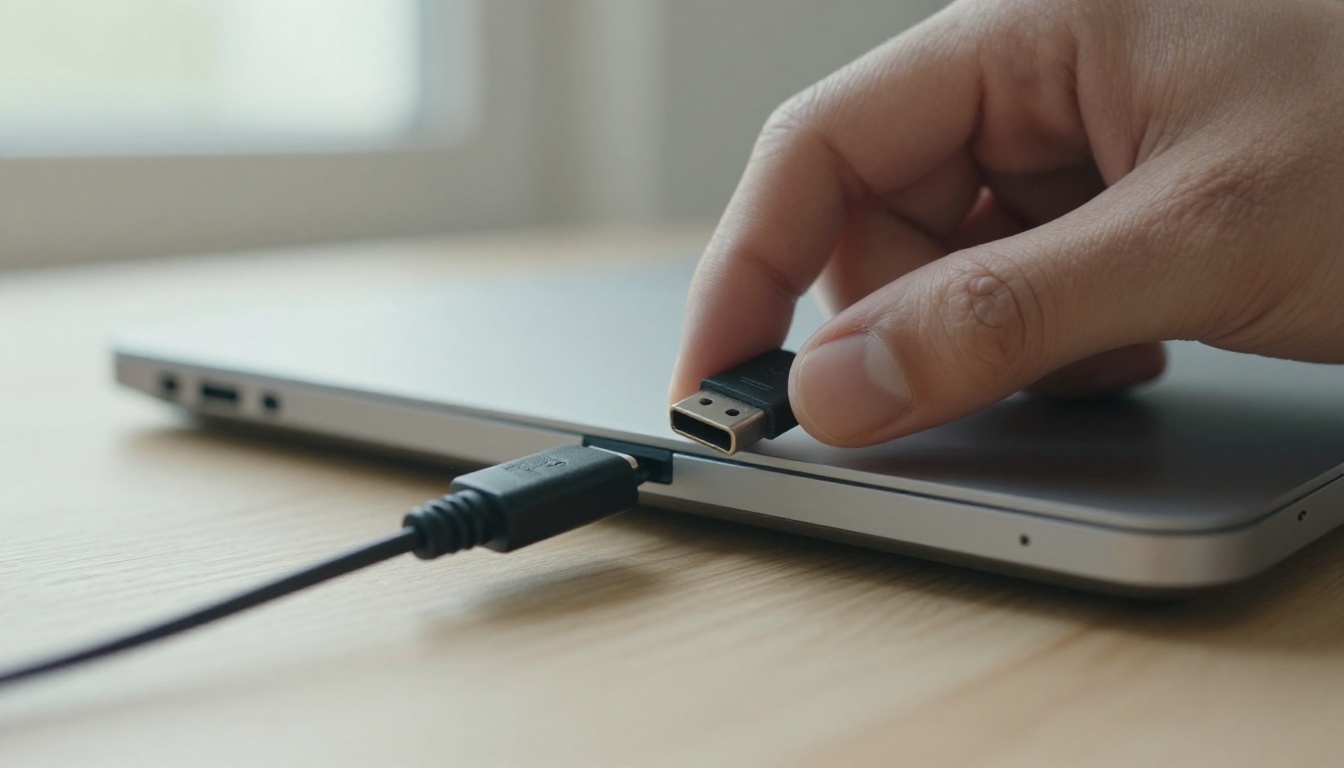
Anthropic's own documentation compares MCP to a USB-C port for AI applications, and the comparison holds up well. Before USB-C, every gadget came with its own cable and its own plug shape. One port with one agreed signal standard means any device can talk to any other device.
MCP does the same job for software. An AI app that speaks MCP can connect to any server that speaks MCP, whether it was built by the same company or by a stranger who published it last week.
Why AI Needed a Shared Standard
Before MCP, connecting an AI to a tool was a custom job every time. Say you have 5 AI apps and 20 tools you want them to use. Every pair needs its own bridge, so you end up with up to 100 separate integrations, each with its own quirks and its own maintenance bill.
MCP turns that multiplication into addition. Each AI app builds one MCP client, and each tool builds one MCP server. That is 5 + 20 = 25 pieces instead of 100.
Setup
AI apps
Tools
Pieces to build
Without MCP
5
20
Up to 100
With MCP
5
20
25
A universal travel adapter is a good mental picture. You do not carry a different charger for every country. You carry one adapter with sliding pins, and the wall socket matters a lot less. MCP is that adapter for the connection between a model and the world around it.
Another benefit is that a server written once keeps working as new AI apps appear, so the effort you put into a connection does not expire when you switch assistants.
How MCP Works Under the Hood
The moving parts are simple once you give them names. Three roles, three kinds of building blocks, and one message format.
Host, Client and Server Roles
Host: the AI app you actually use, such as a chat app, a coding assistant, or an editor with AI built in.
Client: a small connector inside the host. Each client keeps a one-to-one link with exactly one server.
Server: a lightweight program that exposes a capability, such as your files, a database, a calendar, or an image generator.
A restaurant makes the roles easy to remember. You are the diner, and the AI model is the part of the team that decides what to order. The client is the waiter, who writes the request in a format the kitchen expects and carries it over. The server is the kitchen, which does the real work and sends back a plated result.
The waiter never cooks, and the kitchen never needs to know who is sitting at table six. Each side only has to respect the order ticket, and that ticket is the protocol.
The Three Things a Server Offers
A server can expose three kinds of building blocks. Most servers use only one or two of them.
Building block
Who decides to use it
Plain meaning
Example
Tools
The model
Actions the AI can take
Create an issue, send a message, generate an image
Resources
The app
Data the AI can read
A file, a database row, a document
Prompts
The user
Ready-made templates
"Review this pull request"
Tools are the ones people notice first. Picture a garage pegboard where every hand tool hangs in its own marked spot. Each MCP tool also has a name, a short description of what it does, and a list of the inputs it needs. The model reads those descriptions to decide which tool fits the job, just as you reach for the right wrench by looking at the board.
Resources work like a library. The AI is not changing anything. It is pulling a book off the shelf so it can read what is inside. A resource might be a text file, a database record, or a log from yesterday. The host usually decides which resources to attach, and the model reads them as context.
Prompts are the shortcut menu. A server can offer a saved template such as "summarize this week's tickets", and you pick it instead of typing the instructions yourself.
What Travels Between Them
Under the hood, MCP messages use JSON-RPC 2.0, a plain text format that says "call this method with these arguments." There are two common ways to carry those messages:
stdio: the server runs as a local process on your own machine, and the app talks to it directly.
Streamable HTTP: the server runs somewhere else and is reached by a web address.
Nothing in that message is magic. It is a tool name and some arguments. Adding a local server to an app is usually just as plain, a few lines of configuration that say which program to start:
That entry gives the AI access to one folder and nothing else.
One Request From Start to Finish
Here is what happens when you ask, "Which of my invoices are overdue?" in an app connected to a database server.
Connect. When the app starts, each client contacts its server and asks what it can do. The server replies with its list of tools and their descriptions.
Ask. You type your question. The app sends it to the model along with the list of available tools.
Choose. The model decides a tool fits and replies with a tool call, for example a query tool with the filter "status is overdue."
Approve. Most apps pause here and show you the planned action so you can allow or refuse it.
Run. The client passes the call to the server. The server queries the database and returns the rows.
Answer. The app hands the rows back to the model, which writes a plain-language reply for you.
💡 Worth noticing: the model never touches your database directly. It only asks, and the server decides what is allowed. That split is what makes MCP workable in a business setting.
Real MCP Examples You Can Picture
Thousands of MCP servers now exist, from official ones maintained by the companies behind the tools to small community projects. Four families show the range.
Files and Documents
The reference filesystem server lets an AI read, search and edit files inside folders you choose. Ask it to rename a messy downloads folder by date, or to pull every mention of a client name from a pile of notes, and it does the legwork one file at a time.
Code, GitHub and Databases
Developers were the first heavy users of MCP. A GitHub server can read issues and open pull requests. A database server can run read-only queries. A coding assistant connected to both can find the failing ticket, read the related code, and propose a fix without you copying anything between windows.
Browsers and Design Tools
A browser automation server, such as one built on Playwright, lets an AI open a page, click through a form, and report what broke. Design and project tools publish servers too, so an assistant can read a layout or update a task board.
Image and Video Generation
Creative work fits MCP well, because generation is a tool call with a clear input (a prompt) and a clear output (a file). PicassoIA offers an MCP connection for its image and video models, including PicassoIA Image and PicassoIA Image Editor Pro. Once connected, an AI app sees a short list of tools:
Tool
What it does
generate_image
Starts an image job and returns an ID
edit_image
Changes an existing image from a text instruction
get_generation
Checks a job and returns the finished file URLs
cancel_generation
Stops a job that is still running
This example shows why tool descriptions matter. Image jobs take a little while, so generate_image does not return a picture right away. It returns a job ID. The AI has to read the descriptions, notice that, and call get_generation after a short wait to collect the result. Nobody wrote a script for that sequence. The model worked it out from the tool list. The video tools follow the same submit-then-check pattern, and an account can run up to 5 jobs at once. Because the connection follows the standard, the same tools work from any app that supports MCP, with no custom integration for each one.
How MCP Differs From Other Options
People often ask whether MCP replaces APIs. It does not. Most MCP servers call a regular API inside. MCP is the layer that makes that API usable by a model.
MCP Compared With a Normal API
Regular API
MCP
Built for
Developers writing code
AI models choosing actions
How capabilities are described
Documentation written for people
A tool list the model reads at runtime
Adding a new capability
Write new integration code
Connect another server
Reuse across AI apps
Each app needs its own integration
Any MCP client can connect
Message format
Different for every service
One shared format
MCP Compared With Function Calling
Function calling is a model skill: given a list of functions, it can reply with a structured request to run one. MCP is the plumbing around that skill. It standardizes where the functions come from, how they are described, and how the call travels to the thing that runs it.
💡 Simple way to remember it: function calling is the model deciding to press a button. MCP is the standard wiring behind every button.
Which Models Work With MCP
MCP support lives mostly in the host app, so the same server can work with different models. What changes is how well a model picks the right tool and fills in the inputs. These language models on PicassoIA are common picks for tool-heavy work:
Look for a model that follows instructions closely and returns clean, well-formed inputs. Start with a small set of tools, because a long list of similar tools can confuse any model. Use a faster model for simple lookups and save the heavier ones for tasks that chain several tools together.
Risks and Permissions to Watch
Giving an AI real tools gives it real reach. That is the point, and it is also the reason to be careful.
Prompt Injection Through Tool Results
A tool can pull in text from a web page, an email, or a shared document. If someone hid instructions in that text, the model might treat them as orders. For example, a web page could contain a hidden line telling the assistant to ignore its instructions and send your files elsewhere. Treat everything a tool returns as untrusted data, limit what each tool is allowed to do, and keep approval prompts switched on for anything that sends, deletes, or spends.
Permission Rules Worth Setting
Start read-only. Let the AI look before you let it change anything.
Scope narrowly. Point a filesystem server at one folder, not your whole drive.
Install from sources you trust. A local server is a program running on your machine.
Read the approval prompt. It shows the exact tool and inputs before anything runs.
Remove unused servers. Fewer connections means fewer ways for something to go wrong.
Try It Yourself on Picasso IA
The quickest way to feel what MCP does is to watch an AI use a tool for you. Connect an MCP-capable app to your Picasso IA account (the connection settings live in your account area at picassoia.com/en/mcp/accounts), then ask for an image in plain language. You will see the assistant submit the job, check its status, and hand back the finished file, which is the whole protocol in action.
Try prompts like these:
"Make a photorealistic image of a developer's desk with a USB-C hub at golden hour."
"Edit that image so the background is a quiet library."
"Check whether my last image job has finished."
Each one maps to a tool from the table above, and each is a small lesson in how MCP turns a sentence into an action. When you want to see what else the platform offers, browse every model at picassoia.com/en/all-models, then come back and give your assistant a new tool to use.