You and your partner have probably had the same late-night conversation: will the baby get my nose or yours? Whose eyes, whose smile, whose stubborn eyebrows? A free AI baby generator turns that guessing game into a picture. You upload one photo of each parent, describe the baby you want to see, and a few seconds later you get a realistic portrait that blends both faces. It will not tell you what your child will really look like, because nobody can, but it makes a fun and surprisingly convincing preview.
This article shows the exact process on PicassoIA, from choosing the right photos to writing the prompt, fixing odd results and sharpening the final image. If you have ever typed "what will my baby look like" into a search bar and ended up with a clunky face morph full of ads, you are about to get a much better result.
How Baby Face Predictors Work
Let's clear one thing up first. An AI baby maker does not read DNA and it does not run a genetics simulation. It looks at two faces, picks out the visual traits that stand out, and paints a new face that borrows from both. Think of it as an artist who studies mom and dad photos and then draws a believable child from imagination.
People use these tools for all kinds of reasons: a playful bet between partners, a pregnancy announcement card, a gift for grandparents, a content idea for social media, or plain curiosity on a quiet evening. None of those need scientific accuracy. They just need a result that feels believable and warm.
What the AI Looks At
Modern image models that accept several reference photos pay attention to a handful of things:
- Face shape: round, oval, square or heart shaped
- Eyes: shape, spacing, lid fold and overall color family
- Nose and lips: width, bridge height, fullness
- Skin tone and freckles: usually a blend of both parents
- Hair: color, thickness, curl pattern
- Expression: a smile, a calm look, a squint into the sun
Older baby face apps simply stretched and cross-faded two photos. Prompt-based image editors do something smarter: they use your written description to decide how the faces should combine.
| Approach | How it works | Typical result |
|---|
| Classic face morph app | Cross-fades two faces with a fixed filter | Blurry, ghostly, looks like an adult |
| Prompt-based image editor | Reads both photos plus your text | Sharp, age-correct baby portrait |
| Multi-reference model | Accepts many photos and a detailed prompt | Family resemblance with extra control |
What It Cannot Predict
💡 Reality check: eye color, hair color and facial structure are shaped by many genes, and a baby's face keeps changing for years. An AI portrait is a creative guess, not a medical or genetic forecast.
Newborns often have eye and hair colors that shift during the first year. The AI has no way to know which grandparent's traits will show up, so treat every result as a "could be", never a "will be". That mindset is what keeps this hobby fun instead of stressful.
Pick the Right Parent Photos
The photos you upload matter more than any setting. A weak source photo gives a weak baby, no matter how good the model is. Spend two minutes choosing well and you will save yourself ten minutes of retries.
Lighting and Angle
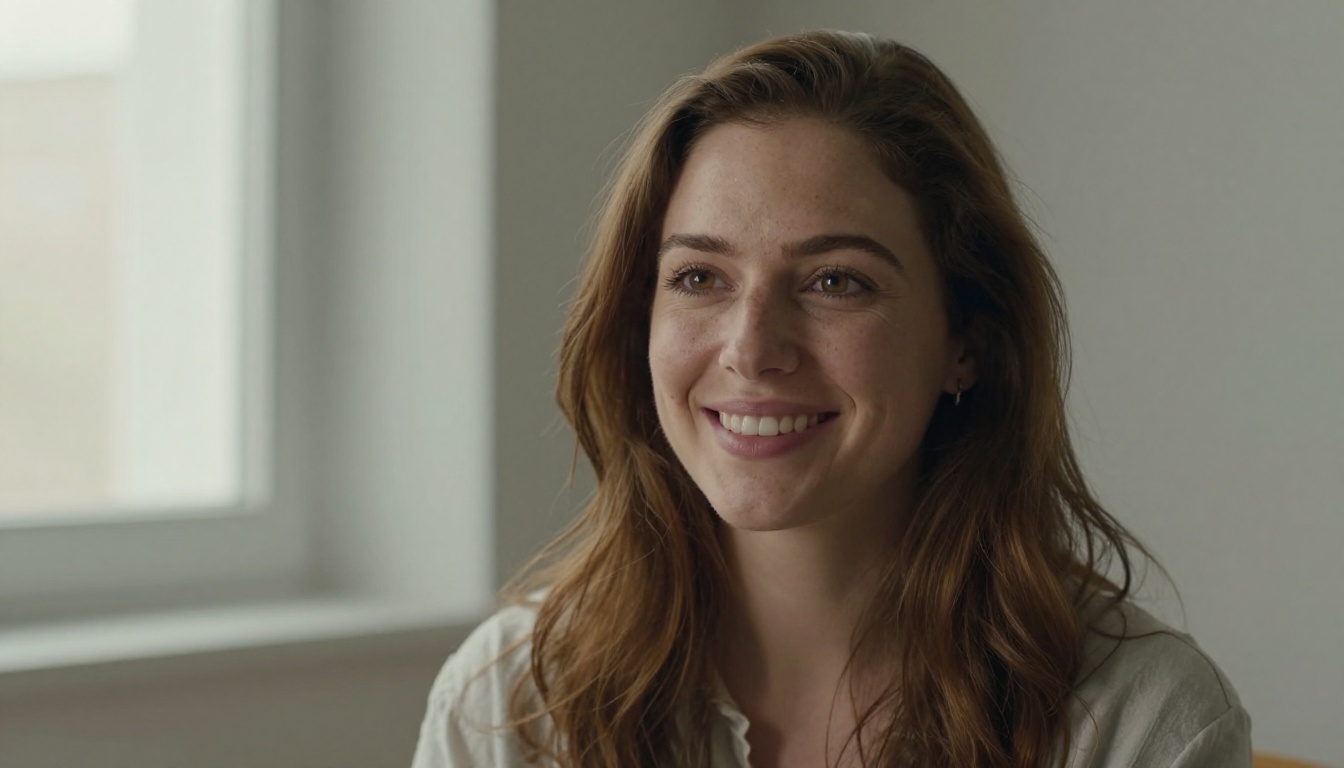
Aim for the kind of photo you would use on an ID card, only prettier:
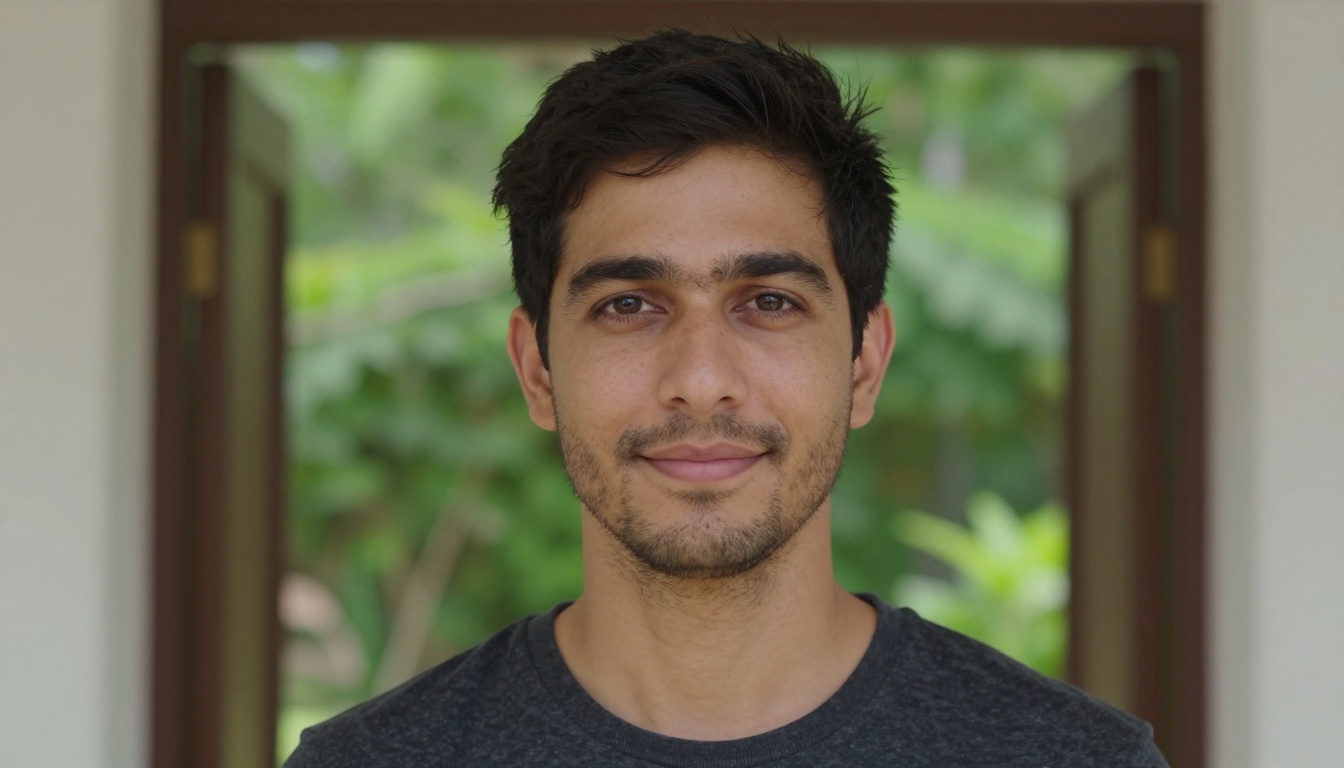
- Face the camera straight on. A slight turn is fine, but profile shots hide half the features.
- Use soft daylight. A spot beside a window works better than any lamp. Harsh shadows confuse the model about where the nose ends.
- Show the whole face. Hair should not hide the eyebrows or one eye.
- Keep the expression relaxed. A gentle smile is ideal, a big laugh warps the mouth.
- Choose a sharp image. At least 1000 pixels on the shorter side gives the AI enough detail.
Photos to Avoid
- Sunglasses, masks or thick glasses with glare
- Heavy beauty filters, since the AI will copy the filter instead of the real face
- Group shots where the face is tiny
- Extreme wide angle selfies that stretch the nose and forehead
- Old, low resolution scans
A note on privacy: only upload photos of adults who agreed to it, and keep your results to yourself or your family. Never upload a photo of someone else's child to build a lookalike.
How to Use Editor Pro on PicassoIA
PicassoIA Image Editor Pro is the model I reach for first, for three reasons. It accepts up to three reference images, it lets you point at each one in the prompt as "image 1" and "image 2", and it is unlimited, so you can try dozens of variations without watching a counter. Most edits finish in a few seconds.

Upload Both Parents
- Open the Image Editor Pro page.
- Upload the first parent as image 1.
- Upload the second parent as image 2.
- Optional: add a third image as a style or pose reference, such as a calm newborn photo with soft lighting.
The first image is treated as the primary one, so put the parent whose features you want to lead in that slot. Swap them in a second run and compare.
Write the Prompt
Be specific about the age, the setting and the blend. Here is a prompt that works well as a starting point:
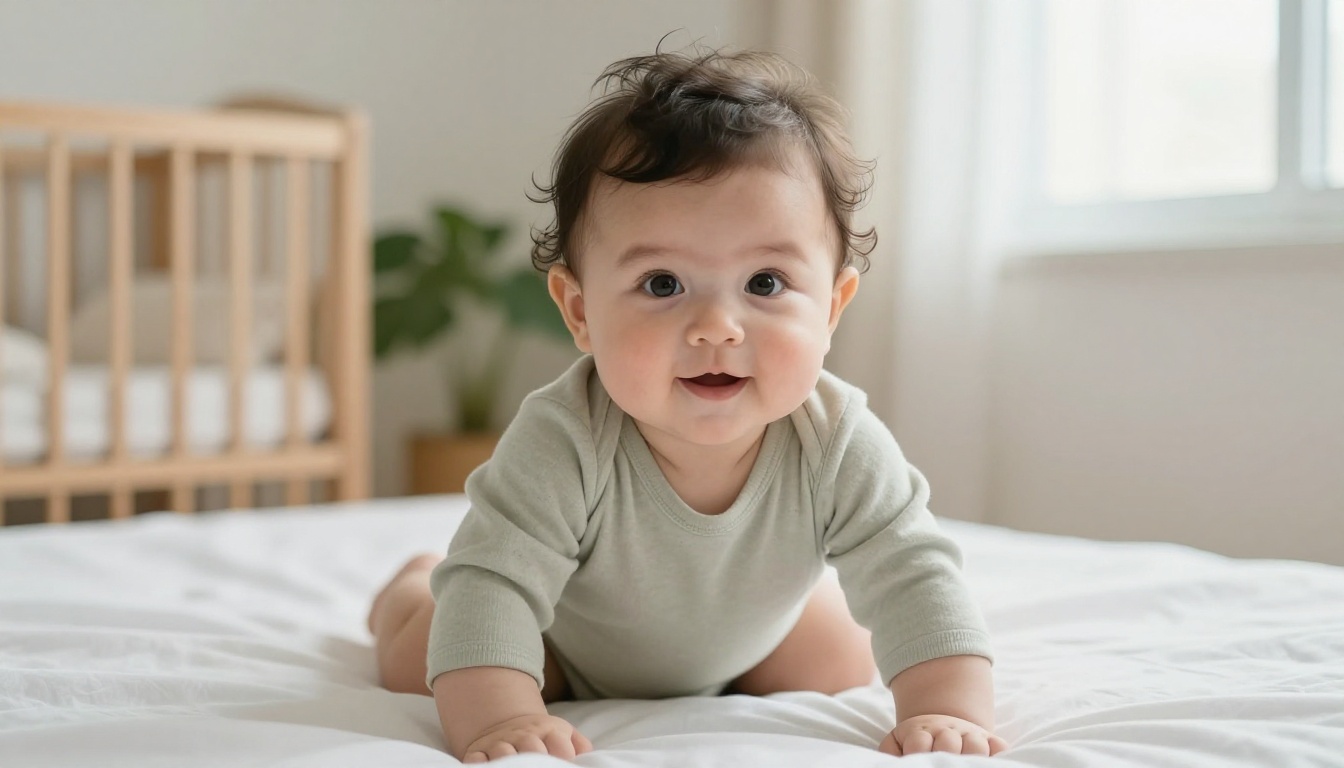
Create a photorealistic portrait of a nine month old baby who is the child of the man in image 1 and the woman in image 2. The baby inherits a mix of both faces: the eye shape of image 2, the jawline and brow of image 1. Soft window light, natural skin texture, sitting on a white bed, looking at the camera with a small smile.
A few things make this prompt effective. It names the age, it says which features come from which parent, and it describes light and skin so the result looks like a photograph and not a cartoon.
| Setting | Recommended value | Why it helps |
|---|
| Aspect ratio | 3:2 or 1:1 | Portrait crops keep the focus on the face |
| Number of outputs | 2 | Two variations per run speeds up comparing |
| Output format | PNG or JPG | Clean files, easy to share |
| Output quality | 95 | Keeps fine skin detail |
| Seed | Set once you like a result | Lets you repeat a look and tweak only the text |
Generate and Compare
Run the prompt with two outputs and look at the faces side by side. Then change one thing at a time: the age, the lighting, or which parent leads. If you change five things at once you will never know what helped. A typical session looks like this:
| Run | What you change | What you check |
|---|
| 1 | Nothing, use the base prompt | Does the face feel like both parents? |
| 2 | Swap image 1 and image 2 | Which version resembles the family more? |
| 3 | Name the eye color and hair color | Do the details match what you imagined? |
| 4 | Lock the seed, change the age | Does the same baby grow up believably? |
💡 Quick tip: once you find a face you love, lock the seed. Then you can ask for the same baby as a newborn, at six months or at age three with only small prompt edits.
Prompts That Work Well
Good prompts read like a photographer's brief. Copy the pattern and swap in your own details.
| Goal | Prompt pattern |
|---|
| Simple baby portrait | "A baby who looks like a mix of image 1 and image 2, photorealistic, soft daylight" |
| Eye color focus | "Baby with the hazel eyes of image 2 and the brow shape of image 1, close portrait" |
| Hair focus | "Baby with dark soft curls like image 1, light skin tone like image 2" |
| Candid moment | "Baby laughing on a living room rug, shot at eye level, natural light" |
| Family look | "A baby in the arms of both parents from image 1 and image 2, warm home setting" |
Some habits that raise the quality every time:
- Say "photorealistic" and name a lens, like 85mm portrait lens, to push the output toward real photography.
- Describe the skin. Words like natural skin texture, soft peach fuzz, no retouching prevent the waxy look.
- Keep the background simple. A nursery, a sofa or a garden is plenty.
- Skip long lists of adjectives. Three or four clear details beat fifteen vague ones.
- Mention the camera angle. "At the baby's eye level" gives a warmer, more personal portrait than a view from above.
Other Models Worth Trying
Different models read your photos in different ways, so it pays to compare. Here are two I use alongside Editor Pro.
Multi Image Kontext Pro
Multi Image Kontext Pro is built around a simple idea: two photos in, one image out. You provide both parent photos and one prompt describing the combination. It offers 14 aspect ratios, PNG or JPG output and a seed for repeatable results. It is a good pick when you want a clean two parent blend without extra steps.
Nano Banana Pro
Nano Banana Pro accepts up to 14 reference images and renders at 1K, 2K or 4K. That makes it handy when you want to bring grandparents or siblings into the mix, or when you plan to print the result. Try a prompt like "a baby who shares features with all the adults in the reference photos".
If you like comparing styles, Seedream 4.5 and GPT Image 2 are also on the platform. Running the same prompt through each one shows how differently they read the same two faces.
Baby Looks at Every Age
One of the best parts of a baby photo generator is that you can ask for the same child at any age. Just change the age words and the scene.
Newborn Photo
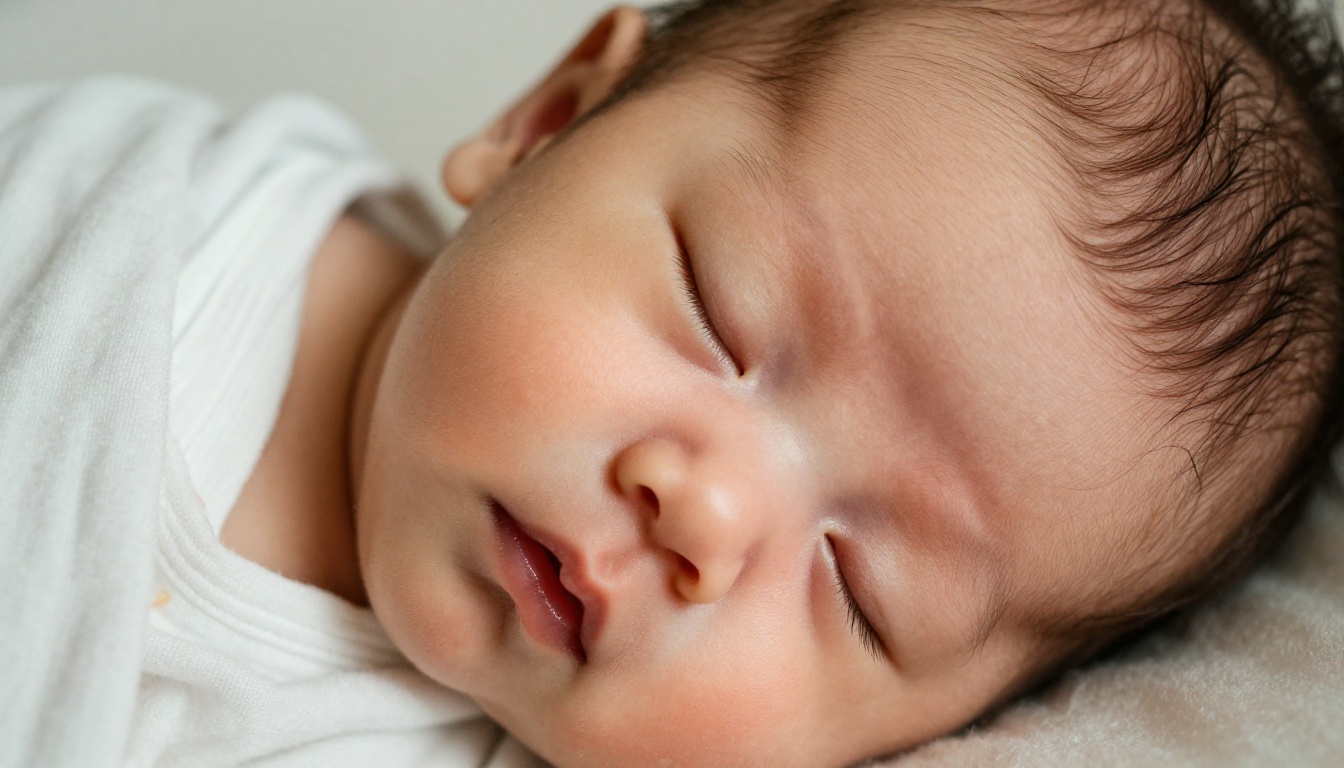
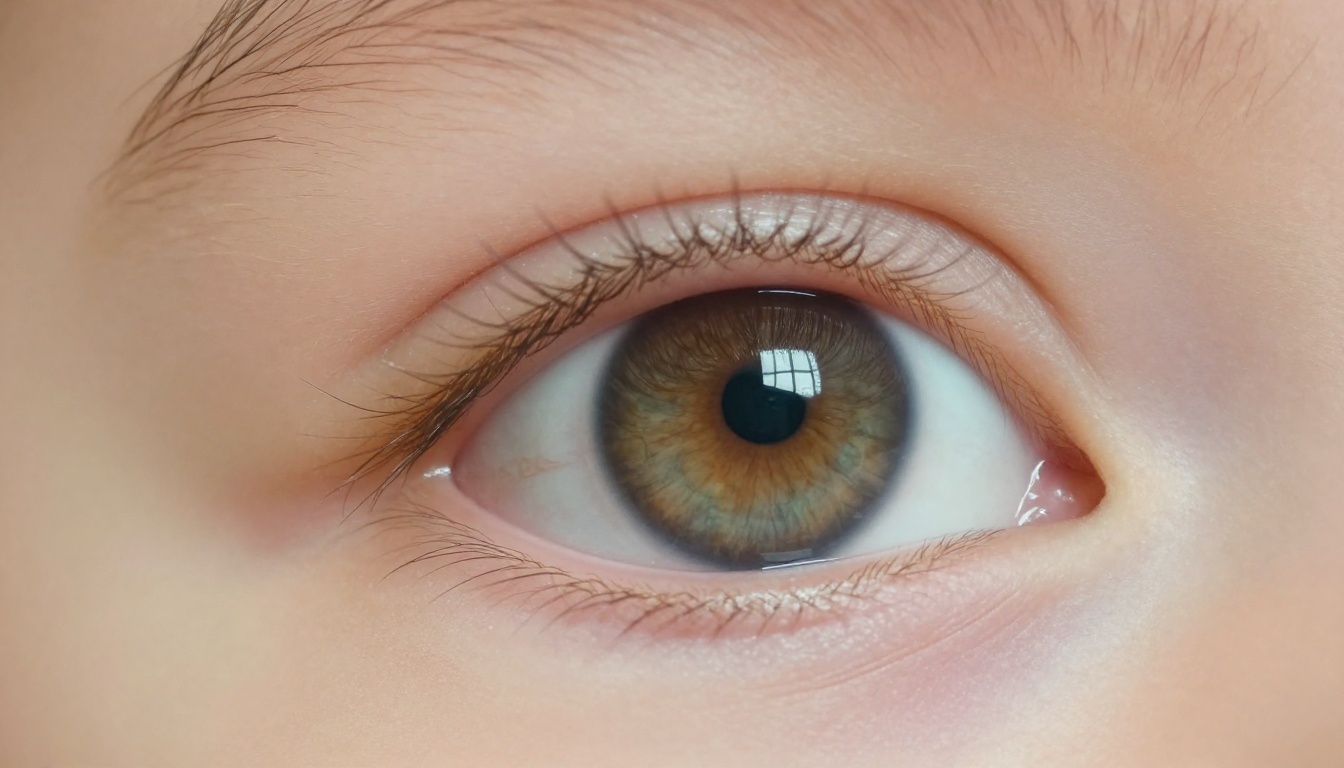
Newborns share a lot of traits, so the AI leans heavily on skin tone and hair. Use phrases like newborn, eyes gently closed, swaddled in a cream blanket, a few hours old. Expect soft features and very little visible resemblance. That is realistic: most people only start to see "who they look like" after a few weeks.
Toddler and Older
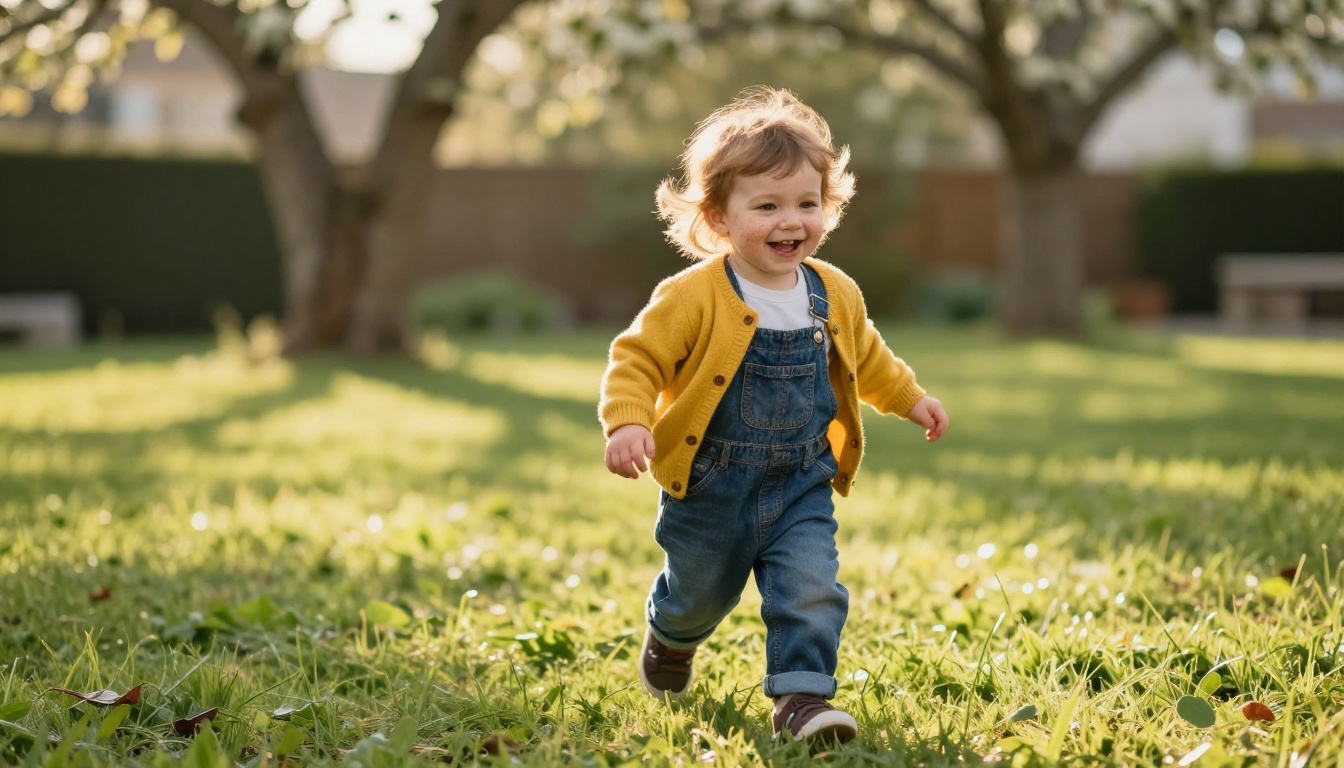
At age two or three the face has real character, and the blend of both parents becomes much easier to spot. Describe movement and setting to get a candid result, for example laughing toddler running across a lawn at golden hour, low angle.
| Age | Prompt wording | What to expect |
|---|
| Newborn | "newborn, eyes closed, swaddled" | Soft, similar to most newborns |
| 6 months | "baby sitting, first smile" | Round cheeks, first clear traits |
| 1 year | "one year old reaching toward the camera" | Hair and eye shape show up |
| 3 years | "toddler laughing outdoors" | Strong family resemblance |
| 8 years | "child at a kitchen table, school clothes" | Adult features begin to appear |
Fix Common Problems
Even good prompts sometimes give odd results. Most issues have a fast fix.
Skin Looks Plastic
Add natural skin texture, visible pores, soft peach fuzz, no retouching, film grain to the prompt. If the face is still too smooth, try the Qwen Image Edit Plus skin LoRA, which targets skin detail in an existing image.
Eyes Do Not Match
The model may guess the wrong eye color from a photo taken in shade. Spell it out: hazel eyes like image 2. Remember too that many babies are born with eye colors that change later, so a different shade than your prediction is perfectly normal.
Sharpen the Final Photo
Once you have a result you love, scale it up for printing or a phone wallpaper with Topaz Image Upscale. Super resolution adds detail without the soft, stretched look of a simple resize.
| Problem | Fast fix |
|---|
| Waxy, smooth skin | Add skin texture words, use the skin LoRA |
| Wrong eye color | Name the color and the parent it comes from |
| Adult looking face | State the exact age, add "baby proportions, large forehead" |
| Weird hands | Ask for a close portrait so hands stay out of frame |
| Low resolution | Upscale with Topaz Image Upscale |
Try Your Own Baby Preview
You now have everything you need: two clear parent photos, a prompt that names the age and the blend, and a few models to compare. The whole thing takes about five minutes, and the unlimited Editor Pro means you can keep going until the face makes you smile.
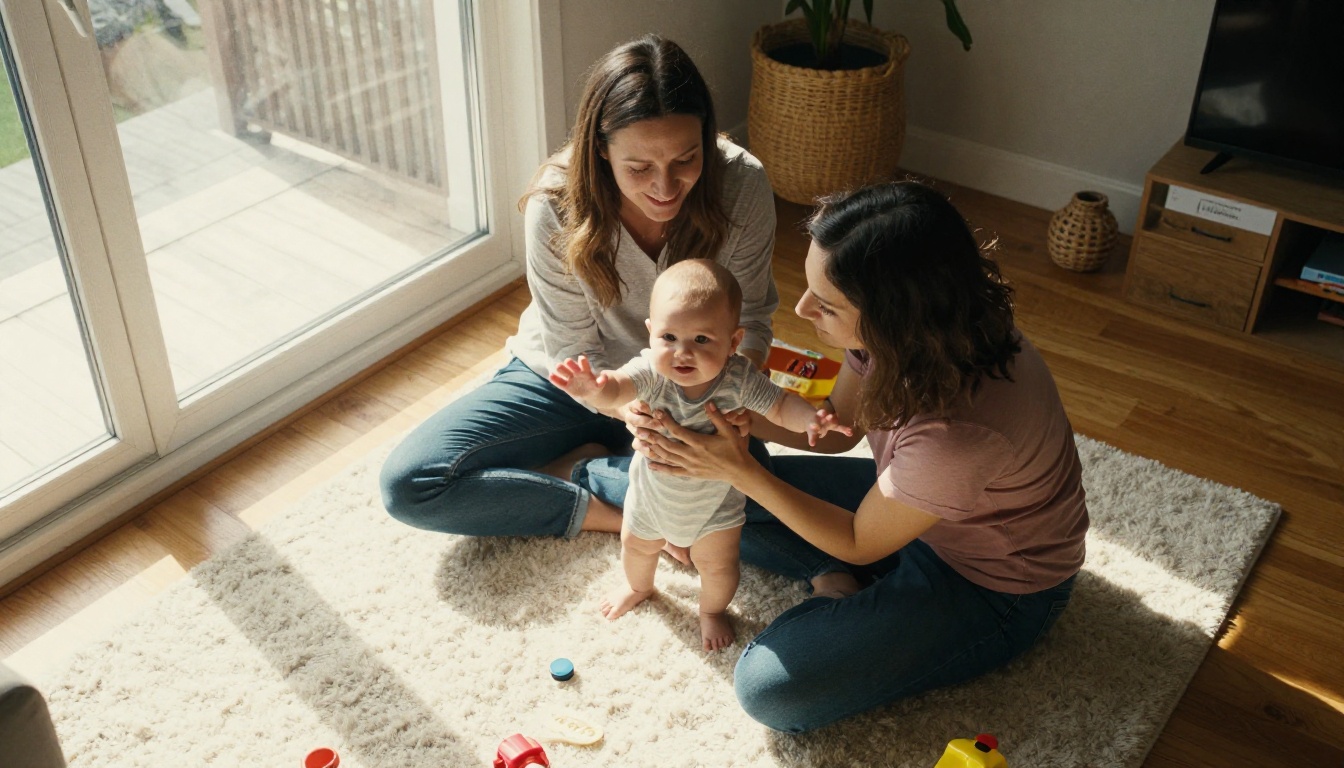
Open Image Editor Pro on Picasso IA, drop in your two photos, paste the prompt from this article and press generate. Try a newborn, then a toddler, then a school age kid. Share the results with your partner and see who guesses the features right.
And if you want your baby portrait to move, Picasso IA also offers image to video models such as Kling v3. Browse everything else on the all models page and keep experimenting. Whatever your baby ends up looking like, the guessing is half the fun.


