Why Your AI Art Looks Too Plastic (And What to Do About It)
AI art often comes out looking smooth, waxy, and completely fake. This article breaks down the exact reasons behind that plasticky look, from bad prompts and wrong model choices to missing texture vocabulary and upscaling gaps. You will find practical, copy-paste fixes for prompt engineering, model selection, lighting descriptions, and post-processing that genuinely move images out of plastic territory and into photorealism.
You spent an hour writing the perfect prompt. The model ran. The image came back. And it looks like it was made from melted plastic.
This is one of the most common frustrations in AI image generation, and it happens for very specific, fixable reasons. The "plastic look" is not random. It is the result of specific missing information in your prompt, wrong model settings, and the absence of the visual cues that make photography look real.
This article covers the real causes and the real solutions, with copy-paste prompt additions you can use immediately.
What "Plastic" Actually Means
The three signatures of synthetic-looking AI art
When AI art looks plastic, it usually shows three tell-tale signs:
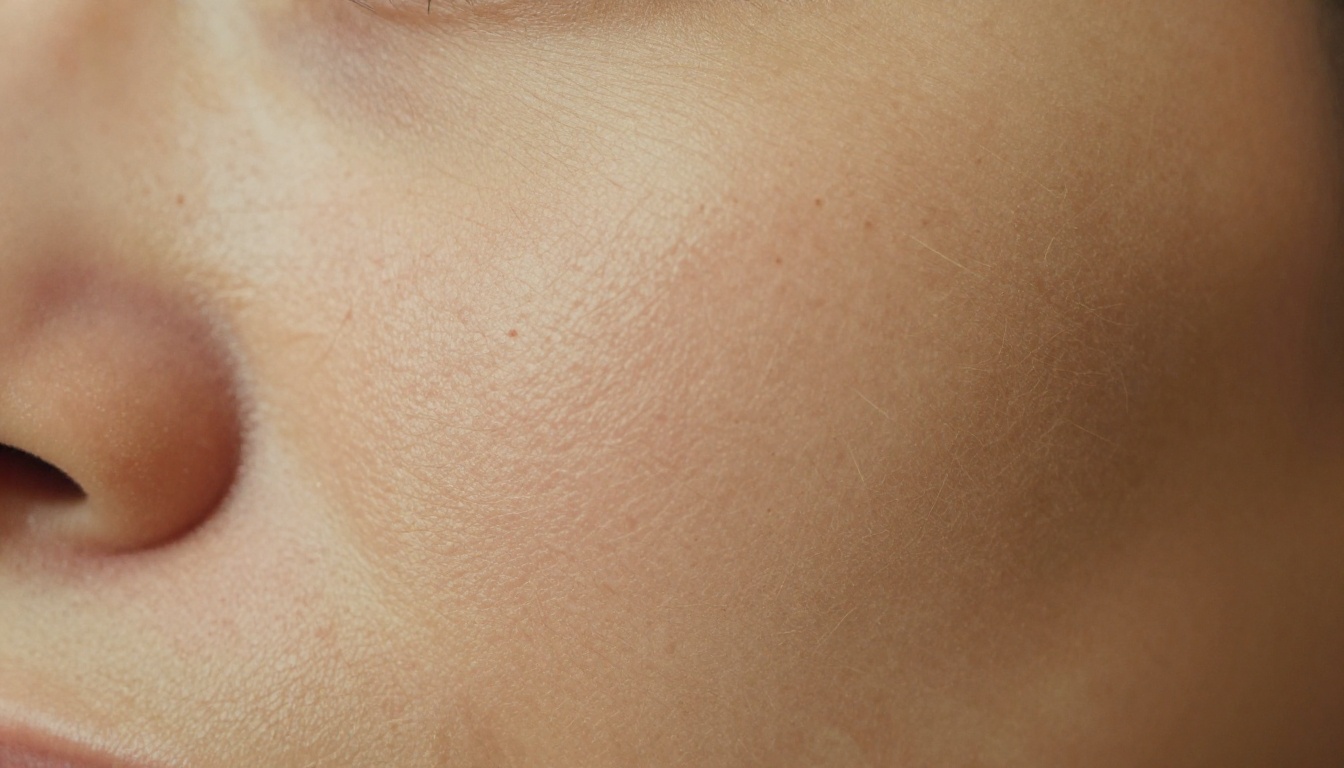
Perfectly smooth skin with zero pore detail - like a mannequin painted skin-color
Uniform lighting with no environmental variation - every surface receives the same flat brightness
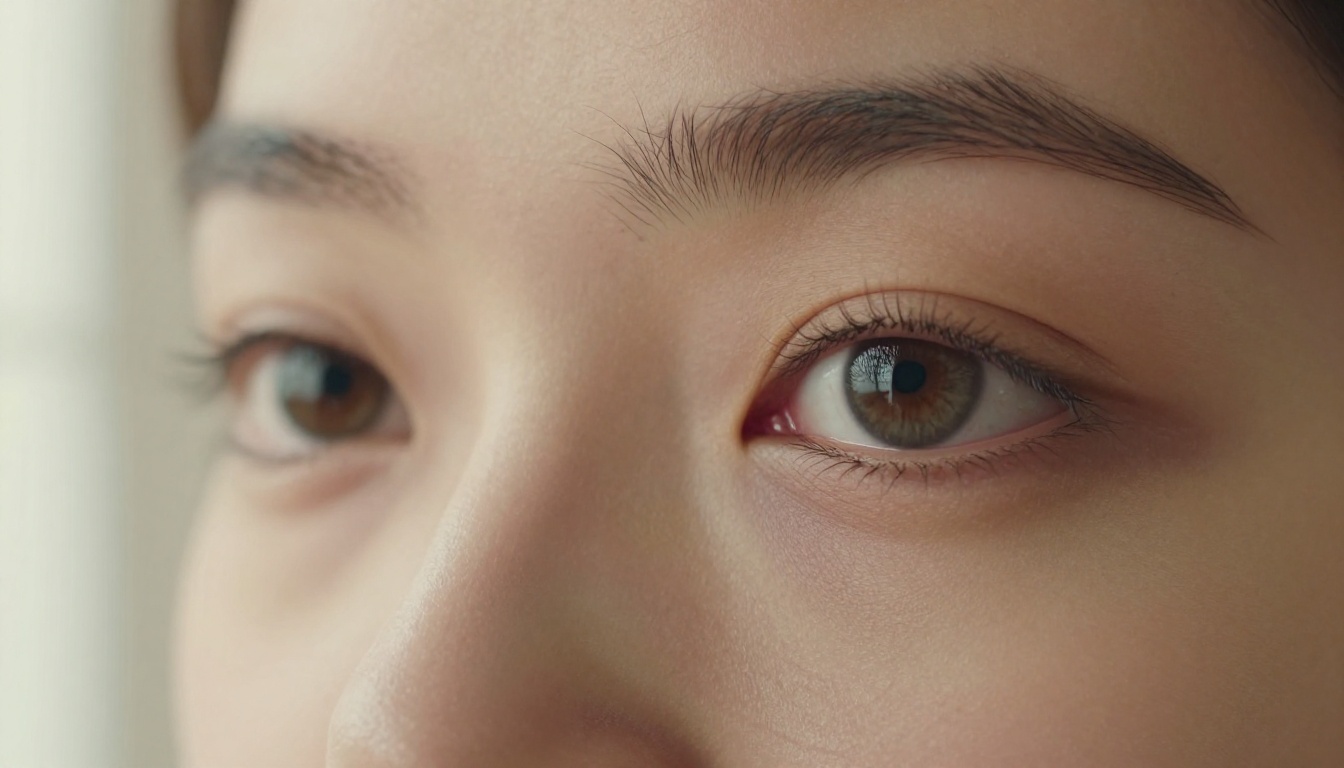
Eyes that reflect light in impossible ways - symmetrical, geometrically perfect catchlights
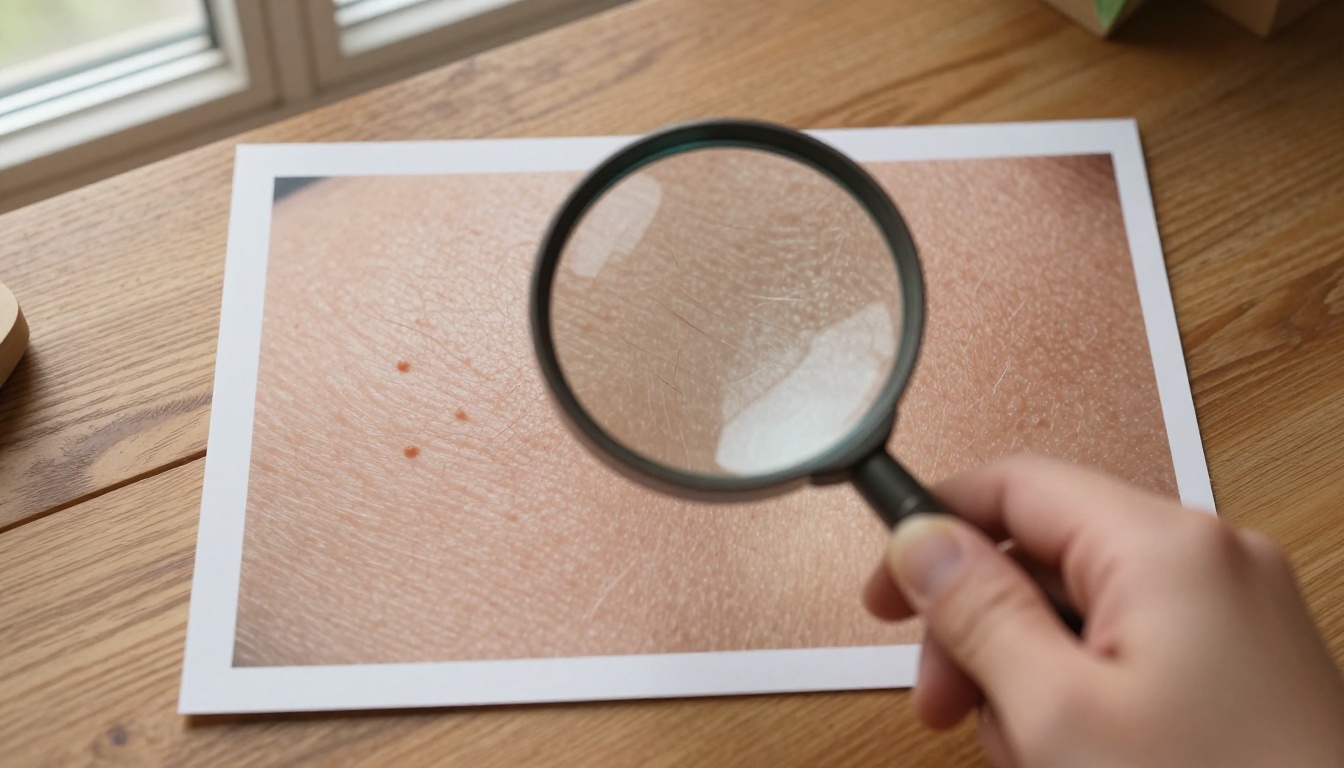
Real human skin is not smooth. It has pores, fine hair, capillary flush, micro-texture variation, and color inconsistency. Real photography captures these things because cameras record what is physically there. AI models that are not guided correctly will default to an idealized, over-smoothed version of reality.
💡 The plasticky look is a default, not a flaw. AI models optimize for "pleasing" output unless you specifically push them toward realism. You have to ask for imperfection.
Why It Happens: The Root Causes
Training data skewed toward "beautiful"
Most image generation models are trained on datasets that include a disproportionate number of professionally retouched photos, rendered 3D art, and idealized portraits. The model learned that "good portrait" means smooth, symmetrical, and evenly lit because that is what the majority of its training images look like.
When you type "portrait of a woman," the model reaches into its training data and averages across thousands of retouched magazine shots. The result is predictable: flawless, waxy, and completely unconvincing.
The model cannot read lighting physics
AI models simulate the appearance of lighting, not the physics. They do not calculate how volumetric morning light from the left would interact with the texture of skin and cast micro-shadows in pores. Unless you describe the lighting with extreme specificity, the model will generate something that looks like a lit subject without the organic complexity of real light interaction.
Missing texture vocabulary in your prompt
Here is the biggest mistake most people make: they describe the subject but not the surface. Saying "a woman in a park" gives the model almost nothing to work with in terms of texture. The model fills in the blanks with its defaults, which means smooth everything.
💡 Think like a cinematographer, not a novelist. Describe what the camera captures, not what the scene means. Surface, light source, lens, grain, material.
Fix 1: Rewrite Your Texture Language
What to add to every portrait prompt
These are the specific phrases that pull images away from plastic territory:
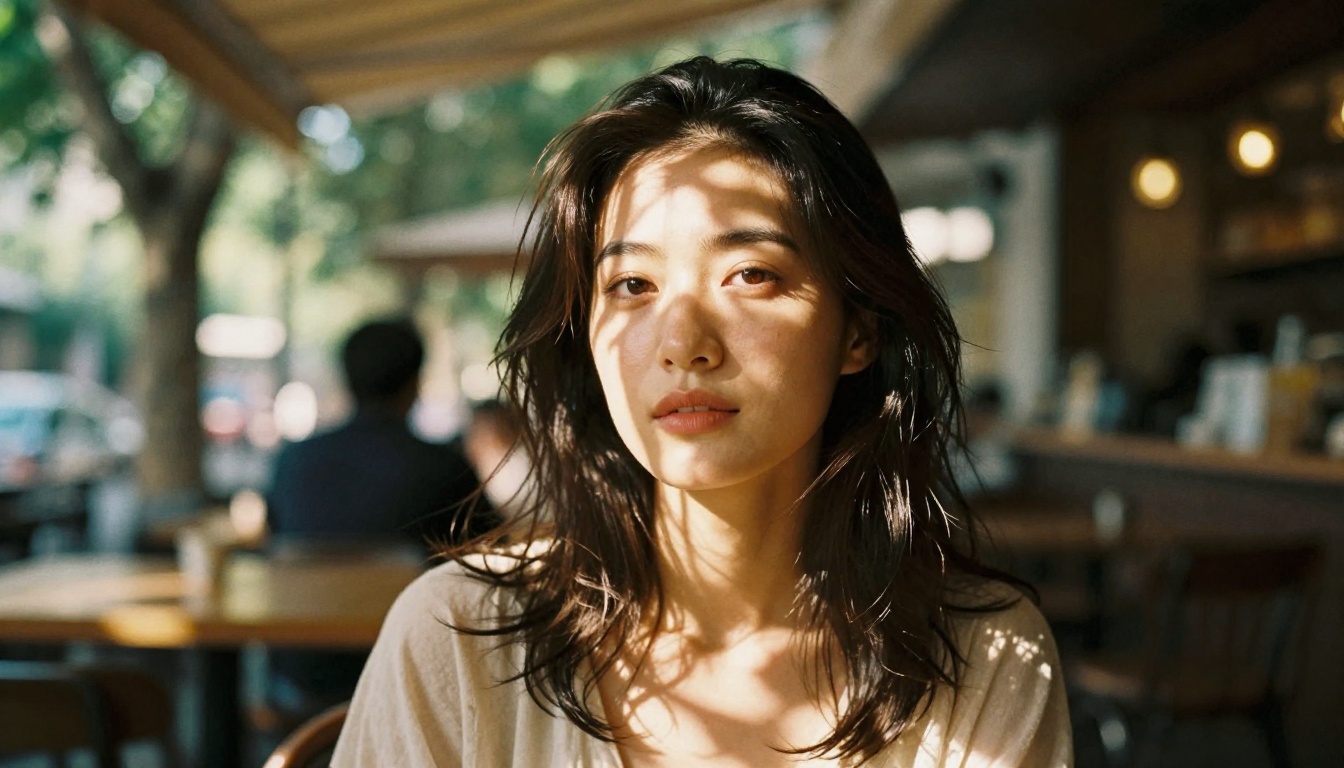
film grain, Kodak Portra 400, Fuji 400H, analog texture
RAW photography, no digital enhancement, natural color grading
85mm f/1.8, shallow depth of field, background bokeh
Lighting specificity:
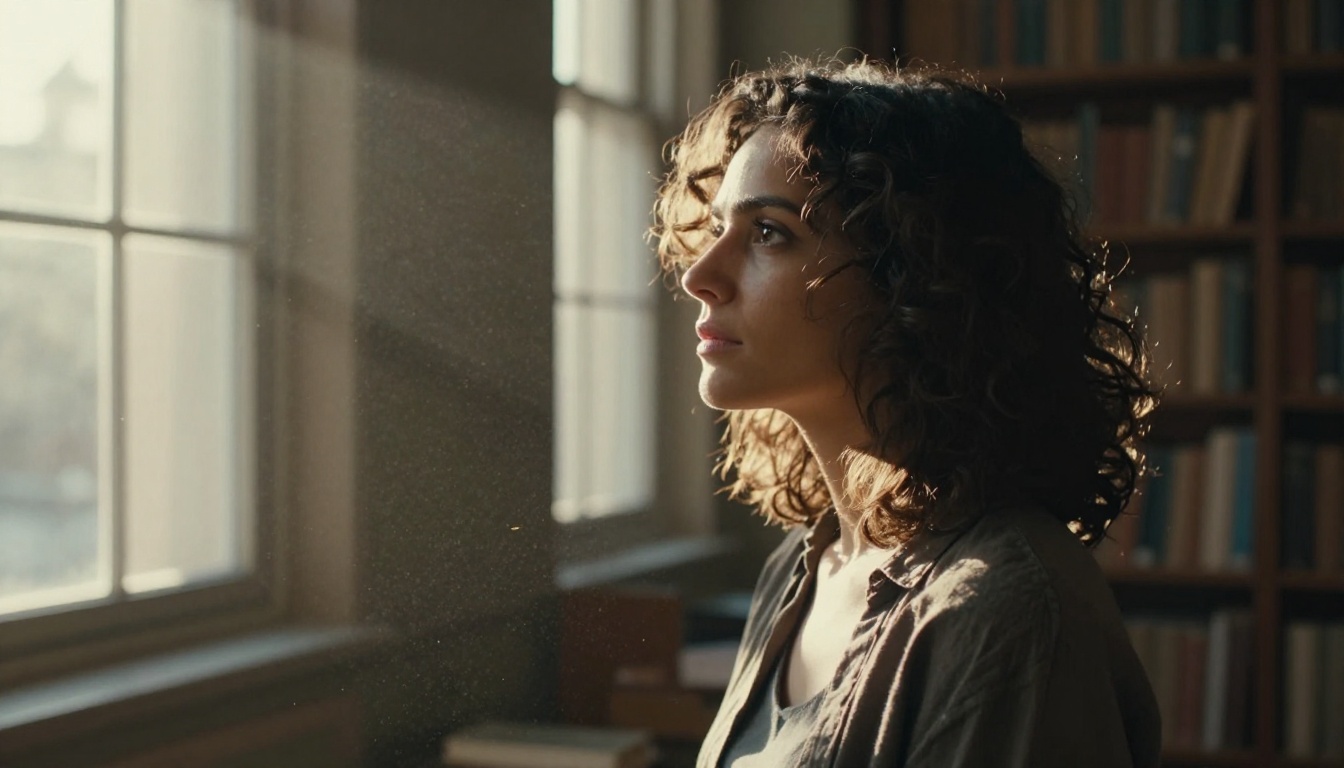
volumetric morning light from the left
warm sidelight at 45 degrees, Rembrandt lighting
soft diffused window light, natural ambient fill
Here is a quick comparison that shows the impact:
Version
Sample Prompt
Result
Bad (plastic)
"Portrait of a woman, photorealistic, 8K"
Smooth, waxy, retouched-looking
Better
"Portrait of a woman, natural skin texture, film grain"
Improved but still generic
Best
"Portrait of a woman, visible pores, vellus hair, Kodak Portra 400 grain, 85mm f/1.4, volumetric sidelight from left, subsurface scattering, natural color variation in skin, RAW photography"
Genuinely photorealistic
Fix 2: Choose the Right Model
Not all models handle realism the same way
Different text-to-image models have different strengths. Some are optimized for artistic output and stylized imagery. Others are built with photorealism as the primary goal. Using a stylized model and then fighting it with prompts is a losing battle.
For photorealistic results, you want models that have been trained on real photography and that reward texture-heavy prompts.
On PicassoIA, several models stand out for this:
GPT Image 2 by OpenAI responds exceptionally well to detailed photographic prompts and consistently produces high-fidelity skin and environmental texture.
Seedream 4.5 by ByteDance produces sharp 4K images with strong detail preservation, particularly effective for portrait work with fine texture rendering.
Wan 2.7 Image Pro by Wan Video handles complex lighting scenarios and delivers rich texture in 4K resolution, making it a strong choice for cinematic realism.
Hunyuan Image 2.1 by Tencent excels at generating detailed scenes with authentic lighting physics and is particularly effective at avoiding the over-smoothed look.
💡 Model matching matters more than prompt length. Ten extra words in your prompt will not compensate for choosing a model that was not trained for photorealism.
What to look for when picking a model
Output type: Look for models that consistently return images with visible pore-level detail in sample outputs
Training bias: Some models lean toward anime or illustration styles even when prompted for realism
Resolution ceiling: Higher native resolution means more detail is rendered before upscaling is needed
Fix 3: Nail the Lighting Description
Why lighting kills or saves realism
Lighting is the single biggest factor in whether an image reads as photographic or synthetic. The plastic look almost always involves flat, sourceless illumination that wraps evenly around everything with no directionality.
Real lighting has:
A clear direction (left, right, above, behind)
A color temperature (warm golden hour, cool overcast, mixed artificial)
Environmental interaction (bounced light from surfaces, shadow fill from walls)
Falloff (faces closer to the source are brighter, further areas go darker)
Lighting prompt formulas that work
Here are exact phrases you can copy into any prompt:
volumetric morning light from the left, warm amber color temperature, soft shadow fill from white wall on right, natural falloff across the subject
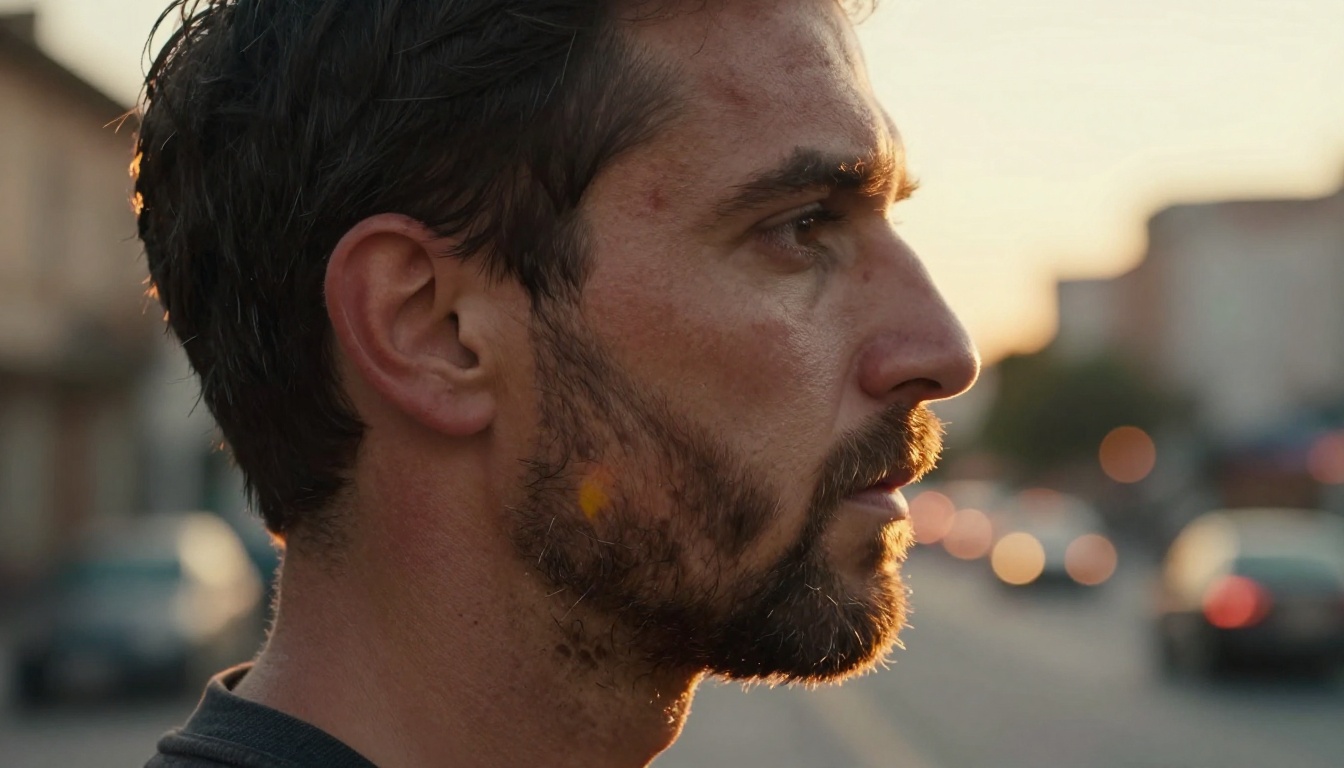
golden hour backlight creating rim lighting on hair and shoulders, warm orange and terracotta palette, long foreground shadows
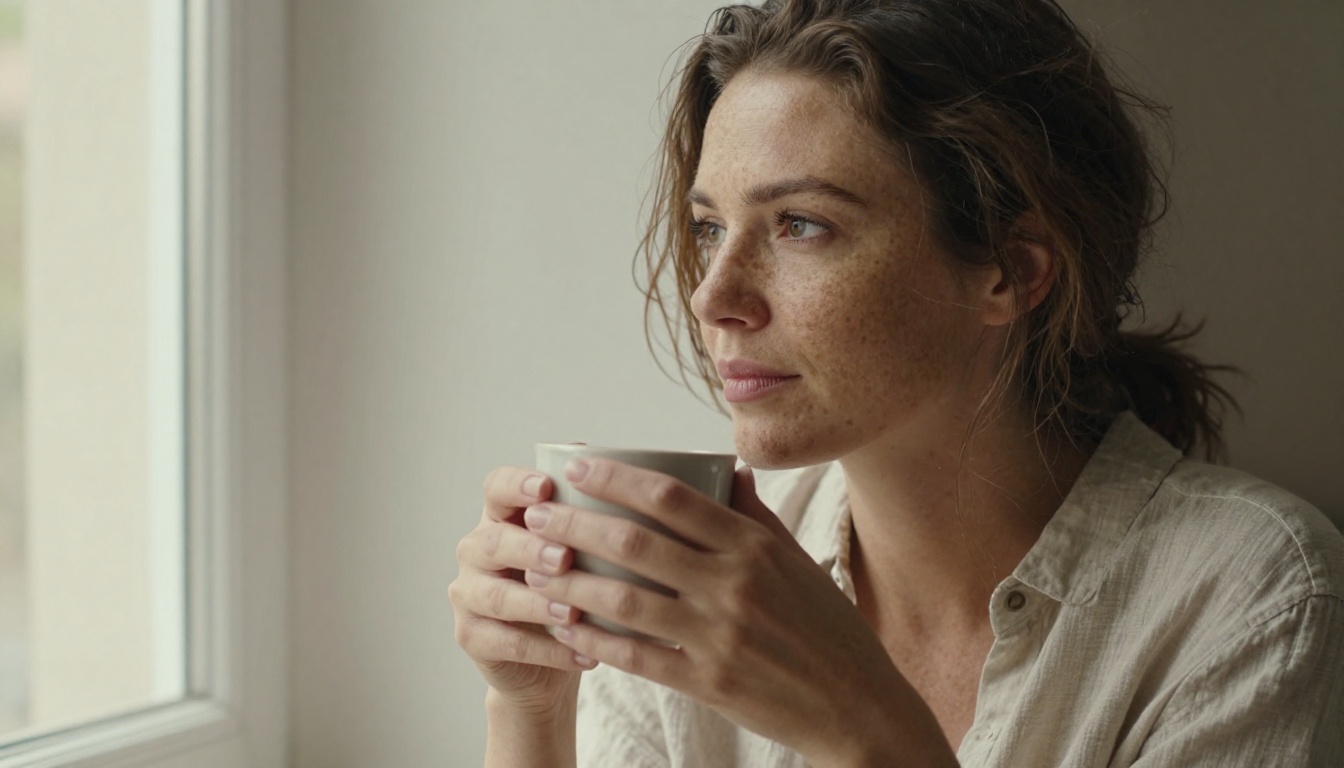
overcast diffused daylight through a large window, even soft shadowless illumination, cool neutral color temperature, muted tones
Rembrandt lighting, single tungsten lamp from upper left at 45 degrees, deep natural shadows on the right side, warm amber practical light
Fix 4: Add Imperfection Deliberately
The paradox of realism
Here is something counterintuitive: to make AI art look more real, you have to tell the model to make it worse. Not badly composed or technically flawed, but imperfect in the way real things are.
Real photographs have:
Film grain or sensor noise
Slight motion blur in hair or soft fabrics
Depth-of-field falloff that means not everything is sharp
Slight color cast from environmental light
Lens flare or chromatic aberration in strong lighting conditions
Asymmetrical features on human faces
The imperfection list for any photorealistic prompt:
film grain or analog grain texture
slight natural asymmetry
shallow depth of field, background out of focus
natural color cast from ambient light
candid, natural expression, unposed
subtle chromatic aberration at edges
natural color variation in skin
💡 Adding "symmetrical, perfect, flawless" to your prompt will make it worse. These words push the model toward the plastic ideal. Use them only if you actually want that aesthetic.
Fix 5: Use Super-Resolution After Generation
Why generation resolution is not enough
Even the best prompt on the best model will produce an image that benefits from post-processing upscaling. AI upscalers do not just enlarge pixels. The good ones actually add texture detail that makes images look more real at closer inspection.
This is especially true for:
Facial close-ups where pore detail needs to be visible
Fabric and material textures that look blurry at native resolution
Hair strands that become individually defined after upscaling
PicassoIA has a strong lineup of super-resolution tools:
Real ESRGAN by Nightmareai is the industry standard for adding texture and detail while upscaling to 4x. It handles skin and organic textures particularly well.
Crystal Upscaler by Philz1337x is specifically tuned for portrait upscaling, adding facial detail and pore-level texture during the upscale process.
Image Upscale by Topaz Labs pushes images up to 6x while preserving edge integrity and natural grain structure.
Recraft Creative Upscale adds depth and interpretive texture detail during upscaling, which can recover images that look flat at native resolution.
Google Upscaler provides clean, artifact-free 4x enlargement with excellent sharpness retention.
Recommended workflow:
Generate at native resolution with your best prompt
Run through Crystal Upscaler or Real ESRGAN for portraits
Use Topaz Image Upscale for landscapes and complex scenes
Review at 100% zoom before final use
Fix 6: Reference Real Photography Styles
Film stocks and camera lenses as a secret weapon
Professional photographers spent decades developing specific film stocks, camera lenses, and lighting setups that define what "real" looks like in photography. AI models have learned these aesthetics deeply. Referencing them in your prompt gives the model an extremely clear target.
28mm f/2.8 : Wide angle with mild distortion, dramatic perspective
Combining a film stock with a lens reference gives the model two very specific aesthetic targets to match. The result almost always sits much closer to real photography than a generic "photorealistic 8K" prompt.
Fix 7: Use Stronger Models for Detail Recovery
How higher resolution baseline changes everything
The newest generation of text-to-image models has made significant progress on the plastic skin problem. Models like Wan 2.7 Image generate at 2K resolution natively, which means there is more pixel data to represent fine surface detail from the start.
Higher base resolution matters because:
Pore-level detail needs a minimum pixel density to be represented at all
Fine hair strands require sub-pixel precision to look organic
Fabric weave patterns collapse into solid color at low resolution
Stacking models for maximum realism
The most effective workflow combines a strong base model with post-generation upscaling:
Review at 100% zoom, checking skin, hair, and fabric areas for plastic artifacts
Iterate with adjusted prompts for any areas that still look synthetic
💡 One generation is rarely the final image. Professional AI artists iterate 3 to 5 times on a prompt before committing to upscaling. Treat generation as a draft, not a finished product.
The Full Photorealism Checklist
Before you generate your next image, run through this list:
Prompt:
Skin texture terms included (pores, vellus hair, subsurface scattering)
Specific light source with direction and color temperature
Film stock referenced (Kodak Portra, Fuji 400H, etc.)
Camera lens specified (85mm f/1.4, 35mm f/2.0, etc.)
Grain or analog texture mentioned
Imperfection terms included (asymmetry, candid, unposed)
Environment and background described with texture detail
Model:
Selected a photorealism-focused model
Avoided stylized or illustration-biased models
Confirmed model supports your target resolution
Post-processing:
Planned upscale step with Real ESRGAN or Crystal Upscaler
Will review at 100% zoom before final use
Start Generating Photorealistic Images on PicassoIA
If you have been generating images that look waxy or synthetic, the fixes above will change your results immediately. The combination of detailed texture prompts, the right model, and a super-resolution pass covers the three main causes of the plastic look.
Take one of the prompt formulas from this article, drop it into PicassoIA, and see what happens with the right model behind it. The difference between a plastic AI portrait and a genuinely photorealistic one is not luck. It is the right vocabulary, the right model, and knowing where to look for the problems.