AI faces have a tell. You can spot them across a room. Something in the eyes is dead, the skin has a smoothness that no living person has ever had, and the lighting lands on the face in a way that defies physics. The result is a portrait that lands squarely in the uncanny valley: beautiful on the surface, wrong at its core.
This isn't a hardware problem or a model problem in isolation. Most AI face failures come from three places: bad prompts, wrong model selection, and a misunderstanding of what makes a face look human in the first place. Every one of those is fixable.
The Real Problem with AI Faces
Before you fix anything, you need to know what you're actually looking at when a face goes wrong. The flaws aren't random. They follow predictable patterns.
Why Eyes Always Look Wrong
Eyes are the hardest part of any face for an AI to generate correctly. They're the first thing a human brain checks for authenticity, and the first thing to fail under pressure.
The most common issues:
- Asymmetrical pupils that don't match in size or shape
- Missing catchlights, making eyes look flat and lifeless
- Iris texture that looks painted on rather than fibrous
- Sclera too white, with no natural vascular detail
- Eyelash distribution that looks uniform, not biological
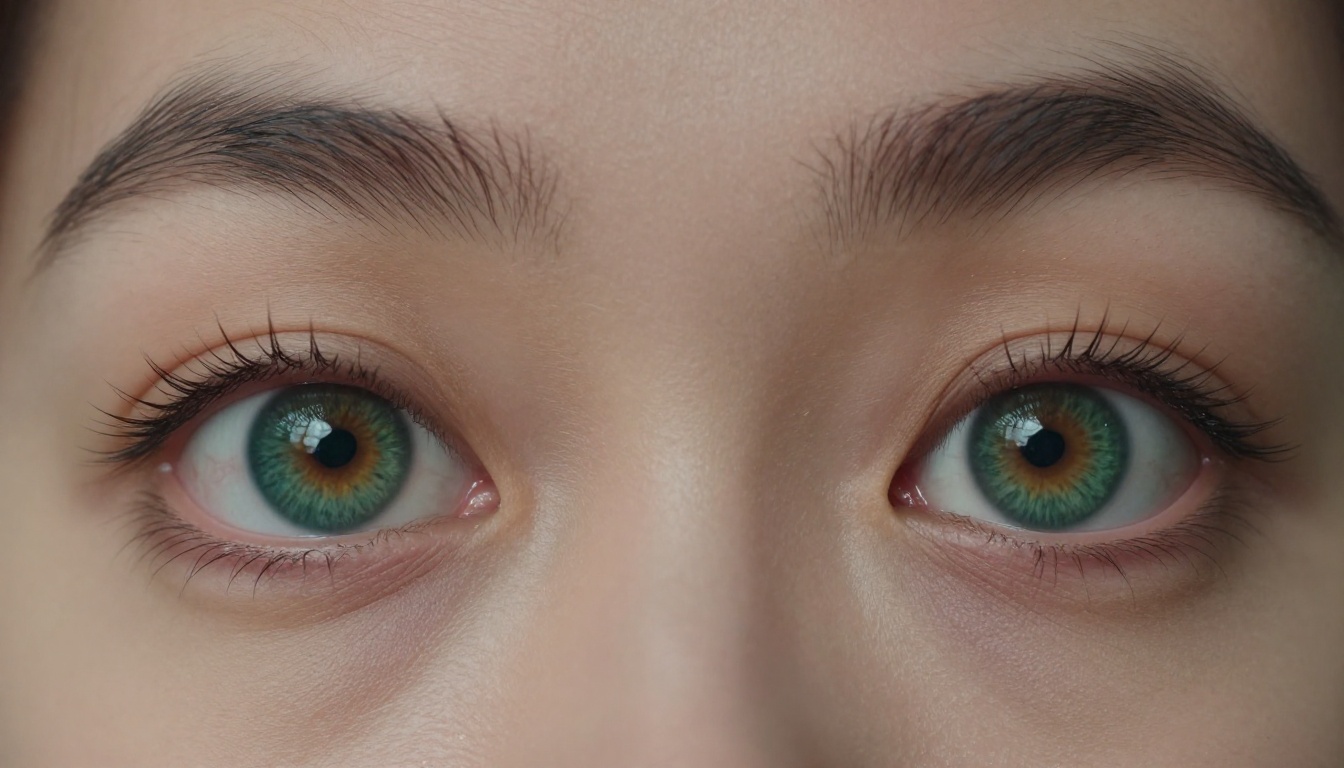
The fix is to describe eyes the way a photographer would. Not "blue eyes" but "deep cobalt iris with visible fibrous radial texture, natural redness at inner corners, single softbox catchlight at 10 o'clock position." The model needs that level of specificity to generate detail that reads as real.
💡 Always describe the light source producing the catchlight. "Catchlight from window at left" gives the model geometry to work with. "Bright eyes" gives it nothing.
The Plastic Skin Problem
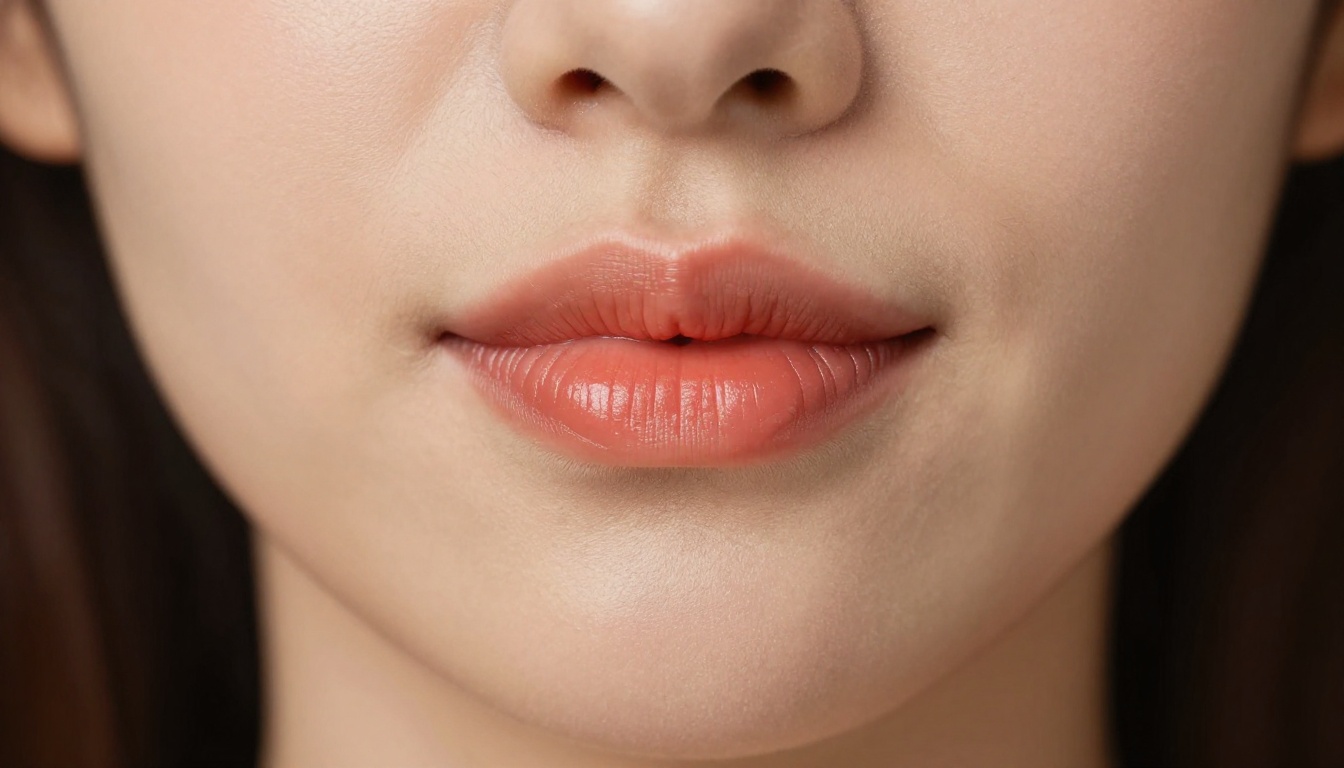
Smooth skin sounds like a compliment. In AI generation, it's a failure mode. Real human skin has:
- Visible pore structure, especially on the nose and forehead
- Subsurface scattering that makes ears and lips slightly translucent
- Micro-hairs on cheeks and forehead
- Natural color variation: redness around the nose, warmth at the cheeks, cooler tones near the temples
- Fine lines, even on young faces
When you don't describe these, the model defaults to smooth, uniform skin that reads immediately as artificial.
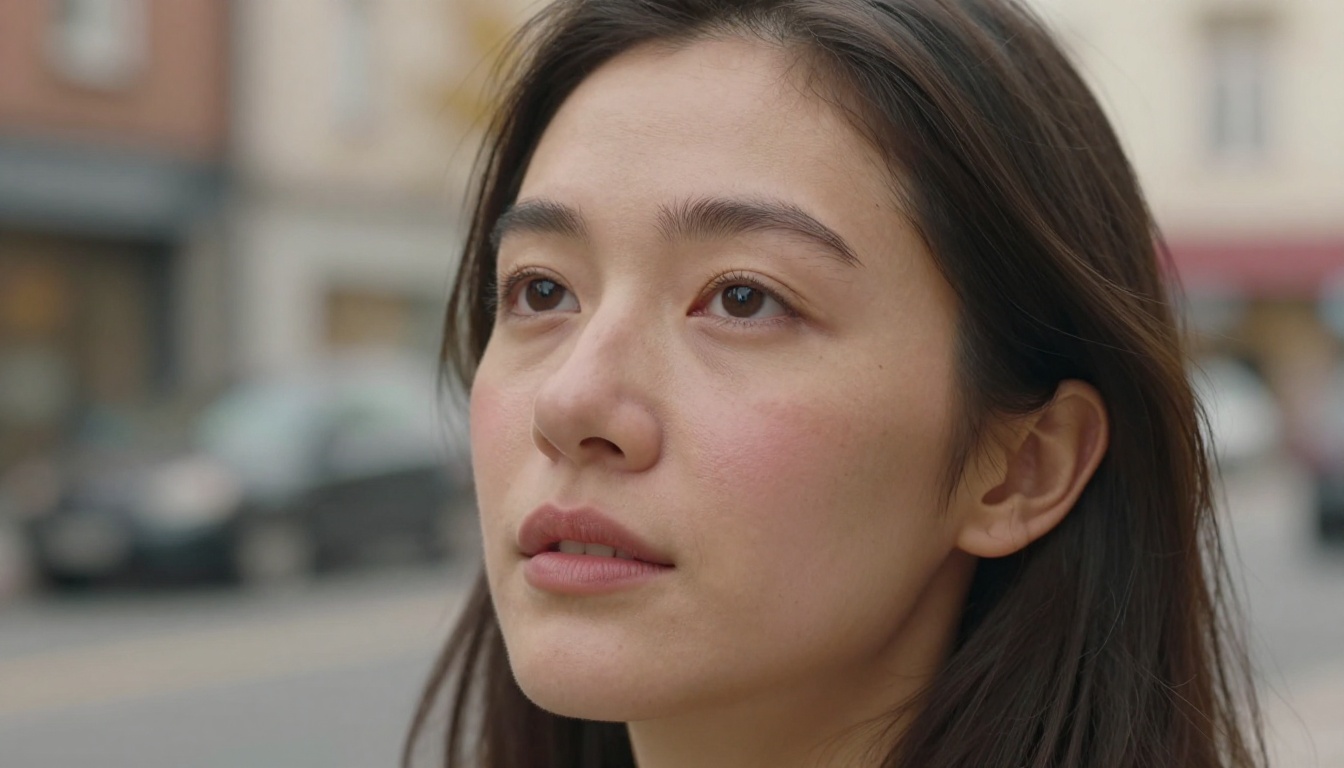
Add "visible pore structure, natural skin subsurface scattering, micro-texture on cheeks" to every portrait prompt you write. It costs nothing and changes everything.
The 5 Biggest Mistakes in Face Prompts
Most bad AI faces trace back to a short list of predictable prompt errors. Here's what they are and how to stop making them.
Vague Descriptions Kill Detail
"Beautiful woman with blue eyes" is not a prompt. It's a starting point for the model to make every decision for you, and AI models are not good at making those decisions by default.
Compare these two approaches:
| Weak Prompt | Strong Prompt |
|---|
| Beautiful woman | Young woman, late 20s, sharp cheekbones, slight asymmetry in left brow |
| Blue eyes | Deep cobalt iris, fibrous texture, visible capillaries in sclera, 1 catchlight |
| Pretty skin | Natural pores on nose, faint freckles, peachy warm undertone, subsurface scattering |
| Nice hair | Dark brown hair, individual strand separation, slight flyaways at crown |
| Outdoor lighting | Late afternoon backlight, warm amber rim light on left shoulder, diffused ambient fill |
Every adjective you remove forces the model to guess. Every specific detail you add is a constraint that pushes the output toward realism.
Wrong Camera Lens Choices
Lens choice determines face shape. A 24mm lens used close to a face creates barrel distortion that stretches the nose and compresses the ears. A 50mm lens produces a flat, natural perspective. An 85mm or 135mm lens compresses the scene and produces the flattering proportions associated with portrait photography.
If your AI faces look like they have wide noses, distorted foreheads, or oddly shaped ears, you probably haven't specified a lens at all, and the model has defaulted to something wide.
Specify this in every face prompt:
- "85mm f/1.4 portrait lens" for flattering classic portraits
- "100mm f/2.8 macro" for extreme face close-ups
- "50mm f/1.8" for environmental portraits with natural perspective
Ignoring Lighting Direction
The human brain reads faces by their shadows. When light comes from a direction that makes no physical sense, the brain flags it immediately.
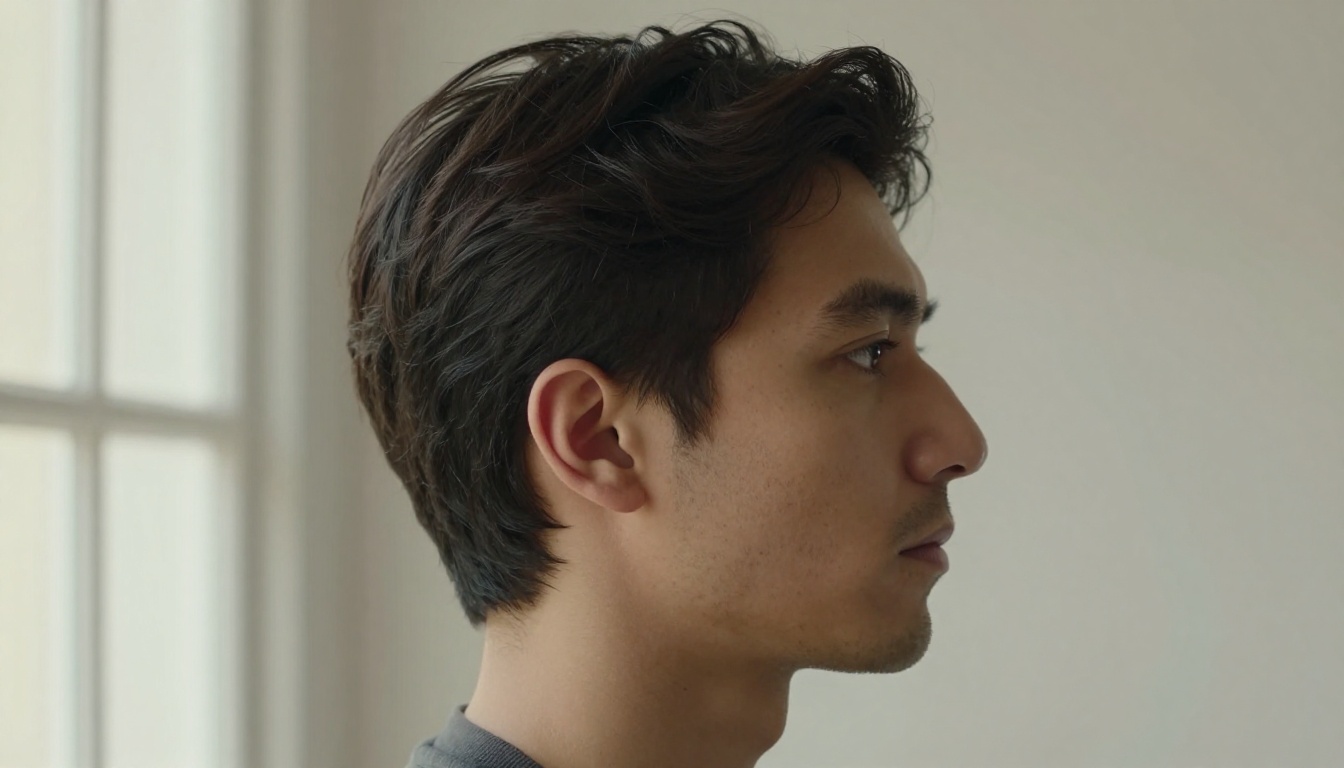
Every portrait prompt needs a lighting setup. Name the direction, the quality, and the source:
- "Soft morning light from the left, Rembrandt triangle on right cheek"
- "Overcast diffused light, no shadows, even skin illumination"
- "Single hard strobe at camera left, deep shadow on right side of face"
- "Golden hour backlight from behind, warm rim on hair and shoulders"
Ambiguous lighting produces flat faces. Specific lighting produces dimensional faces that look photographed, not generated.
Missing Depth of Field Data
Depth of field is what separates a subject from their background. Without it, faces look pasted onto scenes rather than existing within them.
Always include aperture in your prompts. "f/1.4 depth of field" or "f/2.8 shallow focus with background bokeh" tells the model how much of the scene should be sharp. This single addition changes how a face sits in space.
💡 The Depth of Field tool on PicassoIA can add natural background blur to any existing portrait if you've already generated the face and want to fix the background separately.
Confusing Style with Subject
"Cinematic" and "photorealistic" are not the same thing, but many people use them interchangeably. Cinematic implies color grading, specific contrast ratios, and sometimes stylization that pushes away from photography. Photorealistic means the image should pass as a photograph.
For faces that look real, stay grounded in photographic language:
- "RAW photography, Kodak Portra 400 film grain"
- "35mm film, natural color rendering"
- "Canon EOS R5, 8K, unretouched"
Avoid style terms that pull toward fiction: "hyperrealistic rendered", "ultra-detailed 3D", "octane render". These words drag the model toward CGI territory.
How Your Model Choice Matters
Not all models generate faces equally. The model you choose sets a ceiling on the realism you can achieve, regardless of how good your prompt is.
Models Built for Realistic Faces
Some models on PicassoIA are specifically built with photorealism as the priority. If you're generating faces and quality matters, these are the ones to reach for first.
RealVisXL v3.0 Turbo was built explicitly for photorealistic outputs. Its training data skews toward actual photographs, which means its default behavior produces facial textures and lighting responses closer to real skin than most alternatives.
Qwen Image 2512 is notable specifically for its face handling. The model is built for sharper text and realistic faces as core capabilities. When eye detail and facial symmetry are priorities, this is a strong first choice.
Flux Krea Dev is described as producing "AI Images Without the AI Look." That framing is specific to this problem: the tell-tale artificial sheen that most models produce. Flux Krea Dev was fine-tuned to avoid it.
Flux 2 Dev from Black Forest Labs handles both text and photo reference inputs, which opens up face generation workflows where you want to work from a reference rather than scratch.
GPT Image 2 produces highly consistent face generations with strong prompt adherence. When you've written a detailed face description and you want the model to follow it precisely, GPT Image 2 has better instruction-following than most diffusion models.
When to Use ControlNet
ControlNet changes the equation entirely when you have specific structural requirements for a face. Instead of hoping the model produces the right pose or facial angle, ControlNet lets you define the skeleton of the face first, then generate over it.
The RealVisXL v3 Multi ControlNet LoRA on PicassoIA combines photorealistic generation with ControlNet's structural control. This combination is particularly useful when:
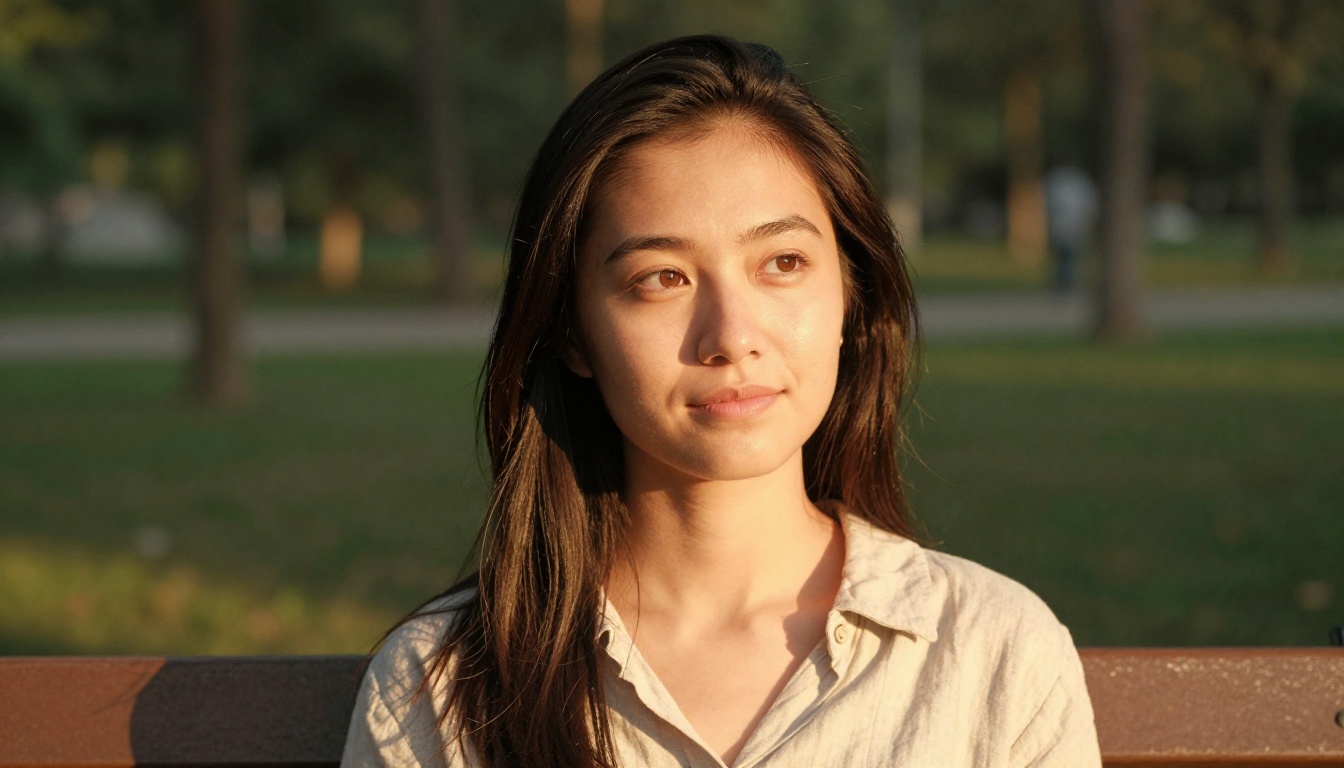
- You need a specific facial angle (profile, three-quarter, upward gaze)
- You're working with a reference image and want structural accuracy
- The model keeps generating faces that look at the camera when you need them looking away
Prompt Anatomy for Perfect Faces
Writing a good face prompt is a skill, not luck. Here's the exact structure to use.
The Skin Texture Formula
Copy this pattern and fill in the specific values:
[Skin tone + undertone] + [pore description] + [micro-texture] + [natural variation] + [subsurface notes]
Example: "Light olive skin, warm golden undertone, visible pore structure on nose and forehead, micro-hairs on cheeks catching sidelight, natural redness around nostrils, subsurface scattering visible at lips and ears"
That single sentence eliminates plastic skin in most models.
Eye Prompts That Actually Work
The formula for realistic eyes:
[Iris color + texture] + [pupil specifics] + [sclera description] + [catchlight] + [lash detail] + [surrounding skin]
Example: "Dark green iris with visible fibrous radial texture, round pupil, slightly visible capillaries in off-white sclera, single catchlight from overhead softbox, individual lashes with natural curl variation, slight natural shadow under lower lash line"
Lighting Descriptions That Stick
The most reliable lighting descriptions for photorealistic faces:
| Light Type | Prompt Language |
|---|
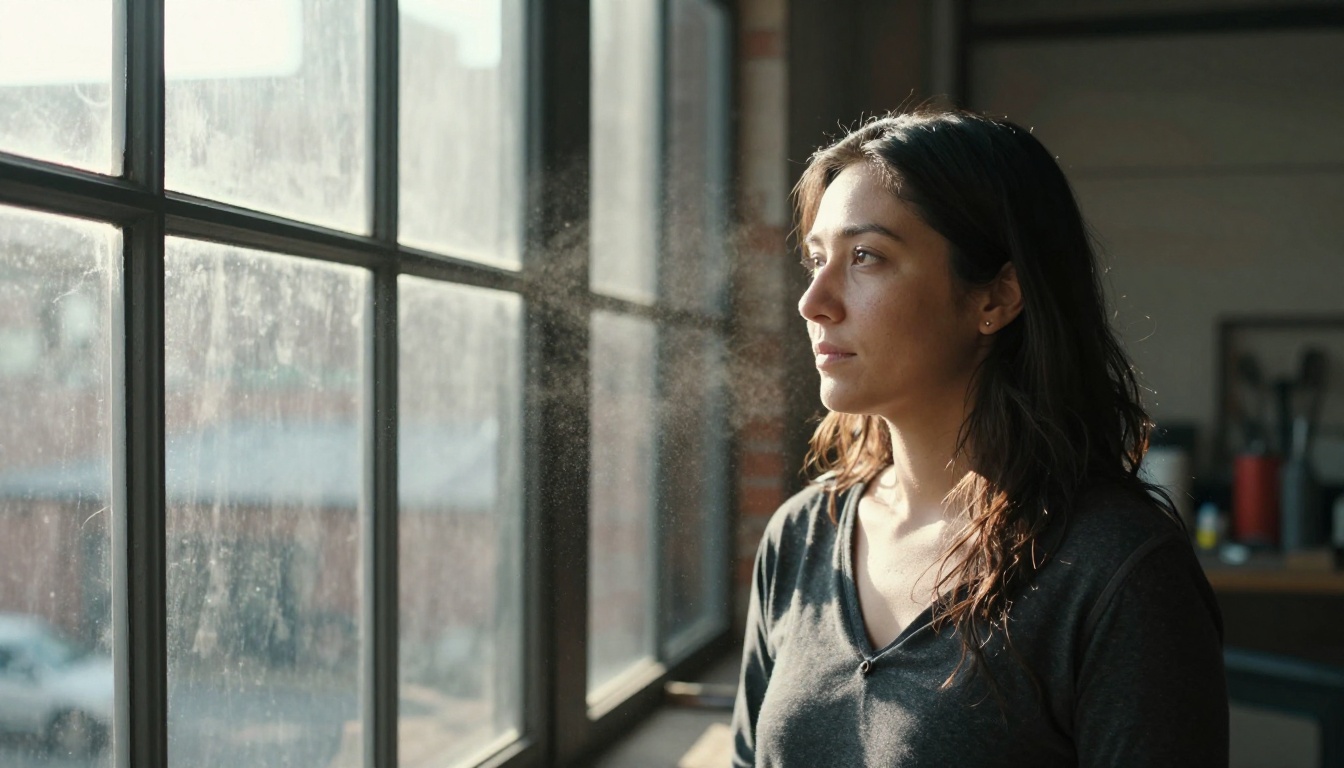
| Window light | "Soft diffused natural light from large north-facing window on left, gentle Rembrandt shadow on right cheek" |
| Golden hour | "Low warm afternoon sun at 15 degrees above horizon from camera right, amber rim light on hair, warm fill from reflector below" |
| Studio | "Main strobe in 4x6 foot softbox at 45 degrees camera left, white reflector fill at camera right, subtle hair light from above" |
| Overcast | "Even cloudy sky diffused light, no directional shadows, slight blue-cool color temperature, soft wrapping light across entire face" |
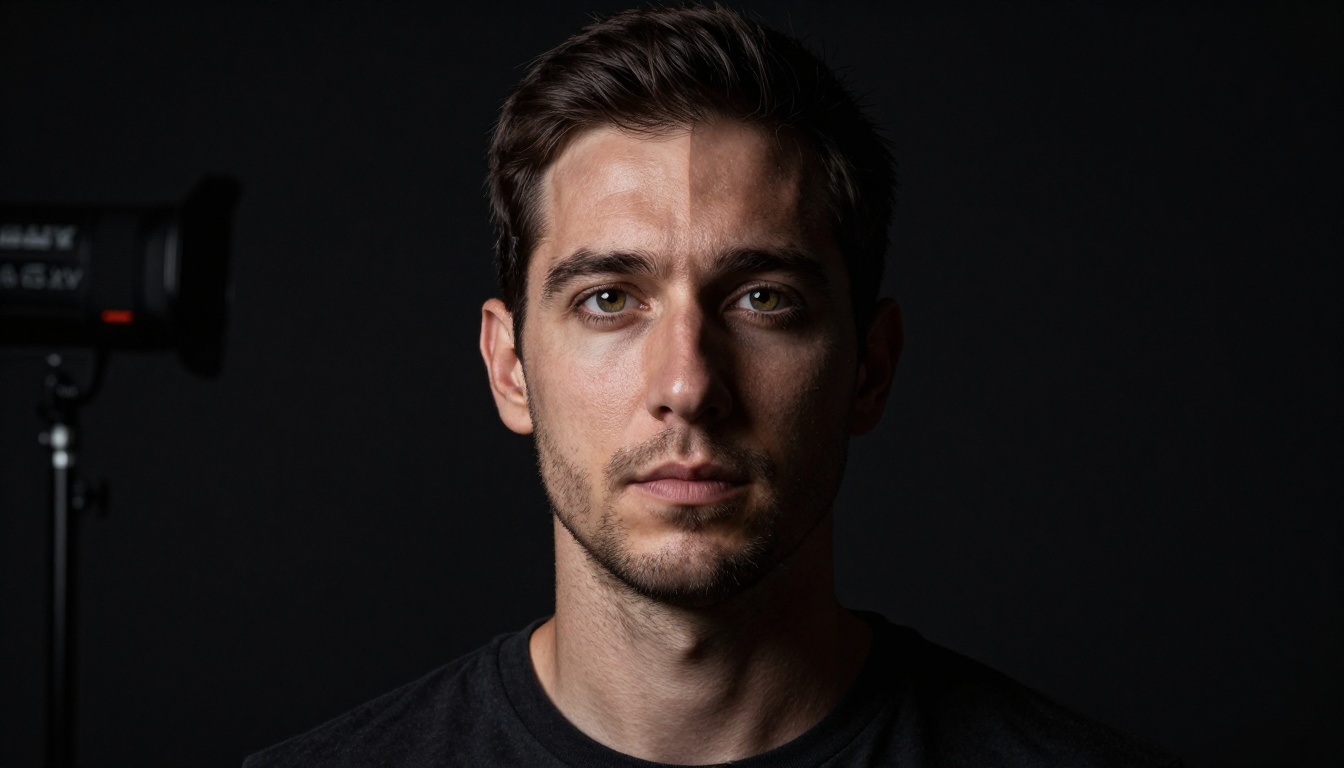
| Dramatic | "Single hard light source at camera left, no fill, deep shadow covering right half of face, rim light catching jawline edge" |
Fixing Broken Faces After Generation
Sometimes you generate a face and it's 90% right, but something is off: one eye is wrong, the skin in a shadow area looks artificial, the nose is slightly asymmetrical. You don't have to start over.
Using Inpainting on Problem Areas
Inpainting lets you select a specific region of an image and regenerate just that part, keeping everything else intact. For face repair, this is the most efficient workflow available.
Flux Fill Pro on PicassoIA is the strongest option for this. You mask the problem area (an eye, a section of skin, the teeth), write a specific prompt for just that region, and regenerate. The model respects the surrounding context and blends the fix naturally.
For good inpainting results on faces: make your mask slightly larger than the problem area. A tight mask creates visible seams. A generous mask gives the model enough context to blend correctly.
💡 Flux Fill Dev is the free alternative with slightly lower quality but the same workflow. For quick fixes on faces that are nearly right, it's often sufficient.
Super-Resolution for Skin Detail
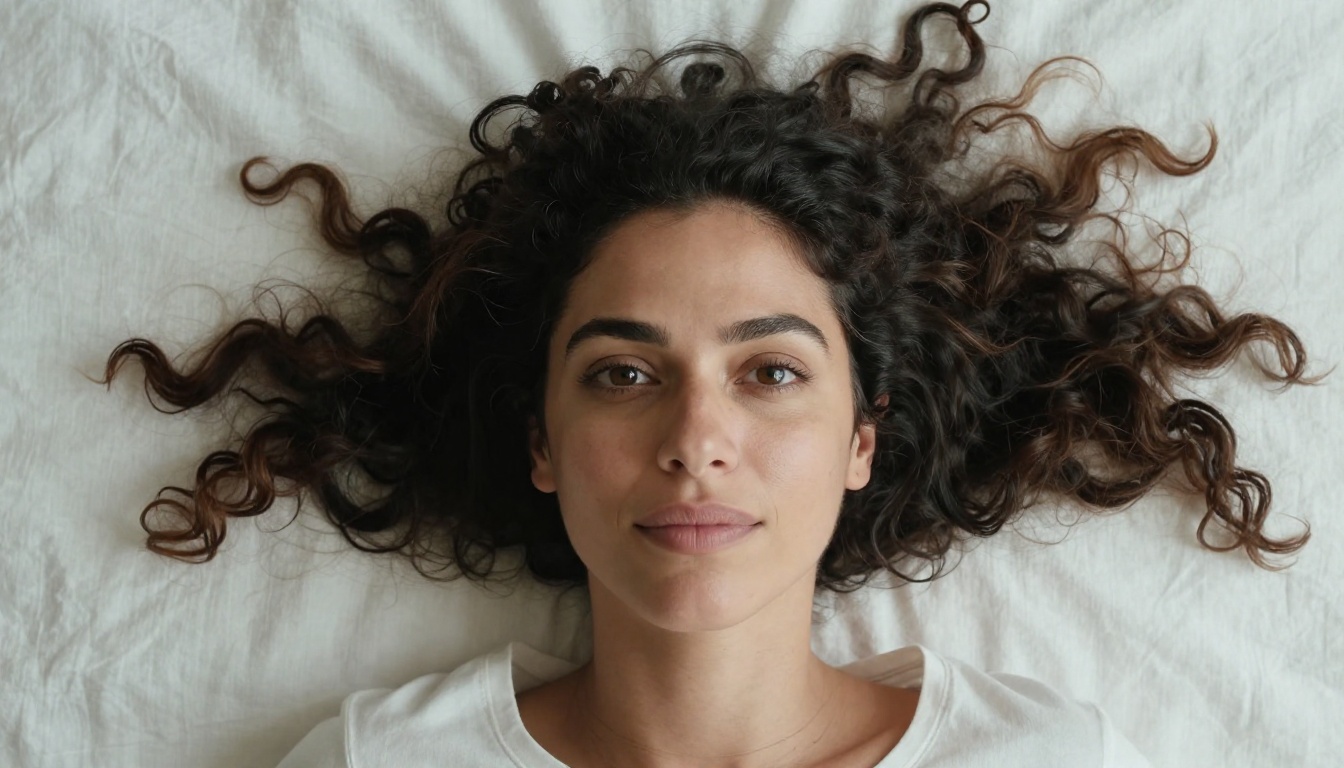
Low-resolution face generations lose skin detail. The texture that reads as realistic disappears into pixel blur, and what's left is smooth, artificial-looking skin. Upscaling with AI super-resolution doesn't just enlarge the image: it can hallucinate plausible skin detail that wasn't visible at the original resolution.
PicassoIA's super-resolution tools can take a 512px face generation and produce a 2048px output with added skin texture, pore structure, and fine hair detail. This alone can turn a "good but not quite real" face into something that passes close inspection.
Real vs. Fake: The Checklist
Before you finalize a face generation, run it through this list:
Eyes:
Skin:
Lighting:
Anatomy:
If any item fails, you know exactly what to fix. Broken faces aren't mysterious. They fail predictably, which means they're correctable predictably.
Start Generating Faces That Actually Work
The gap between an AI face that looks wrong and one that looks real is almost entirely a craft gap. Better prompts, better model selection, and a clear-eyed evaluation of what's failing in the output. None of this requires expensive hardware or secret knowledge. It requires specificity.
PicassoIA puts all of this within reach. From Flux Kontext Dev for editing and refining existing faces, to Flux 1.1 Pro Ultra Finetuned for maximum resolution portraits, to Face to Many Kontext when you want to explore creative directions from a base portrait.
The models are there. The inpainting tools are there. The super-resolution pipeline is there. What's missing is just the prompt discipline.
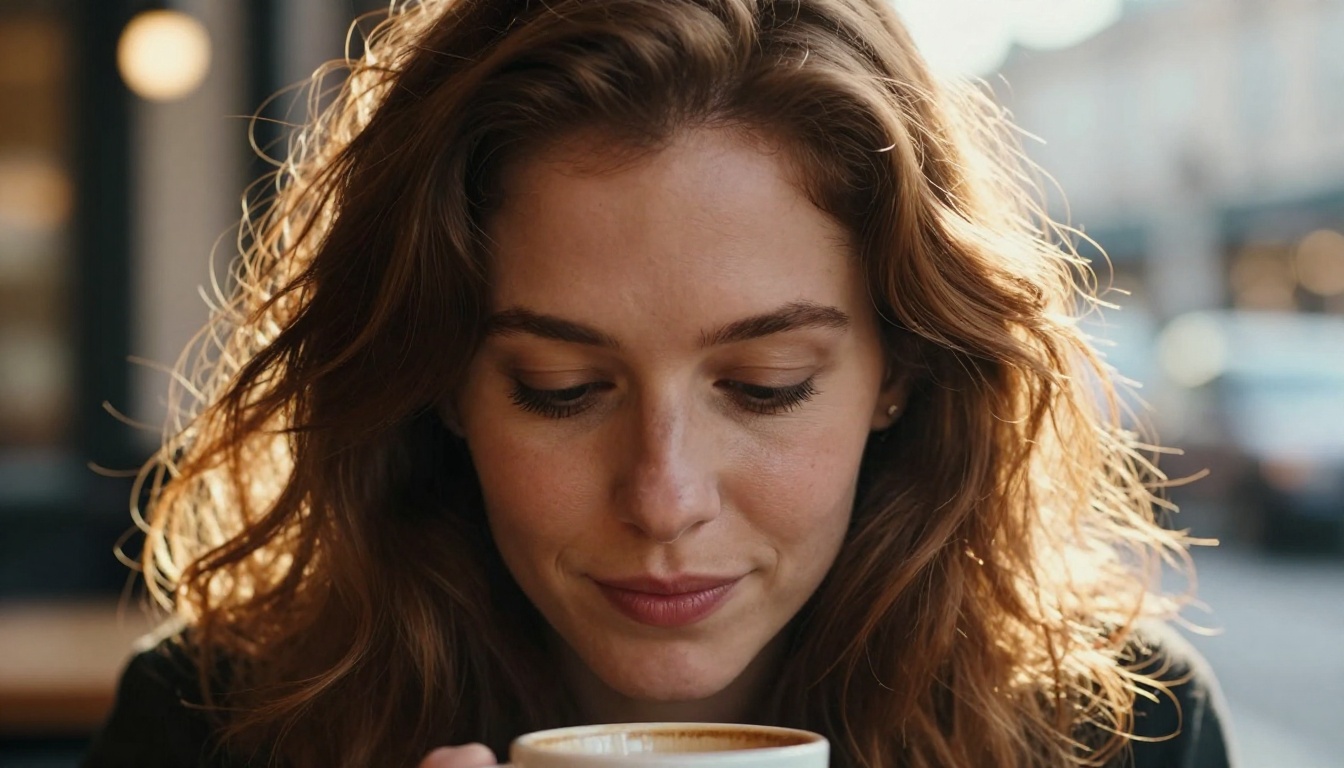
Take one face you've generated recently that didn't quite work. Apply the eye formula, the skin texture formula, and a specific lighting description. Regenerate it. The difference will be immediate.


