The first time you type a sentence and watch a cinematic video appear from nothing, it does something to your brain. That's what Sora 2 delivers: genuine text-to-video that holds camera movement, physics, and scene continuity in a way that earlier models struggled with. And you can produce your first real clip in under 10 minutes, even if you have never touched an AI video tool before.
This walkthrough gives you exactly that. Not theory, not reading: a working video from a working prompt, with notes on what to adjust when your first result is not quite right.

What Sora 2 Actually Does
More than just "video from text"
Most text-to-video models produce something that looks like video. Sora 2 produces something that moves like it. The difference is in how the model handles motion over time. Objects don't slide around as flat sprites. Light shifts as a camera would move. A person walking doesn't stutter. A wave doesn't freeze at the peak.
The technical reason is that Sora 2 was trained on far more diverse video data with an emphasis on temporal coherence: keeping things consistent from frame to frame rather than generating each frame as a nearly-independent image. The result is a model where long takes hold up better, and where you can describe a camera move and actually get it.
Synced audio in Sora 2 Pro
The Sora 2 Pro version adds synced audio, meaning environmental sounds are generated alongside the video. A video of rain on a city street includes the sound of rain. A crowd scene has crowd noise. This is separate from music generation and separate from text-to-speech; it is ambient audio that matches the visual context. For simple projects, the standard Sora 2 is more than enough. For anything you want to share directly without post-production, the Pro tier is worth it.
Before You Write Your First Prompt
What separates weak prompts from strong ones
The biggest beginner mistake with Sora 2 is writing prompts like search queries. "sunset beach" produces a generic beach at sunset. "A wide establishing shot of a deserted tropical beach at golden hour, camera slowly drifting left along the shoreline, warm amber light reflecting on wet sand, gentle waves, no people" produces something that looks like it belongs in a travel documentary.
The model responds to specificity because specificity reduces the space of possible interpretations. Vague prompts leave the model to average across everything it has seen. Specific prompts push it toward a particular visual language.
Three things every strong prompt contains
| Element | Weak Version | Strong Version |
|---|
| Subject | "a person" | "a woman in a red coat, late 30s, dark hair" |
| Environment | "outside" | "standing on a rain-wet cobblestone street in Paris at night" |
| Motion or mood | "walking" | "walking slowly away from camera, checking her phone, soft streetlight behind her" |
You do not need to write a novel. But you do need all three elements to be specific. Drop any one and the output gets blurry in that dimension.

Your First Video: Step by Step
Step 1: Pick a simple scene
Your first prompt should have one subject, one location, and one clear motion. Not two people having a conversation (too many variables for a first run). Not a full narrative sequence. A single scene where something moves in a predictable way.
Good first-run ideas:
- A coffee cup on a rainy windowsill, steam rising, raindrops on glass
- A dog running through tall grass in a sunny field
- A timelapse-style shot of clouds moving over a mountain peak
- A candle flame flickering in a dark room, soft shadows on a stone wall
All of these have a clear subject, a clear environment, and motion that Sora 2 handles well from a physics standpoint.
Step 2: Write the actual prompt
Take the scene you chose and add three layers: camera angle, lighting, and mood. Here is a built-out example from the "coffee cup on a rainy windowsill" idea:
"Close-up shot of a white ceramic coffee mug on a wooden windowsill, steam curling upward in soft spirals, rain streaking the glass behind it in golden afternoon light, shallow depth of field, cozy and quiet mood, camera static, no motion except the steam and rain."
That prompt is 48 words. It covers subject, environment, camera behavior, lighting, and mood. It takes about 30 seconds to write once you have the scene in mind.
Step 3: Choose your settings
On Sora 2, the main settings you will interact with are duration and aspect ratio. For a first run, stick to:
- Duration: 5 seconds. Long enough to see whether the motion works, short enough to iterate quickly if it does not.
- Aspect ratio: 16:9. Standard widescreen, works for almost everything.
- Resolution: Start at the default. You can upscale later with a super-resolution model if needed.
💡 Tip: Resist the urge to generate a 30-second video first. You want to validate the scene and mood before committing to a long generation time.
Step 4: Generate and read the result
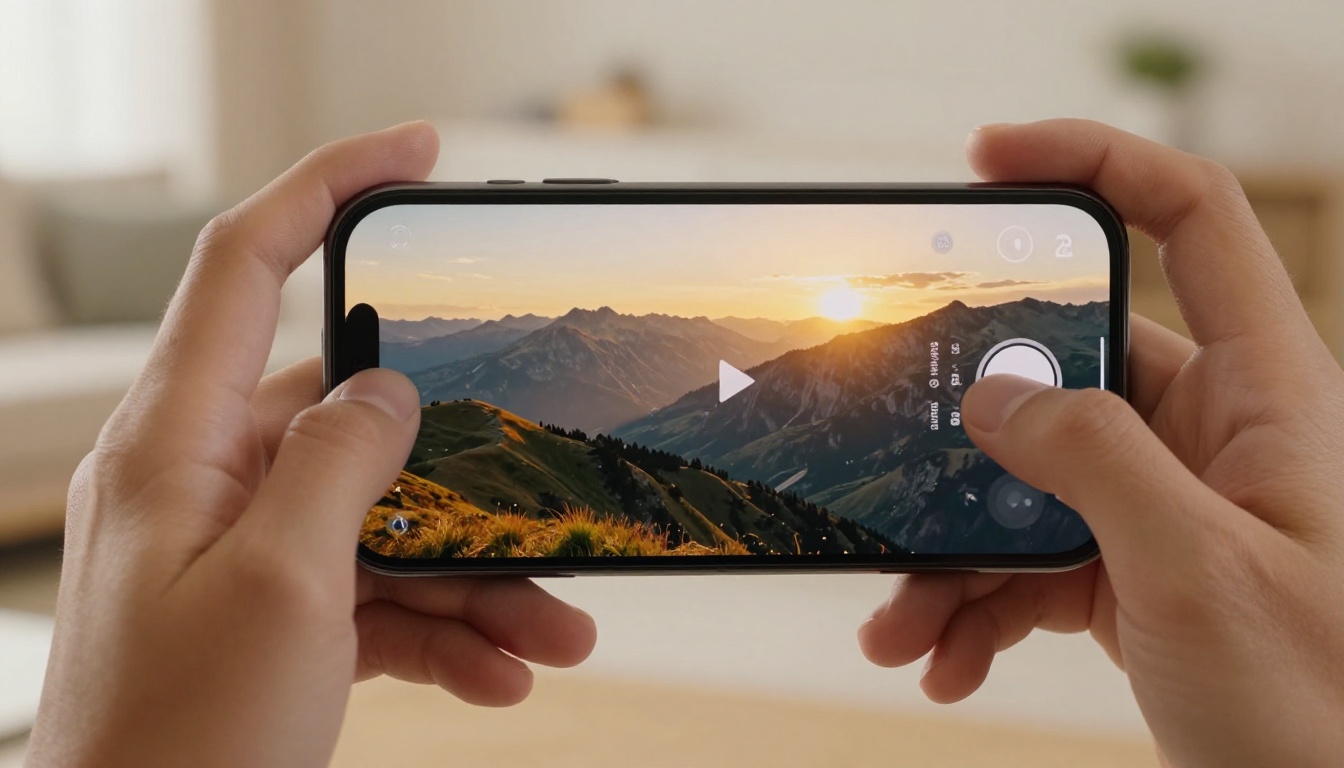
Submit the prompt and watch the output. The first generation takes around 30 to 90 seconds depending on platform load. When it comes back, watch it twice before reacting: once for the overall impression, once for specific details like whether motion holds up at the edges of the frame or whether the lighting shifts unexpectedly.
Reading Your Results
When it works on the first try
A successful first generation usually means your prompt was specific enough to constrain the output and simple enough that the model could hold everything together over the clip duration. If that happens: save the prompt exactly as written, note what made it work, and use it as a template for the next one.
When to iterate
Most first generations are close but not quite right. Here is a practical iteration framework:
| Issue | Fix |
|---|
| Wrong lighting | Add explicit lighting descriptor ("golden hour", "overcast noon", "blue-hour dusk") |
| Subject looks off | Add physical descriptor ("slim build", "wearing a grey jacket", "mid-50s") |
| Motion is too fast | Add "slow motion" or "camera drifts slowly" |
| Too busy | Remove one element from the prompt |
| Camera moves wrong | Specify exactly: "camera remains static" or "slow dolly right" |
The fastest way to improve is to change one thing per iteration. Change the lighting descriptor and regenerate. If that fixes it, you know what the issue was. If you change five things at once, you do not know what mattered.

The "scene + action + mood" structure
This is the most reliable structure for Sora 2:
- Scene: location, time of day, weather or atmosphere
- Action: what moves and how
- Mood: the emotional register, often reflected in lighting and color palette
"A narrow alley in Tokyo at night, a bicycle leaning against a warm-lit convenience store, rain beginning to fall, no people, peaceful and quiet, static camera, soft neon reflections on wet pavement."
That prompt hits all three elements. The scene is specific, the action is minimal and described precisely ("rain beginning to fall"), the mood is explicit ("peaceful and quiet").
Adding camera movement
Sora 2 handles camera movement better than most models, but you have to be explicit. Useful camera descriptors:
- "slow push in on subject"
- "wide establishing shot, camera slowly craning down"
- "handheld-feel, slight motion, following subject"
- "static camera, no movement"
- "aerial shot, slow descent"
If you do not specify, the model makes its own choice. Sometimes that works. When it does not, explicit camera language is the fastest fix.
Subject specificity matters more than you think
A generic "woman walking" generates an averaged composite from thousands of training examples. "A woman in her late 20s, blonde hair in a loose bun, wearing an oversized olive field jacket, walking through a wheat field in late afternoon light, camera follows from behind at distance" generates something with actual visual identity. The more concrete the physical description, the more distinctive and consistent the output.
Sora 2 vs. Other Text-to-Video Models
Before committing to one model, it helps to know where Sora 2 fits in the broader landscape. These are the models most worth knowing:
| Model | Strength | Best For |
|---|
| Sora 2 | Temporal coherence, physics, camera control | Cinematic realism, long takes |
| Sora 2 Pro | Synced ambient audio, HD output | Shareable content, full production |
| Kling v3 Video | Motion control, character animation | Character-driven scenes |
| Veo 3 | Native audio, realistic motion | Scenes needing sound |
| Hailuo 02 | Speed, 1080p output | Fast iteration at high resolution |
| Seedance 2.0 | Audio-video sync, clean motion | Social content with music |
| LTX 2 Pro | 4K output quality | High-res final delivery |
| Wan 2.7 T2V | 1080p resolution, open model | Everyday video generation |
No single model wins across every category. Sora 2 is at the top for cinematic realism and physical plausibility. For speed at high resolution, Hailuo 02 is worth testing. For anything with audio baked in, Veo 3 or Seedance 2.0 are serious alternatives.
How to Use Sora 2 on PicassoIA
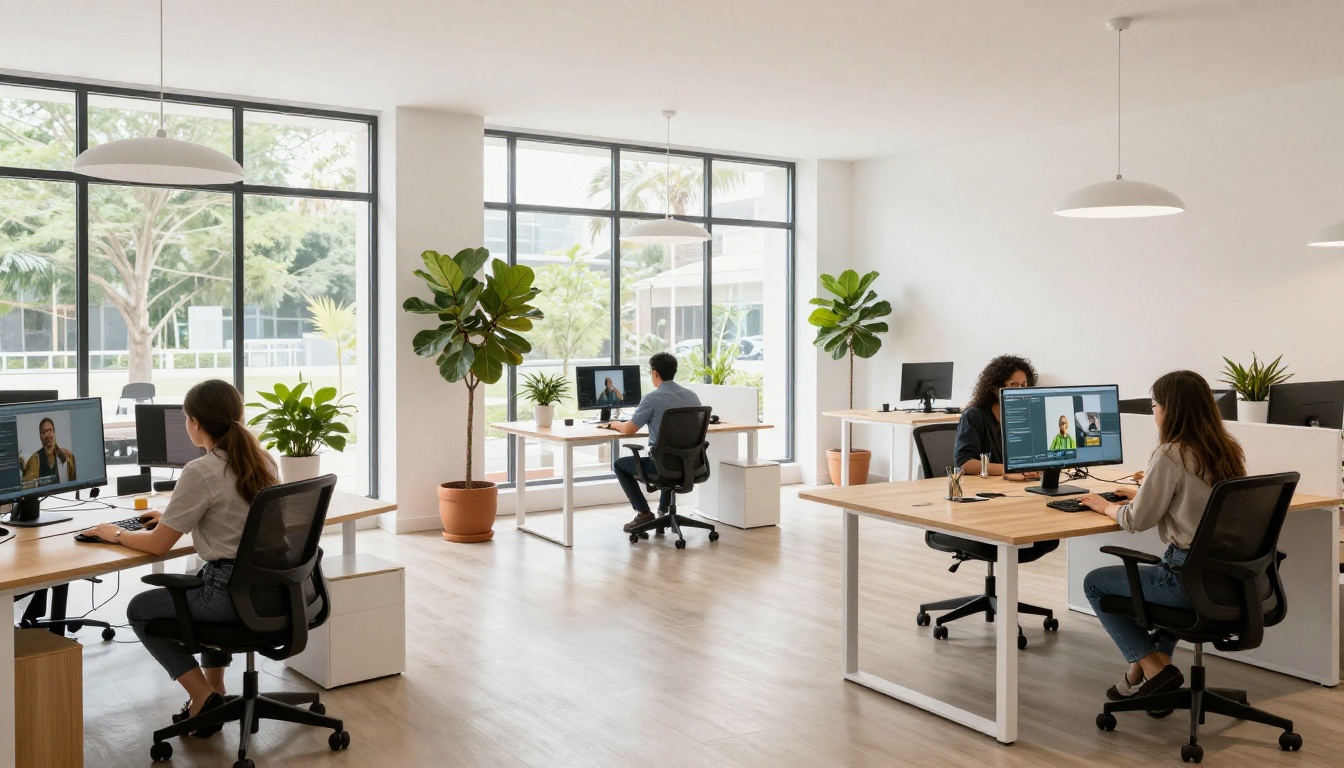
Since Sora 2 is available directly on PicassoIA, you don't need to manage API keys, billing accounts, or separate platform registrations. Here is the exact workflow:
Opening the model
Go to the Sora 2 model page directly. You will see the prompt input field, duration controls, and output settings on a single screen. No configuration required to start.
Writing your prompt in the interface
Paste your prompt into the text field. PicassoIA does not modify or sanitize prompts automatically, so what you type is what gets sent to the model. That means the quality of your output is entirely a function of the quality of your prompt.
If you want to start immediately, use any of the "scene + action + mood" structures from this article. Paste it in and hit generate.
Choosing the right settings
For a first video on PicassoIA with Sora 2:
- Duration: 5 seconds for testing, up to 20 seconds for a final version
- Aspect ratio: 16:9 for most content, 9:16 for vertical social formats
- Quality: Standard for drafts, HD for anything you plan to share
💡 Tip: If you need your output at a higher resolution, run it through a super-resolution model after generation. It is faster than regenerating at 4K from scratch.
What to do with the output
Once your video generates, you have several options on the same platform. If you need audio, add it through a text-to-speech model or an AI music generation model. If the video needs work, video editing tools let you cut, stylize, or refine. If you want to animate a specific character or face, Kling Avatar v2 handles that on the same platform.
The whole production chain, from prompt to finished video with audio, can happen without switching tools.
5 First Videos Worth Trying
If you are staring at the prompt field unsure what to type, here are five prompts you can use right now. Each is designed to work well with Sora 2's strengths in physics and camera control:
1. The quiet room
"A cozy bookshelf-lined study, afternoon sunlight through dusty curtains, dust particles floating in a shaft of warm light, no people, camera static, peaceful and still."
2. The city in rain
"A rain-wet street in a European city at night, headlights reflecting on cobblestones, a red umbrella walking away from camera down the middle of the street, slow camera drift forward."
3. The coffee ritual
"Close-up of hands slowly pouring milk into black coffee in a ceramic mug on a wooden breakfast table, morning light, steam rising, shallow depth of field, static camera."
4. The open road
"Aerial wide shot of a single car driving along a winding mountain road through autumn forest, warm orange and red foliage, overcast soft light, slow cinematic drone descent."
5. The ocean at sunrise
"A rocky cliff edge at sunrise, small waves crashing below, golden light across the water, no people, camera slowly pushing toward the horizon, atmospheric haze, cinematic."
Each of these has one subject, one location, simple motion, and explicit lighting. They are designed to succeed on a first generation and give you something solid to iterate from.

Try It Yourself
The only way to get good at this is to generate. The prompt writing, the iteration instincts, the ability to read what went wrong and fix it in one change: all of that comes from doing it 10, 20, 50 times.
PicassoIA has Sora 2 ready to use alongside every other major text-to-video model, including Kling v3 Video, Veo 3, Seedance 2.0, and LTX 2 Pro. Pick one of the five prompts above, open the model, and watch what comes back. Tweak one thing. Generate again. You will have a working workflow in under 10 minutes.


