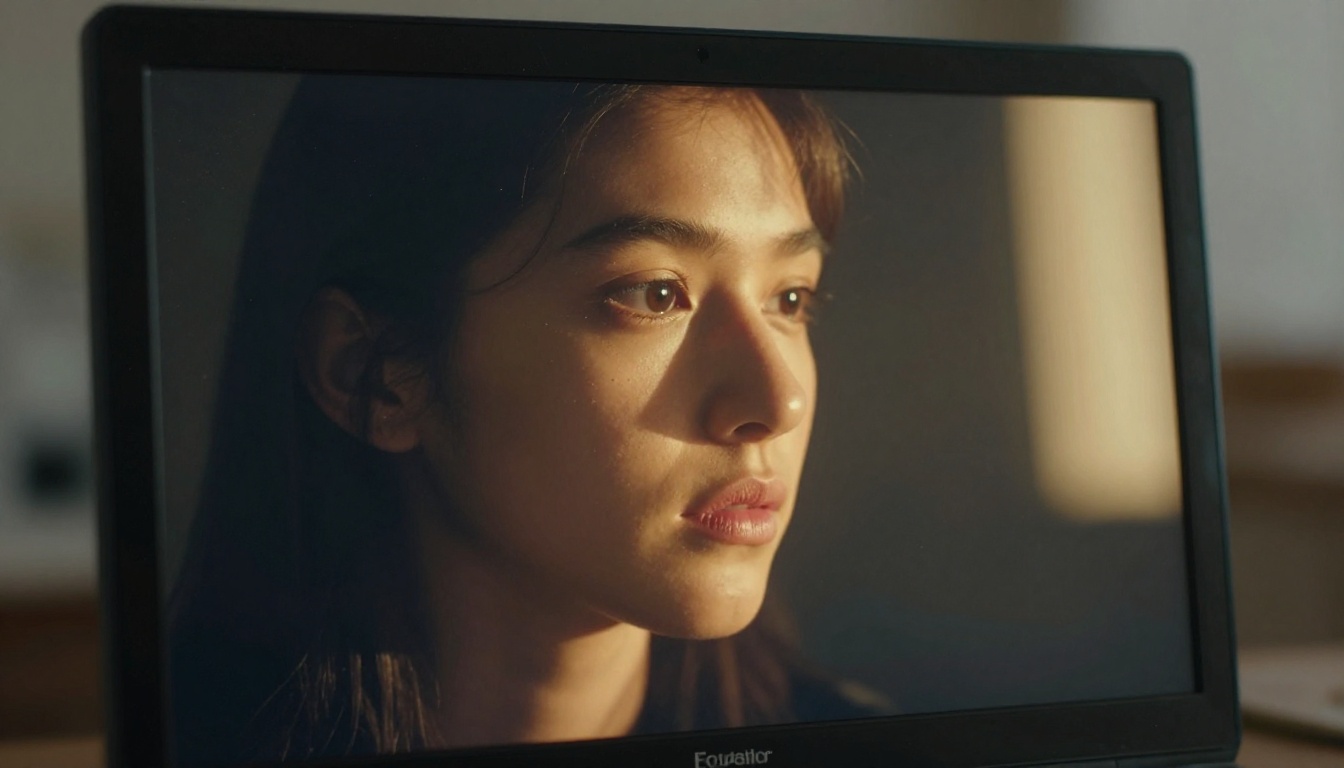
Your AI companion clip is visually perfect. The character moves naturally, the lighting feels real, the composition is cinematic. But the moment you play it back without sound, something is wrong. It feels artificial, hollow, unfinished. That hollow feeling is not subjective. Human perception is deeply wired to pair visual motion with auditory feedback. When that feedback is absent, the brain flags the content as fake.
Adding ambient sound to AI companion clips is one of the highest-leverage things you can do to lift the perceived quality of your work. And in 2027, you can do it entirely with AI tools, without recording equipment, without hiring a sound designer, and without years of audio engineering training.
This article covers the complete workflow: why silence destroys believability, which AI models handle ambient sound best, how to use them on PicassoIA, and how to layer music and SFX for a professional-grade result.
Why Silent AI Clips Feel Off
The uncanny valley of soundless video
Most creators focus on the visual uncanny valley when discussing AI video. But there is an auditory uncanny valley that hits just as hard. When a video has no environmental sound, the brain performs a constant low-level check: is this real? Every frame of motion without corresponding audio whispers "no."
This effect is especially pronounced in AI companion clips because the subject is a lifelike human figure. The brain is primed to expect breathing, fabric rustling, footsteps, room tone, background ambiance. Deny it those cues and the entire illusion collapses.
💡 Pro tip: Even 10 seconds of subtle room tone added as a base layer can raise the perceived realism of a clip significantly. Silence is never neutral in video.
What ambient sound actually does
Ambient sound does more than fill silence. It does three things simultaneously:
- Establishes space. A soft reverberant room tone tells the viewer they are in an enclosed space. Distant traffic tells them it is urban. Birdsong places them outdoors. These cues anchor the visual in a believable physical reality.
- Creates emotional temperature. A warm, slow ambiance reads as calm and intimate. Layered city noise reads as energetic and busy. Subtle wind reads as isolated and introspective. Sound shapes how the viewer feels before any action happens.
- Smooths visual cuts. When you cut between clips, a continuous ambient layer bridges the edit. The ear does not notice the cut because the sound world remains consistent.
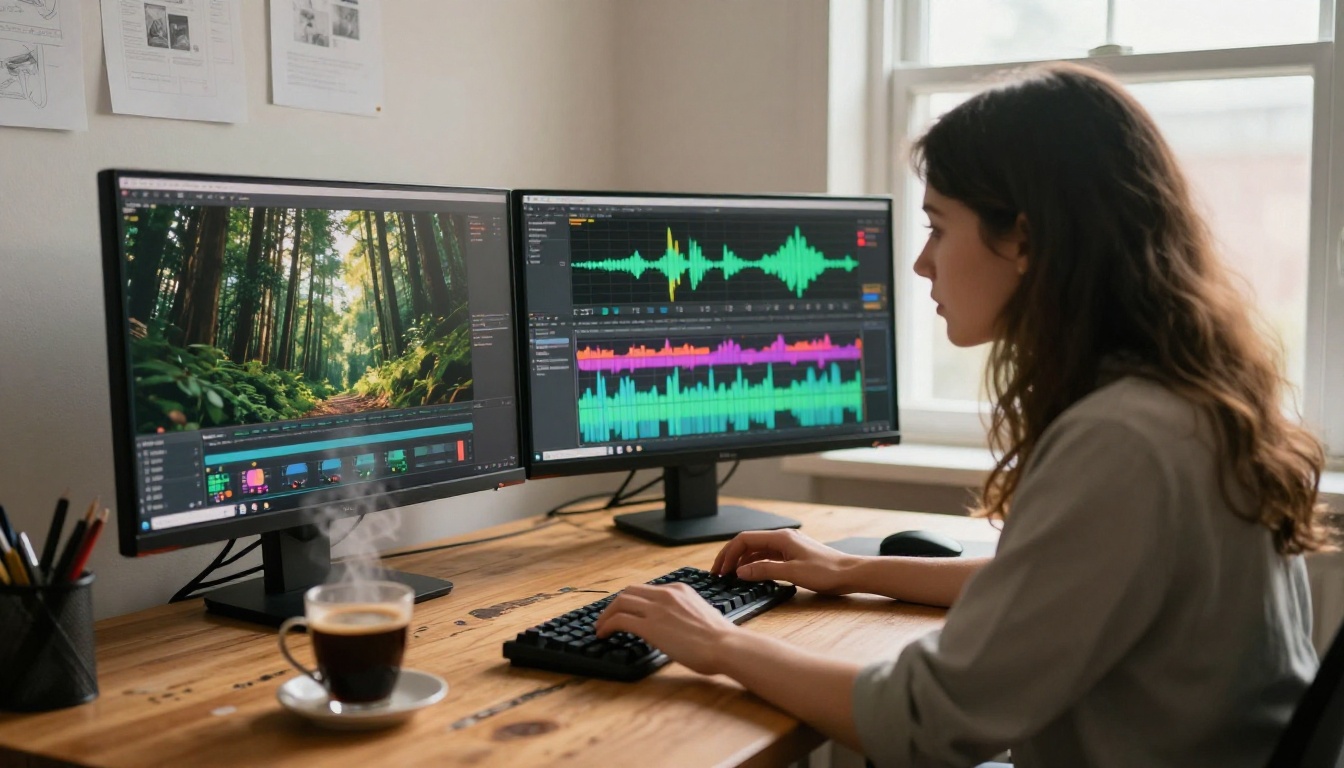
Not all audio AI tools are equal. Some generate music. Some generate SFX. Some analyze your video and generate contextually matched sound. Knowing which category you need before you start will save time and keep the result coherent.
| Tool | What It Does | Best For |
|---|
| MMAudio | Analyzes video, generates matching audio | Auto-synced ambient layers |
| Thinksound | Contextual AI sound from video frames | Nature, indoor, street scenes |
| Video to SFX v1.5 | Frame-accurate sound effects | Actions, impacts, foley |
| Stable Audio 2.5 | Atmospheric music loops from text | Background music, mood setting |
| Lyria 3 Pro | Full-length song generation | Cinematic underscore |
| Video Audio Merge | Combines video and audio files | Final mix and export |
MMAudio for instant sync
MMAudio is the most powerful starting point for AI companion clips. It does not attach a generic sound. It analyzes every frame of your video, reads the visual context, and generates audio synchronized with the motion. A character who turns their head gets a soft fabric rustle. A walking scene gets footsteps that match the stride rhythm.
The prompt you provide steers the style. "Warm indoor room tone, soft breathing, distant rain on window" will produce something entirely different from "outdoor urban park, distant traffic, wind through trees." The specificity of your prompt directly determines how cinematic the output sounds.
Thinksound for contextual audio
Thinksound takes a different approach. It reads the visual content of your clip and generates sound based on what it sees. Feed it a forest scene companion clip and it will generate appropriate ambient forest audio. Feed it a rooftop scene and it generates wind and distant city sounds.
This makes Thinksound ideal when you have a batch of clips with diverse settings. It handles the contextual analysis so you do not have to write individual prompts for each scene.
Video to SFX for precise effects
Video to SFX v1.5 and the original Video to SFX v1 are purpose-built for sound effects. Where MMAudio and Thinksound handle broad ambient layers, these tools add the discrete micro-details that make a scene physically believable: the click of a door handle, the scrape of a chair, a phone buzzing on a surface.
For AI companion clips, the most useful SFX are typically:
- Subtle clothing movement
- Soft breathing or exhale
- Room-specific ambiance (glass clink in a bar, keyboard in an office)
- Footsteps timed to visible motion
How to Use MMAudio on PicassoIA
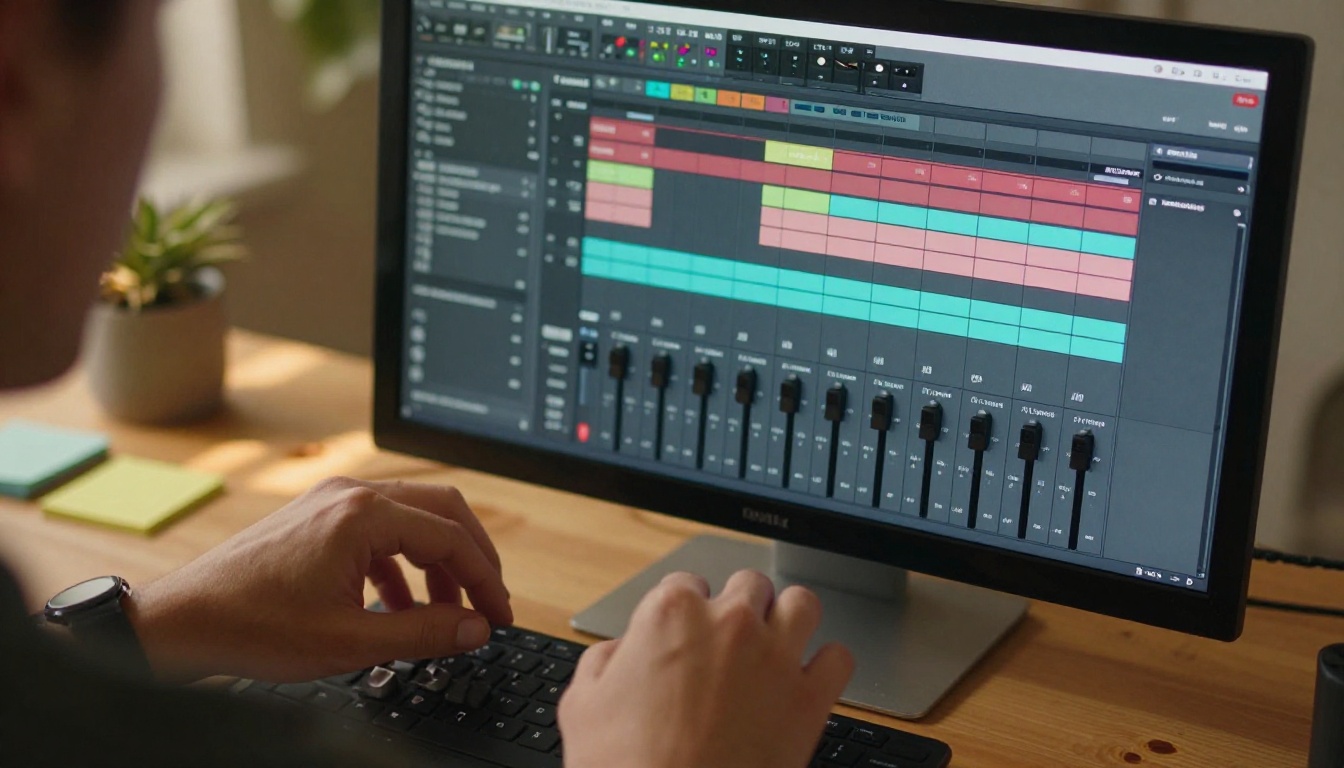
PicassoIA's MMAudio integration makes the full workflow accessible without any local software installation. Here is the exact process.
Step 1: Upload your clip
Navigate to MMAudio on PicassoIA. Upload your AI companion clip. The tool accepts MP4 and MOV files. If your clip was generated with Seedance 2.5, Veo 3, or any other video model, the output file works directly as input.
Step 2: Craft a specific audio prompt
This is where most beginners lose quality. Vague prompts produce generic results. Specific prompts produce cinematic results.
Weak prompt: "ambient sound"
Strong prompt: "intimate bedroom atmosphere, soft morning ambiance, distant birdsong through a partially open window, subtle fabric rustle, warm room tone, gentle air conditioning hum in background, no music"
The more you describe the physical space, the emotional temperature, and what is specifically audible, the better the output. Think of it like writing a stage direction for a sound designer.
Step 3: Review and adjust
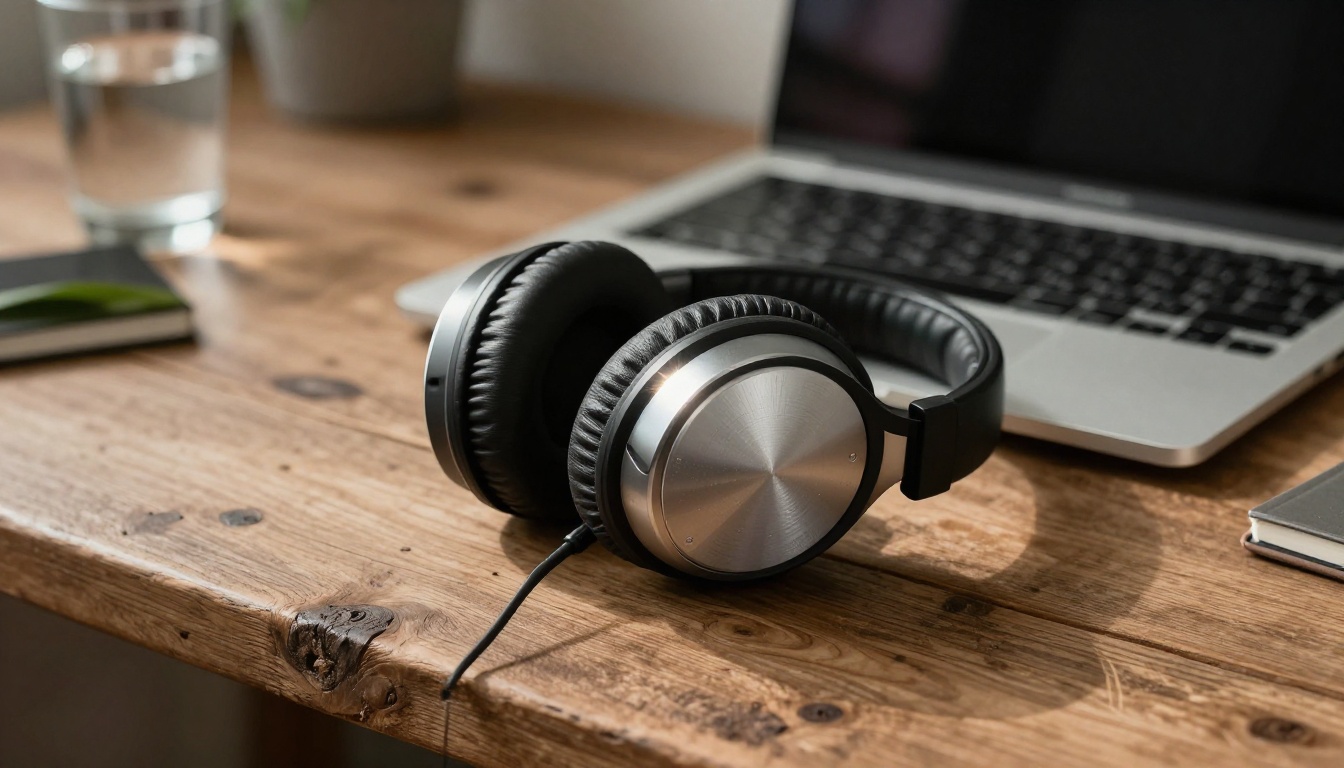
MMAudio generates audio at the duration of your clip. Listen through with headphones. Key things to check:
- Does the ambient layer feel spatially consistent? (No sudden panning or volume spikes)
- Does any generated SFX land out of sync with visible motion?
- Is the overall level appropriate? (Ambient should sit under the visual, not compete with it)
If any of these feel off, re-run with a refined prompt. Iteration is fast.
Step 4: Merge audio and video
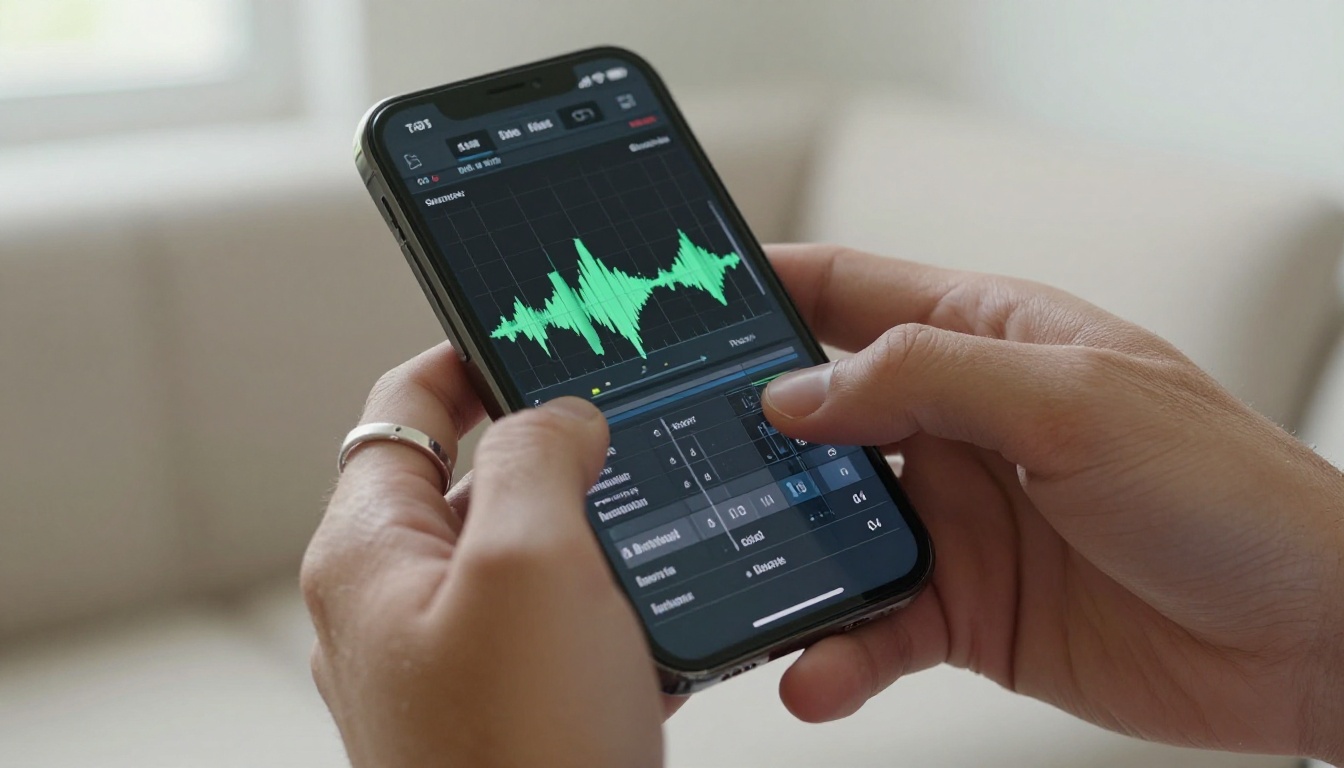
Take your approved audio file into Video Audio Merge on PicassoIA. This tool lets you set the audio mix level relative to the video's native sound, trim the audio to match the video length exactly, and export a clean combined MP4.
💡 Tip: Set your ambient layer at 60-70% of maximum volume as a base. This leaves headroom to layer music or spoken audio on top without the mix becoming muddy.
AI Music vs. Ambient Sound
When to use background music
Background music makes sense when your AI companion clip has an editorial or narrative purpose: a content showcase, a promotional video, a character introduction reel. Music signals intent. It tells the viewer this is a produced piece, not raw footage. It elevates mood deliberately.
For this, Lyria 3 Pro and Lyria 3 by Google are among the best options on PicassoIA. Both generate full-length tracks with genuine musical structure, including arrangement dynamics that breathe naturally over time rather than looping robotically.
Music 2.6 by Minimax is excellent when you need vocals layered into the track. Its lyric-to-song pipeline is fast and the vocal quality is convincing for ambient underscore.
When ambient beats music
For clips where you want the viewer to feel present rather than watching, ambient sound outperforms music every time. A conversation scene. A quiet moment. A character simply existing in their environment. Music in these contexts pushes the viewer outside the experience and makes it feel staged.
The right ambient layer says: you are here, in this space, with this person. Music says: someone made this for you to watch. Both are valid artistic choices, but they are fundamentally different ones.
Layering both for depth
The most effective results come from layering:
- Base layer: Ambient room tone or environmental sound at low volume (from MMAudio or Thinksound)
- Mid layer: Specific SFX tied to visible actions (from Video to SFX v1.5)
- Top layer: Subtle music ducked low, adding emotional color without calling attention to itself (from Stable Audio 2.5 or Lyria 3 Pro)
The key is that the music should feel like it is part of the space, not imposed on top of it. Keep it at 30-40% volume relative to the ambient layer. Use a soft attack and gentle high-frequency roll-off to push it back in the spatial mix.
Best AI Music Models for Companion Clips
Stable Audio 2.5 for atmospheric loops
Stable Audio 2.5 by Stability AI is purpose-built for long-form ambient and atmospheric music generation. Where many music AI tools excel at songs with verses and choruses, Stable Audio 2.5 thrives at textures: drones, pads, evolving soundscapes that do not demand attention but continuously enhance the emotional register of the image.
For AI companion clips, this is often exactly what you need. A 30-second evolving pad that rises slowly and falls gently. A tonal wash that matches the color temperature of your visual. Prompts like "soft piano, warm reverb, melancholic, 60 BPM, no percussion" consistently produce results that sit naturally under moving images. Its loop mode generates audio designed to cycle without audible seams, which is essential for social media content.
Lyria 3 for emotional soundscapes
Lyria 3 and Lyria 3 Pro represent Google's flagship music generation models. The Pro variant in particular handles arrangement and dynamics in a way that feels genuinely composed rather than procedurally generated. The output has breath, intentional silence, and structural variation that makes it viable for clips that need to feel high-production.
Ideal use case: a 60-90 second companion showcase where the character moves through different emotional beats. Lyria 3 Pro can generate music that shifts dynamically across those beats in a single output.
Music 2.6 for full-length tracks
Music 2.6 by Minimax is the right tool when you need a complete song: defined structure, lyrics, vocals, and mixed instrumentation. For AI companion content going to social platforms, a proper song backing can sharply increase watch time.
ElevenLabs Music is worth noting as an alternative, especially for creators who want tight control over instrumentation. Its interface is particularly strong at generating genre-specific outputs: lo-fi hip hop for casual companion content, soft indie for emotional narratives, minimal electronic for editorial-style showcases.
Audio Merging and the Final Mix
Video Audio Merge workflow
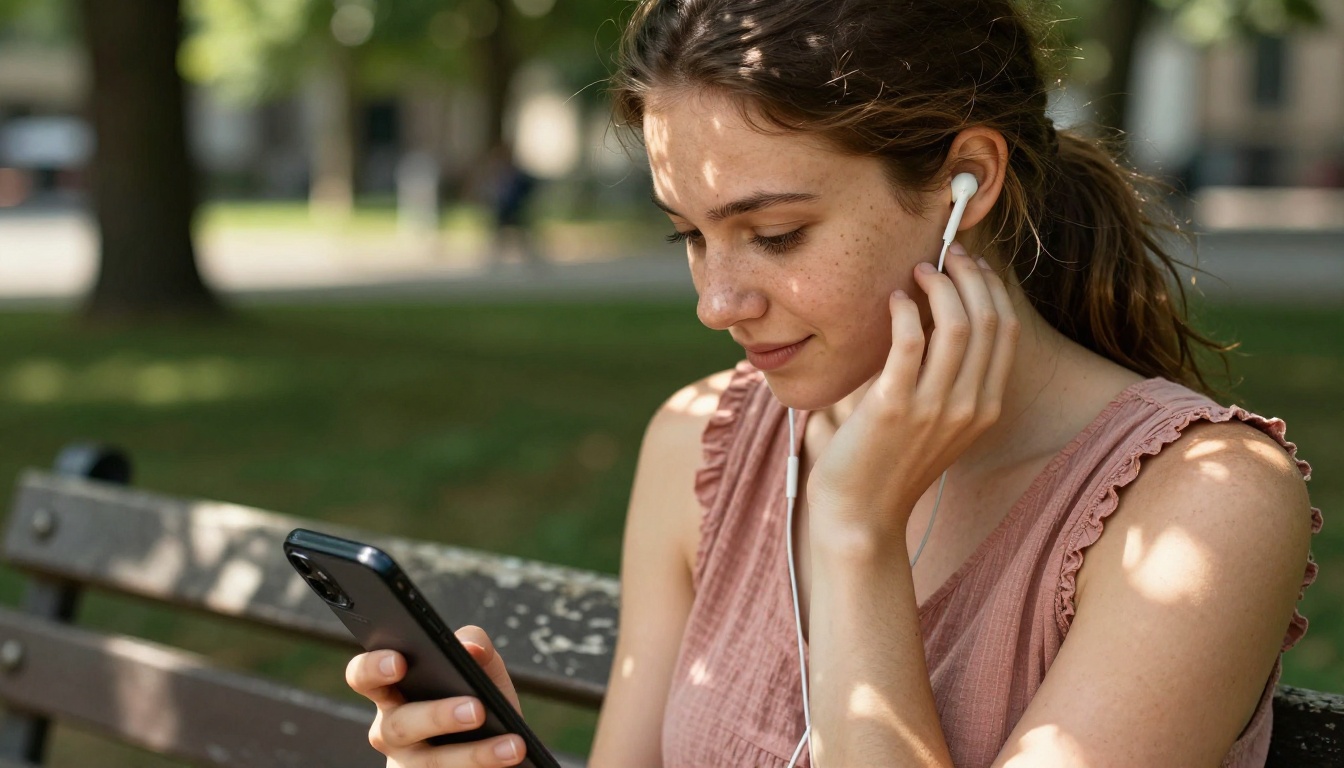
Once you have your ambient layer, SFX layer, and optional music layer, bring them all together using Video Audio Merge on PicassoIA. The tool handles multi-track audio combinations and lets you set individual volume levels for each layer before rendering.
Workflow:
- First merge: video file + ambient/SFX audio at 70% level
- Second merge: combined output + music audio at 35% level
- Final export: full MP4 ready for distribution
This two-pass approach gives granular control over each layer's presence in the mix.
Volume and timing tips
- Ambient layer: 65-75% of max. Should be heard but not noticed.
- SFX layer: 80-90% when the effect lands, ramping back to ambient after.
- Music layer: 25-40% of max. At this level it adds emotional color without revealing itself as a separate element.
- Audio fade in/out: Always apply a 0.3-0.5 second fade at the start and end of every audio layer. Abrupt cuts in audio break the illusion instantly.
For clips that will be looped, ensure your ambient layer loops seamlessly. Stable Audio 2.5 has a loop mode that generates audio designed to cycle without audible seams.
3 Common Mistakes in AI Sound Design
1. Using music as a substitute for ambient sound.
Music covers silence, but it does not replace the spatial depth that ambient sound creates. A clip with only music still feels like a video. A clip with ambient sound plus music feels like a place. Do not skip the ambient base layer just because the music sounds good.
2. Over-prompting the audio model.
Creators who are precise with image prompts often carry that precision too far into audio prompts, describing 15 different elements. Audio AI models perform better with 3-5 focused descriptors than with a dense paragraph. Describe the space, the mood, and one or two specific sonic elements. That is enough.
3. Mismatching the spatial signature.
If your AI companion clip is clearly set in a small, enclosed room, your ambient layer should have a short warm reverb tail. If you accidentally generate audio with a long cathedral reverb, the space feels architecturally wrong. The ear catches this immediately even if the viewer cannot name what feels off. Always match the reverb character of your audio to the implied room size in the visual.
💡 Spatial matching trick: Before generating your ambient audio, look at your clip and ask: "Where would I hear an echo if I clapped my hands in this space?" That mental exercise will directly inform the reverb and room-tone descriptors you put into your audio prompt.
Models That Generate Audio-Native Video
It is worth knowing about a newer category of video models that skip the separate audio step entirely by generating video with synchronized audio already built in. Seedance 2.5 and Seedance 2.0 both produce native audio alongside their video output. Veo 3 generates video with synchronized ambient audio and even dialogue when described in the prompt. Flux 3 generates synced audio video as well.
For companion clips generated with these models, you already have a starting audio layer. The workflow then becomes: use what is generated as your base, augment with MMAudio for additional layers, and layer music from Stable Audio 2.5 or Lyria 3 Pro on top. This hybrid approach produces the most convincing results because the native audio from the generation model has a natural sync that post-added audio cannot fully replicate.

The Audio-First Production Path
One of the most significant developments in AI video for companion content creators is the arrival of models that treat audio as a first-class output rather than an afterthought. Wan 2.2 S2V (Sound-to-Video) inverts the traditional flow entirely: you provide an audio file and the model generates video that matches the sonic character and rhythm of that audio.
This opens a completely different production path for ambient-first creators. Generate your ambient soundscape with Stable Audio 2.5 first. Use that audio as the driving input for your video generation. The visual output will be temporally and emotionally aligned with the audio because the audio built the video, not the other way around.
Paired with Audio to Video by Lightricks, which animates still images driven by any audio input, this approach removes the sync problem entirely. Start with sound. Let sound shape motion. Add ambient detail layers afterward with MMAudio or Thinksound. The result is a clip where sound and image feel inseparable because they genuinely were developed together.
This is a fundamentally different way of thinking about companion clip production, and it is available right now on PicassoIA.
Start Building Better Clips Now
Adding ambient sound to AI companion clips is no longer a post-production luxury that only studios can afford. Every tool in this article is available right now on PicassoIA. MMAudio, Thinksound, Video to SFX v1.5, Stable Audio 2.5, Lyria 3 Pro, Music 2.6, Video Audio Merge. The full pipeline from silent AI clip to cinematic, spatially grounded output runs entirely in your browser.
The workflow is not complex once you understand what each layer is doing. Start with your ambient base. Add contextual SFX for specific motion moments. Layer music underneath with restraint. Merge and export. That is the complete process.
Your AI companion clips deserve a sound world that matches the visual quality you are putting into them. The tools are ready. Open PicassoIA, pick a clip, and hear the difference that ambient sound makes in the first 30 seconds. You will not go back to silent clips after that.


