Adobe's Firefly video generator turns a sentence or a single photo into a short clip, and you can try it before paying anything. The catch is the allowance. A free Firefly account gets a small monthly pool of generative credits, and a video clip burns through that pool far faster than a still image does. This article shows what the free access really buys, three prompt examples written around Firefly's strengths, the places where the tool runs out of road, and what to use once your credits are gone.
💡 Quick answer: Yes, you can try Firefly video for free, but expect only a handful of five-second clips per month. Unlimited volume means a paid Adobe plan or a platform with no per-clip cost.
What Firefly Video Actually Does
Firefly is Adobe's family of generative models, and the video model sits beside its image, vector and audio tools. Adobe showed the video model in public beta in late 2024, brought it to the Firefly web app in early 2025, and built it into Premiere Pro as well, which is why working editors noticed it first. Adobe also calls the model commercially safe, meaning it was trained on licensed content, Adobe Stock and public domain material rather than scraped footage. For agencies and brands that worry about legal exposure, that claim is the main reason to pick Firefly over a looser tool.
Text to Video and Image to Video
Two input modes do almost all the work. Text to video takes a written description and returns a clip of up to five seconds. Image to video takes a still photo, treats it as the opening frame, and animates it according to your prompt.
The second mode is where Firefly feels most dependable. With the first frame fixed, the model has less to invent, so faces, products and layouts drift far less than they do from a text prompt alone. If you already own a brand photo or a Firefly image you like, animating it is the safest route to a usable clip.

Common jobs for a five-second clip:
- B-roll to cut between interview shots or voiceover sections
- Animated product stills for social posts and store pages
- Looping backgrounds for slides, hero banners and landing pages
- Concept clips to show a client before a real shoot is booked
Camera Controls and Clip Length
Firefly lets you steer the virtual camera instead of leaving movement to chance. In text to video you can choose a camera angle, a shot size and a motion such as a pan, a tilt or a push in. Those choices are the biggest quality lever the tool gives you, because a clear camera instruction removes a lot of random wobble.
Output is short and sharp. Clips run up to five seconds, with resolution up to 1080p depending on the plan and the mode you pick. Five seconds is enough for one idea, one subject and one camera move. It is not enough for a scene with a beginning, a middle and an end, so plan your edit around stitching several short shots together.
How Free Access Really Works
The Free Plan Allowance
At the time of writing, a free Adobe account receives roughly 25 generative credits a month, handed out the first time you use a Firefly feature and expiring a month later. Credits do not roll over. Video is a premium feature, which means one clip costs far more than one image, so the allowance can vanish in a single afternoon of experimenting.
Adobe has adjusted what the free tier includes more than once, so treat any number you read online, including this one, as a snapshot. Open the Firefly web app, check the credit counter and the cost shown beside the generate button, and only then commit to a workflow.

Ways to stretch a small allowance:
- Start from an image. A good first frame wastes fewer retries, and retries are what drain credits.
- Test the idea with stills. Settle on the subject and framing with cheap images before spending on motion.
- Change one thing per attempt. If you rewrite the whole prompt each time, you never see which change helped.
- Use credits before they expire. Unused credits vanish a month after your first generation, so batch your clips in one session.
What Paid Plans Add
Paid plans mainly add credits. The figures below reflect public pricing in September 2026 as reported by independent trackers. Adobe changes them often, so confirm inside the app before subscribing.
| Plan | Price per month | Video allowance (approx.) | Best for |
|---|
| Free | $0 | A small handful of clips | Testing the tool |
| Standard | $9.99 | About 20 five-second clips | Occasional social content |
| Pro | $19.99 | About 40 five-second clips | Weekly publishing |
| Pro Plus | $49.99 | About 100 five-second clips | Small studios and freelancers |
| Premium | $199.99 | 50,000 credits | Agencies and daily production |
Those same trackers report that paid tiers make standard image features such as text to image and generative fill unlimited, so the credit pool is spent mostly on video and on partner models.
Prompt Examples Built for Firefly
A note before the examples: the photographs in this section were generated on Picasso IA to show the look each prompt is aiming for. They are stills, not Firefly output. The prompts themselves are written for text to video and image to video modes, and they work in most other generators too.
Product Close-Up Example
Prompt: A frosted glass perfume bottle with a gold cap stands on wet black slate, tiny water droplets on the glass. Slow push in on the bottle, shallow depth of field, soft window light from the right, dark charcoal background.
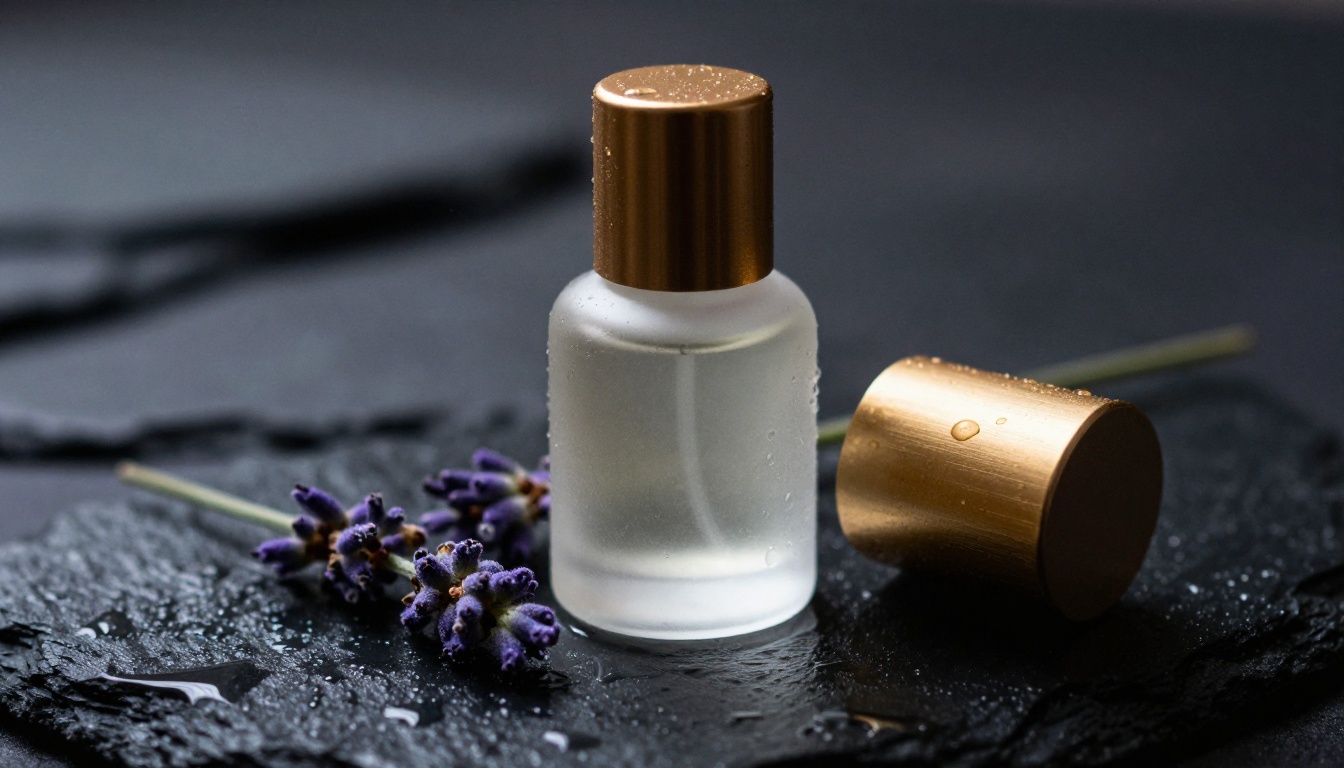
This works because of its focus: one subject, one surface, one camera move. The prompt also says what moves (the camera, not the bottle), which keeps the product stable. Product clips are where AI video is most forgiving, since there are no faces or hands to distort.
Landscape Flyover Example
Prompt: Aerial shot gliding forward over rugged coastal cliffs at sunrise, slow waves rolling into a pale cove, thin sea mist between dark rocks, warm low sun from the right, natural colors.
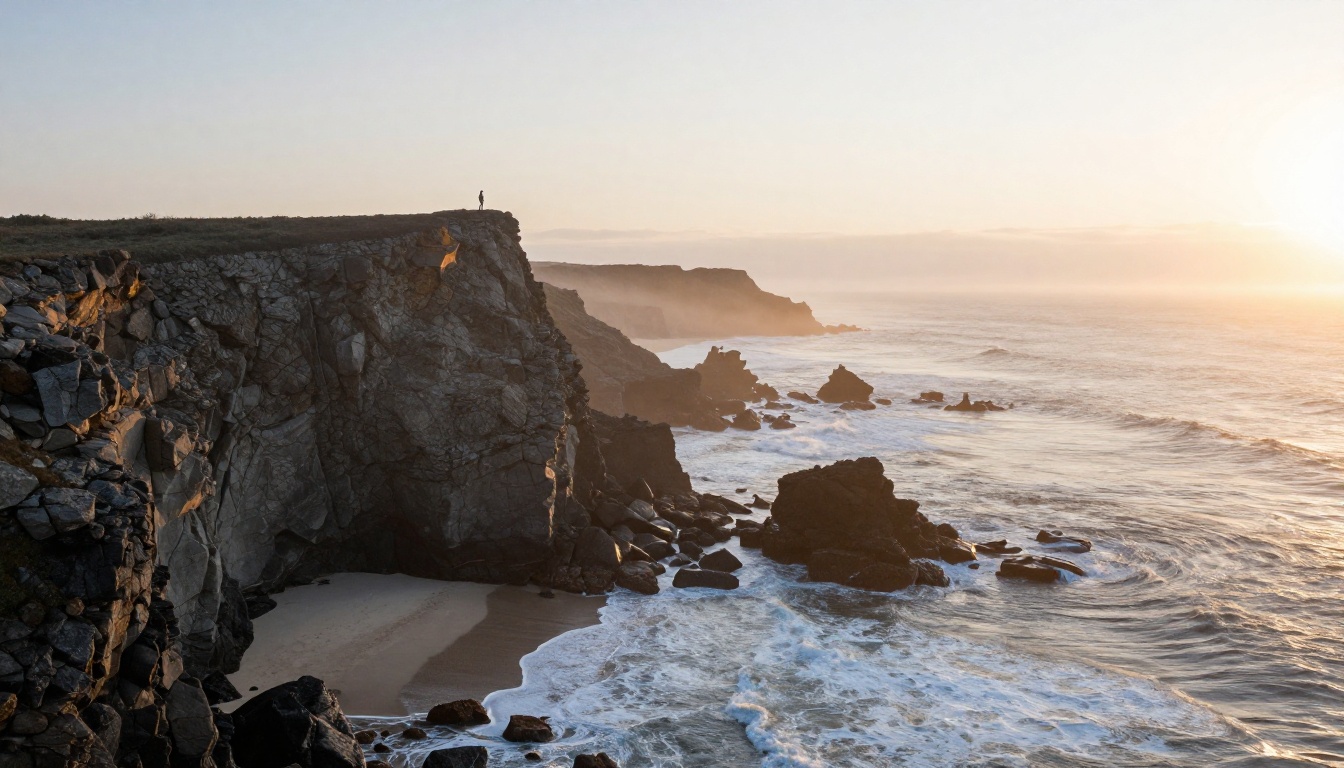
Landscapes are the second safest subject. Water, mist and light change slowly, so small flaws in motion read as natural movement. Name the time of day and the light direction, because those two details decide the whole mood.
Lifestyle Walk Example
Prompt: A woman in a linen shirt walks through an outdoor farmers market at golden hour carrying a basket of peaches, smiling, camera tracking beside her at walking pace, shallow depth of field, warm backlight.

People are the hard case. Expect hands and faces to wobble now and then, so keep the move simple and the clip short. If a face matters, start from an image to video first frame so the model holds the likeness it was given.
A prompt formula that holds up across all three:
- Subject with two or three concrete details
- Setting and surface
- Camera move with a speed, such as slow push in or tracking at walking pace
- Light with a direction and a time of day
- Style words limited to photography terms, such as shallow depth of field
💡 3 common mistakes: stacking several camera moves in one clip, describing a story instead of a shot, and adding style words like "epic" that give the model nothing concrete to draw.
Where Firefly Video Falls Short
Credits Disappear Quickly
The math is the biggest complaint. Five seconds per clip, three attempts per usable shot and about twenty clips on the Standard plan leaves roughly six finished shots a month. A thirty-second edit needs six five-second shots, so one small project can use the entire allowance.
That is not a flaw in the model. It is how a credit system works, and it suits a team that needs a few reliable, legally safe shots. It suits a creator who tests dozens of ideas far less.
Short Clips, Limited Control
As of this writing, clips top out at five seconds. Control stops at the camera and the first frame, so you cannot direct a character beat by beat, and long single takes are off the table. The look also leans polished and conservative, which is good for brand work and less good for experimental styles.
| Feature | Adobe Firefly Video | Seedance 2.5 Lite on Picasso IA |
|---|
| Free access | Small monthly credit allowance | No per-clip cost for Wonder members |
| Clip length | Up to 5 seconds | 5 or 10 seconds |
| Inputs | Text or image | Text or image, plus an optional last frame |
| Resolution | Up to 1080p | 480p or 720p |
| Best fit | Brand work inside the Adobe ecosystem | Fast iteration and high volume |
Firefly wins on resolution and on its commercially safe positioning. The alternative wins on volume and clip length. Neither is better in every case.
Free Alternatives Worth Trying
Unlimited Clips on Picasso IA
Picasso IA runs two video models built for volume. Seedance 2.5 Lite creates clips of up to 10 seconds from text or an image, at 480p and 720p, with synchronized audio, and Wonder members run it without per-clip limits. Picasso IA Video is a free unlimited video generator that accepts a text prompt or an image. Because there is no counter, you can write ten prompt variations, compare them and keep the best, which is the habit a credit pool discourages.
Premium Models for Cinematic Work
When a project needs a specific look, Picasso IA also hosts the big names in one place:
Pick one model for the look and another for the speed. Running the same prompt through two of them quickly shows which handles your subject better.

How to Use Seedance 2.5 Lite
Five Steps to Your First Clip
- Open the Seedance 2.5 Lite page on Picasso IA and sign in.
- Write the prompt in chronological order: subject, setting, camera move, light. Cinematic, step by step descriptions work best.
- Choose a duration: 5 seconds for a single beat, 10 seconds for a shot with room for real action.
- Pick resolution and aspect ratio. 720p is the default and sharper, while 480p renders fastest. Use 16:9 for YouTube, 9:16 for Reels, Shorts and TikTok, and 1:1 for feeds.
- Press generate, watch the result, and rerun with a new seed if the take is close but not right.
Settings That Change the Result
| Setting | Options | Tip |
|---|
| Prompt | Free text | Describe the action in the order it happens |
| Duration | 5 or 10 seconds | Test at 5 seconds first |
| Resolution | 480p or 720p | Draft at 480p, finish at 720p |
| Aspect ratio | Match input image, 16:9, 9:16, 1:1, 4:3, 3:4, 3:2, 2:3 | Ignored when you add an image |
| Input image | Optional | Becomes the opening frame |
| Last frame image | Optional | Needs a first frame, shapes how the clip ends |
| Seed | Any whole number | Lock it to repeat a take |
| Save audio | On by default | Switch off for a silent clip |
💡 Tip: Draft at 480p with a 5-second duration, then rerun only your best prompt at 720p.
Image First, Then Animate
Build a Strong First Frame
Image to video gives the best control in nearly every tool, Firefly included. Generate the still first. Seedream 4.5 and GPT Image 2 both suit photorealistic first frames. Ask for the exact framing you want in the video, with room around the subject for the camera to move. Check hands, faces and any text before you animate, since a mistake in the first frame repeats across every frame that follows.
Add Motion With Image to Video
Upload the still to Seedance 2.5 Lite as the input image, then describe only the motion: slow push in, hair moving in a light breeze, steam rising from the cup. The prompt no longer needs to restate the scene, because the image supplies it. Add a last frame image when you want the clip to end on a specific composition. A still then motion workflow costs nothing per clip on a model with no counter, so you can test several first frames against the same motion prompt.
Make Your First Clip Today
Firefly is a polished way to test AI video, and its free credits are enough to judge whether its style suits you. Once you know what you want, the limits matter more than the logo: five-second clips, a monthly counter and a few attempts per shot. Picasso IA removes the counter on its unlimited video models and puts dozens of other generators in one place, so you can compare looks without opening a new subscription each time.
Try it now. Copy one of the three prompts above, paste it into Seedance 2.5 Lite and generate a clip. Then run the same prompt in Veo 3.1 Lite or Kling v3 Video and compare the results. Within an hour you will know which model fits your project, and you will have a folder of real clips instead of a spreadsheet of credits. Create your first video on Picasso IA and keep experimenting until the take feels right.


