You wrote a script. Maybe it is a 90-second explainer, a short story for kids, or a product teaser with six scenes. Now you want it animated, and you do not want to pay a studio or learn After Effects. The good news: an AI animated video from a script is realistic in 2027. The catch: nobody hands you a finished three-minute film from one paste. Free tools cap clip length, limit monthly output, and sometimes stamp a watermark on the result.
This article lays out what actually works. You will see which kinds of free tools exist, what the length limits really look like, how to write prompts that survive the jump from page to screen, and how to assemble short clips into a story that feels deliberate.
What "From Script" Really Means
Before picking a tool, get clear on what the tool expects. Most people paste a whole script and hope. That rarely works.
Full script versus scene prompt
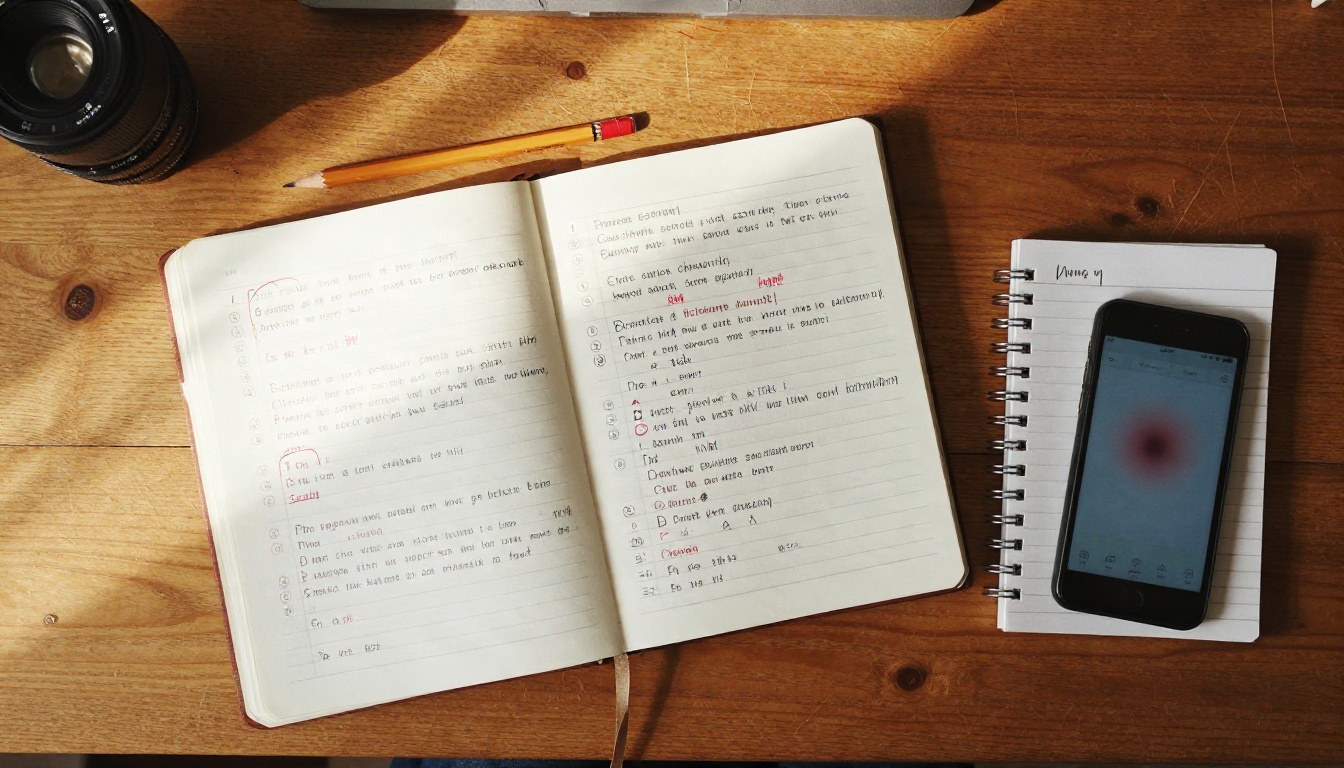
A script is written for humans. It has dialogue, stage directions, emotional beats, and jumps in time. A video model reads a single visual moment: who is there, where, what moves, how the camera behaves. When a tool says it accepts a script, it usually either splits your text into scenes automatically or only reads the first few hundred characters.
Scenes, not pages
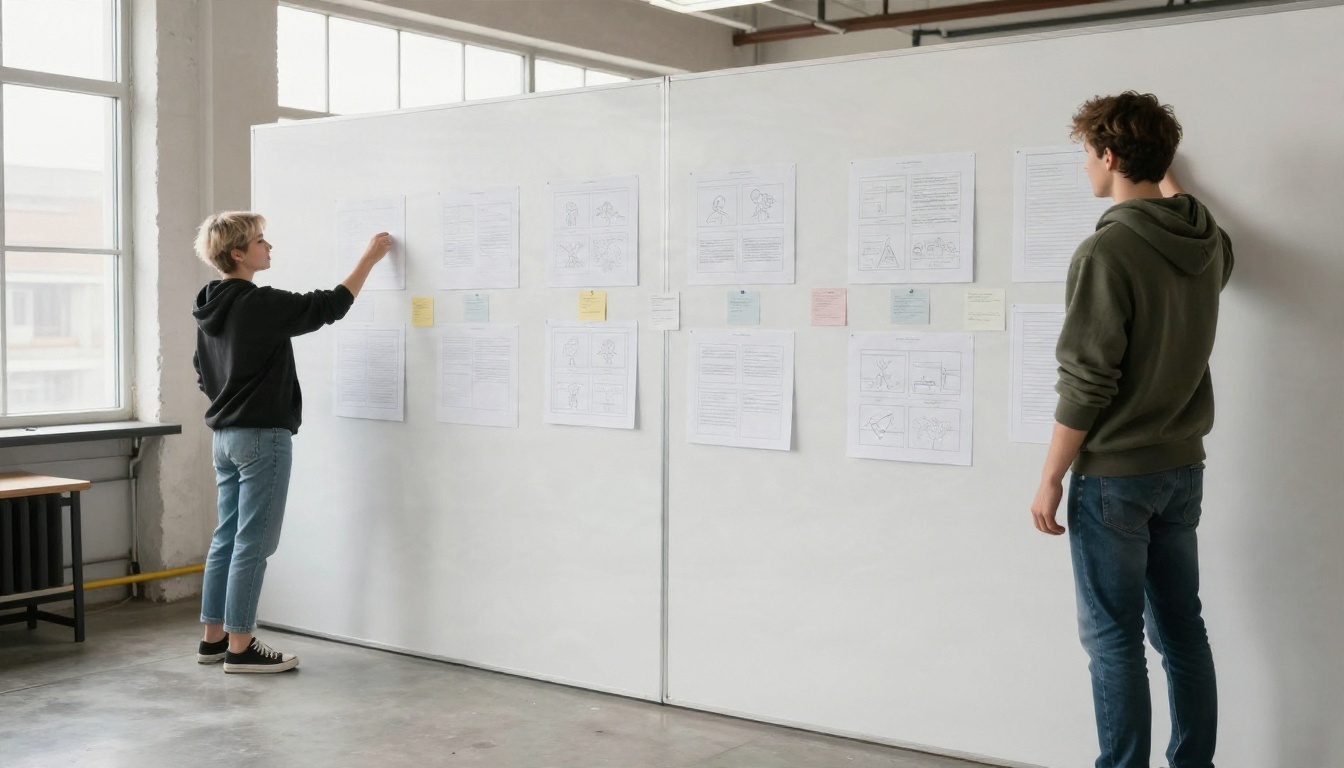
Mark your script into scenes of roughly 5 to 10 seconds of screen time each. A one-minute video becomes six to twelve scenes. That small act of breaking things apart is the single most useful thing you can do, because it matches how the models work and how the free limits are built.
💡 Quick test: read each scene aloud. If it takes more than 10 seconds, split it. If it contains two locations, split it again.
"Free" covers a wide range. Some tools give you a daily credit pool. Some give a monthly allowance in minutes. A few let you generate without a hard cap but slow you down in a queue. Here is how the field breaks down.
Per-clip limits
Most free generators limit a single clip to roughly 5 to 10 seconds. Kling-style free tiers have been reported at 5 seconds per generation, and other well-known generators sit in a similar range. This is not laziness on the part of the companies. Longer clips cost far more compute and tend to drift: faces change, objects melt, the lighting jumps.
Monthly minutes and watermarks
Script-to-video platforms with narration and stock footage, like InVideo and Kapwing, count differently. Instead of seconds per clip they count total minutes per month or export time. Typical free tiers sit somewhere between a few minutes and around ten minutes of output per month, and many place a watermark on the exported file. Canva is often mentioned as one of the few mainstream options with a more relaxed watermark policy, though with a small monthly minute allowance. These numbers change often, so check the current pricing page before you plan a project around them.

A quick comparison
| Tool type | Typical free limit | Watermark | Best for |
|---|
| Text-to-video model (clip based) | 5 to 10 seconds per clip | Sometimes | Cinematic scenes, original animation |
| Script-to-video platform (stock + narration) | Minutes per month | Often | Explainers, slideshows with voice |
| Animation maker with templates | A short total export | Often | Simple motion graphics |
| Open-credit model pages | Daily or unlimited generations | Varies | Experiments, drafts, iteration |
💡 No cloud video generator is truly unlimited in length, resolution, and usage all at once. The ones that come closest let you generate short clips repeatedly at no cost, which is exactly what a scene-by-scene workflow needs.
Length Limits, Explained Honestly
The question people type most is "how long can an AI video be?" The honest answer has two parts.
Why clips stay short
A video model has to keep every frame consistent with the one before. Over five seconds that is manageable. Over thirty, small errors pile up. Characters shift costume, background details change, camera speed wobbles. Most free tiers cap length to protect quality as much as compute budget.
Some newer models stretch much further. Seedance 2.5 is built for videos up to 30 seconds, and Seedance 2.5 Lite offers free generation up to 10 seconds. Wan 3 and Wan 3 Prime push toward 1080p cinematic output. Still, even the longer ones work best when you treat each result as one scene, not an entire film.
Building minutes from seconds
Here is the math. A 60-second animated video at 6 seconds per scene needs 10 clips. A 3-minute story needs 30. That sounds like a lot until you remember that a generation takes a minute or two, and you can run several in a row while you write the next scene.
| Target length | Clip length | Clips needed | Realistic work time |
|---|
| 30 seconds | 5 seconds | 6 | About an hour |
| 60 seconds | 6 seconds | 10 | A long afternoon |
| 3 minutes | 6 seconds | 30 | Two or three sessions |
| 3 minutes | 10 seconds | 18 | One long session |
Prompts That Actually Work
A prompt for one scene is closer to a camera instruction than a story sentence. Think like a cinematographer writing a note to a crew.
The five parts of a scene prompt
Use this order and you will waste fewer generations:
- Subject and starting pose: "A small red fox sitting at the edge of a pine forest."
- Action over time: "It lifts its head, then trots forward through knee-high grass."
- Setting and light: "Early morning mist, low golden sun from the left."
- Camera: "Slow dolly-in at fox eye level, shallow depth of field."
- Style and sound: "Painterly hand-drawn animation look, soft ambient birdsong."

Keeping characters consistent
Consistency is the biggest complaint with scene-by-scene work. Characters and settings can drift when each clip is generated on its own. Three habits help:
- Repeat the exact description of a character in every prompt, word for word: age, hair, clothing, one distinctive item.
- Start from a still image. Generate your character once as an image, then animate that image in each scene. Image-to-video models like Wan 2.7 I2V keep the first frame identical.
- Fix the style words. Choose "soft watercolor animation" or "flat 2D cartoon" once and paste it unchanged into every scene.
Prompt examples to copy
Children's story, scene 3: "A girl in a yellow raincoat and red boots stands at a harbor wall holding a paper boat. She crouches and sets it on a puddle. Gentle rain, overcast light, slow push-in at child height, soft hand-painted animation style, sound of rain and distant gulls."
Product explainer, scene 1: "A cluttered home office desk with tangled cables. A hand sweeps them into a tidy bundle. Bright daylight from a window, locked-off top-down camera, clean 2D motion graphics look, light upbeat music."
💡 Avoid stacking too many actions in one prompt. One subject, one main movement, one camera move. If you want a character to walk, turn, and wave, make it three scenes.
How to Use Seedance 2.5 Lite on PicassoIA
For a free workflow, Seedance 2.5 Lite is a natural place to begin. It is listed as a free, unlimited generator for clips up to 10 seconds, which fits the scene-by-scene method.
Step by step
- Open the model page on PicassoIA and sign in.
- Paste your scene prompt using the five-part structure above.
- Choose the duration. For dialogue-free scenes, 5 to 6 seconds is usually enough. Use 8 to 10 seconds for slow establishing shots.
- Pick an aspect ratio that matches where the video will live: 16:9 for YouTube, 9:16 for Shorts and Reels, 1:1 for feeds.
- Generate, watch the result, and note what to change. Adjust only one thing per retry.
- Download the clips you like and name them by scene number.
Parameter tips
- Seed: when a result is close, keep the same seed and change only a few words.
- Image input: if the model page offers a first-frame image, use your character still for continuity.
- Negative detail: instead of "no extra fingers," describe the hands you want: "hands resting on the table."
Picking the Right Model for the Job
Different scripts want different engines. PicassoIA hosts a large set of text-to-video models, so you can test one scene across several and keep the best.
When free is enough
For drafts, social clips, and personal projects, free models cover most needs. PicassoIA Video offers free, unlimited generation from text or an image, and Seedance 2.5 Lite does the same up to 10 seconds. Use these to refine scene wording until the clip behaves.
When to reach for heavier models
When a scene matters, such as an opening shot or a client-facing hero moment, try a premium model. Kling v3 Video is strong for cinematic motion. Veo 3.1 Lite adds native audio. Sora 2 generates video with synced sound. LTX 2.5 Fast is worth testing when you need high resolution quickly.

Sound, Voice and Stitching
Silent clips feel unfinished. Sound is what makes a stack of short scenes read as one story.
Record the voiceover first
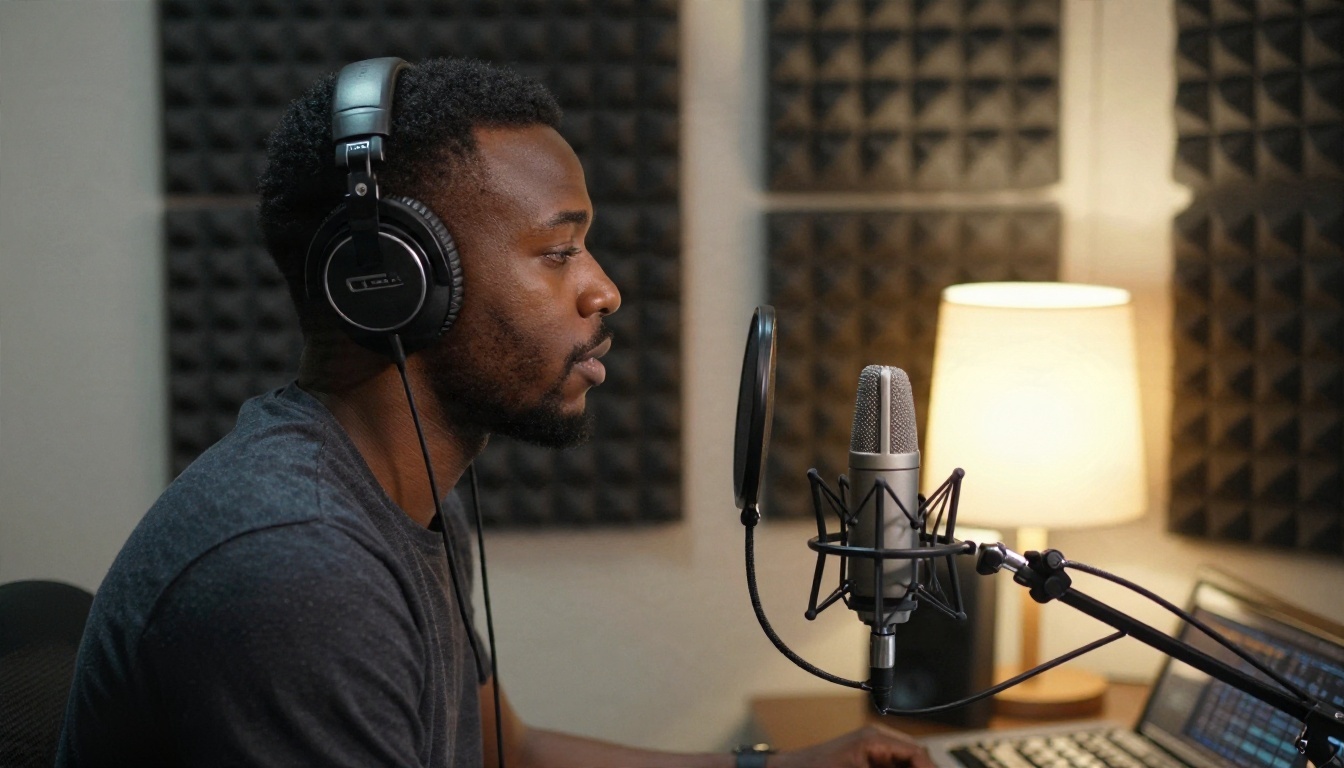
If your script has narration, record or generate it before you animate. The audio length tells you exactly how many seconds each scene needs, which prevents the classic mistake of making a lovely 5-second clip for a 9-second line. Text-to-speech and music generation tools on PicassoIA can supply both narration and a background track, so you stay in one place.
Assemble the timeline
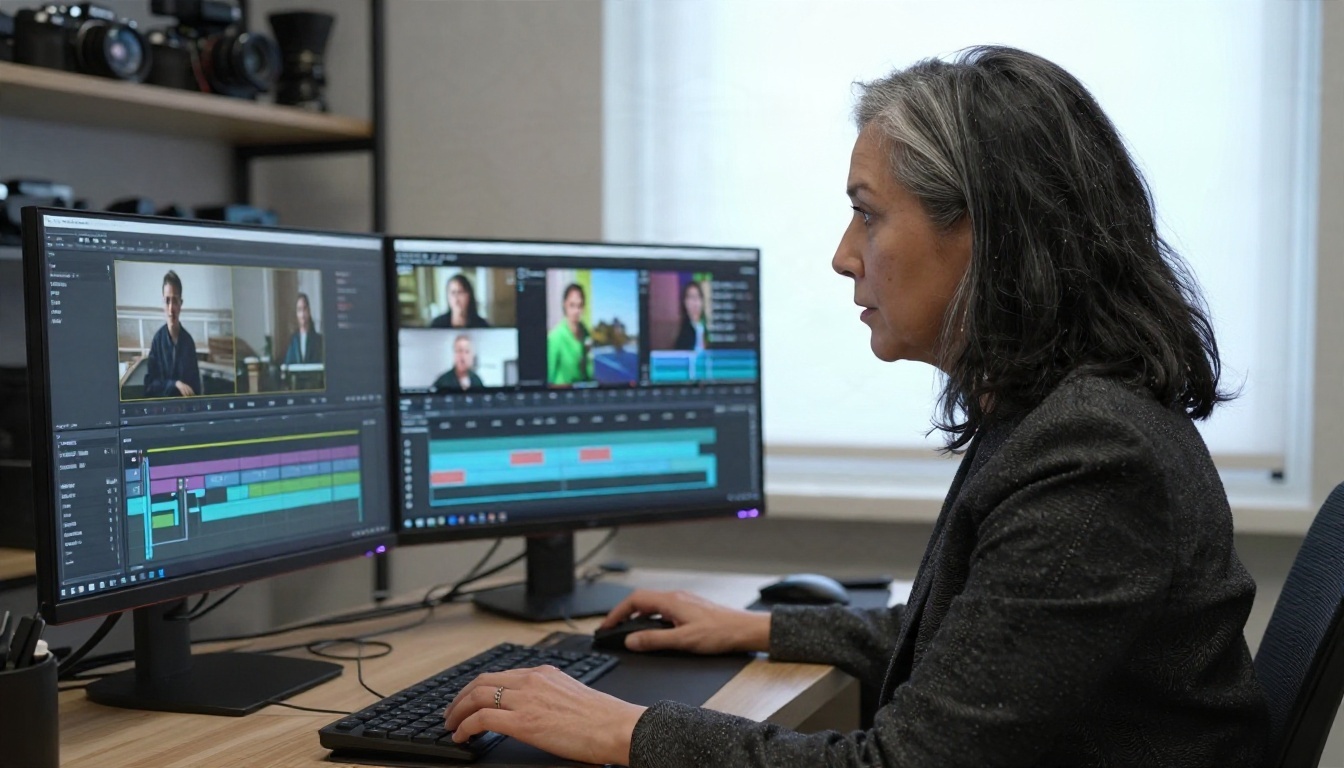
Drop your clips into any editor, free or paid, in scene order. Then:
- Trim each clip's first and last half second. Generated clips often begin and end with slight drift.
- Use short crossfades or hard cuts. A cut hides a lot of small inconsistencies.
- Keep a steady color grade. Apply one filter to the whole timeline so scenes generated at different times feel related.
- Lay music under everything and drop it a few decibels beneath the voice.
If a clip comes out soft, a super-resolution tool can upscale it, and an AI video enhancement tool can stabilize or restore it. Both live on the same platform.
Three Mistakes That Waste Credits
- Pasting the whole script into one box. Break it into scenes first.
- Changing five things per retry. You will never find what fixed or broke the result.
- Skipping the still image. Without a fixed first frame, your lead character will look different in every shot.
💡 Keep a simple spreadsheet: scene number, prompt, seed, model, and a rating. When a render works, you will know exactly how to repeat it.
Start Your Own Animated Script Today
You do not need a studio, a team, or a big budget. You need a script cut into scenes, a handful of well-written prompts, a free model to iterate with, and a bit of patience in the editor. Start with one scene, the one you are most excited about, and run it through Seedance 2.5 Lite. Adjust the wording, try the same prompt on Kling v3 Video or Wan 3, and compare.

Ready to see your script move? Open Picasso IA, pick a text-to-video model from the full catalog at picassoia.com/en/all-models, and generate your first scene now. Ten minutes from now you could be watching the opening shot of your story.


