You finished the manuscript, you have a concept for the front of the book, and an AI image generator can produce it in under a minute. Then the doubt creeps in: will Amazon reject it, flag your account, or pull the listing a month after launch? Short answer, AI art is allowed on Amazon KDP, but only if you follow two sets of rules. One is about disclosure, the other is about file specs. Miss either one and your book sits in review or prints with a blurry, trimmed jacket.
This article walks through both. You'll get the policy in plain language, the exact pixel sizes for ebooks, the bleed and spine math for paperbacks, the mistakes that trigger rejections, and a photoreal workflow you can run on PicassoIA before you upload anything.
💡 Quick verdict: AI-generated jacket art is permitted on KDP. You declare it during setup, you respect the size settings below, and you keep the image free of copyrighted characters, real faces without rights, and fake claims.
AI Book Covers on Amazon: The Short Answer
Amazon does not ban generative AI for book art. What it requires is transparency. Since the policy update in late 2023, authors must tell KDP when a book contains AI-generated text, images, or translations. The "images" bucket explicitly includes the art on the front of the book and any interior illustrations.
What Amazon Actually Says
The rule is built around one idea: you report what the AI created, not what it helped with. If a tool produced the picture, you answer yes. You don't have to share the prompt, the model name, or the tool you used. The disclosure is an internal check and does not appear on your public product page.
AI-Generated vs AI-Assisted
This distinction decides whether you tick the box, so it's worth getting right.
| Situation | Counts as | Disclose to KDP? |
|---|
| You typed a prompt and used the output as the jacket | AI-generated | Yes |
| You generated an image, then edited it heavily by hand | AI-generated | Yes |
| You bought a stock image that was itself made by AI | AI-generated | Yes |
| You sketched the art yourself and used AI to fix noise or sharpen it | AI-assisted | No |
| You used AI to brainstorm ideas, then painted or photographed everything | AI-assisted | No |
Third-party publishing blogs repeat one point often: editing AI output afterward does not change its category. If the base picture came from a generator, treat it as AI-generated.
KDP Disclosure Rules in Practice
Readers can't see the disclosure, which makes some authors careless about it. That's a poor bet. Amazon has been tightening enforcement, and the form is quick enough that skipping it never pays off.
Where You Declare It
The question appears in the Content step of the KDP title setup, the same page where you pick your language, add the book title, and set the primary audience. You answer separately for text, images, and translations. Say you wrote the book yourself but generated the front art: you'd answer no for text and yes for images.
Plan to see the form again when you republish or update a book. Changing the jacket file counts, so if you swap art six months later, re-check your answers.
💡 Tip: Keep a short note in your project folder with the tool, date, and prompt for every generated image. If Amazon ever asks, you can answer in two minutes.
What Happens If You Skip It
Amazon's published position is that it may remove titles that don't comply, and sellers have reported warnings and delisted books after reviews. A missing disclosure is a self-inflicted wound: it adds nothing to your sales and puts the whole listing at risk.
Separate from disclosure, KDP keeps its content standards. Your jacket still can't contain misleading claims, offensive material, or content that infringes someone else's rights. AI origin does not exempt you from any of that.
Ebook Size Settings That Work
The ebook file is the thumbnail that sells your book. On Amazon it appears small in search results and large on the product page, so you need a tall, sharp, high-pixel image.
Ideal Pixel Dimensions
KDP's help page recommends an image 2,560 pixels tall by 1,600 pixels wide. That gives a 1.6:1 height to width ratio, which is the proportion most Kindle jackets use. Amazon also notes that a height of about 2,500 pixels gives the best look on high-definition devices.
| Setting | Recommended value |
|---|
| Ideal size | 2,560 x 1,600 px (height x width) |
| Ratio | 1.6:1, portrait |
| Practical floor | Never below roughly 1,000 px on the long side |
| Not displayed | Images under 500 px on the shortest side |
| Color mode | RGB |
Different websites quote different minimums, such as 625 x 1,000 or 1,000 x 1,600. The safe move is to ignore the minimums and build at the ideal size. You won't hit a rejection if you start at 2,560 x 1,600.
File Type and Weight
JPEG is the preferred format, and TIFF is also accepted. KDP's help text and third-party sources disagree on the maximum file weight, with figures from 5 MB to 50 MB circulating. Check the live KDP page before upload, and if your file is heavy, export at a high JPEG quality and see whether the size drops below the lower number.
One more note on DPI. Amazon lists 300 DPI, but for a screen-only ebook what matters is pixel count. Setting a file to 300 DPI in an editor does nothing if the picture only has 800 pixels across.
Paperback and Hardcover Settings
Print is where most AI-art projects go wrong. A generator gives you one rectangle. A paperback needs one wide file that wraps the back, the spine, and the front, with margins on every side.
Trim Size and Bleed
KDP print files are submitted as a single-page PDF that includes the back panel, spine, and front panel. Three settings matter most:
- Resolution: 300 DPI at final print size
- Bleed: 0.125 inch (3.2 mm) beyond the trim on all four outer edges
- Safe zone: keep text and important details at least 0.25 inch inside the trim edge
Popular trim sizes include 5 x 8, 5.5 x 8.5, and 6 x 9 inches. Choose it first, because everything else depends on it.
Spine and Barcode Zone
The spine width is not a fixed number. It depends on your page count, your paper type (white, cream, or color), and the printing option. Amazon provides a print jacket calculator for this, and you should use it every time rather than trusting a formula you saw in a forum.
Two print rules catch authors out:
- Spine text is only practical on books with enough pages, and KDP's guidance is that very thin books shouldn't carry spine text at all.
- The barcode area on the back is reserved. KDP drops an ISBN barcode there if you don't supply your own, so keep that corner free of busy art or small type.
A Worked Example
Say you publish a 6 x 9 inch paperback with about 300 pages on white paper. The spine comes out near 0.68 inch based on KDP's per-page figure at the time of writing, so confirm in the calculator.
| Part | Calculation | Result |
|---|
| Total width | 0.125 + 6 + 0.68 + 6 + 0.125 | about 12.93 in |
| Total height | 0.125 + 9 + 0.125 | 9.25 in |
| Pixels at 300 DPI | 12.93 x 300 by 9.25 x 300 | about 3,879 x 2,775 px |
Your AI image rarely comes out at that shape. A common fix is to generate the front art at a tall ratio, then extend the background sideways with outpainting so it wraps the spine and back panel. That way the style stays consistent across the whole wrap.
Content Rules That Cause Rejections
Policy approval and file approval are two gates. The third gate is content review, and AI images have specific weak spots.
Text Problems
Many generators still garble lettering, producing "words" with extra letters or melted shapes. If those land on a live listing, readers notice and reviews suffer. Use one of these approaches:
- Generate the art with no text at all, then add the title and author name in a layout tool.
- Use a model built for typography, then proof every letter by eye.
- Keep any in-image text to one or two short words.
Also avoid putting pricing, "bestseller" claims, review quotes, or the Amazon logo on the jacket. KDP treats these as misleading or unauthorized.
Likeness and Trademarks
Generated faces can accidentally resemble real people. Avoid prompts that name celebrities, public figures, or fictional characters owned by someone else. The same goes for logos, brand products, and recognizable franchise props. If a model replicates a protected character, you're the publisher on record.
💡 Tip: Read the commercial-use terms of whichever generator you use. Keep a screenshot of those terms alongside your prompt log.
Check the Thumbnail Test First
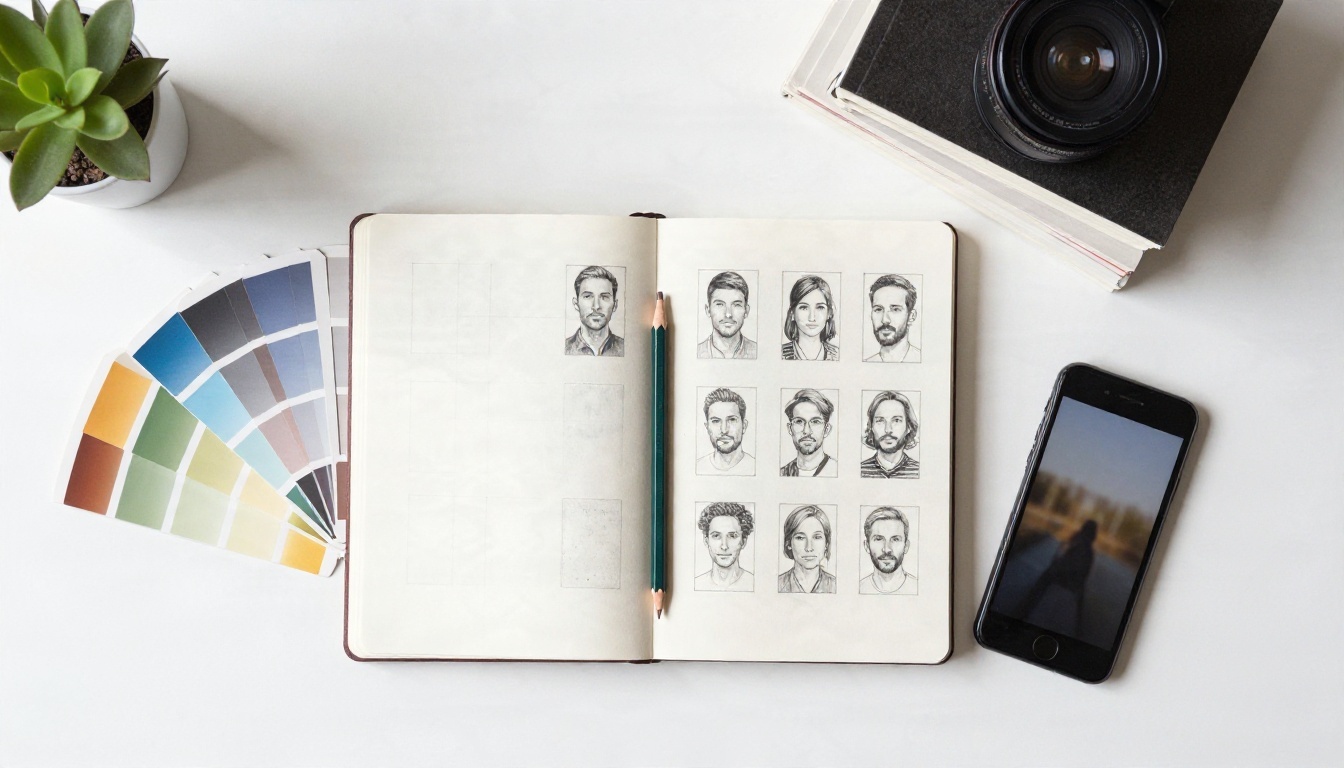
Before you generate anything, sketch three rough thumbnails and shrink them to the size of a postage stamp. Readers decide in a glance on Amazon's search page. A good jacket has one clear focal point, strong contrast, and a title area with calm space around it.
Ask for these things in your prompt:
- A single subject in the lower or middle third
- Empty sky, wall, or fog in the top third for the title
- A limited palette of two or three colors
- Realistic lighting and texture, such as film grain, so the image feels like a photograph and not a stock render
How to Use Seedream 4.5 on PicassoIA
For photoreal book art, Seedream 4.5 is a strong pick: it outputs sharp images up to 4K, which gives you plenty of pixels for both the 2,560 x 1,600 ebook file and the print wrap.
- Open the model page. Go to the Seedream 4.5 page on PicassoIA.
- Write a scene prompt. Describe the subject, setting, lighting, lens, and mood. Example: a lone hiker on a foggy ridge at dawn, 50mm lens, soft golden light, fine film grain, empty sky above.
- Pick a tall aspect ratio. Choose a portrait option close to 1.6:1 so the ebook crop needs little trimming.
- Set the highest resolution available. More pixels give you room to crop and extend for the print wrap.
- Generate several variations. Produce at least four and compare them at thumbnail size.
- Save the winner. Keep the original file, and write down the date and prompt.
If you want a second opinion model, Nano Banana Pro is useful for editing and re-framing a result, and Qwen Image 3 is another photorealistic option for scenes with people.
💡 Tip: Generate several scenes in the same style for a series. Readers recognize a series by consistent art, and a shared style keeps your listings looking related.
Fix Resolution and Typography
Raw output is rarely the final file. Two quick steps get it print-ready.
Upscale for Print
If your image falls short of the 300 DPI target at print size, run it through Real ESRGAN, which upscales images up to 4x. Upscaling a 1,600-pixel-wide image to 6,400 pixels gives plenty of headroom for the 3,879 x 2,775 example above. Do this before you place the art in your layout, then compare edges at 100 percent zoom to catch smearing.
Add the Title the Safe Way
For lettering, you have two routes:
| Route | Best for | Watch out for |
|---|
| Layout tool (Canva, Affinity, InDesign) | Full control of fonts and spacing | Needs a few minutes of setup |
| Typography model such as Ideogram v4 Quality | Quick concepts with built-in lettering | Proofread every letter |
For a final KDP file, a layout tool is the more reliable choice, because you can export the exact bleed and spine settings.
Pre-Upload Checklist
Run through this list before you click publish:
The proof copy is worth the few dollars. Screens glow and paper doesn't, so a dark, moody image that looks rich on your monitor can print muddy. Looking at the real object in daylight tells you whether to brighten the midtones.
Common Mistakes to Skip
A handful of errors show up again and again in author forums:
- Generating at a square ratio. You then crop away half the picture or stretch it. Start tall.
- Ignoring bleed. A white sliver along the edge of a printed book looks amateurish.
- Putting the title too close to the edge. Trimming varies slightly from copy to copy.
- Reusing the ebook file for print. It has the wrong shape and resolution.
- Forgetting to update the disclosure when swapping the art later.
Make Your Own Book Art on PicassoIA
The rules look long on paper, but the workflow is short: generate, upscale, add the title, check the specs, disclose, upload. You can run the first three steps in one sitting on PicassoIA, with photoreal models like Seedream 4.5 for the base picture and Real ESRGAN for the pixel count your paperback needs.
Open PicassoIA, write a scene that fits your story, and generate a handful of variations at a tall ratio. Shrink them to thumbnail size, pick the one that still reads clearly, and take it through the checklist above. Your next listing could be on Amazon this week, with art that is allowed, correctly sized, and properly declared.
Policy details and size limits change, so confirm the figures on KDP's current help pages before you publish.


