You already have the anime image. The pose is right, the palette is right, and the character looks like they walked out of your head. Then one thing bugs you: the outfit, the hair color, the background, a stray hand. Starting over from scratch burns an hour. An AI hentai editor fixes that one thing in under a minute, and this article shows you which tools do it well, which free options are real, and which prompts to paste.
A quick note on scope. Everything here is written for adults editing adult characters in a tasteful, non-explicit way: glamour, swimwear, cosplay-style outfits, suggestive mood and strong lighting. That is also what the best-rated models handle most reliably, and it keeps your results shareable.
What an AI Hentai Editor Actually Does
An AI hentai editor is an image-to-image tool tuned for anime and manga-style artwork. You upload a picture, describe a change in plain English, and the model rewrites only the parts you point at. Faces, line weight and shading stay consistent, while the thing you asked for changes.

Edit Versus Generate
Generating starts from a blank canvas and a text prompt. Editing starts from a finished picture. The difference matters because an edit preserves what already works. If you spent twenty tries getting a perfect face, you do not want a fresh roll of the dice just to change a skirt color.
| Task | Generate from text | Edit an existing image |
|---|
| New character concept | Best choice | Not needed |
| Change outfit or hair | Unreliable, face drifts | Best choice |
| Fix hands or extra fingers | Needs many retries | One masked pass |
| Swap background | Rewrites everything | Leaves the subject alone |
| Match a reference pose | Hard | Easy with a reference photo |
Who Uses These Tools
Three groups show up most often: illustrators who want a fast cleanup pass before posting, cosplay and glamour creators who want an anime version of their photo set, and hobbyists who collect character art and want a custom variant. The needs differ, but the workflow is almost identical: upload, mask or describe, generate, compare, repeat.
Most editors list twenty features. Four of them do 90% of the work.
Inpainting and Masks
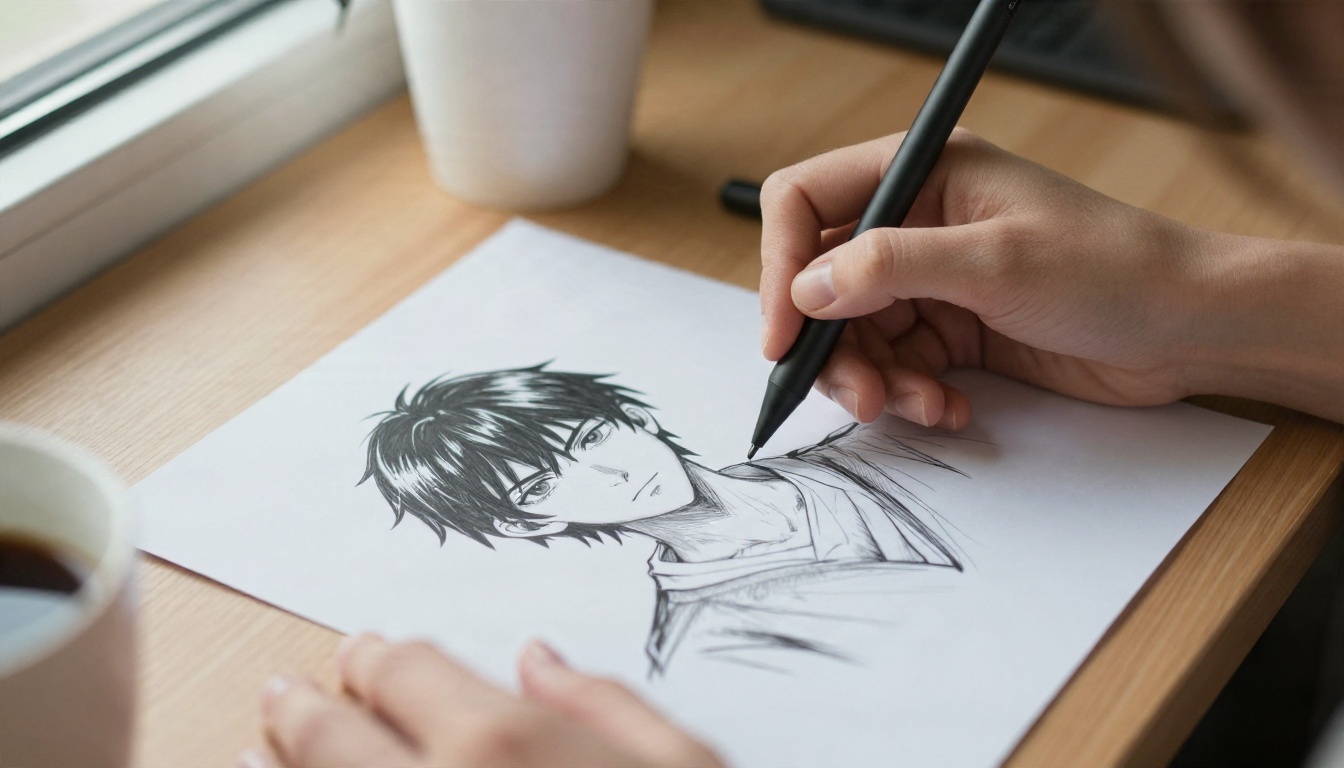
Inpainting means painting over a region and telling the model what belongs there. It is the safest way to fix a hand, change an accessory or redraw a section of hair. Keep the mask slightly larger than the object, because a tight mask leaves a visible halo around the edit.
Outfit and Color Swaps
Outfit swaps are the most requested edit by a wide margin. Modern instruction-following models can turn a school jacket into a summer dress or a bikini top into a sundress without redrawing the face. Color swaps are even easier: name the item and the new color, and the rest stays untouched.
Background Replacement
A character on a flat gradient looks unfinished. Swapping in a rooftop, a beach or a quiet café gives the picture a story. The trick is to name the lighting direction in the same sentence, so the subject and the new scene agree on where the sun sits.
Upscaling and Cleanup
Anime art often arrives as a small, compressed file. Run it through a super resolution pass before editing, not after. Editing a sharp 2K image gives the model more detail to hold on to, and fine lines survive the pass much better. If you need a dedicated pass, the super resolution models on PicassoIA are a good place to start.
💡 Tip: Always upscale first, edit second, and run a final light sharpen only if you need it. Doing it in the opposite order often smears the line art.
Free Options That Hold Up
Search results for this topic are full of tools that promise "free" and hide a credit meter behind the first generation. Here is how to tell the difference quickly.
Free Tiers and Their Limits
A genuine free option meets three tests:
- No forced account wall before your first edit.
- A visible daily or monthly allowance, not a mystery credit bar.
- No watermark on the downloaded file.
Many free tiers cap you at a handful of edits a day and downgrade the resolution. That is fine for testing, but not for a full set of images.
Why Unlimited Matters
Editing is an iterative loop. A single good result often takes four to eight attempts, because you adjust the mask, reword the prompt and try again. Any plan that charges per attempt punishes exactly the habit that produces good output. That is why PicassoIA Image Editor Pro is worth bookmarking: it offers unlimited generations and does not push you into a strict safety filter for tasteful glamour and anime-style work, so you can iterate as many times as the edit needs.
Best Models for Anime Edits
Not every model handles anime equally well. Some are built for photoreal skin, others for line art, and a few are good at both. This is the order I would try them in.
Which One to Pick First
Start with Seedream 4.5 when you want the sharpest, most polished result. Switch to Image Editor Pro when you know you will need many attempts. Use the Qwen edit models when the image has several characters or when you are blending a reference. Everything else is a specialist you pull in for one job.
A Simple Two-Model Workflow
Many creators run a draft in a fast model like Flux Kontext Fast to test an idea, then rerun the winning prompt in Seedream 4.5 for the final render. It saves time and keeps your best model for the picture that matters.
How to Use Seedream 4.5 on PicassoIA
Seedream 4.5 is the model I would lead with for polished anime edits. It follows long prompts closely and produces crisp detail at high resolution.
Step by Step
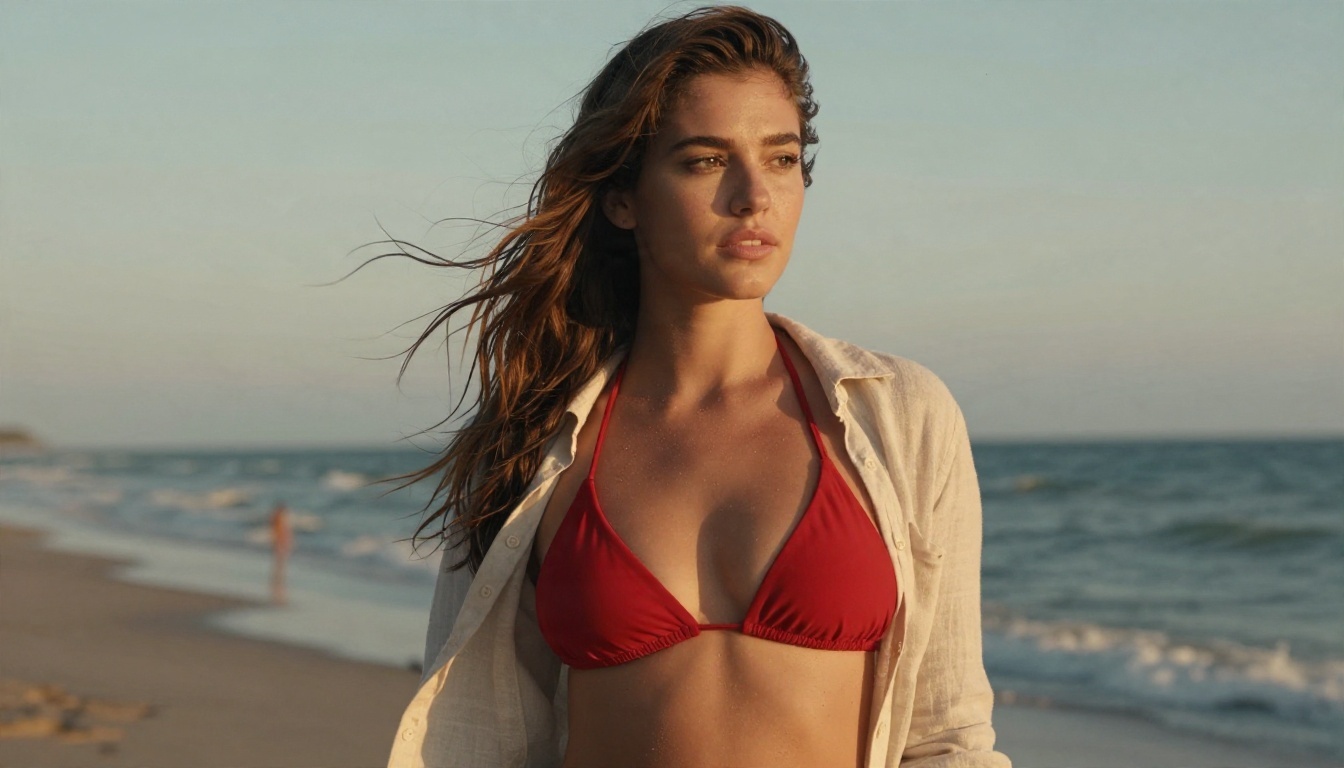
- Open the Seedream 4.5 page on PicassoIA.
- Upload your source image in the reference or image input field.
- Write one sentence naming the change, such as the new outfit and its color.
- Add one sentence about lighting and background so the edit blends in.
- Choose a 16:9 or a portrait ratio that matches your original, then generate.
- Compare the result with the original. If the face drifted, shorten the prompt and try again.
Parameter Tips
- One change per pass. Two edits at once, such as outfit and background, often cost you face consistency.
- Match the aspect ratio of the source image to avoid unwanted cropping.
- Be specific about color and fabric. "Pale blue satin slip dress" beats "nice dress" every time.
- Use the seed if the tool exposes it. Reusing one seed while you change a single word shows you exactly what that word does.
💡 Tip: If a result is close but not right, do not rewrite the whole prompt. Change one adjective, regenerate, and compare.
Prompts You Can Copy
These prompts are written for tasteful, adult-oriented anime edits. Swap the bracketed parts for your own details.
Outfit Swap Prompts
- Change the outfit to a [color] summer dress with thin straps, keep the face, hairstyle and pose exactly the same.
- Replace the jacket with an open linen shirt over a swimsuit top, same lighting, same background.
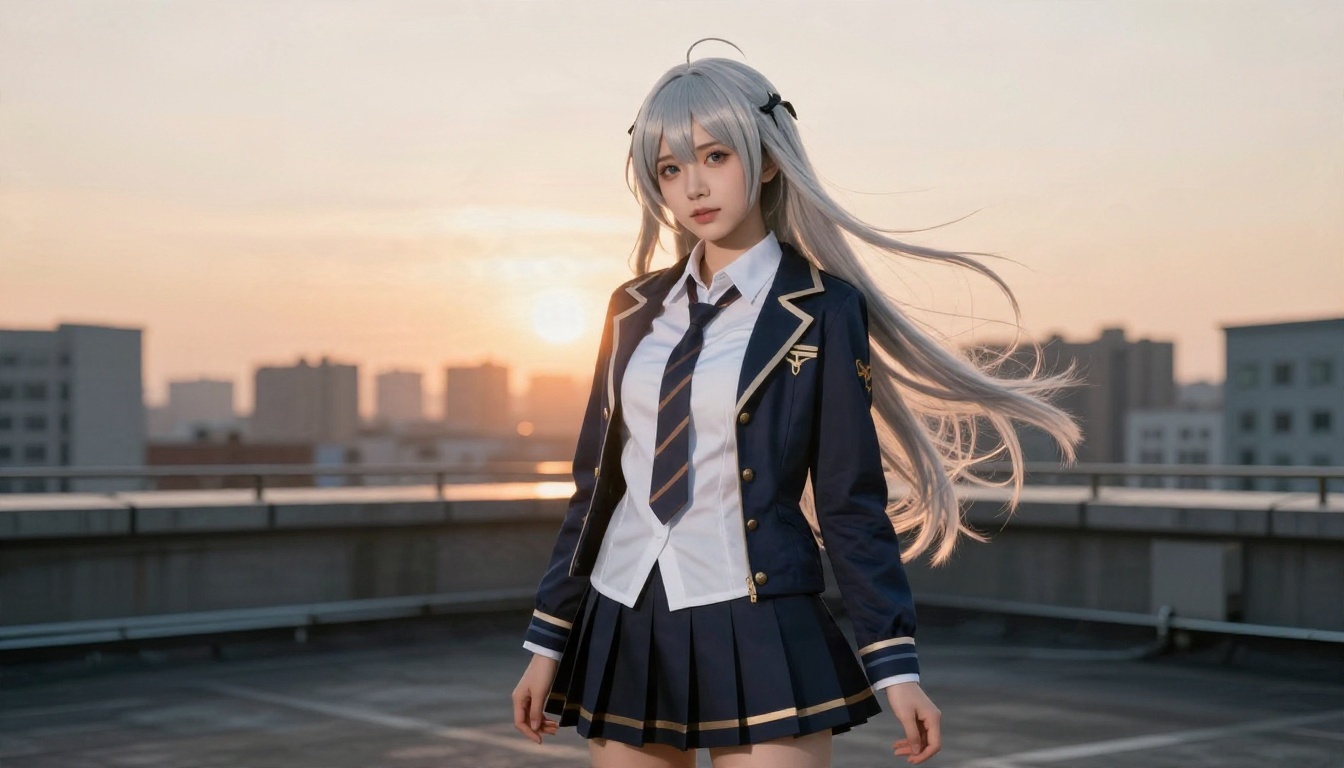
- Dress the character in a short school-style uniform with a ribbon tie, adult proportions, soft rim light.
Style Shift Prompts
- Redraw this photo as polished anime key art, clean line work, cel shading, same pose and expression.
- Convert the picture to a soft watercolor anime look with muted pastel tones, keep the face recognizable.
- Make the shading richer and the hair highlights sharper, keep every other detail unchanged.
For photo-to-anime work specifically, the Qwen Image Edit Plus LoRA Photo To Anime model is built for the job and needs a much shorter prompt.
Lighting and Background Prompts
- Replace the background with a quiet beach at golden hour, warm side light from the left, soft haze on the horizon.
- Place the character in a candle-lit bedroom with silk curtains, shallow depth of field, warm tones.
- Move the scene to a rooftop at sunset with city lights blurred behind her.
Prompt Structure That Works
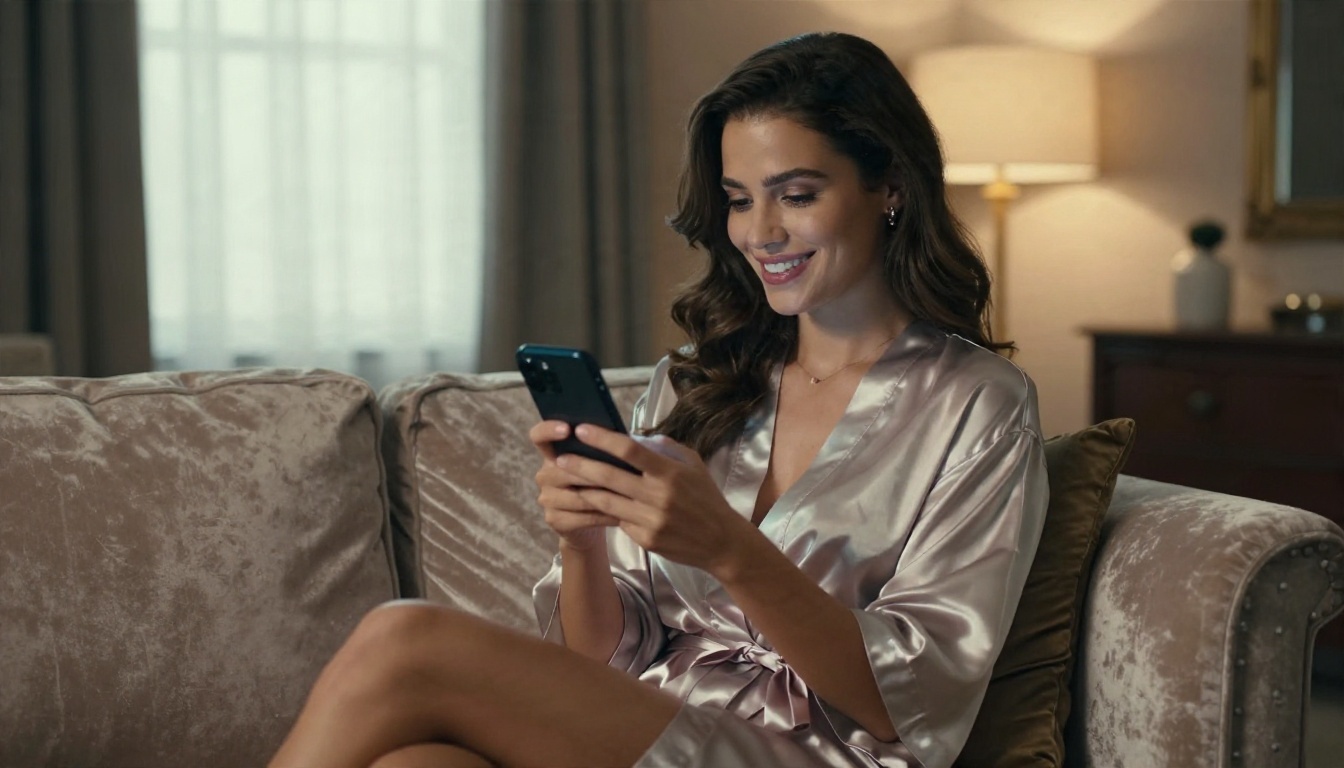
A reliable template has four parts, in this order: what changes, what stays the same, lighting, and mood. For example: "Change the swimsuit to white, keep the face and pose, soft morning light from the left, calm and elegant mood." Short, ordered prompts beat long, rambling ones in almost every model on the list above.
Mistakes That Ruin Edits
The same errors show up again and again, and each one has a quick fix.
Overloaded Prompts
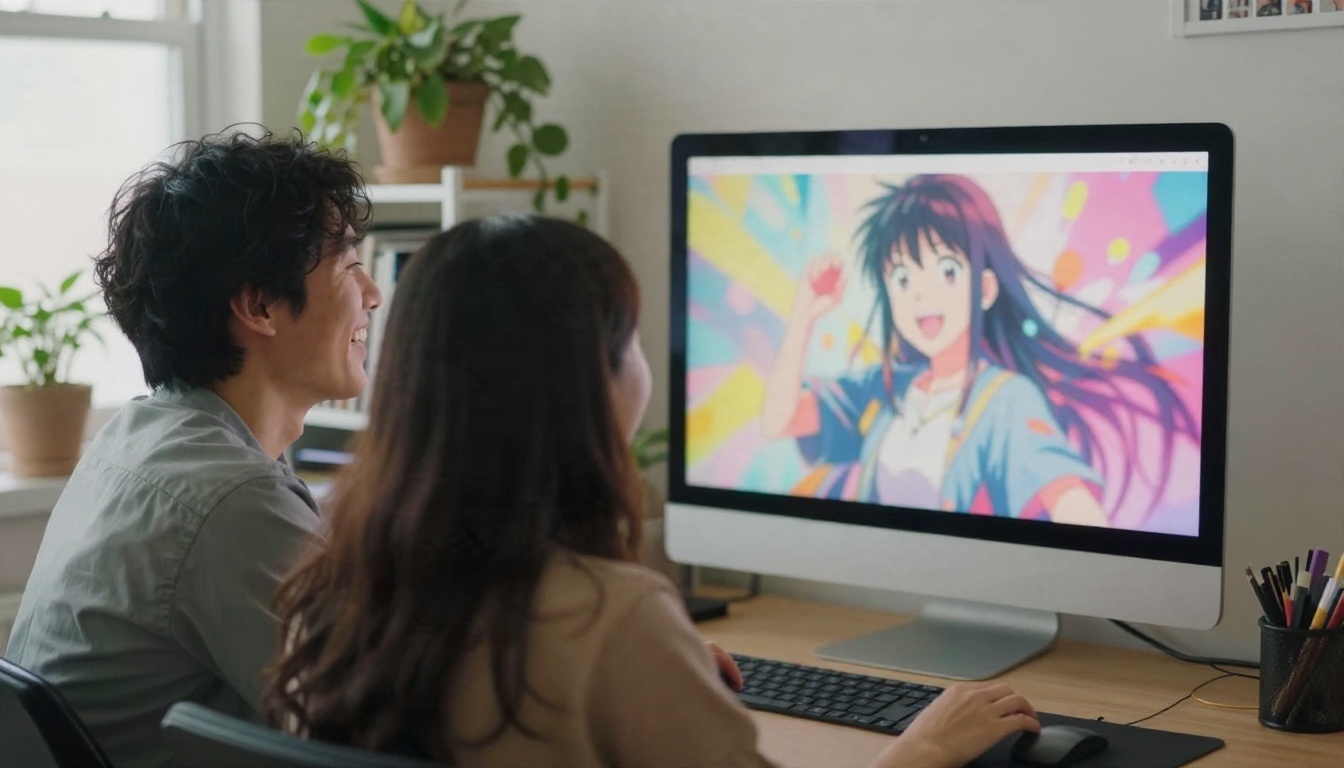
Asking for five changes in a single sentence is the number one cause of melted faces. Split the job into passes: outfit first, background second, lighting last. Each pass starts from the previous result, so progress stacks up.
Masks That Are Too Tight
A mask that hugs the object leaves a faint outline where the old pixels meet the new ones. Extend the mask a few pixels past the edge, and the model has room to blend. Soft-edged brushes help even more.
Ignoring the Source Quality
A blurry source gives a blurry edit. If the original has visible compression, upscale it first. This single habit improves nearly every result more than any prompt trick.
Privacy and Safe Use
Adult-oriented anime tools carry a few responsibilities, and they protect you as much as anyone else.
Rules Worth Following
- Adult characters only. Every character must be clearly an adult in age, proportions and framing. No exceptions.
- No real people without consent. Never edit a photo of someone to place them in suggestive scenes without their permission.
- Stay non-explicit. Suggestive and tasteful travels well across platforms. Explicit material gets accounts removed and is not what these models are tuned for.
Check Where Your Uploads Go
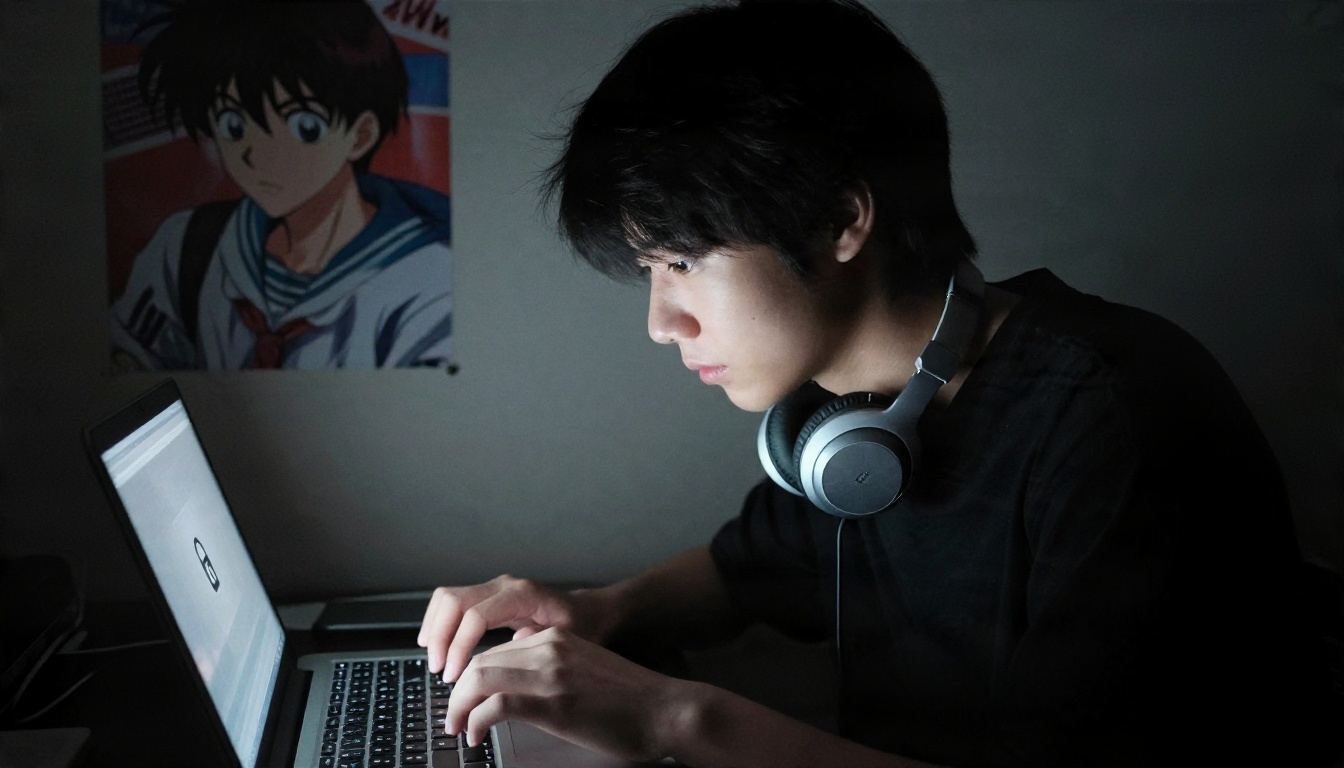
Before uploading a personal photo, look at the tool's data policy. Does it store your images? For how long? Does it train on them? A tool that hides the answer is a tool to skip.
💡 Tip: Strip location data from photos before uploading, and keep original files on your own drive.
Start Editing Your Own Images
You now have the full picture: the tools that matter, the free options worth trusting, and prompts you can paste right away. The fastest way to find your own style is to run a handful of edits and compare them side by side.
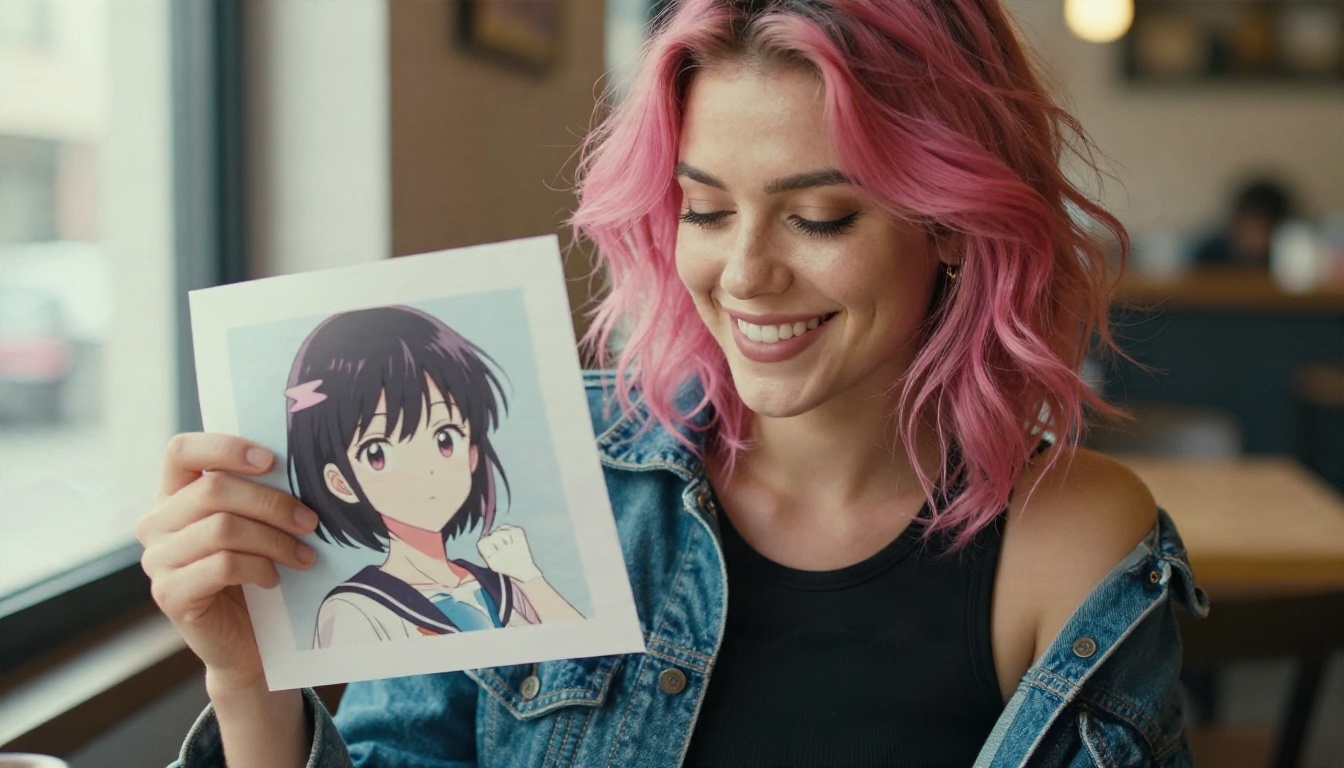
Here is a simple plan for your first session:
- Open Seedream 4.5 and run one outfit swap on your best image.
- Move to PicassoIA Image Editor Pro and try five variations of the same edit with no cap on attempts.
- Test a background change with Flux Kontext Fast for a quick draft.
- Try Nano Banana when you need the same character across several images.
Pick the result you like best, upscale it, and save it. If you want to see every option side by side, browse the full list at picassoia.com/en/all-models. Upload an image today, write one sentence, and see how much of your next idea you can finish before your tea goes cold.


