You upload a photo with a full face of makeup, type a short instruction, and a few seconds later the same person appears with bare skin, natural lips and no eyeliner. That is what an AI makeup remover promises, and in 2027 it is no longer a party trick. Free online editors can now strip lipstick, mascara and blush from a portrait with surprising accuracy. They also invent things, and that is where the trouble starts.
This article walks through how these tools work, shows what they handle well, flags where they break, and gives you a practical workflow you can run today without paying anything.
What an AI Makeup Remover Does
A makeup remover for photos is an image editor that rewrites the pixels of a face. It does not wipe anything off, because nothing physical is there to wipe. Instead, the model looks at your portrait, recognizes the face, lips, eyes and brows, and then paints a plausible version of that same face without cosmetics.
That distinction matters. The result is a prediction, not a restoration. The model guesses what your skin probably looks like under the foundation, and the guess is informed by millions of other faces it has seen.
Two Ways These Tools Work
Most free tools fall into one of two camps:
- Prompt based editors. You upload a photo and write something like "remove all makeup, keep the same face, natural skin texture." A general image editing model does the rest.
- One click filters. A single button applies a preset. You get less control, but the process is faster and needs no wording.
Prompt based editors usually give better results because you can tell the model what to keep: hair, background, lighting, expression and clothing.
Why People Use Them
The reasons are more ordinary than you might expect.
| Use case | Who uses it | What they want |
|---|
| Beauty content | Makeup artists, bloggers | Mock before and after visuals |
| Product testing | Skincare brands | Bare skin reference images |
| Personal curiosity | Everyday users | A look at their natural face |
| Photo retouching | Photographers | Cleaner base for new edits |
| Acting and costume work | Costume designers | Plain face reference for characters |
💡 Tip: If you only want to see your own face, use your own photo. Editing another person's picture without their consent is a line worth respecting, and we come back to it near the end.
Where Traditional Removal Starts
Before the software, there was the cotton pad. A real removal routine pulls off pigment layer by layer: lipstick first, then eye makeup, then foundation. The skin underneath is rarely identical to what the photo shows after filters and soft lighting.
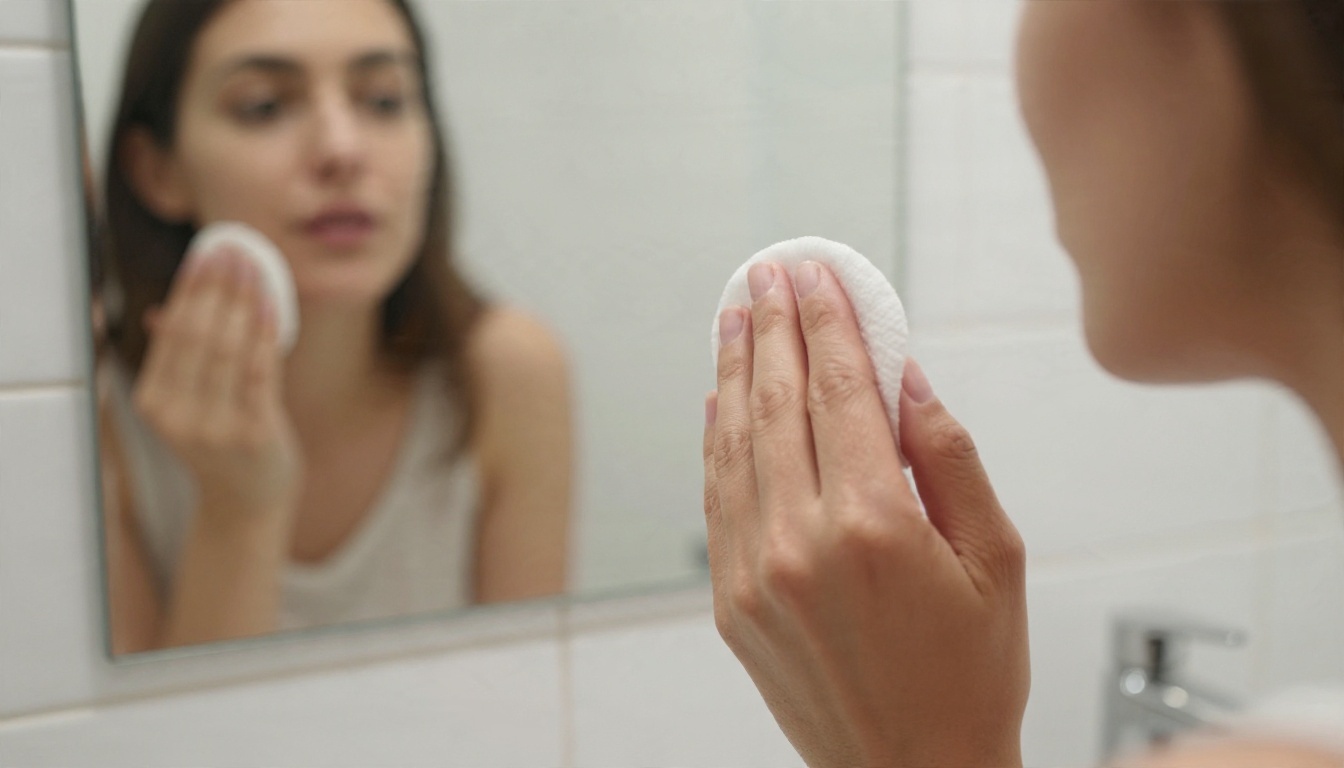
This is a useful reference point. When an AI tool gives you a bare face, ask yourself whether it looks like what appears after a real wash: some redness, uneven tone, tiny pores, a few blemishes. If the output looks like airbrushed porcelain, the model has smoothed the skin rather than removed the makeup.
You do not need to hunt through dozens of sketchy apps. The best free options today are general purpose image editors that happen to be very good at faces. On PicassoIA, these are the ones worth trying first.
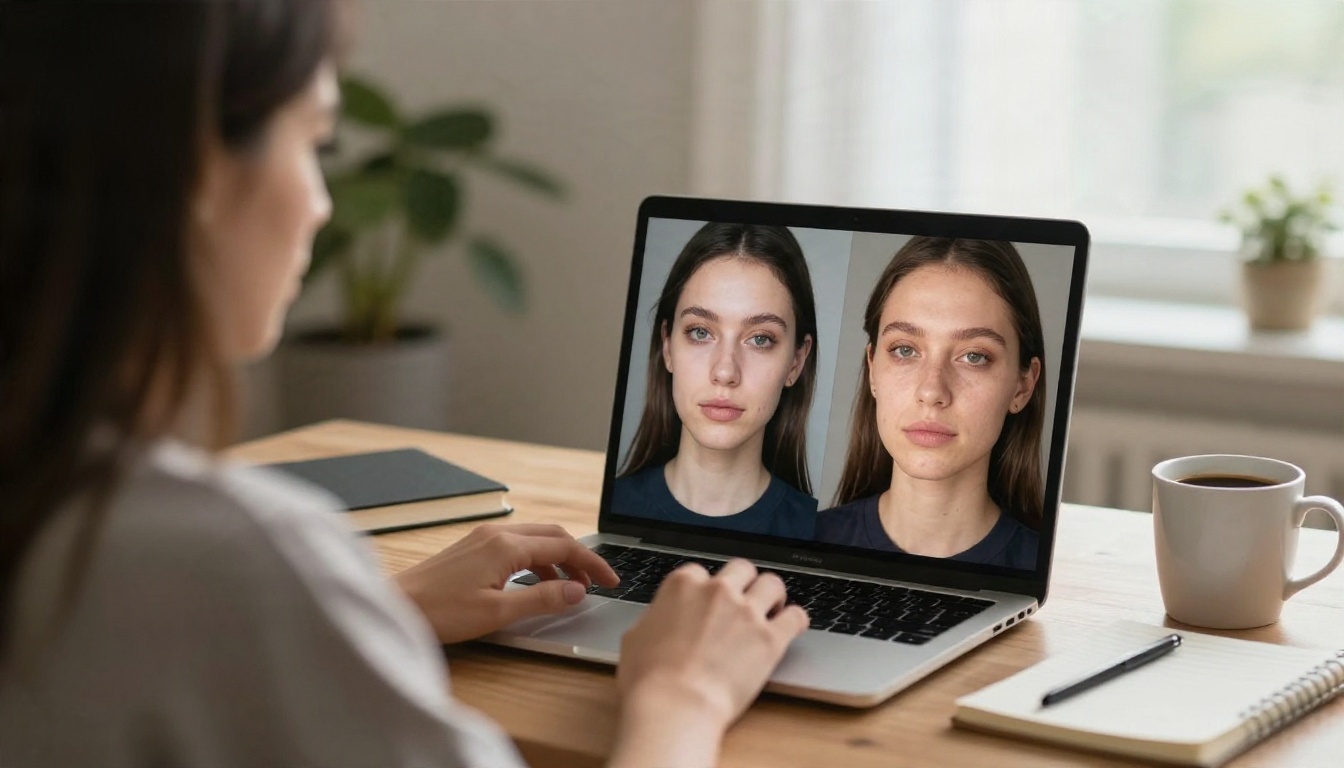
PicassoIA Image Editor Pro
PicassoIA Image Editor Pro is the easiest starting point because it allows unlimited generations. Makeup removal usually takes a few attempts, so that freedom to retry is worth more than a single polished output.
Nano Banana
Nano Banana is known for keeping a person's identity stable across edits. That is the hardest part of makeup removal, since a bare face that looks like someone else is a failed result.
Flux Kontext Fast
Flux Kontext Fast is built for instruction based edits. Short commands such as "remove lipstick and eyeliner" tend to work well, and the speed lets you test several variations in a row.
P Image Edit
P Image Edit responds in well under a few seconds, which makes it handy for quick comparisons. If you want to try three different wordings of the same request, this is a comfortable model for it.
Which One Should You Pick?
Photo Examples by Makeup Type
Not every makeup look is equally easy to remove. Here is what to expect, based on the way these models behave.
Eye Makeup: Usually Handled Well
Eyeliner, mascara and shadow sit on a small, well defined area. Models recognize eyes extremely well, so this is often the cleanest edit.
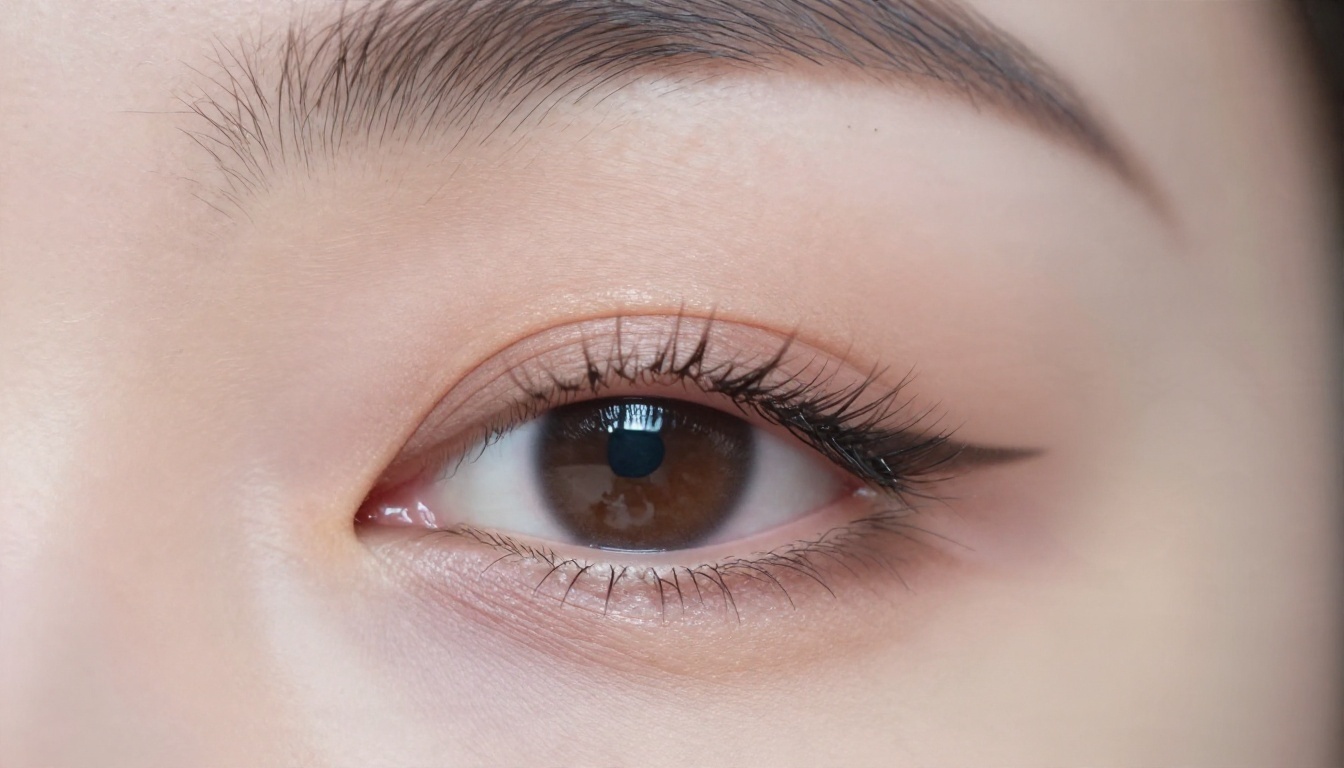
What usually comes out right: lashes shorten and lighten, the lid loses its shimmer, and the line along the lashes disappears. What can go wrong: lashes sometimes look sparse or oddly thin, because the model does not know your real lash density.
Lipstick: Easy but Not Always Accurate
Color removal from lips is simple for a model. The harder question is the natural lip tone. A bold red lip may turn into a pale pink that does not match the person's real lips. If accuracy matters, mention the shade in your prompt, for example "natural medium rose lips."
Foundation and Contour: The Hard Part
Base makeup sits across the whole face. The model must guess freckles, scars, redness and skin texture that the foundation hid. This is where you see the biggest gap between real and generated skin.
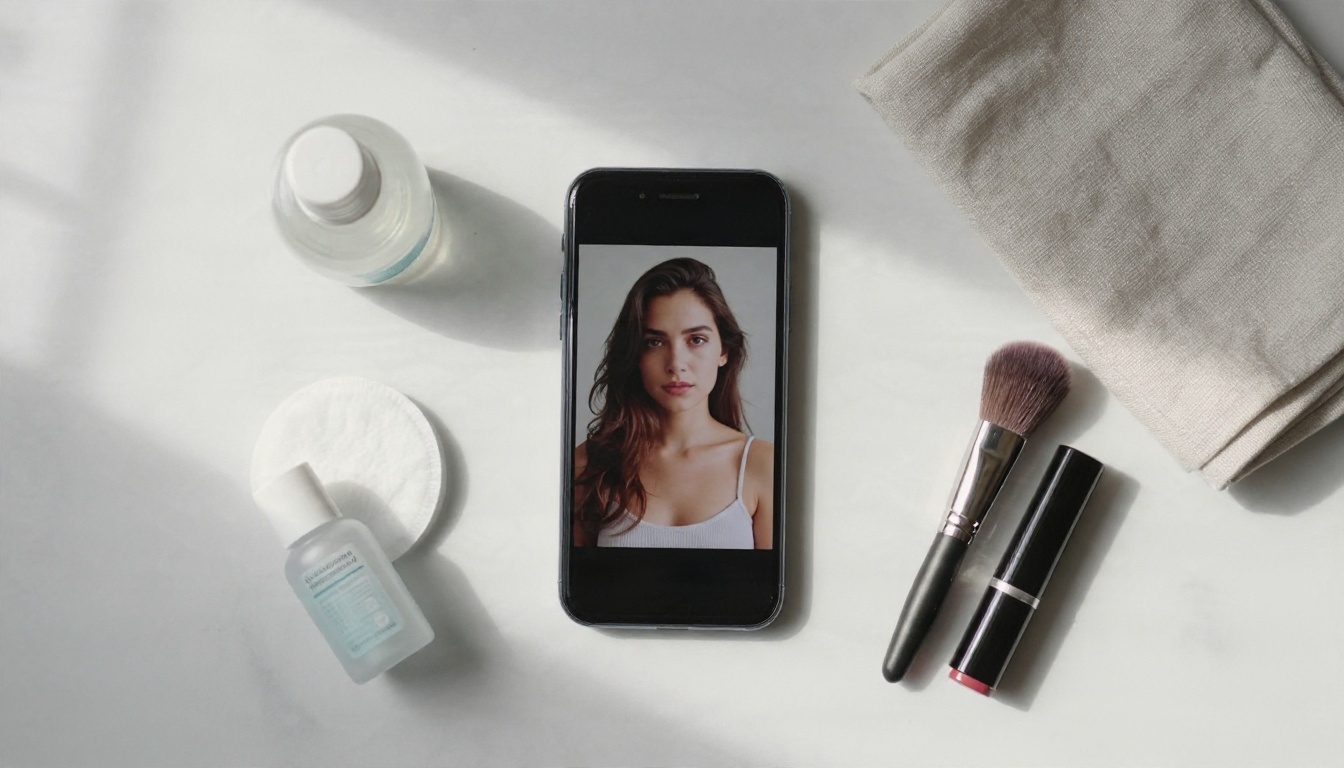
💡 Tip: Add "keep natural pores and skin texture, do not smooth the skin" to your instruction. Without it, many models drift toward a soft, filtered look.
Glitter, Gems and Stage Makeup
Theatrical looks are the real stress test. Glitter catches light in thousands of tiny points, and face gems sit on top of the skin rather than in it.
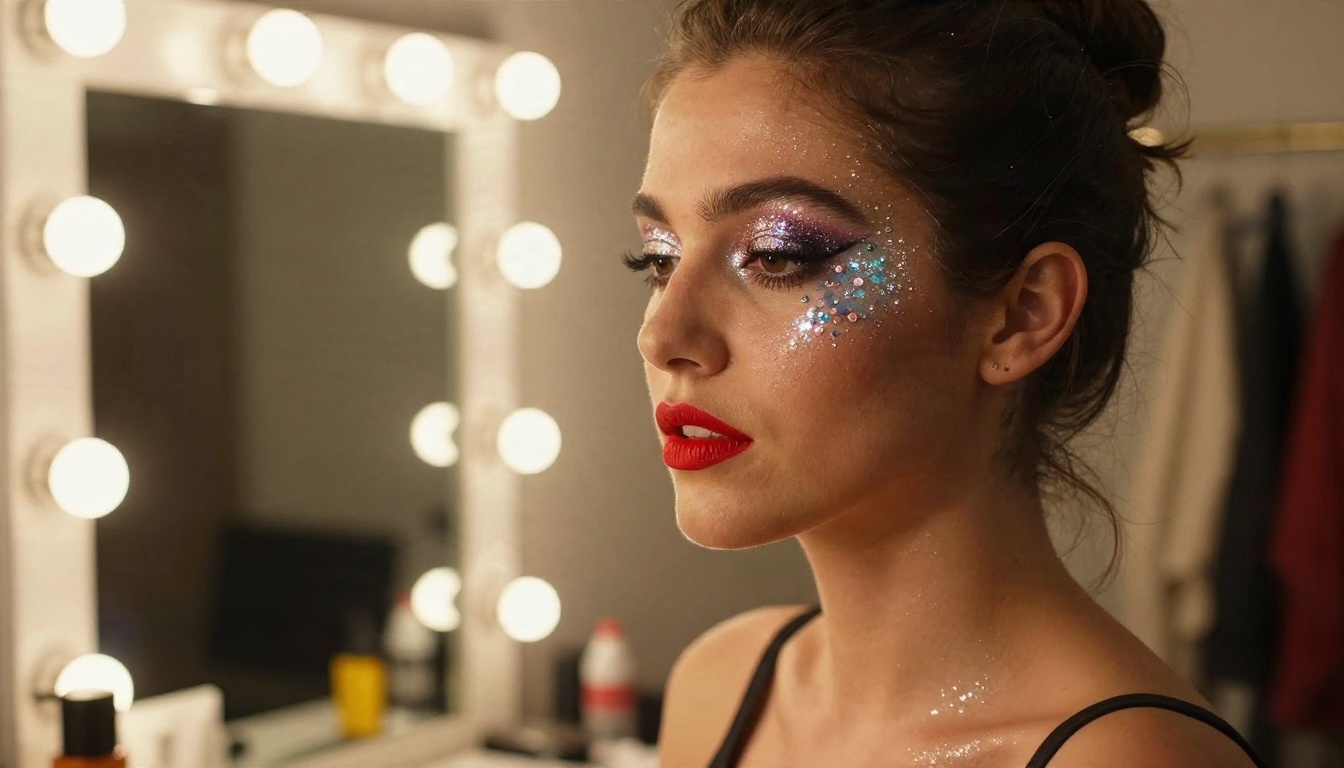
Expect partial results. Gems may be removed while glitter dust leaves a faint sparkle. Heavy contouring may leave ghost shadows under the cheekbones. Run the edit in two passes: first remove the gems and glitter, then remove the base color.
How to Use Image Editor Pro Step by Step
Here is a simple workflow that gives consistent results with PicassoIA Image Editor Pro.
- Pick a good source photo. Front facing, sharp, evenly lit. A photo taken in daylight near a window works better than a dim party shot.
- Open the model page and upload the photo as your reference image.
- Write a specific instruction. For example: "Remove all makeup from this person's face. Keep the same identity, hair, background and lighting. Preserve natural skin texture, pores and freckles."
- Generate and compare. Look at the eyes, lips and jawline first. Those spots reveal identity drift fastest.
- Refine the prompt. If the skin looks too smooth, add "no retouching." If the lips look wrong, name the natural shade you expect.
- Run a second pass if needed. Feed the result back in and ask for one small fix, such as "slightly more natural eyebrows."
💡 Tip: Change one thing per attempt. If you rewrite the entire prompt each time, you will never know which phrase improved the result.
Prompts That Tend to Work
- "Remove makeup, keep the same face and expression, natural bare skin with visible pores."
- "Remove lipstick and eyeliner only, leave everything else unchanged."
- "Show this person without foundation, with natural skin tone variation and light redness."
Prompts That Cause Trouble
- "Make her look natural." Too vague, and the model may reshape the face.
- "Make her look better without makeup." This invites beautification, which is the opposite of removal.
- "Remove makeup and fix skin." The second part triggers heavy smoothing.
The Real Limits You Should Know
This is the section most tool pages skip. An AI makeup remover is impressive, but it has hard boundaries.
It Invents What It Cannot See
If foundation hides a scar, a mole or a patch of rosacea, the model has no way of knowing. It will fill in smooth or average skin. The picture looks real, but it is a guess. Never treat the output as a record of what someone looks like without makeup.
Identity Can Drift
Small changes to jaw shape, eye size or nose width are common, especially with weaker models. Compare the result against the original at full size. If the face feels subtly different, regenerate.
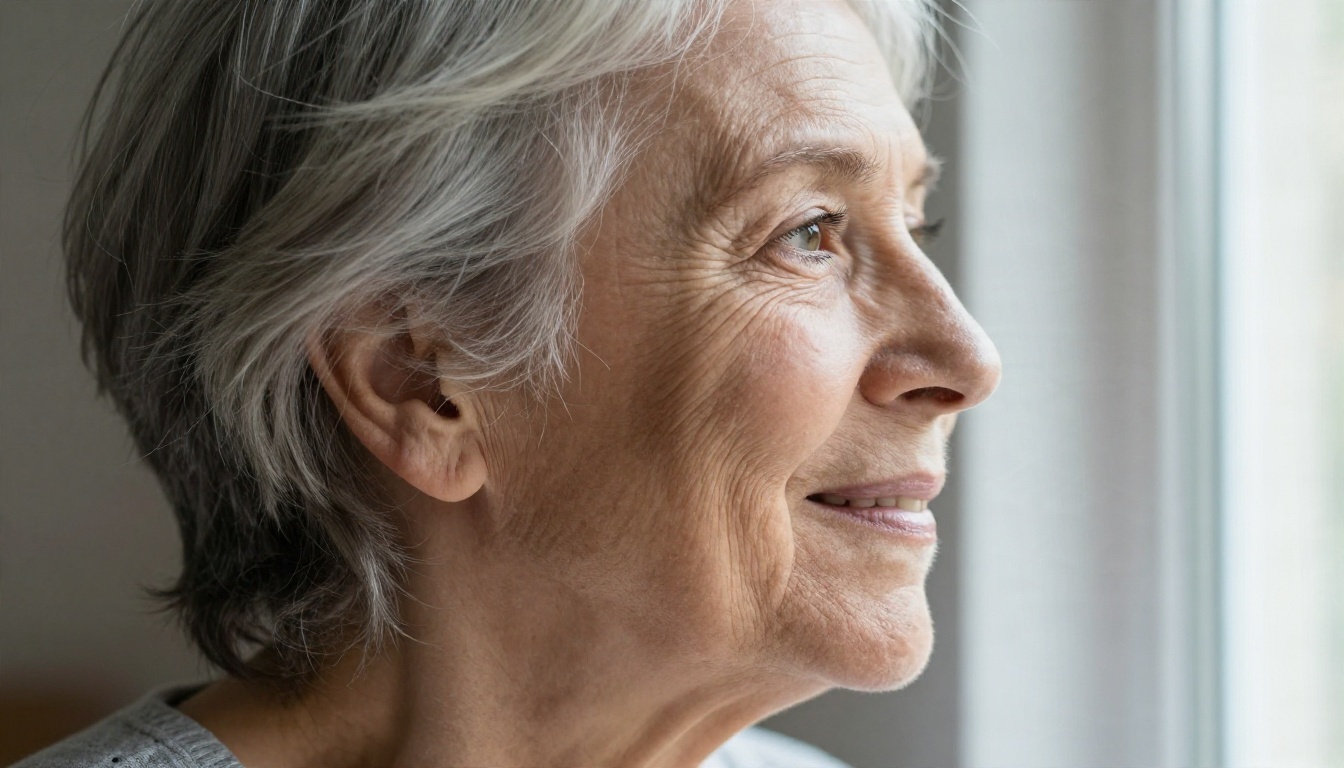
Skin Gets Too Perfect
Models are trained on a lot of retouched photography, so they lean toward flawless skin. Older faces suffer most, because wrinkles, spots and texture may be reduced even when you ask to keep them. The portrait above shows what believable bare skin should keep: lines, pores and uneven tone.
Low Resolution Hurts
A small, compressed photo gives the model very little to work with. Skin detail turns into blur, and the result looks waxy. If your source is tiny, upscale it first with a super resolution model from the PicassoIA collection, then run the removal.
Strong Lighting and Filters Confuse It
Ring lights, beauty filters and heavy color grading blend with the makeup. The model cannot separate "makeup" from "light" when both look the same. Pick a photo without a filter whenever possible.
Summary of Limits
| Limit | What happens | How to reduce it |
|---|
| Invented skin | Scars and spots vanish | Treat results as illustrative |
| Identity drift | Face shape shifts slightly | Use identity stable models, compare at full size |
| Over smoothing | Plastic skin | Prompt for pores and texture |
| Low resolution | Waxy detail | Upscale before editing |
| Heavy filters | Patchy removal | Use unfiltered source photos |
Making Results Look Believable
A few habits separate a convincing edit from an obviously artificial one.
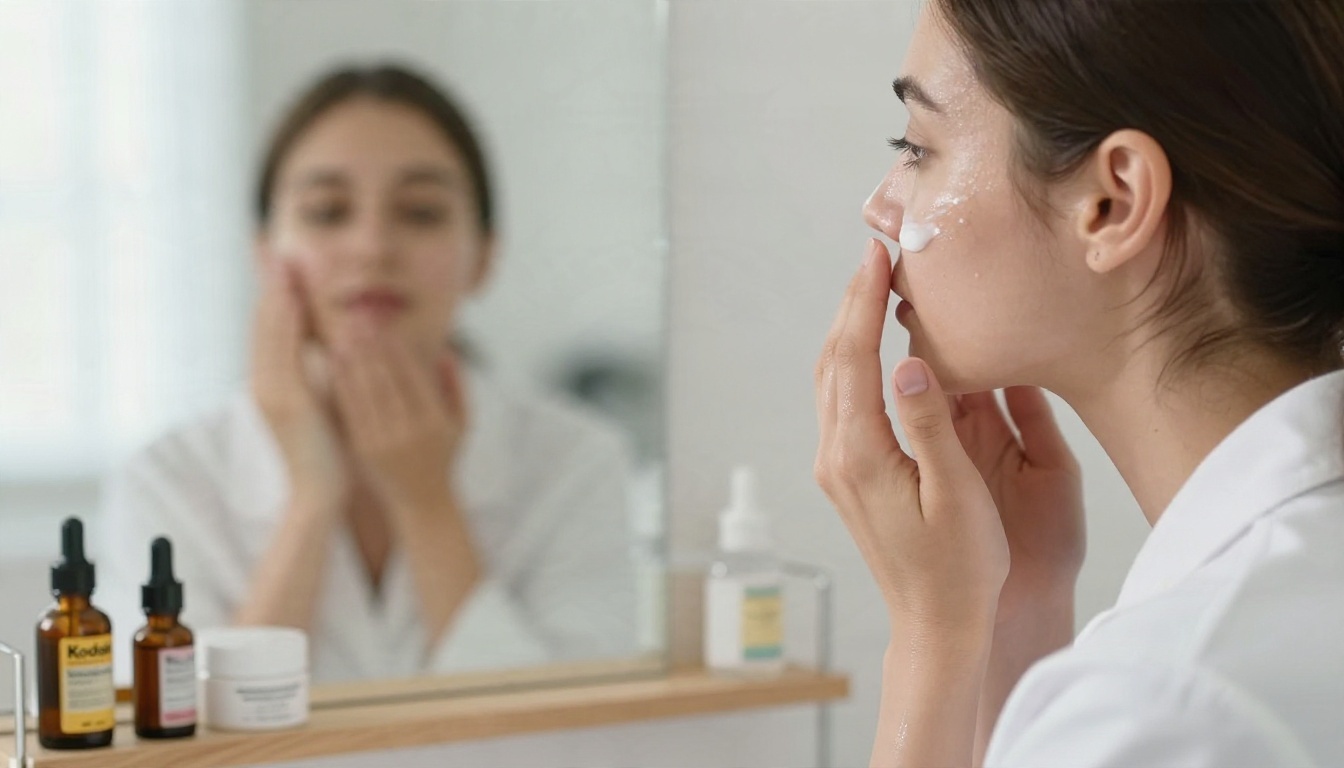
Start With Daylight Photos
Natural window light gives the model clean information about skin tone and shadow. Flash and ring lights flatten the face and make removal look painted on.
Keep Edits Small
Removing only lipstick is more reliable than removing everything at once. Build the bare look in steps. Each step gives you a chance to catch drift early.
Check the Edges
Look at the hairline, the jaw and the area around the eyes. These borders are where leftover color and blur tend to hide. A quick zoom to 200 percent exposes most mistakes.
Use a Second Opinion
Run the same photo and prompt through two different models, such as Nano Banana and Flux Kontext Fast. When both agree on a feature, such as a faint freckle pattern, it is more likely to be a sensible guess. When they disagree, the model is inventing.
Consent, Privacy and Honest Use
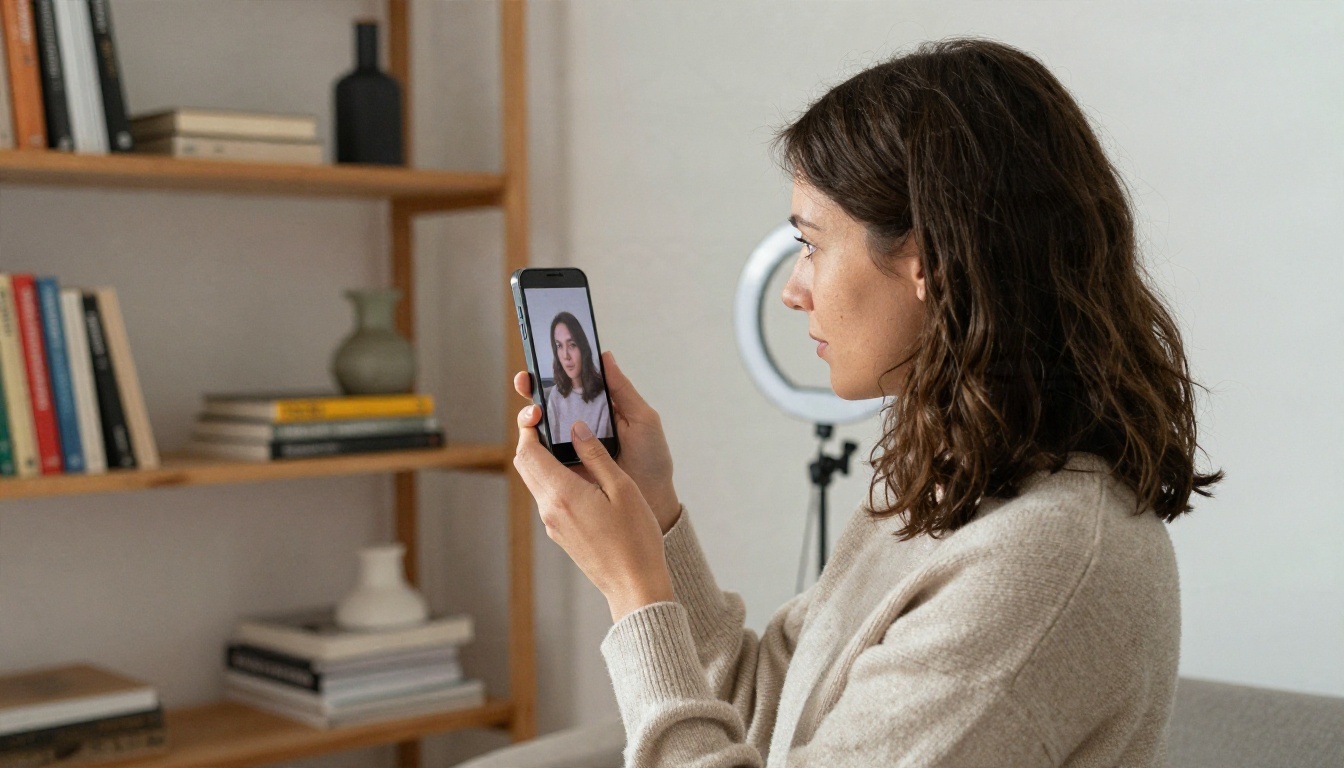
A bare face is personal. Taking someone's photo and removing their makeup without permission can embarrass them, and in some settings it can be harmful. Plenty of people choose to wear makeup, and they have a right to decide who sees them without it.
Some simple rules worth following:
- Use your own photos, or photos of people who have said yes.
- Do not post edited images of others as if they were real.
- Label generated results when you share them, especially in beauty content where viewers may take the image as proof.
- Never use these edits to shame, mock or pressure anyone.
Brands and creators should also be careful with before and after claims. An AI generated bare face is not evidence that a product works. If you show skincare results, use real photographs.
Try It on Your Own Photos
The fastest way to see what these tools can and cannot do is to run a few tests. Pick one portrait you took yourself, open PicassoIA Image Editor Pro, and try three prompts: one that removes only lipstick, one that removes eye makeup, and one that removes everything. Compare the three outputs side by side. You will quickly see where the model is confident and where it is guessing.
Then try the same photo with Nano Banana or P Image Edit and note which one keeps your face closest to the original. If you want to go further, browse everything else available at picassoia.com/en/all-models, from upscalers that sharpen small photos to generators that create brand new portraits from a text description.
Picasso IA gives you the room to experiment with these models without worrying about a limit on each attempt, so open a photo, write a clear instruction, and see what the result looks like. Take your time with the prompts, check the details, and keep the edits honest.


