Most people watch video with one thumb and a tall screen, and a horizontal clip squeezed into that screen looks like a mistake. It shrinks to a thin strip, wastes pixels, and gets scrolled past in under a second. An AI vertical video creator fixes that at the source: you describe a scene or hand over a photo, and the model renders a native 9:16 clip instead of a cropped landscape one.
The good news is that you no longer need a camera crew, a gimbal or an editing timeline to do it. The less good news is that results vary wildly depending on the tool, the prompt and a handful of settings most people never touch. This article sorts through all three: which free online tools are worth opening, which prompts produce clean motion, and which settings keep your clip sharp, steady and uncropped.
Shooting in portrait is not just landscape turned sideways. Composition, motion and even the way a subject fills the frame change completely.
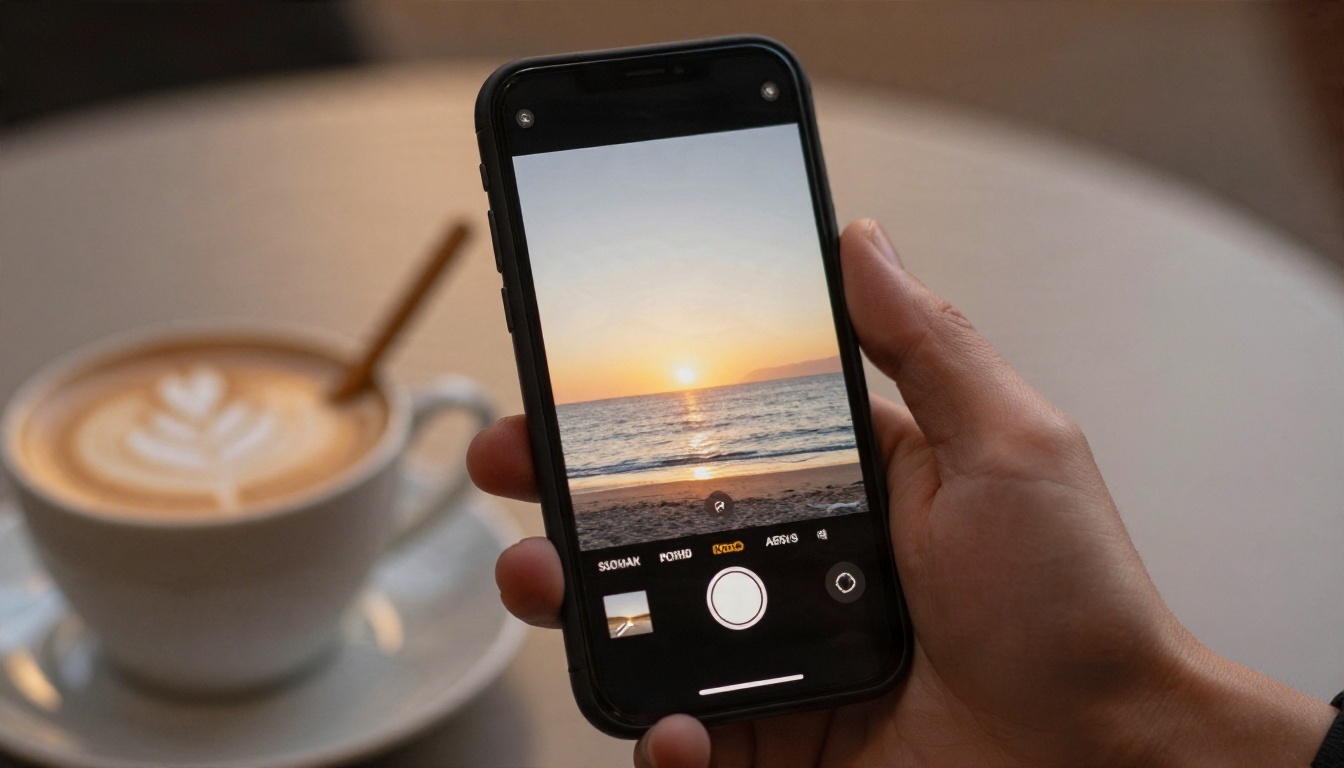
The 9:16 Frame Is Different
A landscape frame is wide, so it rewards sweeping backgrounds and side-by-side subjects. A 9:16 frame is tall and narrow. It rewards a single subject, strong vertical lines and layered depth from foreground to horizon. If you ask a model for "a wide shot of a crowded market" and force it into 9:16, you get a confusing sliver. Ask for "a vendor in the foreground, stalls stacking into the distance", and the same scene suddenly works.
Here are the common ratios and where each one lives:
| Aspect ratio | Typical pixels | Best for |
|---|
| 9:16 | 1080 x 1920 | Reels, TikTok, YouTube Shorts, Stories |
| 3:4 | 1080 x 1440 | Feed posts that need a little more width |
| 1:1 | 1080 x 1080 | Square feed posts, carousels |
| 16:9 | 1920 x 1080 | YouTube, websites, presentations |
Why Cropping Landscape Fails
The tempting shortcut is to generate a 16:9 clip and crop the middle. You throw away roughly two thirds of the pixels, and the subject often sits off-center so the crop slices through a face. Generating at 9:16 from the first frame means the model composes for the tall shape, and every pixel works for you.
💡 Quick rule: pick the aspect ratio before you write the prompt, not after. The shape of the frame changes what you should describe.
What an AI Vertical Video Creator Does
Under the hood, these tools fall into two families, and knowing which one you need saves a lot of wasted credits.
Text to Video
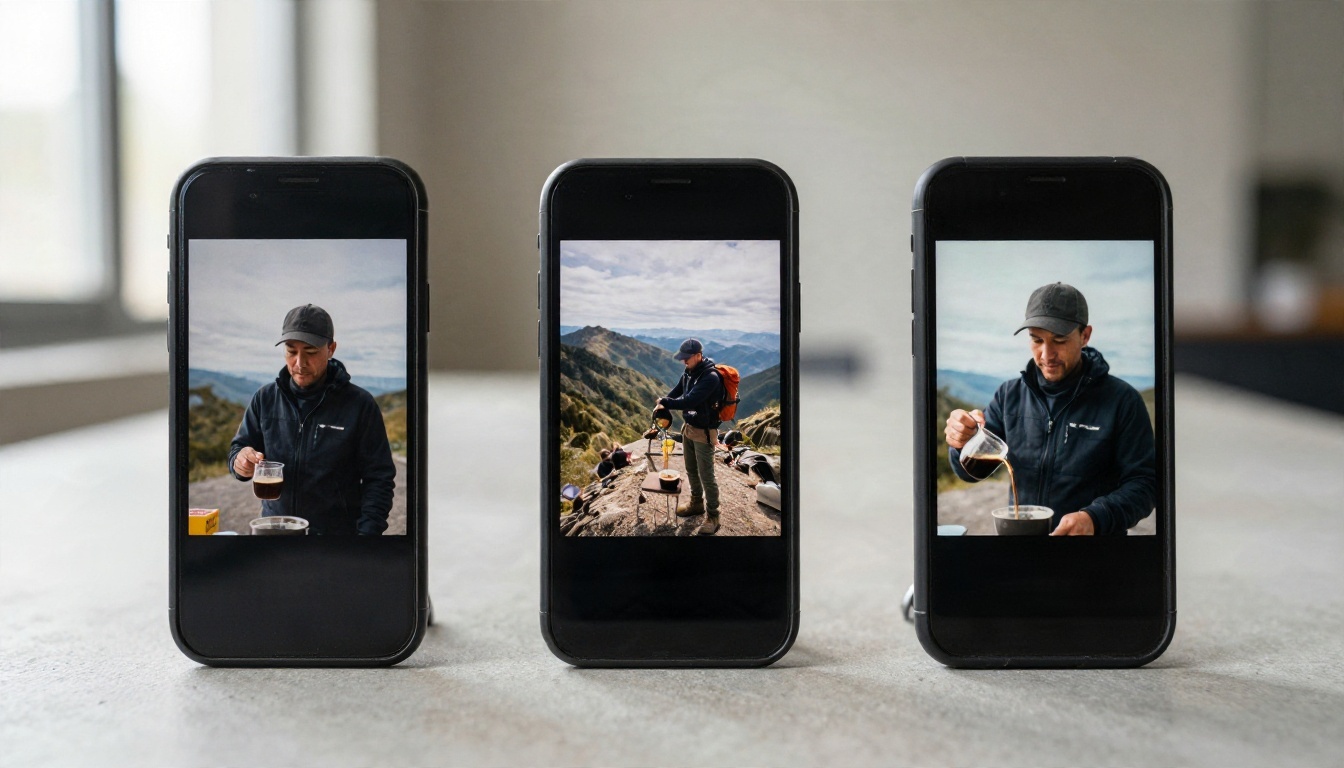
You type a description, choose 9:16, and the model invents everything: subject, setting, camera move and, with many recent models, a matching audio track. This is the fastest route when you have an idea but no footage. It is also the least predictable, because the model fills every gap you leave open.
Image to Video
You upload a still photo, and the model animates it. The clip inherits the aspect ratio of that image, so a portrait photo gives you a vertical video automatically. This route is far more controllable: the first frame is already what you want, and your prompt only has to describe motion. For product shots, portraits and brand visuals, it is usually the better choice.
| Approach | Control over look | Speed to a usable clip | Best use |
|---|
| Text to video | Low to medium | Fast | Concepts, B-roll, mood clips |
| Image to video | High | Fast | Products, portraits, brand consistency |
| Multi-shot scripting | High | Slower | Short stories with scene changes |
"Free" means different things depending on the platform. Some tools give you a handful of daily credits, some add a watermark, and some offer true unlimited use on a specific plan. Check the fine print before you build a workflow around any of them.
Seedance 2.5 Lite for Unlimited Runs
Seedance 2.5 Lite is the lightweight version of Seedance 2.5, tuned for 480p and 720p. Elite and Infinite members on PicassoIA can run it without a per-clip cost, which makes it a strong sandbox for testing prompts. It handles both text to video and image to video, offers 9:16 plus several other ratios, and produces clips of 5 or 10 seconds with synchronized audio. When you want more length or polish, the full Seedance 2.5 goes up to 30 seconds, and Seedance 2.0 Mini is another light option with native audio.
Kling v3 for Cinematic Polish
Kling v3 Video accepts 16:9, 9:16 and 1:1, and it can run up to 15 seconds. Standard mode renders 720p, while pro mode renders 1080p. It also supports multi-shot scripting with up to six scenes in one video, plus optional start and end frames. If you need a character to follow a specific movement, Kling v3 Motion Control is built for exactly that, and Kling v3 Omni Video pushes to 1080p from text.
Other Fast Options
Different models have different strengths, so it pays to keep a short list:
You can browse all of them in one place at picassoia.com/en/all-models.
💡 Budget tip: draft every idea in a light or fast model first. Only send the winning prompt to a heavier model for the final render.
Best Settings for 9:16 Clips
Settings are where most vertical videos go wrong. The prompt gets all the attention, but a wrong ratio or resolution quietly ruins a good idea.
Aspect Ratio and Resolution
Set the ratio to 9:16 whenever you are using text to video. With image to video, the ratio usually follows the input image, so prepare a portrait image first. For resolution, 720p is the sweet spot for drafts and most social posts. Go to 1080p only for the final version, since a phone screen rarely shows the difference on a short clip but the render costs more and takes longer.
Duration and Frame Pacing
Short clips look better. A 5-second clip keeps motion coherent, while longer clips give the model more room to drift. Seedance 2.5 Lite lets you pick 5 or 10 seconds, and Kling v3 Video can stretch to 15. A good habit: generate several 5-second beats and cut them together, instead of asking for one long shot to hold up.
Audio, Seeds and Negative Prompts
Many models can generate synchronized audio, and some leave it off by default. In Kling v3 Video, the Generate Audio option is off until you enable it. Turn it on for ambient sound like wind, traffic or café chatter, and turn it off if you plan to add music later.
Use the seed field when a clip is almost right. Keeping the seed and changing one phrase in the prompt gives you a controlled variation instead of a brand new roll. Where a negative prompt is offered, list what you do not want, such as "text, watermark, distorted hands, flicker".
Here is a quick settings cheat sheet:
| Setting | Draft value | Final value | Why |
|---|
| Aspect ratio | 9:16 | 9:16 | Native vertical, no cropping |
| Resolution | 480p or 720p | 720p or 1080p | Cheap tests, sharp finals |
| Duration | 5 s | 5 to 10 s | Short clips stay coherent |
| Audio | On | On or off | Match your editing plan |
| Seed | Random | Fixed | Repeat a result you like |
Prompts That Work Every Time
A vertical video prompt needs four things: a subject, an action, a camera move and a light condition. Write them in the order the viewer would see them unfold.
A Formula You Can Reuse
Use this structure:
[Subject and starting pose] + [action over time] + [camera movement] + [lighting and mood] + [format note]
The format note is the part people forget. Adding "vertical 9:16 composition, subject centered, headroom above" nudges the model toward a tall layout. Keep the language chronological: what happens first, then next, then at the end of the clip.
Five Copy-Ready Examples
Paste these into any model above and adjust the details:
- Product reveal: "A handmade blue ceramic mug sits on a wooden turntable. The turntable rotates slowly while steam rises from the mug. Slow dolly-in, soft window light from the right, warm tones, vertical 9:16 composition, product centered."
- Travel scene: "A hiker walks up a stone staircase between white-washed houses at sunrise. The camera tilts up slowly following her, golden light raking across the walls, light breeze moving her jacket, vertical 9:16 framing."
- Food close-up: "Hands pour thick honey over a stack of pancakes. The honey slowly spreads and drips off the edge. Macro lens, shallow depth of field, warm morning light, camera pushes in slightly, vertical 9:16."
- Portrait: "A woman in a knit sweater looks into the camera and smiles, then turns her head toward a sunlit window. Gentle handheld sway, shallow depth of field, natural skin texture, vertical 9:16 portrait framing."
- City mood: "Rain falls on a quiet street at dusk, a cyclist rides away from the camera past glowing shop windows. Low-angle tracking shot, wet cobblestones reflecting warm light, ambient rain sound, vertical 9:16."
💡 Pacing tip: one action per clip. "A man runs, jumps, spins and waves" is four clips, not one.
Words That Help and Words That Hurt
| Helps | Hurts |
|---|
| "slow dolly-in", "gentle pan", "static tripod" | "dynamic", "epic", "amazing" |
| "soft window light from the left" | "good lighting" |
| "one subject, centered, headroom" | "lots of people everywhere" |
| "steam rises slowly" | "everything moves" |
Specific nouns and verbs give the model something concrete to render. Vague praise words give it nothing.
Make Your First Clip in Five Steps
Here is a repeatable workflow that works across the tools mentioned earlier. It uses Seedance 2.5 Lite for drafts, but the steps are the same elsewhere.
Step by Step
- Open the model page. Choose Seedance 2.5 Lite for free drafts, or Kling v3 Video when you want a polished final.
- Pick your starting point. Write a prompt for text to video, or upload a portrait photo as the first frame for image to video.
- Set the format. Aspect ratio 9:16, resolution 720p, duration 5 seconds. Keep audio on if you want ambient sound.
- Generate and review. Watch the clip twice: once for motion, once for the edges of the frame. Look for flicker, warped hands and a subject that drifts out of frame.
- Revise one thing. Change a single phrase, reuse the seed, and run it again. Once the draft is solid, render the final in higher resolution or a heavier model.
A Smart Shortcut for Consistency
If you want several clips with the same look, generate one strong still image first with a text-to-image model. Then feed that image into an image-to-video model for each beat. Because every clip starts from the same frame style, your set feels like one video instead of five random ones.
💡 Brand tip: keep a "style line" you paste into every prompt, such as "soft natural light, warm tones, shallow depth of field". It keeps a series visually consistent.
Common Mistakes and Fixes
Almost every disappointing vertical clip traces back to one of a few habits.
Cropped Faces and Cut-Off Subjects
Cause: generating in 16:9 and cropping, or describing a wide scene for a tall frame.
Fix: set 9:16 first, and write "centered, headroom above, full subject visible" into the prompt.
Jittery or Warped Motion
Cause: asking for too much movement, or a clip that is too long.
Fix: reduce the action to one verb, shorten to 5 seconds, and add "smooth, stable camera" or "static tripod". If you plan to move the camera, name the move exactly, such as "slow dolly-in".
Blurry Details
Cause: rendering at the lowest resolution and then enlarging it.
Fix: run the final at 720p or 1080p. If you already have a good clip at low resolution, an AI video upscaler on PicassoIA can sharpen it afterward, which is cheaper than re-rendering from scratch.
Audio That Does Not Fit
Cause: leaving native audio on when the clip will get a music track later.
Fix: turn audio off for clips you will score yourself, or keep it on and mix lightly under a voiceover. A text-to-speech model and an AI music generator on PicassoIA can fill in narration and a soundtrack when the clip is silent.
Prompts That Fight Themselves
Cause: "calm sunrise" combined with "chaotic explosion", or "close-up" combined with "wide landscape".
Fix: read the prompt aloud. If you cannot picture one clear shot, the model cannot either.
Not every project needs the same model. Use this table as a starting point:
Publishing Tips for Reels, TikTok and Shorts
Keep the first second visually interesting, since viewers decide almost instantly. Leave the top and bottom of the frame free of key details, because interface buttons and captions sit there on most apps. Export as MP4, keep the file under the platform limit, and add captions: many people watch with the sound off.
A Smooth Look Without a Gimbal
Real creators use gimbals for stable footage, and AI prompts can imitate the same feel. Words like "smooth gimbal glide", "locked-off tripod" or "slow steady push-in" tell the model what kind of camera behavior to simulate.
Start Making Your Own Vertical Videos
You now have the three pieces that matter: a tool that fits the job, a prompt structure that describes one clear shot, and settings that keep the frame tall, sharp and steady. The fastest way to improve is to run small tests, change one variable at a time and keep the prompts that work.
Open Seedance 2.5 Lite on PicassoIA, paste one of the five prompts above, set 9:16 and 720p, and watch what comes back. Then try the same idea in Kling v3 Video and compare the two. You can also browse every available model at picassoia.com/en/all-models and pick the one that matches your next project. Your first vertical clip is only a sentence away.


