Large Language ModelsGenerate imagesGenerate videos
Batch Image Generation With ChatGPT, Gemini and Nano Banana: Which Tool Scales Best?
Batch image generation with ChatGPT, Gemini and Nano Banana compared on speed, consistency and control. See how GPT Image 2, Gemini 2.5 Flash Image and Nano Banana 2 handle dozens of prompts, then build a repeatable template and run it on Picasso IA.
Typing one prompt, waiting for one picture, tweaking a single word and repeating that loop forty times is a slow way to build a product catalog. Batch image generation with ChatGPT, Gemini and Nano Banana is what people turn to when a project needs dozens of pictures that all look like they belong together: a full set of product shots, a month of social posts, a row of blog headers, or a pitch deck with one visual language from the first slide to the last.
The three names in that phrase are not interchangeable. ChatGPT draws on OpenAI's GPT Image family, and the version you can use directly on Picasso IA is GPT Image 2, which follows long instructions and puts readable words inside a picture. Gemini wraps Google's image models in a chat that can also write your prompts. Nano Banana is the nickname of Google's fast image model, famous for editing a picture through plain-language follow-ups and keeping a subject steady from one scene to the next. Each one handles volume differently, and those differences decide how much of your afternoon a batch eats.
Below you will see how each tool behaves when you stop asking for one image and start asking for fifty, where each one slows down, and how to build a workflow that holds up under a deadline. You will also see how to run the same batches on Picasso IA, where all of these models sit side by side.
Why Batches Beat One-Off Prompts
A single prompt feels cheap, but every round trip carries overhead. You write the prompt, wait, judge the result, try to remember what you changed, and decide what to attempt next. That overhead is the real cost, far more than the generation time itself.
The Hidden Cost of Single Prompts
Say each image takes three minutes of your attention, counting the writing, the wait and the review. Forty images is two hours of babysitting a chat window. Worse, your memory fades. By image thirty you have forgotten the exact phrase that made image six work, so the set slowly loses its shape.
Batching moves the effort to the front. You spend twenty minutes designing one prompt template and a list of variations, then let the tool grind through the list while you do something else. Review becomes a quick scan instead of a constant interruption.
What Counts as a Batch
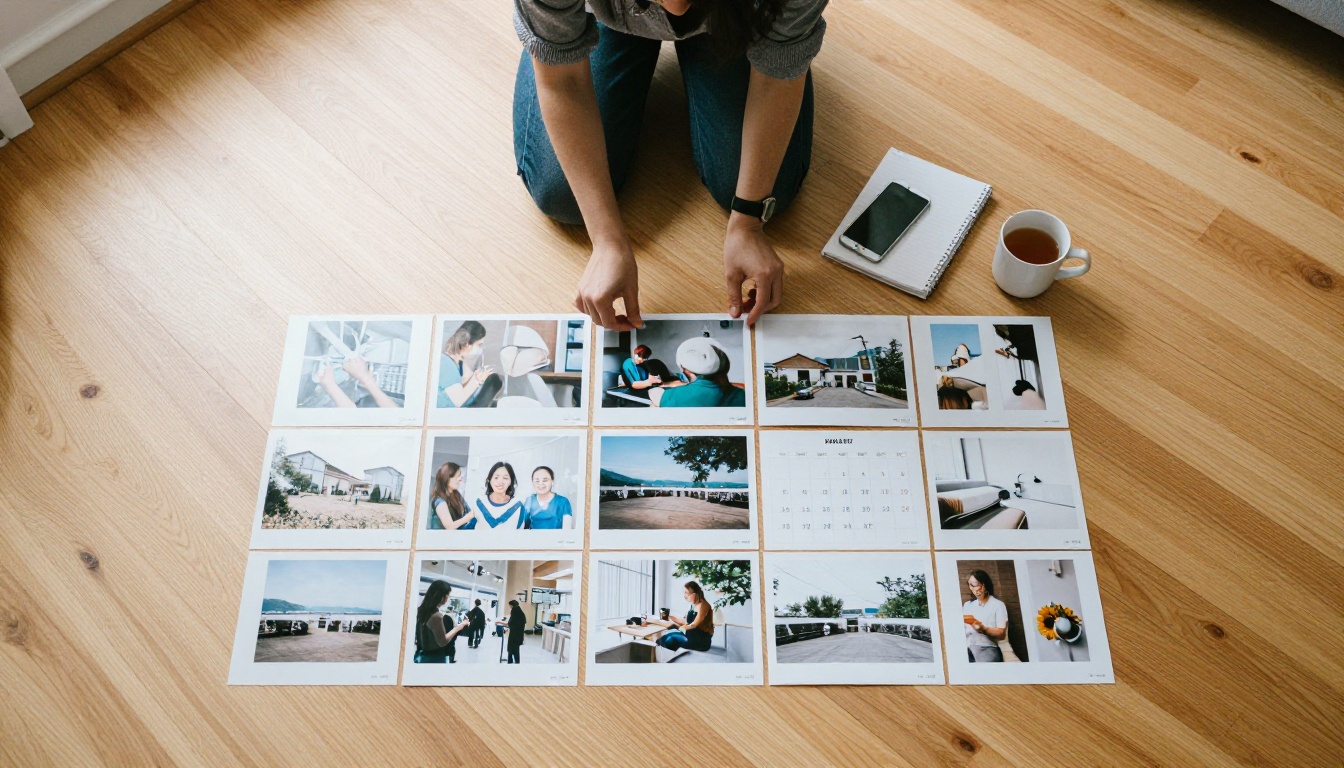
A batch is any run where the structure of the request stays the same and only a few values change. The common shapes look like this:
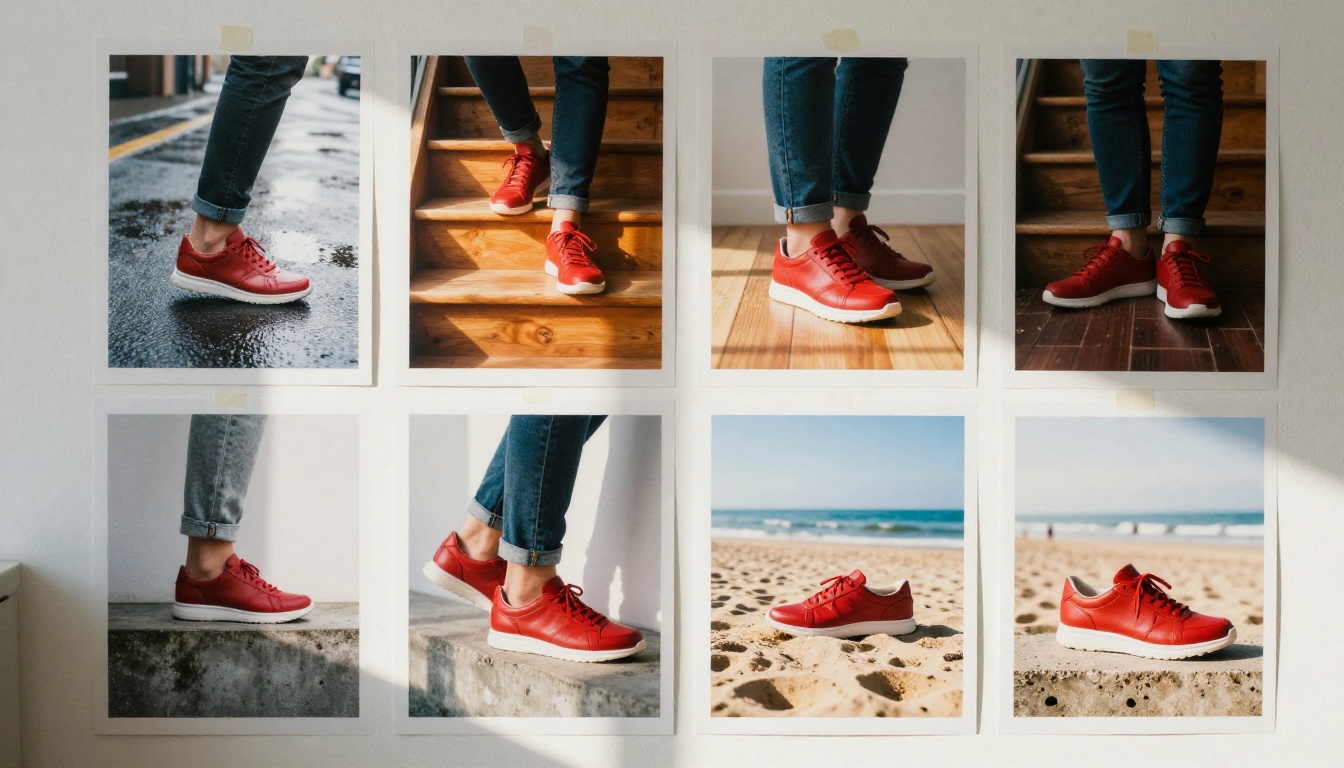
Variations of one subject: the same sneaker on pavement, stairs, sand and concrete.
A matched set: twelve blog headers sharing one palette, one lens and one lighting style.
A format grid: one approved concept rendered as 16:9, 1:1, 4:5 and 9:16.
A tool shoot-out: the same prompt sent to three models to see which one wins.
Each shape asks something different of the tool, which is why the next section matters.
How Each Tool Handles Volume
ChatGPT and GPT Image 2
ChatGPT works as a conversation. You ask for an image, it answers, and you ask again. To batch, you either paste a numbered list of prompts and let it run through them, or you send requests one after another and rely on the chat history to keep the style steady. That history cuts both ways. "Same style as the last one" works nicely for a handful of turns, then the thread grows long and early details start to slip. Daily limits and queue behavior depend on your plan and change often, so check your current allowance before promising a client sixty images by tonight.
Where it earns its place is instruction following. GPT Image 2 reads long prompts carefully and renders legible text inside the picture, which many generators still struggle with. Its model page lists:
Up to 10 variations in a single request
Transparent, opaque or automatic backgrounds, handy for cutouts
Low, medium and high quality settings to trade speed against detail
PNG, JPEG and WebP output in square, landscape and portrait ratios
If your batch needs posters, product labels or social graphics with a slogan baked in, this is the strongest place to start. For quick drafts, GPT Image 2.5 Flare is positioned as the fast option in the same family.
💡 Tip: When a batch needs the same product in several colors, put the color list in one prompt and ask for one image per color. Keep the order of every other attribute identical, so only the color word changes.
Gemini and Its Image Models
Gemini approaches batches through conversation plus editing. You get a first image, then type "warmer light" or "move the mug to the left" and the picture updates instead of starting over. That loop suits a batch where each image is a small edit of the one before.
Underneath sits Gemini 2.5 Flash Image, built for speed. Its model page highlights fast results that make several iterations in one sitting realistic, reference photos you can feed in one at a time or together, eleven aspect ratios from square to cinematic 21:9, and JPG or PNG output.
Gemini's second talent is language. Google's text models, such as Gemini 3.5 Flash and Gemini 3.1 Pro, can draft your whole prompt list for you, a trick laid out in the workflow section below.
Nano Banana and Reference Sets
Nano Banana is the specialist for sets that must look related. Nano Banana 2 accepts up to 14 reference images in one request, so you can hand it a character, a product and a mood board together and ask it to blend them. Its model page also points to conversational editing, output up to 4K and optional real-time web grounding, which lets a prompt reflect current events or places.
The trick for batches is character consistency. Reuse the same reference image in every request and the face, outfit or product stays identical across scenes. A designer can build a ten-scene storyboard where the hero never changes, without rewriting the description each time.
Picking the Right Nano Banana
The family has several members, and choosing the wrong one wastes time:
Nano Banana: the original, a solid baseline for quick edits.
Nano Banana 2: conversational editing, 14 references, up to 4K.
Nano Banana 2 Lite: pitched for fast generation when volume matters more than top resolution.
Nano Banana Pro: 1K, 2K or 4K output, 14 reference images, 11 aspect ratio presets and an adjustable safety filter level.
Side-by-Side Comparison
Model
Best for
Reference images
Output options
GPT Image 2
Readable text, transparent backgrounds
Supported
Up to 10 images per request, PNG, JPEG, WebP
Gemini 2.5 Flash Image
Fast drafts and quick iteration
One or several
11 aspect ratios, JPG, PNG
Nano Banana 2
Consistent characters, conversational edits
Up to 14
1K, 2K, 4K, 15 aspect ratios
Nano Banana Pro
Sharp, high resolution sets
Up to 14
1K, 2K, 4K, JPG, PNG
Notice that the reference column separates the tools more sharply than raw image quality does. Every model in the table can produce a handsome single picture. What changes at volume is how well the tool keeps a subject recognizable across scenes, how many variations arrive per request, and how much waiting sits between rounds. Those three factors, not the best-case sample, should drive your choice.
Use the table as a shortcut for the first decision:
Pick GPT Image 2 when the words inside the image must be readable.
Pick Gemini 2.5 Flash Image when speed matters most and you will iterate a lot.
Pick Nano Banana 2 or Pro when the same subject has to appear in many scenes.
Before committing to a big run, send the same three prompts to every candidate. Ten minutes of testing saves hours of regret.
💡 Tip: Judge the three test prompts on your own worst case, not your best one. If a tool handles your most awkward subject, the easy ones will be fine.
Build a Repeatable Batch Workflow
Write a Prompt Template
Start with a template where only the brackets change:
[SUBJECT] on [SURFACE], [LIGHT] light, shot with [LENS], [PALETTE] palette, photorealistic, 16:9
Then fill the brackets from a small table. Each row becomes one prompt:
Subject
Surface
Light
Lens
Ceramic mug
Walnut shelf
Morning light from the left
50mm f/2
Ceramic mug
Marble counter
Overcast window light
35mm f/2.8
Ceramic mug
Linen tablecloth
Warm lamp light
85mm f/1.8
A plain spreadsheet is enough. The point is that nothing in a row is improvised.
Lock the Variables
Consistency comes from restraint. Four rules keep a set from drifting:
Fix the style words. Lens, palette, film look and aspect ratio stay identical across the whole run.
Change one variable per run. If light and surface both change, you cannot tell which one caused the difference.
Anchor with an approved image. After the first good result, pass it as a reference image in every later request. Nano Banana 2, Nano Banana Pro and Gemini 2.5 Flash Image all accept references.
Render formats last. Lock the look at 16:9, then regenerate the winners as 1:1, 4:5 and 9:16 for social posts.
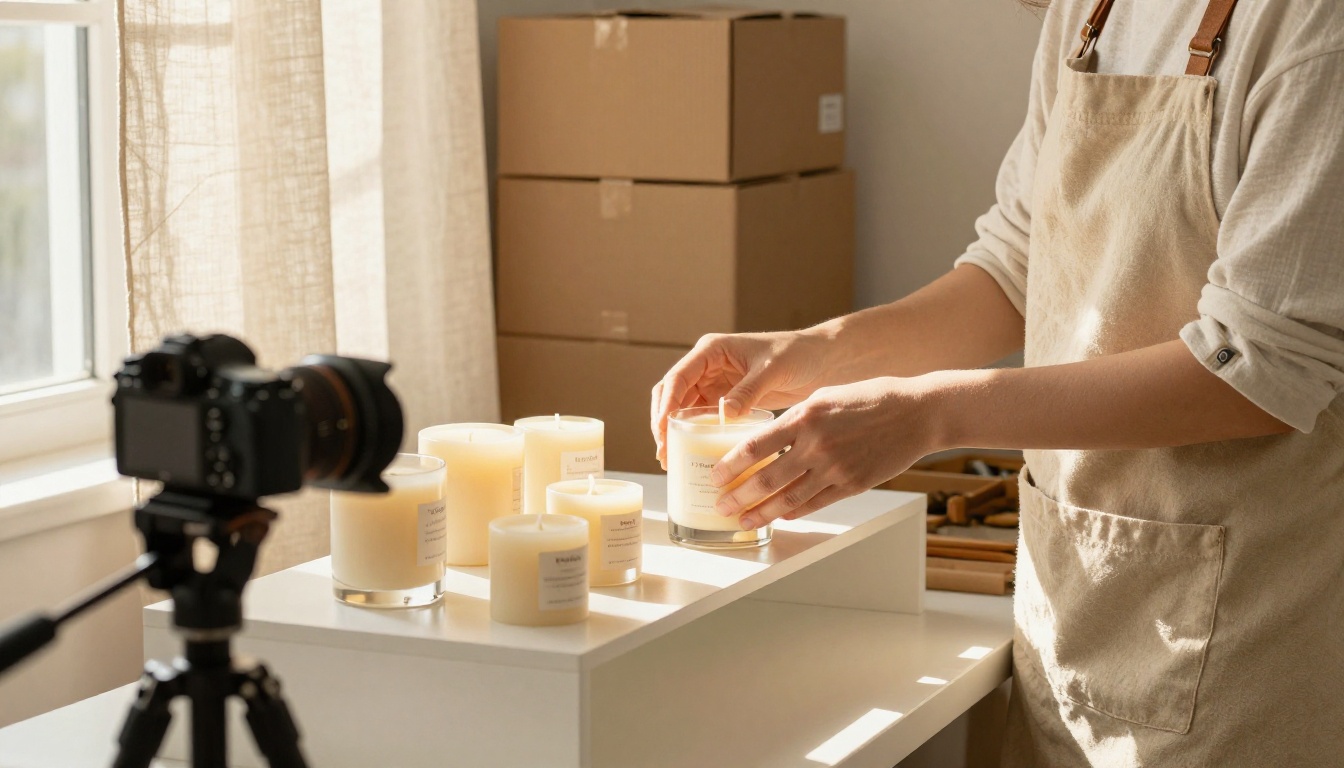
Here is how those rules play out in practice. A candle shop needs twelve lifestyle scenes for a new collection. The owner approves one hero image, a candle on a sunlit shelf, and uses it as the anchor reference. The next eleven requests change only the surface, from stone ledge to linen throw to wooden stool, while lens, palette and light direction stay fixed. Because only one variable moves per request, the dozen images read as one photo shoot instead of twelve unrelated pictures.
Let an LLM Write the Prompts
Writing fifty prompts by hand is its own bottleneck, so hand that job to a language model. On Picasso IA, models such as Gemini 3.5 Flash, GPT 5.4 or Claude Sonnet 4.6 can fill the table for you. Paste your template and ask for thirty rows:
"Here is my prompt template. Return a table of 30 rows with values for each bracket. Vary the surfaces, light directions and lenses, repeat nothing, and keep every combination photorealistic."
Skim the table once, delete any row that makes no sense, and you have a batch ready to run.
Review in Rounds
Judging images one at a time brings the interruption problem back. Work in three rounds instead:
Pilot: run four rows to check that the template behaves.
Full run: send every remaining row without touching anything.
Cull and patch: keep the winners, then regenerate the misses by changing only the detail that failed.
Every batch produces some rejects, so plan for them by generating a few extra rows up front.
Run Batches on Picasso IA
Picasso IA puts all of the models above in one place, so you can run the same prompt template across them without juggling accounts. According to its model page, Nano Banana 2 on the platform has no per-generation credits or usage quotas, which suits the "generate a lot, keep the best" style of batching.
Upload up to 14 reference images, such as your approved hero shot and a small style board.
Paste your prompt, then pick the aspect ratio and a resolution of 1K, 2K or 4K.
Generate, then type follow-up edits in plain language instead of rewriting the prompt.
Reuse the best result as a reference for the next run.
💡 Tip: Run your pilot round at 1K and only switch to 4K for the images you plan to keep. Higher resolutions take longer to generate, and most rejects are obvious at any size.
Common Mistakes That Waste Hours
Changing everything at once. A batch is only useful when you can trace a difference back to one cause.
Skipping the pilot. A flawed template multiplied by fifty is fifty flawed images.
Leaving the aspect ratio for later. A 16:9 composition rarely survives a crop to 9:16. Decide the formats before you generate.
Trusting text inside images. Even strong text renderers slip now and then. Read every word on every image before it ships.
Mixing tools inside one set. Each model has its own look. Choose one tool per set, or pass a shared reference image to keep the family resemblance.
Never saving the template. The prompt table is the real asset. Keep it, and the next batch starts at step two.
Start Your Own Batch Today
Pick one template, write ten rows, and run them through GPT Image 2 and Nano Banana 2 on Picasso IA this afternoon. Put the two result sets next to each other and the right tool for your style usually becomes obvious within minutes. From there, scaling up is just a longer table.
And when one of your stills deserves motion, Picasso IA also offers video generation, so your best frames can become short clips without leaving the platform. Open the models, load your first row, and see how many finished images you can have by the time your coffee cools.