Animating images and illustrations used to be the exclusive domain of studios with six-figure software budgets and years of trained talent. That window has closed. AI animation tools have matured to the point where a single still image, whether a photo, a pencil sketch, or a detailed illustration, can become a fluid, cinematic video clip in minutes, no rigging, no keyframes, no technical background required.
But not every tool handles illustrations the same way. Some AI models were trained primarily on photos and produce unnatural motion when given drawn artwork. Others were built specifically for animation-style content and handle cel shading, line art, and illustrated characters with far better results. Knowing the difference before you start saves a lot of frustration.
This article walks through the best AI for animating images and illustrations available right now, comparing them by output quality, illustration compatibility, speed, and ease of use.
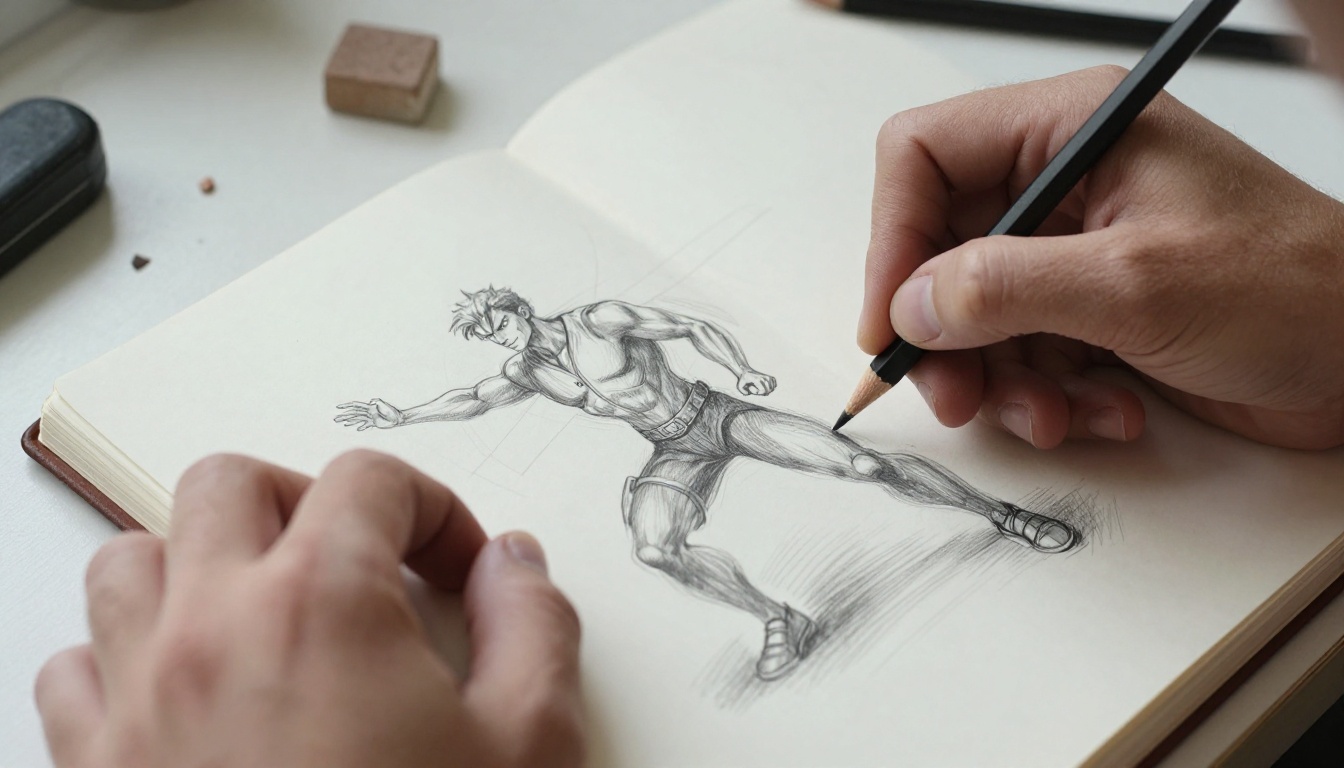
How AI Image Animation Works
Standard video generation takes a text prompt and creates motion from scratch. Image animation is different: the AI uses your provided image as the first frame and generates the subsequent frames that logically follow from it, producing motion that stays true to the original artwork's appearance.
The core technology is called image-to-video diffusion. The model encodes your image into a latent representation, then runs a denoising process conditioned on both the image and a text prompt describing the desired motion. The result is a short video where your image moves in the way you described.
What makes this hard for illustrations specifically: most image-to-video models were trained predominantly on real-world photography. When they encounter flat colors, heavy outlines, or cel-shaded artwork, they sometimes try to "correct" it toward photorealism, warping the character's proportions or washing out the illustration style. The best tools for animating illustrations either have specific training on drawn content or handle diverse input styles gracefully without trying to change what was never meant to look like a photograph.
💡 Tip: Always describe the motion you want in your prompt, not the image content. Write "gentle breeze moving hair, slow camera push-in" rather than "a woman with long hair." The model already sees the image.
Before diving into specific tools, here is what actually matters when evaluating AI animation for illustrated content:
| Factor | Why It Matters |
|---|
| Style preservation | Does the model keep the illustration's visual style intact? |
| Motion naturalness | Does movement look fluid or jerky and artifact-heavy? |
| Prompt responsiveness | Can you control what moves and how? |
| Output resolution | Is the result sharp enough for social media or professional use? |
| Speed | How long does a 5-second clip take to generate? |
The tools below are evaluated specifically on how well they handle animating illustrations, not just generic photo-to-video conversion.
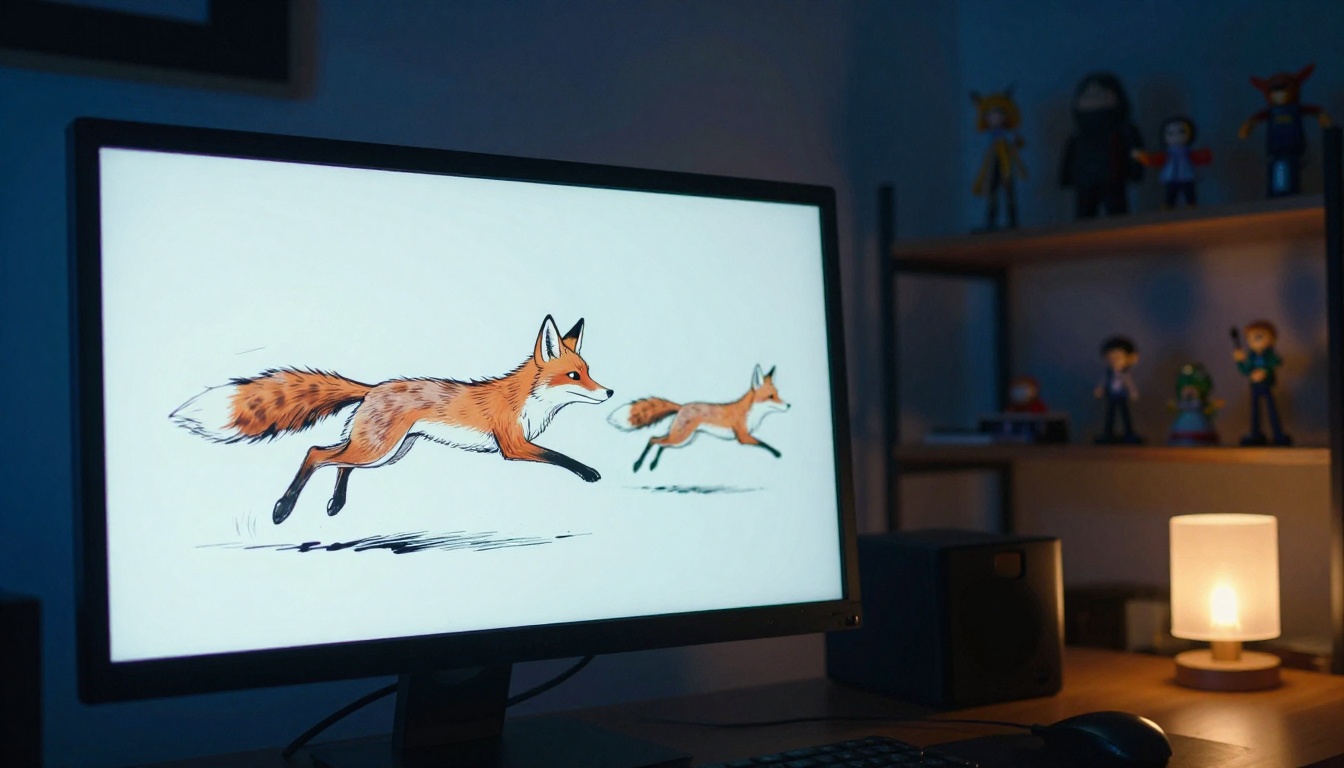
Tooncrafter: Designed for Drawn Art
Tooncrafter is the most specialized tool on this list for illustration animation. Unlike general-purpose image-to-video models, Tooncrafter was specifically designed to interpolate between illustrated frames, making it ideal for animating comic panels, character art, and stylized drawings.
Its core strength is between-frame interpolation. You provide two illustration frames (a start and end state) and Tooncrafter generates the motion frames in between, producing smooth animation that respects the original art style without trying to photorealize it.
Where Tooncrafter excels:
- Character movement in comic or manga-style art
- Scene transitions between illustration panels
- Keeping flat colors and clean outlines intact throughout the animation
- Animating children's book illustrations without style drift
Tooncrafter works best with consistent illustration styles. Mixed media artwork (part photo, part illustration) can confuse its interpolation. For single-frame animation where you only have one source image, the image-to-video models below will serve you better.
AnimateDiff Prompt Travel: Frame-by-Frame Motion Control
AnimateDiff Prompt Travel takes a different approach. Rather than image-to-video conversion, it generates a video entirely from text prompts, but with a "prompt travel" system that lets you define different descriptions for different time points in the clip.
For illustrators, this works particularly well when you want to generate an animated illustration from scratch rather than animate an existing one. You describe frame 0 as your starting scene, frame 24 as your ending scene, and the model creates the smooth transition between them.
Strengths for illustration work:
- Consistent art style across all generated frames
- Granular control over what changes between start and end
- Works well with anime, cel-shaded, and flat-design visual styles
- Free to use on PicassoIA
💡 Pro tip: When using AnimateDiff Prompt Travel for illustrations, include style keywords in every prompt frame ("flat color illustration, 2D animation style, clean lines") to prevent style drift mid-clip.
Pia: One-Click Photo and Illustration Animation
Pia (Personalized Image Animator) is the most beginner-friendly option on this list. It takes a single input image and generates animation with preset motion styles available, including zoom, pan, character talking, and hair blowing, which require no prompt writing at all.
For illustrators who want quick results without dialing in prompts, Pia is genuinely excellent. It handles both photos and illustrations without strong photorealistic correction, keeping the flat quality of drawn art relatively intact throughout the clip.
Best use cases for Pia:
- Portfolio presentation videos of illustration work
- Animating character portraits for social media
- Quick previsualization of how illustrated scenes might feel in motion
Image-to-Video AI That Works on Any Art Style
Wan 2.7 I2V: High-Fidelity Motion
Wan 2.7 I2V is one of the most capable image-to-video models available right now. It handles diverse input styles, including illustrations, with significantly less style distortion than older generation models.
What sets it apart is motion quality: movements are smooth, physically plausible, and avoid the "melting" artifacts that plagued early image animation models. Hair, fabric, water, and environmental elements animate particularly well.
Performance on illustrations:
- Flat colors and bold outlines are generally preserved through the full clip
- Character motion stays close to the original proportions
- Complex backgrounds animate without turning to noise
- 720p output at full quality
When to use Wan 2.7 I2V over Tooncrafter: If you have a single illustration image rather than two keyframes, and you want high-quality cinematic motion, Wan 2.7 I2V is the stronger choice. Tooncrafter needs two frames to do its best work; Wan 2.7 I2V only needs one.
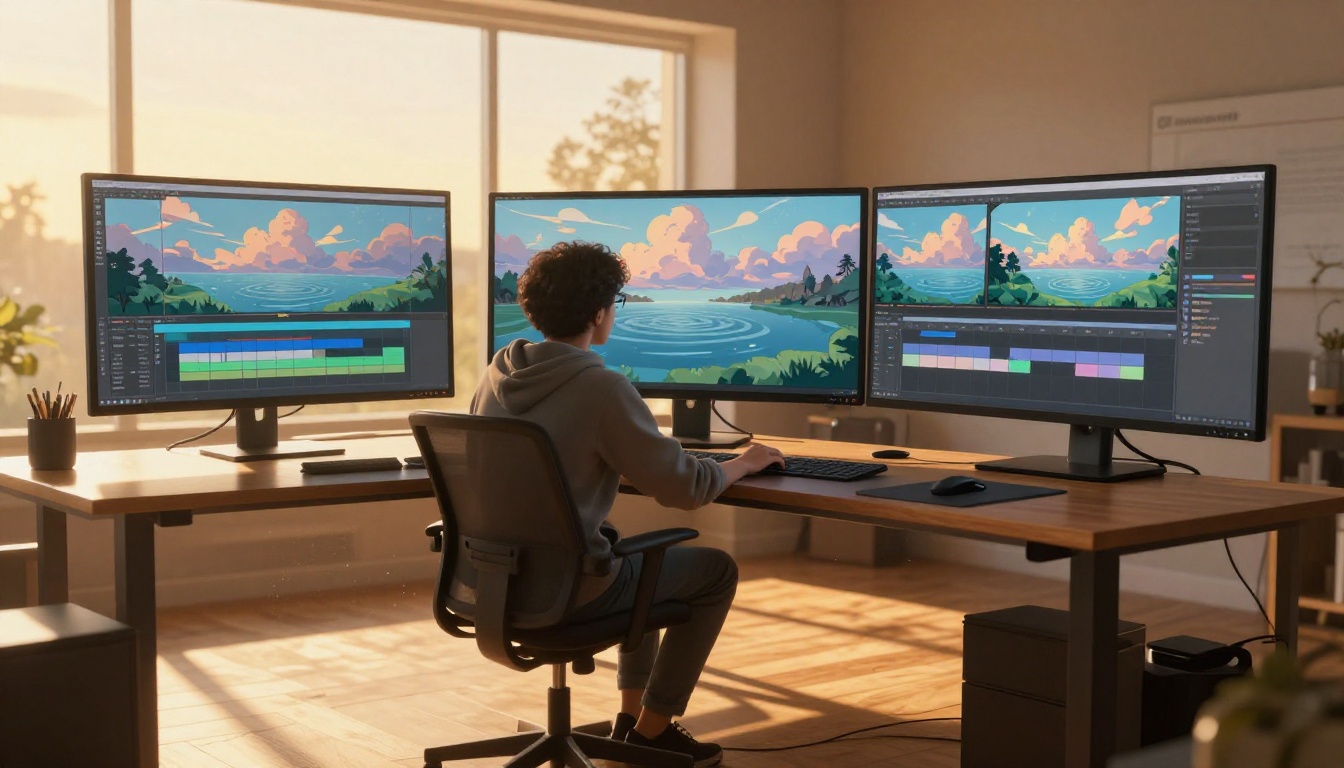
P Video Animate: Direct and Fast
P Video Animate is built for speed and accessibility. Upload any image, write a brief motion description, and get a 5-second animated clip in under a minute.
It handles illustrations with decent style preservation, though complex illustrations with very fine detail (intricate hatching, micro-texture linework) can see some smoothing in the output. For character portraits, flat-design artwork, and simple scene illustrations, results are consistently strong.
Why P Video Animate stands out:
- Fastest generation time of any image-to-video model on the platform
- Consistent output quality with minimal failed generations
- Works well on both portrait and landscape format illustrations
- Ideal for high-volume animation work
Wan 2.6 I2V: Speed and Quality Combined
Wan 2.6 I2V sits between P Video Animate and Wan 2.7 I2V in the speed-versus-quality tradeoff. It generates faster than 2.7 with only a modest drop in motion quality, making it a reliable daily-use option when you need volume rather than single-clip perfection.
For batch animation work (animating multiple illustration frames for a comic panel sequence, for example) Wan 2.6 I2V is often the better choice. The time savings compound when you are generating 10 or more clips.
Also worth knowing: Video 01 Live from Minimax is another strong option for single-image animation with audio output, useful when you want the animated illustration to carry ambient sound as well as motion.
💡 Quick comparison: Need the best possible output for a single hero image? Use Wan 2.7 I2V. Animating a full comic page panel-by-panel? Wan 2.6 I2V or P Video Animate will save you real time.
Character Animation with AI
Character animation is harder than scene animation. Faces, hands, and body proportions need to stay consistent across frames, which is where many general-purpose models struggle. Two models on PicassoIA were specifically built for this challenge.
Dreamactor M2.0: Full Body Motion
Dreamactor M2.0 from ByteDance is designed for character animation specifically. It uses reference-based motion transfer: you provide a character image and a motion description, and the model animates that character with physically consistent movement.
For illustrators animating original characters, this is a significant advantage. The model is trained on human motion data and applies it to whatever character you provide, whether it is a photorealistic portrait, a cartoon avatar, or a stylized illustration.
Dreamactor M2.0 strengths:
- Face and body consistency across all generated frames
- Handles non-photorealistic characters better than most general models
- Walking, gesturing, and head movement all look natural
- Clean results on character portraits from any art style
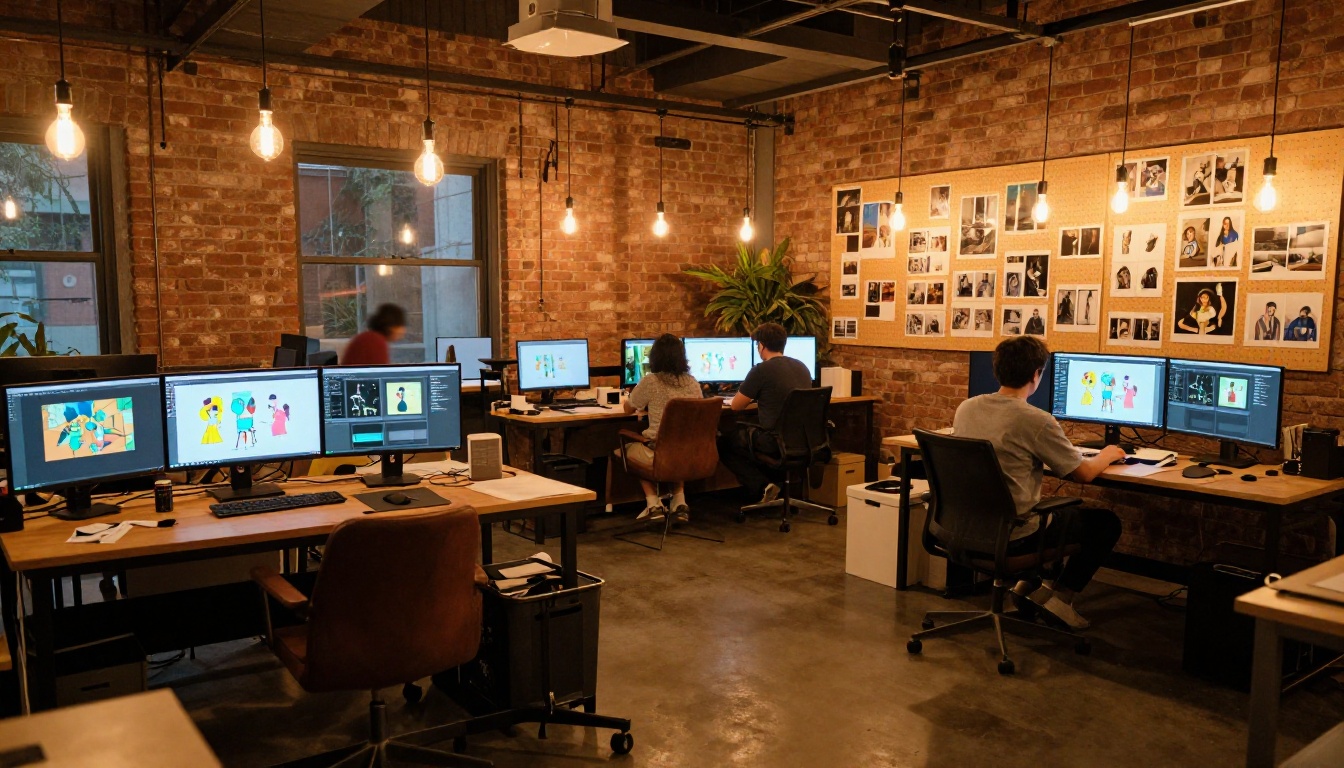
Kling v3 Motion Control: Precise Animation
Kling v3 Motion Control adds trajectory control on top of image-to-video generation, meaning you can specify the exact path of motion for specific elements in the frame. For character animation, this means directing a character's hand to move to a specific position, or controlling the precise camera arc across an illustrated scene.
This level of precision makes it particularly useful for illustrators who have a specific vision for how their artwork should move, rather than accepting whatever the AI decides to do with an open-ended prompt.
When to choose Kling v3 Motion Control over Dreamactor M2.0:
- You need control over camera movement (dolly, pan, zoom path)
- The motion needs to follow a specific trajectory rather than generic gesturing
- You are animating illustrated scenes rather than isolated character portraits
Not every animation project needs a cinematic 5-second clip. Sometimes you need a short looping GIF for a character sticker, a banner, or a social media post. For that, the requirements are different.
Hotshot XL: Animated GIFs from Illustrations
Hotshot XL is specifically trained to generate short animated GIFs from text prompts. It is not an image-to-video model, so it generates fresh illustrated content rather than animating an existing image, but its output style naturally mimics illustration and animation aesthetics.
For character stickers, loop animations, and illustrated GIF content, Hotshot XL produces clean, repeating motion with a consistent illustrated look that would take hours to produce frame-by-frame manually.
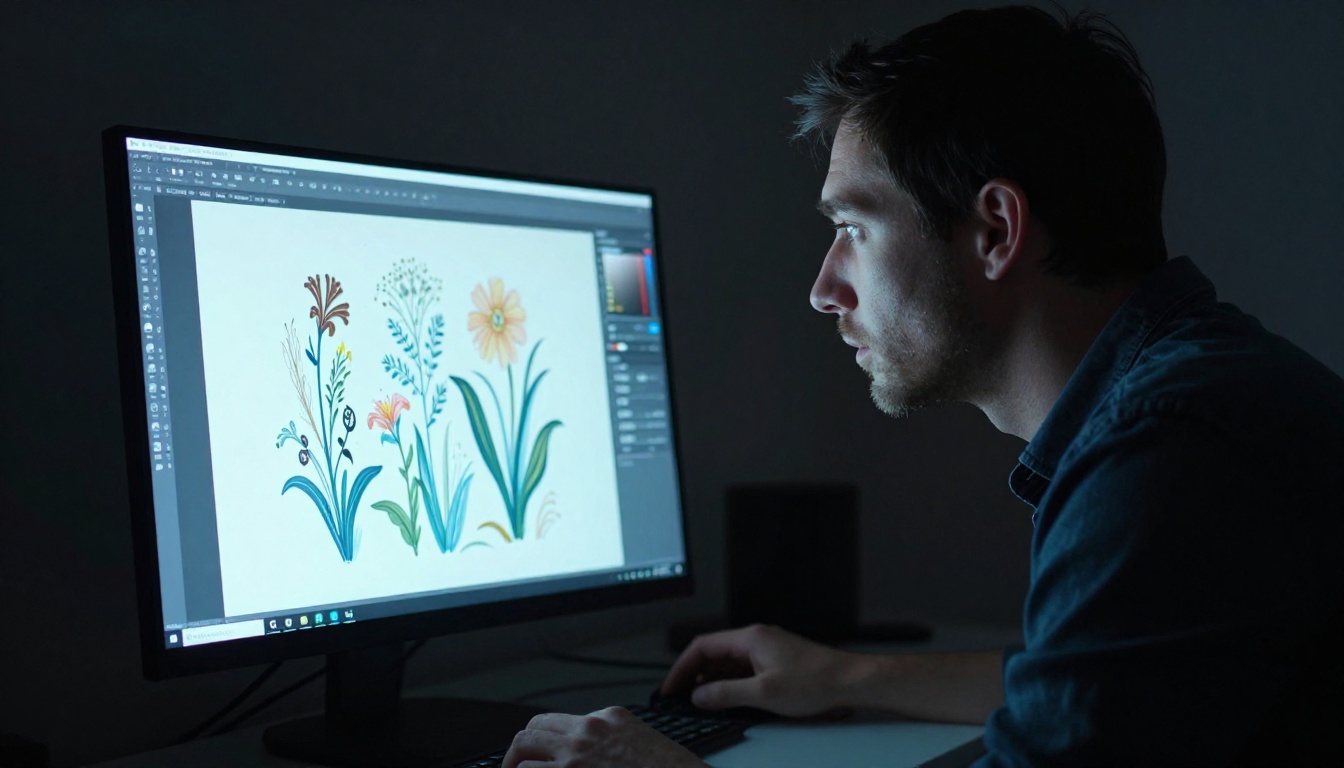
Stable Diffusion Animation: Reliable and Flexible
Stable Diffusion Animation is one of the original AI animation tools and remains reliable for illustrated content. It generates animation directly from text prompts with strong stylistic control, and because it is built on Stable Diffusion, it inherits the model's excellent understanding of illustration and art styles across a wide range of aesthetics.
It is not the newest option available, and it does not produce the cinematic motion quality of Wan 2.7 I2V, but for creating styled animation loops with a consistent illustrated look, it remains a solid and predictable choice.
How to Use Tooncrafter on PicassoIA
PicassoIA hosts Tooncrafter directly, making it accessible without any local installation or GPU setup. Here is how to get the best results:
Step 1: Prepare your two illustration frames
Tooncrafter works best with two source images that share the same art style and character design. The first image is your starting state, the second is your ending state.
- Use PNG or JPG format
- Aim for at least 512x512 pixels per image
- Keep consistent lighting and perspective between both frames
- Avoid drastic scale changes between frame 1 and frame 2
Step 2: Write your motion prompt
Your prompt should describe the motion happening between the two frames, not what the characters look like. Example: "character raises arm slowly, weight shifting from left foot to right, fabric of shirt moving naturally with the motion, soft studio lighting stable throughout."
Step 3: Set your parameters
- Frame interpolation steps: 25 works well for smooth motion
- Inference steps: 50 gives better quality at the cost of generation time
- Motion bucket ID: lower values around 60 to 80 for subtle motion, higher values of 100 to 127 for more dramatic movement
Step 4: Review and iterate
First generations are rarely final. If proportions drift mid-animation, try reducing the motion bucket ID. If the output looks too stiff, increase it slightly and regenerate. Most strong results come on the second or third attempt.
With so many options, the choice comes down to a few practical questions:
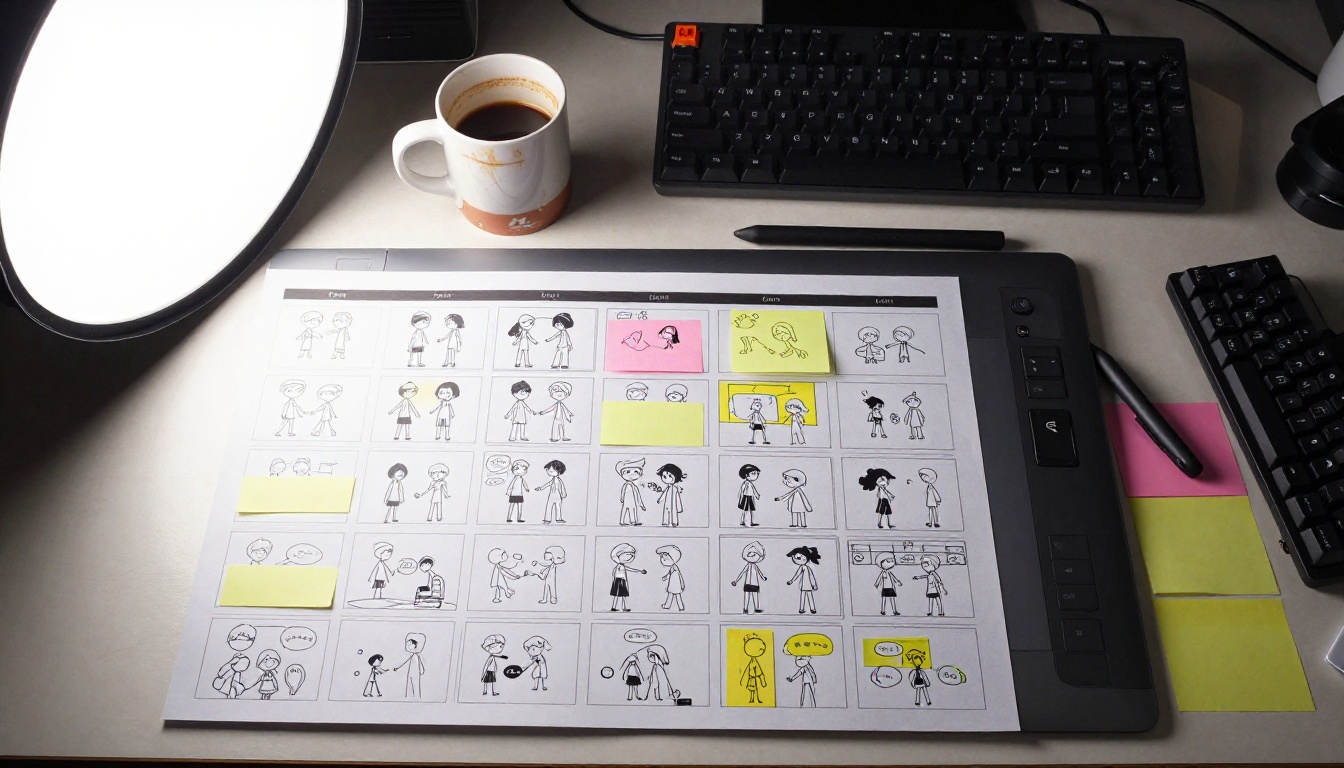
3 Common Mistakes to Avoid
1. Describing the image instead of the motion
The model already sees your illustration. Writing "a woman with red hair standing in a field" wastes your prompt space. Write "hair gently moving in a slow breeze, grass rippling from left to right, slow dolly-in camera movement" instead.
2. Using very high-detail illustrations for first-pass tests
Intricate illustrations take longer to generate and cost more credits. Test your motion concepts on lower-detail versions first, then apply the successful settings to the final high-detail artwork.
3. Treating the first output as final
The best results come from iteration. Generate 3 to 5 variations with different motion bucket values or prompt phrasing, then pick the strongest. Most experienced users never submit a first generation directly to production.
Try It on Your Illustrations
Every tool listed in this article is available on PicassoIA without downloads or local GPU requirements. You can go from a flat illustration to an animated clip in the time it takes to write a motion prompt.
The PicassoIA Video generator is a good starting point if you are new to image animation. It is free, unlimited, and handles illustrations without aggressive photorealistic correction. From there, Tooncrafter and Wan 2.7 I2V are the two tools worth spending the most time with once you understand the fundamentals.
Your illustrations already have the visual foundation. The AI handles the motion. The only thing left is picking the right tool for the job and starting to generate.
Browse all available animation models, including Wan 2.5 I2V, Seedance 2.5, Kling v2.1, and 100 other text-to-video and image-to-video options, at picassoia.com/en/all-models.


