You have a clip that took ten minutes to film and an editing queue that takes three hours. That gap is why the best AI video editor for social media is no longer a luxury pick. It is the difference between posting daily and posting when you find the time. This article sorts the real options: what is free, what works from a phone, which prompts actually change a video, and how to build a workflow that gets a Reel, TikTok or Short out the door in about twenty minutes.
I will be direct about trade-offs. No single tool does everything well. The smart setup is a small stack: one tool to generate or restyle footage, one to trim and caption, and one to resize for each platform.
What "AI Video Editor" Actually Means
The phrase covers three different jobs, and mixing them up is how people end up paying for the wrong thing.
Generators vs. editors
A video generator creates footage from text or from a still image. Models like Kling v3 Video, Veo 3.1 Fast and Wan 2.5 I2V Fast belong here. You describe a scene, and you get a clip.
A video editor works on footage you already have. It trims, merges, captions, restyles, removes objects or changes the format. Models like P Video Edit, Aleph 2 and Lucy Edit 2 sit in this group, and several of them accept a plain text instruction as the edit.
Why social needs both
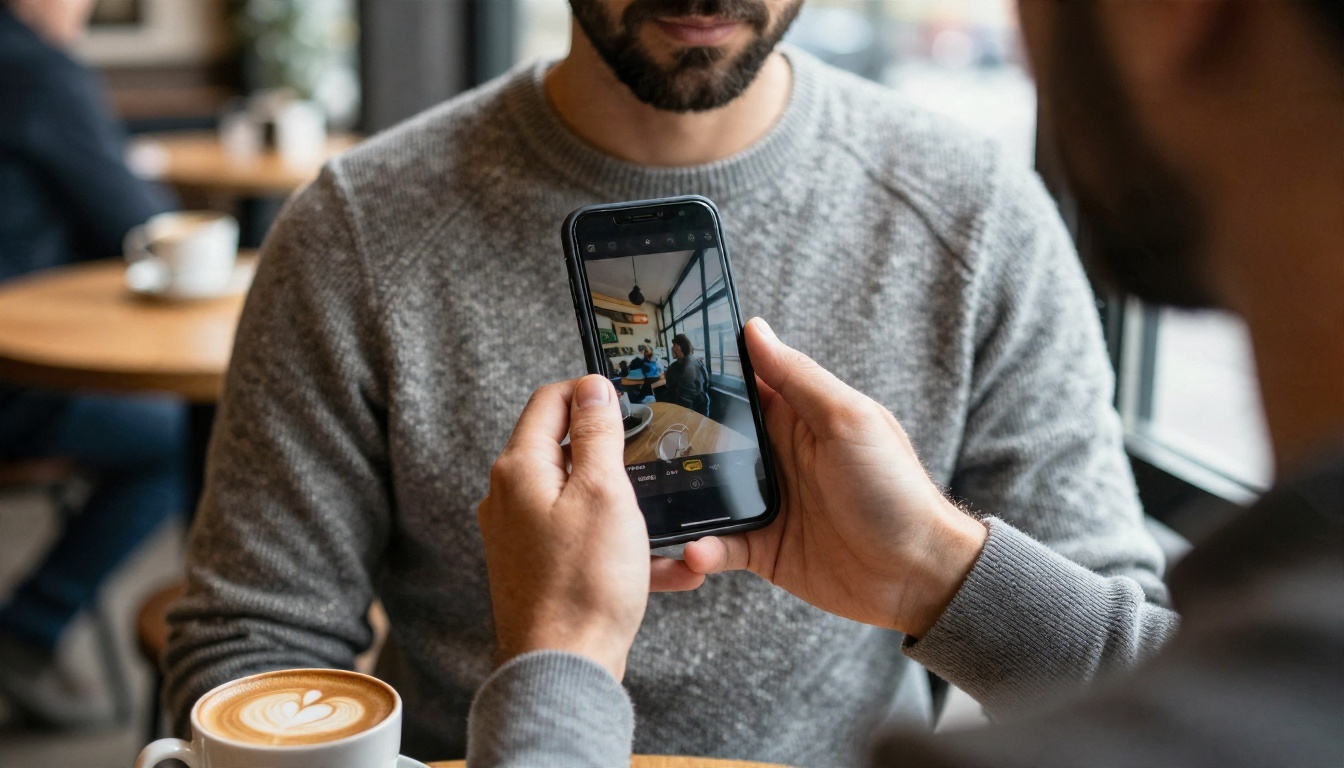
Social feeds reward volume and variety. You need generated B-roll when you have no footage, and you need fast edits when you have too much. A creator who only generates ends up with pretty clips and no story. A creator who only edits is stuck whenever the camera roll runs dry.
💡 Rule of thumb: If you have footage, start with an editor. If you have an idea but no footage, start with a generator, then edit the result.
Free Options That Actually Work
"Free" is the most abused word in this category. Many apps give you a free trial that stamps a watermark on every export, which makes the clip useless for a brand account.
What free really gives you
Before you commit to any tool, check four things:
- Watermark: Does the export carry a logo in the corner?
- Resolution cap: Is free output limited to 480p or 720p?
- Length cap: Can you export a full 30 to 60 seconds, or only a few?
- Commercial use: Are you allowed to post it on a business page?
If a tool fails two of those four, treat it as a demo, not a daily driver.
Free routes on PicassoIA
On PicassoIA, Seedance 2.5 Lite is listed as a free and unlimited video generator for clips up to 10 seconds, which is long enough for most hooks and B-roll inserts. Nano Banana Pro is listed with free 4K image generation, useful for thumbnails and for creating a first frame before you animate it. Lipsync Precision is listed as free online for dubbing.
Free tiers change, so check the model page for current limits before you plan a month of content around one.
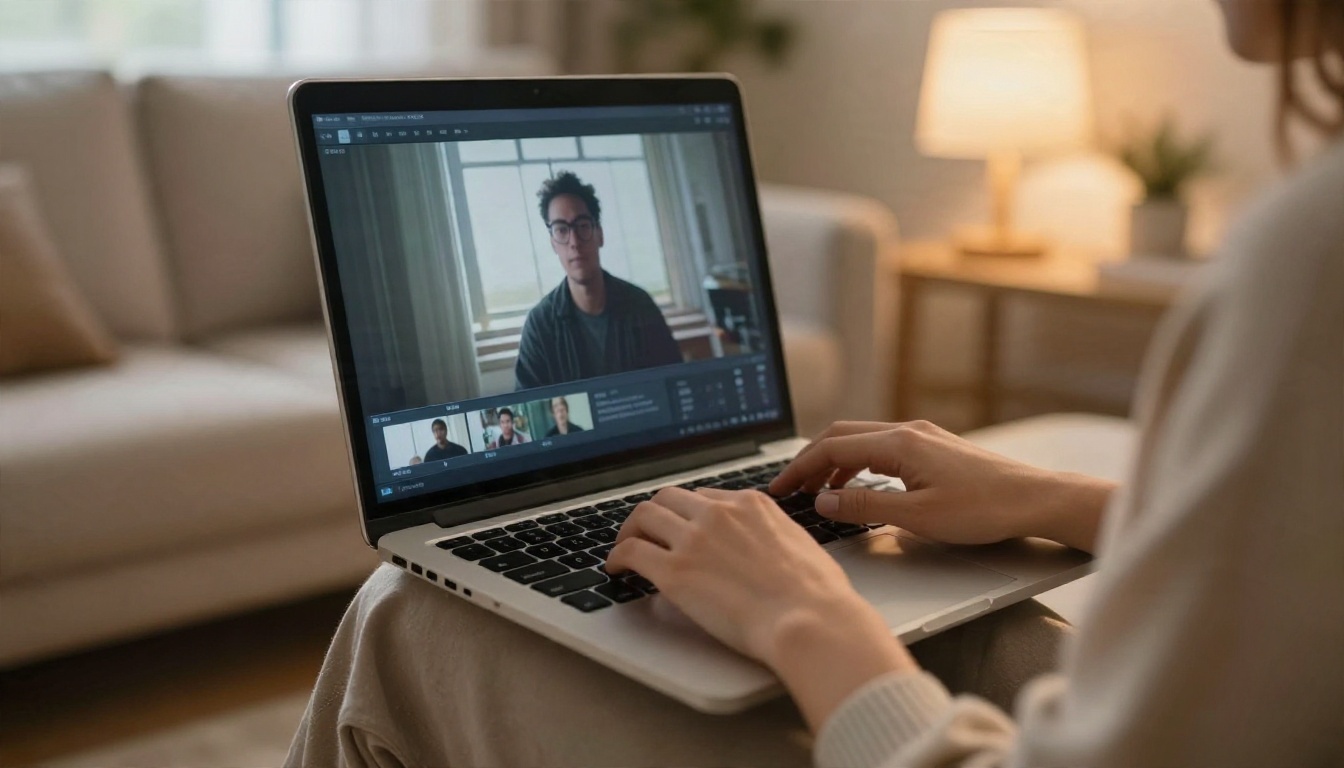
Here is the part most roundups skip: matching the tool to the job. This table is built around what you are trying to do, not which brand is loudest.
| Task | Good fit on PicassoIA | Why it works |
|---|
| Cut dead air from a clip | Trim Video | Exact start and end points, fast |
| Split long footage into pieces | Video Split | Timed clips from one source |
| Join clips into one post | Video Merge | Combines clips in seconds |
| Edit with a text instruction | P Video Edit | Describe the change, skip the timeline |
| Restyle a whole video | Aleph 2 | Edit one frame, carry it through |
| Add subtitles | Autocaption | Burned-in captions for silent scrolling |
| Resize for each platform | Reframe Video | Changes aspect ratio without manual crops |
| Add sound effects | Video To SFX v1.5 | Matches sound to on-screen action |
| Sharpen soft footage | Video Upscale | Cleaner detail at higher resolution |
Trim and split first
Always cut before you apply any AI effect. Processing a 90-second clip when you only need 12 seconds wastes time and credits. Run Trim Video first, then send only the useful portion onward.
Restyle with a text instruction
Text-based editing is the biggest shift in this category. Instead of masking, keyframing and color wheels, you write: "change the jacket to dark green" or "make the scene look like golden hour." P Video Edit and Wan 2.7 Videoedit both work this way. Aleph 2 approaches it from another angle: you edit a single frame and the change spreads across the full clip.

Captions are not optional
A large share of people watch with sound off, so captions often decide whether a viewer stays past the first two seconds. Autocaption adds them automatically. Check the spelling of names and brand terms every time, because automatic transcription still misses proper nouns.
Reframe for every platform
A 16:9 clip posted to a vertical feed gets black bars and fewer views. Reframe Video changes the aspect ratio so one source can become a 9:16 Reel and a 1:1 post. If you shoot for several platforms, shoot wide with a safe central area, then reframe.
Mobile Apps vs. Browser Editing
Most social video is shot on a phone, so the editing tool has to respect that. The honest answer: a mobile app wins on speed for simple cuts, and a browser tool wins when you want AI to do heavy lifting.
A phone workflow that holds up
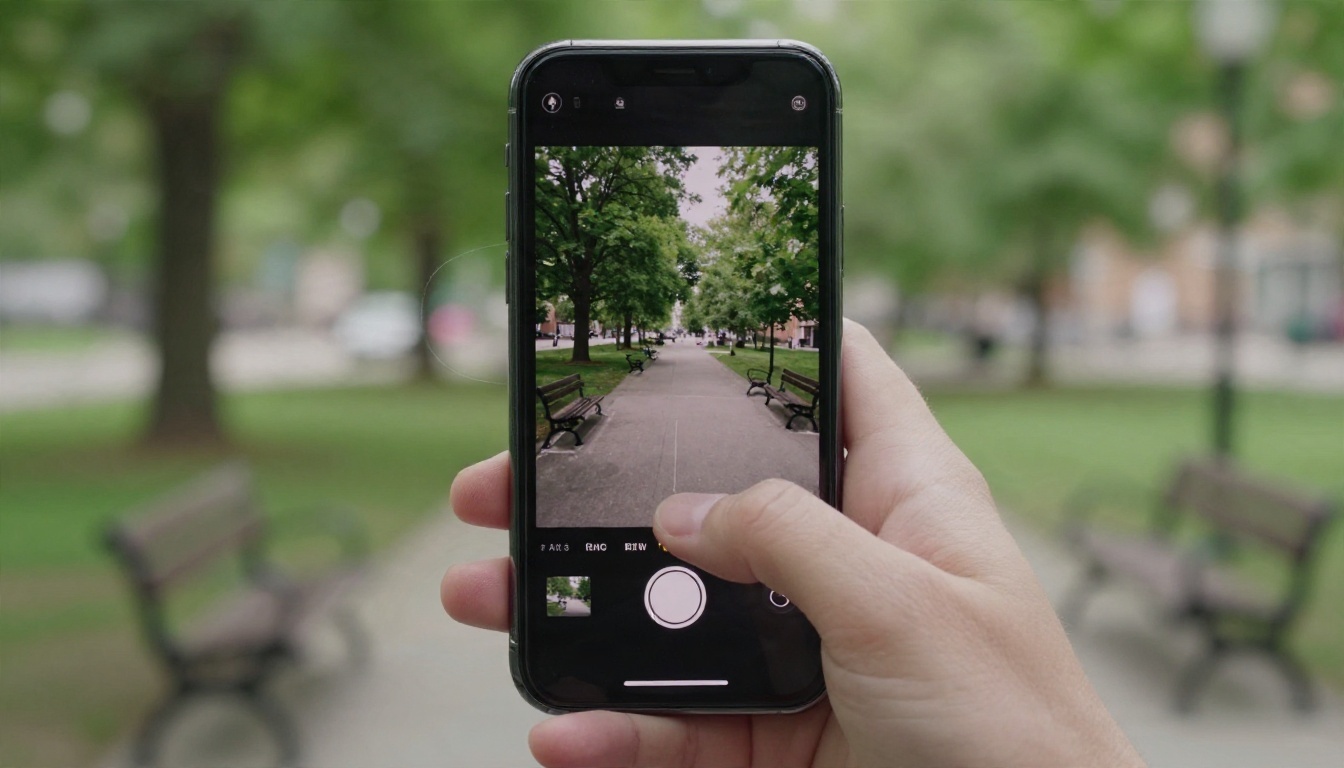
Dedicated mobile editors such as CapCut and InShot are popular because they handle trimming, transitions and music on the device itself. Use them for the parts they do best: rough cuts, text overlays and trending audio.
For anything heavier, open a browser on your phone. PicassoIA runs in a mobile browser, so you can send a clip to P Video Edit from the train and have the result waiting when you arrive. There is nothing to install, and nothing eats your storage.
When desktop wins
Switch to a laptop or desktop when you are:
- Merging more than five or six clips
- Color grading a long travel or brand video
- Reviewing a cut with a teammate
- Batch processing a week of content
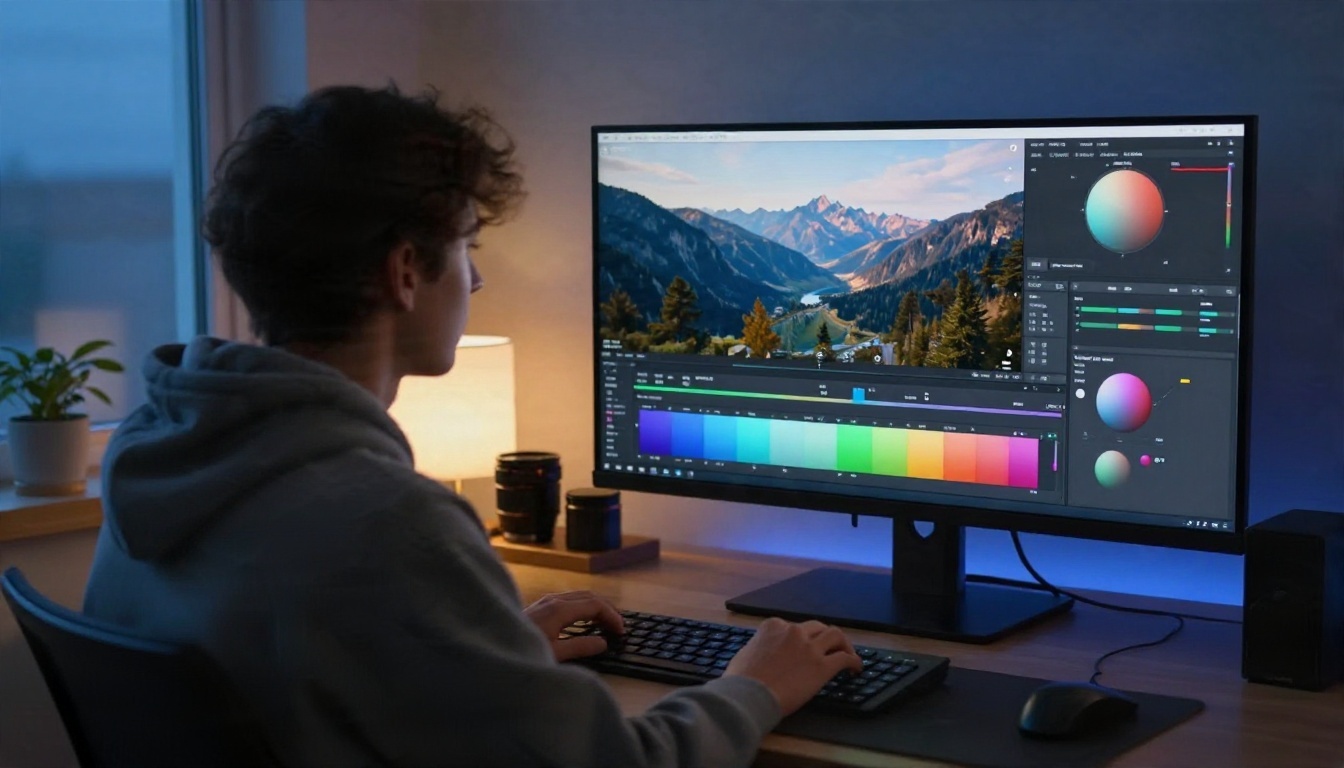
💡 Practical split: Rough cut on the phone, AI edit in the browser, final check on a larger screen before you publish.
Prompts You Can Copy
A vague prompt gives you a vague edit. The pattern that works is subject, change, what stays the same. That last part matters most, because editing models will happily change things you wanted to keep.
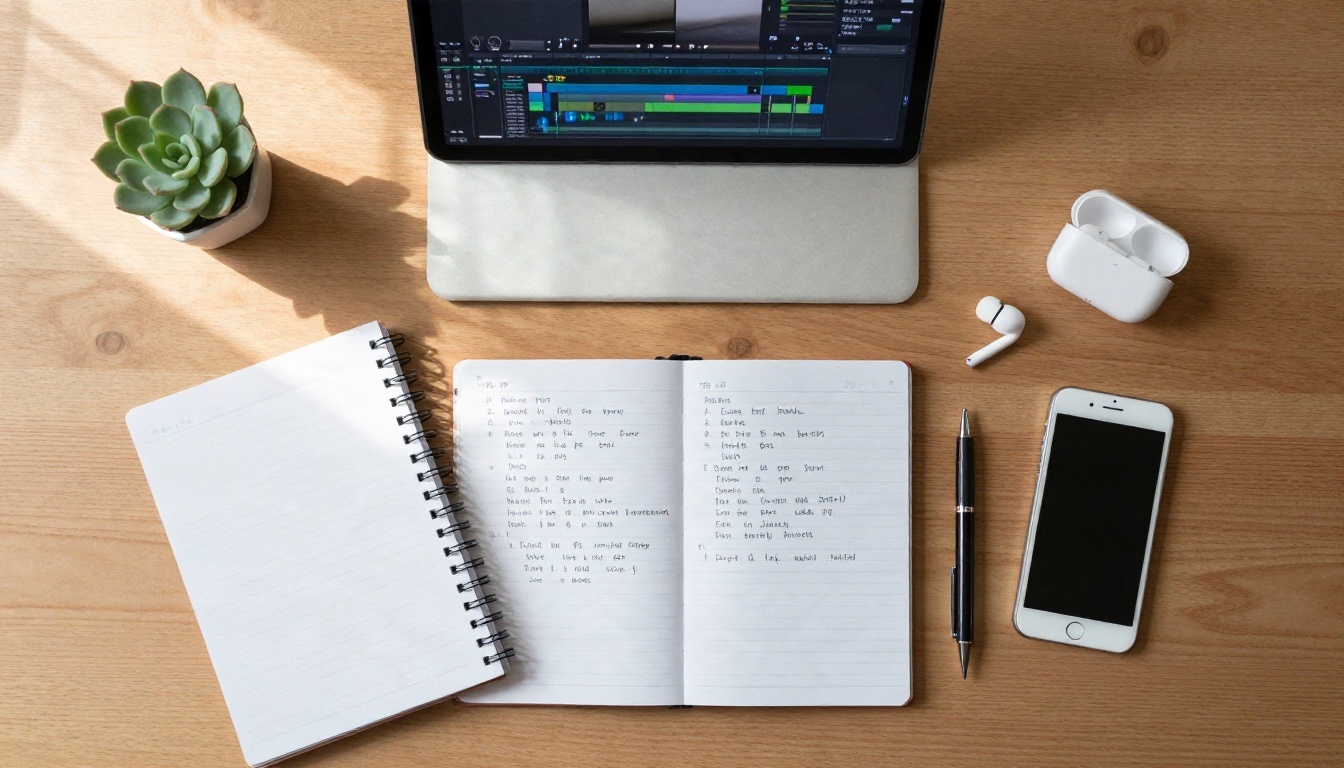
Edit prompts for existing footage
Paste these into a text-based editor such as P Video Edit or Lucy Edit 2, and swap the details for your own.
- Lighting: "Change the lighting to warm golden hour sunlight from the left. Keep the person, the motion and the background layout unchanged."
- Wardrobe: "Change the red jacket to a dark green wool coat. Keep the face, hair and camera movement the same."
- Background cleanup: "Replace the cluttered shelf behind the speaker with a plain light gray wall. Keep the speaker sharp and unchanged."
- Mood: "Make the footage look like a soft film photograph with gentle grain and muted warm colors. Keep all motion natural."
- Product focus: "Make the ceramic mug the brightest, sharpest thing in the frame. Slightly soften the background."
Generation prompts for new clips
For a generator such as Kling v3 Video or Seedance 2.5 Lite, write the motion in order, the way a director would call it.
- B-roll: "A barista pours steamed milk into a white cup on a wooden counter. Slow push in from a low angle. Soft morning window light, shallow depth of field, natural color."
- Product reveal: "A hand lifts a glazed ceramic mug from a wooden table and turns it toward the camera. Gentle handheld motion, warm side light, realistic textures."
- Establishing shot: "A quiet city street at dawn, a cyclist rides past a bakery with its lights on. Slow pan right, cool blue light mixed with warm shop glow."
If you want a specific look from the first frame, build a still in Nano Banana Pro, then animate it with Wan 2.5 I2V Fast.
Voice and caption prompts
For voiceovers, Realtime TTS 2 takes natural-language direction. Try: "Warm, upbeat, medium pace, like a friend sharing a quick tip." For multilingual posts, Dubbing translates the audio of a finished video, and Lipsync Precision can match mouth movement to the new language.
💡 Prompt tip: Write one change per prompt. "Change the lighting and the outfit and the background" often muddles all three. Run three short edits in sequence instead.
A 20-Minute Workflow for Reels
Here is a repeatable process that fits a real schedule. Times are rough, and they depend on clip length and queue speed.
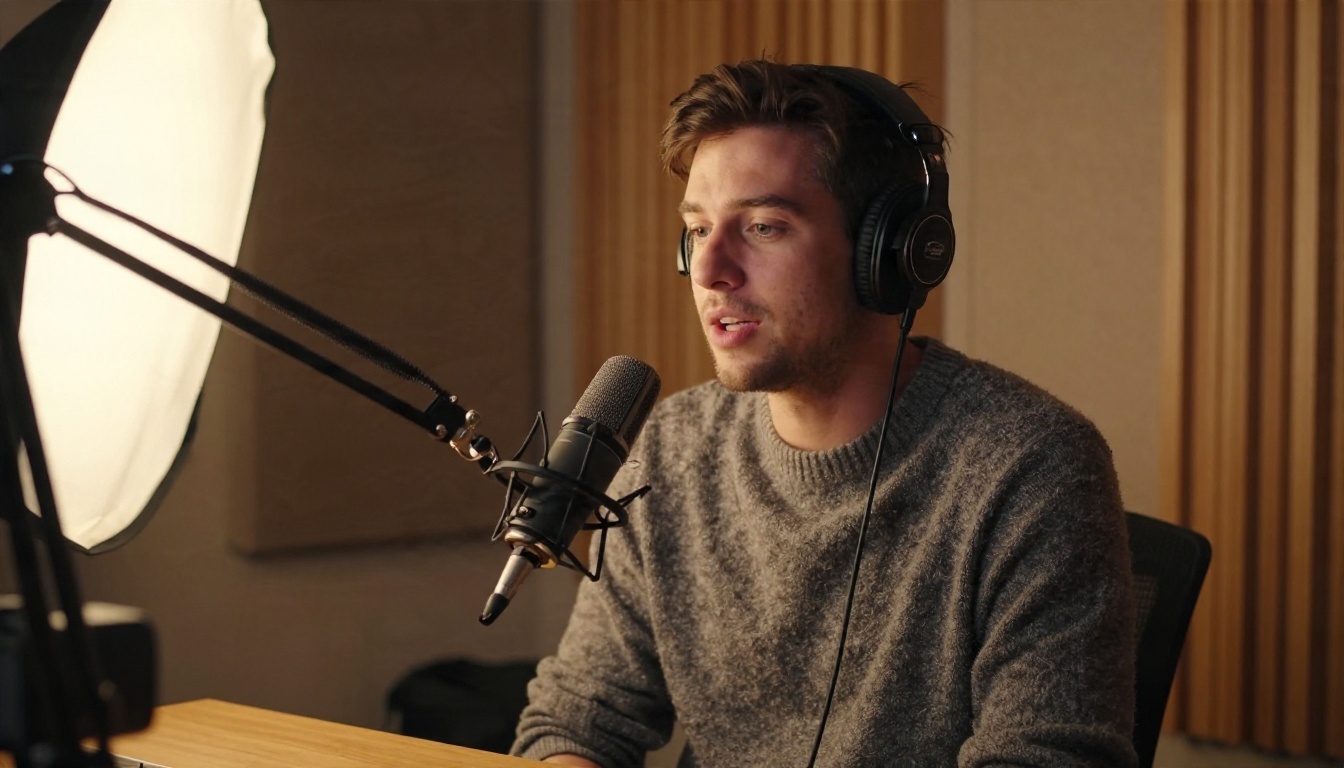
Step by step
- Pick the hook (2 min). Choose the one sentence or visual that earns the first two seconds. Everything else supports it.
- Trim (2 min). Cut the source down with Trim Video. Long podcast or interview? Use Video Split to pull several clips from one recording.
- Fill gaps with B-roll (5 min). Generate one or two short inserts using Seedance 2.5 Lite or Veo 3.1 Fast, which produces native audio with the video.
- Apply one AI edit (3 min). Fix lighting, clean a background or restyle the look with P Video Edit.
- Merge (1 min). Join your clips with Video Merge.
- Caption (2 min). Run Autocaption and proofread.
- Add sound (2 min). If the clip feels flat, Video To SFX v1.5 adds effects that match the action.
- Reframe and export (3 min). Resize with Reframe Video, and upscale with Video Upscale if the source was soft.
Where teams save the most time
Agencies and small teams gain the most from batch work. One person writes ten hooks, one person generates B-roll for all ten, and one person captions everything in a single session. Handing off by task instead of by video cuts review loops sharply.

Mistakes That Waste Credits
I see the same errors again and again, and every one is avoidable.
- Editing the full file. Trim first. Always.
- Chasing length. Most hooks and B-roll inserts need three to five seconds, not ten.
- Skipping the still-image step. If a look matters, lock it in a single frame before you animate. It is cheaper to fix one picture than ten video attempts.
- Stacking five effects. Each pass can soften detail. Two good edits beat five average ones.
- Ignoring the platform. A Short, a Reel and a LinkedIn clip want different framing and pacing. Reframe on purpose.
- Forgetting disclosure rules. Platforms increasingly ask creators to label AI-generated or heavily altered content. Check the current rules on each platform before you post.
- Posting without a caption check. One misspelled brand name looks careless.
| Approach | Typical result | Better move |
|---|
| Prompt: "make it better" | Random, inconsistent changes | Name the exact change and what stays |
| Generate 10 seconds when 4 will do | Slow, wasteful, loose pacing | Generate short, merge clips |
| Edit raw 4K phone files | Long waits | Trim, then process |
| One tool for everything | Mediocre at most steps | Small stack, one job each |
Choosing Your Stack
If you want a short answer, here is how I would match tool to creator type.

Try Your First Clip Today
The best AI video editor for social media is the one that removes your slowest step. For most people, that is trimming and captioning. For others, it is the lack of footage. Pick that one bottleneck, test a single tool on it this week, and keep the rest of your routine unchanged.
Open Picasso IA, take a clip you already filmed, and run one text-based edit with P Video Edit. Then generate a short B-roll insert with Seedance 2.5 Lite, caption it with Autocaption, and compare the result with what you would have made by hand. If you want to see everything available, browse all PicassoIA models and build your own stack.


