Most people searching for NSFW AI models hit the same wall within five minutes: the first tool blocks a harmless bikini prompt, the second buries everything behind a paywall, and the third spits out plastic-looking skin that nobody would mistake for a photograph. This article fixes that. You will get a ranked shortlist of models worth your time, prompt formulas that produce suggestive, attractive, non-explicit results, the settings that change the outcome, and what to do when a model refuses a request.
A quick note on scope. Everything below is about glamour, swimwear, lingerie campaign looks and boudoir style portraits of adults: the kind of imagery you would see in a fashion editorial or on a beach in July. Nothing here is about pornographic or explicit output, and the images in this article were all made to that standard.
The term is slippery. Each platform draws the line somewhere different, and that is the real reason a prompt works in one app and fails in another.
The three tiers of filtering
Think of image models as sitting in three groups:
- Strict filters: block anything with swimwear, lingerie or even a bare shoulder. Fine for product shots, useless for glamour work.
- Moderate filters: allow bikinis, lingerie campaigns, artistic and implied nudity, but block anything explicit. This is where most people actually want to be.
- Open or self-hosted: very few restrictions, but you carry the setup work, the hardware cost and the responsibility.
If your goal is attractive, tasteful, shareable imagery, the middle tier is the sweet spot. It is also the tier with the best photorealism, because the large commercial models live there.
Why prompts get blocked
A refusal rarely means the model "hates" your idea. It usually means the prompt contained a trigger word, or the combination of words read as explicit to a classifier. Words like "nude", "naked" or "topless" trip many filters even when the intent is artistic. Swapping them for photographic language ("silk robe slipping off one shoulder", "backlit silhouette", "implied", "editorial") often solves it without changing the mood.
💡 Tip: Describe the photograph, not the body. Lens, light, fabric, location and pose do more work than adjectives ever will.
The Best NSFW AI Models Ranked
Here is the shortlist, ordered by how well each model handles suggestive, non-explicit adult imagery while keeping skin and fabric believable. All of them are available on PicassoIA, so you can test them side by side in one place.
1. Seedream 4.5: the first one to try
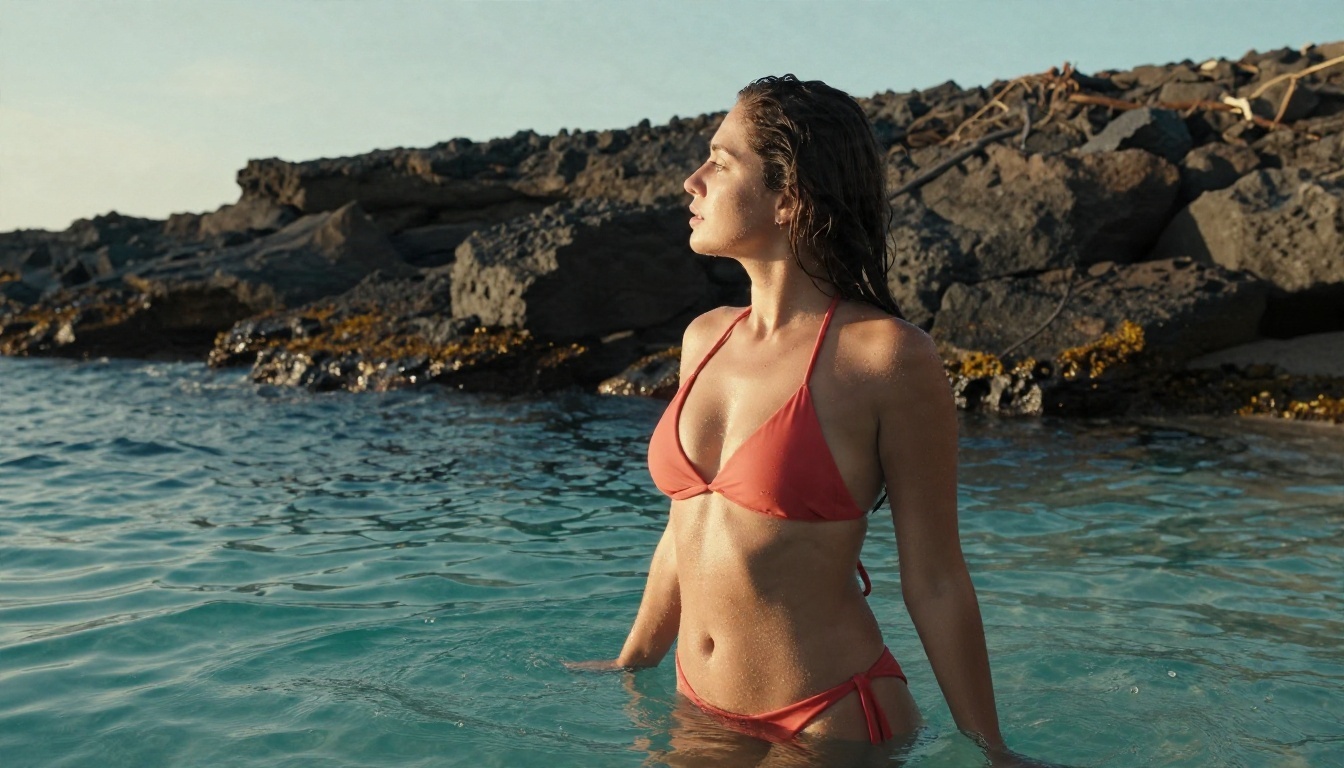
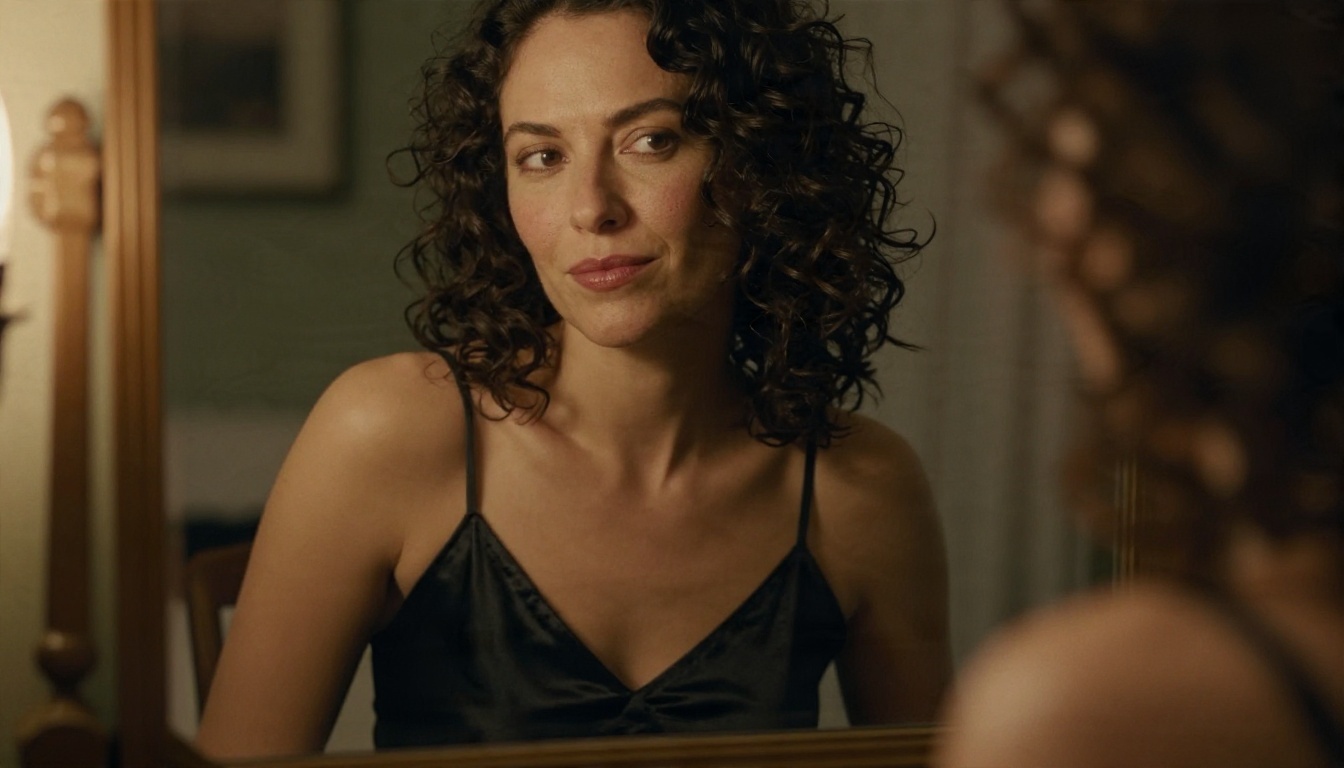
Seedream 4.5 is the model I reach for first. It outputs sharp 2K or 4K images, follows long, detailed prompts closely and renders skin with visible pores instead of that airbrushed gloss common to weaker models. It handles swimwear, lingerie campaign looks and boudoir lighting without constantly lecturing you, and its page lists it as free to use online.
It also supports reference images (up to 14), so you can keep a consistent look across a whole set. If you only test one model from this list, test this one.
2. PicassoIA Image Editor Pro: unlimited edits
PicassoIA Image Editor Pro is a different kind of tool. Instead of starting from nothing, you upload a photo and describe the edit in plain language. Its big selling point is that it is unlimited: no per-edit cap and no daily quota, and most edits finish in a few seconds.
That makes it ideal for iteration. Generate a base image with Seedream 4.5, then use the editor to change the outfit color, swap the background, soften the light or fix a small detail. You can feed it up to three reference images and refer to them as "image 1", "image 2" and so on.
3. Flux 2 Klein 9B Base LoRA
Flux 2 Klein 9B Base LoRA is the pick for stylized, fine-tuned looks. LoRA support means you can bend the output toward a particular aesthetic, such as a film stock look or a specific fashion mood. It is listed as free on its page, which makes it a good place to experiment without worrying about cost.
4. Z Image Turbo
Z Image Turbo earns its place on speed. When you are testing twenty prompt variations to find the right pose and light, waiting a minute per image kills momentum. Z Image Turbo returns sharp images in seconds, so it works well as a drafting model before you move to a heavier one for the final render.
5. Realistic Vision v5.1
Realistic Vision v5.1 is a long-time favorite for lifelike portraits. It is an older model, and it shows in complex scenes, but for a single subject in a simple environment it still delivers convincing skin tones and natural-looking faces.
6. HiDream L1 Dev and Full
HiDream L1 Dev and HiDream L1 Full round out the list. Dev is the free-to-try option; Full is the one to use when you want maximum sharpness. Both respond well to detailed photographic prompts. There is also HiDream L1 Fast for quick drafts.
Quick comparison
How to Use Seedream 4.5 on PicassoIA
Since it is the model I recommend first, here is the exact routine.
Step by step
- Open the Seedream 4.5 page on PicassoIA.
- Paste your prompt into the prompt field (up to 4,000 characters, so there is room for detail).
- Set size to 2K for drafts and 4K for the final render.
- Pick an aspect ratio. 16:9 suits wide scenes, 3:4 or 2:3 suits portraits and fashion looks.
- Leave sequential image generation on "disabled" for a single image, or set it to "auto" and raise max images (up to 15) when you want a related set, such as the same character in several outfits.
- Run it, check the result, adjust one thing at a time and run again.
Parameter tips that matter
- Size: 2K is plenty for social posts. Save 4K for prints or when you plan to crop.
- Reference images: upload 1 to 14 images in the image input field to keep a face, outfit or color palette consistent.
- Aspect ratio: "match input image" is handy when you are building on an existing photo.
- Change one variable per run: if you rewrite the whole prompt every time, you will never learn which change helped.
💡 Tip: Keep a text file of prompts that worked. A good prompt is reusable: swap the location and outfit, keep the lens and lighting lines.
A reliable prompt follows a fixed order. Think of it as a short photographer's brief.
The five part formula
Subject and pose + environment + lighting + camera and lens + texture details
Here is a worked example, close to what produced the images in this article:
Adult woman in a coral bikini standing waist-deep in clear turquoise water at a quiet beach cove, tilting her head back and brushing wet hair from her face, volcanic rocks behind her, warm late afternoon sun from the right creating rim light on her shoulders, water droplets on tanned skin, shot from a low angle with a 35mm lens at f/2.8, Kodak Portra 400 film grain, realistic skin texture.
Notice what it does not contain: no vague words like "beautiful" or "sexy". The model gets concrete visual information instead, and that is why the result looks like a photograph.
Swimwear prompts
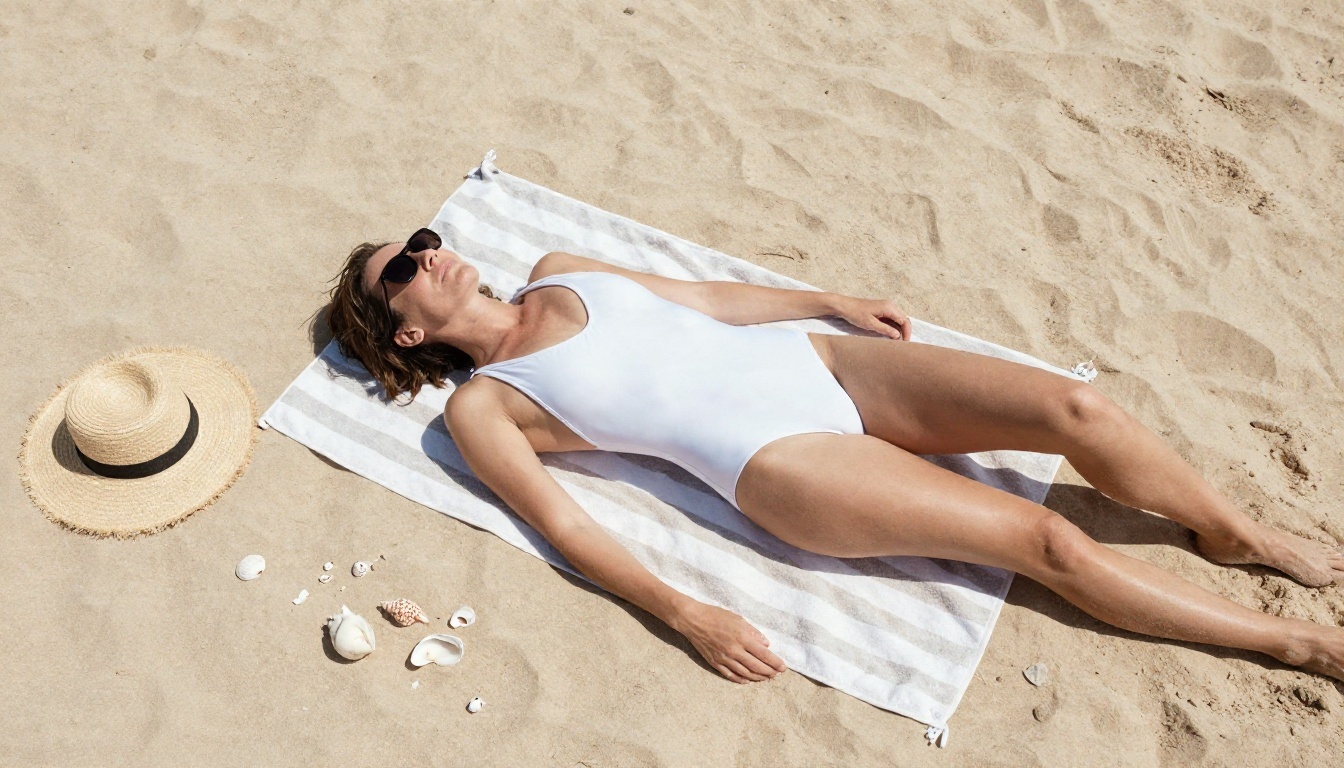
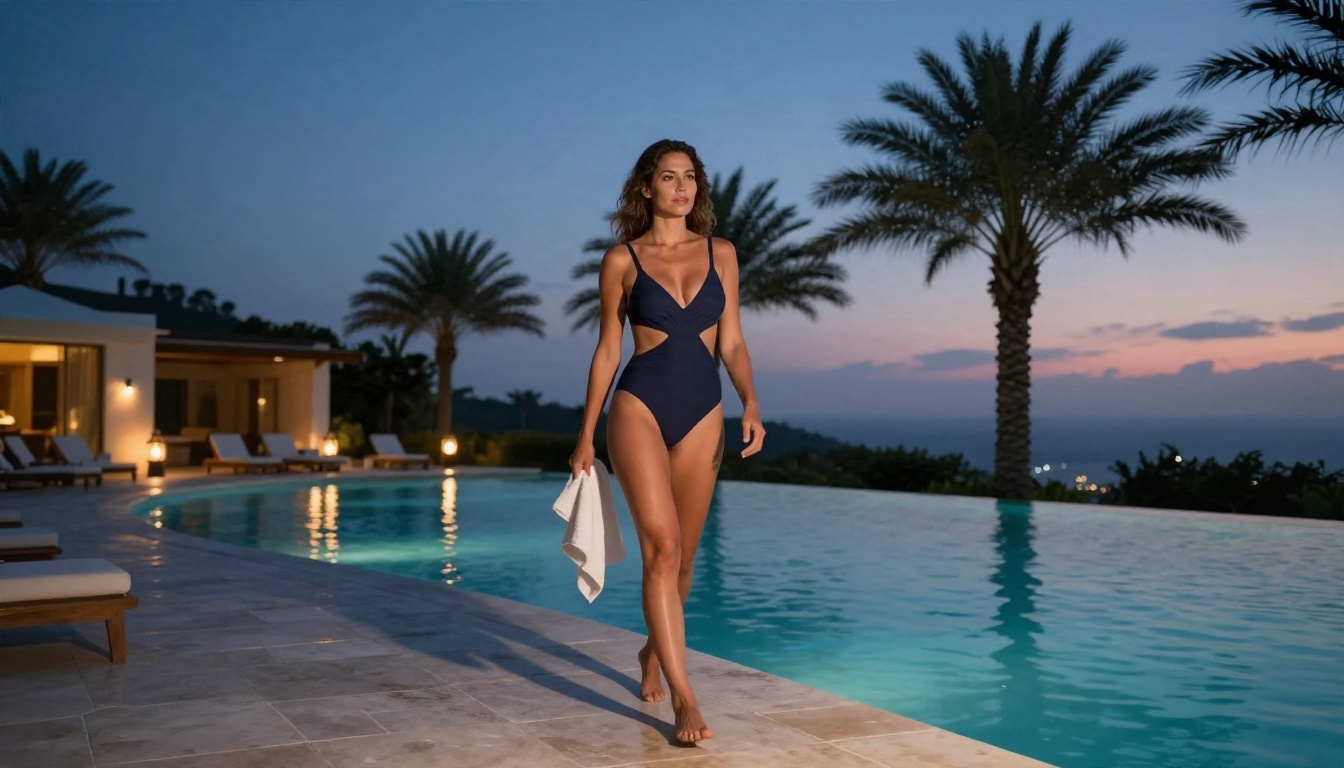
Swimwear is the easiest category and a great place to start. Vary the location (cove, pool, sailboat, sand), the time of day (midday hard light, golden hour, dusk) and the angle (low, overhead, wide). Each of those three choices changes the picture more than the swimsuit color does.
Boudoir and lingerie campaign prompts
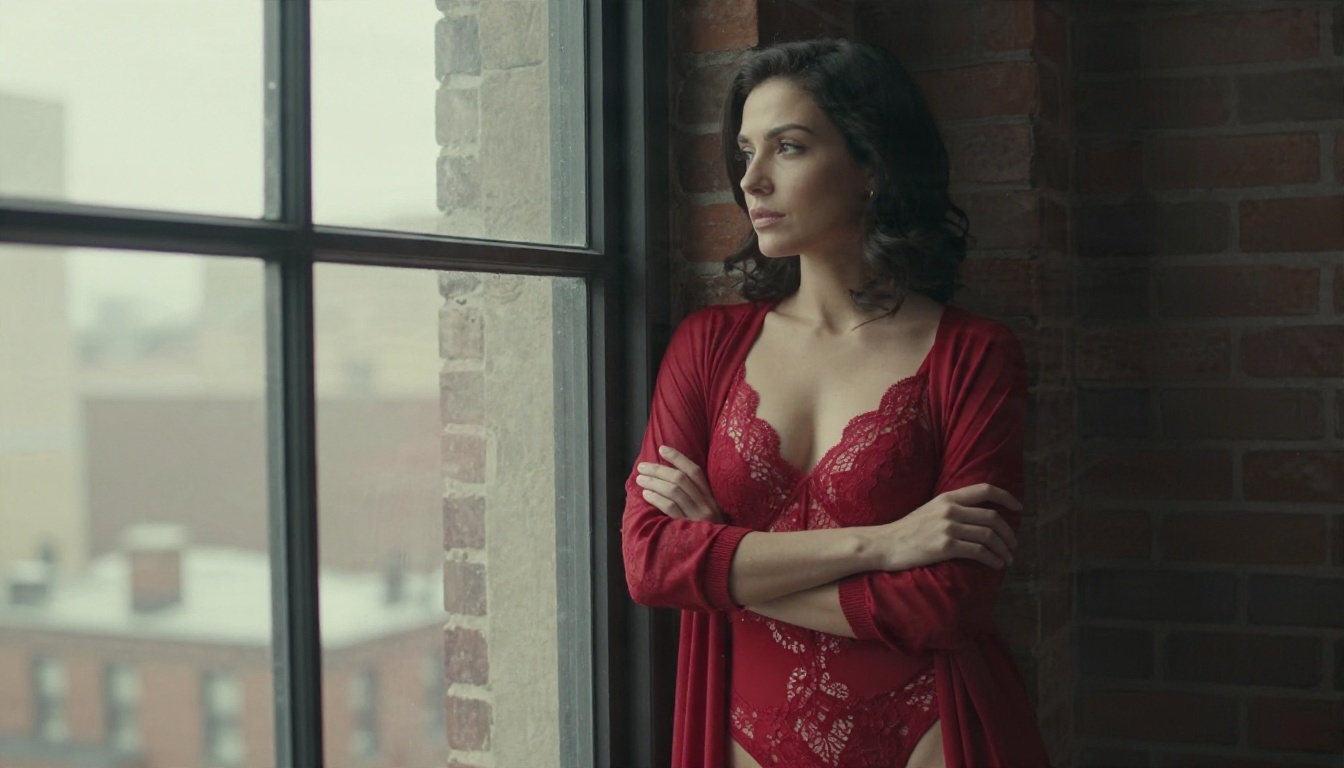
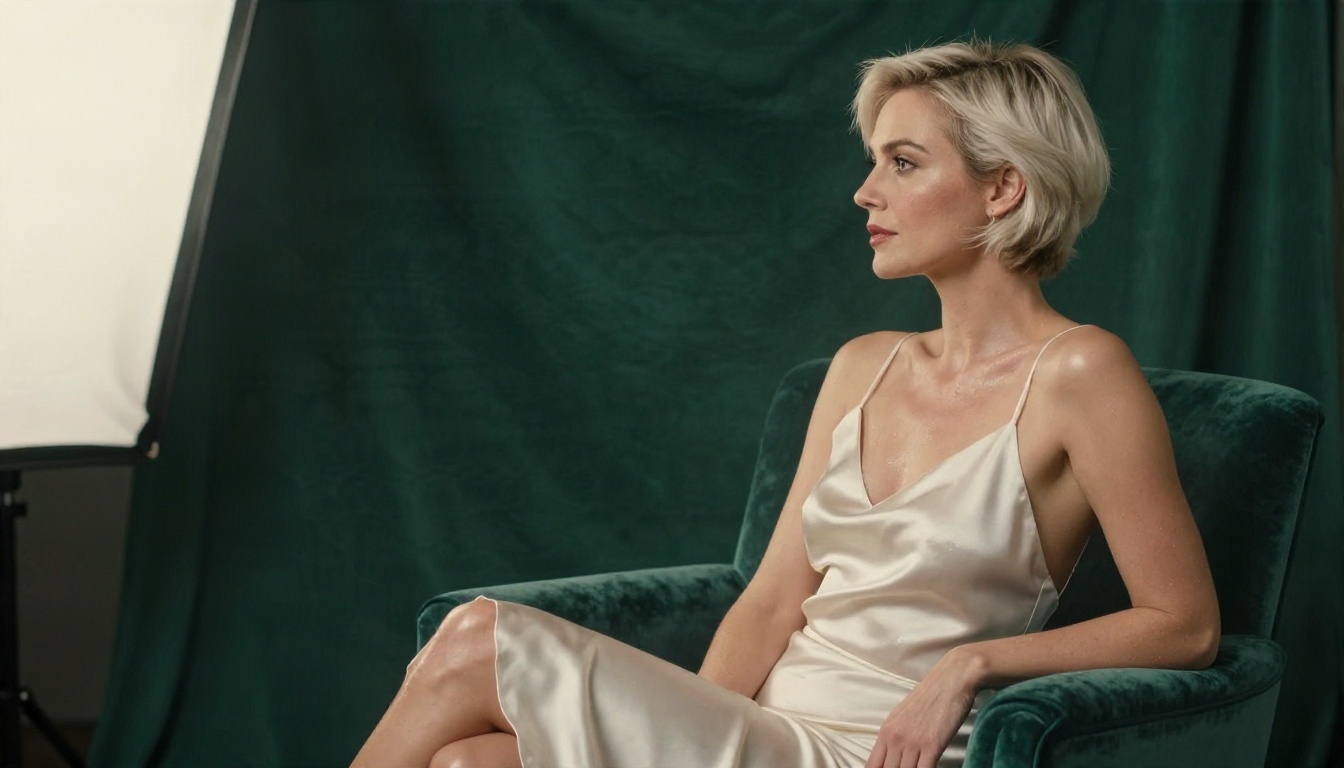
For a suggestive look that stays tasteful, lean on fabric and light: satin, lace, silk robes, sheer curtains, window light, a velvet chair, a deep backdrop. Describe the fabric folds and the way light falls on skin. Implied is almost always more attractive than explicit, and it also passes filters far more often.
Words to avoid
Skip words that mostly trigger filters without improving the image: "nude", "naked", "topless", "explicit". Replace them with the photographic equivalent. "Robe slipping off one shoulder" gives you the mood and the model understands it perfectly well.
Settings That Change the Result
Prompts get the attention, but settings quietly decide whether an image looks like a photograph or a render.
Resolution and aspect ratio
Start at 2K. Once the composition works, rerun the same prompt at 4K. Choose the ratio for where the image will live: 16:9 for banners and wide scenes, 9:16 for stories and reels, 2:3 or 3:4 for portrait style fashion looks.
Seeds and iteration
Some tools let you set a seed. When you find a pose you like, lock the seed and change only one phrase, such as the outfit color or the light direction. PicassoIA Image Editor Pro supports a seed too, which makes its edits reproducible.
Lens and film language
Camera words are cheap and powerful:
- 85mm f/1.4 to f/1.8: tight portraits with a soft, blurred background.
- 35mm f/2.8: environmental portraits where the setting matters.
- 24mm overhead: beach and pool scenes with graphic composition.
- Kodak Portra 400 film grain: warm skin tones and a gentle, analog texture.
💡 Tip: If skin looks too smooth, add phrases like "visible pores", "fine peach fuzz", "natural freckles" and "film grain". If it looks too harsh, soften the light source instead of removing detail.
Fixing Refusals and Bad Results
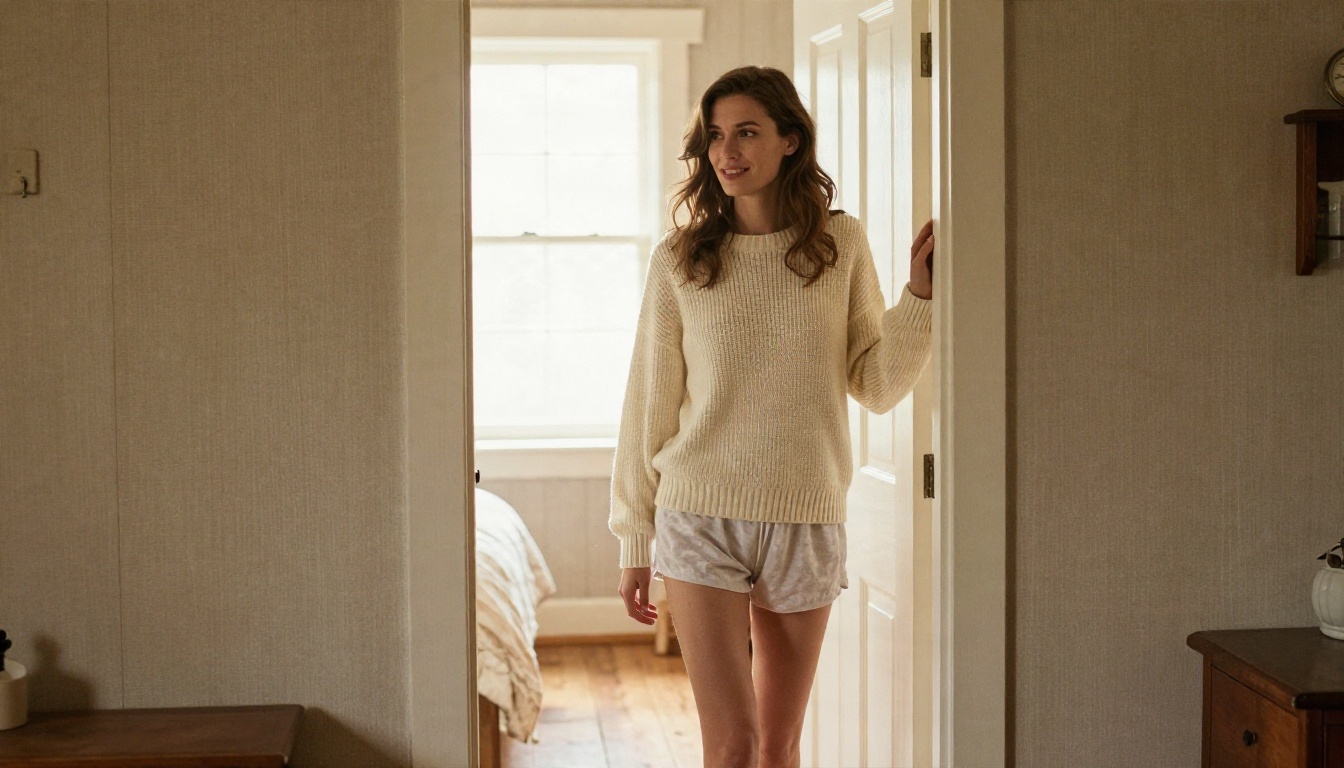
Even good prompts get blocked sometimes. While making the images for this very article, one lingerie prompt was rejected by a content filter. The fix took one minute: I kept the same composition, same doorway, same light, and changed the outfit to a cream sweater and pajama shorts. The mood stayed warm and intimate, and the image came out well.
A quick troubleshooting list
- Blocked prompt: remove trigger words, soften the outfit, keep the scene. Try again.
- Plastic skin: add texture words and film grain, lower any "beauty" or "perfect" language.
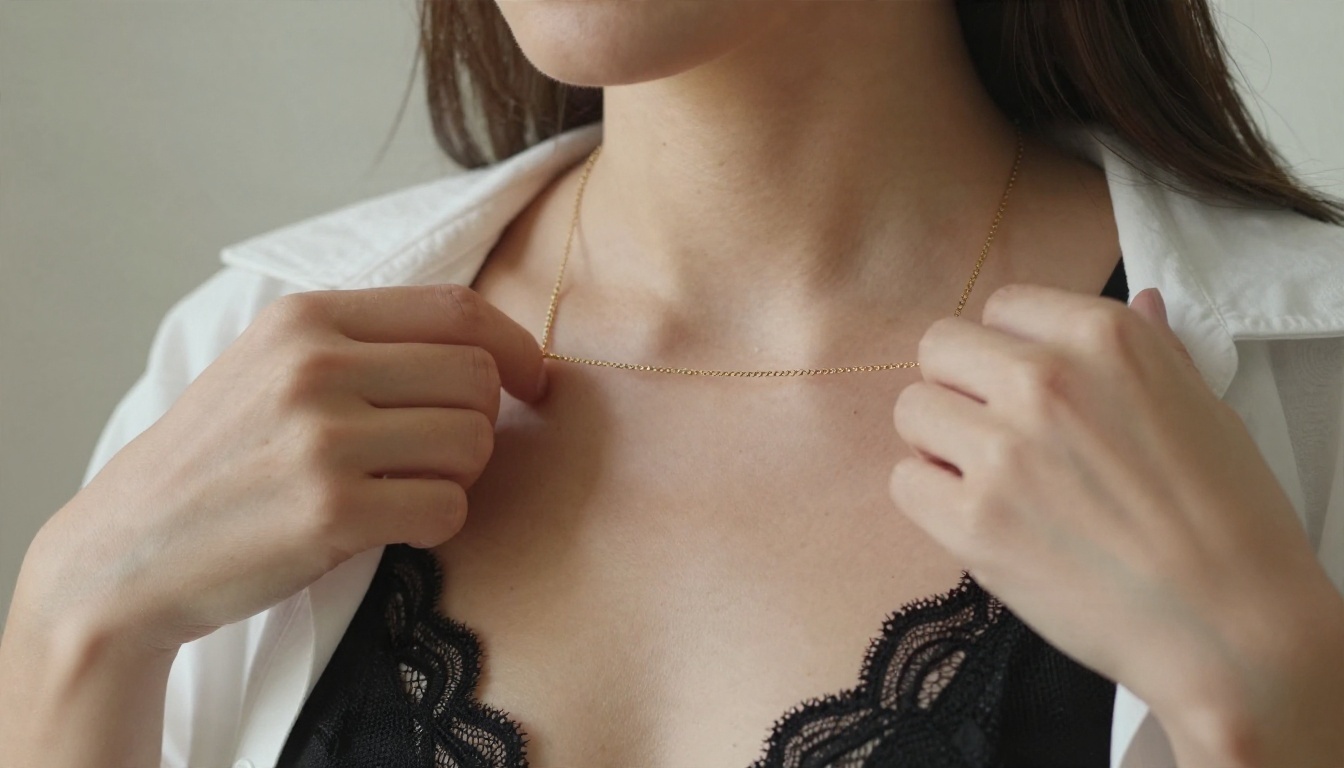
- Odd hands or faces: crop the composition so hands rest on hair, a chain or a doorframe, or generate with a model that handles anatomy better, like Seedream 4.5.
- Wrong mood: change the lighting first. Warm window light reads intimate, hard midday light reads playful, tungsten reads moody.
- Small flaws in an otherwise good image: send it to Image Editor Pro and describe the fix. Since it is unlimited, you can try as many times as you need.
When to switch models
If three tries on one model give you nothing, change models rather than rewriting the prompt for the tenth time. Each model has different blind spots. A prompt that fails on Realistic Vision v5.1 may work first time on Seedream 4.5, and the reverse is also true.
Free Options and Alternatives
Free is a loose word in this space, so here is how I weigh it.
What free usually means
Roughly speaking, free falls into four buckets: daily credits that run out, watermarked output, queue throttling, or open-source software you run on your own graphics card. Several well-known hosted tools such as Mage.space, SeaArt and Venice offer some form of free tier, though adult content often sits behind a paid plan, and rules change often. Check the current terms before you commit, and be careful about what a service says about storing your prompts and images.
Running Stable Diffusion locally can be the cheapest long-term route if you own a GPU with around 8 GB of video memory, but expect an afternoon of setup and ongoing tinkering.
Alternatives on PicassoIA
If you want to skip the setup and keep everything in one place, these are worth trying in this order:
- Seedream 4.5 for the best final images.
- PicassoIA Image Editor Pro for unlimited edits and corrections.
- Flux 2 Klein 9B Base LoRA for styled, LoRA driven looks.
- Z Image Turbo for fast drafts.
- Realistic Vision v5.1 and HiDream L1 Dev as extra options to compare.
If a prompt works in one of these and not another, that is normal. Filter behavior differs from model to model, and it can change between versions.
Bringing an image to life
Once you have a still you love, you can turn it into a short clip. A model such as LTX 2.5 Fast takes a photo as the first frame and adds gentle motion. Keep the movement simple: a slow camera push, hair moving in a breeze, water rippling. Simple motion looks real, and busy motion tends to fall apart.
A Simple Workflow You Can Repeat
Putting it all together, this routine saves a lot of wasted generations.
From idea to final image
- Draft the composition with Z Image Turbo. Ten quick tries beat two slow ones.
- Render the best idea with Seedream 4.5 at 2K, then 4K once you are happy.
- Polish small problems in PicassoIA Image Editor Pro with short, specific instructions.
- Animate a favorite with a video model if you want motion.
Staying responsible
Only create images of fictional or consenting adult subjects, never real people without permission, and never anyone who looks underage. Do not use AI imagery to deceive, harass or impersonate. Respect the rules of any platform where you publish, because many of them have their own limits on suggestive content. The goal here is attractive, tasteful photography, not shock value.
Make Your Own Set Today
The fastest way to see which model suits you is to run the same prompt through two or three of them and compare. Copy the coral bikini prompt from earlier, paste it into Seedream 4.5, then run it again in Z Image Turbo and HiDream L1 Dev. Send your favorite to PicassoIA Image Editor Pro and push it further with a few edits, since there is no cap on how many you can run.
Change one thing per run, keep notes, and you will have a personal prompt library within an hour. When you want to see what else is out there, browse every option at picassoia.com/en/all-models and start creating your own images with PicassoIA today.


