Large Language ModelsGenerate imagesGenerate videos
Can Claude Generate Images Like ChatGPT? Free Ways to Add It
Claude reads images and writes code, but it does not paint photographs inside the chat the way ChatGPT does. This article shows five free ways to close that gap, from SVG code and prompt writing to MCP connectors and a free photo generator.
Ask Claude for a photo of a lighthouse at dusk and you will usually get a paragraph, a block of SVG code, or a polite note that it cannot paint pictures. Type the same request into ChatGPT and a sharp image lands in under a minute. So can Claude generate images like ChatGPT? As of this writing, no: Claude's chat has no built-in photo generator. The good news is that you can add one for free, and the fastest route takes about five minutes.
This article lays out five free workarounds, ranks them by effort and output quality, and walks through the route that gets closest to the ChatGPT experience. You will also see which settings matter, which mistakes waste time, and how to turn a finished still into a short video.
💡 Quick answer: Claude can read images, draw with code, and write prompts. For real photographs, pair it with an image model through a connector, or use a platform that hosts both side by side.
The Short Answer
Claude and ChatGPT were built with different priorities. ChatGPT ships with an image tool powered by OpenAI's GPT Image family, so a request for a picture gets routed to a model that makes pixels. Claude is built around reading, reasoning and writing. That gap explains the difference you notice in daily use. It does not mean Claude lacks visual intelligence.
What Claude Does Well With Images
Claude is strong on the input side of any visual workflow:
Reads photos and screenshots, including charts, receipts, whiteboards and interface mockups
Describes scenes in enough detail to reuse the description as a prompt
Writes SVG, HTML, CSS and canvas code that renders shapes, icons, charts and patterns
Builds flowcharts and diagrams from plain language
Critiques layouts, suggesting fixes for color, spacing and composition
Calls outside tools when a connector is attached to the chat
Here is a practical example. Upload a rough pencil sketch of a poster, ask Claude what is wrong with the composition, and it will point out crowded corners, weak contrast or a title that competes with the main subject. Then ask it to rewrite the layout as a photo prompt. You end up with a sharper brief than most people write by hand, and you have not spent a single credit yet.
Why ChatGPT Feels Different
Task
Claude chat on its own
ChatGPT built-in tool
Photorealistic image from a text prompt
Not built in
Yes
Describe an uploaded photo
Yes
Yes
Write SVG or HTML graphics
Yes, a core strength
Yes
Write detailed image prompts
Yes
Yes
The real difference is the number of steps. In ChatGPT, typing a request and getting a picture is one step. With Claude, you split the job in two: Claude thinks and writes, a separate model paints. That split sounds like a downside, but it also means you can swap the painter. If one image model gives you plastic skin or muddy text, you send the same prompt to another and keep going, without changing the assistant that knows your project.
ChatGPT feels simpler because there is one box and one result. With Claude you assemble the pieces yourself. Free-tier caps on any chat product change often, so treat every limit you read online as temporary and check the current numbers before you plan a big project.
Five Free Workarounds Compared
Each method trades effort against output quality. Here is the short version before the detail:
Method
Best for
Output
Setup time
Cost
1. SVG and HTML code
Logos, icons, diagrams, charts
Vector, sharp at any size
0 minutes
Free
2. Claude writes prompts
Any style, any photo
Whatever the generator makes
2 minutes
Free generator
3. Connector (MCP)
Photos without leaving Claude
Photoreal images and video
5 minutes
Depends on the plan
4. Claude and image models on one platform
Comparing models fast
Photos, edits, video
1 minute
Free to start
5. Claude Code scripts
Batches of 20 or more images
Files saved to disk
20 minutes or more
API usage may cost money
Methods 1 and 2 need no new accounts. Methods 3 and 4 give the closest match to the ChatGPT feel. Method 5 is for people who build things.
Code and Prompts First
Draw With SVG and HTML
Ask Claude for an SVG and it writes the code, and the chat can render a live preview next to the conversation. This is the only method that works with zero setup, and it shines for flat graphics. It will not give you skin texture, film grain or a sunset over water, because code draws shapes and not photographs.
A prompt that works well:
Create an SVG of a minimalist mountain logo.
Use a 512x512 viewBox, three colors, and flat shapes only.
Name each group so I can edit the colors later.
Tips that save revisions:
Set the viewBox so the file scales cleanly
Ask for named groups and color variables you can swap
Limit the line count so the code stays readable
Request one change at a time when you refine the result
💡 Need a PNG instead? Open the SVG in a browser and export or screenshot it, or load it in any free vector editor.
Let Claude Write the Prompt
Most disappointing AI images come from thin prompts, and Claude is very good at writing thick ones. Give it a rough idea and ask for a structured prompt with a subject, an action, an environment, lighting, a lens and surface textures.
Weak prompt:a woman in a cafe
Strong prompt:A woman in a mustard sweater laughing at a window table, soft side light from the street, 85mm lens at f/1.8, steam rising from a ceramic cup, visible wool texture, film grain, 16:9.
Three habits that raise quality fast:
Ask for five variations with different camera angles and distances
Keep any in-image text to one or two words, since long phrases break more often
Upload a reference photo, ask Claude to describe it, and reuse the description
A reusable template helps: subject and action, then the environment, then the light direction, then the lens and angle, then two or three surface textures, then the aspect ratio. Ask Claude to fill each slot and you will get consistent results across a whole batch.
Paste the finished prompt into any text-to-image model. That alone already feels close to ChatGPT, just with one extra paste.
Connect a Generator
What MCP Actually Does
MCP stands for Model Context Protocol, an open standard that lets Claude call outside tools. An image connector exposes actions such as generate an image, edit an image, generate a video and check progress. Claude decides when to call them based on your message, so you type "make a 16:9 photo of a lighthouse at dusk" and the result comes back inside the chat.
Picasso IA offers a connector for Claude with image generation, image editing, video generation, status checks and cancellation. Each job returns a prediction ID first, and Claude checks that ID until the file is ready, so it feels like a normal reply with a short wait.
Set Up the Connector
Open Claude's settings and find the connectors section. The menu label shifts between app versions.
Add the Picasso IA connector and sign in with your Picasso IA account.
Approve the permissions when Claude asks.
Start a new chat and request an image: Generate a 16:9 photo of a lighthouse at dusk, natural light, 35mm lens.
Wait for the result. Claude returns the image link when the job succeeds.
Ask for changes in plain language: Same scene, but at golden hour.
If Claude answers with a description instead of an image, name the tool in your message: Use the Picasso IA image tool to generate this. That one sentence tells Claude to call the connector instead of writing code. If a job takes longer than expected, ask Claude to check its status, and cancel it if you changed your mind.
💡 Picasso IA lists its own GPU models as free on its Infinite and Wonder plans. Plan details change, so confirm what your account includes before a large batch.
One Platform, Two Jobs
You can also skip the connector and use a site that hosts both the chat model and the image model. That removes the copy and paste step entirely.
Claude Models Next to Image Models
Picasso IA lists Claude models in its large language model category, including Claude Sonnet 5, Claude Fable 5 and Claude Opus 4.7. In the text-to-image category you will find:
GPT Image 2, from the same OpenAI image family as ChatGPT's tool
The workflow is simple: draft the prompt with a Claude model, then run it through two or three image models and keep the winner. Different models read the same words differently, so a quick side by side saves a lot of rerolls.
Claude Code for Batch Work
Claude Code can call an image API or an MCP server from a script, which makes it the right pick when you need 30 blog headers or a full product catalog. Files land on your disk with consistent names. The tradeoff is setup time and, in many cases, per-image API billing. For a handful of pictures, methods 3 and 4 are faster and cheaper.
A typical setup keeps a spreadsheet of titles, asks Claude to write one prompt per row, calls the image tool once per prompt and saves each file with a readable name. Run a test with three rows before you launch the full list, because one bad instruction repeated fifty times is an expensive way to find a typo.
If you want the closest thing to ChatGPT's picture box, this is the model to try. It follows long prompts closely, renders short readable text inside images, supports transparent backgrounds and accepts reference images.
Step by Step
Open the model page in the text-to-image collection.
Paste your prompt. This is the only required field, so use the structured prompt Claude wrote for you.
Pick an aspect ratio. The default is 1:1, and 3:2 or 2:3 suit landscape and portrait.
Choose a quality level from low, medium or high, or leave it on auto.
Press generate and wait for the result.
Download the file as PNG, JPEG or WebP.
Settings That Matter
Setting
Options
Tip
Prompt
Required text
Long, specific prompts get closer to your idea
Quality
Low, medium, high, auto
Low for drafts, high for finals
Background
Transparent, opaque, auto
Transparent for cutouts and product pages
Aspect ratio
1:1, 3:2, 2:3
3:2 fits blog headers
Number of images
1 to 10
Generate four and keep the best
Output format
PNG, JPEG, WebP
PNG is the safe choice for transparency
Input images
Reference uploads
Edit an existing photo instead of starting over
Output compression
0 to 100 percent
Default is 90
A simple rhythm saves time. Run the first pass at low quality with four variations, pick the composition you like, then rerun that single prompt at high quality for the final file. Drafts finish faster, and you only spend high quality on the image you will actually publish.
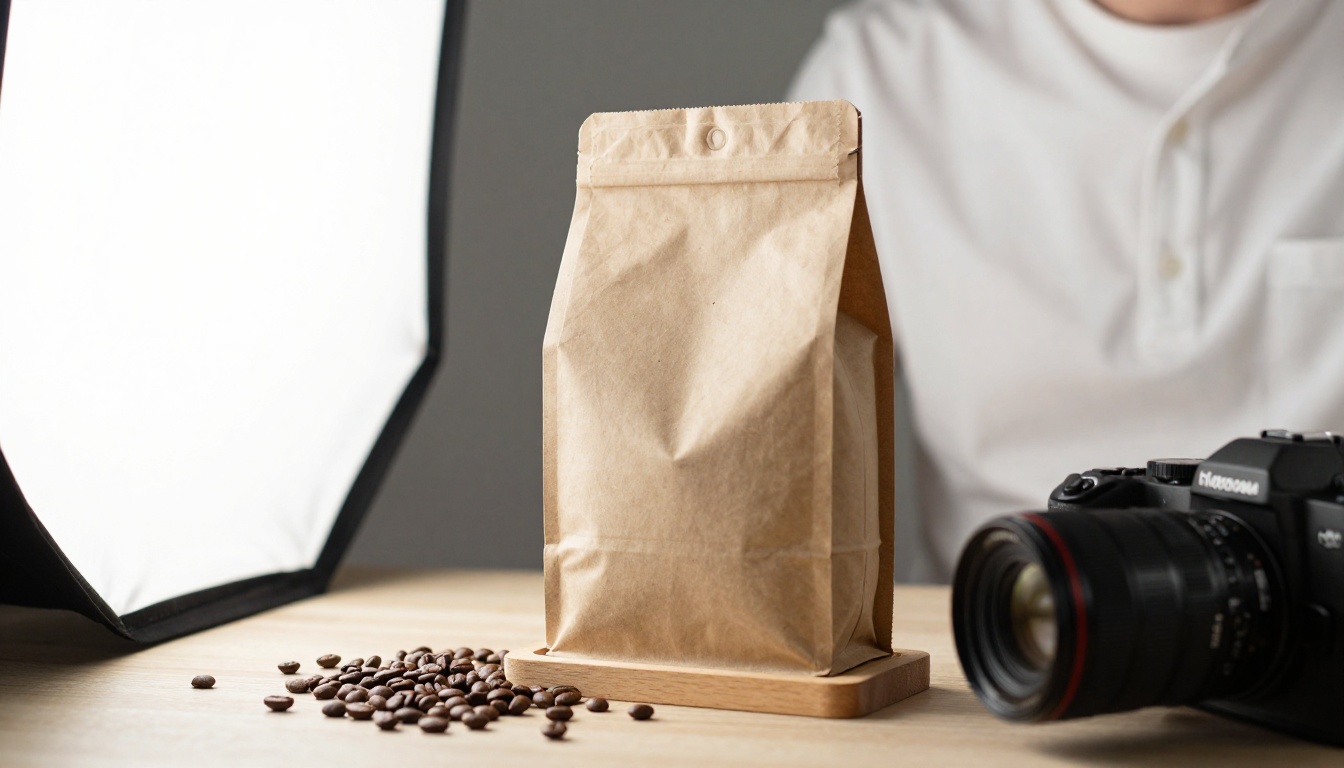
💡 Ask Claude: Write a 70 word photo prompt for a kraft paper coffee bag on a pale wooden stand, soft window light, 28mm lens, shallow depth of field. Then paste the answer straight into the prompt field.
Choosing the Right Free Route
Pick by Goal
Logo, icon or chart: ask Claude for SVG, no setup needed
Product mockup with a clean cutout: GPT Image 2 with the background set to transparent
Style comparison: one platform, several models, same prompt
Fifty or more images: Claude Code with a script
If you are unsure, start with the connector or the one platform route. Both give you real photographs in minutes, and you can always add SVG for logos and Claude Code for volume later.
3 Common Mistakes
Expecting pixels from a chat with no tool attached. Without a connector, Claude will write code or a description, not a photograph.
Sending a one line prompt. "A dog" gives a generic dog. Subject, light, lens and texture give you a photograph.
Rerolling instead of editing. When 90 percent of an image is right, upload it as a reference and change only what is wrong.
Turn Stills Into Video
Once you have a strong image, you can animate it. Ask Claude for a motion prompt that describes what moves and how the camera travels, for example slow dolly-in, curtains drifting, steam rising from the cup. Then try Picasso IA Video, described as a free unlimited video generator from text or image, or Seedance 2.5 Lite, which produces clips up to 10 seconds. For richer motion with built-in audio, Seedance 2.0 is worth a test.
Make Your First Image Today
Claude will not replace ChatGPT's image box on its own, but a few minutes of setup gets you the same result and often more control. Here is a plan you can finish before your coffee cools:
Ask Claude for a structured, 70 word photo prompt about something you actually need
Experiment freely. Every model reads a prompt a little differently, and the fastest way to find your favorite is to run the same idea through several. Browse the full catalog at picassoia.com/en/all-models and start creating your own images with Picasso IA today.