Still images do not have to stay still anymore. In 2027, the ability to take a single photograph and convert it into a fluid, cinematic video clip has crossed from novelty into everyday creative workflow. Veo 4, Google's latest video generation model, sits at the cutting edge of this shift, bringing cinematic motion, frame-consistent physics, and native synchronized audio to image animation at a quality level that was genuinely impossible two years ago.
This article breaks down exactly how Veo 4 processes your images, which models to use right now for the best results, and the specific prompt formulas that separate polished output from muddy failures.

What Veo 4 Does to Your Images
Veo 4 operates through a diffusion-based video synthesis pipeline trained on billions of image-video pairs. When you feed it a still image, it does not simply "play" the image or apply a cheap parallax effect. Instead, it infers the full 3D spatial structure of your scene, including depth, lighting direction, surface normals, and probable physics, then generates a temporally coherent sequence of frames that appear to document something that actually happened.
How Veo 4 Reads a Still Photo
The model analyzes your source image across several dimensions simultaneously. It reads the dominant light source direction and carries that illumination consistently across every generated frame. It identifies moving versus static elements in the composition, whether that is a body of water versus a rocky cliff, or hair versus a face. It also infers probable depth layers, which lets it produce realistic parallax when the virtual camera moves.
This means a photograph of a waterfall does not just have the water rippling unnaturally. Veo 4 animates the waterfall with physically coherent velocity, spray mist rising at the correct dispersal angle, and the wet rocks at the base reflecting light appropriately as the mist moves through. The model respects real-world physics rather than approximating motion with noise textures.
The quality of this spatial inference is why image resolution matters so much. A high-resolution source image gives the model more structural data to work from, which directly translates into more stable, artifact-free frame generation across the entire video clip.
Native Audio Alongside Motion
One of the biggest practical differences Veo 4 introduces is synchronized ambient audio generation. When you animate an ocean scene, you get wave sounds proportional to the wave size in frame. A forest scene generates wind through specific tree species sounds. A crowd photograph produces crowd murmur at a volume consistent with the apparent density of people in the image. This audio is generated concurrently with the video, not added as a post-process, which is why it stays in temporal sync with the visual output.
💡 Tip: If you want no audio in your output, specify "silent, no sound" in your prompt. Veo 4 will suppress audio generation entirely rather than produce something generic and mismatched.

Top Image-to-Video Models Available Now
While Veo 4 defines the ceiling of what is possible, you have access to a full ecosystem of image-to-video models right now on PicassoIA. Each one has different strengths depending on your source image type and intended output.

Wan 2.7 I2V
Wan 2.7 I2V is currently one of the most capable open-weight image-to-video models available. It handles complex scenes with multiple moving elements better than most competitors and produces stable, artifact-free output at up to 1080p. Portraits, landscapes, and product shots all respond well to it.
What makes Wan 2.7 I2V particularly useful is its handling of fine detail preservation. Fabric texture, face structure, and architectural elements stay consistent across frames rather than drifting or morphing between them, which is a common failure mode in weaker models. For complex scenes where multiple elements need to animate independently and coherently, it is the most reliable choice in the current model landscape.
Grok Imagine Video 1.5
Grok Imagine Video 1.5 is xAI's image-to-video model with native audio generation. It is particularly strong at portrait animation and face-forward images. When your source image features a person, Grok Imagine Video 1.5 tends to produce more lifelike subtle motion, including micro-expressions, natural blinking, and gentle head movement, rather than the stiff "statue coming to life" quality you get from weaker models.
It also handles urban and architectural photography unusually well, with realistic cloud movement, vehicle animation, and ambient street light flickering responding naturally to the model's physics inference.
Gen4 Turbo by Runway
Gen4 Turbo from Runway ML is the speed-optimized option when you need results fast. It generates video significantly faster than most competitors while maintaining solid output quality. For social media workflows where you are producing volume, Gen4 Turbo lets you iterate through multiple image inputs quickly to find which ones animate best before committing to a higher-quality render.
It handles camera motion prompts particularly well. Slow zooms, gentle pans, and dolly-in movements are rendered with smooth, cinematic easing rather than mechanical linearity.
P Video Animate
P Video Animate is PicassoIA's own model optimized for photo animation. It is the most accessible entry point on the platform, requiring minimal prompt effort to produce clean results. Drop in your image, write a short motion description, and it handles the rest. For straightforward portrait or landscape animation, it punches well above its simplicity level. It is also the best option for animating older or archival photographs because it does not over-sharpen or force modern detail into historical imagery.
Kling v3 Video
Kling v3 Video from Kwai is the cinematic quality option for image-to-video work. It produces rich, filmic output with natural color grading and smooth motion physics. When image quality is the priority over speed, Kling v3 Video consistently delivers the most visually polished results. It also has strong support for complex motion prompts, handling multi-element animations where both the subject and the background need to move simultaneously without losing coherence.
How to Use Image-to-Video on PicassoIA
Converting your first image into video on PicassoIA takes under five minutes. Here is the exact workflow.

Step 1: Prepare Your Source Image
The quality of your input image directly determines the ceiling of your video output. A blurry, low-resolution photograph will not become a sharp video. Before uploading, check these four things:
- Resolution: Use at least 1024x576 pixels. Higher is always better.
- Aspect ratio: Match your target output. For 16:9 video, use a 16:9 image. For vertical social video, use a portrait-oriented image.
- Subject clarity: The main subject should be clearly defined. Busy, cluttered compositions where it is hard to identify a primary subject tend to produce unstable animations where the model cannot decide what to prioritize.
- Lighting: High-contrast, well-lit images with clear shadow direction animate more convincingly than flat, evenly lit photographs.
💡 Tip: If you do not have a suitable photograph, use P Video Animate with a generated image from PicassoIA's text-to-image models as your source. The image and video steps combine into a seamless pipeline without needing any external assets.
Step 2: Select Your Model
Go to PicassoIA and navigate to the model that fits your use case. For most users starting out, Wan 2.7 I2V or P Video Animate are the right starting points. Upload your image using the image input field on the model page.
Step 3: Write Your Motion Prompt
This is where most people underperform. A good image-to-video prompt is not a description of what is in the image. It is a description of what moves and how. The model already sees the image. Your prompt should tell it what happens next.
Weak prompt: "A beautiful forest with trees and sunlight"
Strong prompt: "Gentle wind moves through the canopy from left to right, individual leaves catching and releasing sunlight, a slow dolly forward through the trees, morning mist drifting upward between the trunks"
The strong prompt specifies what moves (leaves, mist), direction (left to right, upward), camera movement (slow dolly forward), and atmosphere (morning mist). Each detail gives the model specific instructions rather than leaving it to guess.
Step 4: Set Resolution and Export
Most models on PicassoIA let you select output resolution. For content you plan to publish, always choose the highest available option. 720p is the minimum for social media that looks clean on mobile screens. For embedded website use or YouTube, aim for 1080p.
Once generation completes, download the MP4 file directly from the interface. Generation times vary by model and resolution, from under a minute for fast models to a few minutes for the most capable ones.
Writing good motion prompts is a learnable skill. These formulas cover the most common scenarios with specific phrasing that produces reliable results.

Camera Movement Prompts
Camera movement is one of the most powerful tools in image-to-video because it creates a sense of scale and immersion without requiring the subject itself to move dramatically.
| Camera Move | Prompt Phrasing |
|---|
| Dolly in | "slow push forward toward the subject" |
| Dolly out | "camera slowly pulls back, revealing the wider scene" |
| Pan left | "camera pans left at walking pace" |
| Pan right | "slow rightward pan across the scene" |
| Tilt up | "camera tilts upward from the foreground to the sky" |
| Arc shot | "camera arcs slowly around the subject from right to left" |
| Drone rise | "camera rises vertically, the ground pulling away below" |
Always pair camera movement with a speed descriptor: slow, gentle, steady, drifting, sharp. Without a speed qualifier, results are unpredictable and often too fast for the intended mood.
Subject Motion Prompts
When you want the subject in the image to move rather than the camera:
- Hair and fabric: "hair moves gently in a light breeze from the right, fabric ripples at the hem"
- Water: "water flows downstream with small ripples catching the overhead light, foam circling at the rocks"
- Fire: "flame flickers and dances, casting moving shadows across the wall behind"
- Crowd: "subtle crowd motion, people shifting weight and talking, ambient movement throughout"
- Animals: "bird raises its wings and settles them, head turns slowly to the left"
Atmosphere Prompts
Atmosphere prompts control ambient environmental effects, which dramatically change the mood of the output even when the primary subject stays still:
- "Dust motes float through the shaft of light from the left window"
- "Steam rises from the surface of the water in thin curling wisps"
- "Leaves fall diagonally across the frame from upper right to lower left"
- "Fog rolls in slowly from the right edge of the frame"
- "Light shifts from warm golden to slightly cooler as clouds pass slowly overhead"
3 Mistakes That Ruin Image-to-Video Output
Most bad results come from the same few errors. These are the ones worth fixing first.
Describing the Image Instead of the Motion
The most common mistake is writing a prompt that describes the content of the image rather than the motion you want. The model already sees the image. When you write "a beautiful beach with waves and a sunset," you are giving the model no new information at all. It will generate something, but the motion will be generic and often inconsistent with what the scene actually needs.
Write prompts that are entirely about motion, camera movement, and atmosphere. Treat the image as background knowledge that the model already has, and your prompt as directions for what should change within that scene.
Using Too Many Instructions at Once
A prompt with five different types of motion instructions typically produces unstable output where the model attempts to satisfy all conditions and succeeds at none. Pick one to two dominant motion elements and describe those well.
- Overloaded: "Camera zooms in while the subject walks forward and the background fades and birds fly across and the light changes from golden to blue"
- Focused: "Subject walks slowly forward, camera follows at a steady pace, slight camera drift to the right"
The focused prompt produces cleaner, more predictable results every time.
Wrong Resolution for the Platform
Generating at 480p to save time and then uploading to a platform that displays at 720p or 1080p produces a noticeably soft, degraded video. Always generate at or above your final display resolution. If you are unsure of your platform's display resolution, target 1080p. It can always be displayed at lower resolutions without quality loss, but it cannot be sharpened back up after the fact.
Image Specs for Better Results
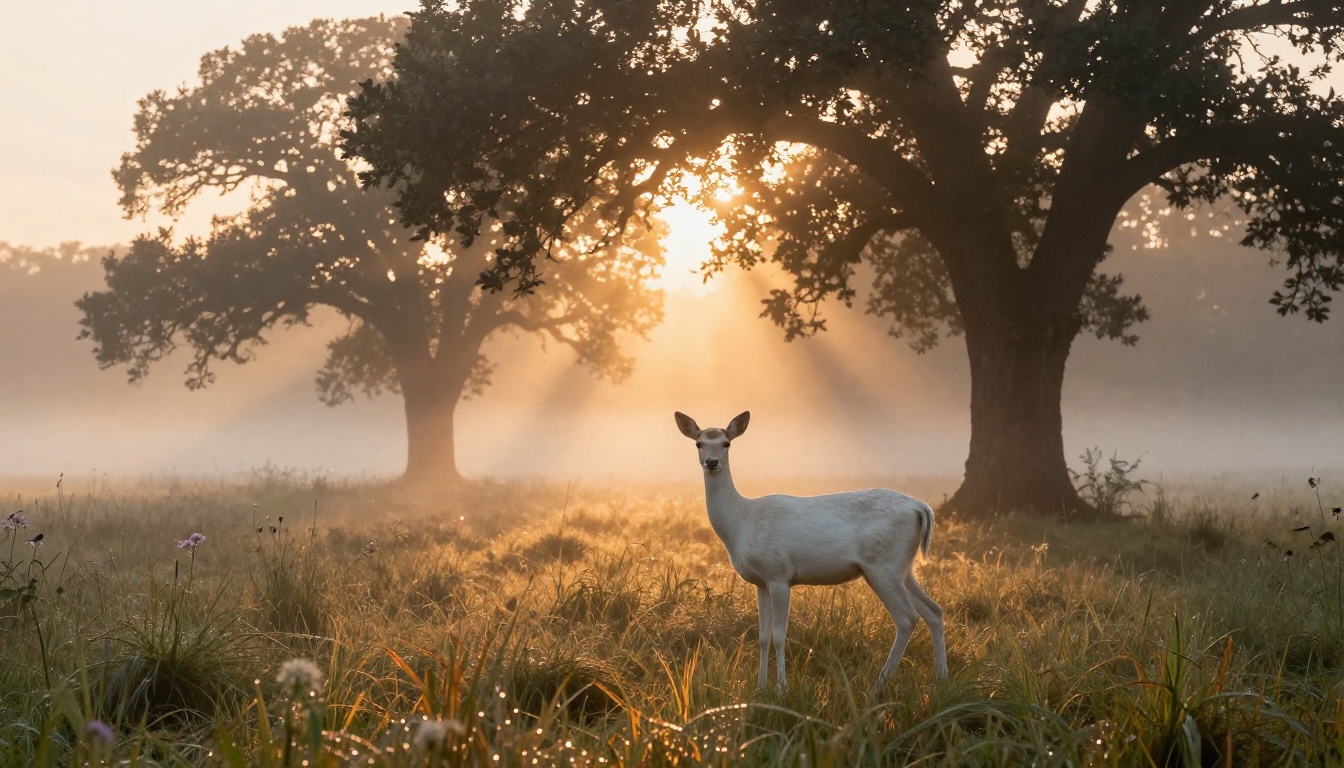
💡 The single highest-impact thing you can do to improve your image-to-video output is to source better input images. The model cannot invent detail that is not there.
Resolution and Aspect Ratio
Do not crop a 16:9 image from a portrait shot and expect clean results. The spatial warping introduced by cropping creates compression artifacts that the model will try to animate, producing distracting visual noise in the output.
- Use native aspect ratio images whenever possible
- For social content: 9:16 portrait orientation (1080x1920)
- For web and YouTube: 16:9 landscape (1920x1080 or at minimum 1280x720)
- For square social posts: 1:1 (1080x1080)
Subject Placement
Where the main subject sits in the frame matters more for image-to-video than for a static photograph.
- Center framing works well for portrait animation and product demos
- Rule-of-thirds placement works better for landscape and environment animation because it leaves room for camera movement without cutting off the subject
- Avoid placing subjects at the very edge of frame: when the camera moves, edge-placed subjects get cropped out of the frame almost immediately, ruining the shot
Lighting and Contrast
Low-contrast images with flat overcast lighting or heavy shadow produce video output that looks gray and lifeless. High-contrast images with clear lighting direction produce dramatically better output. Before feeding an image to any image-to-video model:
- Bring up the contrast slightly
- Ensure the shadows have detail and are not completely crushed to black
- Make sure highlights are not blown out to pure white
- Increase saturation slightly, since video compression tends to mute color compared to the source image
Veo 4 vs Top Competing Models
| Model | Best For | Max Resolution | Native Audio | Speed |
|---|
| Veo 4 | Cinematic realism, complex scenes | 1080p | Yes | Medium |
| Veo 3.1 | High-detail nature and architecture | 1080p | Yes | Medium |
| Veo 3.1 Fast | Quick drafts and iteration | 1080p | Yes | Fast |
| Veo 2 | Realistic scene generation | 1080p | No | Medium |
| Wan 2.7 I2V | Multi-element complex scenes | 1080p | No | Medium |
| Gen4 Turbo | High-volume social content | 720p | No | Very Fast |
| Kling v3 Video | Cinematic filmic output | 1080p | No | Slow |
| Grok Imagine Video 1.5 | Portrait and face animation | 720p | Yes | Medium |
| P Video Animate | Quick accessible animation | 720p | No | Fast |
The practical takeaway: if cinematic quality is the priority, use Kling v3 Video or Wan 2.7 I2V. If speed and volume matter, Gen4 Turbo or P Video Animate are the right picks. If audio sync is important, Veo 3.1 or Grok Imagine Video 1.5 are the standout options.
5 Real Use Cases
Social Media Content
Animated posts dramatically outperform static images in reach on every major social platform. A product photograph animated with a 3-second loop typically generates significantly more impressions than the equivalent static post, and the loop format means viewers see it multiple times before they scroll.
For vertical social content, use Seedance 2.5 or Kling v3 Video with a 9:16 source image. Keep your motion subtle for looping, and the video will auto-loop seamlessly on most platforms without a jarring cut.
Product Demos
Animating a product photograph into a short clip that shows the product with subtle interactive motion, such as a bottle being rotated, fabric moving gently in wind, or a screen lighting up, is one of the highest-return applications of image-to-video for e-commerce and brand content.
Use Grok Imagine R2V or Wan 2.7 I2V for product shots. Prompt for controlled, subtle motion: "product rotates slowly 15 degrees to the right, light catches the label surface, gentle dolly in" rather than dramatic movement that would look artificial for a commercial context.
Landscape Animation
Landscape photographs, particularly those with water, sky, and vegetation, respond exceptionally well to image-to-video models. A single photograph of a mountain lake at sunset can be animated into a breathtaking clip in under two minutes.
Veo 3.1 and Wan 2.7 I2V are the strongest options for landscapes. Use atmosphere prompts heavily: mist, light shifts, wind through grass, and water movement are all elements that these models handle with exceptional physical accuracy.
Portrait Animation
Bringing a portrait photograph to life with subtle head movement, natural blinking, and gentle breathing motion creates an incredibly lifelike result. This has applications from memorial videos to social content to film title cards and event promotion.
Grok Imagine Video 1.5 and Kling v3 Video handle portrait work best. Prompt for micro-movements: "subject blinks naturally, slight movement of breath visible in chest and shoulders, hair moves very gently in a light indoor draft, eyes remain focused forward"
Historical Photo Revival
Old photographs can be animated to produce deeply moving video clips. Family portraits from decades past, historical events, or archival images can all be brought into motion using the same image-to-video pipeline.
P Video Animate works particularly well for old photographs because it does not over-sharpen or attempt to add modern detail that was not present in the original image. It preserves the grain and tonal character of the original while adding convincing, period-appropriate motion.
Start Creating on PicassoIA
The barrier to producing professional-quality animated video from a still image has dropped to a single photograph and a few lines of text. You do not need video production equipment, animation software, or a technical background to produce results that look genuinely impressive.
PicassoIA gives you access to the full spectrum of image-to-video models in one place, from fast draft generators to cinematic-quality outputs. You can compare results across models, iterate on prompts without committing to a single tool, and find what works best for your specific images and intended use.
Go to picassoia.com/en/all-models to see every model available, including the full library of image-to-video options. Start with your best photograph, write a motion prompt using the formulas in this article, and generate your first animated clip today.
Here is a quick decision chart to pick your first model:
Every image you have ever taken is a video waiting to exist. The tools to make that happen are ready right now.


