If you typed "Flux2 Proveo 3.1" into a search bar, you probably saw a pile of results that did not quite match. There is a reason. As far as I could find, there is no single product with that exact name. What people mean by it is a two-step pipeline: create a sharp still with Flux 2 Pro, then hand that still to Veo 3.1 and let it turn the frame into a short clip with sound. "Proveo" looks like a blend of "Pro" and "Veo" that stuck.
The good news is that this pipeline works, and it works better than typing a long text prompt straight into a video model. You control the look first, then you control the motion. Both models are available on PicassoIA, so you can run the whole thing in one place. Below you get the workflow, the settings that matter, prompts you can copy, and the free options for testing it before you spend anything.
💡 Quick naming note: Veo 3.1 is Google DeepMind's video model, released in October 2025. Flux 2 Pro comes from Black Forest Labs. They are separate models from separate companies, and the "Proveo" combination is a workflow you build yourself, not a bundled release.
What Flux2 Proveo 3.1 Really Means
Two Models, One Pipeline
The workflow has two jobs, and each model does one of them well:
- Flux 2 Pro builds the first frame. It handles photorealistic skin, fabric, light and readable composition, and it accepts text prompts or reference photos.
- Veo 3.1 takes that frame as the starting image and animates it. It generates context-aware audio at the same time, so footsteps, waves or room tone arrive with the clip.
Think of Flux 2 Pro as your photographer and Veo 3.1 as your camera operator. The photographer decides what the shot looks like. The operator decides what moves.
Why Split Image and Motion
Text-to-video alone is a gamble. You describe a fisherman on a pier, and the model invents the pier, the fisherman, the weather and the lens all at once. If one of those is wrong, you regenerate everything.
With the split approach you fix the still first. Once the frame looks right, the video model only has to answer one question: what happens next? That narrows the randomness a lot. You also get a reusable asset. The same still can produce a slow push-in, a pan, or a wind-and-water version with different prompts.
| Approach | Control over look | Control over motion | Retry cost |
|---|
| Text to video only | Low | Medium | Full regeneration |
| Flux 2 Pro still, then Veo 3.1 | High | High | Only the motion step |
| Random photo, then Veo 3.1 | Medium | Medium | Depends on the photo |
Build the Still in Flux 2 Pro
Prompt for Motion-Ready Frames
A good source still is not just a pretty picture. It is a frame that has somewhere to go. When you prompt Flux 2 Pro, describe the subject, the lens, the light and the empty space around the subject, because a video model needs room to move the camera.
Here is a prompt that produced the kind of frame this workflow likes:
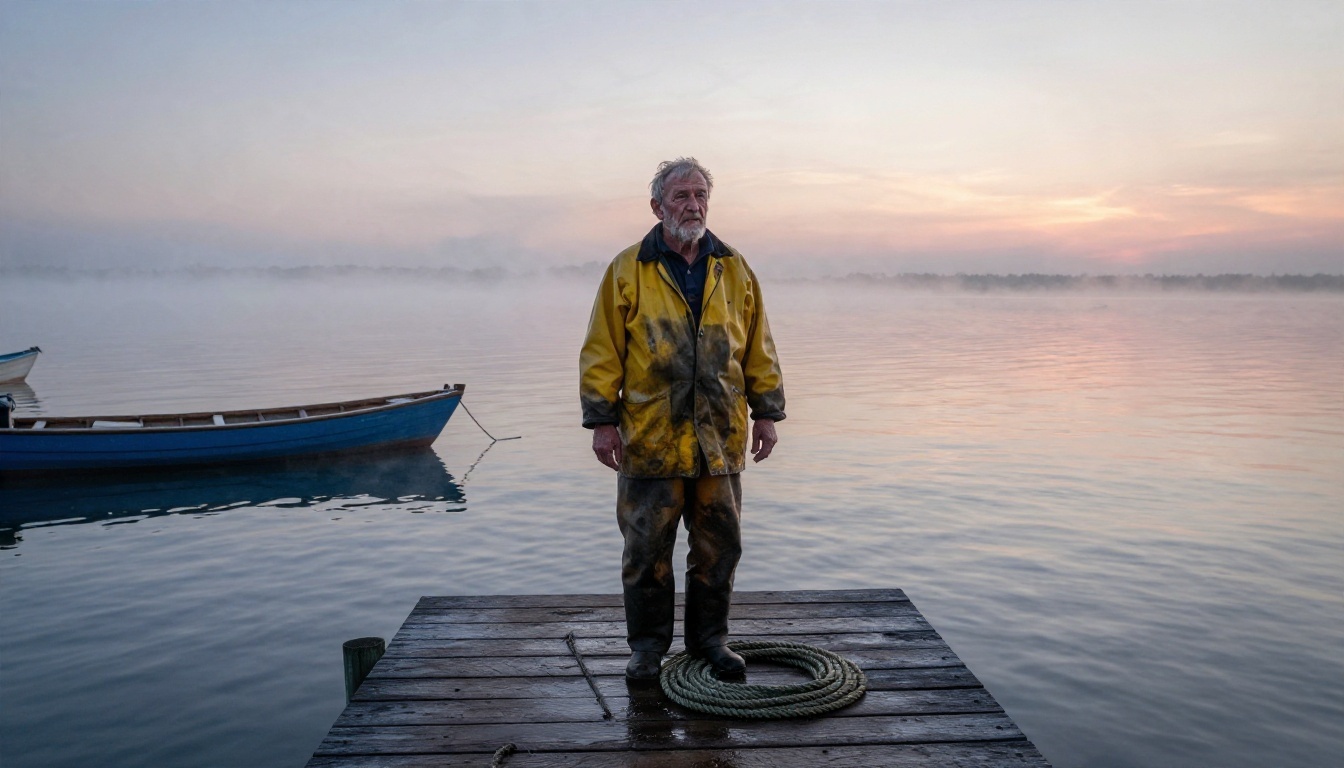
Wide cinematic still of a weathered elderly fisherman in a yellow oilskin jacket standing on a wooden pier at dawn, coiled rope at his feet, calm grey-blue water with thin mist drifting across it, small wooden boats moored behind him, gentle pink-gold light from the horizon, visible beard texture, wet plank grain, 35mm lens f/2.8, eye-level, open space around the subject, natural film grain.
Notice what is in it. Mist implies drifting. Water implies ripples. Rope and a jacket imply cloth movement. A distant horizon implies depth for a push-in. You are planting motion cues in the still before you ever open the video model.
Framing Rules That Help Veo
Veo 3.1 asks for a start image that is ideally 16:9 or 9:16, around 1280x720 or 720x1280. Match your Flux 2 Pro output to that, or the model will crop or pad in ways you did not choose.
Follow these rules when you build the frame:
- Pick one aspect ratio and stick to it. Generate the still at 16:9 if you want landscape output, 9:16 if you want vertical.
- Leave breathing room. Do not crop the head against the top edge if you plan a tilt up or a slow pull back.
- Keep the subject simple. One person, one object, one clear action. Crowded frames make the motion messy.
- Choose natural light. Hard, believable light survives animation. Flat or overprocessed frames tend to shimmer.
- Skip text in the frame. Signs and labels can warp once things start moving.
Pick the Right Source Still
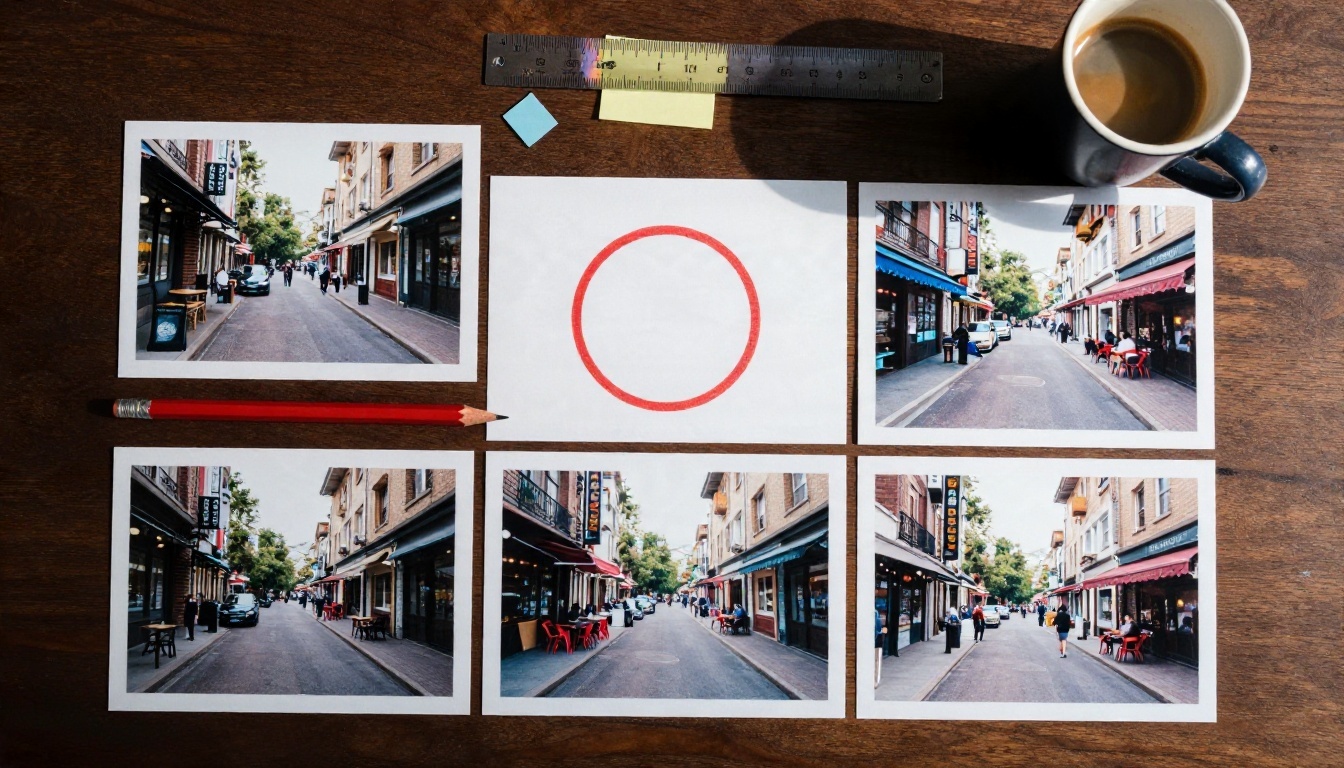
Not every good image is a good first frame. Generate four to six variations of the same scene, print or lay them out side by side, and choose the one with the clearest subject, the cleanest edges and the most believable light. A sharp medium shot almost always beats a busy ultra-wide.
💡 Tip: If your Flux 2 Pro frame is nearly right but one detail is off, fix the still, not the video. Regenerating an image is cheaper and faster than regenerating eight seconds of footage.
Animate the Still in Veo 3.1
Settings That Matter
The Veo 3.1 page on PicassoIA exposes a short list of inputs. These are the ones that change your result:
| Setting | Options | What to choose |
|---|
| Image | Your Flux 2 Pro still | Required for this workflow |
| Duration | 4, 6 or 8 seconds | Start at 4 or 6 for tests, use 8 for the final |
| Resolution | 720p or 1080p | 720p to test, 1080p to deliver |
| Aspect ratio | 16:9 or 9:16 | Match your still exactly |
| Generate audio | On or off | On for ambient sound, off if you will score it yourself |
| Last frame | Optional end image | Use for a transition between two stills |
| Negative prompt | Text | List what you do not want, such as warping or text |
| Seed | Integer | Fix it when you want to compare prompt changes |
Two details are easy to miss. First, reference images (up to three) only work at 16:9 and 8 seconds, and when you use them the last frame is ignored. Second, the last frame option is a hidden gem: give Veo a start still and an end still, and it builds the transition between them.
The Motion Prompt Formula
Your still already holds the visual information, so your video prompt should not repeat it. Describe what moves, how the camera moves, and what the light does. A reliable structure:
Subject action + camera movement + environment motion + light and mood + audio cue
A short prompt usually beats a long one. Two or three sentences are enough.
Camera Moves That Work
Some camera instructions hold up better than others when starting from a still:
- Slow push-in: The safest option. It adds depth without needing the model to invent new geometry.
- Gentle pan left or right: Works well when the still has horizontal space.
- Slow pull back: Good for reveals, but only if the frame has room to reveal.
- Handheld sway: A small amount adds realism to documentary-style frames.
- Fast whip moves: Risky. They tend to smear detail.
Use the language a real camera operator would use. "Slow dolly-in at eye level" is clearer than "cool cinematic zoom".
Prompting the Native Audio
Veo 3.1 builds audio that matches the scene, so you can steer it with a short sound line at the end of your prompt. Describe the ambience first, then any specific sound. For the pier scene that might be: "Soft water lapping against wood, distant gulls, a faint creak of rope."
Keep audio requests physical and grounded. If the frame shows a shoreline, ask for waves and wind. Asking for a full orchestral score from a pier scene tends to fight the image.
Copy-Ready Prompts for Veo 3.1
Paste these after uploading your own matching still. Adjust the details to what your frame actually shows.
Portrait With Subtle Life
The man slowly turns his head toward the camera and blinks once. Slow push-in at eye level. Mist drifts across the water behind him, his jacket shifts slightly in the breeze. Soft dawn light, calm mood. Ambient sound of water and distant gulls.
Landscape With Drifting Weather
Clouds move slowly across the sky, grass bends in a steady wind. Gentle pan from left to right at a low angle. Warm late afternoon light, a faint haze in the distance. Sound of wind through grass and a far-off bird.
Product Shot With a Soft Reveal
The camera glides slowly around the product on the table, a thin curl of steam rises from the cup beside it. Shallow depth of field, soft window light from the left. Quiet room tone and a faint ceramic clink.
Street Scene With Crowd Motion
Pedestrians walk through the frame at a natural pace, a cyclist passes in the background. Locked-off camera with a very slow push-in. Overcast light, damp pavement reflections. Footsteps, distant traffic and muffled conversation.
Two Stills, One Transition
Upload your first Flux 2 Pro frame as the start image and a second frame as the last frame. Then prompt only the journey:
The camera drifts forward as the light shifts from pre-dawn grey to warm sunrise. Gentle ambient sound that grows brighter as the light rises.
💡 Tip: Keep a text file of prompts that worked. Reusing a good structure and swapping only the subject saves a lot of trial and error.
How to Use Veo 3.1 on PicassoIA
Here is the full run, from still to finished clip, using models available on PicassoIA.
- Generate your still. Open Flux 2 Pro, set the aspect ratio to 16:9 (or 9:16 for vertical), and write a prompt with a clear subject and open space around it. Create four to six variations and pick the cleanest.
- Open the video model. Go to Veo 3.1 on PicassoIA.
- Upload the still in the Image field.
- Write the motion prompt. Use the formula above: action, camera, environment, light, audio.
- Set the parameters. Choose 720p and 4 or 6 seconds for your first test. Match the aspect ratio to your still. Leave audio on.
- Add a negative prompt if needed, for example: warping, extra limbs, text overlays, flickering.
- Fix the seed if you want to compare two prompts fairly.
- Generate and review. Watch the clip twice, once for motion and once for sound.
- Re-run at 1080p and 8 seconds only when the test clip behaves.
The PicassoIA page for Veo 3.1 describes the model as free to try online with no coding needed, which makes this a low-risk way to test the workflow before you commit to anything larger.
Free Options Worth Trying
You do not need to pay per second to test this idea. The sensible route is to test cheaply, then spend only on the final render.
Lighter Veo Variants
Two siblings of the main model sit on PicassoIA as well:
- Veo 3.1 Fast is the faster option when you want quick iterations on motion prompts.
- Veo 3.1 Lite is the lighter version, good for checking whether a still holds up under animation before you run the full model.
Alternatives for Image Animation
If you want to compare how different models treat the same Flux 2 Pro still, these are worth a run:

| Model | Best for | Use it when |
|---|
| Veo 3.1 | Final quality with synced audio | You have a tested still and prompt |
| Veo 3.1 Fast | Quick prompt iteration | You are comparing motion ideas |
| Veo 3.1 Lite | Cheap sanity checks | You want to test a still first |
| Wan 2.5 I2V Fast | Fast image animation | You need many variations |
| Kling v3 Video | Camera movement | The shot depends on a bold move |
💡 Money-saving habit: Run every idea at 720p and 4 seconds first. Only the winner earns a 1080p, 8 second render. Pricing on third-party hosts is usually charged per second of output, so shorter tests add up to real savings.
Mistakes That Waste Credits
Most failed clips come from the same handful of problems. Fix these and your hit rate goes up fast.
Describing the Still Again
Your video prompt should not repeat what the image already shows. Spending words on "a fisherman on a pier" competes with the actual picture. Spend them on motion.
Asking for Too Much at Once
A prompt that demands a pan, a zoom, a character turning, a crowd walking and a weather change will usually deliver none of them well. Pick one camera move and one subject action.
Mismatched Aspect Ratios
A 3:2 still fed into a 16:9 render gets cropped or padded. Generate the Flux 2 Pro frame at the same ratio you plan to animate.
Ignoring the Negative Prompt
Warping hands, flickering textures and surprise text overlays are common. A short negative prompt costs nothing and prevents a lot of rerolls.
Judging After One Run
One output is not a verdict. Change one thing at a time, keep the seed fixed, and compare. That is the only way to know whether your prompt or the dice made the difference.
A Fast Checklist Before You Render
- Is the still sharp, with a clear subject?
- Does the aspect ratio match the video setting?
- Does the prompt describe motion only?
- Is there one camera move, not three?
- Is the audio request grounded in the scene?
- Is the first test set to 720p and a short duration?
Start Your Own Image to Video Run
The "Flux2 Proveo 3.1" idea is simple once you strip away the odd name: make the best still you can, then give it one clear instruction about motion. A good frame from Flux 2 Pro carries most of the quality. Veo 3.1 adds movement and sound.
Pick a scene you actually care about. A face, a place, a product on your desk. Generate four stills in Flux 2 Pro, choose the cleanest, and animate it in Veo 3.1 with a two-sentence prompt. If it works, push the duration and resolution. If it does not, change one variable and run it again. Browse every model in PicassoIA's full library and try the same still across a few of them to see which one reads your frame best.
Your first clip will not be perfect. Your fifth will be much better, and each run teaches you what your still, your prompt and the model need.