You typed a prompt, watched a clip with matching sound appear in seconds, and then a message told you that you had hit your limit. That is the everyday reality of Gemini Omni pricing. The model itself looks generous at first glance, yet access is split across YouTube tools, the Gemini app, Flow credits and paid subscriptions, and each door has a different rule. This article lays out what is free, what is rate limited, what the paid plans really give you, and which cheaper video generators let you keep creating without watching a counter.
💡 Quick heads up: Google adjusts plan prices, usage multipliers and promotions often, and numbers differ by country. Treat every figure below as a snapshot from late 2026 and check your own plan page before you pay.
What Gemini Omni Actually Costs

Gemini Omni is Google's video model that produces a clip together with its own synchronized audio, and it can also animate a photo or edit an existing video from a written instruction. In Google's own app the fast tier is called Gemini Omni Flash. There is no single price tag on it. You pay through whichever product you use to reach it.
The Short Answer
Short version: you can try it for free in some places, but regular use in the Gemini app points you toward a paid Google AI plan. The cheapest paid entry is the AI Plus tier at roughly $4.99 per month in the US. Heavier use lands on AI Pro at about $19.99 per month, and the Ultra tiers start around $99.99 per month and climb from there.
Prices at a Glance
| Access route | Typical US price | Who it suits |
|---|
| YouTube Shorts and YouTube Create | Free | Short social clips, casual experiments |
| Gemini app free tier | Free, heavily rate limited | Testing a few ideas |
| Google AI Plus | About $4.99/month | Light but regular use |
| Google AI Pro | About $19.99/month | Frequent creators |
| Google AI Ultra | From about $99.99/month | Studios and daily heavy use |
| PicassoIA Gemini Omni 1.1 | Pay as you generate, no subscription wall | Anyone who wants the model without a plan |
Some third party price lists show slightly different numbers, for example a higher Plus price or euro pricing. That usually reflects regional tax and currency, not a different product.
Free Access: What You Really Get
Free is where most confusion starts. There are three separate stories, and only one of them is still running.
YouTube Shorts and YouTube Create
Google made Gemini Omni Flash available inside YouTube Shorts and YouTube Create at no charge. This is the most open free route today. The catch is the format. You are producing short vertical clips meant for the Shorts feed, so you get less control over resolution, aspect ratio and prompt structure than you would in a full video tool.
The Gemini App Free Tier
In the regular Gemini app, free users may see Omni Flash in a heavily rate limited form. Some reviews of the official video page say the full experience is tied to Google AI Plus, Pro or Ultra, so do not assume you can generate freely on the free plan. In practice, expect a few attempts, then a cooldown or a prompt to upgrade.
💡 Practical tip: If a free generation fails or gets blocked, it often still counts against your allowance. Write a precise prompt before you press generate instead of experimenting loosely.
The Expired Ten Video Offer
In July 2026 Google ran a promotion that handed out ten free Gemini Omni videos inside the Gemini app. The window closed on August 4, 2026. If you still see articles telling you to claim those ten videos, they are out of date.
The Limits Hidden Behind the Price

The monthly fee is only half the story. What actually matters is how many clips that fee buys you before the meter stops you.
Usage Multipliers
Google describes its plans in multiples of the free allowance rather than in a fixed number of videos. AI Plus is described as roughly 2x the free usage, AI Pro as about 4x, and the top Ultra tier is pitched at multiples of the Pro allowance. The problem is that the free baseline is not published as a clean number, so a "4x" label is hard to turn into a count of videos per day.
Flow Credits
Video generation through Google's Flow studio runs on a separate pool of credits. AI Plus includes around 200 Flow credits and AI Pro includes about 1,000. Credits are spent per generation, and higher quality settings or longer clips burn them faster. Once they are gone, you either wait for the next cycle or pay for more.
Resolution and Length Caps
Cheaper plans often come with softer ceilings on resolution and clip length. If you need clean 1080p or even 4K output for client work, check that your tier really allows it before you commit to a month.
| Limit type | What to watch |
|---|
| Daily or rolling usage cap | Resets on a schedule you do not control |
| Credit pool | Shared across tools, drains faster at high quality |
| Resolution ceiling | May be lower on entry plans |
| Clip length | Short by default, longer clips cost more |
| Commercial use | Read the terms attached to your plan |
App Plans Compared
Google AI Plus
At about $4.99 a month this is the lowest priced way to get regular access. It suits someone who wants a handful of clips a week for personal projects. The 200 credits are enough for experiments, not for production schedules.
Google AI Pro
At about $19.99 a month, Pro is the sweet spot inside the Google ecosystem. You get roughly four times the free usage and about 1,000 Flow credits. It also bundles the other Google AI features, which only matters if you use them. If video is the only thing you want, you are paying for a lot you will not touch.
Google AI Ultra
Ultra starts near $99.99 a month, with a higher tier around $199.99 that is advertised at much larger usage multipliers. This is built for studios and people who generate every single day. For occasional creators it is far more than needed.
💡 Rule of thumb: If you would generate fewer than 30 clips a month, a subscription rarely beats pay as you go pricing. Above that, compare the per clip cost, not the headline monthly price.
Cheaper Alternatives Worth Trying

Subscriptions make sense when you live inside one ecosystem. If you only want good video with sound, several models on PicassoIA do the job without a plan attached. These are the ones worth testing first.
Gemini Omni 1.1 on PicassoIA
Gemini Omni 1.1 is the most direct route if you want this model family without buying a Google plan. It turns a prompt, a photo or an existing clip into a video with built in audio, and supports 360p, 720p, 1080p and 4K output. Note that Google's own app talks about Omni Flash, while PicassoIA lists Omni 1.1 as its model, so run a test clip rather than assuming identical behavior.
Veo 3.1 Lite and Veo 3.1 Fast
If you like Google's look, Veo 3.1 Lite is the budget version with native audio, and Veo 3.1 Fast trades a little polish for speed. When you need top fidelity for a final render, step up to Veo 3.1. A smart workflow is to draft on Lite and only render the winners on the full model.
Seedance 2.5 Lite
Seedance 2.5 Lite is listed as a free and unlimited generator for clips up to 10 seconds. That alone makes it the strongest answer to the "I keep hitting the limit" problem. If you need longer scenes, Seedance 2.5 goes up to 30 seconds, and Seedance 2.0 Mini is a light option with native audio.
Wan, Kling and Sora Options
For turning photos into motion cheaply, Wan 2.6 I2V Flash is fast and forgiving, and Wan 2.6 I2V gives you a little more refinement. For cinematic motion and character work, try Kling v3 Video. For dialogue heavy scenes with synced sound, Sora 2 is another strong pick.
How to Use Gemini Omni 1.1 on PicassoIA
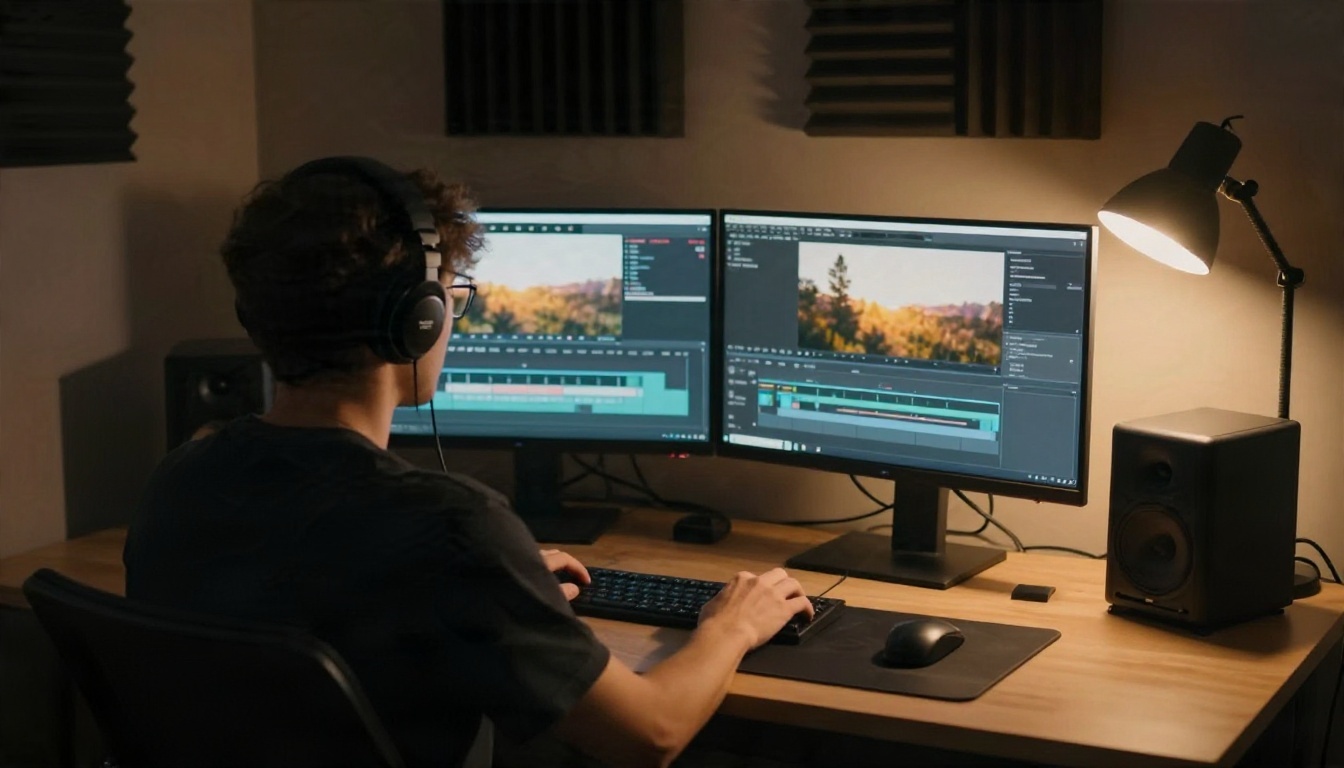
You do not need a Google plan to run Gemini Omni 1.1. Here is the routine that wastes the fewest generations.
Step by Step
- Open the model page and choose your mode: text to video, image to video, start and end frame, or video editing.
- Write the prompt with scene, camera movement, lighting, mood and the audio you want. Add what to avoid, such as "no dialogue".
- Set the aspect ratio to 16:9 for widescreen or 9:16 for Shorts and vertical feeds.
- Pick a resolution. Start at 360p as a quick draft, then re-run the best prompt at 720p, 1080p or 4K.
- Generate and review. Check motion, sound and framing, adjust one thing at a time and run again.
- Download the final clip once it renders.
Parameter Tips
- Image: Upload a starting photo to animate it. A sharp, well lit source gives cleaner motion.
- Last frame: Add an ending image together with the first one to get a smooth transition, handy for product reveals and before and after shots.
- Video: Provide an existing clip and a written change, such as "make the sky stormy, keep everything else the same", to edit one detail.
- Reference images: Use these to keep a character or object consistent across shots.
- Resolution: Draft at 360p, finish at 1080p. Reserve 4K for clips you will really publish.
💡 Budget trick: Draft cheap, finish once. Ten 360p drafts and one 1080p final cost far less than ten finals.
Which Option Fits Your Budget

The Casual Experimenter
If you make a few clips a month for fun, stay on the free routes. Use YouTube Shorts for quick vertical clips, and try Seedance 2.5 Lite when you need more attempts than a free quota allows.
The Regular Creator
If you post weekly, compare AI Plus against paying per generation elsewhere. A creator making 20 to 40 short clips a month often spends less on pay as you go tools than on a subscription whose credits expire. Mix Veo 3.1 Lite for drafts with Gemini Omni 1.1 for finals.

Small Teams and Studios
Teams that ship daily have two real choices: a high tier Google plan with predictable usage, or a multi model workflow where each job goes to the cheapest model that can do it. The second option usually wins on cost, because you only pay top rates for the shots that need them. Storyboard first, as in the photo above, so every generation has a purpose.
A Simple Cost Test
Before paying for anything, run this three step test:
- Generate the same prompt on two or three models.
- Note how many attempts it takes to get a usable clip.
- Divide your spend by usable clips, not by attempts.
The cheapest tool on paper is not always the cheapest in practice. A model that nails the shot in two tries beats a free one that needs twelve.
Try It Yourself Today

Gemini Omni is genuinely good, but the pricing around it is a maze of free allowances, expiring promotions, credits and tiers. You do not have to decide based on a pricing page. Open Picasso IA, run the same prompt through Gemini Omni 1.1, Veo 3.1 Lite and Seedance 2.5 Lite, and compare the clips side by side. Then pick the one that gives you the best result for what you actually spend.
Want even more options? Browse every video, image and audio model at picassoia.com/en/all-models and build a toolkit that fits your budget instead of a plan that fits Google's.


