You have a photo that is almost right. The sky is dull, a stranger walks through the background, or the lighting on a face is a little flat. Two chat assistants will fix it for free, Gemini and ChatGPT, and both will happily take a sentence like "make it look like golden hour." The catch is that the free allowance is small, the wording of your prompt changes the outcome a lot, and the two tools do not fail in the same way.
This comparison focuses on three things people actually search for: how many edits you get for free, which example prompts to paste, and what kind of photo edit result to expect from each. One honest note up front: the daily caps are the part that changes fastest. Both companies adjust them without much notice, so treat every number below as a recent snapshot and check the in-app message if you hit a wall.
💡 Quick answer: Both free tiers have been reported at roughly two to three high-quality image edits per day. Gemini tends to keep your original photo more intact. ChatGPT tends to follow long, conversational instructions more loosely but more creatively. If you need more than a few edits a day, use a tool without a daily cap.
What You Get for Free
Free limits are the first thing that decides which assistant you open. Neither company publishes one fixed, permanent number, which is why you will find conflicting figures across blogs.
Gemini's Free Allowance
Gemini's image editing runs on Google's Nano Banana family of models. The original model was generous, and early reports put free use in the dozens of images per day. That changed when the newer, higher-quality Nano Banana Pro arrived. In late November 2025 Google cut free access to Nano Banana Pro to about two images per day, citing heavy demand. People who hit the cap were reported to fall back to the standard Nano Banana model rather than being locked out.
Google's wording since then has been vague: free users get basic access, and daily limits may change frequently. Paid plans are better documented, with one 2026 summary listing around 100 Nano Banana Pro images per day on the Google AI Pro plan. I could not confirm a firm free-tier figure for November 2026, so expect two as a safe planning number and be pleasantly surprised if you get more.
ChatGPT's Free Allowance
ChatGPT's picture tool belongs to OpenAI's GPT Image family. OpenAI's pricing page describes free image generation as "limited" without a number. Secondary sources commonly cite two to three images per day on a rolling 24-hour window, meaning the clock starts at your first generation instead of resetting at midnight. One recent hands-on test reported a free account producing far more than that in a day with no warning, so the real cap seems to flex with server load.
Uploading a photo to edit counts against the same allowance as generating a new picture in most reports. Plan on every edit attempt, including the ones where you tweak a prompt, using up a slot.
Limits at a Glance
| Feature | Gemini (free) | ChatGPT (free) |
|---|
| Reported daily edits | About 2 on the top model, more on the standard one | About 2 to 3, variable |
| Reset behavior | Daily, can change | Rolling 24 hours from first use |
| What happens at the cap | Falls back to a lighter model | Waits until the window clears |
| Published official number | No ("may change frequently") | No ("limited") |
| Re-tries count against you | Yes | Yes |
💡 Tip: Write one strong prompt instead of five weak ones. When every attempt burns an allowance slot, careful wording is the cheapest upgrade you can make.
How the Two Editors Behave
I am describing general tendencies that show up repeatedly in user reports and in how these model families are built. The photos in this article are illustrative scenes, not screenshots of either app, so treat the notes below as a starting expectation and run your own test on a photo you care about.
Gemini: Faithful to the Original
Gemini's editor is known for keeping the subject recognizable. If you ask it to swap a gray sky for a sunset, the person's face, clothing and pose usually stay put. It is good at local changes: removing an object, changing a shirt color, adding a prop. It also handles several photos in one request, which helps when you want to place a person from one picture into a scene from another.
The weak spots are subtle. Edits can look slightly soft, and a very specific instruction ("move the shadow 20 degrees to the left") is often ignored in favor of a general mood change.
ChatGPT: Conversational Rewrites
ChatGPT works like a dialogue. You can say "good, now make it warmer, and keep the umbrella" and it carries the thread. It is strong with text inside images, stylistic changes and big creative jumps. The tradeoff is that it can redraw more of the frame than you asked for. Faces may shift a little, background details may be reinterpreted, and the output sometimes arrives with a different crop or aspect ratio than the file you uploaded.
If your goal is a faithful retouch, say so explicitly. If your goal is a bold reimagining, ChatGPT is often the more adventurous partner.
Example Prompts That Work
Specific, bounded prompts do better in both tools. A good prompt names what to change, what to keep, and the look you want. Copy these and swap in your own details.
Portrait Retouch
"Edit this portrait. Keep the face, hairstyle and pose exactly the same. Soften the harsh shadow under the chin, brighten the eyes slightly, and give the skin a natural texture without smoothing the pores. Warm the lighting like late afternoon sun from the left."
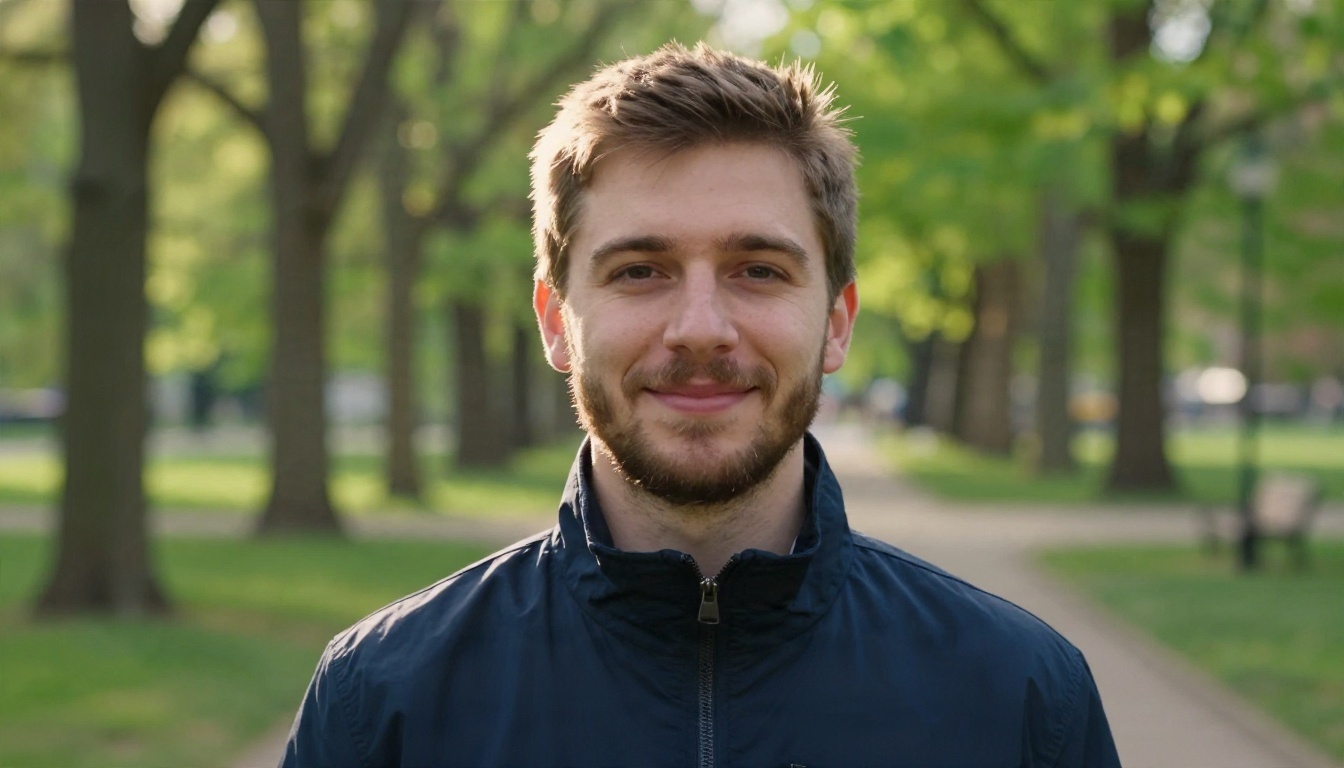
The phrase "without smoothing the pores" matters. Without it, both assistants lean toward a glossy, over-polished look that reads as artificial.
Product Background Swap
"Keep the leather handbag, its stitching and its color unchanged. Replace the background with a soft cream seamless studio backdrop and add a gentle contact shadow under the bag. No new objects, no text."
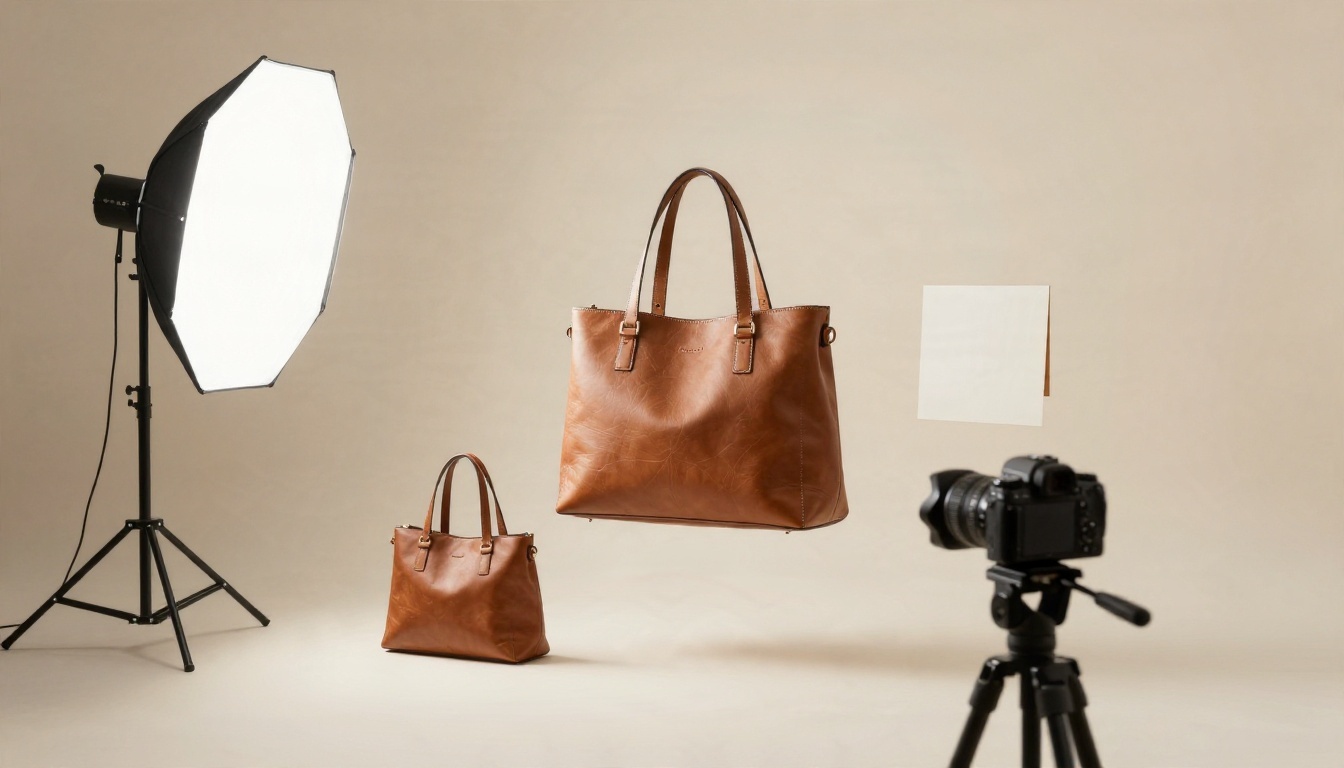
Product edits expose the biggest difference between the two. Check the stitching, the hardware and any logo after every run. A model that "improves" a clasp has changed your product.
Remove People From Travel Shots
"Remove all the people in the background except the couple walking at the waterline. Fill the sand and water naturally, matching the grain and lighting. Do not change the colors or the position of the couple."
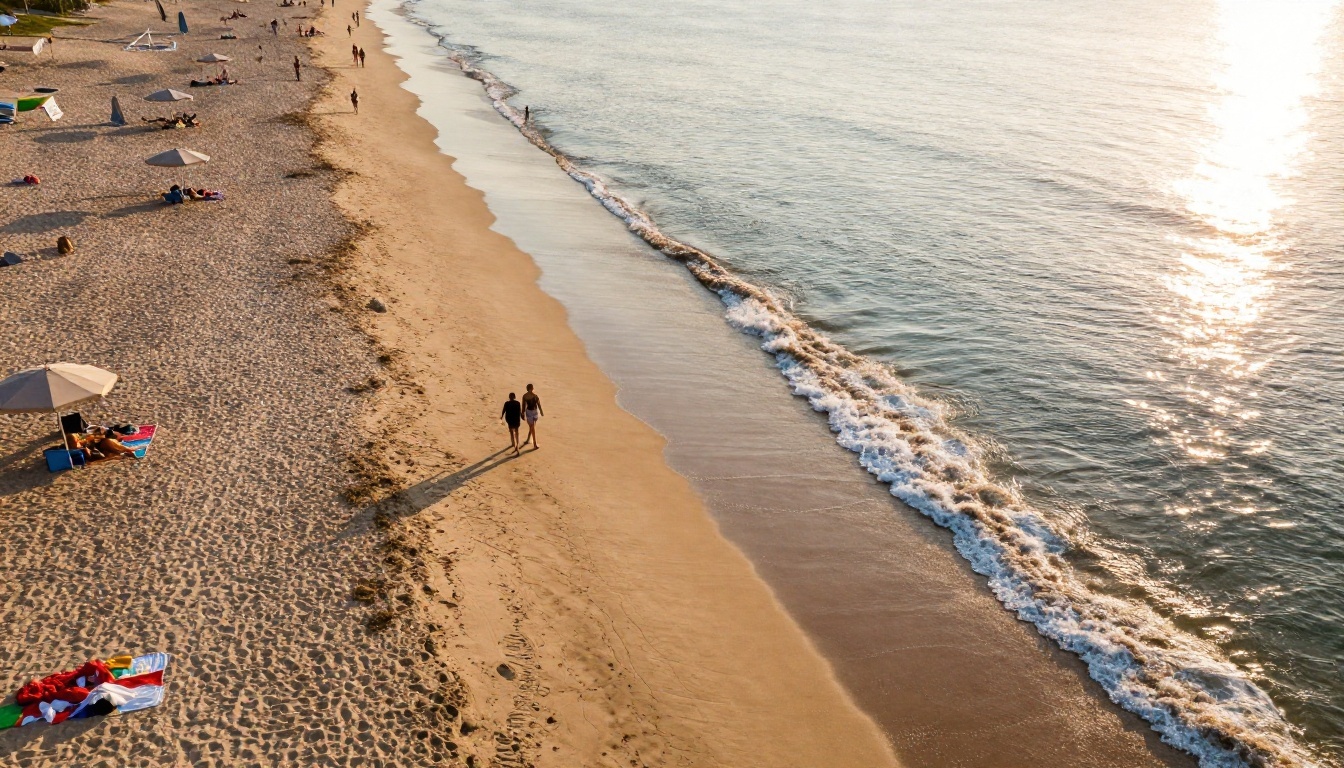
Crowd removal on busy scenes often needs a second pass. Ask for one group or one area at a time if the first result leaves ghosts or odd sand patterns.
Restore an Old Photo
"Restore this scanned black and white family photo. Fix the creases and torn corner, reduce the scratches, keep the original faces and clothing exactly as they are, and keep it black and white. Do not colorize."
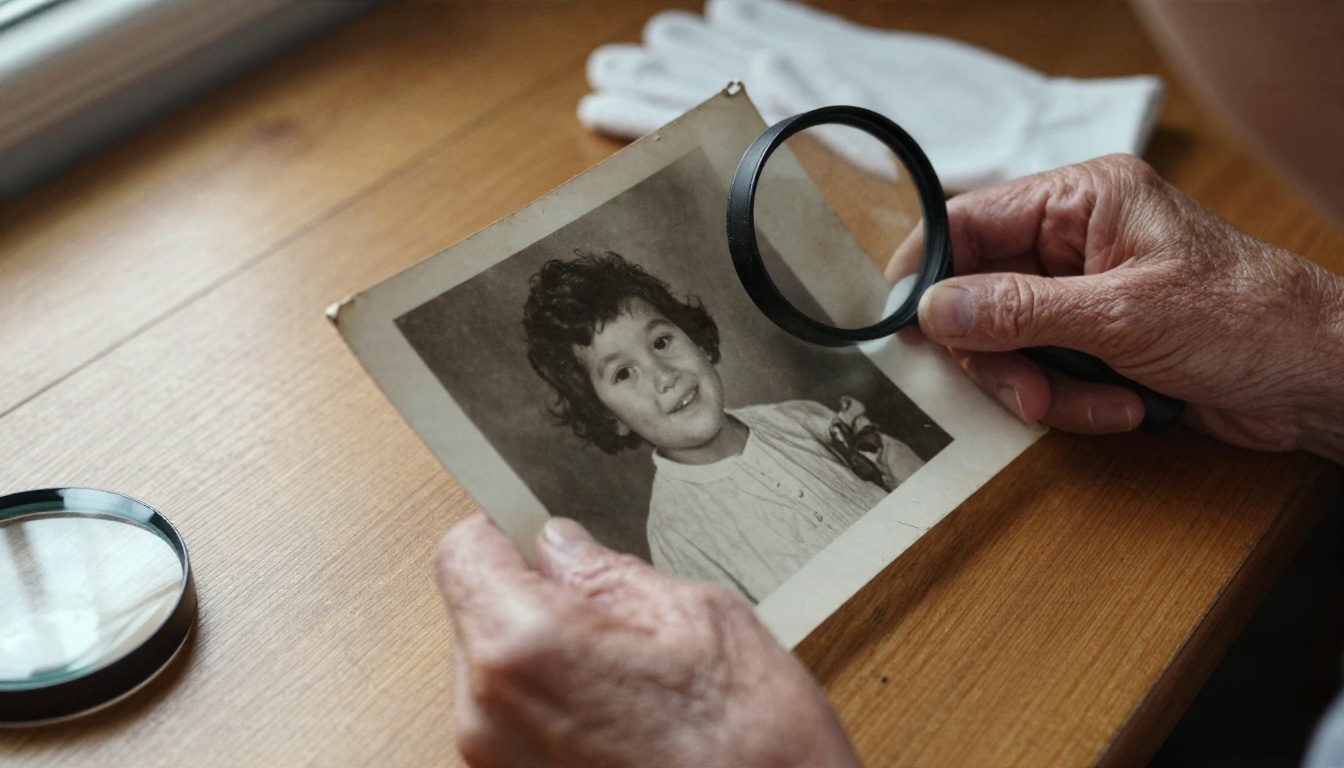
Restoration is where faces drift. A grandmother's features can quietly turn into a generic face if the model fills in too much. Always compare against the original side by side and reject anything that looks like a different person.
Photo Edit Results, Task by Task
This table summarizes the usual pattern. It is a set of tendencies from the way each model family behaves, so your mileage will vary with the photo.
| Task | Gemini tendency | ChatGPT tendency |
|---|
| Portrait retouch | Keeps identity, subtle change | More dramatic, may shift the face |
| Background swap | Clean subject edges, natural fit | Strong creative scenes, may redraw the subject |
| Object removal | Solid on small objects | Good, may repaint nearby areas |
| Old photo repair | Careful, can look soft | Sharp output, higher risk of face drift |
| Text in the image | Improving, still hit or miss | Usually the stronger of the two |
| Multi-step conversation | Works, less flowing | Natural back and forth |
| Keeping the original crop | Usually respected | Sometimes changed |
Where Gemini Pulls Ahead
Choose Gemini when identity and framing matter: headshots, family photos, product shots, anything where "that is still clearly the same photo" is the goal. Combining two or three source images in one request is also a Gemini habit worth using.
Where ChatGPT Pulls Ahead
Choose ChatGPT for creative direction and text. Poster layouts, a sign that must read correctly, a stylistic reimagining, or a long chat where you refine the look turn by turn all suit it well.
Prompt Habits for Both
A few habits save allowance slots in either tool.
Name What Must Not Change
The most useful sentence in any edit prompt is the one starting with "keep." Say "keep the face, the clothing, and the composition unchanged." Models treat unspoken details as open for revision.
One Edit at a Time
Stacking five changes in one prompt tends to produce a compromise on all five. Do the biggest change first, check it, then request the next. In a free tier this feels expensive, which is why the first prompt should be the most careful.
Describe Light Like a Photographer
Words such as "soft window light from the left," "overcast," "golden hour" or "shallow depth of field" give much better results than "make it nicer." Mention the camera angle or lens feel when you want a particular look.
Check the Fine Print of the Image
Zoom in on hands, jewelry, text, logos and teeth before you share the picture. These are the details where editing models still slip, and the slip is easy to miss at thumbnail size.
💡 Tip: Save your best prompts in a notes app. A tested prompt is worth more than a free allowance slot.
Edit Photos Without a Daily Cap
When the free limit runs out, the sensible move is a place where you can keep working. The same model families are available on PicassoIA, along with several editors built specifically for photo changes.
Here are the models worth trying, each linked to its page:
How to Use Nano Banana Pro on PicassoIA
- Open the Nano Banana Pro page.
- Upload the photo you want to change as your reference image.
- Paste a bounded prompt, for example the portrait or product prompts above, starting with what to keep.
- Pick a 16:9 or original aspect ratio to match your file.
- Run it, compare against the original, then refine with one change at a time.
Settings Worth Adjusting
| Setting | Suggestion |
|---|
| Reference image | Use the highest-quality version of the photo you have |
| Aspect ratio | Match the original to avoid unwanted cropping |
| Prompt length | Two to four sentences, with a clear "keep" statement |
| Number of attempts | Run two or three variations and pick the best |
If you want to compare the two styles directly, run the same prompt through Nano Banana and GPT Image 2 and put the outputs side by side. It takes a minute, and you will see for yourself which one respects your original photo more.
Which One Should You Pick
Here is the short decision list.
- You need identity kept intact: start with Gemini, or with Nano Banana Pro on PicassoIA.
- You need text in the picture or a creative reimagining: start with ChatGPT, or with GPT Image 2 on PicassoIA.
- You need many edits in one sitting: skip the daily caps and use a tool with no limit.
- You are restoring family photos: compare against the original every time and reject any face that looks different.
Free tiers are fine for the occasional fix. They become frustrating the moment you try to batch a set of product photos or iterate on a portrait ten times. That is when a tool without a daily allowance pays off.

Try Your Own Edits Today
Pick one photo you have been meaning to fix, whether it is a dull sky, a cluttered background or an old print. Write a prompt that says what to change, what to keep, and how the light should look. Then run it in both styles and compare.
On PicassoIA you can test Nano Banana Pro, GPT Image 2, Flux Kontext Fast and PicassoIA Image Editor Pro without counting daily slots. To browse every available model, visit picassoia.com/en/all-models and start experimenting with your own photos.


