You typed a beautiful prompt into Google Flow, waited for the render, and got a street scene with a random subtitle burned into the bottom third and a stranger with six fingers in the background. Frustrating, and very common. The usual fix in image tools is a negative prompt, a short list of things you do not want to see. In Flow, though, that fix works differently than most people expect, and knowing the difference saves a lot of credits.
This article explains what a Google Flow negative prompt really is, where it fits with Veo 3.1, which wording works best, and which settings change your results more than any word you can add. You also get copy-ready examples by scene type, a list of common mistakes, and free alternatives that give you an actual negative prompt field.
💡 Quick answer: In Flow, the reliable move is to describe what you want in positive terms and add a short list of unwanted elements at the end of the prompt. A separate negative prompt field exists in the Veo API and in some other video generators, but I could not confirm one in the main Flow prompt bar, so check your own interface before assuming it is there.
What a Negative Prompt Actually Does
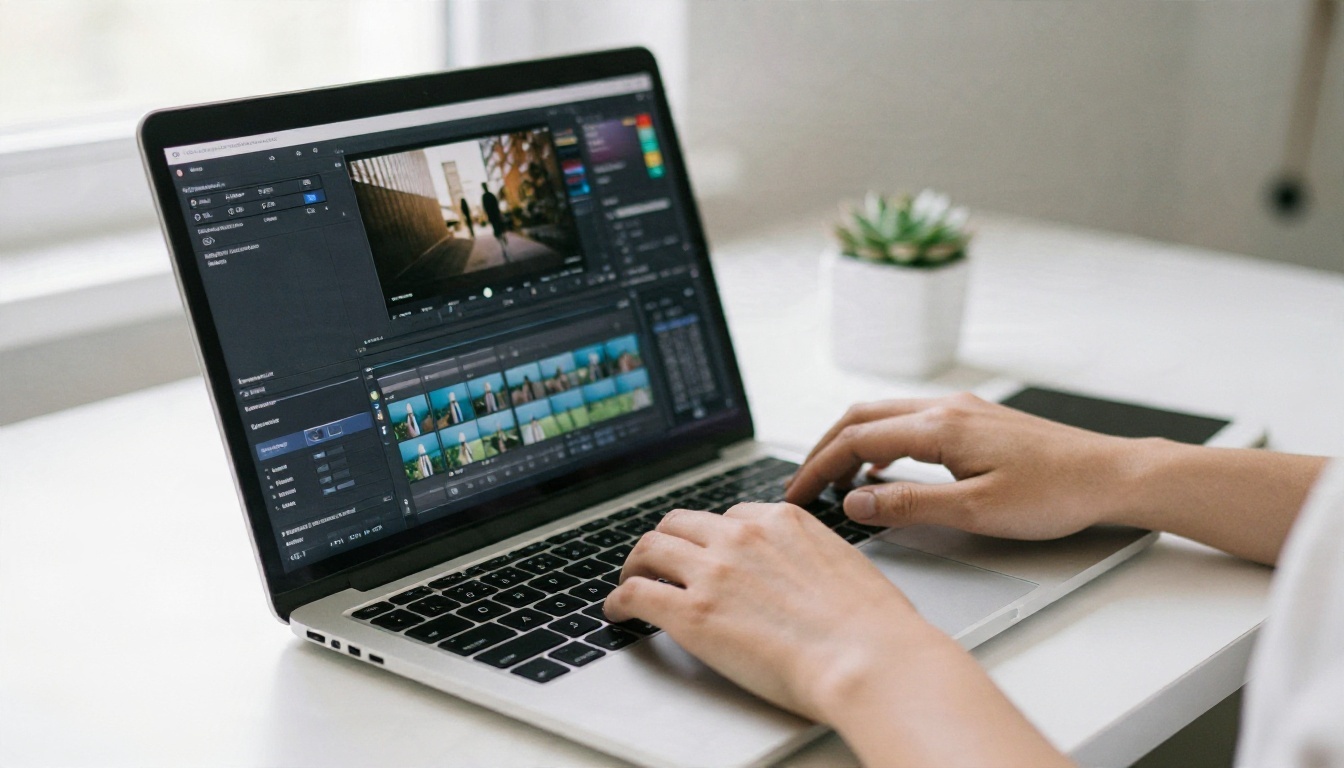
A negative prompt is a list of things the model should steer away from. Instead of describing the shot you want, you describe the flaws you refuse to accept: blur, text overlays, extra limbs, flickering, logos, distorted faces.
Video models generate every frame from a mix of your description and patterns learned in training. If those patterns include lots of footage with captions, watermarks or shaky handheld motion, those traits can sneak into your clip. A negative prompt pushes the generation away from them.
Why Video Needs It More Than Images
A still image has one chance to go wrong. A five or eight second clip has well over a hundred frames, and any of them can drift. Small flaws like a hand that changes shape mid-gesture or a face that morphs when the head turns are far more visible in motion than in a photo.
Positive Wording Beats Negative Wording
Here is the catch with natural language models: the word "no" is easy to lose. A sentence like "no cars in the street" can plant the idea of cars in the scene. A cleaner approach is to name the unwanted elements as a plain list ("cars, traffic, parked vehicles") or, better, to describe the empty version of the scene ("a quiet empty street with bare asphalt").
Does Flow Have a Negative Prompt Field?
Google Flow is Google's AI filmmaking workspace, built around the Veo family of video models. Its prompt box lets you pick a model, an orientation, a resolution and the number of clips per request, plus tools like frames to video and scene building.
What I could verify is this: Google's own help pages describe model choice, resolution, aspect ratio, clip length and credit cost, and the third-party guides I found treat exclusions as something you write into the prompt text. The Veo API, on the other hand, accepts negative prompts as a separate input. Flow's interface changes often, so open the settings panel next to the prompt box and check whether your version shows a dedicated field.
What To Do If There Is No Field
Put your exclusions at the end of the main prompt as a short, labeled list. For example:
A woman walks along a quiet beach at sunrise, slow tracking shot, soft warm light. Avoid: text overlays, subtitles, watermarks, extra people, distorted hands.
This is not guaranteed to work every time. Developers have reported cases where Veo 3.1 ignored exclusions for unusual anatomy, such as non-humanoid characters. Treat the list as a nudge, not a lock.
What To Do If You Have the Field
Keep it to plain nouns and visual flaws. Skip full sentences and skip words like "don't" or "no". Aim for 5 to 10 items, not 40.
Negative Prompt Examples You Can Copy
These lists work as a starting point. Paste the right one after your main prompt, or into a negative prompt field if your tool has one, then trim anything that does not apply to your shot.
The Universal Starter List
Use this for almost any clip:
text overlays, subtitles, captions, watermarks, logos, blurry footage, flickering, jitter, low resolution, compression artifacts, warped geometry
For People and Faces
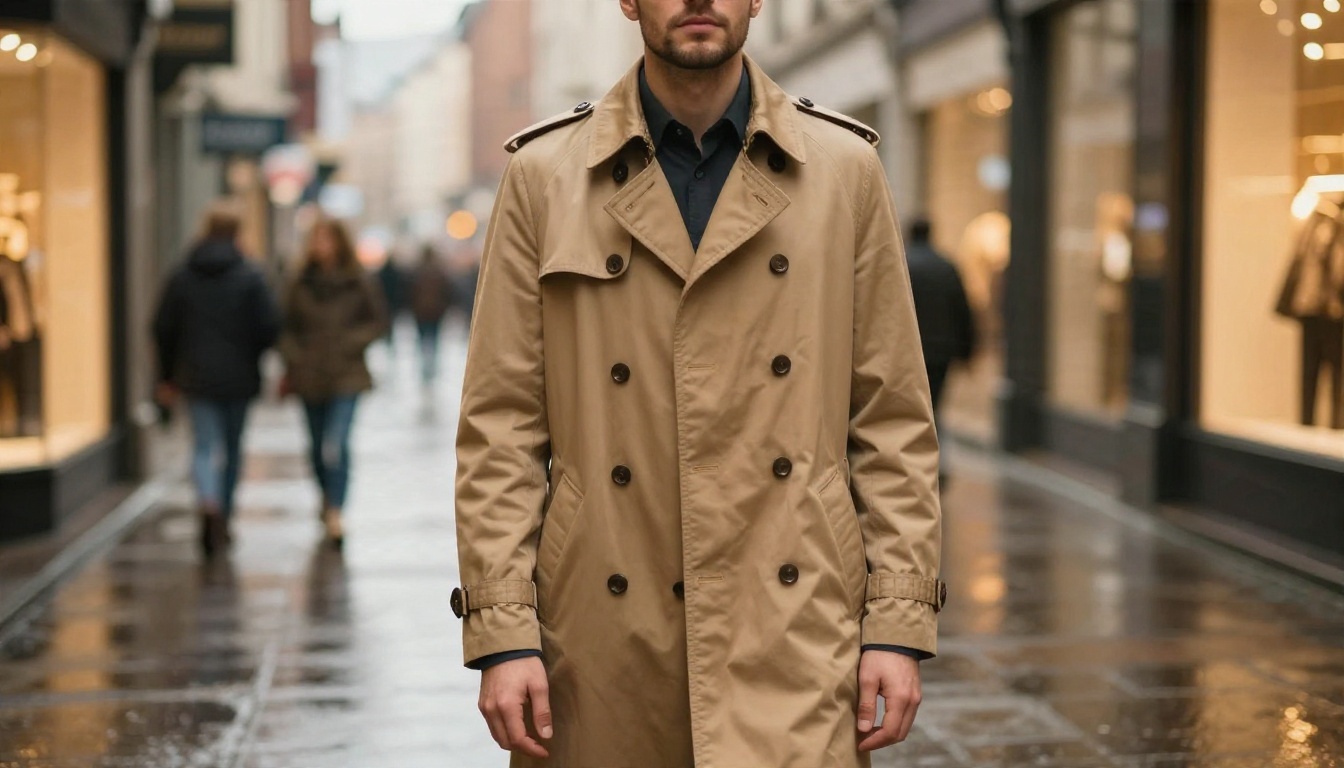
Human subjects are where most flaws show up. This list targets them:
extra fingers, fused fingers, deformed hands, distorted face, asymmetrical eyes, morphing face, extra limbs, floating objects, plastic skin
Pair it with positive detail in the main prompt: "natural skin texture, relaxed hands resting at his sides, steady eye line." Telling the model what good looks like does more than banning what bad looks like.
For Landscapes and Empty Scenes
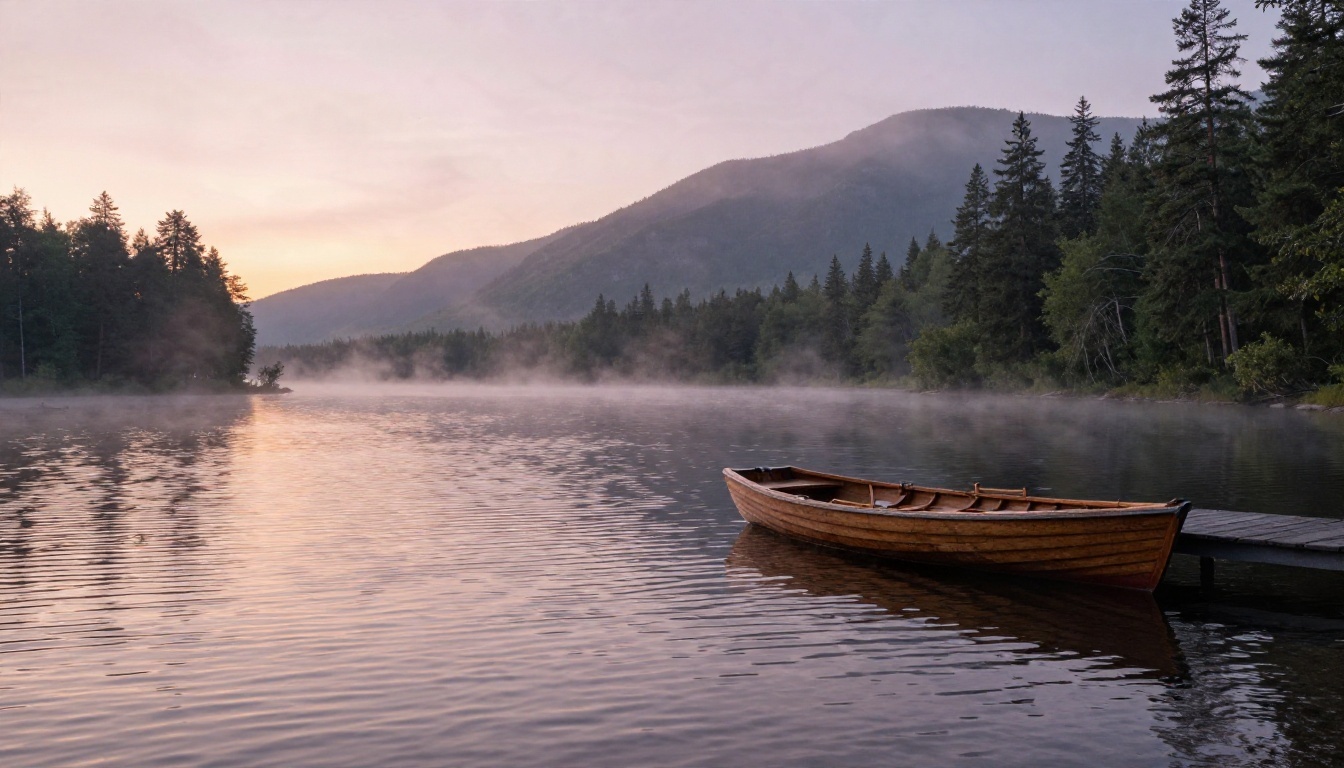
Nature shots often pick up unwanted extras like tourists, drones or power lines:
people, crowds, vehicles, buildings, power lines, signs, text, oversaturated colors, harsh HDR look
For Product and Close-Up Shots
Close-ups punish sloppy surfaces. Try:
fingerprints, dust, smudges, uneven lighting, reflections of the camera crew, distorted logos, shifting shape, melting edges
For Cinematic Motion
When you want the camera to feel controlled:
shaky camera, handheld jitter, sudden zooms, whip pans, jump cuts, motion smear, rolling shutter wobble
Quick Reference Table
| Scene type | Best exclusions | Pair with this positive detail |
|---|
| Portrait | extra fingers, morphing face, plastic skin | natural skin texture, steady gaze |
| Landscape | people, vehicles, signs | empty, untouched, still air |
| Product | smudges, dust, shifting shape | clean surface, fixed form, softbox light |
| Dialogue scene | subtitles, captions, lip drift | clear speech, mouth matches words |
| Action | motion smear, jump cuts | smooth tracking shot, stable framing |
Settings That Matter More Than Words
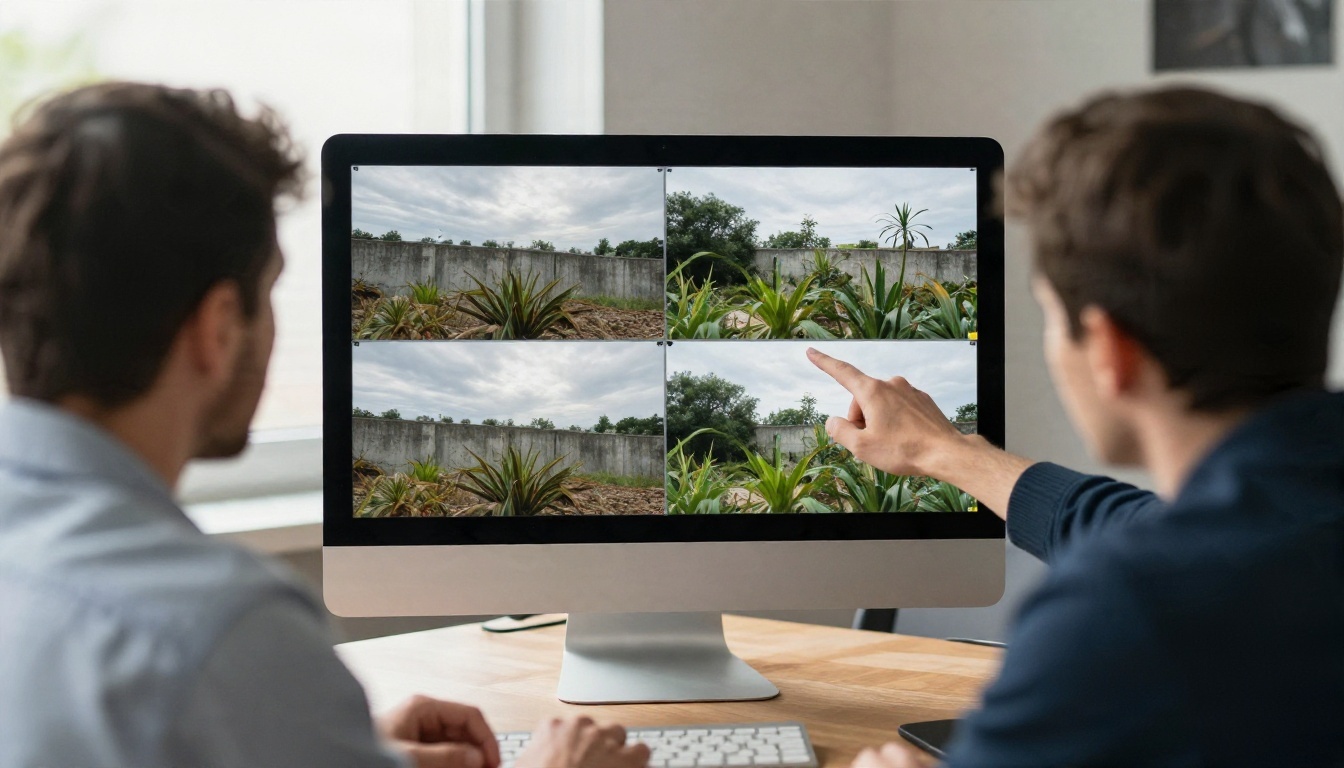
Before you rewrite a prompt for the fifth time, check the settings. A surprising number of "bad generations" come from the wrong panel option, not the wrong word.
Model Choice
Flow offers several Veo variants, and they differ in quality, speed, credit cost and supported features. A lighter model is cheaper for testing ideas, while the full model gives sharper detail and better prompt following. Run your first drafts on the cheaper option, then re-run the winner on the best one.
Orientation and Resolution
One guide I found pointed out that a common failure is leaving orientation on the horizontal default when the project is meant for vertical video. No prompt wording can overrule that setting. Decide 16:9 or 9:16 first, then write.
Clip Length and Count
Flow's supported lengths vary by model, with 4, 6 and 8 second options common on recent Veo versions. Shorter clips drift less, because there are fewer frames in which something can go wrong. If a story needs 20 seconds, build it from several short, controlled shots.
Frames to Video
If you start from a first frame, much of your composition is already fixed, so your negative list can be shorter. Frame-based modes can also carry their own limits, such as fixed clip lengths, so read the feature notes for your selected model.
Seeds and Repeat Runs
When a clip is nearly right, keep the prompt and change one thing. Changing five variables at once means you never learn which one fixed the problem.
Prompt Tips That Reduce Bad Results
Negative prompts are a safety net. The main prompt still does the heavy lifting.
Write Like a Cinematographer
Name the shot size, the lens feel, the movement and the light. "Medium shot, slow dolly in, soft window light from the left, shallow depth of field" gives the model far more to hold onto than "a nice video of a woman."
One Subject, One Action
Models struggle when a scene has three people doing three things. Give each shot one clear subject and one clear action. Complexity is the fastest way to get warped limbs.
Describe the Audio Too
Veo generates sound along with picture. If you do not want music or chatter, say so in the audio part of your prompt: "ambient room tone only, no music." Otherwise the model may add a score you never asked for.
Test With a Short List First
Start with five exclusions. Run the clip. Add items only for flaws that actually appear. Long lists dilute the signal, and some words in them can pull the model toward the very thing you wanted to avoid.
💡 Prompt formula that works: Shot type + subject + single action + camera move + lighting + audio note + "Avoid:" list of 5 to 8 items.
Common Mistakes to Avoid
- Writing full sentences with "don't". Use a bare list of nouns and flaws.
- Contradicting yourself. Asking for "busy crowded market" while excluding "people" gives the model an impossible job.
- Listing 40 items. More words do not mean more control. Keep it tight.
- Fixing a settings problem with words. Wrong orientation, wrong model or wrong clip length cannot be solved by a longer prompt.
- Ignoring the first frame. In frames to video, the starting image dominates. A messy first frame gives a messy clip.
- Expecting 100% obedience. No video model follows exclusions perfectly. Plan for two or three runs per shot.
Free Alternatives With a Real Field
Google Flow itself is not on PicassoIA. If what you want is a video generator with an actual negative prompt input, or a way to test ideas without watching a credit meter, these models are on PicassoIA and worth trying today.
| Model | Best for | Negative prompt input | Notes |
|---|
| Veo 3.1 | Closest match to the Veo engine behind Flow | Yes | 720p or 1080p, 4/6/8 second clips, native audio |
| Veo 3.1 Fast | Quick drafts at lower cost | Prompt based | Good for testing a prompt before the final render |
| Seedance 2.5 Lite | Unlimited clips up to 10 seconds | Prompt based | Unlimited for Elite and Infinite members, 480p and 720p |
| Wan 3 | Cinematic motion | Prompt based | Strong camera movement and scene detail |
For the closest result to Flow, Veo 3.1 is the one to start with. For long, repeated testing, Seedance 2.5 Lite is the practical pick because there is no per-clip cost for eligible members. Another option is Gemini Omni 1.1, which generates video with audio from a text description.
How to Get Similar Results on PicassoIA

Here is the workflow with Veo 3.1 on PicassoIA, which has a dedicated negative prompt box.
Step by Step
- Open the model page and choose text to video, or add a start image if you want to animate a frame.
- Write the main prompt with shot size, subject, one action, camera move and light.
- Fill the Negative Prompt field with 5 to 8 items, for example: text overlays, subtitles, watermarks, flicker, extra fingers, distorted face.
- Pick aspect ratio: 16:9 for landscape, 9:16 for vertical.
- Pick duration: 4, 6 or 8 seconds. Start at 4 or 6 for tests.
- Pick resolution: 720p for drafts, 1080p for the final render.
- Leave audio on if you want synced sound, or switch it off for a silent clip.
- Generate, review, change one thing, run again.
Parameter Tips
- Seed: set a fixed value when you want to compare two prompt versions fairly.
- Reference images: up to three can keep a subject consistent, but they only work with 16:9 and 8 second clips.
- Last frame: add an ending image to build a smooth transition between two moments. It is ignored when reference images are used.
- Negative prompt length: short and specific wins.
A Full Example
Main prompt: Medium shot, a chef plates a dessert in a warm restaurant kitchen, slow push in, soft overhead light, quiet kitchen ambience, no music.
Negative prompt: subtitles, text overlays, watermark, extra hands, distorted fingers, flicker, blurry footage
If hands still look odd, do not add 20 more terms. Instead, simplify the action ("the chef places one plate on the counter") and run again.
Your Next Clip Starts Here
Negative prompts help, but the best results come from a clear main prompt, the right settings and a small, honest list of exclusions. Treat each render as an experiment: change one thing, compare, keep the winner.
If you want to test this without guessing, open Veo 3.1 on Picasso IA, paste one of the exclusion lists above, and run the same prompt with and without it. Then try Seedance 2.5 Lite for unlimited drafts, and browse every video and image model at picassoia.com/en/all-models. Make your first clip today and see how much cleaner your footage gets.


