You snap a photo of a receipt, drag it into a chat window, and the upload bar stalls. Or worse, it finishes and the answer ignores half the page. If you have been trying to feed pictures to Grok 4.7, you have probably hit one of three walls: the wrong file type, a file that is too heavy, or a free plan that runs out faster than expected.
This article lays out what is actually known about Grok 4.7 image input, what is still murky, and how to get good results from a photo, a screenshot or a chart. It also points to models you can use right now if you want a second opinion on the same image.
💡 Quick answer: the official developer documentation lists JPEG and PNG as supported image types and a 20 MiB cap per image, with no stated limit on how many images you attach. Those figures come from xAI's image documentation, and its examples use Grok 4.7. Treat app limits as separate, and usually stricter.
Grok 4.7 is a multimodal chat model from xAI. That means a message can contain text and pictures together, and the model reasons over both in one pass. You are not running a separate OCR tool and pasting the output. The model looks at the pixels directly.
Supported file formats
The developer documentation names two formats:
- JPEG (
.jpg or .jpeg)
- PNG (
.png)
Some third-party websites claim that WebP and GIF also work. I could not confirm that in official material, so I would not build anything important on it. If you have a WebP file, converting it to PNG or JPEG takes ten seconds and removes the doubt.
| Format | Official support | Best used for |
|---|
| JPEG | Yes | Photos, scans, camera files |
| PNG | Yes | Screenshots, charts, diagrams, text-heavy images |
| WebP | Not confirmed | Convert first |
| GIF | Not confirmed | Export a still frame as PNG |
| HEIC (iPhone default) | Not confirmed | Convert to JPEG before upload |
JPEG or PNG: which one wins
For a photograph of a document, JPEG is fine. The compression is gentle at high quality and the file stays small. For a screenshot with thin text, PNG is safer because it is lossless, so small letters do not smear into each other. A blurry 11-point font in a JPEG is the single most common reason a model misreads a line.
How many images per request
The documentation says there is no maximum number of images. In practice, every image still costs tokens and eats into the context window, so ten large pictures in one message will be slower and more expensive than three well-chosen ones. Quality of selection beats quantity.
Size Limits That Matter
Limits come in layers. There is a per-file limit, a per-request limit, and a context window limit. Most people only ever notice the first.
The 20 MiB ceiling
The official number is 20 MiB per image. A MiB is slightly larger than a megabyte (1 MiB is about 1.05 MB), so a file shown as "20.5 MB" in your file manager may still pass. A modern phone photo is usually between 2 and 6 MB, so the cap rarely bites unless you are uploading uncompressed scans, RAW exports converted to PNG, or very large panoramas.

App limits versus API limits
Here is where confusion starts. A troubleshooting article for the consumer app advises keeping uploads under roughly 10 MB, which is stricter than the developer figure. That is plausible: apps often add their own guardrails on top of the model's limit. Since xAI does not publish a single consumer figure that I could verify, the safe habit is:
- Aim for under 10 MB in the app.
- Aim for under 20 MiB through the API.
- If an upload fails, shrink first and ask questions later.
Resolution is not the same as file size
A 4,000 pixel wide screenshot can be tiny on disk if it is mostly flat colour, and a 1,500 pixel wide photo of a textured wall can be heavy. The model does not benefit from absurd resolution. Large images are typically scaled down internally, so uploading a 12,000 pixel scan gives you slower uploads and no extra accuracy. A long edge between 1,500 and 3,000 pixels is the sweet spot for documents.
Shrinking a file that is too big
When a file is over the limit, work through this order:
- Re-export as JPEG at 80 to 85 percent quality.
- Resize the long edge to 2,500 pixels.
- Crop away margins, desk, fingers and anything irrelevant.
- For multi-page scans, send pages as separate images instead of one giant stitched file.
💡 Cropping is the most underrated fix. A tight crop of the table you care about beats a full-page photo, because the model spends its attention on the content rather than on the coffee cup.
Free Use, Honestly
People searching for "free" usually want one of two things: to try Grok 4.7 with images without paying, or to avoid a bill when building something. These are different situations.
Free access in the app
xAI has offered limited free usage of Grok through its own apps in the past, and image attachments have generally been part of that experience. The catch is that daily message caps, model availability and which version you are talking to can change without announcement. I could not confirm a stable, published free allowance for Grok 4.7 specifically, so check the model picker and the usage notice inside the app before you plan a project around it.
Paying through the API
For developers, image input is billed as tokens. A picture is converted into a number of tokens that depends on its size, then added to your prompt cost. That is why resizing is not only a speed tip but a budget tip. Sending a 1,600 pixel crop instead of a 6,000 pixel original often produces the same answer for a fraction of the cost.
Free ways to test before committing
If you want to evaluate image reading without spending anything:
- Use a handful of representative images from your real work, not stock samples.
- Ask the same question to two or three models and compare.
- Check whether the model quotes text exactly or paraphrases it. That tells you more than any benchmark.
Five Examples That Work
Abstract rules are boring. Here are practical situations where image input earns its keep, with the prompt style that tends to work.
Receipts and invoices
Photograph the receipt flat, in daylight, with the phone parallel to the paper. Then ask for structured output.
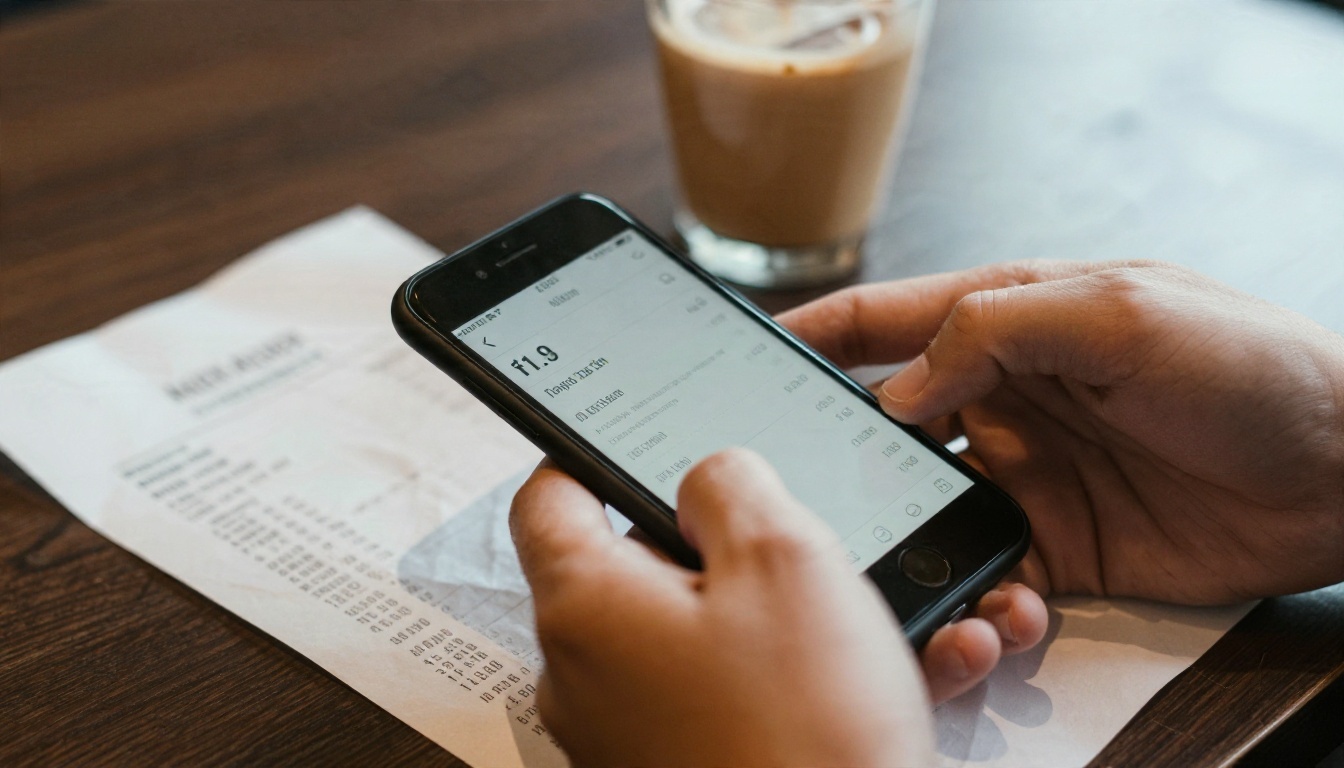
Example prompt: "Read this receipt. List each item with its price, then give me the subtotal, tax and tip as a table. Flag any line you could not read clearly."
The last sentence matters. Asking the model to flag uncertainty reduces confident guesses on faded thermal paper.
Screenshots and error messages
Screenshots are the sweet spot for image input because the text is already crisp. Use PNG, crop to the dialog or the stack trace, and include the code that triggered it.
Example prompt: "This is the error I get when I run the script. Explain the most likely cause in two sentences, then show the smallest change that would fix it."
Charts and printed reports
Models are decent at reading bar charts, line graphs and tables, but they can misjudge exact values when there are no data labels. If precision matters, tell the model so.
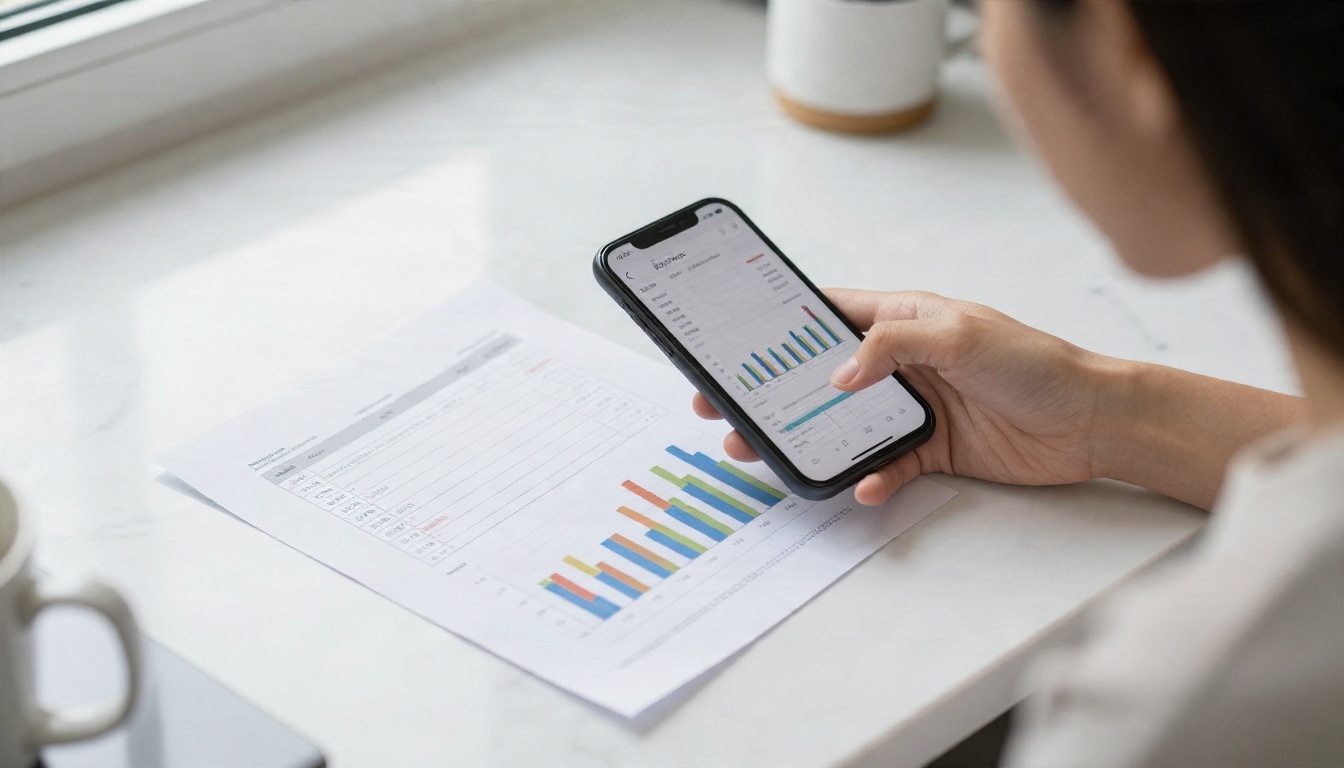
Example prompt: "Describe the trend in this chart. Give approximate values for each bar and say which ones are estimates because there are no labels."
Whiteboards and wireframes
A photographed whiteboard sketch can become a bulleted spec in one message. Take the photo straight on, avoid glare, and write clearly with a dark marker.

Example prompt: "This is a sketch of a signup page. Turn it into a list of components, then write the HTML structure for it. Ask me about anything ambiguous before you start."
Menus, signs and foreign text
Point your phone at a street sign or a menu and ask for a translation with context. It works best when the text is large, well lit and not at a steep angle.
Example prompt: "Translate this menu into English. Keep the original dish names in brackets and mark anything that likely contains nuts or shellfish."
💡 For anything involving allergies or medicine, treat the model's reading as a first pass and verify with a human or the original packaging.
Prompts That Get Better Answers
The picture is only half the input. The wording around it decides whether you get a useful answer or a vague description.
Say what you want back
"What is this?" produces a generic caption. "Extract every date and amount from this invoice as a table" produces something you can paste into a spreadsheet. Name the output shape: table, bullet list, JSON, two sentences.
Point at the region
If the image is busy, direct attention. "Look at the bottom right corner," "ignore the header," or "focus on the third column" work well because they narrow the search area.
Ask for confidence
Add a sentence such as "Mark anything you are unsure about with a question mark." Models are more honest when permission to be uncertain is explicit.
When uploads fail
If the image will not attach or the model says it cannot see anything, run through this short list:
- Check the format. Convert HEIC, WebP or GIF to JPEG or PNG.
- Check the size. Get it under 10 MB for the app.
- Check the connection. Large uploads on weak mobile signals time out quietly.
- Start a fresh chat. Long threads sometimes degrade and a new conversation clears odd states.
- Try a different browser or the app. Extensions can interfere with file inputs.
Grok 4.7 Alternatives on PicassoIA
Grok 4.7 is not on PicassoIA at the moment, and an older sibling is not the same thing. The closest xAI model there is Grok 4, which is a previous version with its own behaviour, so do not expect Grok 4.7 results from it.
If your goal is simply to have a strong model read a photo, a screenshot or a chart, these are available today:
| Model | Good for | Link |
|---|
| Claude Opus 4.7 | Careful reasoning over documents, code screenshots and long answers | Claude Opus 4.7 |
| Gemini 3.1 Pro | Detailed answers on complex pictures and multi-step questions | Gemini 3.1 Pro |
| Gemini 3.5 Flash | Fast replies on everyday photos, receipts and screenshots | Gemini 3.5 Flash |

Which one to pick
- Speed first: Gemini 3.5 Flash. It suits quick questions about one image.
- Depth first: Claude Opus 4.7 or Gemini 3.1 Pro. Better for dense documents, multi-image comparisons and questions that need reasoning, not just reading.
- Cost-sensitive batches: start with the faster model, then re-run only the difficult images on the larger one.
How to Get Similar Results on PicassoIA
Grok 4.7 is not on PicassoIA, so here is the closest practical workflow using Gemini 3.5 Flash, a fast model that handles chat, code and images.
Step by step
- Open the model page for Gemini 3.5 Flash using the link above.
- Prepare your image. Use JPEG or PNG, crop to the relevant area, and keep the long edge around 2,000 to 3,000 pixels.
- Attach the image to your prompt in the input area.
- Write a specific request, for example: "Extract all line items from this receipt into a table and flag anything unreadable."
- Review the answer against the original. Check numbers and names, which are the usual weak spots.
- Follow up with a second message such as "Now convert that table to CSV" instead of starting over.
Parameter tips
- Keep the prompt short and structured. A numbered request outperforms a rambling paragraph.
- If the first answer is shallow, ask for a second pass: "Check your answer against the image again and correct any mistakes."
- For hard images, run the same file through Claude Opus 4.7 or Gemini 3.1 Pro and compare the two answers. Where they disagree is where to look closely.
💡 Always check the attachment rules shown on each model page, because supported file types and size caps can differ from one model to the next.
Try It Yourself on Picasso IA
Image input is easiest to judge with your own files. Pick three images you already have: a receipt, a screenshot with an error, and a chart or a photographed note. Run each through a model and ask for a specific output format. Within ten minutes you will know which model reads your kind of material best.
Picasso IA puts a range of image-reading language models in one place, so you can run the same photo through several of them without juggling accounts. Start with Gemini 3.5 Flash for speed, bring in Claude Opus 4.7 when you need more depth, and browse everything else at picassoia.com/en/all-models. Upload something real and see what comes back.


