You open Grok, type a prompt for a video, and hit a wall: a "limit reached" message, a locked button, or a clip that stops after a few seconds. If that sounds familiar, you are not alone. The Grok AI video free question has a messy answer, because the free allowance has been cut, restored and cut again over the past year. This article lays out what free accounts have actually been getting, how long the clips run, which prompts give good motion, and what to use when your quota is gone.
💡 Quick answer: Free Grok video is unreliable. Reports point to roughly one clip a day on some accounts and none on others, with short clips and lower resolution. Paid tiers get more. If you need steady output without a counter, a few alternatives below are easier to plan around.
What Grok AI Video Actually Is
Grok is the assistant built by xAI, and its video feature lives inside a tool called Grok Imagine. You describe a scene in text, or you upload a photo, and it returns a short clip. Newer versions add synchronized audio, so a rainy street comes with the sound of rain and footsteps instead of silence.
Text to video versus image to video
Text to video starts from words only. The model invents the subject, the setting and the camera. It is fun, but you get less control over how the people and places look.
Image to video starts from a picture you supply. The first frame is fixed, and the model only has to decide how things move. For most people this is the more dependable route, because the face, outfit and background stay consistent from the first frame to the last.
Where the audio fits in
Audio generated with the clip is a big reason people try Grok in the first place. You do not need a separate sound step for short social posts. The catch is that audio quality varies with the prompt, so describing sound in your text helps (more on that in the prompts section).
Is Grok AI Video Really Free?
Short answer: sometimes, for some people, and not for long. The rules have shifted repeatedly, and xAI does not publish a clear, stable quota page. Everything below comes from reporting and user accounts, so treat it as a snapshot rather than a promise.
A timeline of free access
| Period | What was reported |
|---|
| Late 2025 | Free users could generate a generous number of clips per day, then daily caps dropped sharply |
| Early 2026 | Free video was limited to short, lower resolution clips while paid tiers got longer ones |
| Spring 2026 | Several outlets reported free video generation was ended and tied to a paid plan |
| Late summer 2026 | Free access reportedly came back at around one video a day |
| Autumn 2026 | Some free accounts were reported to be cut to zero while others still generated |
The pattern matters more than any single date: the free tier is a moving target. A method that worked for a friend last month may not work for you today, even on the same app version.
Why accounts differ
Reports suggest xAI rolls changes out in batches. Two people on the same plan can see different allowances depending on region, account age, platform (web, iOS, Android, X) and whatever test group they landed in. That is why forum threads about Grok limits contradict each other so often.
💡 Tip: Before you plan a project around Grok's free tier, generate one test clip and check what the app tells you about remaining quota. Do not rely on a number you read in a blog post, including this one.
Grok Video Limits in Plain Numbers
Here is what the available reporting suggests. Again, xAI has not documented these figures in a stable public place, so expect drift.
Daily caps by plan
| Plan | Reported video allowance | Notes |
|---|
| Free | About 1 clip a day, or none | Varies by account and week |
| Standard paid tier | More than 20 clips per 24 hours | Reported in a support message |
| Top paid tier | More than 80 clips per 12 hours | Reported in a support message |
One detail worth knowing: refused prompts and moderation blocks reportedly still count against the quota. If you write a prompt that trips a filter, you can burn a slot without getting a video. That makes careful, specific prompts more valuable on a tight allowance.
What happens when you hit the cap
You get a limit message, and the counter resets on a rolling window rather than at midnight. Some users report waiting 12 to 24 hours. Retrying over and over does not help, and switching accounts in a hurry can trigger extra checks, so it is better to queue your best prompts and use them one at a time.
Price context
The standard paid plan has been reported at around 30 dollars a month, with higher tiers above that. Whether the cheapest tier includes video has been described differently by different sources. If you are paying only for video, check the plan's feature list on the day you subscribe.
How Long Grok Videos Run
Clip length is the second thing people complain about, right after the daily cap.

Free clip length
Earlier reporting described free clips at around 6 seconds. That is enough for a single beat: a head turn, a walk, a wave of fabric in the wind. It is not enough for a scene with a setup and a payoff.
Paid length and extensions
Paid users have been described as getting base clips of up to 10 seconds, with an extend feature that chains clips together to a total near 30 seconds. A 15 second option was also reported, but several accounts say it appeared for a short time and then vanished for many users. Treat 15 seconds as unconfirmed.
Resolution
| Tier | Reported resolution |
|---|
| Free (earlier) | 480p |
| Paid | Mostly 720p |
| Paid (rolling out) | 1080p for some subscribers |
At 480p, faces look soft on a phone and noticeably worse on a laptop. If you plan to post to a platform that rewards sharp video, 720p is the practical floor.
Working within short clips
A few habits help when you only get a handful of seconds:
- One action per clip. A person turning, a car passing, a curtain moving. Do not cram a story into 6 seconds.
- Plan the cut. Generate several short shots and join them in an editor, the way a film crew would.
- Start with a strong first frame. In image to video, the opening image carries most of the visual quality.
Prompts That Give Better Motion
Prompts for video are different from prompts for images. An image prompt describes a frozen moment. A video prompt describes what changes over time.
A simple prompt formula
Use this order: subject and starting pose, then the action, then the camera move, then light and sound.
For example: "A woman in a denim jacket stands on a wet city sidewalk holding a clear umbrella. She slowly turns her head toward the camera and smiles. Slow dolly in. Soft overcast light, warm shop glow on the pavement. Light rain and distant traffic."
Words that help
- Camera language: slow dolly in, gentle pan left, handheld, static tripod, low angle.
- Pacing words: slowly, gradually, a single smooth motion.
- Light: overcast, golden hour, window light, soft backlight.
- Sound: light rain, footsteps on gravel, distant crowd, quiet room tone.
Mistakes that waste a slot
- Too many actions. The model picks one and drops the rest, or blends them into a blur.
- Vague motion. "Make it cool" gives you random movement. Name the movement.
- Conflicting camera moves. A fast zoom and a slow pan in the same clip often fight each other.
- Crowded scenes with fine detail. Hands, text and many small faces drift more than a single subject does.
💡 Tip: Write your prompt in a notes app first and cut it down to one subject, one action, one camera move. Short and specific beats long and poetic.
From still to motion
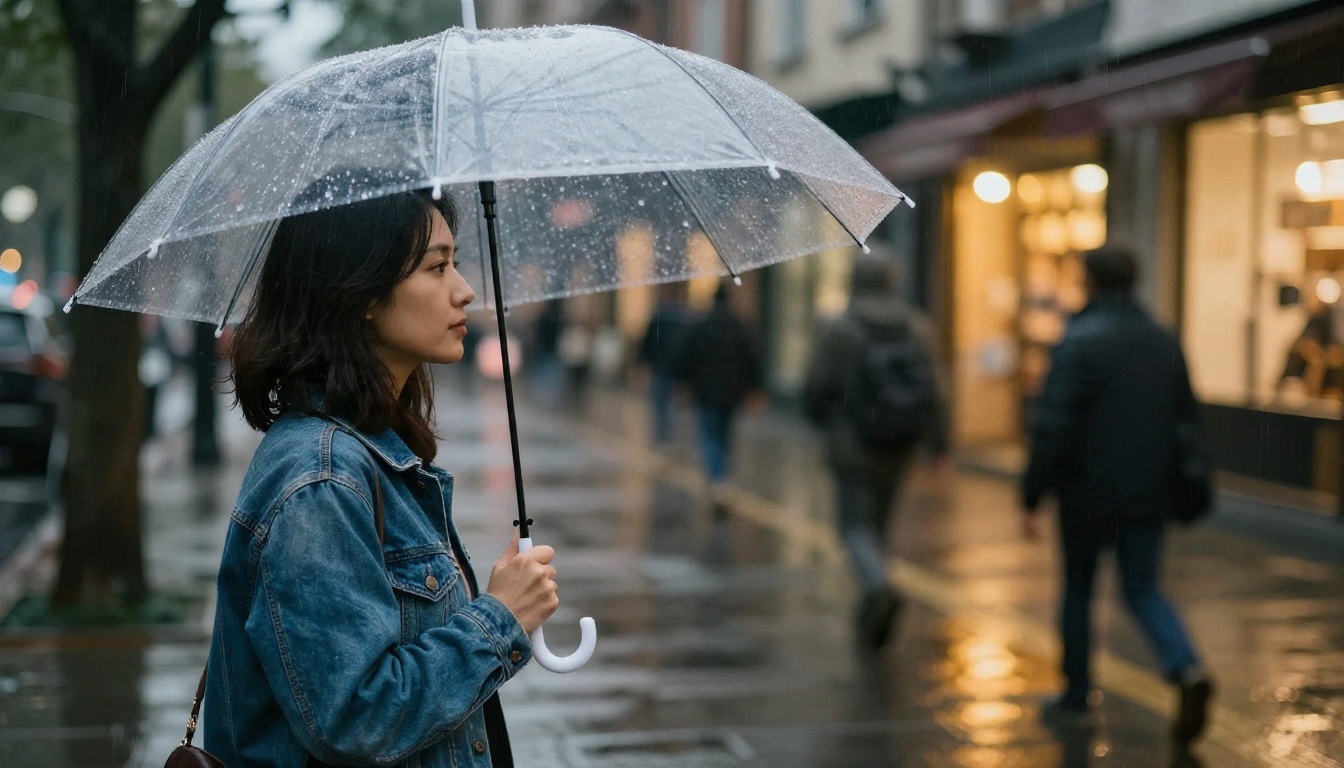
If you start from a photo, describe only what should move, and let the photo handle the rest. "The umbrella tilts slightly, raindrops run down the plastic, passersby blur in the background" works better than re-describing the woman and the street the image already shows.
Free Alternatives Worth Trying
When the Grok counter runs out, you have options. Several video models are available on PicassoIA, and a few of them suit the same short image to video jobs.
Grok Imagine Video 1.5 on PicassoIA
If you simply want Grok's own model without the daily wall in the app, Grok Imagine Video 1.5 runs on PicassoIA. It turns a still image into a short clip with synchronized audio at up to 720p. A full walkthrough is in the next section.
Seedance 2.5 Lite for longer clips
Seedance 2.5 Lite generates clips up to 10 seconds from text or an image at 480p and 720p. Elite and Infinite members can run it without a per-clip cost or a daily counter, which makes it a strong option for anyone who burns through Grok's allowance in one sitting. Its bigger sibling, Seedance 2.5, is aimed at much longer videos.
Other models to compare
Make your starting image first
Strong clips start from strong first frames. If you do not have a good photo, create one with an image model such as Grok Imagine Image 2, which produces 2K images, then animate it. Using the same family for the picture and the motion keeps the look consistent.
How to Use Grok Imagine Video 1.5 on PicassoIA
This walkthrough takes a few minutes. You need one image and one short prompt.
Step by step
- Open the model page. Go to Grok Imagine Video 1.5 on PicassoIA.
- Upload your image. JPG, JPEG, PNG and WebP files work. This image becomes the first frame, so pick one with a clear subject and good light.
- Write the motion prompt. Describe what moves, the camera move, and the sound. Keep it to one action.
- Set the duration. The default is 5 seconds, which is the standard clip length for this model.
- Choose the resolution. 720p is the default and the better choice for sharp results. Pick 480p only for quick drafts.
- Pick the aspect ratio. Leave it on auto to match your image, or choose 16:9 for landscape, 9:16 for vertical posts, or 1:1 for square.
- Generate and review. Watch the clip with sound on. If the motion is off, change one thing in the prompt and run it again.
Parameter tips
| Setting | Recommendation |
|---|
| Resolution | 720p for finals, 480p for drafts |
| Aspect ratio | Auto, unless you are targeting a specific platform |
| Duration | Default 5 seconds |
| Prompt length | One subject, one action, one camera move |
A sample prompt to copy
"A bearded man in a gray linen shirt looks up from his notebook toward the window and slowly smiles. Gentle push in. Warm morning light from the right, soft room tone and the quiet scratch of a pen."
💡 Tip: Run two or three variations of the same image with small prompt changes, then keep the best one. It is the cheapest way to improve results.
Which Option Fits Your Situation
The right choice depends on how often you make video and how much you care about predictability.
If you make one clip now and then
The Grok app is fine. Use your free slot, write a tight prompt, and accept that it may sometimes be unavailable.
If you post every week
A daily cap becomes a bottleneck fast. A model with a stable allowance, or one you can run on demand, will save you from the "come back tomorrow" loop.
If you work with clients
Reliability beats novelty. Pick a model, test it with your own images, and keep a short list of prompts that work. A small library of tested prompts is worth more than any single model's best demo.
A practical checklist
- Decide the length you need before you choose a tool.
- Generate at 480p for drafts and 720p for finals where possible.
- Write one action per clip and join clips in an editor.
- Keep a note of prompts that gave clean motion.
- Do not count on a free allowance for deadline work.
Try It Yourself on PicassoIA
Grok's free video allowance may change again next month, but your workflow does not have to depend on it. Pick a photo you like, open Grok Imagine Video 1.5 and write a single sentence about how it should move. Then try the same image in Seedance 2.5 Lite and Kling v3 Video and compare the motion side by side. Ten minutes of testing will tell you more than any list of limits.
Browse the full catalog at picassoia.com/en/all-models and start making your own clips today.


