You open a video tool, see three labels, Fast, Standard and Pro, and have about ten seconds to decide which one deserves your credits. That is the exact moment most Hailuo 02 users guess wrong. They pay for 1080p when a 512p draft would have answered their question, or they ship a 512p clip to a client and wonder why it looks soft.
This article explains what the Hailuo 02 MiniMax variants actually are, how they differ in speed, price and hard limits, and which one to pick for each job. No hype, just the numbers and the trade-offs.
💡 Quick answer: Fast is the cheap, quick 512p draft model. Standard is the 768p middle ground and the only tier that allows 10-second clips. Pro is the 1080p tier, capped at 6 seconds, for final delivery.
What the Three Labels Mean
The first thing to know is that MiniMax does not sell three equal products named Fast, Standard and Pro. The names come from how platforms and API resellers package the same Hailuo 02 engine.
Fast is its own model
Hailuo 02 Fast is a separate, speed-focused model. On PicassoIA, Hailuo 02 Fast renders at 512p only and needs a starting frame image. It also has a Go Fast toggle that trades a little quality for even shorter waits.
Standard is the 768p setting
"Standard" is how many providers describe the 768p output of the main model. On Hailuo 02, 768p is the default resolution, which is why it feels like the baseline.
Pro is the 1080p setting
"Pro" is the 1080p output of that same model. The resolution field on the model describes it plainly: the pro option is not only higher resolution, it is also higher quality. So Pro is a setting, not a different model you load separately.
💡 Why it matters: Some marketplaces list "Hailuo 02 Standard" and "Hailuo 02 Pro" as separate catalog entries with separate prices. On PicassoIA you pick the tier through the resolution field instead. Same engine, different output.
Specs Side by Side
Here is the cleanest way to see the differences. Values reflect the model settings on PicassoIA.
| Feature | Fast (512p) | Standard (768p) | Pro (1080p) |
|---|
| Model | Hailuo 02 Fast | Hailuo 02 | Hailuo 02 |
| Resolution | 512p only | 768p (default) | 1080p |
| Clip length | 6 or 10 seconds | 6 or 10 seconds | 6 seconds |
| Text only start | No, first frame image required | Yes | Yes |
| First and last frame | Yes | Yes | Yes |
| Prompt optimizer | Yes | Yes | Yes |
| Best for | Drafts, motion tests | Social posts, longer shots | Final delivery |
The 10-second catch
The single most overlooked limit: 10-second clips are only available at 768p. If you need a long shot, you cannot get it in 1080p. Pro tops out at 6 seconds, so a long, sharp clip means stitching two 6-second generations together.
Frame anchoring works everywhere
All three tiers support a first frame and a last frame image. This is a big deal for control, because you can define exactly how a shot opens and closes instead of hoping the model lands somewhere sensible.
Speed: How Fast Is Fast?
Speed is where the tiers feel most different, though exact render times shift with server load and queue length. Treat the following as the general pattern rather than a stopwatch promise.
Why 512p renders sooner
Fewer pixels means less work per frame. A 512p frame holds roughly a quarter of the data of a 1080p frame, so the Fast model finishes sooner, and the Go Fast toggle shaves off more. This makes it the right tool for the stage where you are asking "does this motion work at all?"
The cost of waiting at 1080p
At 1080p the model also applies its higher quality pass, so you wait longer per clip. If your concept is unproven, that wait is expensive. A bad 1080p result costs more time than a bad 512p result, and both teach you the same thing about your prompt.
A smarter draft workflow
Use this three-step loop and you will rarely waste a Pro render:
- Draft in Fast with your still image and a short motion prompt.
- Refine at 768p once the movement and framing feel right.
- Finish at 1080p only for the shot you will actually publish.
💡 Tip: Keep the exact same prompt and first frame across all three passes. Changing both at once makes it impossible to tell whether a difference came from the tier or from your wording.
Pricing Without the Guesswork
Be careful with price tables you find online. Resellers set their own rates, and the same Hailuo 02 clip can cost noticeably different amounts depending on where you run it. The figures below are illustrative rates quoted by third-party API providers, not an official MiniMax price list, and they will move over time.
| Output | Clip length | Typical third party rate |
|---|
| 512p | 6 seconds | about $0.10 |
| 512p | 10 seconds | about $0.15 |
| 768p | 6 seconds | about $0.28 |
| 768p | 10 seconds | about $0.56 |
| 1080p | 6 seconds | about $0.44 to $0.49 |
What the numbers tell you
Two patterns show up regardless of provider. First, going from 512p to 768p roughly triples the price of a 6-second clip. Second, a 10-second clip at 768p costs about twice as much as the 6-second version, so length is a stronger cost driver than most people expect.
Cost per usable clip
The sticker price is the wrong number to watch. What matters is cost per usable clip. If Fast gives you one keeper in four tries at $0.10 each, you spent $0.40. If Pro gives you a keeper in two tries at $0.49 each, you spent about $0.98. The cheap tier is cheaper only when you use it for the stage it was built for.
💡 On PicassoIA: Check each model page for the current generation cost, since the platform sets its own rates. If you want to experiment without worrying about the meter at all, Seedance 2.5 Lite is listed as free and unlimited for clips up to 10 seconds.
Limits You Should Know First
Every tier has ceilings. Knowing them before you write your prompt saves rerolls.
Length and resolution trade-offs
| Limit | What happens |
|---|
| 1080p clips | Maximum 6 seconds |
| 10 second clips | Only at 768p |
| Fast model | 512p only, no higher option |
| Fast model input | Needs a first frame image |
| Output aspect ratio | Follows the first frame image when you provide one |
Quality ceilings
A 512p clip stays a 512p clip. Upscaling later can help a little, but it cannot invent detail that was never rendered. If the clip is headed for a large screen, a website hero banner or a client deck, start at 768p or 1080p instead of fixing it afterwards.
Prompt behavior
The built-in prompt optimizer is switched on by default and rewrites your description into a more precise visual instruction. It helps with short prompts. If you have written a carefully timed shot description, try switching it off for one run and compare, because the optimizer can occasionally reinterpret specific wording.
Which Variant Fits Your Job
Choosing is easier when you start from the destination, not from the model.

Pick Fast for drafts
Choose Fast when you are testing a concept, checking whether a still image animates the way you imagined, or building a storyboard of moving shots to share internally. It is also the budget pick for volume work like daily social experiments where each clip only needs to be good enough on a phone.
Pick Standard for most posts
Standard at 768p is the practical default. It is sharp enough for Reels, Shorts and TikTok, it supports 10-second clips for slower, more atmospheric shots, and it costs far less than 1080p. If you only remember one rule, remember this: when in doubt, render at 768p.
Pick Pro for final delivery
Reserve Pro for the shot that goes in front of a client, onto a landing page or into a paid ad. Because it is capped at 6 seconds, plan your edit around short, punchy beats rather than long takes.
| Your goal | Best tier |
|---|
| Test a motion idea | Fast |
| Daily social content | Standard |
| Slow, 10 second atmosphere shot | Standard |
| Client facing hero clip | Pro |
| Storyboard animatic | Fast |
| Paid ad creative | Pro |
Real Prompts for Each Tier
A tier does not fix a weak prompt. Here are three patterns that behave well, with the tier each suits best.
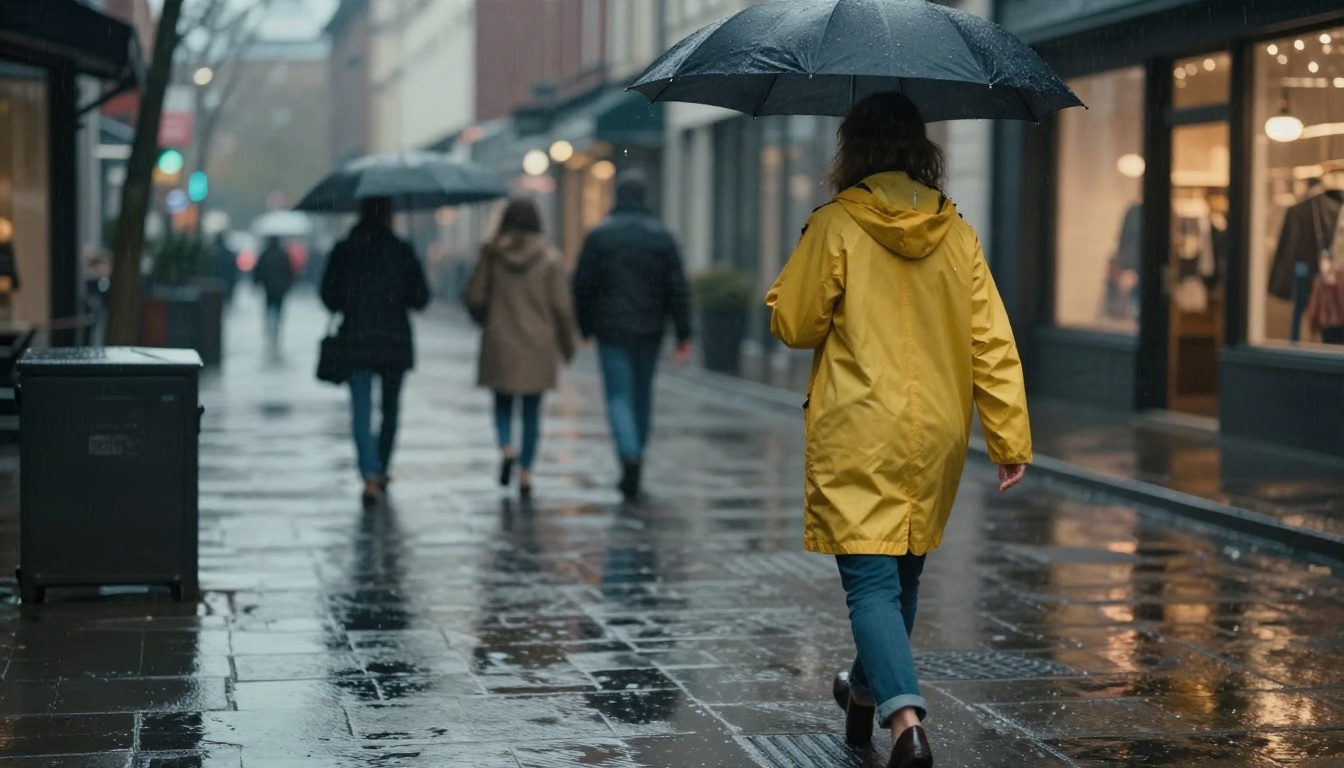
A walking shot for Fast
"A woman in a yellow raincoat walks toward the camera along a wet street at dusk, umbrella tilting slightly, reflections shimmering in the puddles, slow handheld camera." Use a still like the one above as the first frame. This is a good draft test because walking exposes weak physics quickly.
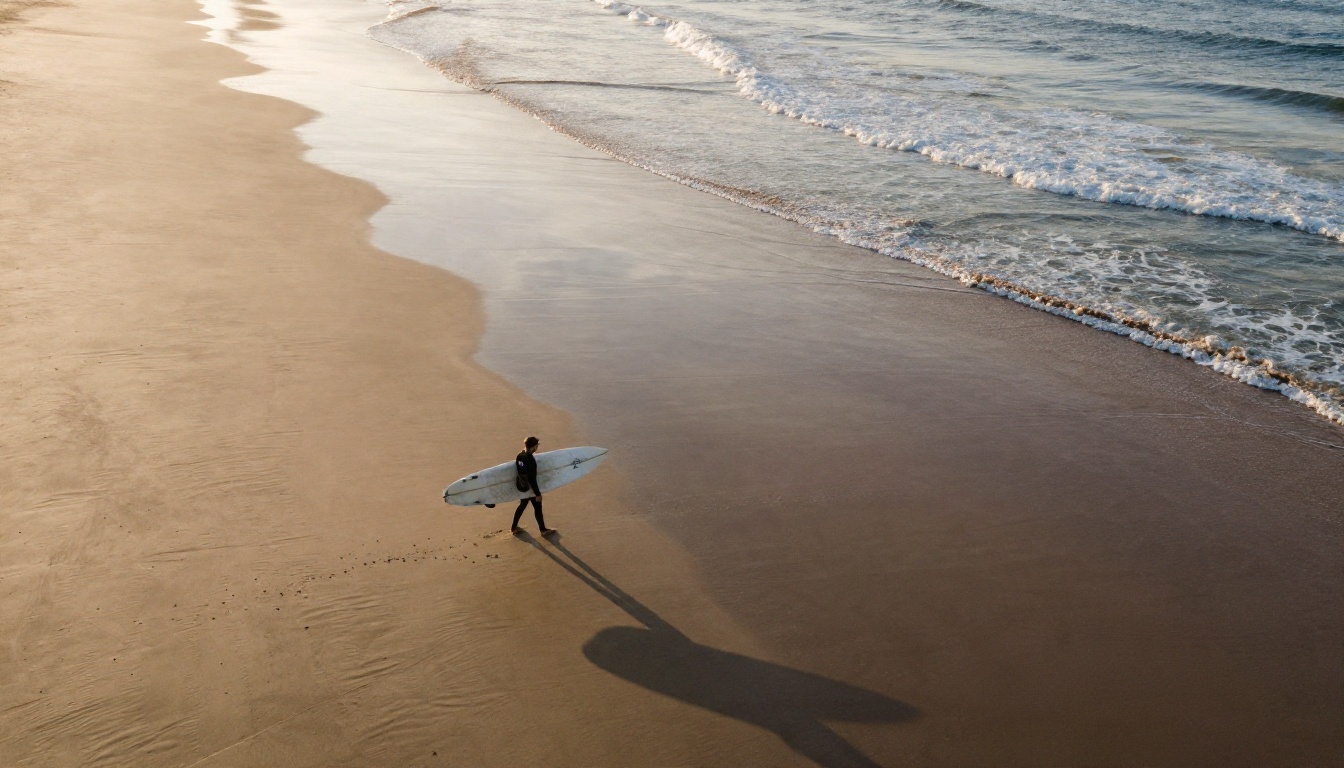
A wide landscape for Standard
"A surfer carries a board along an empty beach at golden hour, waves washing over the sand, gentle aerial drift forward." Ten seconds at 768p suits this kind of slow, scenic motion, since there is room for the camera to breathe.
A product close-up for Pro
"A ceramic cup of coffee on a wooden table, steam rising, soft window light, camera slowly pushes in." Fine textures like steam, glaze and wood grain show the extra detail of 1080p, which makes this the type of shot where Pro earns its price.
💡 Prompt tip: Describe motion in chronological order and name the camera move once. One clear camera instruction beats three competing ones.
How to Use Hailuo 02 on PicassoIA
Everything above comes together on the model page. Here is the process, start to finish.
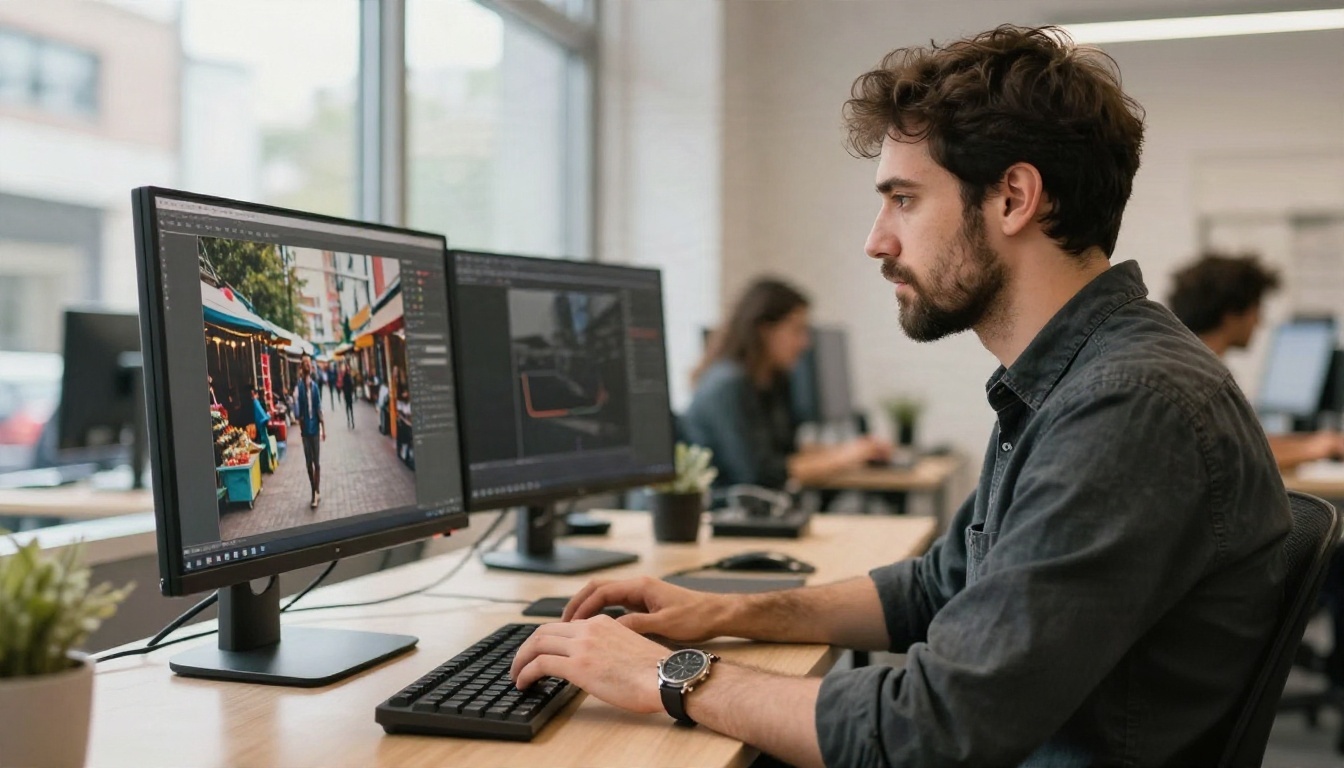
Step by step for the main model
- Open the Hailuo 02 page on PicassoIA.
- Write a prompt describing the scene, the motion and the camera move.
- Optionally upload a first frame image so the clip starts from your exact picture. The output then takes on that image's aspect ratio.
- Optionally add a last frame image if you want to control how the clip ends.
- Choose duration: 6 or 10 seconds. Remember that 10 seconds works at 768p only.
- Choose resolution: 512p for a quick test, 768p as the default, or 1080p for the Pro result.
- Leave the prompt optimizer on for short prompts, or turn it off when your wording is already precise.
- Generate, review the clip, then adjust a single variable and run again.
Step by step for Fast
- Open Hailuo 02 Fast.
- Upload the required first frame image.
- Add a short motion prompt.
- Pick 6 or 10 seconds.
- Turn on Go Fast when you are cycling through many ideas and quality matters less than turnaround.
Parameter tips
| Parameter | Recommendation |
|---|
| Duration | Start at 6 seconds, extend only when the motion needs room |
| Resolution | Draft low, finish high |
| First frame | Use a sharp, well lit photo with clear subject separation |
| Last frame | Use only when you need a specific ending pose |
| Go Fast | On for iteration, off for the version you keep |
Other Models Worth Comparing
Hailuo 02 is not the only option, and some projects are better served by a neighbor model. These are all on PicassoIA.
Newer Hailuo releases
Hailuo 2.3 and Hailuo 2.3 Fast follow the same quality and speed split, so everything you have read about choosing a tier carries over. If you want the latest MiniMax motion handling, test them against Hailuo 02 on the same still image.
Alternatives from other studios
💡 Rule of thumb: If you need longer than 10 seconds in one take, Hailuo 02 is the wrong tool and Seedance 2.5 is the better fit.
Mistakes That Waste Credits
A few habits quietly drain budgets. Avoid these and your cost per usable clip drops fast.
Starting at 1080p
Jumping straight to Pro on an untested prompt is the most common mistake. Draft first.
Chasing 10 seconds at 1080p
It cannot be done. If you set 10 seconds and expect 1080p, you will end up on 768p. Decide which matters more before you generate.
Changing too many things at once
When you edit the prompt, the image and the resolution in the same run, you cannot read the result. Change one input per attempt.
Ignoring the first frame
A blurry or cluttered first frame produces a blurry or cluttered video. The image does most of the work, so give it your best still.
Make Your Own Clips Today
The differences between Fast, Standard and Pro come down to three levers: resolution, clip length and how much you pay for a mistake. Draft cheap, refine in the middle, and spend your Pro render on the one shot that matters.
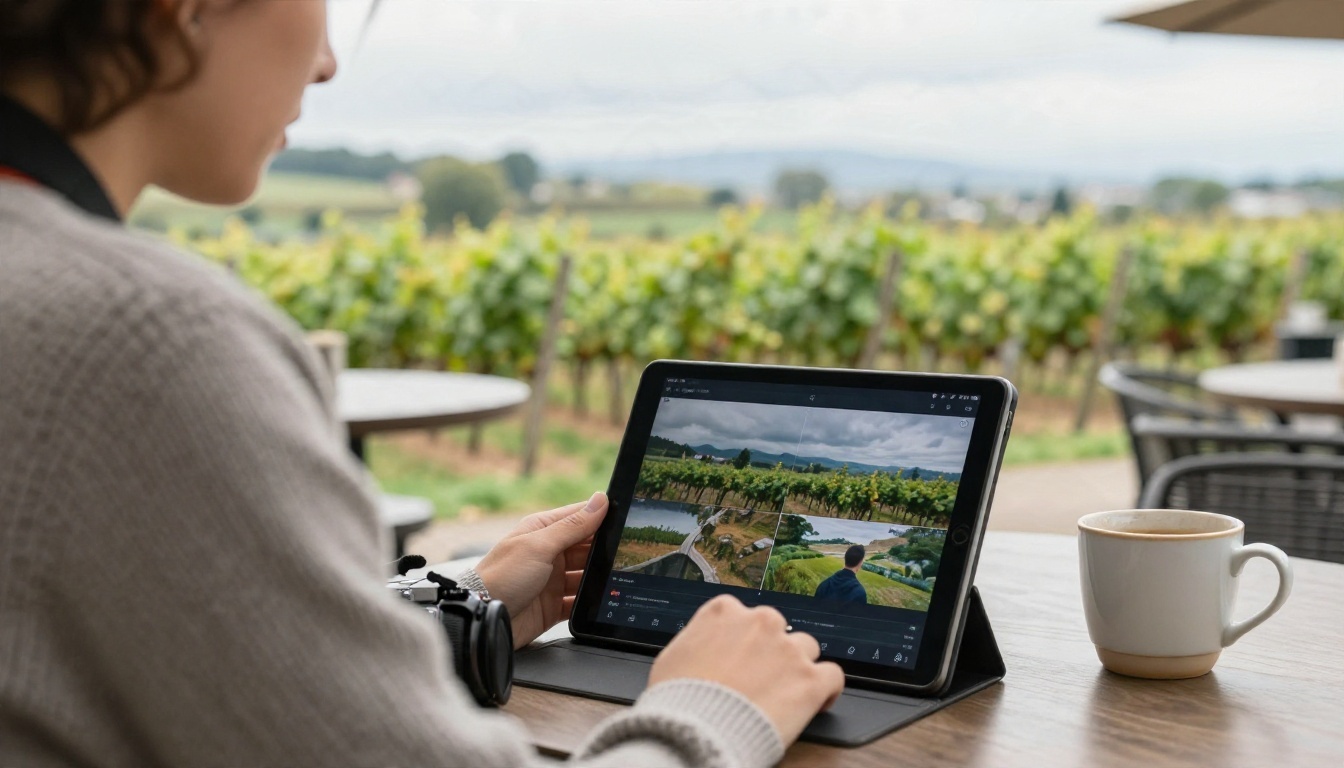
The fastest way to feel the gap is to run one still image through all three tiers. Pick a photo, open Hailuo 02 Fast for a quick draft, then run the same picture through Hailuo 02 at 768p and 1080p. Put the three clips side by side and you will know exactly which tier your work needs.
Ready to try it? Head to Picasso IA, upload a favorite image and make your first clip, then browse every video model at picassoia.com/en/all-models to find the one that fits your next project.


