You type a great prompt, wait a minute, and get a stunning clip that ends after six seconds. Then you wonder whether you did something wrong. You didn't. Hailuo MiniMax video generation max length is a hard ceiling built into the model, and it changes depending on the resolution you pick. Once you know where the walls are, you can plan scenes around them instead of fighting them.
This article lays out the real numbers for Hailuo 2.3, the current flagship in the family: how long a clip can run, which resolutions are on offer, why you can't have 10 seconds and 1080p together, and what the free plan usually looks like. It also shows how to stitch short shots into longer sequences, and which other video models on PicassoIA reach further when you need more runtime.
The Short Answer on Clip Length
If you only have ten seconds to read this section, here it is.
| Setting | Allowed values |
|---|
| Clip duration | 6 seconds or 10 seconds |
| Resolution | 768p or 1080p |
| 10 second clips | 768p only |
| 1080p clips | 6 seconds only |
| Input | Text prompt, or a first frame image |
So the practical maximum for a single Hailuo 2.3 generation is 10 seconds at 768p, or 6 seconds at 1080p. There is no setting that gives you a 10 second Full HD clip, and no slider that stretches a generation past 10 seconds.
💡 Quick rule: pick duration first, then resolution. If the shot needs time to breathe, take 10 seconds at 768p. If it needs to look sharp on a big screen, take 6 seconds at 1080p.
Why Six Seconds Is the Default
Six seconds is the default on Hailuo 2.3, and it makes sense. Generating video is expensive, and the longer the clip, the more chances the model has to drift: a face changes slightly, a hand picks up an extra finger, a background object slides. Short clips keep motion coherent. They also cost fewer credits, so you can try more variations before settling on one.
For social posts, product teasers, b-roll and reaction shots, six seconds is often all you need. A typical cut in a modern edit lasts two to four seconds anyway.
Where 10 Seconds Makes Sense
Ten seconds is worth the extra credits when the action has a beginning, middle and end. A person walking up to a door, opening it and stepping through. A slow reveal of a landscape. A drink being poured, then lifted. If the action in your prompt needs more than a few beats, six seconds will feel rushed because the model compresses the motion to fit.
Resolution Options Explained
Hailuo 2.3 offers two output resolutions. The model name on PicassoIA advertises up to 1080p, and that is true, but with the duration caveat above.
768p: The Flexible Choice
768p is the default. It supports both 6 and 10 second clips, renders faster, and costs less per clip. For social platforms where the video gets compressed on upload anyway, the difference from 1080p is often small on a phone screen.
1080p: Sharper, but Shorter
1080p gives you 1920x1080 footage that holds up better when you drop it into a professional timeline or show it on a monitor. The trade-off is the 6 second limit and a higher cost per generation.
What About 512p and Older Models?
Not every Hailuo model works the same way. On PicassoIA you can also find Hailuo 02, which is listed for 1080p output, and Hailuo 02 Fast, a quicker option at 512p. There is also Hailuo 2.3 Fast, built for animating photos quickly. Before MiniMax's Hailuo line, there was Video 01, which produces 6 second clips, plus Video 01 Live for animating still images and Video 01 Director for camera movement control.
A quick comparison:
💡 Newer Hailuo releases may raise these limits. Some third party sites report longer clips and higher resolutions for later versions, but those reports differ from source to source, so treat them as unconfirmed until you see the numbers in the tool itself.
What the Free Plan Usually Gives You
This is the part where reports disagree, so a little caution helps. MiniMax runs its own Hailuo site with a free tier, and third party write-ups describe it in different ways. What most of them agree on:
- Limited credits. Free accounts get a small allowance, often a one time welcome bundle plus small daily bonuses, enough for a handful of short videos rather than a full project.
- Watermarks. Free outputs typically carry a corner watermark.
- Lower resolution. Free generation is usually capped around 720p, not full 1080p.
- No commercial rights. Free outputs are normally for personal testing, not client work.
- Expiring credits. Some reports say bonus credits expire within days.
The exact amounts change often, and I could not confirm a single official daily figure for Hailuo 2.3 specifically. Before you plan a project around a free allowance, check the live pricing page on the platform you use.

How Credit Costs Compare
Third party platforms that resell Hailuo list very different prices for the same clip. As a rough pattern, a 6 second 768p clip costs the least, a 10 second 768p clip costs roughly double, and a 6 second 1080p clip lands somewhere in between or a bit above the 6 second 768p price. One pay as you go listing puts a 6 second 768p clip at about 28 cents and a 6 second 1080p clip at about 49 cents. Treat those as ballpark figures, not promises.
A Smarter Way to Spend a Small Budget
If your credits are limited, do this:
- Draft your idea at 768p and 6 seconds. It is the cheapest combination.
- Fix the prompt until the motion is right.
- Only then re-run the winning prompt at 1080p, or at 10 seconds if you need the extra time.
That order saves you from paying 1080p prices for a clip you will throw away.
How to Use Hailuo 2.3 on PicassoIA
Hailuo 2.3 on PicassoIA accepts either a text prompt or a reference image as the starting point. Here is a clean workflow.
Step 1: Open the Model Page
Go to the Hailuo 2.3 page. You will see the prompt box and the settings panel.
Step 2: Write a Motion Focused Prompt
Describe what moves, not just what exists. Compare these two:
- Weak: A woman on a beach at sunset.
- Strong: A woman in a white linen shirt walks along a wet beach at sunset, wind lifting her hair, the camera slowly tracks beside her at waist height, warm backlight, gentle waves in the background.
Include the subject, the action, the camera behavior and the light. Hailuo is known for human motion and facial expression, so lean into that.
Step 3: Choose Duration and Resolution
Set duration to 6 or 10. Set resolution to 768p or 1080p. Remember the rule: 10 seconds only works at 768p, and 1080p only works at 6 seconds.
Step 4: Add a First Frame Image (Optional)
Upload a first frame image to anchor the clip. The output keeps that image's aspect ratio, so crop it to the shape you want before uploading. This is the best way to keep a character or product looking the same across several clips.
Step 5: Leave the Prompt Optimizer On
The prompt optimizer is on by default and rewrites your input to pull better motion and framing out of the model. Keep it on for rough prompts. Turn it off only when you have written a very precise prompt and want the model to follow it literally.
Step 6: Generate, Review, Iterate
Run the clip, watch it twice, and change one thing at a time. If the camera drifts too much, say so. If the subject moves too fast, add words like slowly or gently.
💡 Prompt length tip: two to four sentences usually beat a paragraph. Too many instructions compete, and the model tends to ignore the later ones.
Writing Prompts That Fit the Time Limit
A six second clip is not a short film. It is one idea. The mistake most people make is stuffing three scenes into one prompt and being disappointed when the model rushes through them.
One Shot, One Action
Pick a single action per clip. She turns and smiles works. She turns, walks to the car, drives away and waves goodbye does not.
Name the Camera Move
Words that tend to work: slow push in, gentle pan left, static tripod shot, handheld follow, low angle tracking. Without a camera instruction, the model chooses for you, and it often chooses a slow drift.
Describe Light and Mood
Light does a lot of the work in a short clip. Soft window light from the left or warm golden hour backlight gives the model a clear target and keeps the look consistent when you generate follow up clips.

Building Longer Videos From Short Clips
Since a single generation tops out at 10 seconds, anything longer has to be assembled. This is how professionals work with every AI video model, not a workaround.
The Last Frame Trick
- Generate your first clip.
- Export the final frame as a still image.
- Upload that still as the first frame image for the next generation.
- Write a prompt that continues the action.
- Repeat.
Each new clip begins exactly where the last one ended, so the cut feels continuous. Over a few clips, small drifts in face or color can build up, so occasionally reset with a fresh reference image of your subject.
Plan Your Cuts
You do not have to hide the seams. Cut between angles: wide, medium, close up. A cut from a wide shot to a close up hides small differences far better than trying to make one long take.
Add Sound and Polish After
Generate the picture first, then build the audio separately. PicassoIA also has text to speech, AI music generation and video enhancement tools, so you can add narration, a soundtrack or an upscale pass without leaving the platform.
Where Short Clips Work Best
Knowing the limit also tells you where Hailuo shines.
Product and Small Business Content
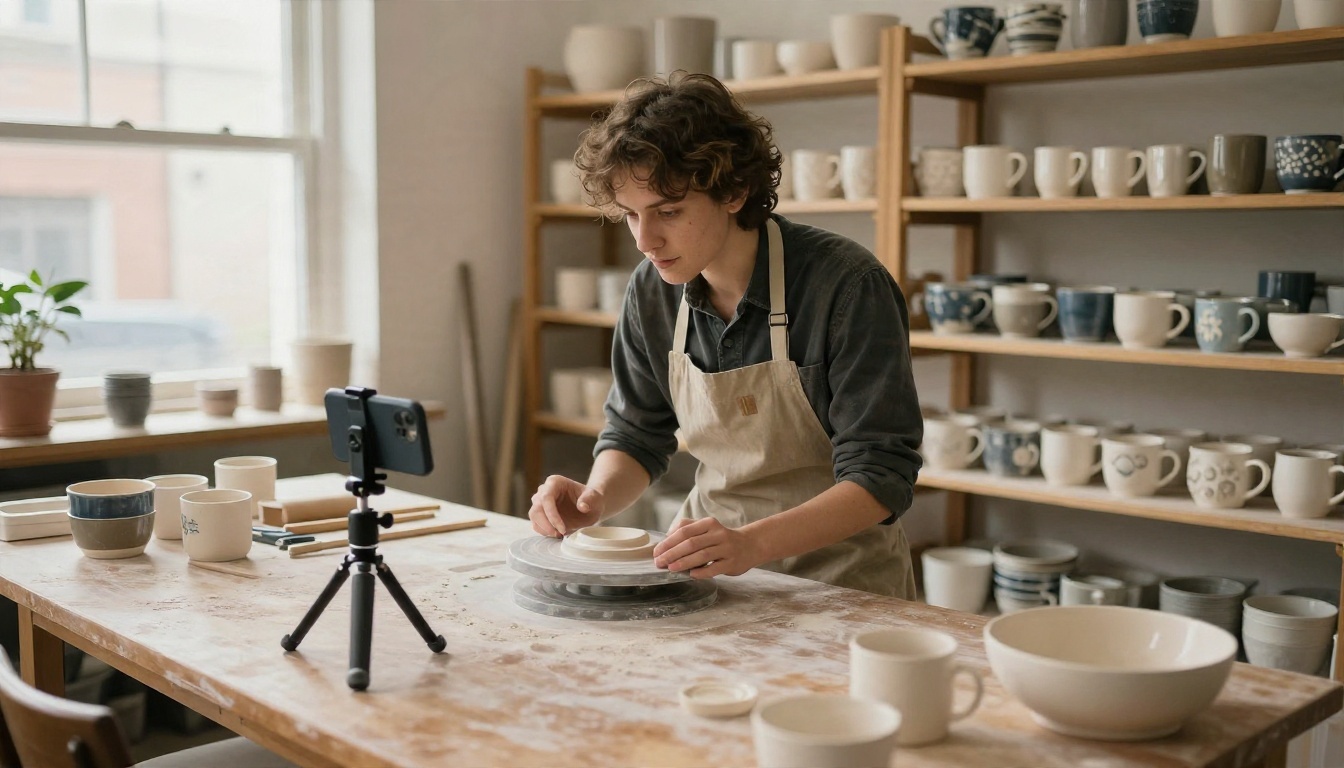
A six second shot of a handmade mug turning in warm light is a complete ad unit for a social feed. Animate a clean product photo with a first frame image and you have motion without a shoot.
Social Reels and Shorts
Vertical or horizontal, short clips fit the pace of Reels, Shorts and TikTok. Chain three or four for a 20 second post.
Pre Visualization
Directors and agencies use short generations to test camera moves and moods before a real shoot. A 768p draft costs little and answers the question does this idea work? quickly.
Character Moments
Hailuo's strength is expressive faces and natural body motion. A single emotional beat, such as a look, a laugh or a turn of the head, fits easily in six seconds.
Alternatives When You Need More Runtime
Sometimes six or ten seconds is simply not enough. These models on PicassoIA reach further or offer different trade-offs:
If you want the longest single shot, Seedance 2.5 is the first one to try. If you want to experiment without worrying about credits, Seedance 2.5 Lite is a good place to draft ideas. For a different visual flavor, compare the same prompt on Kling v3 Video and Sora 2.

💡 Running the same prompt on two models is the fastest way to find out which one understands your style. The cost of a test is small compared with the cost of picking the wrong model for a whole project.
Common Mistakes to Avoid
- Choosing 1080p and 10 seconds. The combination is not allowed, and you will either get an error or a 6 second clip.
- Starting at the highest quality. Draft cheap, finish expensive.
- Overloading the prompt. One action per clip.
- Ignoring aspect ratio. With a first frame image, the output copies its ratio, so crop before you upload.
- Expecting free plans to be unlimited. Free tiers are for testing. Plan on watermarks and small allowances.
- Forgetting to verify the current rules. Limits, credits and plan names change. Check the tool's settings before you commit to a schedule.
Start Making Your Own Clips
The limits are simple once you see them together: 6 or 10 seconds, 768p or 1080p, and never 10 seconds at 1080p. Within that box there is plenty of room to make something good, especially if you plan your shots, anchor them with a first frame image and cut between angles.
Open Hailuo 2.3 on PicassoIA, try a 6 second draft at 768p, and then push the best version to 1080p. When you want a longer run, test Seedance 2.5 or Seedance 2.5 Lite with the same idea. You can browse every video, image and audio model at picassoia.com/en/all-models, so pick a prompt, press generate, and see what your next six seconds look like.