You spent hours drawing your favorite character, poured real emotion into the line art, and the result actually looks good, but when you zoom in or try to print it, the whole thing falls apart into a muddy mess of squares. That's the low-res wall, and almost every fan artist has hit it at some point. The good news is that AI super resolution has changed the rules completely. Models trained on millions of images can now reconstruct crisp detail, recover sharp lines, and restore vivid color from sources that looked permanently damaged. This article shows exactly how that works, which tools are worth your time, and how to get started today.
The Low-Res Problem Every Fan Artist Knows
Fan art lives in a frustrating middle ground. Most artists start on devices or apps that cap output at 72 DPI or export tiny files by default. Old community archives are full of JPEG artifacts from decade-old compressions. Even scan quality varies wildly between flatbed scanners. The result is that a lot of genuinely great artwork never gets the display it deserves.
Why Fan Art Gets Stuck at Low Quality
There are a few specific reasons fan art suffers more than commercial illustration:
- Limited hardware at creation time: older tablets, phones, and entry-level apps save small files.
- Platform compression: every social media upload strips resolution. A 2000px image becomes 1200px on many platforms with no warning.
- Repost degradation: an image shared dozens of times loses quality at each re-save.
- Original source art: fan artists often reference screencaps, thumbnails, or frame grabs that were already low resolution to begin with.
What Pixel Soup Actually Looks Like
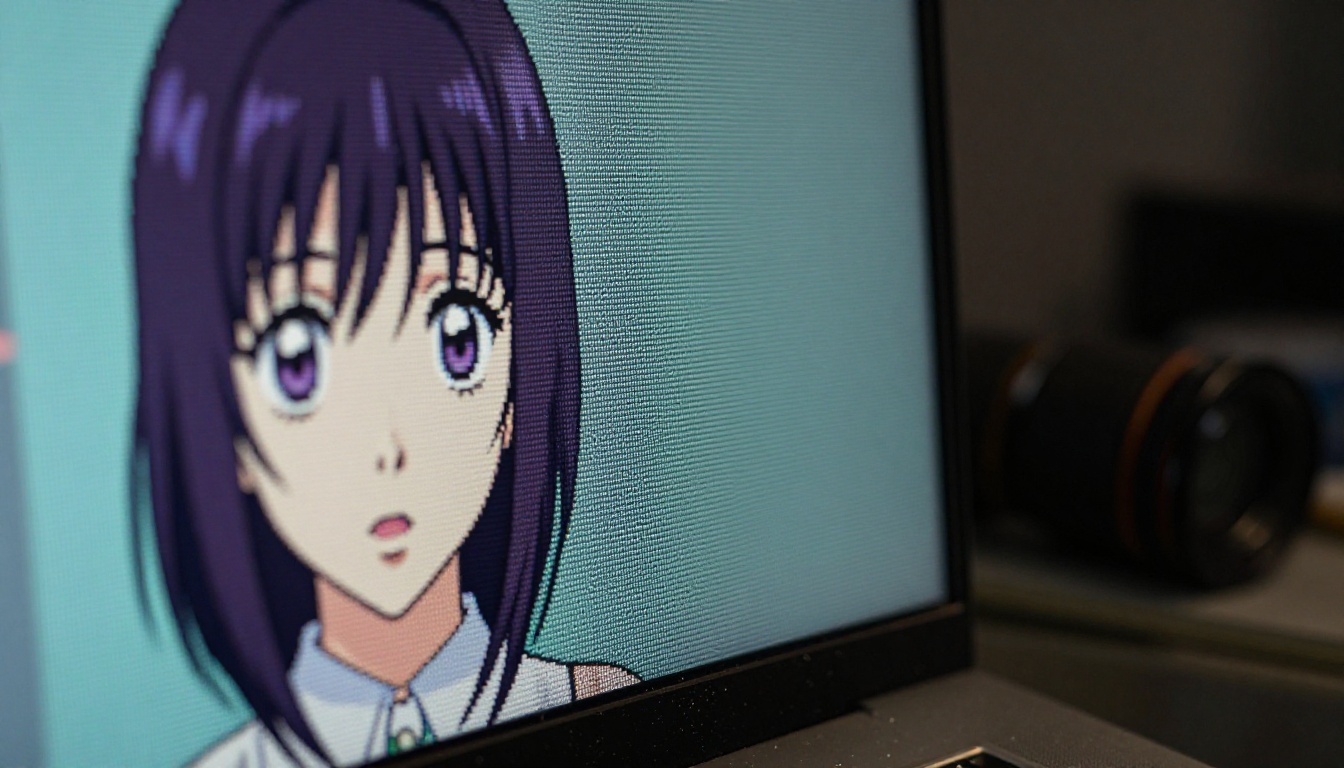
A 300x300px anime portrait doesn't just look small. It looks wrong. Line art that was originally clean and deliberate gets anti-aliased into gray gradients. Color fills bleed into each other. Background details disappear into a single flat tone. Printed at A4 size, the same image looks like it was drawn by someone shaking their hand. That's not an exaggeration: at 72 DPI on a 30cm print, 300px source material gives you about 25 DPI, well below the 150 DPI minimum for readable print output.
What AI Does Inside a Blurry Image
Classical upscaling algorithms like bicubic interpolation simply guess at what color to put between existing pixels. They do this by averaging neighboring values, which is why the result looks soft and smeared. AI models work differently, and the difference matters enormously for anime-style artwork.
Neural Networks and Missing Detail
A trained super resolution neural network has seen millions of image pairs: low resolution input and high resolution ground truth. Over time it learns the statistical relationships between pixel patterns and the fine details that should logically appear at higher resolution. When it sees a blurry diagonal line, it doesn't average the gray, it reconstructs the crisp edge based on everything it learned about how lines behave. For anime specifically, this means the model can recognize line art structure and sharpen it rather than blur it further.
From Interpolation to Intelligence
The shift from interpolation to AI inference is what makes the results feel almost magical. Where a bicubic pass produces a 4x image that looks like a blurry version of the original, a well-trained model produces a 4x image that looks like it was drawn at that resolution. Fine cross-hatching reappears. Eye highlight dots become crisp circles. Hair strand separation returns. The model isn't inventing detail randomly. It's using learned priors about what anime artwork should look like to fill in what compression destroyed.
💡 Tip: For best results, always start with the highest-quality version of your source file before upscaling. Even a small improvement in input quality can produce dramatically better output from AI models.
The 9 Best AI Upscalers for Anime Fan Art
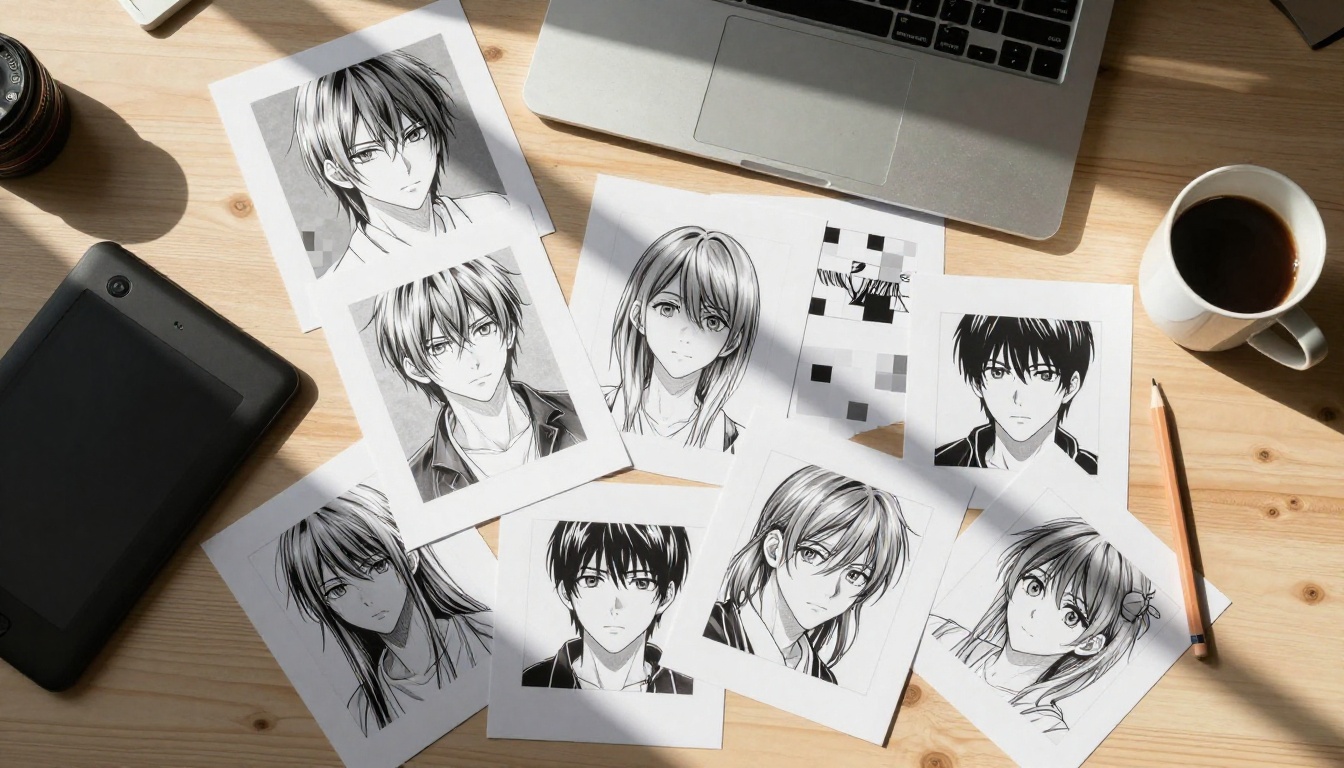
Not all upscalers perform equally on anime content. Some are optimized for photographs and struggle with the clean lines and flat fills that define anime style. Here's how the main models available on PicassoIA compare:
Clarity Pro Upscaler
Clarity Pro Upscaler by philz1337x is one of the most capable models on the platform for detailed artwork. It doesn't just enlarge, it runs a full detail enhancement pass that sharpens edges, recovers texture, and boosts micro-contrast. For anime fan art that started with moderately good linework but lost quality through compression, this model often produces stunning results. Expect a few seconds of processing time per image.
Real ESRGAN
Real ESRGAN by NightmareAI is the community standard for anime upscaling and for good reason. It was trained specifically on anime and illustration-style content, meaning it understands clean flat fills, hard edge preservation, and the particular noise patterns that JPEG compression creates on cartoon-style artwork. If you have a single model to try first, start here.
Crystal Upscaler
Crystal Upscaler is especially strong on portrait crops. If your fan art focuses on a character's face and you need every eyelash and iris highlight to survive the upscale cleanly, this model handles fine facial detail better than most alternatives. It processes fast and handles JPEG artifacts well.
P Image Upscale
P Image Upscale is built for speed. If you're working through a batch of older fan art from your archive, this model processes in under a second and delivers solid 2x or 4x results without overprocessing. It's the right pick when quantity matters as much as quality.
Image Upscale by Topaz Labs
Image Upscale by Topaz Labs is the heaviest-weight option in the lineup. It supports up to 6x scaling and runs multiple enhancement passes. Processing is slower, but for prints, posters, or any use case where the final output needs to survive close inspection, this model produces the sharpest, most detailed results available. Professional fan artists preparing files for merchandise or gallery prints should consider this their first stop.
How to Use Clarity Pro Upscaler on PicassoIA
PicassoIA hosts all of these models through a straightforward web interface. No local installation, no GPU required, no technical setup. Here's exactly how to put Clarity Pro Upscaler to work on your fan art.
Step 1: Upload Your Fan Art
Go to the Clarity Pro Upscaler page on PicassoIA. You'll see an upload zone in the center of the interface. Drag your image directly onto it or click to browse your files. The model accepts JPG, PNG, and WEBP formats. If you have both a compressed web version and a slightly less compressed version of the same file, always upload the better one. The model can only work with what you give it.
Step 2: Set Your Scale Factor
Once uploaded, you'll see a preview of the source image alongside the configuration controls. The main parameter to set is the scale factor: 2x doubles the dimensions, 4x quadruples them. For most fan art at 300-600px that needs to reach web-display or light print quality, 4x is the right choice. If you're starting from something already in the 800-1200px range and just want to clean up compression, 2x is often enough.
You can also enable or adjust the detail enhancement strength. For anime-style artwork with clean linework, a medium setting works best. Pushing it too high on flat fill areas can introduce over-sharpening that looks crunchy rather than natural.
Step 3: Run and Download
Hit Run and wait a few seconds. Clarity Pro Upscaler processes server-side, so the time depends on image complexity rather than your machine. When the result appears, zoom in to 100% to compare it against the original at the same view size. If you see any areas that still need work, try running the output through Recraft Creative Upscale for a second pass with AI-assisted detail filling.
💡 Tip: Download the full-resolution PNG for maximum quality. JPEG re-saves after upscaling add new compression artifacts that undo some of the AI's work.
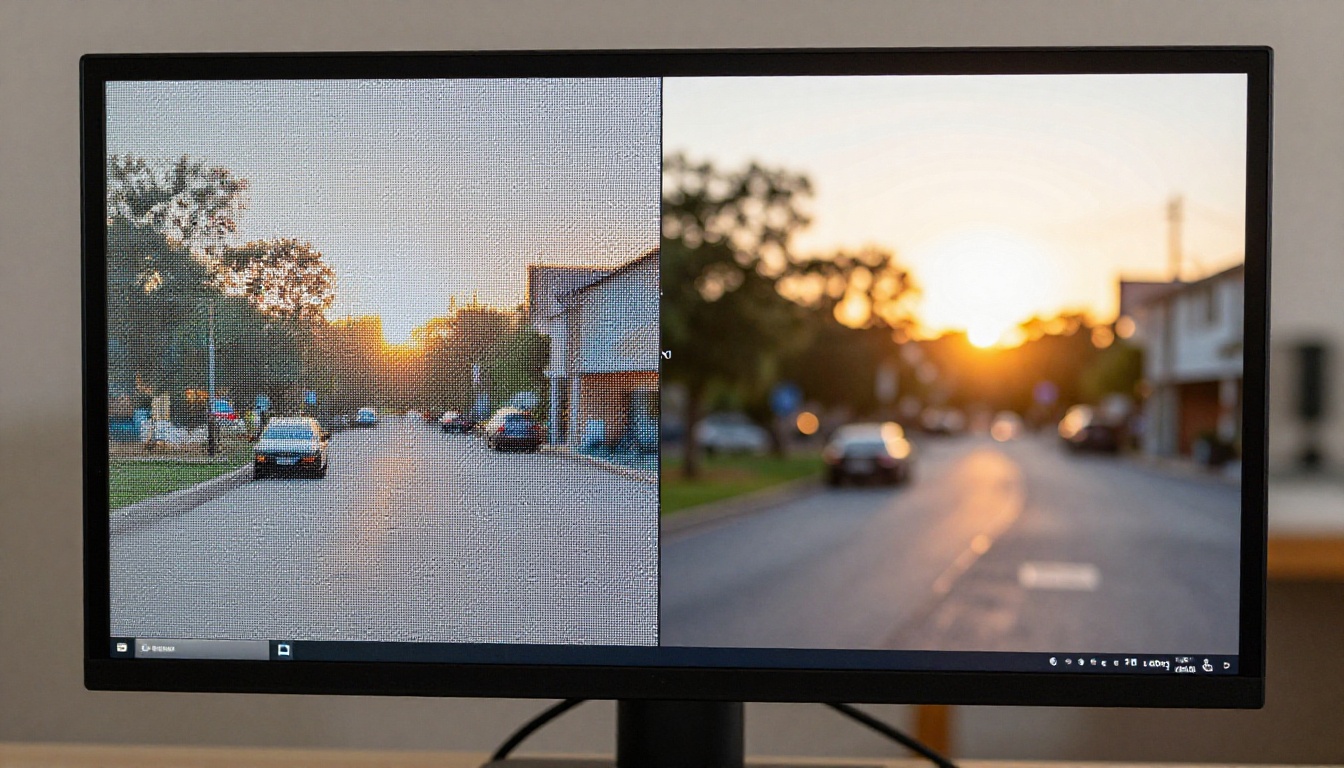
Crisp vs. Creative Upscaling
There are two philosophically different approaches to AI upscaling and knowing which one you need saves a lot of time.
When You Want Faithful Detail
Crisp upscaling is conservative. The AI enlarges the image and sharpens what's already there without adding anything new. This is what Real ESRGAN, P Image Upscale, and Recraft Crisp Upscale do well. If you're upscaling someone else's official art or trying to preserve the exact look of your own work, a crisp approach respects your original decisions.
- Clean edges preserved
- Colors remain true to source
- No invented detail
- Slight softness in extreme cases
When You Want AI to Fill in the Blanks
Creative upscaling lets the model add plausible detail that wasn't in the original. Recraft Creative Upscale and Clarity Pro Upscaler lean into this. For fan art where the source was so degraded that faithful reconstruction is impossible, the model fills in what it predicts should be there based on its training. Results can be spectacular, especially on faces and hair. They can also occasionally introduce small changes the artist didn't intend.
💡 Tip: Use creative upscaling on your own work where artistic accuracy isn't critical. For restoration of official art or reference images, stick to crisp methods.
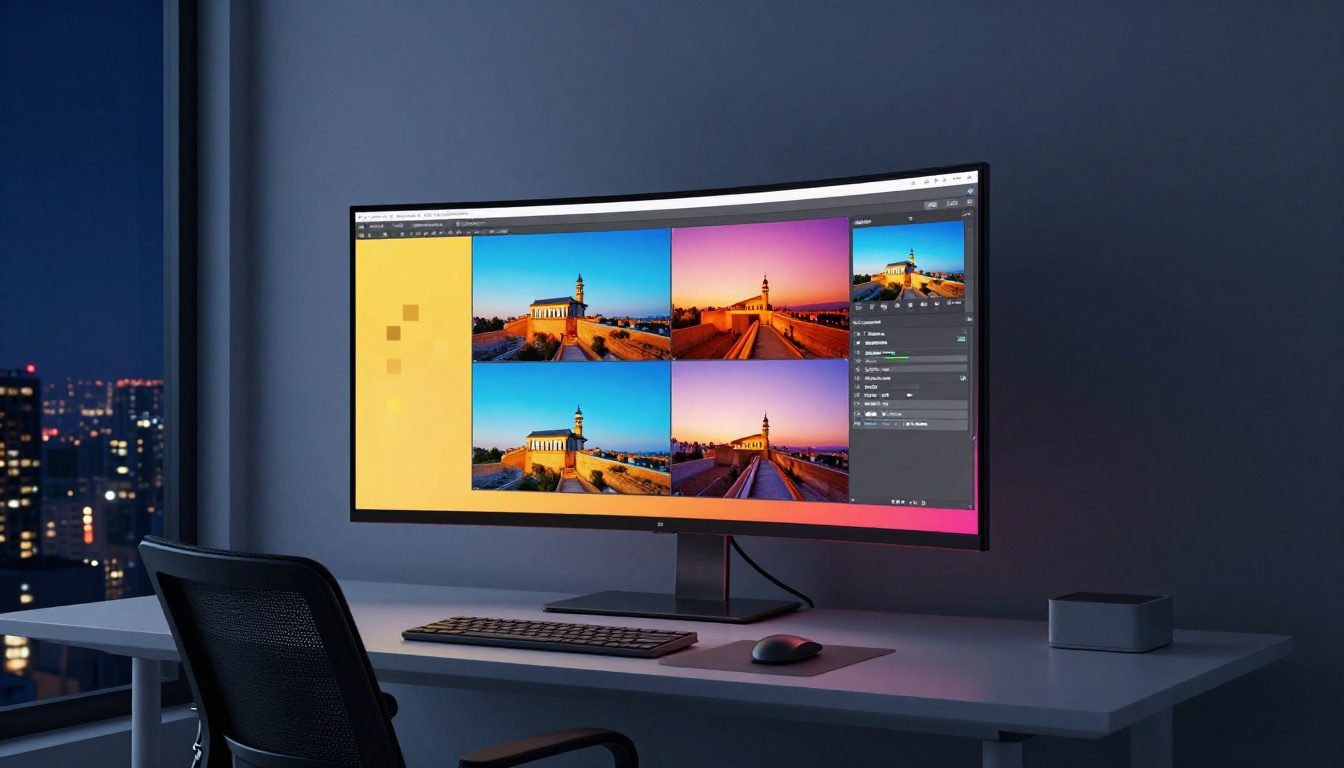
Common Fan Art Problems AI Actually Fixes
AI upscaling isn't just about making images bigger. It actively repairs several specific failure modes that plague fan art.
Compression Artifacts
JPEG compression creates visible blocks and color banding, especially in areas of subtle gradient. On an anime character's sky background or a soft skin shadow, these artifacts look terrible. Models like Google Upscaler and Increase Resolution by Bria are trained to recognize and remove these patterns as part of the upscale process. The output is not just larger but actually cleaner than the original in compression-heavy areas.
Blurry Line Art
Anti-aliasing and low source resolution turn sharp lines into fuzzy gradients. AI models trained on clean illustration can identify where a line edge should be and re-sharpen it. Real ESRGAN is particularly effective here because it was trained specifically on anime-style content where clean linework is structurally important. After processing, line art that looked like pencil blur at source size looks inked and deliberate.
Missing Background Detail
Small or low-res images collapse background detail into flat color or blurry noise. AI models fill this back in based on context. A blurry cityscape in the background of a fan art piece can re-emerge with window patterns, building shapes, and atmospheric depth after running through Clarity Pro Upscaler or Image Upscale by Topaz.
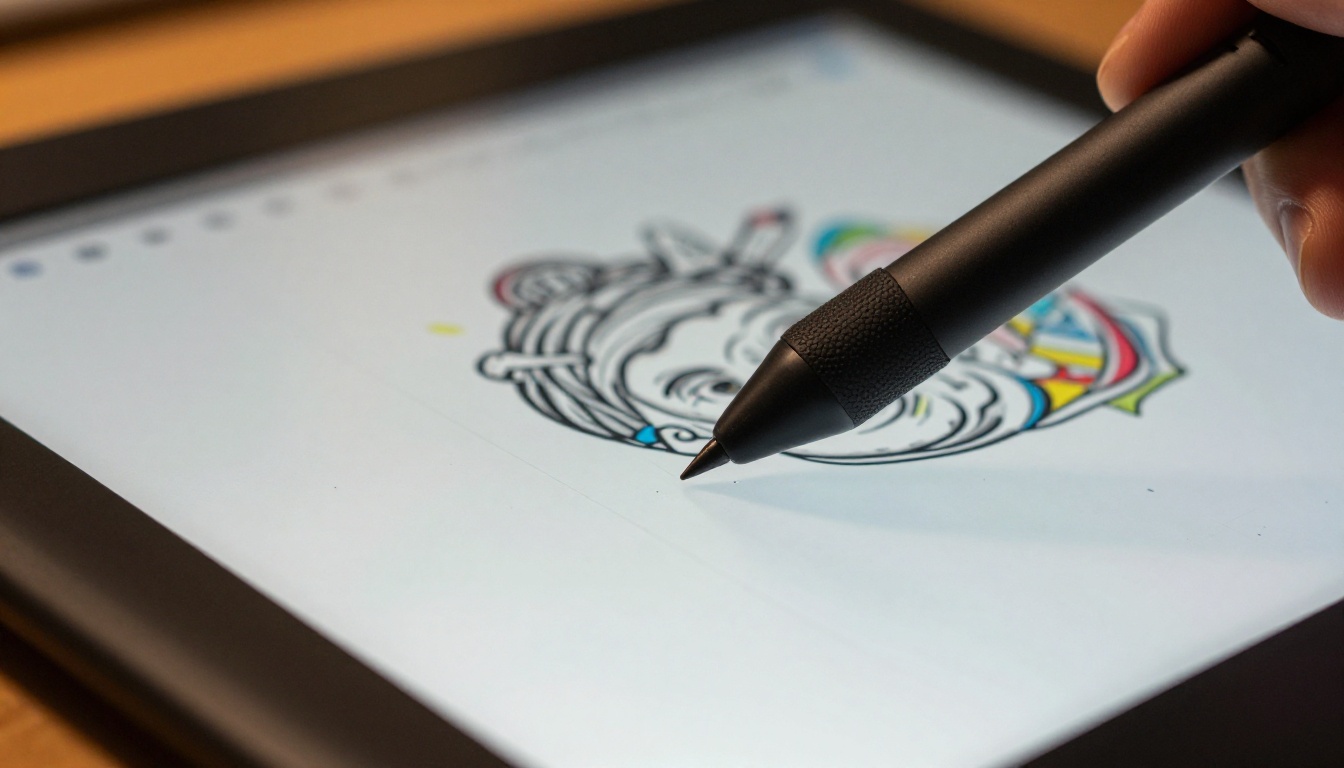
Choosing the Right Model for Your Specific File
The model you pick should match the type of problem in your source file, not just the subject matter.
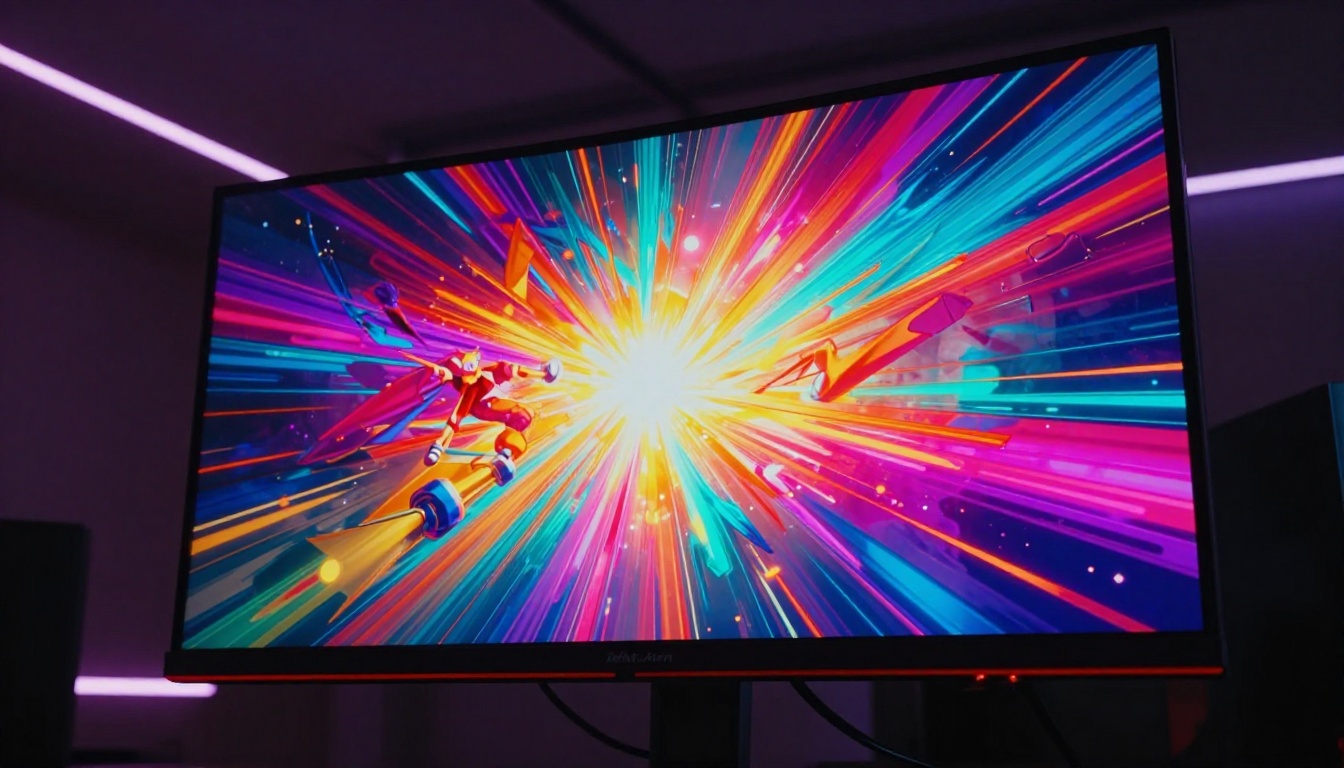
What These Models Can't Do
It's worth being clear about limits. AI upscaling is powerful but not omniscient. If the source image is so small and so compressed that there's no structure left for the model to work with, even the best AI will hallucinate incorrect detail. A 100x100px icon-sized export with heavy JPEG blocking may come back with sharpened noise rather than the original art. In those cases, working from a larger source or using AI image restoration tools first can help.
AI also can't recover information that was never there. If the original drawing lacked a detailed background, upscaling won't add one. It will sharpen what exists. The distinction between sharpening existing structure and inventing new content is where crisp and creative upscalers diverge, as discussed above.
💡 Tip: Stack your tools. Run Real ESRGAN first for artifact removal, then pass the result through Clarity Pro Upscaler for final scale and detail. Two-step processing often beats a single heavy pass.
Anime Fan Art vs. Real Photo Upscaling
One thing worth knowing is that anime-style upscaling and photorealistic upscaling are different problems. Photographs have continuous tone, texture, and depth cues. Anime has hard edges, flat fills, and deliberate simplification. Models trained primarily on photographic data can over-smooth line art because they interpret sharp edges as noise to be removed. This is why using a model specifically designed for illustration, like Real ESRGAN, matters for fan art. It understands that a 1-pixel black line at 300x300 should become a 4-pixel black line at 1200x1200, not a blurry 4-pixel gray gradient.
For mixed content (fan art that includes photographic backgrounds or real texture references), models like Clarity Pro Upscaler handle the blend better because they were trained on diverse input types.
Bring Your Fan Art Back to Life
Every fan artist has a folder somewhere full of old work that deserves better. Pieces you were proud of, posted at 72 DPI because that was all the tool allowed, or saved in a format that compressed away half the detail. AI super resolution doesn't just fix files from today. It fixes the whole archive.
PicassoIA gives you nine different upscaling models in one place, no subscriptions to juggle, no local software to configure. Start with Real ESRGAN for your anime work, move to Clarity Pro Upscaler when you want maximum detail, and use Image Upscale by Topaz when print quality is the target. Browse the full catalog of super resolution tools and everything else the platform offers at picassoia.com/en/all-models.


