Kling v3 Omni Video does something that sounds simple but is actually quite hard: it takes a single photograph you already have and a sentence describing what should happen, then produces a coherent cinematic video where both inputs actually matter. The photo defines the subject and setting. The text defines the motion and mood. The result is a video where nothing feels pasted together.
This article breaks down exactly how that works, what inputs give you the best results, how the model compares to earlier Kling versions, and how to run it on PicassoIA right now.
What Kling v3 Omni Video Actually Does
The "Omni" Part Is the Point
Most image-to-video models take your photo and animate it. They smooth out some motion, add a gentle sway, maybe a camera push. The result looks like a photo that's breathing. That's not what Kling v3 Omni Video is doing.
The "Omni" refers to its ability to process multiple modalities simultaneously as co-equal inputs. Your photo and your text prompt don't operate in sequence, where the model animates first and the prompt then styles the result. They're both read at the same time and merged into a single latent representation before any video frames are rendered.
In practical terms: your photo isn't just the first frame. It's a structural anchor. The model uses it to extract scene geometry, lighting direction, depth cues, and subject attributes. Your text prompt then provides temporal instructions: what should move, how fast, in what direction, and what tone the motion should carry.
Photo and Text at the Same Time
This simultaneous processing is what makes Kling v3 Omni Video produce results that feel like a scene rather than an animation. If your photo shows a woman standing in a sunlit field and your prompt says "slow walk toward the camera, wind in hair, golden hour light," the model doesn't guess at the lighting. It reads the existing light from your photo and maintains it while adding the motion you described.
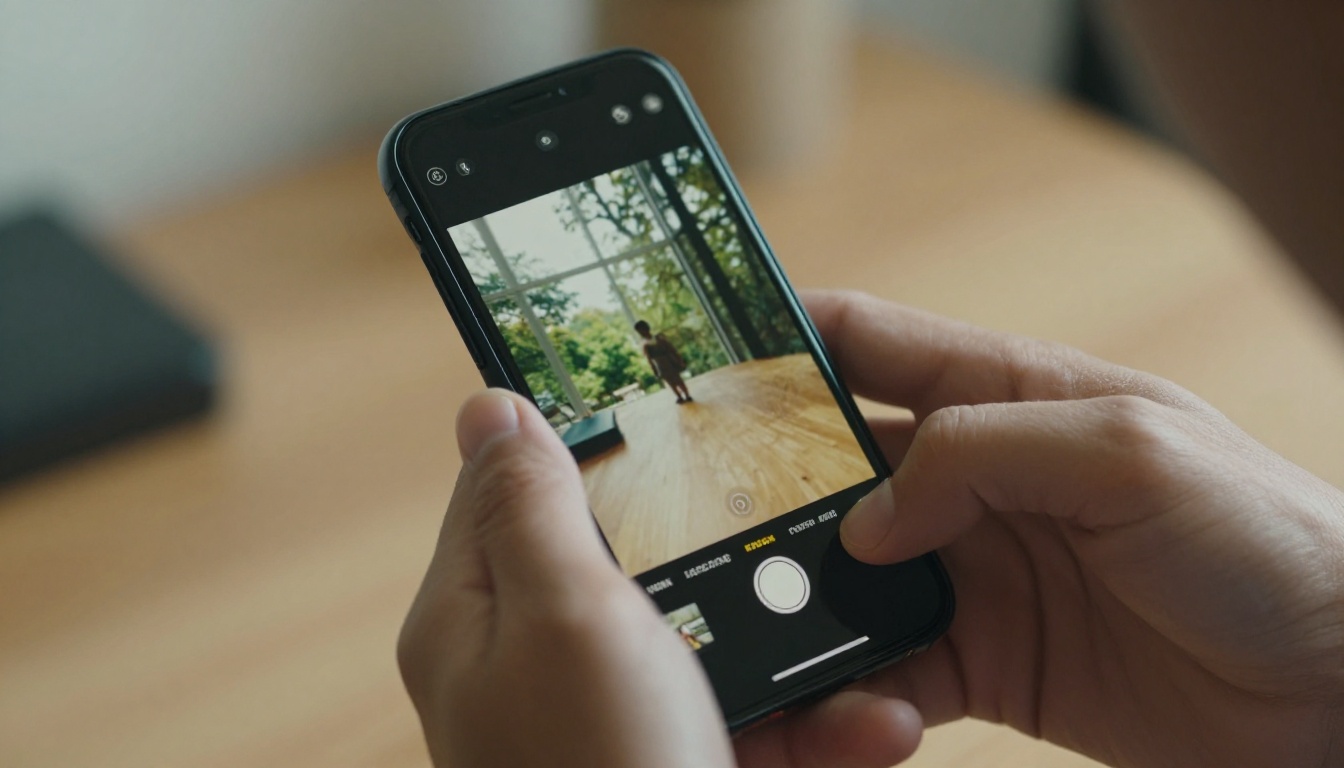
The Multimodal Fusion Engine
How the Model Reads Your Image
When Kling v3 Omni Video ingests your photo, it runs a parallel encoder pass that extracts several types of information at once:
- Subject identity: face features, body proportions, clothing texture, colors
- Scene geometry: estimated depth, horizon position, spatial relationships between elements
- Lighting map: direction, quality (hard or diffuse), color temperature, shadow depth
- Background content: what's behind the subject, how busy it is, how much depth of field exists
All of this gets encoded into the model's latent space before text conditioning happens. This is why the outputs maintain such strong consistency with your original image. The model isn't trying to recreate your photo from a description. It already has it fully encoded.
How Prompts Reinforce or Override
Your text prompt can reinforce what's already in the photo, or it can partially override it. If your photo shows overcast lighting and your prompt says "warm golden afternoon sun streaming from the left," Kling v3 Omni Video will shift the lighting toward your prompt. This is intentional design.
This means you can use a photo taken in flat midday light and still prompt for dramatic sunset output. The results won't always be photographic perfection, but the model handles the transition much more naturally than earlier versions because the photo's structure, including geometry, subject, and depth, stays anchored while only the lighting and atmosphere shift.
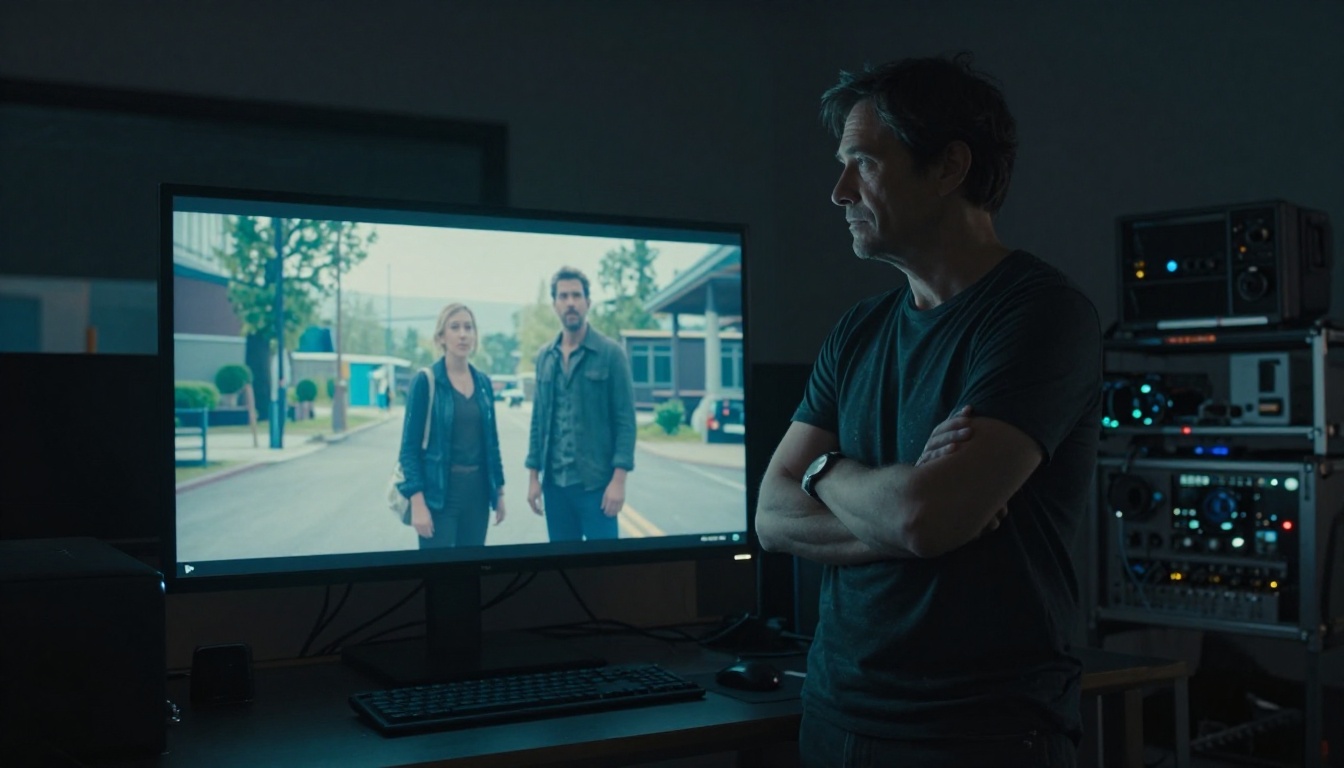
What Photos Work Best
Portrait vs. Landscape Shots
Not all photos respond equally. Here's what the model handles cleanly:
| Photo Type | Result Quality | Notes |
|---|
| Single subject, clear background | Excellent | Subject stays consistent across all frames |
| Portrait, 3/4 framing | Excellent | Face identity preserved well |
| Wide landscape, no clear subject | Good | Camera motion works better than subject motion |
| Group shot, multiple faces | Moderate | Identity bleed between subjects at times |
| Heavy motion blur in original | Weak | Model inherits blur as a texture artifact |
| Low resolution, under 512px | Weak | Compression artifacts amplify in video |
For the cleanest results: use photos with a single well-lit subject, clear separation from the background, and at least 1024px on the shorter side.
Resolution, Clarity, and Cropping
Kling v3 Omni Video rewards quality. A sharp, well-exposed photo at 1920x1080 or higher will produce 1080p video with genuine texture fidelity. A compressed JPEG shot on a mid-range phone will still work, but fine textures like hair, fabric, and skin will be softer in the output.
One underused technique: crop your photo before uploading. If your subject is small in a wide frame, the model splits its attention between animating the subject and filling in background motion. Crop tighter and the model focuses its parameters on what actually matters.
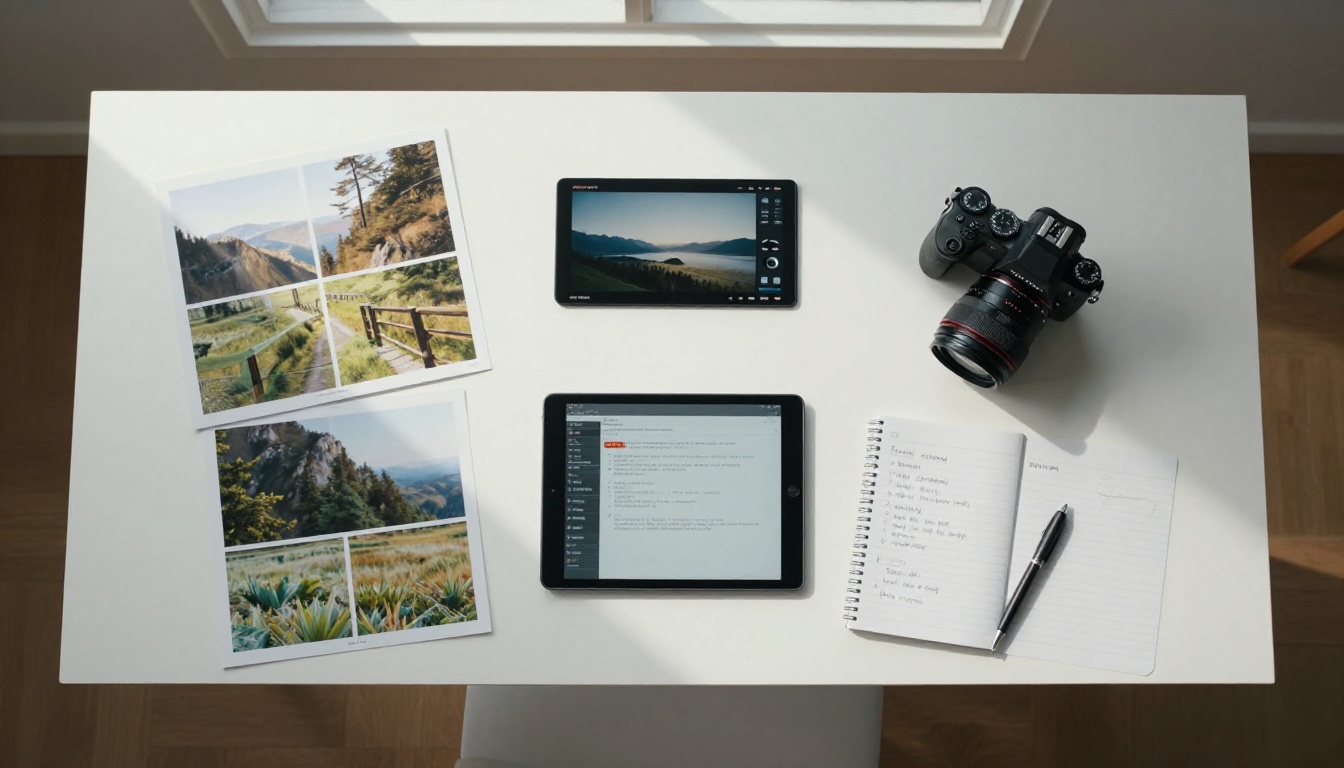
Writing Text Prompts That Stick
Describe Motion, Not Just Objects
The most common mistake is writing prompts that describe the scene rather than what happens in it. If your photo already shows a beach at sunset, writing "beach at sunset with waves" in your prompt tells the model nothing new. It already has all of that from the image.
What the model needs from your prompt is temporal information: what changes over the 5-second clip.
Weak prompt: "A woman in a field on a sunny day"
Strong prompt: "Woman turns slowly toward camera, hair lifting gently in a left-to-right breeze, sunlight catching fabric edges, camera drifting forward 2 meters over 5 seconds"
The strong version gives the model a script: what moves, how the camera moves, and how to distribute the action across the duration. Every element you specify leaves less guesswork, which means fewer artifacts and more intentional output.
💡 Tip: Add a camera movement instruction to almost every prompt. Even a simple "slow dolly-in" or "static locked camera" dramatically reduces the model's tendency to add erratic background motion by default.
What to Skip in Your Prompt
These prompt elements tend to produce inconsistent or degraded output:
- Style adjectives that conflict with the photo: "photorealistic" is redundant when your input is already a photograph
- Complex multi-subject actions: "Person A does X while person B does Y" overloads the model's temporal planning
- Exact color specifications that contradict the image: "vivid red sky" when your photo shows clear blue sky creates an unstable transition
- Negative prompts in the positive field: use the dedicated negative prompt field when the interface supports it
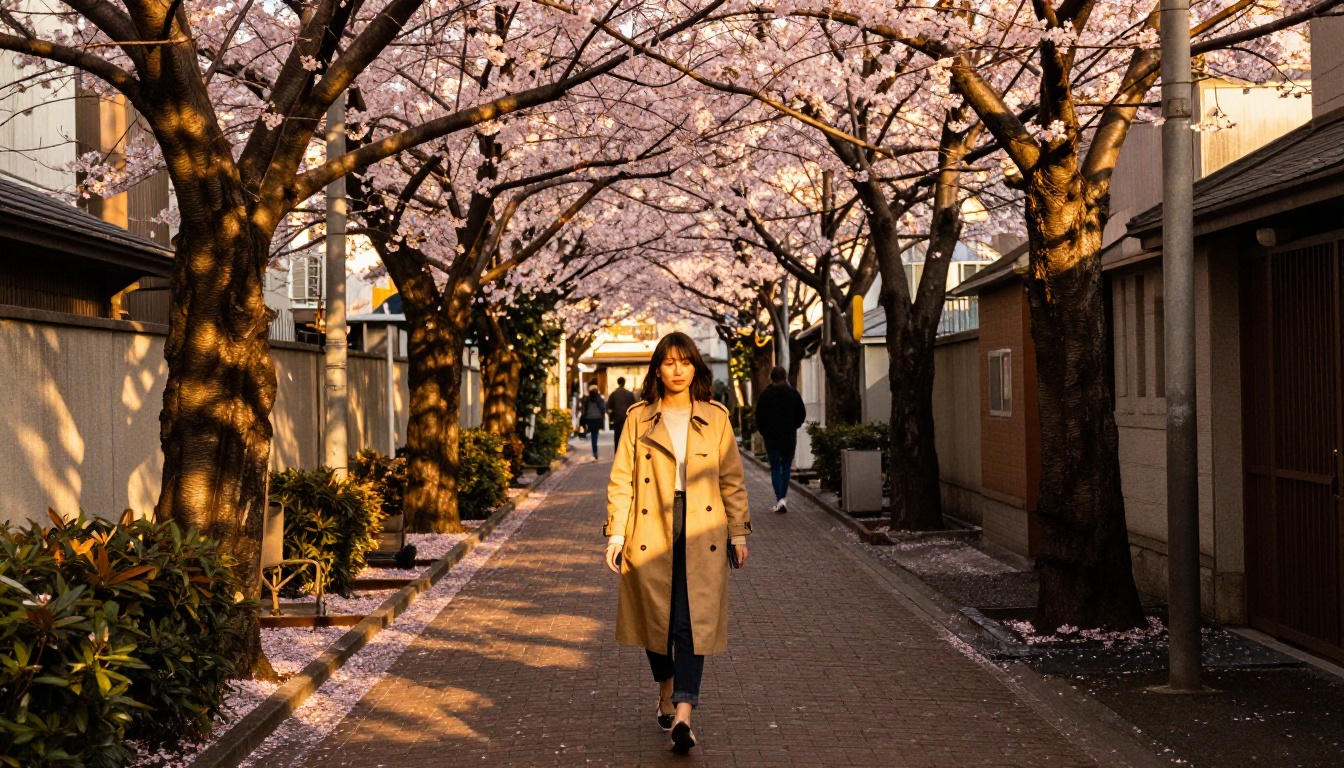
Kling v3 vs. Earlier Versions
Speed and Quality Tradeoffs
Kling v3 Omni Video sits at the top of the Kling line for output quality. Below it are models that trade some quality for speed or cost. Here's how they compare practically:
When v2.6 or v2.1 Still Makes Sense
If you're generating at volume, Kling v2.6 is often the right call. Its per-generation cost is lower, it processes faster, and for many use cases the quality difference from v3 is hard to see at normal viewing sizes. Save Kling v3 Omni Video for outputs where fine details matter: close-up product shots, face-forward portrait videos, anything going on a large screen or in a portfolio.
Kling v2.1 Master still has one practical advantage: more community testing. If you have a prompt that works reliably on v2.1, switching to v3 without re-testing may introduce inconsistency. Validate your prompt on v3 from scratch rather than assuming it will transfer directly.
How to Use Kling v3 Omni Video on PicassoIA
Step-by-Step Workflow
PicassoIA hosts Kling v3 Omni Video directly. Here's the complete workflow from source image to rendered video:
1. Prepare your source image
- Resolution: 1080p or higher preferred
- Format: JPG or PNG
- Composition: tight on your subject, clear separation from background
- Avoid: motion blur, severe underexposure, visible compression artifacts
2. Write your prompt before opening the tool
Draft it in a text editor first. Include subject action, camera movement, lighting notes, and pacing. A 30-50 word prompt tends to outperform both very short and very long ones in practice.
3. Open Kling v3 Omni Video on PicassoIA
Navigate to the model page, upload your image, paste your prompt, and set resolution to 1080p.
4. Review the first output with intention
Watch the video once without judging, then a second time with specific attention to:
- Subject consistency: does the face or form drift across frames?
- Motion believability: does it follow physics?
- Camera path: intentional or erratic?
5. Iterate on the prompt, not the image
If output is weak, the image is rarely the problem. Adjust the prompt first: be more specific about motion, add a camera instruction, or remove conflicting style words.
Parameter Tips for Better Results
💡 Duration: The 5-second default works for most social formats. Validate your prompt at 5s before committing to longer generations.
💡 Negative prompts: Use "blur, distortion, face morph, flickering, watermark, low quality, artifacts" in the negative field when the interface supports it.
💡 Seed locking: Once you find a prompt that works, lock the seed and vary only one element at a time. This isolates what's actually changing your output and speeds up iteration.

Real Results People Are Getting
Social Content and Short Films
The most common use case on PicassoIA is social video content. Creators take high-quality photos from shoots they already have and use Kling v3 Omni Video to extract multiple video clips from a single session. A portrait shoot of 20 photos can yield 20 distinct videos, each with different motion and atmosphere, all from the same camera roll.
Short filmmakers use it differently: as a previz tool. They generate video from a reference photo to test how a scene will feel before committing to a full shoot day. The output isn't broadcast quality for that purpose, but it's fast and cheap enough to iterate 10 versions in an afternoon and arrive on set with a clearer vision.
Product Showcase Videos
E-commerce teams are finding that product photos uploaded to Kling v3 Omni Video produce usable reveal clips. A shoe on a white background becomes a rotating close-up. A watch on a wrist gets a subtle hand-raise motion. A candle on a shelf gets a slow dolly-in with simulated flickering light.
The limitation is consistency at scale: if you need 50 identical-style product videos, you'll still need to do prompt engineering per SKU. For hero products or social ads, the quality-to-time ratio is genuinely competitive with traditional video production.
Other Video Models Worth Trying
Kling v3 Omni Video isn't the only strong option on PicassoIA. Depending on your specific need, these models solve different problems:
- Seedance 2.5: Up to 30-second clips with built-in audio. Better for longer narrative content where Kling v3's 5-second limit is a constraint.
- Wan 2.7 I2V: Strong image animation with excellent subject preservation, particularly for non-portrait subjects like architecture and product photography.
- Veo 3.1: Google's flagship model, excellent for 1080p cinematic output with native synchronized audio and best-in-class text-to-video quality when you don't have a photo reference.
- Ray 3.2: Luma's HDR video model. Worth trying when you need high contrast or wide dynamic range in outdoor scenes.
- Kling v2.5 Turbo Pro: Faster Kling output when you're iterating at speed and don't need maximum fidelity on every take.
None of these replace Kling v3 Omni Video for multimodal photo-plus-text input. But knowing when to switch saves time and credits.
Start Generating Now
You don't need a production studio or a custom shoot to produce cinematic video. If you have a good photo and 30 words of direction, you have everything Kling v3 Omni Video needs.
PicassoIA gives you direct access to the full Kling v3 lineup without needing a separate account. Pair Kling v3 Omni Video with Kling v3 Motion Control when you need exact camera choreography, or drop to Kling v2.6 when you're iterating at volume and speed matters more than maximum quality.
The best way to get good at prompting any AI video model is to generate consistently, compare outputs side by side, and isolate one variable at a time. Start with a photo you're already proud of. Write a specific motion prompt. Set a camera movement. Hit generate.
The whole catalog of video models is available at picassoia.com/en/all-models. If Kling v3 Omni Video doesn't fit your use case today, something else on that list will.


