Adding background music to an AI-generated video is the single step that separates a rough draft from something people actually watch until the end. Silent videos feel incomplete regardless of how visually impressive the footage is. The right background track signals emotion, sets pace, and keeps viewers engaged from the first second to the last.
The good news is that you no longer need a music license, a DAW, or any audio production experience. AI music generators can create original, royalty-free tracks from a text prompt in under a minute, and specialized merge tools let you combine that audio with your AI video in a few clicks. This article walks you through the full process, from choosing the right music model to exporting a polished final file.

Why AI Videos Sound Empty
Most AI video generators focus exclusively on the visual output. Models like text-to-video tools render stunning footage but export a silent MP4. That silence is jarring in the finished product. Viewers instinctively expect sound when watching video content, and the absence of it subconsciously signals "unfinished."
Background music does more than fill silence. It:
- Controls pacing: Fast-tempo tracks make cuts feel snappy; slow ambient music makes cinematic scenes breathe.
- Signals genre: Lofi beats say "casual tutorial," orchestral swells say "epic brand video."
- Holds attention: Studies consistently show that music increases average view duration on short-form video content.
- Adds professionalism: A well-matched soundtrack makes even simple AI footage look intentional.
The challenge is sourcing music that is royalty-free, fits the video's mood, and does not clash with any dialogue or voiceover. AI music generation solves all three problems simultaneously.
Two Ways to Add Music
Before generating anything, it helps to decide which approach fits your workflow.
| Approach | Best For | Complexity |
|---|
| Generate music separately, then merge | Full creative control over both video and audio | Low to medium |
| Use a video model with native audio output | Speed, fewer steps, synchronized atmosphere | Very low |
Option 1 gives you the most flexibility. You pick the exact vibe, tempo, and instrumentation of the music, then layer it on top of any AI video clip you have already created. This is the right approach when your video has specific pacing requirements or when you are working with existing footage.
Option 2 skips the merge step entirely. Some video models now generate native audio alongside the visual output, so the sound is baked into the file from the start. This is faster but gives you less control over the specific musical elements.
Both options are available on PicassoIA.
Generate Your Background Music with AI
The first step for Option 1 is creating your soundtrack. PicassoIA's AI music generation category includes several models with meaningfully different strengths. Here are the ones worth knowing.
Minimax Music 2.6
Minimax Music 2.6 is currently one of the strongest all-purpose music generators available. It produces full songs with vocals or purely instrumental tracks depending on your prompt. The model handles genre blending well, so prompts like "upbeat acoustic pop with a driving rhythm for a travel montage" return something genuinely usable rather than a generic loop.
What it does well:
- Full-length tracks, not just short clips
- Vocals when prompted with lyrics
- Wide genre coverage: pop, lo-fi, cinematic, electronic, folk
For background music specifically, keep your prompt focused on mood and tempo. Avoid requesting vocals if the track is going under narration or dialogue.
💡 Tip: Add "no lyrics, instrumental only" at the end of your prompt if you need a clean background track without singing.
Google Lyria 3
Google Lyria 3 excels at cinematic and orchestral content. If your AI video is dramatic, emotional, or needs a film-score feel, Lyria 3 is the first model to try. The output has noticeably higher production quality on complex arrangements compared to most alternatives.
For those who want the full professional tier, Google Lyria 3 Pro extends the capabilities further with longer durations and more nuanced prompt handling.
Prompt style that works well with Lyria 3:
"Slow-building cinematic score, solo piano opening, strings entering at the halfway mark, emotional and hopeful, suitable for a documentary highlight reel, no percussion in first 30 seconds."
Stable Audio 2.5
Stable Audio 2.5 from Stability AI is the go-to option for sound design and ambient music. It handles textures, soundscapes, and looping background tracks exceptionally well. If your AI video is a product showcase, a nature clip, or a mood piece that needs something subtle in the background, Stable Audio 2.5 delivers clean, non-intrusive results.
It is also particularly good at generating tracks that loop naturally, which is useful when your video is longer than a single generation's output.
ElevenLabs Music
ElevenLabs Music stands out for its ability to follow detailed compositional prompts. ElevenLabs has a strong reputation for audio quality across its product line, and the music model reflects that. It handles rhythmically complex prompts better than most, making it a strong choice for social media content where the beat needs to hit specific moments.
Minimax Music 2.5 is also worth a mention as a reliable alternative when you need multiple variations quickly without burning credits on the 2.6 model.
Merge the Music into Your AI Video
Once you have your audio file, the next step is combining it with your video clip. PicassoIA's video-editing category has several tools built specifically for this.
Video Audio Merge
Video Audio Merge is the most direct tool for this job. You supply your video file and your audio file, and the tool combines them. It supports replacing the existing audio track entirely or mixing new audio with existing sound.
Practical steps:
- Generate your AI video clip using any text-to-video model on PicassoIA
- Generate your background music track using any music model above
- Open Video Audio Merge and upload both files
- Set the desired volume balance between original audio and new music
- Export the merged file
💡 Tip: If your AI video already has ambient sound or sound effects baked in, use the mix option instead of replace. Setting the music volume to 30-40% of the original audio level usually produces a natural balance.
Audio to Video
Audio to Video from Lightricks takes a different approach: you supply an image and an audio file, and the model animates the image in response to the audio's rhythm and energy. This is particularly interesting for music visualizers, lyric videos, or content where the visual should react to the sound rather than the other way around.
It is not a traditional merge tool, but it solves a specific problem well. When you have a piece of music and want visuals that respond to it organically, this is the right model.
MMAudio and Thinksound
These two tools work in the reverse direction from what we have covered so far, but they are worth knowing about.
MMAudio analyzes your video content and generates AI audio that matches what is happening on screen. This is useful when you want the music and sound design to feel semantically connected to the visuals rather than just layered on top.
Thinksound takes a similar approach with a focus on contextual ambient sound. If your AI video shows a forest, a city street, or an interior space, Thinksound generates appropriate background audio that fits the scene.
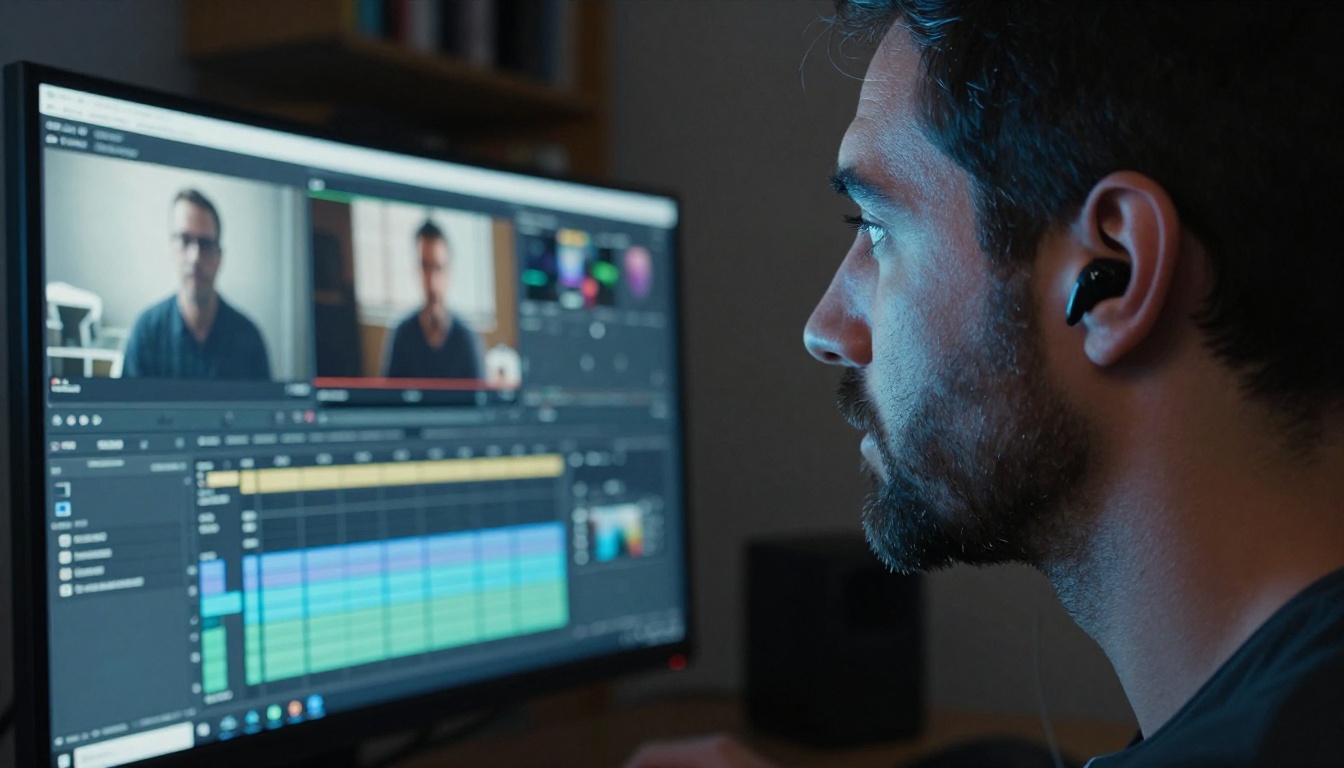
💡 Tip: For a complete audio package, use MMAudio or Thinksound first to add scene-appropriate ambient sound, then layer a subtle music track on top using Video Audio Merge at low volume. The result sounds significantly more immersive than music alone.
AI Video Models with Built-In Audio
If you want to skip the separate generation and merge workflow entirely, several video models on PicassoIA now output video with native synchronized audio. The audio is generated simultaneously with the video, so the two are naturally in sync.
Veo 3
Veo 3 from Google is one of the most capable video-with-audio models currently available. It generates video and audio simultaneously from a text prompt, meaning the ambient sounds, music, and atmospheric audio are all synchronized with the visuals from the first frame.
For background music in AI videos, this changes the workflow significantly. Instead of the three-step generate, create music, then merge sequence, you write one prompt and export a video with audio already included.
The trade-off is control. With Veo 3, you describe the audio you want in your prompt, but you cannot independently control the music's genre, tempo, or instrumentation after the fact. If the generated audio does not fit your needs, you regenerate or fall back to the manual merge approach.
Example prompt structure for Veo 3 with music:
"A slow-motion close-up of ocean waves at sunrise, soft orchestral background music, warm and peaceful atmosphere, natural ambient sound of water underneath the music."
Seedance 2.5
Seedance 2.5 from ByteDance is another strong option for video with built-in audio. It supports up to 30-second clips with synchronized audio generation, which is well-suited to social media content and short-form video.
For creators who post frequently and need polished results quickly, Seedance 2.5 hits the right balance between quality and speed. The audio quality on its output is noticeably better than most earlier-generation video models.
Matching Music to Your Video's Mood
Generating music is one thing. Generating music that actually fits your video is another. These principles make the difference between background music that enhances the content and music that fights it.
Tempo:
Match the music's beats per minute to the visual pace of the video. A slow cinematic clip with fast electronic music creates cognitive dissonance. Describe the visual rhythm in your music prompt: "slow-paced, spacious, minimal percussion" or "upbeat, driving, 120 BPM energy."
Key and tonality:
For emotional content (weddings, travel, personal stories), minor keys feel reflective and bittersweet; major keys feel optimistic and warm. Mention this in your prompt: "in a major key, bright and warm" or "melancholic minor key, contemplative."
Instrumentation and genre:
The instruments in the music signal context immediately. Acoustic guitar reads as personal and authentic. Strings read as cinematic and elevated. Synthesizers read as modern and tech-forward. Pick instrumentation that aligns with your video's subject matter.
| Video Type | Recommended Music Style |
|---|
| Product showcase | Minimal electronic, no vocals, clean beats |
| Travel montage | Acoustic pop or world-music influences |
| Nature / landscape | Ambient, orchestral, no percussion |
| Tutorial / how-to | Lo-fi, upbeat instrumental, non-distracting |
| Brand / corporate | Cinematic, motivational, light strings or piano |
| Social / lifestyle | Trending pop styles, punchy rhythm |
Duration:
Generate music that is slightly longer than your video. Fading out a track at the 85% mark sounds intentional; cutting it abruptly does not.
Common Mistakes to Avoid
Most problems with AI video music come down to a handful of repeatable errors.
Using music with competing vocals: If your video has narration or dialogue, any music with lyrics will create a confusing audio mix. Always specify "instrumental only" or "no vocals" in your music prompt for these cases.
Volume that overwhelms the visuals: Background music should stay in the background. A track that is too loud pulls attention away from the video content. In Video Audio Merge, start with the music at 25-35% of its original volume and adjust from there.
Mismatched tempo and cut timing: Fast cuts with slow music, or slow dissolves with fast music, break the viewer's sense of flow. Before generating music, watch your video once and note whether it cuts quickly or moves slowly.
Copyright assumption: Even AI-generated music can have complex licensing depending on the tool. PicassoIA's music generation models produce original, non-derivative output that you can use commercially, but always check the specific model's usage terms if you are publishing at scale.
Forgetting to match energy at the opening: The first 3 seconds of a video determine whether someone keeps watching. Make sure your music enters at the right energy level for that opening frame, not after a long intro buildup.
A Simple Repeatable Workflow
Here is a practical process that works for most AI video content:
- Create your AI video clip using any text-to-video model on PicassoIA.
- Decide the mood: Write two or three adjectives that describe how you want the viewer to feel (e.g., "energetic, uplifting, forward-moving").
- Generate your music using Minimax Music 2.6 for pop and versatile styles, Google Lyria 3 for cinematic and orchestral content, or Stable Audio 2.5 for ambient and texture work.
- Merge the audio and video using Video Audio Merge, setting music volume to 30-40%.
- Preview and adjust: If the energy does not match, regenerate the music with adjusted prompt parameters. The generation is fast enough that two or three iterations rarely take more than a few minutes total.
This five-step loop takes under 10 minutes once you are familiar with the tools.
Start Adding Music to Your Videos Today
Every AI video you create is better with the right background track. The tools to generate that track and merge it cleanly into your footage are all in one place, without needing third-party software, music libraries, or audio production skills.
PicassoIA gives you direct access to Minimax Music 2.6, Google Lyria 3 Pro, Stable Audio 2.5, ElevenLabs Music, Video Audio Merge, MMAudio, Audio to Video, and more, all in a single platform. You can generate a video, create a custom soundtrack, and export a polished final file without ever leaving the browser.
Try it now at picassoia.com/en/all-models and see how much a single audio layer changes the way your AI videos land.


