Anime characters look incredible as still images. The line art, the expression, the pose, every detail frozen in a single frame. But there is something missing: movement. The way hair catches wind, how a cape swings during a turn, or how a character blinks and tilts their head. That is where AI animation tools have become genuinely useful, producing results in seconds that would take a frame-by-frame animator days.
This article walks through exactly how to animate a still anime character with AI: which tools do the job well, how to write prompts that produce natural motion, and why some approaches fail while others work on the first try.
What AI Actually Does to a Still Image
When you upload a still anime character to an AI animation model, the model does not trace your drawing frame by frame. It uses a video diffusion model trained on thousands of hours of animated and live-action footage. The model infers what the next frame should look like based on your input image and a text description of the desired motion.
The result is not traditional animation. It is closer to temporal interpolation with AI-guided motion synthesis: the model predicts plausible movement that fits the visual style of your input image.
💡 Why this matters for anime specifically: Anime has a distinct visual language, flat shading, bold outlines, exaggerated proportions. Models trained on live-action footage sometimes struggle to preserve these qualities during animation. The best results come from models that were explicitly trained on or fine-tuned for illustrated content.
This is why not every image-to-video AI tool gives good results with anime. Some produce realistic-looking motion but smear the art style in the process. Others over-smooth the character, erasing the line work that defines the look. Picking the right model from the start saves hours of trial and error.
The Two Inputs Every Model Needs
Every AI animation tool works with the same two inputs:
- A source image: Your still anime character. Higher resolution gives better results. PNG or JPG both work.
- A motion prompt: A text description of what should move and how. "Hair blowing gently in wind, character blinks slowly" is far more useful than "animate this."
Some models also accept a negative prompt, which tells the model what to avoid, for example: "morphing, distortion, background movement."
Not all AI video generators handle illustrated art styles the same way. Here are the models on PicassoIA that consistently produce good results with anime characters:
| Model | Strength | Best For |
|---|
| Tooncrafter | Built for illustrations | 2D anime, flat-shaded art |
| Wan 2.7 I2V | High motion fidelity | Detailed backgrounds plus characters |
| Kling v3 Motion Control | Precise movement control | Action sequences, complex poses |
| Dreamactor M2.0 | Character-specific animation | Full-body motion from a reference clip |
| P Video Animate | Fast and free | Quick previews and tests |
| Pia | Illustration-friendly output | Studio Ghibli-style and watercolor art |
💡 Start with Tooncrafter if you are new to this. It was specifically designed to animate hand-drawn and illustrated characters, which makes it the most forgiving option for anime art styles.
How to Use Tooncrafter on PicassoIA
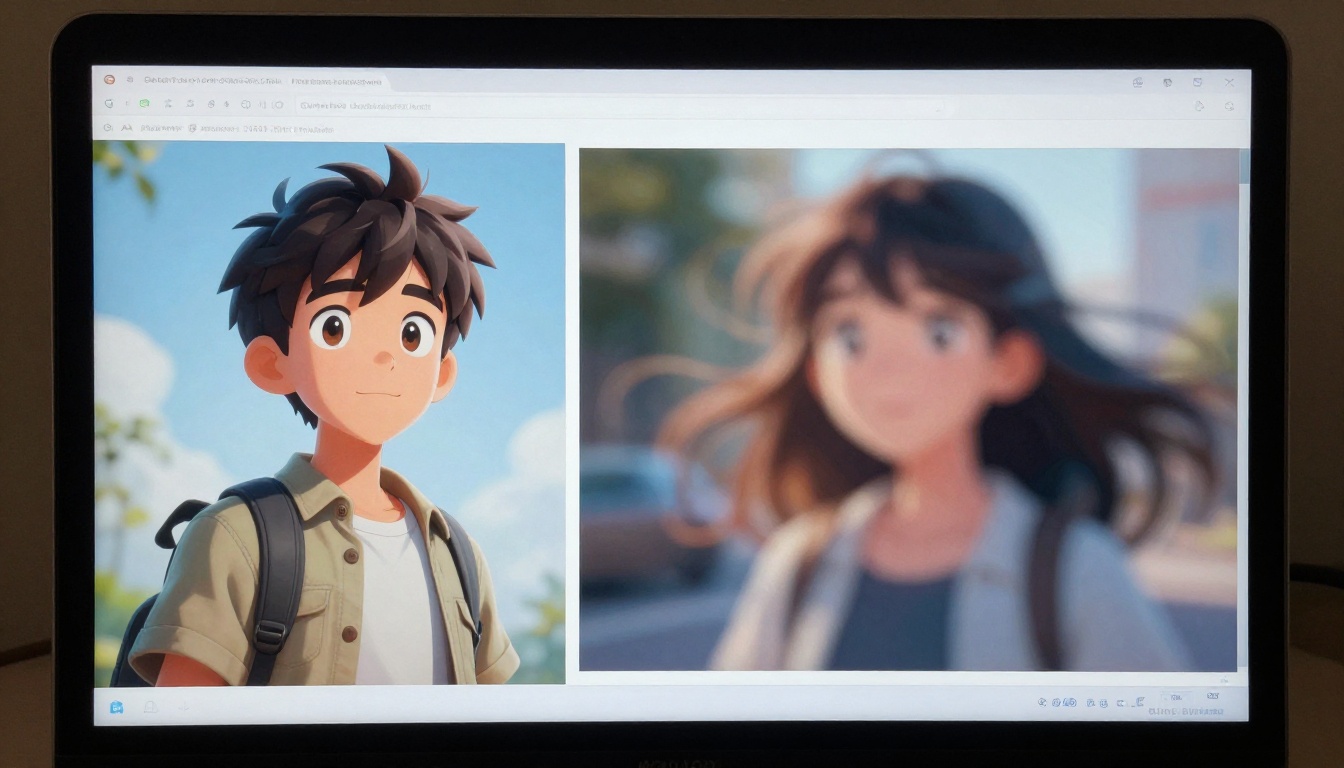
Tooncrafter is the most directly relevant model for animating illustrated characters. It accepts an input image and optional secondary image for interpolation between two poses, then outputs a short video clip that preserves the art style throughout.
Step 1: Prepare Your Source Image
- Use a clean, high-resolution version of your character (at least 512x512 pixels)
- Remove or simplify busy backgrounds; isolated characters on simple or solid backgrounds animate more cleanly
- Avoid images where limbs overlap the character's body in a way that would make the intended movement ambiguous
Step 2: Open Tooncrafter on PicassoIA
Go to Tooncrafter on PicassoIA and upload your source image in the input panel.
Step 3: Write the Motion Prompt
The motion prompt is the single most important parameter. Use specific, physical descriptions:
Weak prompt: "Make it move"
Strong prompt: "Character's long hair sways gently to the right, eyes blink once, slight breathing motion visible in the chest, soft cloth ripples along the hem of the skirt, static background throughout"
What to include in your prompt:
- Which body part moves (hair, arms, eyes, chest for breathing)
- Direction and speed (slowly, gently, slightly, vigorously)
- What stays still (background, core body pose)
Step 4: Set the Duration and Run
Tooncrafter generates clips between 2 and 5 seconds. For most anime character loops, 3 seconds is the sweet spot. It gives enough time for a blink, a hair sway, or a subtle pose shift without the motion looping awkwardly.
Step 5: Review and Iterate
Review the output. If the face morphs or the art style breaks down, try:
- Reducing motion intensity in your prompt ("very subtle", "barely perceptible")
- Simplifying to a single motion instead of several at once
- Providing a higher-resolution crop of the character face
Getting Motion Right: Prompts That Work
The biggest single mistake people make is writing vague prompts. "Animate this character" tells the model almost nothing useful. Here are prompt patterns that consistently produce good results.
For Idle Loop Animations
"Character stands still with subtle breathing, long hair moves gently in a light breeze from the left, eyes blink once at two seconds, slight cloth movement on the skirt hem, no background movement, smooth and slow pacing throughout"
For Action Sequences
"Character raises right arm slowly overhead, cloth sleeve follows the motion with natural drag, hair lifts slightly from the movement, returns to starting position by the end of the clip, no background movement"
For Emotional Reactions
"Character's eyes widen slightly, head tilts five degrees to the right, a small smile forms gradually over two seconds, no full body movement, warm and soft lighting throughout"
💡 The specificity rule: If your prompt is under 15 words, it is almost certainly too vague. Describe the physics of the movement, not just the action itself.
When building prompts, think in terms of: anime motion physics, cloth drag and settle, character idle loops, breathing animation cycles, and hair dynamics. The more you describe the physics, the more the model has to work with.
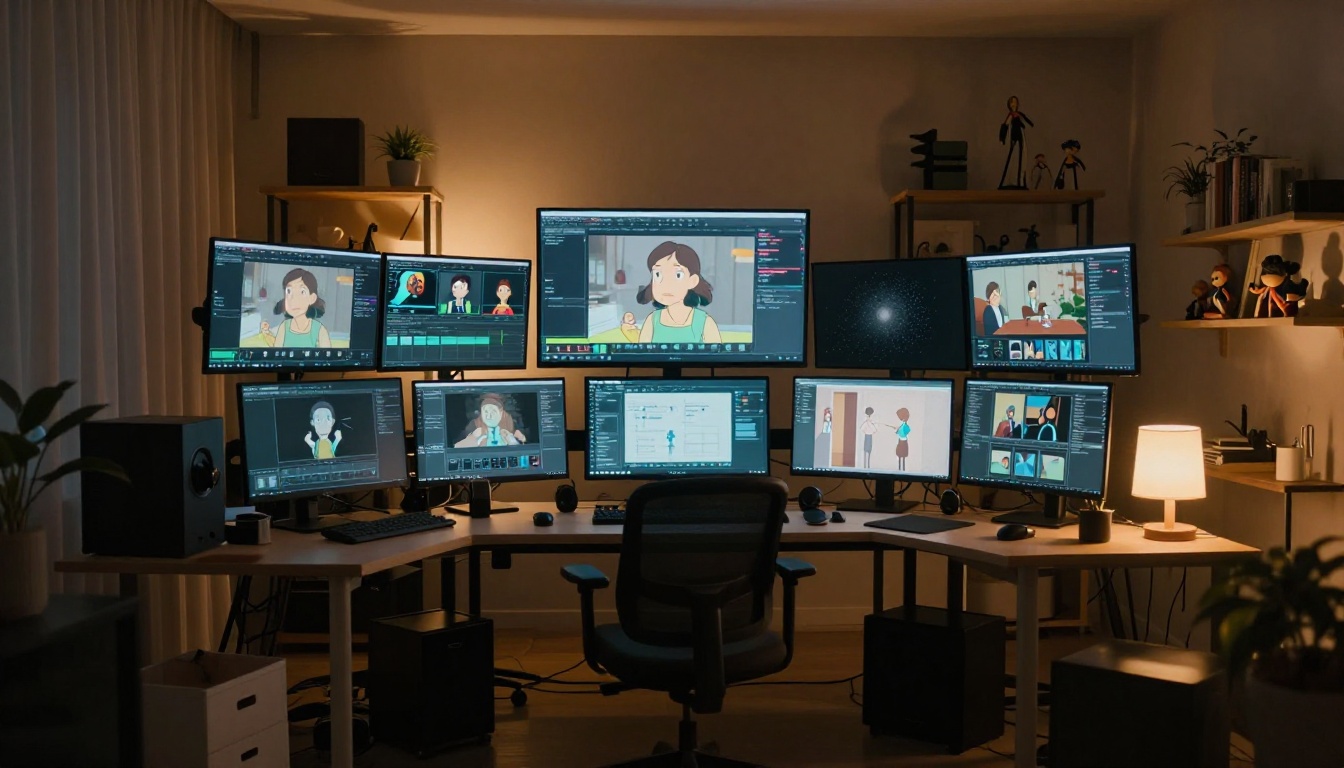
Wan 2.7 I2V vs. Kling v3: A Real Comparison
If Tooncrafter does not match your style, Wan 2.7 I2V and Kling v3 Motion Control are the two strongest alternatives. Here is how they differ in practice:
| Factor | Wan 2.7 I2V | Kling v3 Motion Control |
|---|
| Art style preservation | Strong, handles flat shading well | Better on semi-realistic anime styles |
| Motion complexity | Handles multi-element motion cleanly | Precise character-only motion targeting |
| Output speed | Moderate | Faster output |
| Prompt sensitivity | High: longer prompts yield better results | Medium: concise prompts work well |
| Background handling | Background animates with character | Can isolate character motion from background |
When to choose Wan 2.7 I2V: Your anime character has a richly illustrated background you want to animate alongside the character. Scenes with wind, water, or environmental motion look excellent with this model.
When to choose Kling v3 Motion Control: You want precise control over exactly which parts of the character move. It handles body part targeting better than most models in this category and is particularly useful for battle poses or specific limb movement.
For action sequences with full-body poses, Dreamactor M2.0 is worth testing. It accepts a reference motion video and applies that motion pattern to your static character, producing the most realistic movement at the cost of needing a reference clip to start.
3 Common Failures (and the Fixes)
1. Face Morphing or Melting
What happens: The character's face distorts over the clip, with features shifting position or blending together.
Why it happens: The motion prompt includes too much simultaneous facial movement, or the source image has low resolution around the face.
Fix: Simplify facial movement to one element at a time: just a blink, or just a slight head tilt, not both at once. Crop a higher-resolution version of the face if the original image is small.
2. Background Motion Breaking the Scene
What happens: The character animates correctly but the background morphs or ripples in an unintended way.
Why it happens: The model treats the entire image as a dynamic scene and applies motion to all visible elements.
Fix: Use Tooncrafter or Kling v3 Motion Control, both of which handle background separation better. Add "static background, no background movement" explicitly to your prompt.
3. Character Looks Like Live-Action Video
What happens: The AI generates photorealistic motion instead of preserving the anime art style.
Why it happens: Models trained predominantly on live-action footage default to realistic motion physics and textures.
Fix: Add explicit style descriptors to your prompt: "2D animation style, preserve line art, flat shading, anime aesthetic, no photorealism." Tooncrafter and Pia are the most reliable for style preservation when art fidelity matters most.
Picking the Right Model for Your Art Style
Anime is not one style. There is a significant visual difference between Studio Ghibli watercolor backgrounds, shonen battle art with sharp lines and thick outlines, slice-of-life character designs with soft pastels, and dark seinen art with heavy shadows. The model you pick should match the visual characteristics of your specific artwork.
Flat-Shaded Moe and Slice-of-Life
Best models: Tooncrafter, Pia
These styles have clean flat fills, minimal texture, and soft line work. Both Tooncrafter and Pia were designed with illustrated content in mind and handle this style with the least distortion of the available options.
Semi-Realistic Detailed Anime
Best models: Wan 2.7 I2V, Kling v3 Motion Control
More detailed anime with realistic proportions and rendered muscle definition benefits from models with higher motion fidelity. Wan 2.7 I2V handles complex scenes with multiple elements in frame without losing coherence.
Action and Battle Poses
Best models: Dreamactor M2.0, Kling v3 Motion Control
Action poses with weapons, spread limbs, or dramatic angles need precise motion control. Dreamactor M2.0 is particularly strong when you have a reference video showing the motion pattern you want to replicate on your character.
Watercolor and Painterly Styles
Best models: Pia, AnimateDiff Prompt Travel
AnimateDiff Prompt Travel gives fine-grained control over the motion narrative by letting you specify different prompt states at different time steps in the video, which is excellent for painterly characters where controlled, smooth transitions matter most.
Going Further: Workflow Tips for Better Results
Once you have a basic animation working, these approaches push results from acceptable to genuinely impressive:
Use a transparent or simple background
Separate your character from a complex background before animating. A character on a white or gradient background gives the model nothing to distort behind the subject. Composite the animated character back onto your original scene in a video editor afterward.
Animate in short clips, then stitch
Instead of asking for five seconds of complex motion in one pass, generate two to three seconds of controlled motion and chain multiple clips. Each clip is easier for the model to handle, and the final result looks more deliberate.
Match the motion to the character's personality
A gentle, soft-spoken character benefits from slow, minimal motion: a slight hair sway, a slow blink, gentle cloth movement. A high-energy action character benefits from dynamic arm movement, a tilted head, visible speed in the motion. The animation should match what the character would actually do in context.
Use Seedance 2.5 for longer clips
If you need more than five seconds of continuous animation, Seedance 2.5 supports up to 30-second clips with smooth motion retention. This is useful for scene intros or character reveals where sustained movement over a longer duration is needed.
Try Wan 2.7 R2V for subject-focused motion
Wan 2.7 R2V is specifically designed to animate a specific subject in the scene while keeping surrounding elements more static. For character-only animation with a complex illustrated background, this model handles the subject isolation cleanly without background distortion.
Try It on Your Own Characters Today
The tools are all available right now, and most of them are free to start. The fastest path to your first animated anime character:
- Go to Tooncrafter on PicassoIA
- Upload a clean, isolated character image at 512px or higher
- Write a specific motion prompt describing one or two physical movements
- Generate, review, and iterate with adjusted prompts
If you want to check additional options beyond Tooncrafter, the full collection of image-to-video and animation models is at picassoia.com/en/all-models. There are over 120 video generation models available, from subtle character idle loops to full cinematic action sequences.
The gap between a static character sheet and a living, moving character is now a matter of minutes. Pick the model that fits your art style, write a specific motion prompt, and see what your character can do.


